Customer feedback plays a critical role in improving products, services, and customer experience. However, collecting feedback alone does not create value. Organizations must evaluate feedback properly to extract insights and take action. Without a structured approach, feedback often remains scattered, misunderstood, or ignored.
That is exactly where a Customer Feedback Evaluation Checklist in Excel becomes an essential and practical solution.
This detailed guide explains what a Customer Feedback Evaluation Checklist in Excel is, how it works, why businesses need it, and how each worksheet supports systematic evaluation. Moreover, this article covers the advantages, best practices, and frequently asked questions to help you use this checklist effectively.
Click to Purchases Customer Feedback Evaluation Checklist in Excel
What Is a Customer Feedback Evaluation Checklist in Excel?
A Customer Feedback Evaluation Checklist in Excel is a structured, ready-to-use Excel template designed to help organizations review, assess, and evaluate customer feedback in a systematic way.
Instead of reading feedback randomly or relying on unorganized notes, this checklist allows teams to:
-
Track feedback evaluation steps clearly
-
Assign responsibility for each task
-
Monitor progress using visual indicators
-
Ensure no feedback item gets overlooked
Because Excel offers flexibility, familiarity, and control, this checklist works perfectly for small businesses, startups, and even large teams.
Why Do Businesses Need a Customer Feedback Evaluation Checklist?
Many organizations collect customer feedback but fail to evaluate it properly. As a result, valuable insights remain unused. Therefore, a structured evaluation checklist becomes necessary.
Here are key reasons why businesses need this checklist:
-
Feedback volume increases rapidly
-
Teams struggle to prioritize feedback
-
Responsibilities remain unclear
-
Deadlines often get missed
-
Progress tracking becomes difficult
However, when teams use a Customer Feedback Evaluation Checklist in Excel, they gain clarity, accountability, and consistency.
How Does a Customer Feedback Evaluation Checklist in Excel Work?
This checklist works as a centralized evaluation tool. Teams enter feedback-related tasks, assign owners, define deadlines, and update the status as they complete each step.
Moreover, Excel formulas automatically calculate progress metrics, which makes tracking easier and faster.
Because the checklist follows a logical flow, teams can evaluate feedback step by step without confusion.
What Are the Key Worksheets in the Customer Feedback Evaluation Checklist Template?
This ready-to-use Excel template contains two structured worksheets, each serving a specific purpose.
Click to Purchases Customer Feedback Evaluation Checklist in Excel
1: Customer Feedback Evaluation Checklist Sheet

This is the main working sheet of the template. Teams use this sheet daily to evaluate customer feedback activities.
Let us break down this worksheet in detail.
What Is Included in the Top Section of the Checklist Sheet?
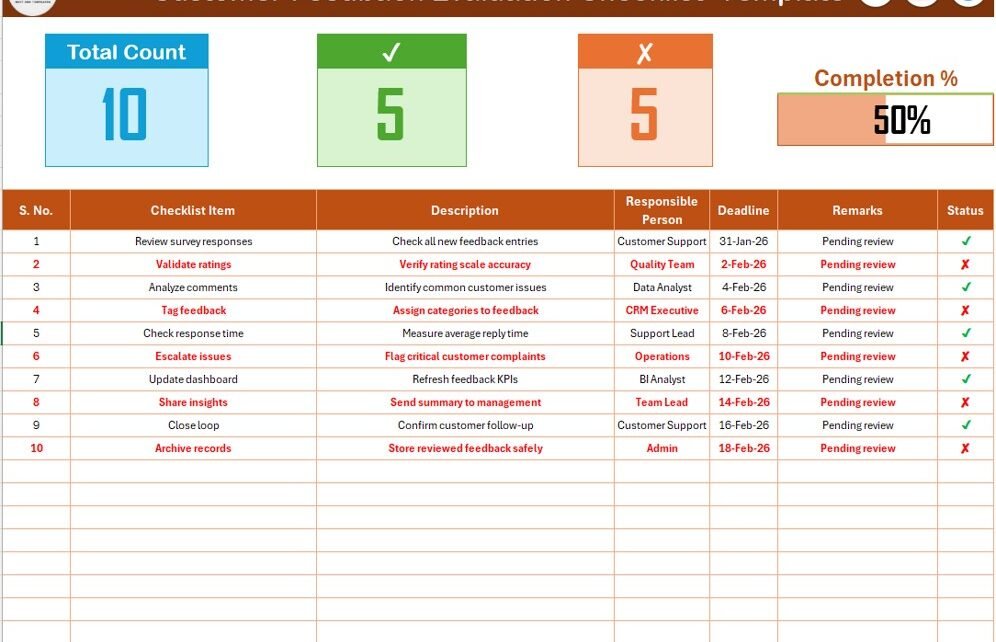
The top section provides a quick overview of progress and performance.
It includes:
-
Total Count – Total number of checklist items
-
Checked Count – Number of completed items
-
Crossed Count – Number of pending or rejected items
-
Progress Bar – Visual indicator showing completion percentage
Because visual indicators simplify monitoring, managers can instantly understand the evaluation status.
What Is the Checklist Table Used For?
The checklist table is the core of the template. Teams update this table regularly as they evaluate feedback.
Each row represents one evaluation task related to customer feedback.
What Are the Columns in the Checklist Table?
The checklist table includes the following columns:
-
Serial No. – Unique number for each checklist item
-
Checklist Item – Evaluation task name
-
Description – Short explanation of the task
-
Responsible Person – Person accountable for the task
-
Deadline – Target completion date
-
Remarks – Notes or observations
-
Status – ✔ for completed, ✘ for pending
Because all columns remain clearly defined, teams avoid confusion and duplication.
How Does the Status Column Improve Tracking?
The status column allows users to mark tasks as completed or pending using simple symbols:
-
✔ indicates completed
-
✘ indicates pending
Once users update the status, Excel automatically recalculates totals and updates the progress bar. Therefore, teams can track progress in real time.
2: List Sheet Tab

The second worksheet supports data validation and consistency.
What Is the Purpose of the List Sheet?
The List sheet captures a unique list of Responsible Persons. This list feeds the dropdown menu in the main checklist table.
Because dropdowns reduce manual typing, they improve data accuracy and standardization.
Click to Purchases Customer Feedback Evaluation Checklist in Excel
How Does the Dropdown Improve Efficiency?
Instead of typing names repeatedly, users select names from a dropdown list. As a result:
-
Errors reduce significantly
-
Naming remains consistent
-
Reporting becomes easier
Therefore, the List sheet plays a critical supporting role.
How Can Teams Use a Customer Feedback Evaluation Checklist Effectively?
To gain maximum value, teams should follow a structured approach while using this checklist.
Step 1: Define Evaluation Criteria Clearly
First, teams should decide how they will evaluate feedback. For example:
-
Feedback relevance
-
Severity of issues
-
Customer sentiment
-
Action requirement
Clear criteria help teams create meaningful checklist items.
Step 2: Assign Responsibility Properly
Next, teams must assign each task to the right person. Clear ownership ensures accountability and faster completion.
Step 3: Set Realistic Deadlines
Deadlines keep the evaluation process on track. Therefore, teams should set achievable timelines.
Step 4: Update Status Regularly
Regular updates ensure accurate progress tracking. Teams should mark ✔ or ✘ immediately after task completion or delay.
Step 5: Review Progress Periodically
Managers should review the progress bar and counts during weekly or monthly meetings. This habit ensures continuous improvement.
Click to Purchases Customer Feedback Evaluation Checklist in Excel
Advantages of Customer Feedback Evaluation Checklist in Excel
Using this checklist offers several advantages for businesses of all sizes.
1. Improves Feedback Evaluation Accuracy
Because tasks remain structured, teams evaluate feedback consistently and thoroughly.
2. Saves Time and Effort
Instead of managing multiple files, teams use one centralized Excel checklist.
3. Enhances Accountability
Clear responsibility assignment ensures that every task has an owner.
4. Provides Real-Time Progress Visibility
The progress bar and counts offer instant insights into evaluation status.
5. Reduces Errors and Oversights
Standardized columns and dropdown lists minimize mistakes.
6. Easy to Customize
Teams can easily modify checklist items, columns, and formulas to match their needs.
7. Works Offline
Since Excel works offline, teams can use this checklist without internet access.
8. Cost-Effective Solution
Unlike expensive feedback tools, this Excel checklist offers powerful features at a low cost.
Click to Purchases Customer Feedback Evaluation Checklist in Excel
Who Can Use a Customer Feedback Evaluation Checklist in Excel?
This checklist suits a wide range of users.
-
Customer support teams
-
Product managers
-
Quality assurance teams
-
Marketing teams
-
Small business owners
-
Consultants and analysts
Because of its flexibility, almost any team handling customer feedback can benefit.
Best Practices for the Customer Feedback Evaluation Checklist in Excel
To get consistent results, teams should follow these best practices.
1. Keep Checklist Items Short and Clear
Short checklist items improve readability and understanding.
2. Update the Checklist Daily
Daily updates prevent backlog and confusion.
3. Use Remarks for Context
Remarks help future reviewers understand decisions and actions.
4. Review Progress Weekly
Weekly reviews ensure timely completion and accountability.
5. Maintain the Responsible Person List
Keep the List sheet updated to avoid missing or incorrect names.
6. Archive Old Evaluations
Periodically archive completed checklists to keep the file clean.
7. Protect Formulas and Cells
Protect key cells to prevent accidental changes.
8. Train Team Members Briefly
A short training session ensures consistent usage across the team.
Click to Purchases Customer Feedback Evaluation Checklist in Excel
How Does This Checklist Improve Decision-Making?
Structured evaluation leads to better decisions. Because teams analyze feedback systematically, they can:
-
Identify recurring issues
-
Prioritize improvement areas
-
Allocate resources effectively
-
Track improvement impact
As a result, customer satisfaction improves steadily.
Can This Checklist Support Continuous Improvement?
Yes, absolutely.
By reviewing feedback evaluations regularly, teams can refine processes, improve products, and enhance customer experience continuously.
Click to Purchases Customer Feedback Evaluation Checklist in Excel
Conclusion: Why Choose a Customer Feedback Evaluation Checklist in Excel?
A Customer Feedback Evaluation Checklist in Excel provides a simple yet powerful way to manage feedback evaluation efficiently. Instead of relying on memory or scattered notes, teams follow a clear, structured process.
With its two well-designed worksheets, progress tracking features, and easy customization, this checklist helps organizations turn raw feedback into actionable insights.
If your goal is to improve customer satisfaction, streamline evaluation, and maintain accountability, this Excel checklist becomes an ideal solution.
Frequently Asked Questions (FAQs)
What is a Customer Feedback Evaluation Checklist in Excel?
It is a structured Excel template that helps teams evaluate customer feedback using checklist items, responsibilities, deadlines, and progress tracking.
Who should use a Customer Feedback Evaluation Checklist?
Customer support teams, product managers, quality teams, and business owners can use it effectively.
Can this checklist be customized?
Yes, users can modify checklist items, columns, formulas, and design easily.
Does this checklist require Excel expertise?
No, basic Excel knowledge is sufficient to use this checklist.
Can teams track progress automatically?
Yes, the checklist includes automatic counts and a progress bar.
Is this checklist suitable for small businesses?
Yes, it works perfectly for small, medium, and large organizations.
Can multiple users update the checklist?
Yes, teams can share the file and collaborate using Excel sharing options.
Does this checklist work offline?
Yes, Excel allows offline usage without internet dependency.
Click to Purchases Customer Feedback Evaluation Checklist in Excel
Visit our YouTube channel to learn step-by-step video tutorials