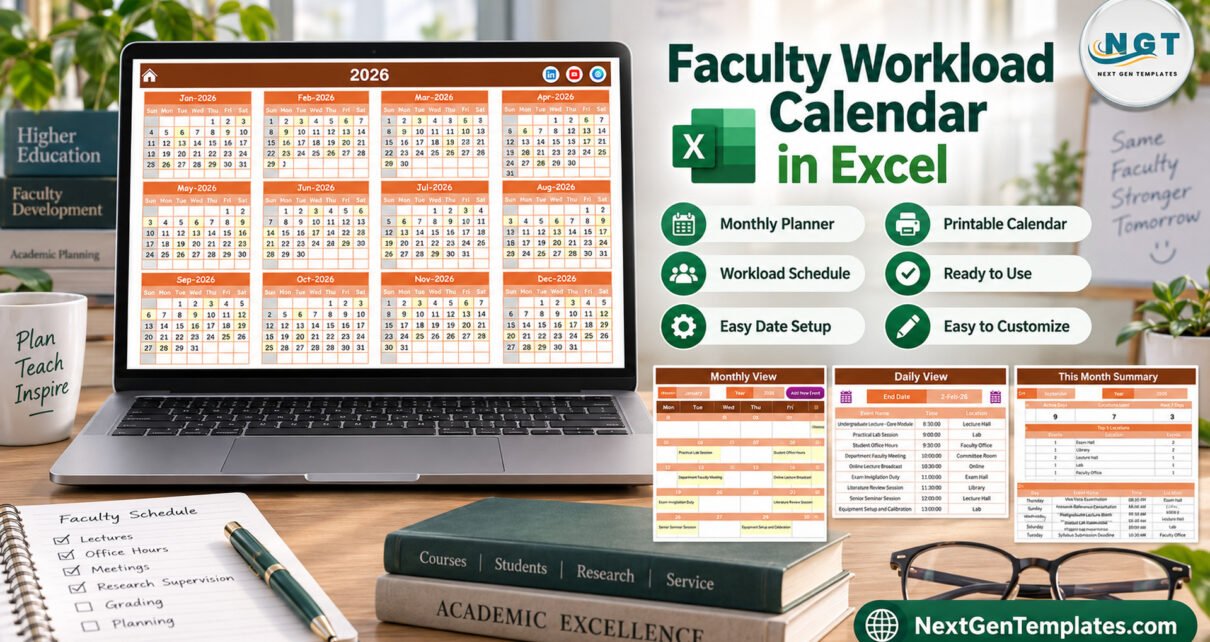
The Faculty Workload Calendar in Excel is a macro-enabled workbook that puts a full academic year of lectures, lab sessions, office hours, exam duties, research blocks and committee meetings on five linked pages. It comes with 100 sample events dated 3 January to 29 December 2026, spread over 7 locations, with 7 to 9 duties in every month.
For most lecturers the working week is scattered across a teaching timetable, an exam office email, a committee invitation and a note about a grant deadline. When invigilation lands on the same week as a grade submission deadline and two committee meetings, nobody sees the clash until it arrives. This calendar gives every duty a single Excel home, so a lecturer, a head of department or a department office can read the same yearly plan.

One thing to be clear about up front: this is a calendar of workload events. Each row is one dated duty with a start time, a location and a description. It does not total teaching hours, credit loads or pay, and it has no lecturer name column, so it is not an HR, timesheet or teaching-load allocation tool.
Key Features of the Faculty Workload Calendar in Excel
The workbook has seven sheets: Home, Annual View, Monthly View, Daily View, This Month, Events and Setting. Everything reads from one Events table, so a duty you add once appears on every view.
- Annual View: twelve month grids on one page, with every date that holds a duty highlighted.
- Monthly View: Month and Year selectors and a full month grid with the event name written under each date.
- Daily View: Start Date and End Date pickers, a refresh button and a detailed list for that range.
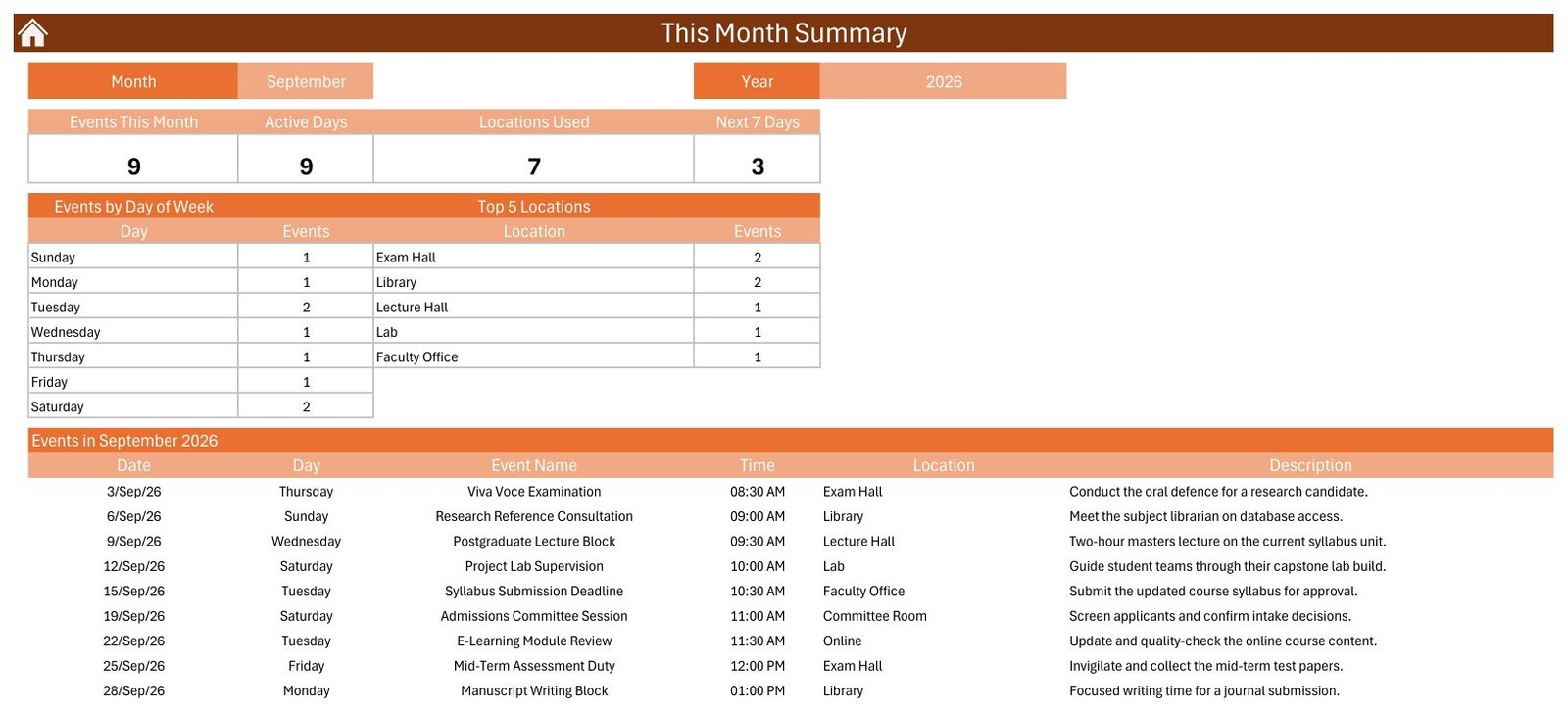
- This Month Summary: Events This Month, Active Days, Locations Used and Next 7 Days cards, plus day-of-week and top 5 location tables.
- Events sheet: the master table with Add New Record, Update Record and Delete Record buttons.
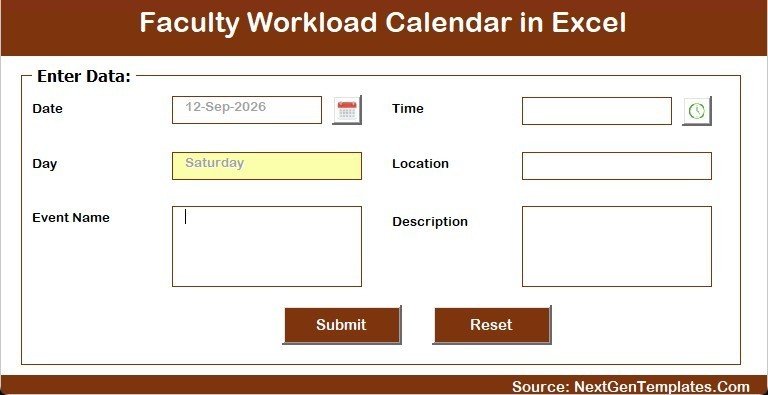
- Entry form: date and time pickers, the day filled in automatically, and Event Name, Location and Description boxes.
- Setting sheet: year, starting month, week start day, two highlighted weekdays, event highlighting and five colour themes.
Template Structure: Every Page Explained
Home
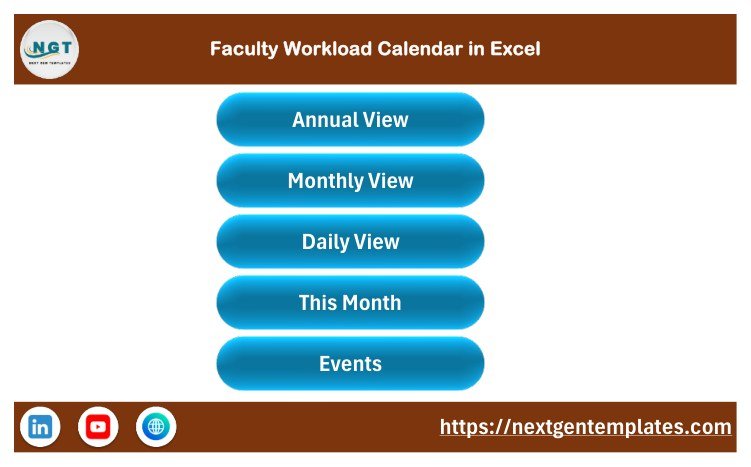
The Home sheet carries the title bar and five large buttons: Annual View, Monthly View, Daily View, This Month and Events. Each working page has a house icon that returns here, so nobody has to hunt through sheet tabs.
Annual View
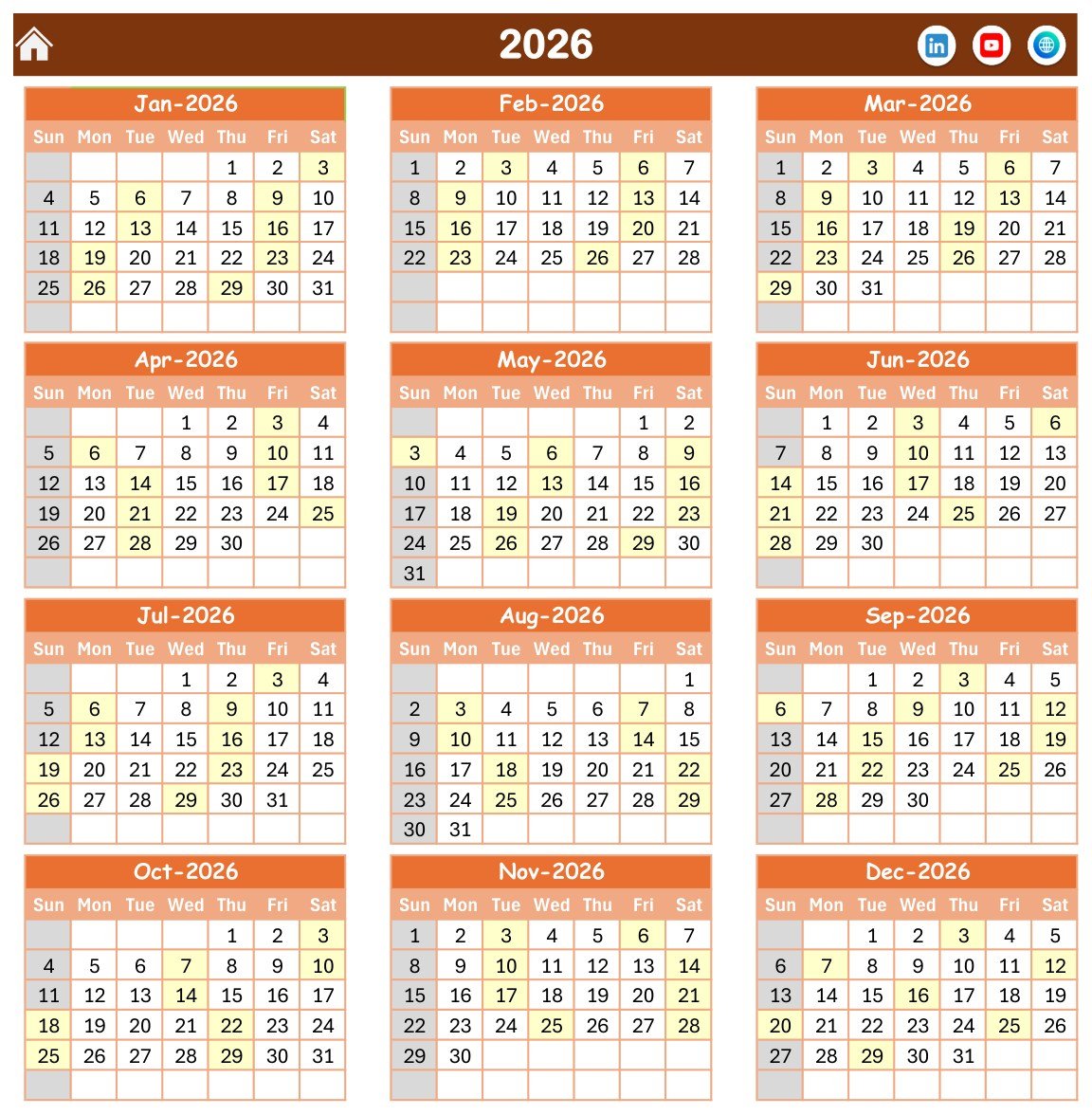
All twelve months of the chosen year sit in a three-across grid with a Sun to Sat header. Dates that hold a duty are shaded light yellow. In the sample the rhythm is roughly two duties a week all year, which makes any week you overload easy to see once you add your own dates.
Monthly View
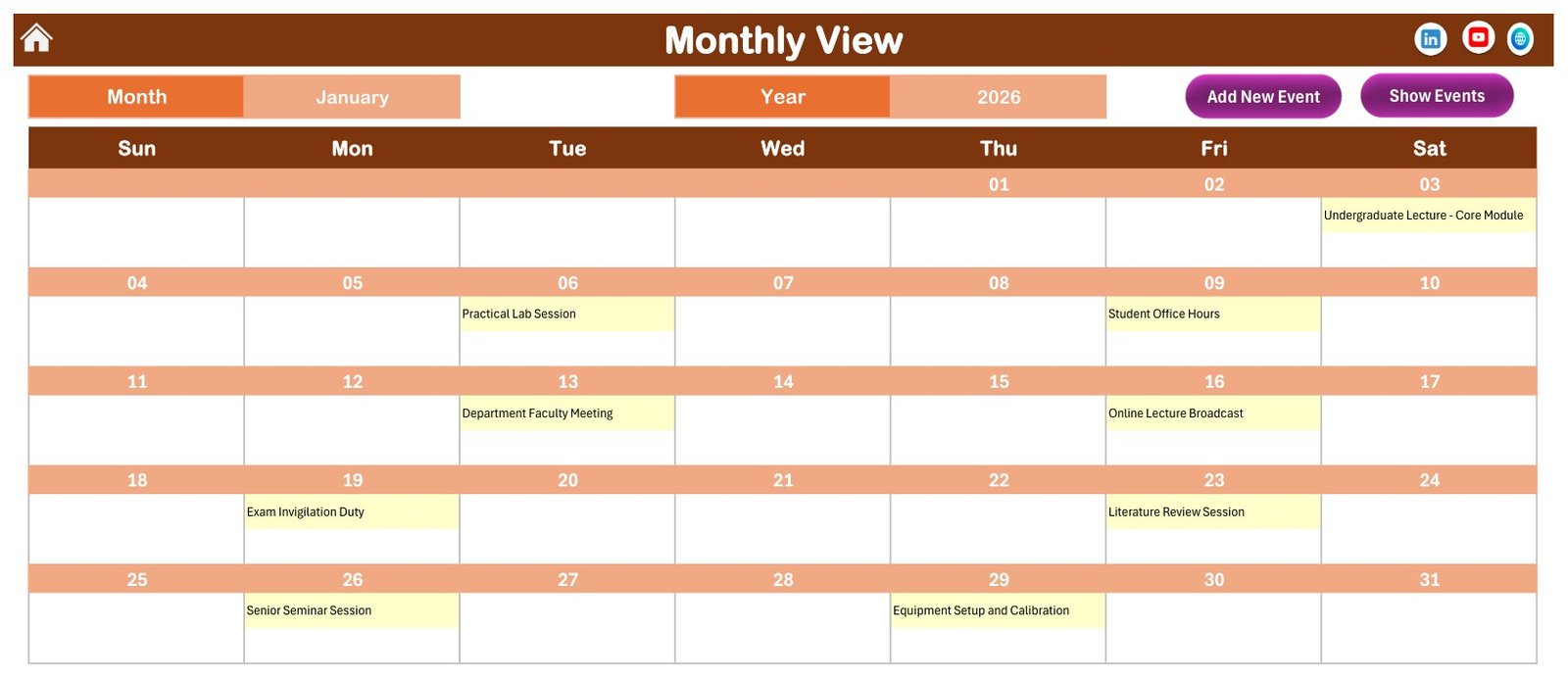
Choose a month and a year and the grid fills in. January 2026 shows Undergraduate Lecture – Core Module on 3 January, Practical Lab Session on 6 January, Student Office Hours on 9 January, Department Faculty Meeting on 13 January, Online Lecture Broadcast on 16 January, Exam Invigilation Duty on 19 January, Literature Review Session on 23 January, Senior Seminar Session on 26 January and Equipment Setup and Calibration on 29 January. Add New Event and Show Events buttons sit at the top right.
Daily View
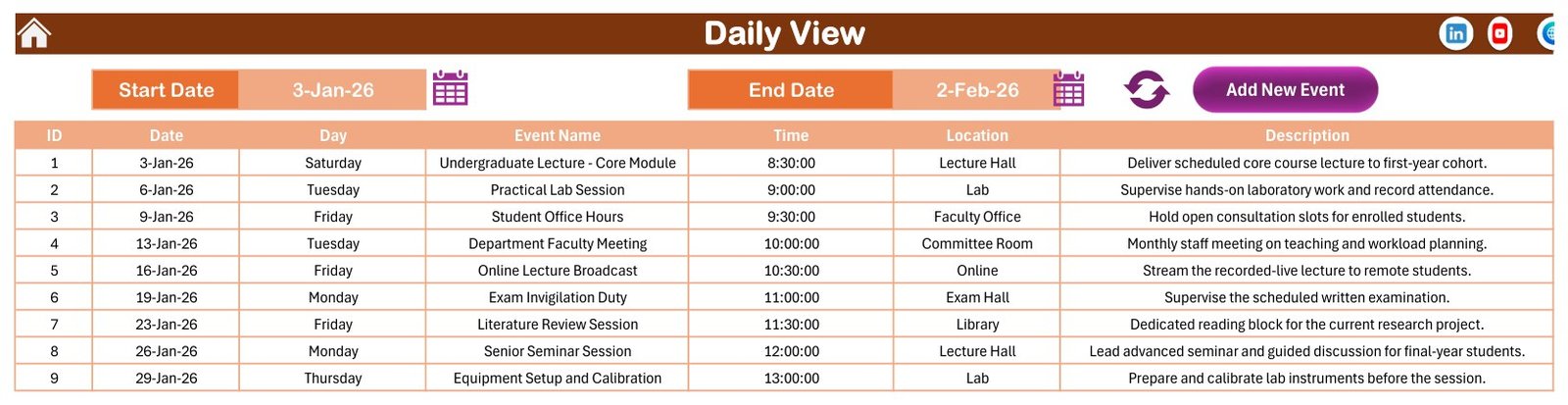
Pick a Start Date and an End Date, press the refresh icon, and the sheet lists ID, Date, Day, Event Name, Time, Location and Description. The sample range from 3 January to 2 February 2026 returns nine rows, from the core module lecture at 8:30 in the Lecture Hall to equipment calibration at 13:00 in the Lab.
This Month Summary
Four cards and two small tables summarise the selected month. For September 2026 the sample reads 9 events, 9 active days, 7 locations used and 3 events in the next 7 days. Exam Hall and Library lead the Top 5 Locations with two duties each, and the event list runs from a Viva Voce Examination on 3 September to a Manuscript Writing Block on 28 September.
Events
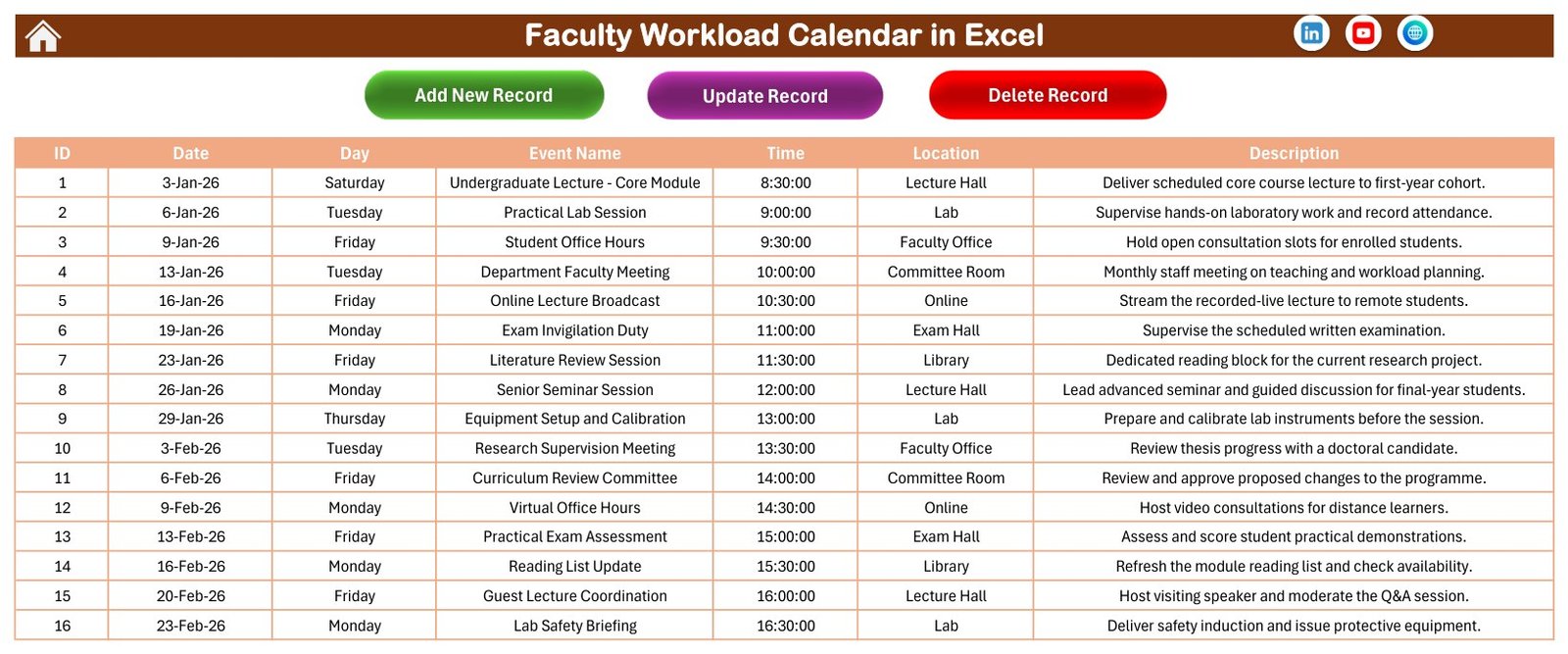
The Events sheet stores every record in seven columns. Add New Record opens the form, Update Record edits the selected row and Delete Record removes it. Because every view reads this table, it is the only place you ever type data.
Enter Data Form
The form has a calendar picker for Date, a clock picker for Time, a Day box that fills itself, and Event Name, Location and Description fields, with Submit and Reset buttons.
What the Sample Data Covers
The 100 fictional events use 49 different duty names drawn from a university or college year. Teaching covers undergraduate and postgraduate lectures, senior seminars, practical and software lab sessions, revision lectures and guest lectures. Assessment covers exam invigilation, practical exam assessment, paper moderation, peer review of coursework, viva voce examinations, resit duty and grade submission deadlines. Research covers literature review sessions, research supervision, manuscript writing and grant proposal drafting. Committees include the department faculty meeting, curriculum review, examination board, admissions, research ethics, quality assurance and a workload allocation review. Each of the seven locations holds 14 or 15 events, start times run from 08:30 to 17:00, no date carries two events and every weekday label matches its date. The events name no real institution.
Comparison: Excel Calendar vs. Google Sheets vs. a Paper Planner
| Feature | This Excel template | Google Sheets calendar | Paper planner |
|---|---|---|---|
| Annual, monthly and daily views from one table | Yes | Depends on the template | No |
| Entry form with date and time pickers | Yes (VBA) | Usually not | No |
| Monthly summary cards | Yes | Build it yourself | No |
| Teaching-hour totals | No | Build it yourself | No |
| Works offline | Yes | Limited | Yes |
| Mac, web and phone | No, Windows desktop only | Yes | Yes |
| Reminders | No | Via add-ons | No |
| Cost | One-time | Free to paid | Low |
Who Should Use This Template
- Lecturers and professors who want one yearly view of teaching, marking and research time.
- Heads of department and programme coordinators who schedule exam boards and committee meetings.
- Department offices that keep a shared diary of exam duties and deadlines in one file.
- Teaching assistants and lab staff who plan lab sessions, safety briefings and calibration days.
Real-World Use Cases
A lecturer’s semester plan. Enter the teaching timetable first, then add invigilation, marking deadlines and office hours, and check Annual View for the weeks that are too crowded.
A department’s committee diary. Using Location as the room, the office can see in This Month Summary how many meetings already sit in the Committee Room before booking another.
Protected research time. A research-active professor blocks literature review and manuscript writing sessions between teaching duties, then prints the Monthly View for the desk.
Advantages of This Excel Faculty Calendar
- One table feeds five views, so there is nothing to keep in sync.
- A one-time purchase with no subscription and no per-user fee.
- Works offline once macros are enabled.
- Five colour themes and a configurable week start day.
Opportunities for Improvement
Being honest about the limits helps you decide. The workbook stores a start time but no end time or duration, so it cannot total teaching or research hours. It has no lecturer name column, sends no reminders and has no recurring events, so a weekly lecture is entered as a row per date. It needs desktop Excel for Windows with macros enabled, and the sample dates are not any institution’s official academic calendar.
Best Practices
- Enter fixed dates such as exam boards and grade deadlines first, then plan teaching and research around them.
- Keep Location names consistent so the Top 5 Locations table stays meaningful.
- If several people share one file, start each Event Name with initials or a course code.
- Save a copy of the file before deleting the sample rows.
- If macros are blocked on a downloaded file, read Microsoft’s note on macros from the internet being blocked by default, and the guide to enabling macros in Microsoft 365 files.
Explore Relevant Templates
- Exam Timetable Calendar in Excel
- Class Timetable Calendar in Excel
- Teacher Substitution Calendar in Excel
- Exam Marks Entry Data Entry System in Excel
- Course Enrollment Data Entry System in Excel
- Browse all Excel calendar templates
Frequently Asked Questions
What is included in the Faculty Workload Calendar in Excel?
A macro-enabled .xlsm workbook with Home, Annual View, Monthly View, Daily View, This Month, Events and Setting sheets, an entry form and 100 fictional sample events, plus a short user manual PDF in the ZIP.
Does it calculate teaching hours or workload points?
No. There is no end time, duration or lecturer column. It shows when and where duties fall, not how many hours they add up to.
Do I have to enable macros?
Yes. The entry form, the Add, Update and Delete buttons and the Daily View refresh are VBA macros.
Can I use it on a Mac, in Excel for the web or on a phone?
No. It is built for desktop Excel for Windows.
Can I change the year and the week start day?
Yes. Both are on the Setting sheet, along with the starting month, two highlighted weekdays and five colour themes.
Does it send reminders or repeat weekly lectures?
No. It has no reminders and no recurring events. The Next 7 Days card gives a quick look ahead.
About the Author
PK: An Excel Expert has taught Excel, VBA and Power BI through tutorials and ready-made templates for years. You can watch the video lessons on the PK: An Excel Expert YouTube channel.
Conclusion
An academic year goes smoother when every lecture, exam duty, research block and committee meeting sits on one calendar. This faculty calendar gives you annual, monthly and daily views, a monthly summary and an entry form in one Excel file, as long as you use desktop Excel for Windows with macros enabled.
👉 Get the Faculty Workload Calendar in Excel