Managing retail projects demands precision, visibility, and timely execution. From store launches and promotional campaigns to inventory audits and seasonal sales, every activity follows a strict timeline. However, many retail teams still rely on scattered Excel sheets, emails, or manual reminders. As a result, deadlines slip, teams miss updates, and project visibility suffers.
That is exactly where a Retail Project Calendar in Excel becomes a powerful solution.
In this detailed guide, you will learn what a Retail Project Calendar in Excel is, how it works, its worksheets and features, advantages, best practices, and frequently asked questions. By the end of this article, you will clearly understand how this ready-to-use Excel calendar helps retail teams plan, organize, and manage projects efficiently.
Click to Purchases Retail Project Calendar in Excel
What Is a Retail Project Calendar in Excel?
A Retail Project Calendar in Excel is a structured, interactive, and ready-to-use calendar template designed specifically for retail project planning and event tracking.
Instead of managing multiple files or tools, this calendar allows retail managers, planners, and operations teams to:
Plan retail projects by date, month, and year
Track store-level and corporate-level events
View schedules in annual, monthly, and daily formats
Add, update, and delete events using simple forms
Maintain a centralized events database
Moreover, since the solution runs entirely in Excel, teams do not need advanced tools or software. Anyone with basic Excel knowledge can use it comfortably.
Why Do Retail Businesses Need a Project Calendar in Excel?
Retail businesses operate in a fast-moving environment. Therefore, even small delays can impact revenue, customer experience, and operational efficiency.
A Retail Project Calendar in Excel helps because:
It centralizes all retail events in one place
It improves visibility across teams
It reduces dependency on emails and manual follow-ups
It ensures deadlines stay visible and actionable
Additionally, Excel remains a familiar tool for most retail teams. As a result, adoption becomes quick and smooth.
How Does the Retail Project Calendar in Excel Work?
The Retail Project Calendar in Excel works through five interconnected worksheets. Each worksheet serves a unique purpose, while all of them connect to a single events database.
Let’s explore each sheet in detail.
Click to Purchases Retail Project Calendar in Excel
What Is the Home Sheet in the Retail Project Calendar?
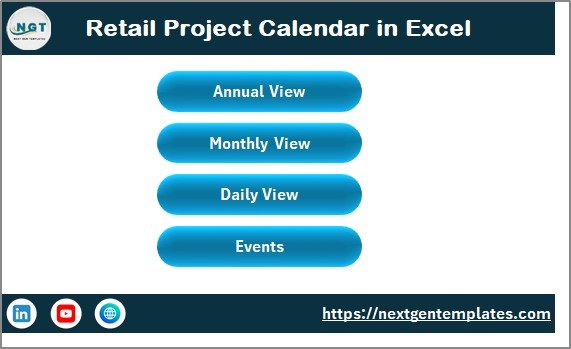
The Home Sheet acts as the navigation hub of the entire calendar.
Key Purpose of the Home Sheet
Provides a clean index for easy navigation
Allows users to jump to any major section instantly
Improves usability for non-technical users
Buttons Available on the Home Sheet
The Home sheet includes four clearly visible buttons:
Annual View – Opens the yearly calendar
Monthly View – Opens the selected month calendar
Daily View – Shows events in list format
Events – Opens the events database
Because of this design, users do not need to search for sheets manually. Instead, they can navigate with one click.
What Is the Annual View Sheet and How Does It Help?
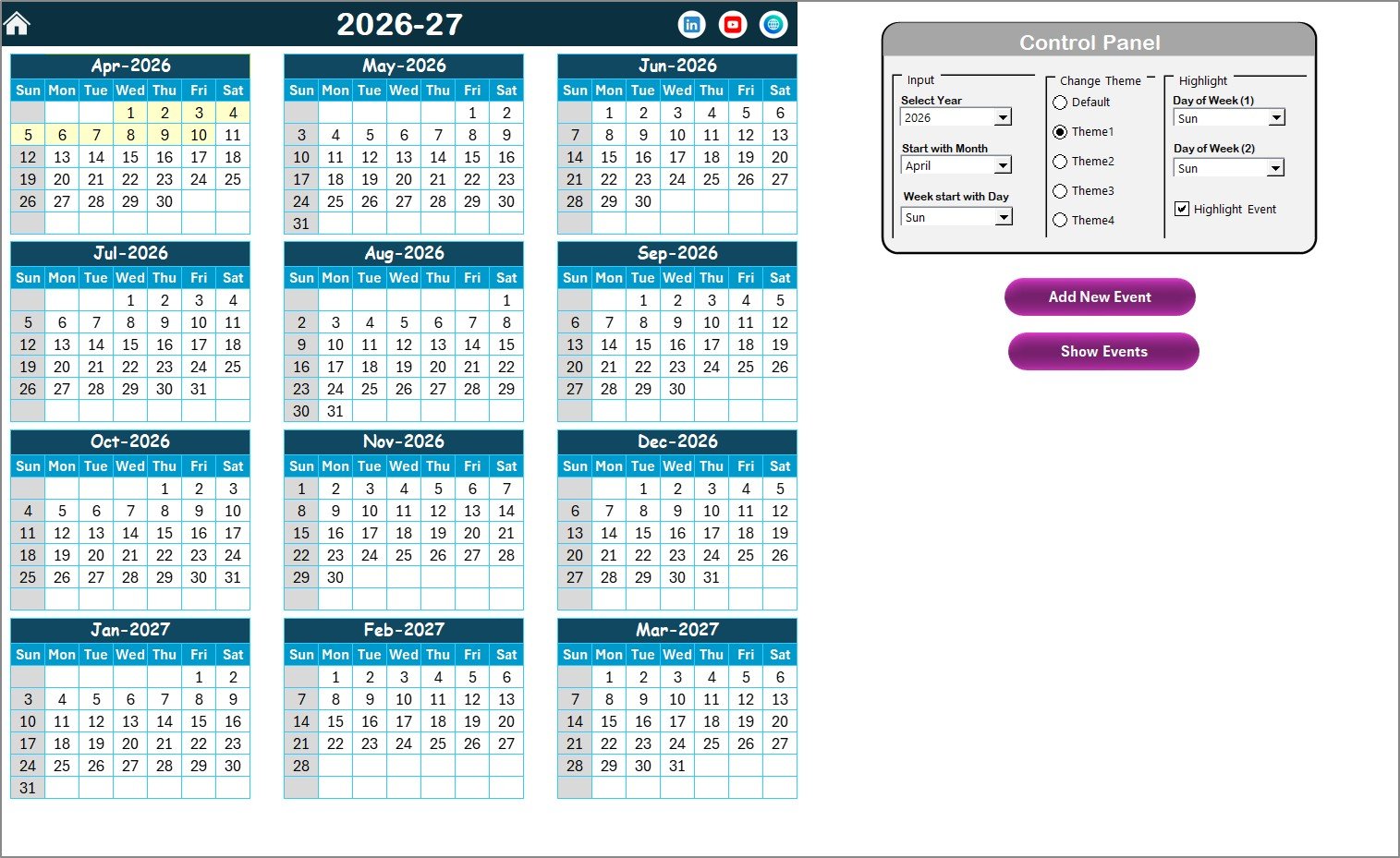
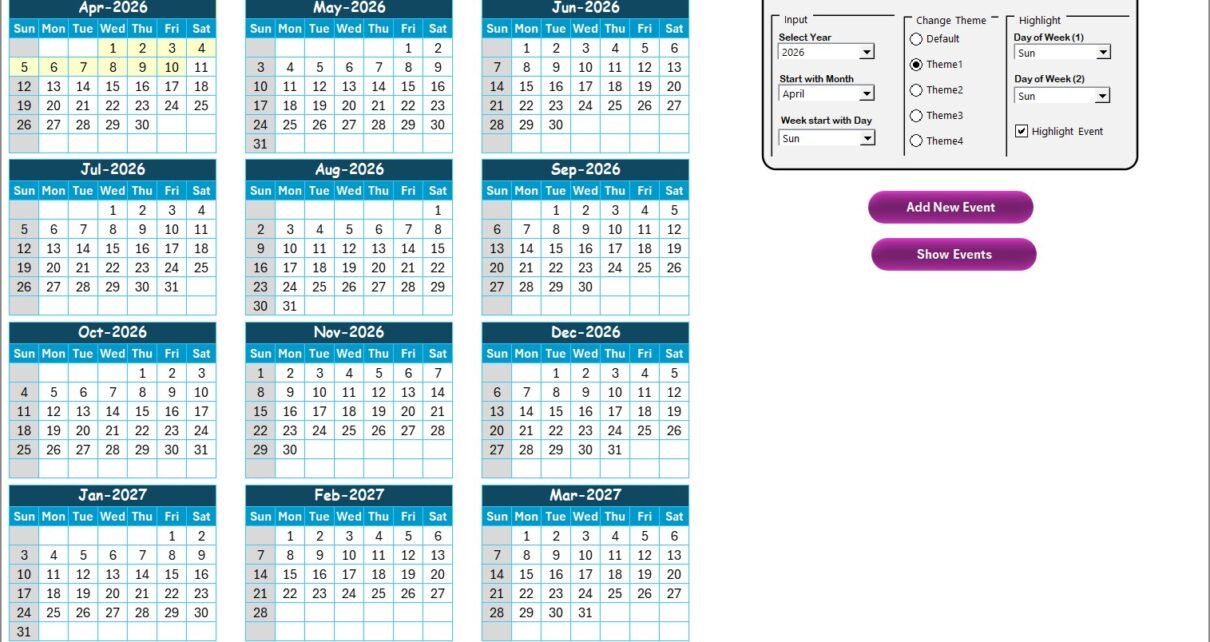
The Annual View Sheet displays a complete 12-month calendar on a single screen.
Why Is the Annual View Important?
Retail managers often plan long-term initiatives such as:
Store openings
Festival promotions
Sales campaigns
Inventory planning cycles
Therefore, a yearly overview helps teams align activities across months.
What Control Panel Features Are Available in the Annual View?
The Annual View Sheet includes a powerful Control Panel, divided into three functional groups.
Input Group – How Can You Customize the Calendar?
Using the Input Group, you can:
Select the Year to update the calendar instantly
Change the starting month of the calendar
Modify the starting day of the week
As a result, the calendar adapts automatically without manual edits.
Change Theme Group – How Can You Apply Visual Themes?
Visual clarity improves usability. Therefore, this calendar provides five predefined color themes.
You can:
Select any theme
Apply it instantly across the entire workbook
This feature helps teams align the calendar with brand colors or personal preferences.
Highlight Group – How Can You Highlight Specific Days or Events?
The Highlight Group helps draw attention to important dates.
You can:
Highlight Day of Week (1) and Day of Week (2)
Mark weekends such as Saturday and Sunday in grey
Enable Highlight Event option to show events in yellow
As a result, important days stand out clearly in the annual view.
What Do the Buttons on the Annual View Do?
The Annual View Sheet includes two action buttons.
Add New Event Button
Select any date on the calendar
Click Add New Event
Fill the event details in the form
Submit the form
The event instantly appears on the selected date.
Show Event Button
Select a date
Click Show Event
View the list of events scheduled for that date
This feature improves quick event visibility.
Click to Purchases Retail Project Calendar in Excel
How Does the Monthly View Sheet Work?
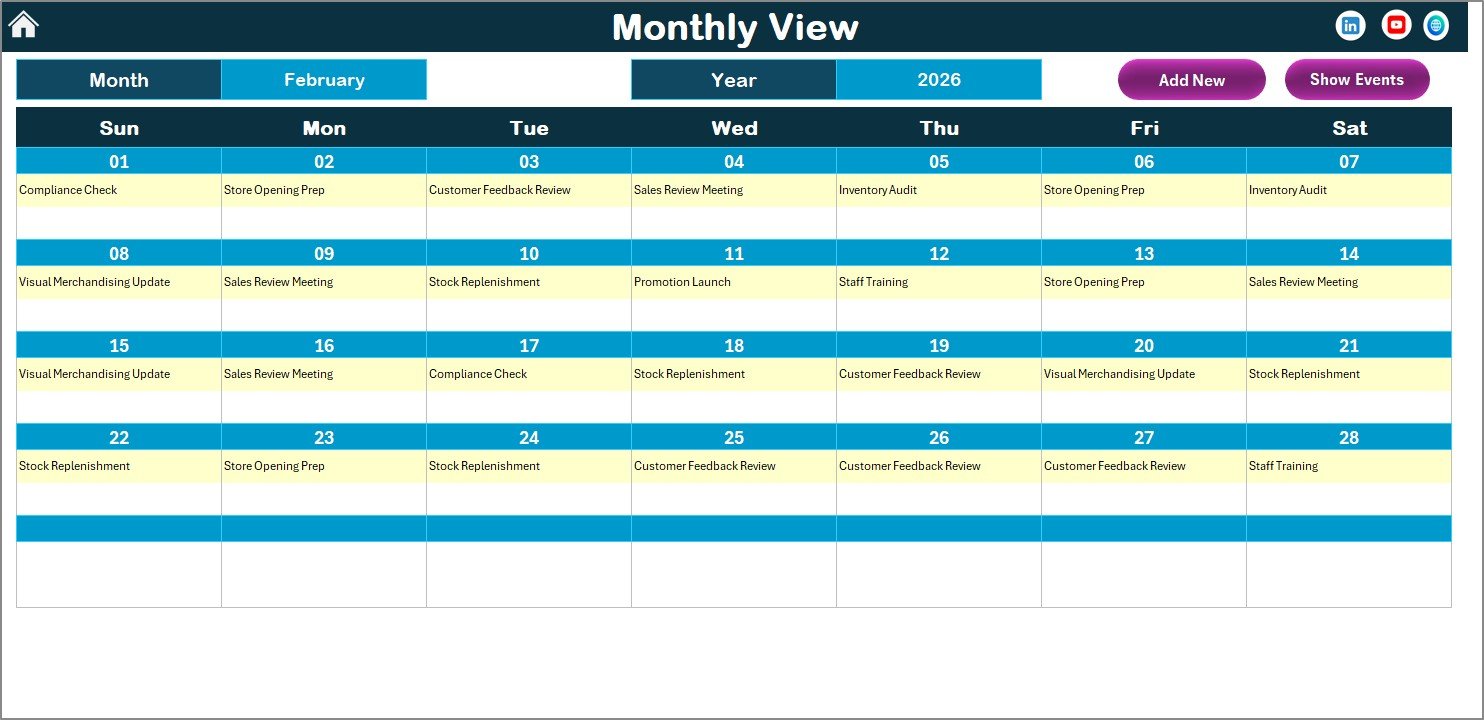
The Monthly View Sheet focuses on a single month at a time.
Why Is Monthly View Useful?
Retail teams often need short-term planning for:
Monthly sales targets
Campaign execution
Store audits
Staff scheduling
Therefore, the monthly calendar provides a focused and clutter-free view.
How Can You Control the Monthly Calendar?
At the top of the Monthly View Sheet, you can:
Select the Month
Select the Year
The calendar updates automatically based on your selection.
How Are Events Displayed in Monthly View?
The calendar displays one event per date directly
If a date contains multiple events, the cell shows “more than 1…”
This approach keeps the layout clean while still indicating activity.
What Buttons Are Available in the Monthly View?
The Monthly View includes two buttons:
Add New Event Button
Select a date
Click the button
Fill the form
Submit
The event immediately reflects in the monthly calendar.
Show Event Button
Select a date
Click Show Event
View all events for that date
This improves day-specific planning.
Click to Purchases Retail Project Calendar in Excel
What Is the Daily View Sheet and When Should You Use It?
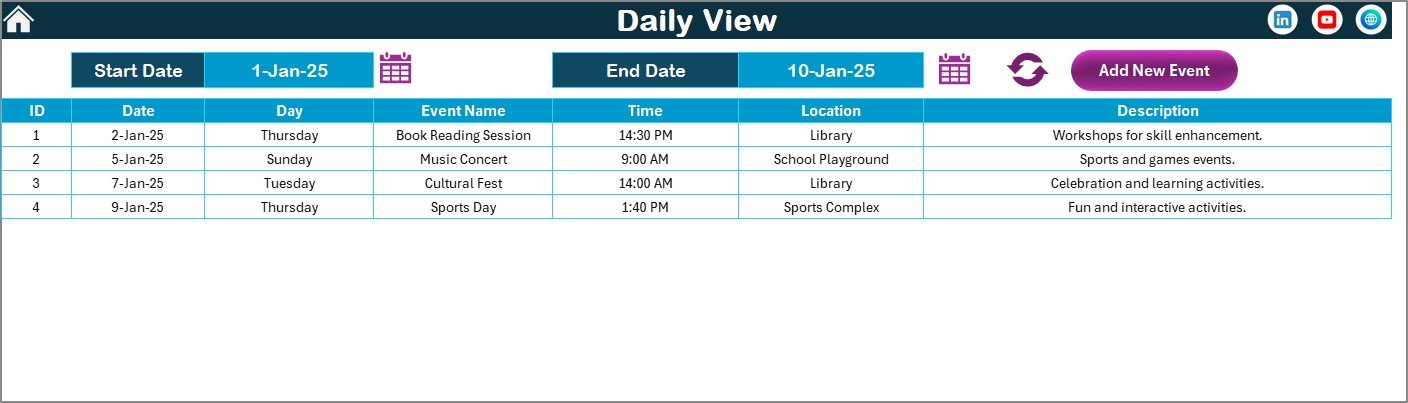
The Daily View Sheet shows events in a list format instead of a calendar grid.
Why Is Daily View Important?
Daily View works best when:
Reviewing event details
Tracking multiple events across dates
Preparing execution-level action lists
How Does Date Range Selection Work?
At the top of the Daily View Sheet, you can:
Select Start Date
Select End Date
Use the calendar icons for easy selection
Click Refresh to load data
The sheet then displays all events within the selected date range.
How Can You Add Events from Daily View?
The Daily View also includes an Add New Event button.
Click the button
Fill the event form
Submit
The event instantly updates in the list.
What Is the Events Sheet and Why Is It Critical?
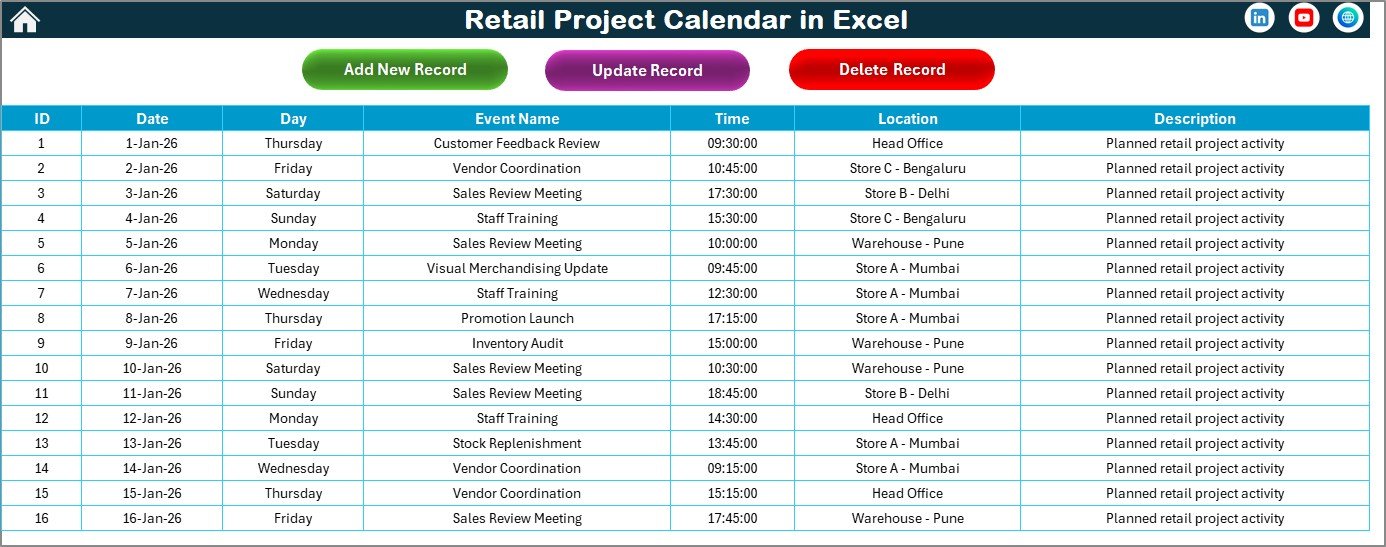
The Events Sheet acts as the database for the entire calendar.
Every view pulls data from this sheet.
What Information Does the Events Sheet Store?
The Events Sheet captures the following columns:
ID – Auto-generated unique number
Date – Event date
Day – Day name (Sunday, Monday, etc.)
Event Name – Title of the event
Time – Event time
Location – Event location
Description – Short event description
Because of this structure, the data remains clean and consistent.
What Buttons Are Available on the Events Sheet?
At the top of the Events Sheet, you will find three action buttons.
Add New Record Button
Opens the Add Event form
Allows entry of new event details
Saves data directly into the database
Update Existing Record Button
Select the event ID
Click Update
Modify details in the prefilled form
Submit to save changes
Delete Record Button
Select the event ID
Click Delete
Remove the event permanently
These controls ensure complete data management from one place.
Advantages of Retail Project Calendar in Excel
Using a Retail Project Calendar in Excel delivers several practical benefits.
Key Advantages
Centralized project and event tracking
Multiple views for better planning
Easy navigation using buttons
No dependency on external software
Customizable themes and highlights
User-friendly event forms
Scalable for small and large retail teams
Moreover, since Excel remains widely used, training requirements stay minimal.
Click to Purchases Retail Project Calendar in Excel
Who Can Use a Retail Project Calendar in Excel?
This calendar suits multiple retail roles, such as:
Retail Project Managers
Store Operations Managers
Visual Merchandising Teams
Marketing and Promotions Teams
Supply Chain Coordinators
Corporate Retail Planning Teams
Because of its flexibility, teams can adapt it for various retail use cases.
Best Practices for Using a Retail Project Calendar in Excel
Following best practices ensures maximum value from the calendar.
1. Maintain Clean Event Data
Keep event names short and clear
Use consistent naming conventions
Avoid duplicate entries
2. Update Events Regularly
Add events as soon as plans finalize
Update changes immediately
Remove outdated records
3. Use Highlighting Wisely
Highlight weekends consistently
Use event highlighting only for key activities
Avoid excessive color usage
4. Review Calendar Weekly
Conduct weekly calendar reviews
Align teams on upcoming tasks
Address conflicts early
5. Protect the Workbook
Lock formulas and layouts
Allow editing only in data areas
Save backups regularly
These practices improve reliability and long-term usability.
How Does This Calendar Improve Retail Project Execution?
A Retail Project Calendar in Excel improves execution because it:
Enhances visibility across timeframes
Reduces missed deadlines
Improves team coordination
Supports proactive planning
As a result, retail teams gain better control over complex project schedules.
Click to Purchases Retail Project Calendar in Excel
Conclusion: Is a Retail Project Calendar in Excel Worth Using?
Absolutely.
A Retail Project Calendar in Excel provides a simple yet powerful way to manage retail projects and events. With annual, monthly, and daily views, centralized event storage, and user-friendly controls, this calendar removes complexity from planning.
Instead of juggling multiple files or tools, retail teams can rely on one structured Excel solution. As a result, planning becomes clearer, execution becomes smoother, and outcomes improve consistently.
Frequently Asked Questions (FAQs)
What is a Retail Project Calendar in Excel used for?
A Retail Project Calendar in Excel helps plan, track, and manage retail projects and events across daily, monthly, and yearly timelines.
Can I customize the year and starting day in the calendar?
Yes, you can change the year, starting month, and starting day of the week using the control panel.
Can I add multiple events on the same date?
Yes, the calendar supports multiple events on the same date. Monthly view shows an indicator, while daily view lists all events.
Does this calendar require advanced Excel skills?
No, the calendar works with basic Excel knowledge. Buttons and forms simplify all actions.
Can I update or delete existing events?
Yes, you can update or delete events directly from the Events Sheet using dedicated buttons.
Is this calendar suitable for large retail teams?
Yes, the centralized structure and multiple views make it suitable for both small and large retail operations.
Click to Purchases Retail Project Calendar in Excel
Visit our YouTube channel to learn step-by-step video tutorials