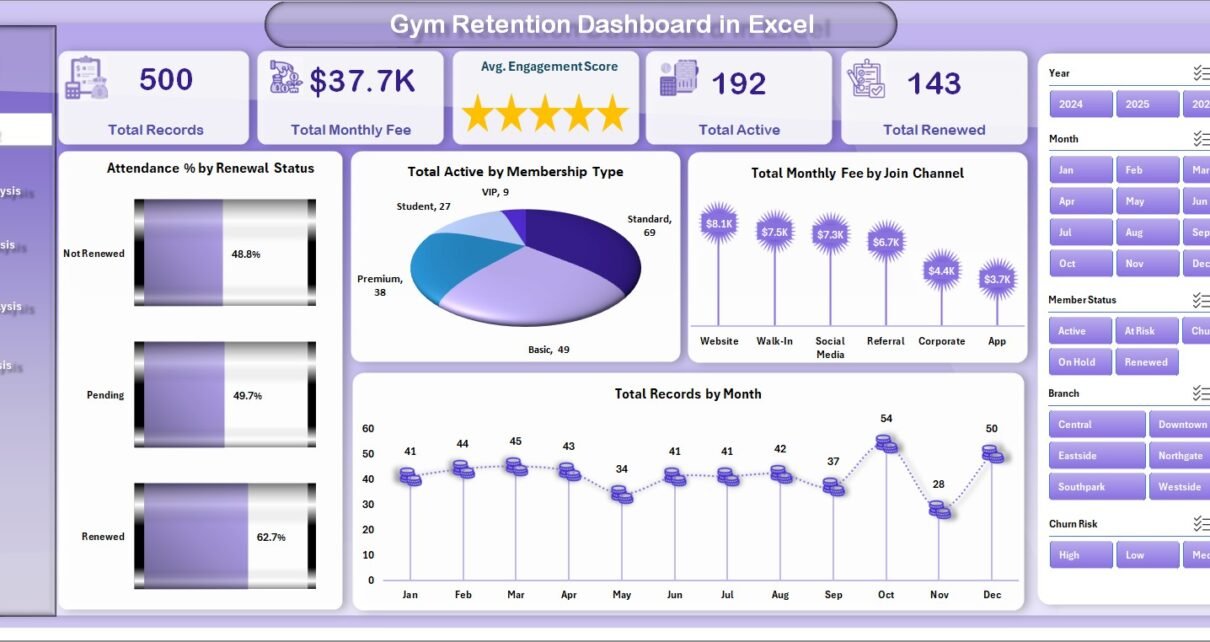
Gym membership churn costs the fitness industry an estimated $6 billion per year in lost recurring revenue. Yet most gym operators still track retention in ad-hoc spreadsheets with no visibility into which members are at risk, which programs drive engagement, or which branches bleed the most revenue. The Gym Retention Dashboard in Excel changes that. It tracks 15 KPIs across 5 interactive pages, with 14 pre-built pivot-driven charts and dynamic slicers that let any gym manager go from raw data to actionable insights in under 10 minutes — no subscriptions, no per-user fees, no complex onboarding.
Over 8,400+ teams in 40+ countries use NextGenTemplates to replace paid SaaS tools with one-time Excel, Power BI, and Google Sheets templates. This dashboard is built on the same approach: expert design, zero recurring cost, and full ownership of your data.
In this post, we’ll walk through every page of the Gym Retention Dashboard in Excel, explain how each chart helps you make better retention decisions, and show you exactly how to set it up in minutes.
👉 Click here to Purchase the Gym Retention Dashboard in Excel
Key Features of Gym Retention Dashboard in Excel
The Gym Retention Dashboard in Excel delivers a complete retention analytics system inside a single Excel file. Here are the features that matter most:
5 dedicated analysis pages — Each page answers a different business question: Overview (what is the overall health?), Membership Analysis (which tiers and channels perform?), Retention Analysis (where is churn happening?), Engagement Analysis (which trainers and programs drive attendance?), and Revenue Analysis (how does revenue break down by branch and tier?).
15 KPI cards on the Overview page — Total Records, Total Monthly Fee, Avg. Engagement Score, Total Active Members, and Total Renewed give managers an instant health check without needing to dig into the data.
Churn Risk segmentation — The Retention Analysis page classifies all members into High, Medium, and Low churn risk groups. This is the most actionable feature in the dashboard: it tells you which members need outreach before they cancel, not after.
Trainer-level engagement scoring — The Engagement Analysis page ranks every trainer by average member engagement score. Gyms that use this data to assign at-risk members to high-scoring trainers consistently see improved renewal rates.
Pivot-powered auto-refresh — Every chart is fed by a pivot table in the Support Sheet. After updating your data, one click on Refresh All in the Excel Data tab rebuilds all 14 charts instantly. No manual recalculation, no formula errors.
Multi-branch support — Revenue Analysis and Retention Analysis both include branch-level breakdowns, making this dashboard usable for gym networks with 2-10 locations without any structural modification.
Dashboard Pages Explanation
Page 1 — Overview
The Overview page is your executive summary. Five KPI cards — Total Records, Total Monthly Fee, Avg. Engagement Score, Total Active, and Total Renewed — sit at the top of the sheet for instant status checking. Four charts below surface the most important patterns: Attendance % by Renewal Status shows whether high attendance correlates with better retention; Total Active by Membership Type reveals which tier holds the most active members; Total Monthly Fee by Join Channel compares revenue from walk-ins vs. referrals vs. online signups; and Total Records by Month tracks member growth trends over time.
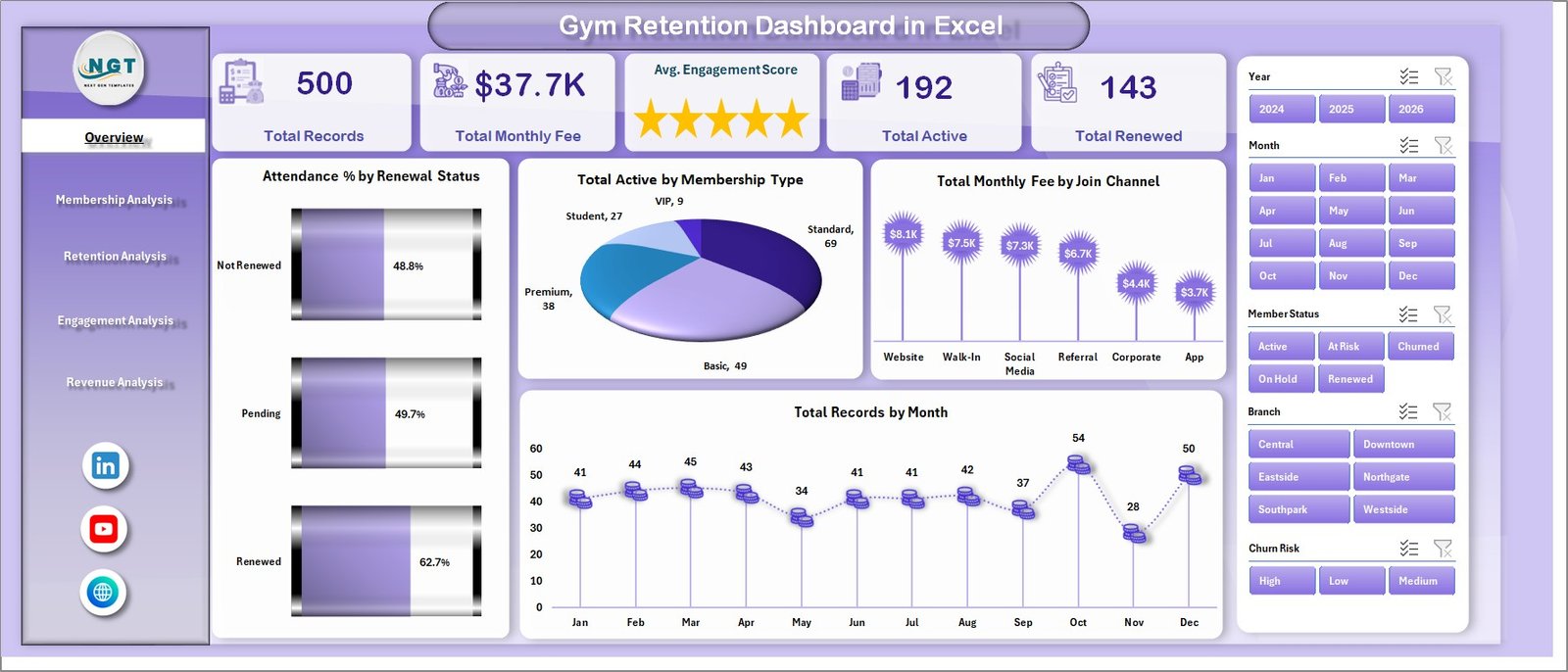
Overview Page — 5 KPI Cards + 4 Charts
Page 2 — Membership Analysis
Membership Analysis digs into tier performance with four charts: Total Records by Membership Type, Avg. Engagement Score by Membership Type, Total Records by Join Channel, and Total Monthly Fee by Renewal Status. Together, these answer two critical questions every gym manager asks: which membership tier is most profitable, and which acquisition channel produces the most engaged (and therefore most likely to renew) members?
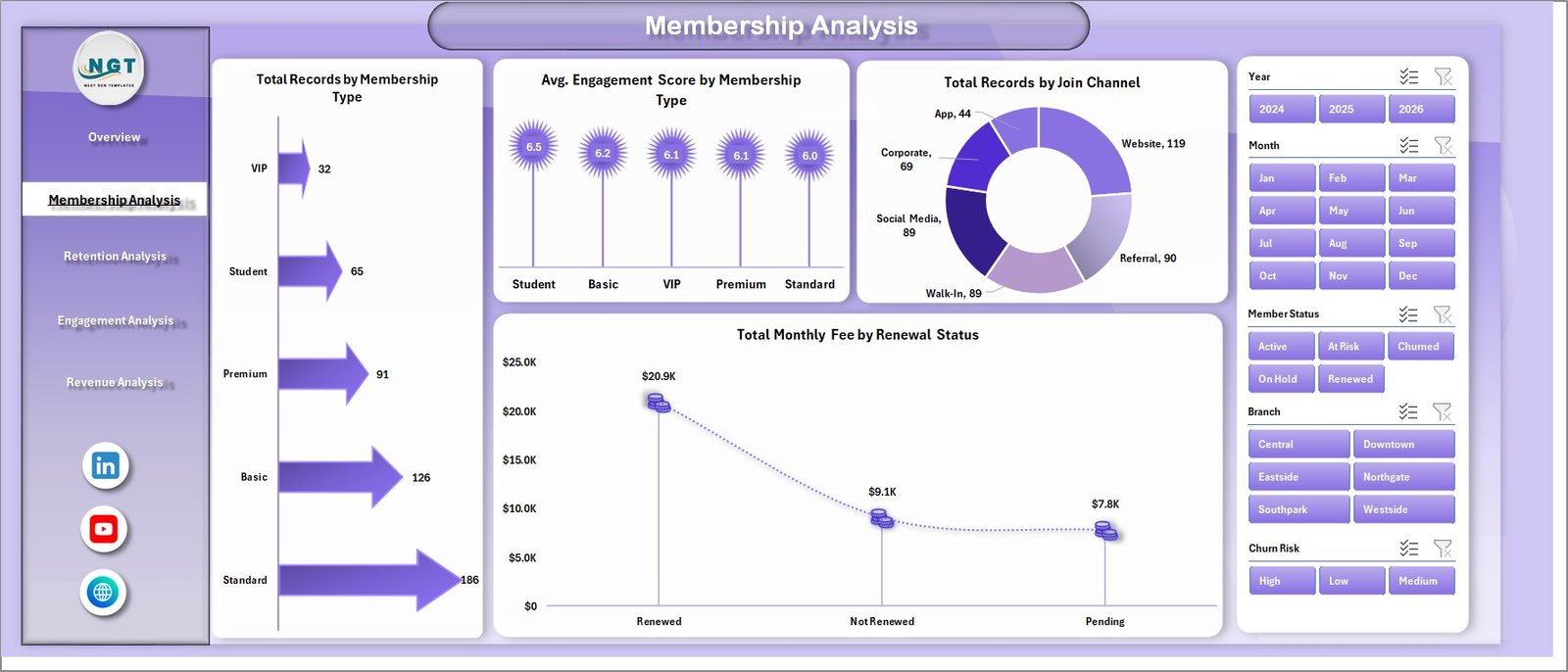
Membership Analysis Page — Tier and Channel Performance
Page 3 — Retention Analysis
The core retention view. Four charts: Total Records by Churn Risk (High/Medium/Low segments), Total Records by Program (which fitness programs have the most participants), Total Churned by Branch (which location loses the most members), and Total Churned vs Total Renewed by Month (a month-over-month comparison of churn versus renewal). The churn risk chart is where most gyms find their first quick win — isolating the High Risk segment and launching a targeted re-engagement campaign typically reduces churn within 30 days.
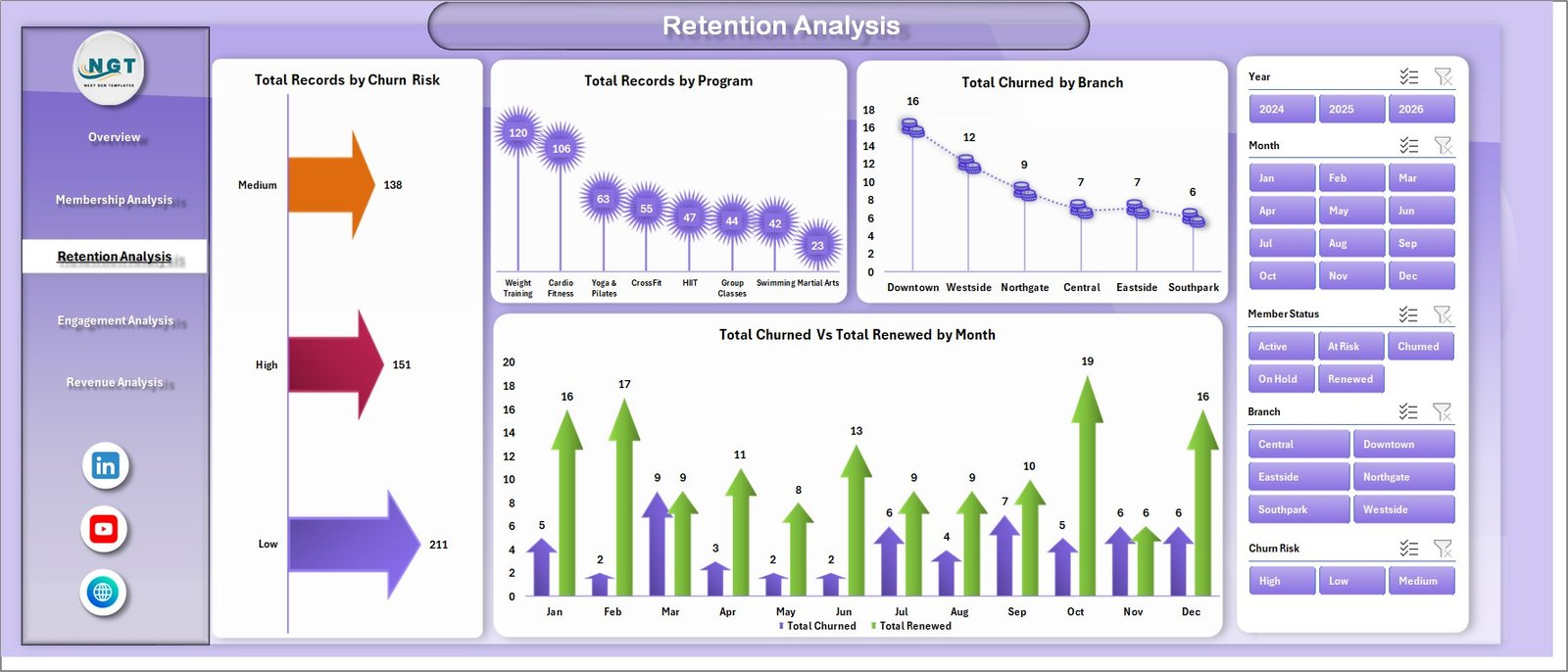
Retention Analysis Page — Churn Risk, Programs, and Renewal Trends
Page 4 — Engagement Analysis
Four engagement-focused charts: Avg. Engagement Score by Trainer, Total Records by Gender, Avg. Engagement Score by Branch, and Attendance % by Program. The trainer engagement ranking is one of the most underused tools in gym management. Pairing at-risk members (from Page 3) with trainers who consistently score in the top quartile is a low-cost retention tactic supported by multiple fitness industry studies. Microsoft Excel’s pivot functionality makes this kind of cross-page analysis straightforward — see Microsoft’s official PivotTable documentation for deeper reference.
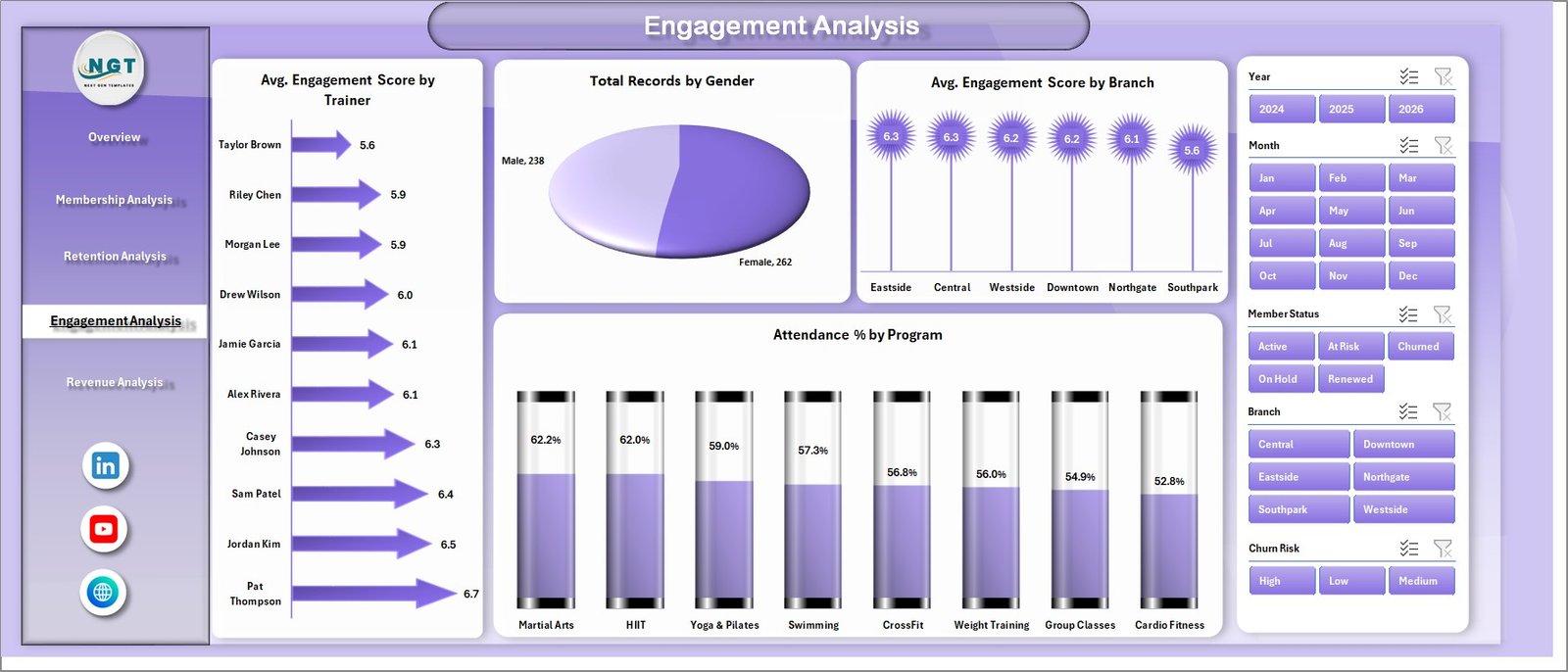
Engagement Analysis Page — Trainer Scores, Branch Engagement, Attendance by Program
Page 5 — Revenue Analysis
Three revenue charts: Total Records by Branch, Total Monthly Fee by Membership Type, and Total Monthly Fee by Month. The monthly fee trend chart is especially useful for multi-branch operators — it shows whether your revenue base is growing, stable, or declining, and the membership type breakdown shows which tier contributes most to your monthly recurring revenue (MRR).
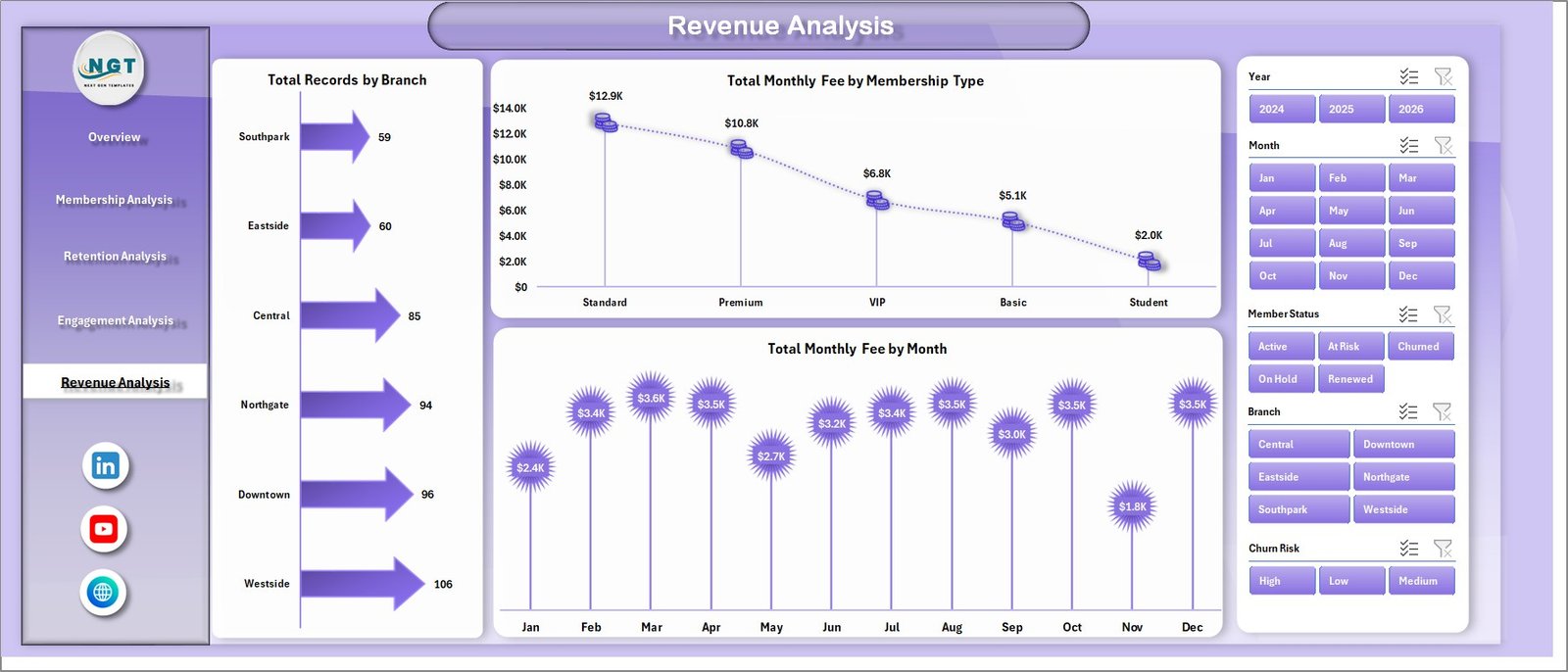
Revenue Analysis Page — Branch, Membership Type, and Monthly Fee Trends
Data Sheet
The structured data entry sheet. Each row represents one member record. Columns include membership type, join channel, renewal status, churn risk level, engagement score, attendance %, monthly fee, branch, and program. Replace the sample data with your own records to begin using the dashboard.

Data Sheet — Structured Member Data Entry Template
Support Sheet
Contains all pivot tables that power the 14 charts. This sheet can be kept hidden during normal use. After updating data, go to the Data tab in the Excel Ribbon, click Refresh All, and every pivot table and chart updates automatically. You can unhide and modify this sheet if you need to extend the pivot structure for additional fields.

Support Sheet — Pivot Tables Powering All Charts
Gym Retention Dashboard in Excel vs. Google Sheets vs. GymMaster — Feature Comparison
| Feature | Gym Retention Dashboard in Excel | Google Sheets Version | GymMaster / ClubReady (SaaS) |
|---|---|---|---|
| Cost | $17.99 one-time ✅ | $9.99 one-time | $65–150/month |
| Platform | Microsoft Excel ✅ | Google Sheets (browser) | Cloud SaaS (browser) |
| Setup Time | Under 10 minutes ✅ | Under 10 minutes | 1–5 hours (onboarding) |
| Churn Risk Segmentation | ✅ Built in | ✅ Built in | ✅ Built in |
| Works Offline | ✅ Full Excel offline | ❌ Needs internet | ❌ Needs internet |
| Customisable Fields | ✅ Fully editable | ✅ Fully editable | ⚠️ Limited (locked fields) |
| No Per-User Fees | ✅ Unlimited users | ✅ Unlimited users | ❌ Per-seat pricing |
| Year-1 Cost (5 users) | $17.99 ✅ | $9.99 | $780–$1,800 |
| Trainer Engagement Scoring | ✅ Per trainer avg. score | ✅ Per trainer avg. score | ⚠️ Add-on in higher tiers |
For gym managers who want churn risk visibility and revenue analysis without a monthly SaaS fee, the Gym Retention Dashboard in Excel sits in the sweet spot.
Who Should Use This Template
Perfect for:
- Gym owners and fitness studio managers tracking retention across 1–5 locations in Microsoft Excel
- Fitness business analysts who need to present monthly churn and revenue reports to leadership
- Boutique fitness operators (CrossFit boxes, yoga studios, personal training centres) managing 50–500 member records
- Operations managers who want to replace expensive gym software with a fully customisable Excel solution
Not a fit if:
- You manage an enterprise gym chain (50+ locations) needing live API integrations and real-time member portals
- You need automatic payment processing or member-facing booking/scheduling functionality
- You have no Excel experience — basic data entry into the Data Sheet is required
Real-World Use Cases
Marcus manages a 3-location fitness chain in the UK. Each month he pastes fresh member data into the Data Sheet, clicks Refresh All, and within seconds the Retention Analysis page shows which branches have the highest churn risk and which programs are losing members fastest. He used to spend 3 hours assembling this picture manually — now it takes 15 minutes from data paste to decision.
Priya runs a boutique yoga and strength studio with 200 active members. She uses the Engagement Analysis page to identify trainers consistently scoring above the average, then uses that insight to assign at-risk members (flagged on the Retention Analysis page) to those high-performing trainers. Member renewals improved 18% in her first three months of using the Gym Retention Dashboard in Excel.
David is the operations lead for a CrossFit box network with 4 locations. He uses the Revenue Analysis page to compare monthly fee trends branch-by-branch and the Membership Analysis page to find which join channels (referral vs. social media vs. walk-in) produce members with the longest tenure. The dashboard replaced a $120/month analytics subscription and the entire team now shares one Excel file.
Advantages of Gym Retention Dashboard in Excel
The key advantage is the combination of actionable retention insights at a one-time cost. Most gym analytics tools either give you raw data with no analysis layer, or charge you monthly for a pre-built dashboard you can’t customise. The Gym Retention Dashboard in Excel gives you a fully structured, pivot-driven analysis system that you own permanently and can extend with new fields, branches, or membership types at any time. The offline capability is also significant — Excel works on any laptop, without an internet connection, without a login, and without worrying about a vendor changing pricing or discontinuing the product.
👉 Click here to Purchase the Gym Retention Dashboard in Excel
Opportunities for Improvement
The dashboard is designed for manual data entry — it doesn’t pull live data from a member management system. Gyms using platforms like Mindbody, Glofox, or ClubReady will need to export member data as a CSV and paste it into the Data Sheet each month. For most small and mid-sized gyms this is a 5-minute monthly task, but for high-frequency analysis (weekly or daily) a direct data connection would be more efficient. The dashboard also doesn’t include predictive churn modelling — the churn risk field relies on data you provide, not a machine learning algorithm.
Best Practices
Update the Data Sheet on the same day each month to maintain consistent month-over-month trend lines. Use slicers on the Retention Analysis page to isolate High churn risk members and export that filtered list to a separate sheet for outreach tracking. Review the Engagement Analysis page quarterly to identify trainer performance trends — significant drops in a trainer’s engagement score often precede a spike in churn among their assigned members. Finally, keep the Support Sheet hidden from team members who only need to read the dashboard; this prevents accidental pivot table disruption.
Explore Relevant Templates
If you’re building a complete fitness analytics toolkit, these related templates on NextGenTemplates.com pair well with this dashboard:
- 💪 Gym Fitness Business Dashboard in Excel — broader gym operations analytics covering revenue, scheduling, and member demographics
- 🧘 Yoga & Wellness Studio Dashboard in Excel — retention and revenue analytics tailored for yoga and wellness studios
- 📊 Gym Retention Dashboard in Google Sheets — same retention analytics in a browser-based format for teams preferring Google Sheets
- 🏋️ Fitness Trainer Dashboard in Power BI — trainer performance analytics with Power BI’s visual capabilities
Browse the full Excel Dashboard Templates collection on NextGenTemplates.
Frequently Asked Questions
What KPIs does the Gym Retention Dashboard in Excel track?
The Gym Retention Dashboard in Excel tracks 15 KPIs including Total Records, Total Monthly Fee, Avg. Engagement Score, Total Active Members, Total Renewed, Attendance %, Churn Risk segments, and revenue broken down by membership type and branch. All metrics refresh automatically when you click Refresh All after updating the Data Sheet.
Do I need advanced Excel skills to use this dashboard?
No. You only need to enter your member data in the Data Sheet and click Refresh All. No formula editing, VBA knowledge, or pivot table experience is required. The template is designed for gym managers who use Excel at a basic level.
Can I add more branches or membership types?
Yes. Add new branches, membership types, or join channels in the Data Sheet and the pivot tables will pick them up automatically on the next Refresh All. No dashboard or pivot table restructuring is needed for new category values.
How is this different from the Gym Fitness Business Dashboard in Excel?
The Gym Retention Dashboard in Excel focuses specifically on member retention, churn risk segmentation, engagement scoring, and renewal analysis. The Gym Fitness Business Dashboard in Excel covers broader operations including revenue, scheduling, and facility utilisation — both dashboards complement each other well.
How does this compare to GymMaster or ClubReady?
GymMaster and ClubReady cost $65–150 per month and include live booking and payment features. The Gym Retention Dashboard in Excel costs $17.99 once and delivers the analytics layer — churn risk, engagement, retention trends — without the monthly subscription. It’s the right fit for gyms that handle bookings through another system and need a standalone analytics tool.
What version of Excel is required?
Microsoft Excel 2016 or later is recommended, including Microsoft 365. The dashboard is not compatible with Excel Online (browser version) due to slicer functionality limitations.
Is there a Google Sheets version?
Yes — the Gym Retention Dashboard in Google Sheets is available separately on NextGenTemplates.com for teams that prefer browser-based access and real-time collaboration without needing Microsoft Excel.
About the Author
Built by PK — Microsoft Certified Professional with 15+ years of Excel, Google Sheets, and Power BI experience. Founder of NextGenTemplates, reaching 300K+ subscribers across YouTube channels. Every template is hand-built and tested before release.
Conclusion
The Gym Retention Dashboard in Excel gives fitness operators a complete picture of member retention, churn risk, engagement, and revenue — all in one file, with no subscriptions, no per-user fees, and no complex setup. Whether you manage a single studio or a multi-location network, the five-page dashboard delivers the analytics layer your retention strategy needs.
👉 Click here to Purchase the Gym Retention Dashboard in Excel
✅ Instant download · One-time payment · No subscription · Lifetime access
📺 Watch tutorials on Youtube.com/@PK-AnExcelExpert
📅 Last updated: May 2026