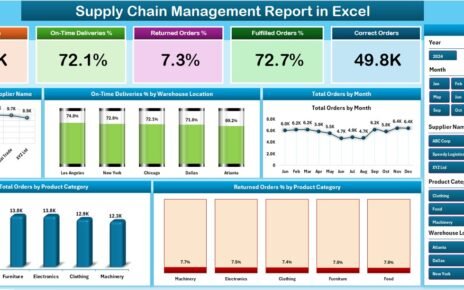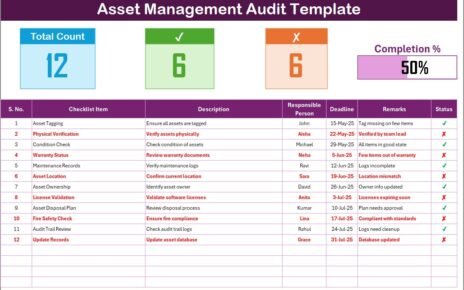
Kitchen Inventory Log Data Entry System in Excel turns a loose kitchen stock list into a repeatable three-sheet workflow. The workbook shown here contains four live summary cards, six sample rows, editable reference lists, and VBA buttons for adding, updating, deleting, and resetting records. It is intended for small kitchens that need structured item, quantity, cost, supplier, restock-date, and status records without adopting a large inventory platform.
You can download the Kitchen Inventory Log Data Entry System in Excel from NextGenTemplates. The screenshots in this article come from the delivered workbook, so buyers can assess the actual interface before purchase.
Key Features of Kitchen Inventory Log Data Entry System in Excel
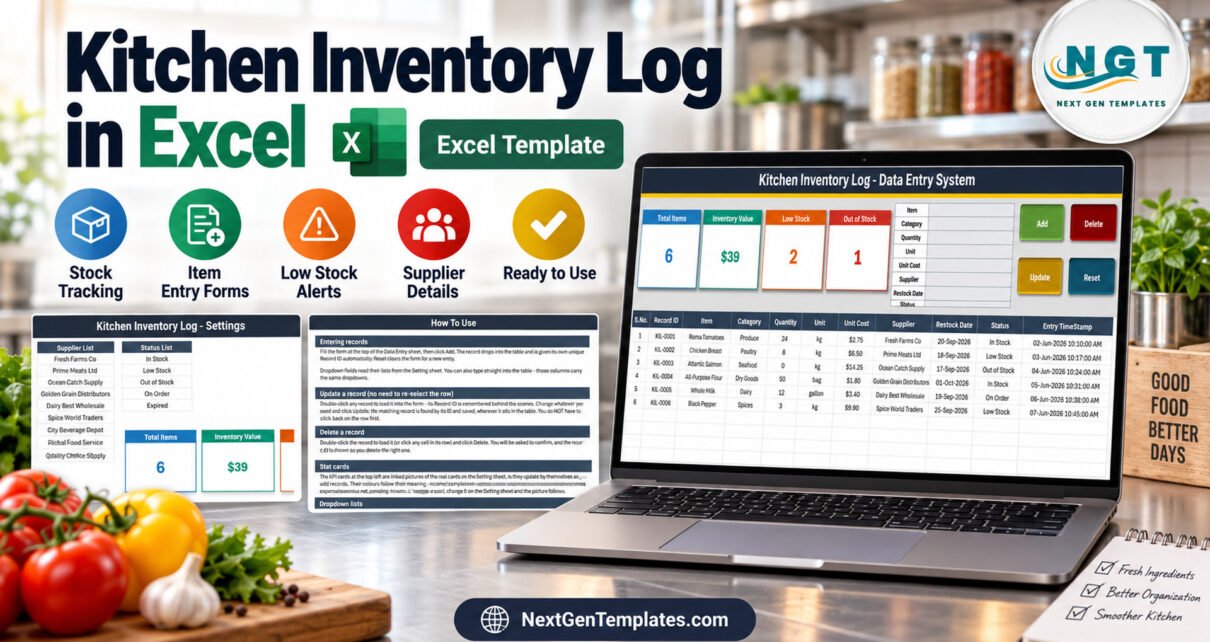
The main attraction is not a decorative dashboard; it is the controlled record workflow. The Data Entry sheet places the input form, command buttons, live inventory cards, and underlying table on one screen. Users can record an item, category, quantity, unit, unit cost, supplier, restock date, and status. New records receive an automatic Record ID and an Entry TimeStamp.
- Add: appends the completed form to the inventory table.
- Update: saves edits to the matching Record ID after a row is loaded.
- Delete: removes the intended record after confirmation.
- Reset: clears the form for another entry.
- Summary cards: show Total Items, Inventory Value, Low Stock, and Out of Stock.
- Reference lists: control the available category, unit, supplier, and status values.
Because this is a VBA inventory data entry system, the workflow is most suitable for Microsoft Excel desktop on Windows. Macros must be enabled for the buttons to operate.
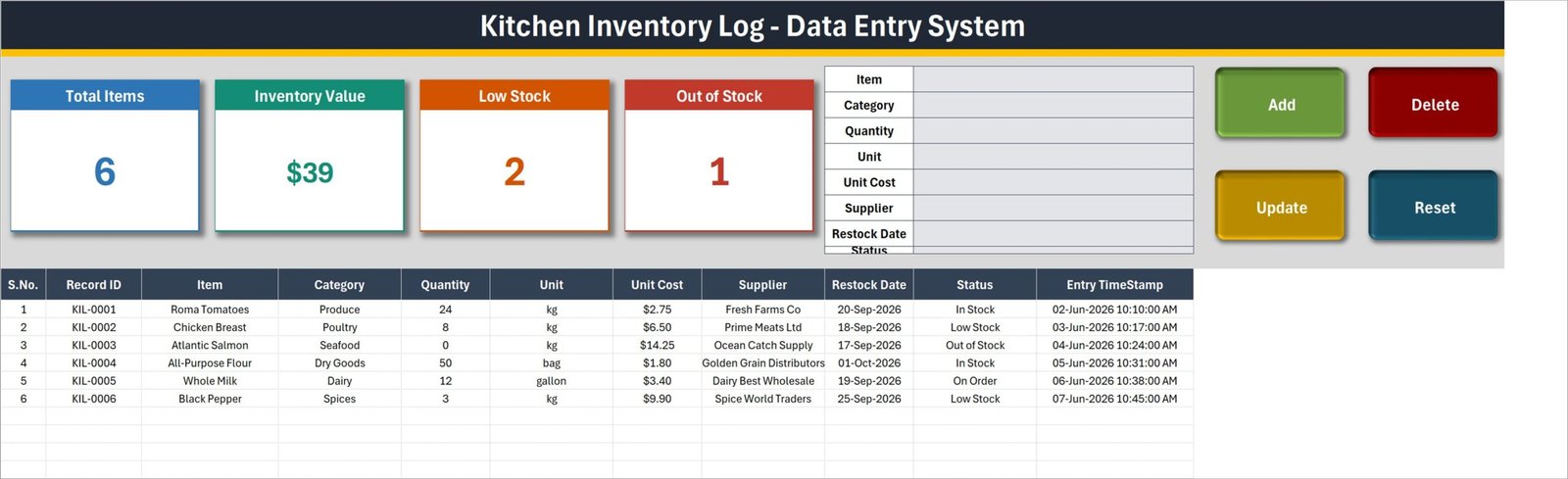
Main Data Entry sheet with form, stock cards, buttons, and inventory table
Workbook Sheets Explanation
1. Data Entry sheet
The Data Entry sheet is the daily working area. The top form captures the business fields, while the four color-coded buttons run the workbook actions. The example table demonstrates categories such as Produce, Poultry, Seafood, Dry Goods, Dairy, and Spices; units including kilograms, bags, and gallons; and statuses such as In Stock, Low Stock, Out of Stock, and On Order.
The card values in the sample are linked to the workbook data. As users add and change records, the counts and inventory value update. This makes the file more useful than a plain table while remaining simple enough to inspect directly.
2. Setting sheet
The Setting sheet is the control area for dropdown choices. Category List, Unit List, Supplier List, and Status List are all visible and editable. The same sheet also holds the source cards whose linked pictures appear on the Data Entry sheet. If the vocabulary in your kitchen changes, you edit the lists here rather than rewriting the VBA form.
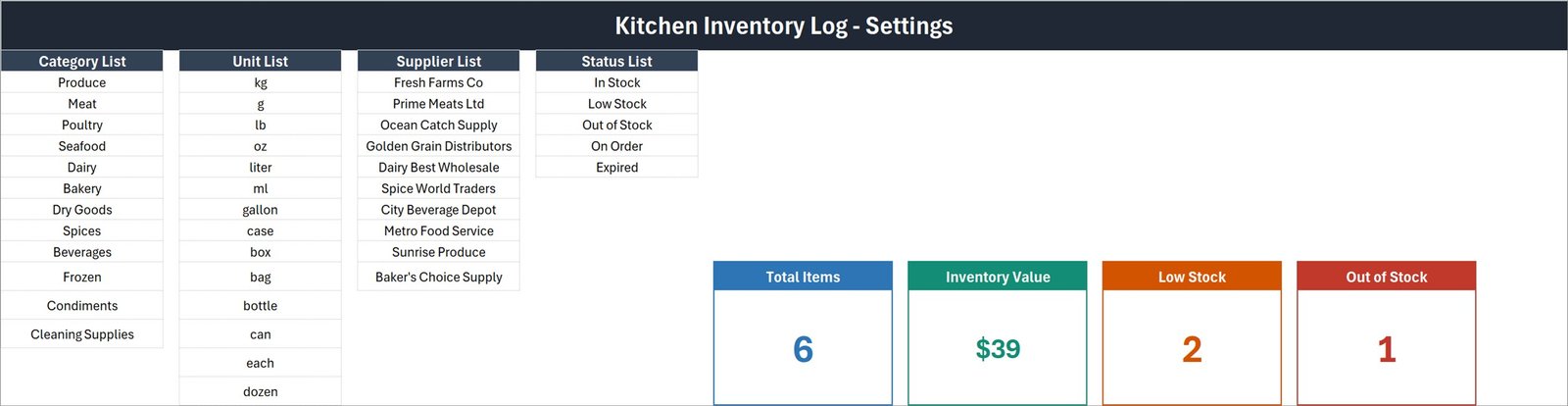
Setting sheet with categories, units, suppliers, statuses, and summary cards
3. How To Use sheet
The built-in guide explains record entry, row loading, updates, deletion, card behavior, dropdown maintenance, and macro security. That guidance is especially helpful for someone receiving a macro-enabled workbook for the first time.
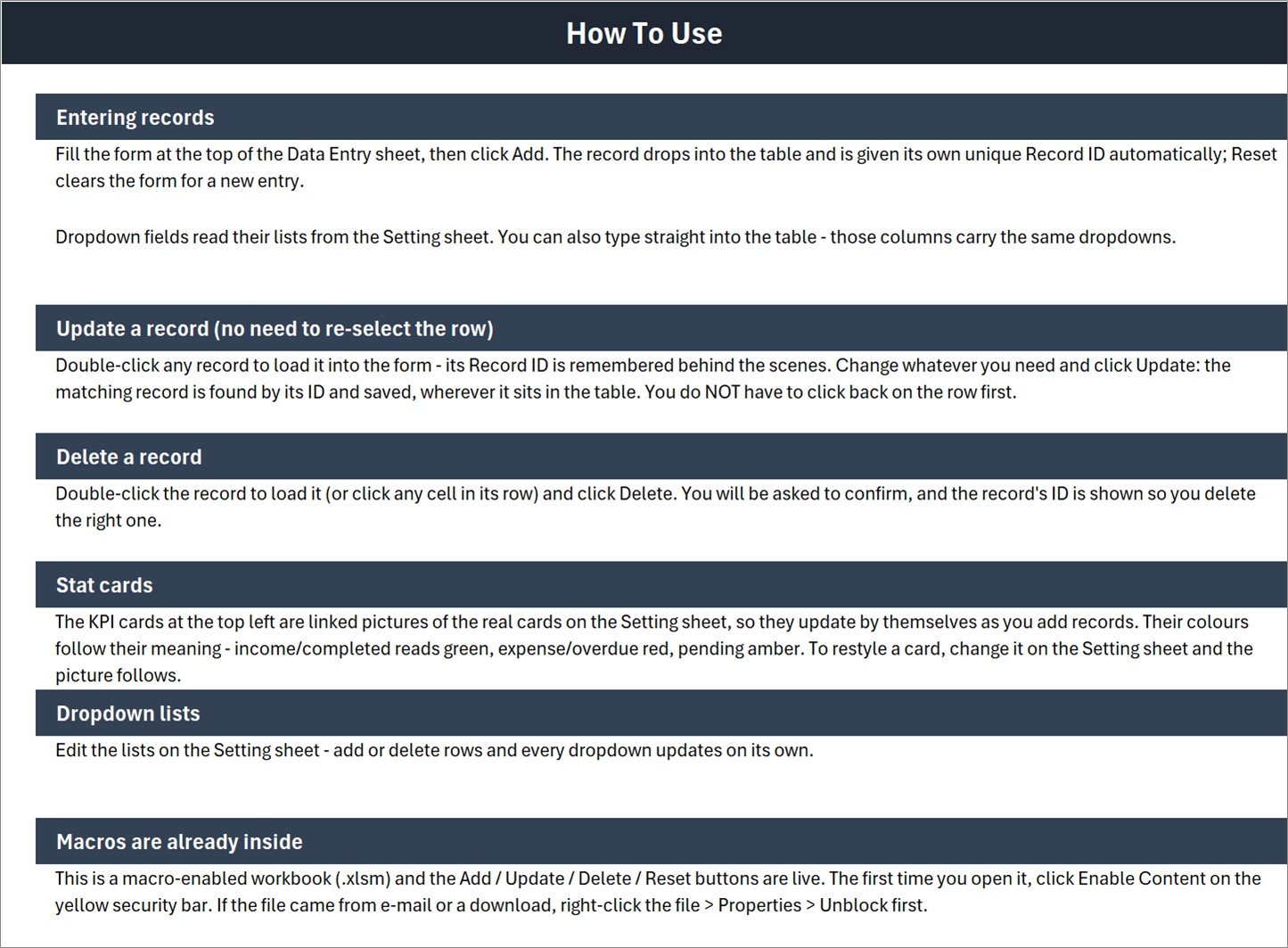
How To Use sheet included inside the workbook
Kitchen Inventory Log Data Entry System in Excel vs. Google Sheets vs. Paid Inventory SaaS – Feature Comparison
| Consideration | Excel kitchen inventory template | Google Sheets alternative | Paid inventory SaaS |
|---|---|---|---|
| Payment | One-time product purchase | Can be built without a subscription | Commonly monthly or annual |
| Record input | VBA form and four action buttons | Usually cells or a custom script | Configured web forms |
| Offline use | Available in Excel desktop | Limited without internet | Usually online |
| Simultaneous editing | Not the main design goal | Strong collaboration | Often supported by user seats |
| Customization | Editable workbook lists and layout | Editable sheets | Plan-dependent settings |
| Included summaries | Four stock cards | Must be configured | Varies by vendor |
| Supplier ordering | Not included | Not included by default | May be available |
The comparison matters because an Excel workbook is not automatically the best answer for every operation. This kitchen stock tracking spreadsheet is strongest when one person or a small team controls a local file. A cloud system is the better choice when many users need live access, barcode scanning, purchase orders, integrations, or permission controls.
Who Should Use This Template
Cafe owners can list frequently used ingredients, their suppliers, unit costs, and stock status. Catering coordinators can prepare supply records for an event and record planned restock dates. Guesthouse or small restaurant managers can maintain a central file for kitchen consumables. Household meal-prep planners can adapt the categories and units for pantry, refrigerator, and freezer items.
It is not meant to replace a point-of-sale system, barcode inventory app, recipe-costing platform, accounting package, or multi-location database. The status values and restock dates are tracking fields; the workbook does not send alerts, order from suppliers, or deduct ingredients automatically from completed sales.
Real-World Use Cases
Weekly stock review
Before ordering, a kitchen manager can filter or review items with Low Stock, Out of Stock, or On Order status, confirm quantities, and update restock dates.
Supplier reference
The inventory table keeps each item’s current supplier beside its cost and unit. The Setting sheet provides one place to maintain the supplier names used in the form.
Controlled record correction
When a cost, quantity, or status changes, double-clicking the row loads it back into the form. The macro remembers the Record ID and updates the matching row, reducing the need to overwrite cells manually.
Small-kitchen onboarding
A new team member can open the How To Use sheet, review the demonstrated sample rows, and learn the Add/Update/Delete/Reset sequence before working with live records.
Advantages of Kitchen Inventory Log Data Entry System in Excel
The file keeps the data transparent. Users can see both the form and table, inspect the dropdown sources, and retain the workbook locally. The workflow does not require a new online account or recurring fee. The four summary cards give a quick operational snapshot without hiding the underlying rows.
It is also adaptable. A buyer can rename categories, units, suppliers, and statuses on the Setting sheet. The Excel kitchen inventory template provides a finished starting point while leaving the workbook accessible to experienced Excel users.
Opportunities for Improvement
The current workbook does not include barcode input, recipe-level consumption, minimum/maximum reorder calculations, purchase orders, user roles, simultaneous web editing, or multi-location stock. These are legitimate next steps for a larger operation, but they should not be assumed from the included file.
A future version could add a transaction ledger instead of storing only the current item quantity, separate receipts and issues, or introduce a reorder-quantity calculation. Buyers who need those functions now should evaluate dedicated inventory software rather than treating a local workbook as a full ERP replacement.
Best Practices
- Keep an untouched backup of the downloaded XLSM before customizing it.
- Use consistent units; do not mix kilograms and grams for the same item unless your process accounts for conversion.
- Review category, supplier, and status lists before entering operational data.
- Update quantities and statuses on a defined schedule so the four cards remain meaningful.
- Use Excel’s trusted security workflow. Microsoft explains how to enable or disable macros in Microsoft 365 files.
- Store the working file in a controlled location and decide who is responsible for updates.
Explore Relevant Templates
For a similar Excel approach, read about the Hardware Store Inventory Data Entry System in Excel, the Toy Shop Inventory Data Entry System in Excel, and the Tile Showroom Stock Data Entry System in Excel. Those published articles demonstrate how the same structured data-entry concept can serve different stock environments without pretending that one vocabulary fits every business.
Frequently Asked Questions
What is included in the download?
The customer ZIP contains the macro-enabled Kitchen Inventory Log XLSM workbook shown in the screenshots.
Which Excel version should I use?
Use Microsoft Excel desktop for Windows because the record buttons depend on VBA macros. Browser Excel does not run VBA.
Can I edit the dropdown lists?
Yes. The Setting sheet exposes the category, unit, supplier, and status lists.
Does the workbook generate Record IDs?
Yes. The included instructions state that a new entry receives a unique Record ID automatically.
Does it provide low-stock alerts?
It provides a Low Stock status and a Low Stock summary card. It does not send email, SMS, or app notifications.
Can I use it for several locations?
The current design does not show a location field or multi-location controls. Add those only if you are comfortable modifying the workbook, or choose a system built for multiple sites.
Is technical support or customization included?
The product is a ready-to-use template. Any bespoke changes should be scoped separately rather than assumed as part of the download.
About the Author
Built by PK – Microsoft Certified Professional with 15+ years of Excel, Google Sheets, and Power BI experience. Founder of NextGenTemplates, reaching 300K+ subscribers across YouTube channels. Every template is hand-built and tested before release.
Conclusion
The Kitchen Inventory Log Data Entry System in Excel is a focused option for kitchens that want a form-driven local workbook rather than a subscription platform. Its real strengths are visible: an organized inventory table, editable reference lists, four summary cards, and clear Add/Update/Delete/Reset actions.
If that scope matches your workflow, get the Kitchen Inventory Log Data Entry System in Excel, enable macros after reviewing the file, and replace the sample rows with your own kitchen records. For more practical Excel tutorials, visit PK: An Excel Expert on YouTube.