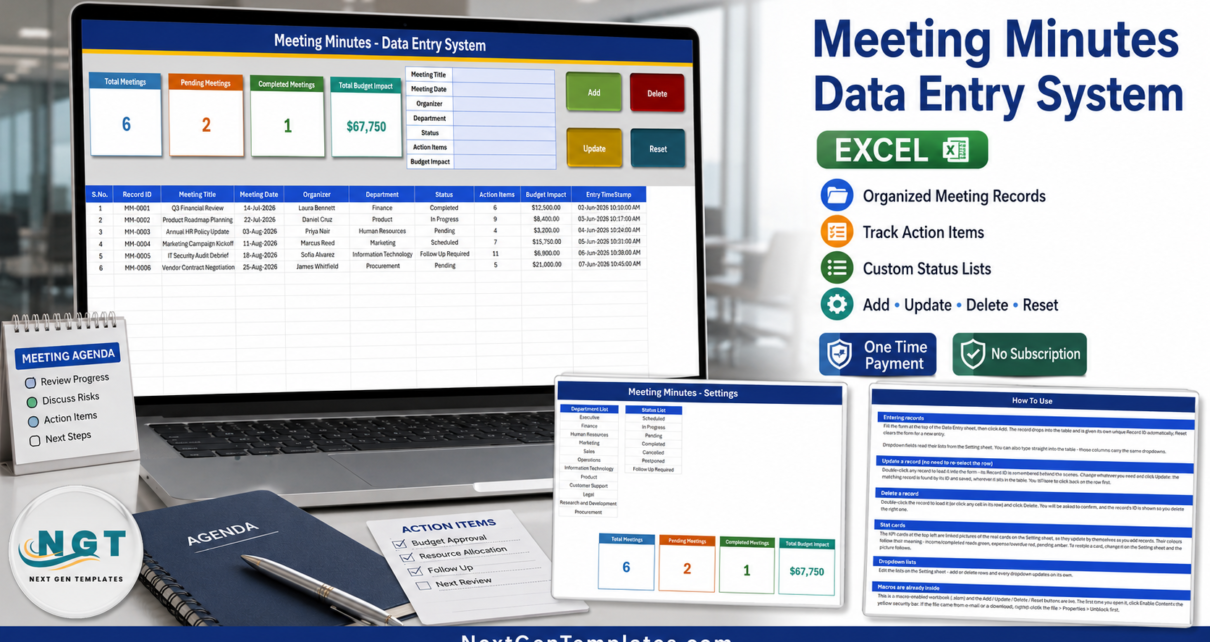
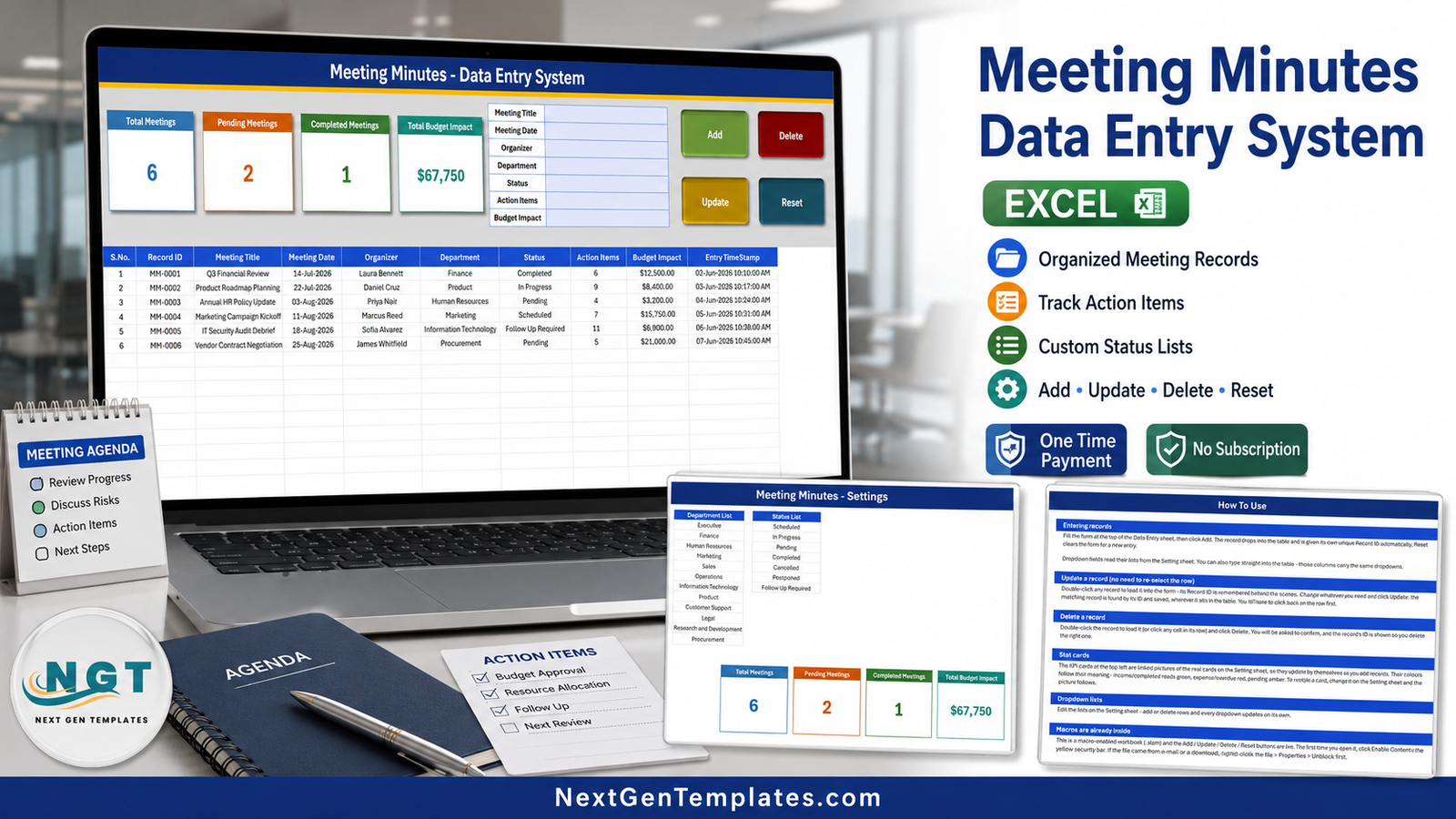
Most teams do not lose meeting decisions because nobody wrote them down. They lose them because the note lives in one person’s OneNote, the action list lives in a chat thread, and the cost of the decision lives nowhere at all. The Meeting Minutes Data Entry System in Excel fixes the smallest version of that problem properly: one macro-enabled workbook, a seven-field form, a ten-column register, and four stat cards that recalculate as you type. Four sheets. 54 KB. No login, no add-in, no subscription.
This post walks through what is actually in the file – sheet by sheet, formula by formula – including the four things it does not do, which we checked by opening the workbook’s XML rather than trusting the screenshots.
Key Features of the Meeting Minutes Data Entry System in Excel
- Seven-field entry form – Meeting Title, Meeting Date, Organizer, Department, Status, Action Items and Budget Impact.
- Four live VBA buttons – Add, Update, Delete and Reset, sitting to the right of the form.
- Double-click to edit – clicking a record loads it into the form and remembers its Record ID behind the scenes, so Update finds the row wherever it has been sorted to.
- Automatic Record ID – MM-0001, MM-0002 and onward in column B, never typed by hand.
- Automatic Entry TimeStamp – column J, formatted
dd-mmm-yyyy hh:mm:ss AM/PM. - Four stat cards – Total Meetings, Pending Meetings, Completed Meetings and Total Budget Impact, implemented as linked pictures of formula cells on the Setting sheet.
- Two dropdown lists – 12 departments and 7 statuses, both editable.
- Six sample records – realistic enough to test with, easy to delete.
The Four Sheets, Explained
1. Data Entry
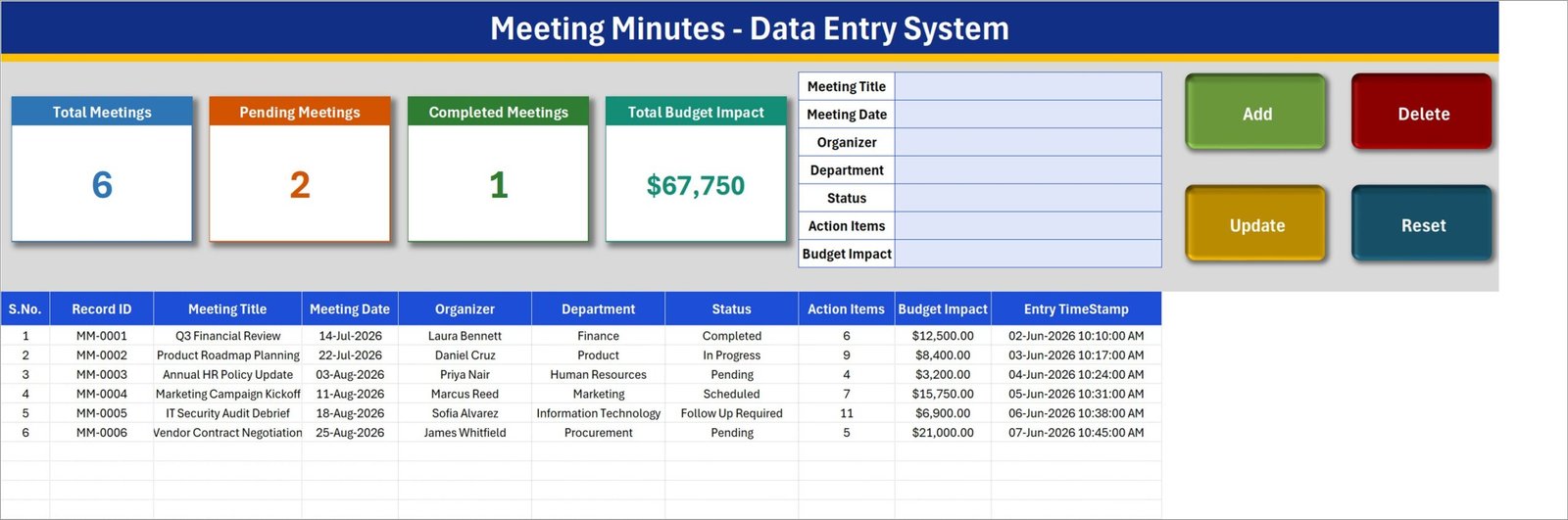
The working sheet, and the only one you touch day to day. A dark blue title bar runs across the top with a gold rule under it. Below that, on the left, sit the four cards: Total Meetings (6 in the sample), Pending Meetings (2), Completed Meetings (1) and Total Budget Impact ($67,750). To their right is the seven-row form, and to the right of that the four buttons – green Add, red Delete, gold Update, teal Reset.
The records table starts at row 14 with ten headers: S.No., Record ID, Meeting Title, Meeting Date, Organizer, Department, Status, Action Items, Budget Impact, Entry TimeStamp. S.No. is the only formula in the table – =IF($B15="","",ROW()-14) – so it numbers filled rows and leaves blank rows blank.
2. Setting
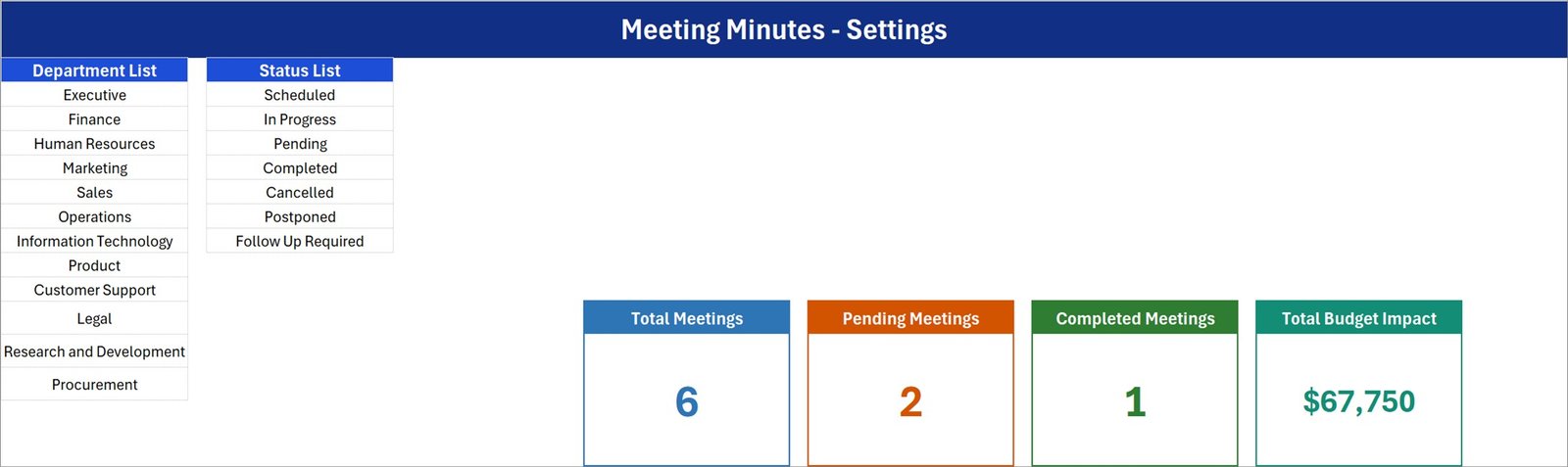
Two lists and four formulas. The Department List holds Executive, Finance, Human Resources, Marketing, Sales, Operations, Information Technology, Product, Customer Support, Legal, Research and Development, and Procurement. The Status List holds Scheduled, In Progress, Pending, Completed, Cancelled, Postponed and Follow Up Required.
Off to the right sit the real KPI cards that the Data Entry sheet shows as linked pictures. Their formulas are worth reading, because they tell you exactly what the numbers mean:
- Total Meetings:
=COUNTA('Data Entry'!$C$15:$C$1048576) - Pending Meetings:
=COUNTIF('Data Entry'!$G$15:$G$1048576,"Pending") - Completed Meetings:
=COUNTIF('Data Entry'!$G$15:$G$1048576,"Completed") - Total Budget Impact:
=SUM('Data Entry'!$I$15:$I$1048576)
3. Instructions (How To Use)
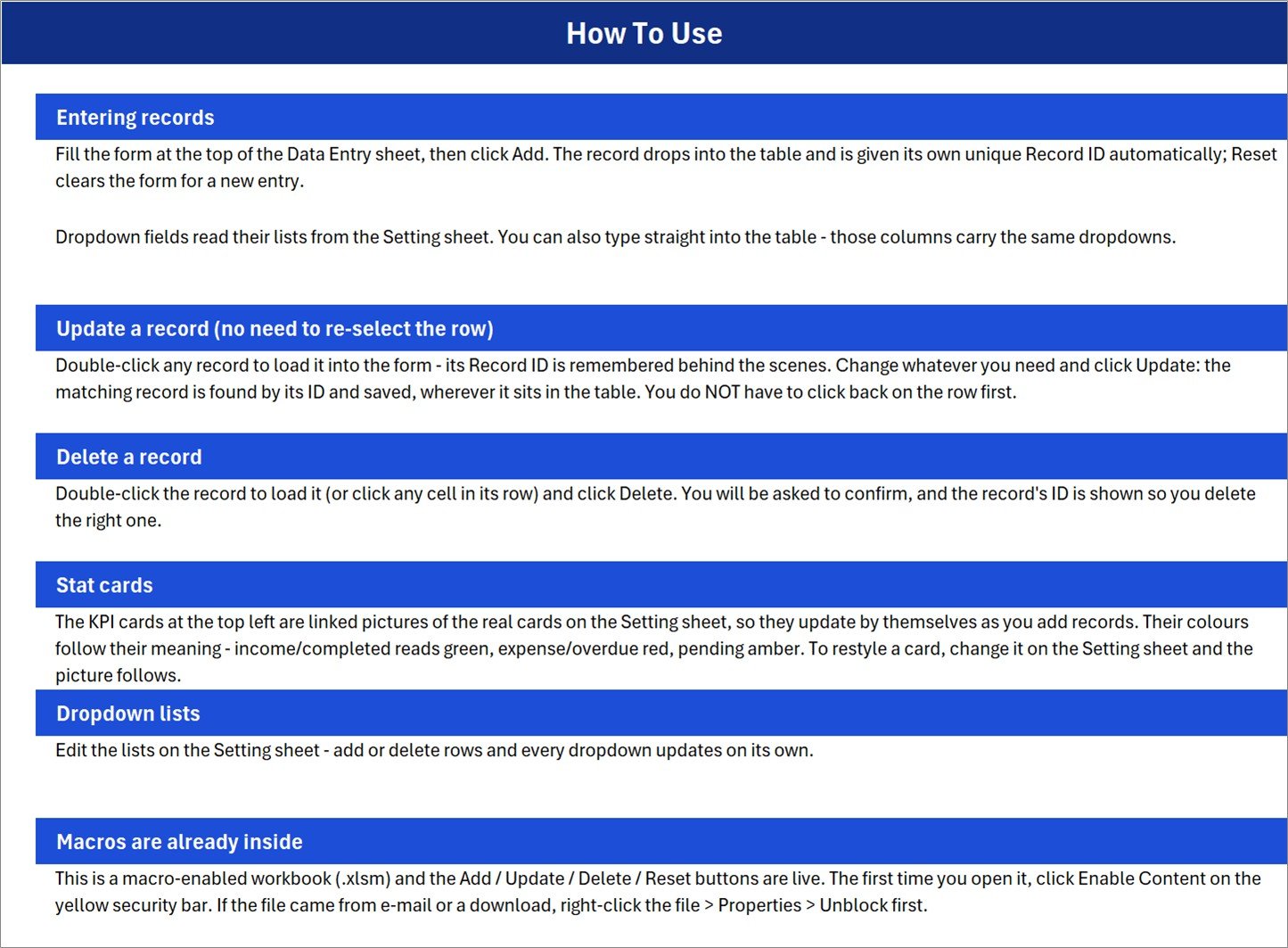
Six blocks: Entering records, Update a record, Delete a record, Stat cards, Dropdown lists, and Macros are already inside. The last one matters – it tells you to click Enable Content, and to right-click the file and Unblock it if it arrived by e-mail.
4. Get More Templates
A short links page back to the NextGenTemplates catalogue.
Meeting Minutes System vs. Google Sheets vs. Paid Meeting SaaS – Feature Comparison
| This Excel workbook | Google Sheets build | Asana / Monday.com / Fellow | |
|---|---|---|---|
| Cost | $6.99 once | Free, plus your build time | $10-$25 per user per month |
| Platform | Excel for Windows desktop | Any browser | Browser and mobile |
| Setup time | Under 5 minutes | Several hours | Days plus onboarding |
| Real-time collaboration | No | Yes | Yes |
| Mobile access | No – VBA needs the desktop app | Yes | Yes |
| Customizable fields | Yes – it is your file | Yes | Within the vendor’s model |
| Share with a link | No – send the file | Yes | Yes |
| Year-1 cost, 5 users | $6.99 | $0 plus build time | $600-$1,500 |
| Auto ID and timestamp | Yes, in VBA | Needs Apps Script | Yes |
| Automated reminders | No | No | Yes |
| Stores the minutes text | No – metadata register only | If you build it | Yes |
Who Should Use This Template
Project coordinators, executive assistants and office administrators running 5 to 50 meetings a month. Department heads who want a Pending-versus-Completed read on their own meetings. Small consultancies that need a timestamped record of when a decision was taken, and by whom, without paying per seat for it.
It is the wrong tool if two people must edit the register at once, if you need the minutes document itself inside the tool, if you work on a Mac or in Excel for the web, or if you expect the workbook to remind anyone of anything. There is no alert, e-mail or notification engine anywhere in the file.
Real-World Use Cases
HR operations. Every policy review and grievance meeting gets a row under Human Resources. The Action Items number becomes a follow-up backlog, and filtering Status to Follow Up Required gives a Monday stand-up agenda in one click.
Marketing. Campaign kickoffs are logged with the budget the meeting committed. At quarter end, the Budget Impact column shows what the meeting calendar actually cost – a number most teams never capture.
Procurement. One row per vendor negotiation, with the organizer named and the contract value recorded. When an auditor asks when a decision was taken, the Entry TimeStamp answers it without a search through e-mail.
Advantages of the Meeting Minutes Data Entry System in Excel
- It is small on purpose. Four sheets, one file, no dependencies. Nothing to break.
- The IDs are trustworthy. Because VBA writes the Record ID and the timestamp, you cannot accidentally reuse an ID or backdate a row.
- Update works by ID, not by cursor position. You can sort and filter the table freely and Update still finds the right record.
- The cards are ordinary formulas. They are on the Setting sheet, in plain sight, and you can change any of them.
- It costs less than one month of any SaaS alternative, once, and it keeps working when you stop paying anything.
Opportunities for Improvement
We read this workbook’s sheet XML before writing about it, and four things are worth stating plainly. None of them stops the system working; all four are things a buyer should know, and all four are a few minutes’ work to change.
1. Total Budget Impact ignores status
SUM('Data Entry'!$I$15:$I$1048576) adds every Budget Impact value in the column. In the shipped sample the card reads $67,750, but only the $12,500 Q3 Financial Review is Completed. The remaining $55,250 sits in Pending ($3,200 and $21,000), Scheduled ($15,750), In Progress ($8,400) and Follow Up Required ($6,900) rows. Read it as “budget in play”. To make it completed-only, change the Setting-sheet formula to =SUMIF('Data Entry'!$G$15:$G$1048576,"Completed",'Data Entry'!$I$15:$I$1048576).
2. Only two of seven statuses have cards
Pending and Completed are carded; Scheduled, In Progress, Cancelled, Postponed and Follow Up Required are not. So 2 + 1 will never equal a Total Meetings of 6, and it is not meant to. If you want the cards to reconcile, either card all seven statuses or add a single “Other” card using =G13-I13-K13.
3. Total Meetings counts titles, not Record IDs
The formula is COUNTA over column C, the Meeting Title column, rather than column B, the Record ID column. Save a record with the title left blank and it is stored, and given an ID, but the card will not count it. Repointing the COUNTA at $B$15:$B$1048576 fixes it in one edit.
4. The dropdown ranges are fixed, despite what the How To Use sheet says
The How To Use sheet says you can “add or delete rows and every dropdown updates on its own”. The named ranges are DepartmentList = Setting!$A$3:$A$14 and StatusList = Setting!$C$3:$C$9 – twelve rows and seven rows, hard-coded. A thirteenth department typed at A15 will not appear in the dropdown until you extend the range in Formulas > Name Manager, or convert the list to an Excel Table so it grows on its own. Separately, the data validation itself is applied to table rows 15 to 214, so record number 201 onwards needs the validation copied down.
Two smaller notes: the Action Items column is a count per meeting and is never totalled anywhere, and the “Stat cards” paragraph on the How To Use sheet mentions income, expense and overdue colours – stale boilerplate shared with other workbooks in this family, not a description of these four cards. In the sample data all six meeting dates (July and August 2026) fall after their entry timestamps (2-7 June 2026), which is normal for scheduled meetings but means the one row marked Completed is dated in the future relative to when it was logged.
Best Practices
- Edit the Setting sheet first. Replace the twelve departments with your own before you enter a single record, so you never have to re-key a Department value.
- Decide what Budget Impact means to you – committed spend, estimated cost, or approved budget – and write it in a cell comment. Mixed meanings in one column ruin the card.
- Switch the total to a SUMIF early if your stakeholders read the card as money spent.
- Keep the workbook in one place, not in a shared folder where two people might open it at once. It is a single-editor file.
- Enable macros the right way. Microsoft’s guidance on trusted locations and the Enable Content bar is here: Macros from the internet are blocked by default in Office.
- Back it up on a schedule. There is no undo history in a workbook the way there is in a SaaS tool – keep a dated copy each month.
Explore Relevant Templates
- Meeting Minutes Data Entry System in Excel – the workbook described in this post.
- Team Meeting Minutes Tracker in Excel – the larger cousin, with a login screen, user management and a slicer-driven dashboard.
- Work Progress Data Entry System in Excel – for the tasks that come out of the meetings.
- Employee Document Data Entry System in Excel – the same form pattern applied to HR paperwork.
- Job Work Order Data Entry System in Excel – turn decisions into tracked work orders.
Frequently Asked Questions
Does the workbook store the minutes themselves?
No. It records the meeting’s metadata – title, date, organizer, department, status, an action-item count and a budget figure. The minutes document stays wherever you keep it; this is the index to it.
Why doesn’t Total Budget Impact match my completed meetings?
Because it is a plain SUM over the whole Budget Impact column, with no status filter. Section 1 of Opportunities for Improvement above shows the SUMIF that changes it.
Do I need to enable macros?
Yes. Add, Update, Delete and Reset are VBA. Without Enable Content they do nothing. This is Excel for Windows desktop only – Mac and Excel for the web will open the sheets but not run the buttons.
Can I add a thirteenth department?
You can type it on the Setting sheet, but you must also extend the DepartmentList named range for it to show in the dropdown. The range is fixed at A3:A14 as shipped.
How many records will it take?
The card formulas read entire columns, so the table is not capped. The dropdown validation is pre-applied to rows 15-214, so beyond about 200 records you copy the validation down one time.
Does it send reminders for upcoming meetings?
No. There is no reminder, alert or conditional-formatting engine in the file. If you need reminders, keep using your calendar and use this as the record of what happened.
About the Author
Built by PK – Microsoft Certified Professional with 15+ years of Excel, Google Sheets, and Power BI experience. Founder of NextGenTemplates, reaching 300K+ subscribers across YouTube channels. Every template is hand-built and tested before release.
Conclusion
The Meeting Minutes Data Entry System in Excel is a deliberately small tool that does one job well: it turns a meeting into a numbered, timestamped, filterable row. The VBA is real, the dropdowns are yours to edit, and the four cards are ordinary formulas you can see and change – including the Total Budget Impact card, which sums every status and which we would rather you knew about now than discovered later.
Get the Meeting Minutes Data Entry System in Excel for $6.99 (regular $11.99) – instant download, one macro-enabled workbook, yours to keep.
For step-by-step Excel and VBA video tutorials, subscribe at youtube.com/@PKAnExcelExpert.