The gate register is the oldest document in most businesses and usually the worst kept. A hardbound book sits on the guard’s desk, three shifts write in it in three different hands, “ABC Traders” is also “A.B.C. traders” and “abc”, and when a returnable material pass never comes back nobody notices for a fortnight. The Gate Pass Register Data Entry System in Excel replaces that book with one macro-enabled workbook – four sheets, a seven-field entry form, four live KPI cards, a ten-column record table and a status list that runs from Inside to Cancelled. Six sample records ship inside it, and the Add, Update, Delete and Reset buttons are real VBA rather than formulas you have to drag down.
This walkthrough covers exactly what is in the file, what each of the four KPI cards actually counts, where the arithmetic will surprise you, and who should skip it.
Key Features of the Gate Pass Register Data Entry System in Excel
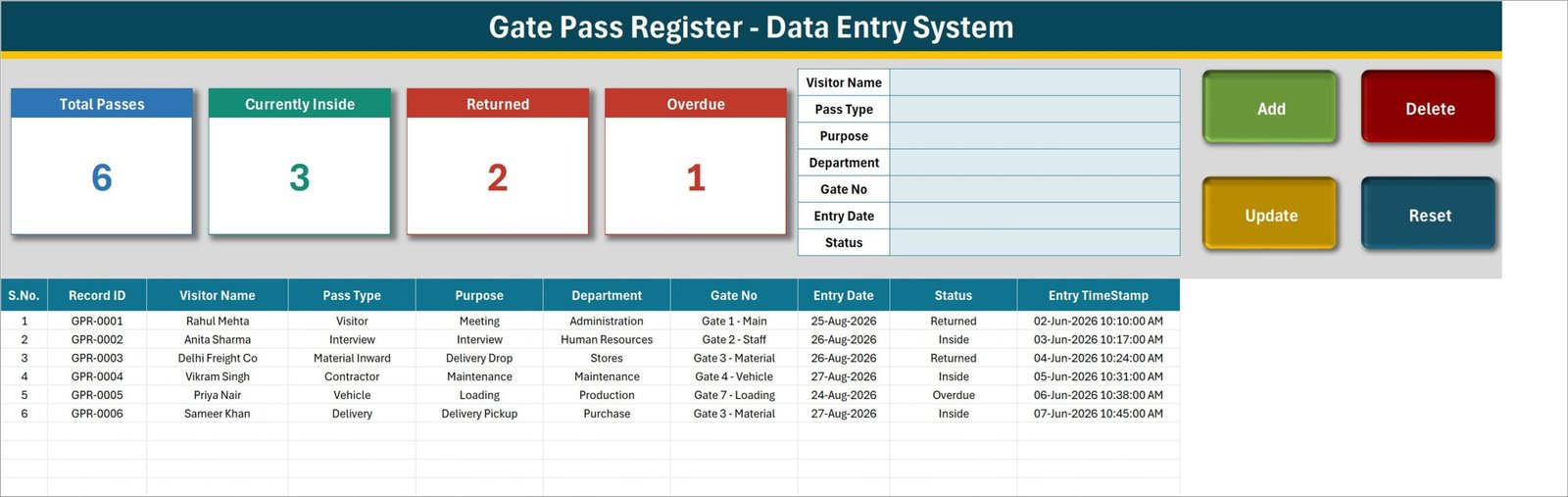
- A seven-field form, not a wall of columns. Visitor Name, Pass Type, Purpose, Department, Gate No, Entry Date and Status sit in one panel at the top of the Data Entry sheet.
- Four VBA buttons. Add, Update, Delete and Reset. Delete confirms first and shows the Record ID, so you cannot wipe the wrong pass.
- Record IDs that survive deletions. Every entry is stamped GPR-0001, GPR-0002 and onwards. The macro takes the next number from the highest already used rather than from the row count, so deleting a row never recycles an ID.
- Double-click any row to edit it. The record loads back into the form and its ID is held behind the scenes, so Update finds the right row wherever it has since moved to. No re-selecting.
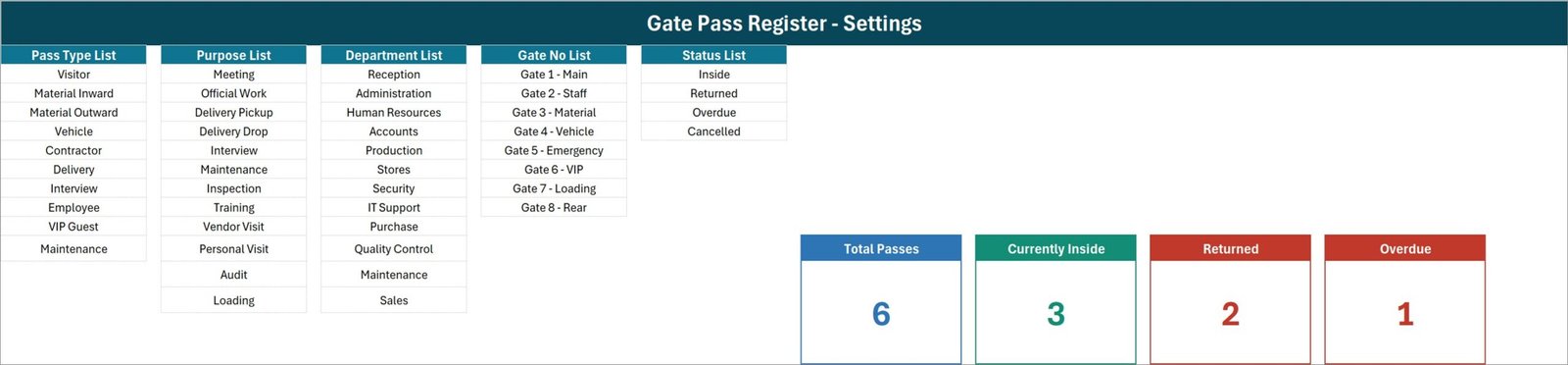
- Ten pass types. Visitor, Material Inward, Material Outward, Vehicle, Contractor, Delivery, Interview, Employee, VIP Guest and Maintenance – so a returnable material pass and a walk-in visitor live in the same table.
- Twelve purposes and twelve departments. Meeting, Official Work, Delivery Pickup, Delivery Drop, Interview, Maintenance, Inspection, Training, Vendor Visit, Personal Visit, Audit and Loading, against Reception, Administration, Human Resources, Accounts, Production, Stores, Security, IT Support, Purchase, Quality Control, Maintenance and Sales.
- Eight named gates. Gate 1 – Main through Gate 8 – Rear, so a multi-gate site can tell where traffic actually enters.
- A four-stage status. Inside, Returned, Overdue and Cancelled.
- Four live KPI cards. Total Passes, Currently Inside, Returned and Overdue. They are real formulas on the Setting sheet, shown on Data Entry as linked pictures, so they update themselves.
- A separate entry timestamp. Each row records the date and time it was saved, kept apart from the Entry Date you type for the pass itself.
Inside the Workbook – Sheet by Sheet
1. Data Entry
The working screen and the only one a guard needs. Four KPI cards top left, the seven-field form top centre, the four buttons top right. Underneath, the record table runs across ten columns – S.No., Record ID, Visitor Name, Pass Type, Purpose, Department, Gate No, Entry Date, Status and Entry TimeStamp – starting on row 15. The S.No. column is a formula that numbers itself as records appear, and the dropdown columns are wired down to row 214.
2. Setting
Five list columns and the four real KPI cards. Pass Type List holds ten values, Purpose List and Department List twelve each, Gate No List eight and Status List four. Every dropdown on the Data Entry sheet – in the form and in the table – reads from here, so this is the sheet you edit to make the file yours.
3. Instructions
A single How To Use page covering entering records, updating without re-selecting the row, deleting safely, what the stat cards do, editing the lists and enabling macros. Useful for handing the file to a guard who has never opened Excel beyond a phone bill.

4. Get More Templates
A short links page back to the NextGenTemplates catalogue.
What the Four KPI Cards Really Count
The cards are ordinary formulas, and it pays to know what they are looking at before you read a number out at a shift handover.
- Total Passes counts filled cells in the Visitor Name column – not the Record ID column. A row typed straight into the table with the name left blank is stored but not counted. Records added through the form are safe, because the Add macro refuses to save without a Visitor Name.
- Currently Inside counts rows whose Status reads “Inside”.
- Returned counts rows whose Status reads “Returned”.
- Overdue counts rows whose Status reads “Overdue”.
Notice what is missing: Cancelled has no card. Three of the four statuses are carded, so Currently Inside plus Returned plus Overdue equals Total Passes only while no pass has been cancelled. The six shipped samples happen to contain no cancellations, which is why the cards read 6, 3, 2 and 1 and look perfectly reconciled out of the box. Cancel one pass and the three will fall one short of the total. Each count is still right on its own terms – it is simply not a breakdown.
One genuine relief compared with the money-carrying members of this template family: there is no amount column anywhere in this workbook, so there is no unfiltered total waiting to overstate anything. A gate register logs movement, not value.
Gate Pass Register in Excel vs. a Paper Gate Register vs. Visitor Management Software – Feature Comparison
| What you need | Paper gate register | This Excel system | Visitor management software |
| Cost | Free | $6.99 once | Monthly fee per site |
| Setup time | None | Under 10 minutes | Days, plus hardware |
| One record per pass, with an ID | Handwriting-dependent | Yes, GPR-0001 onwards | Yes |
| Consistent pass type, department and gate spelling | No | Yes, dropdown driven | Yes |
| Running counts without a calculator | No | Yes, four live cards | Yes |
| Automatic entry and exit times | No | No – the guard sets the status | Yes |
| Badge or QR pass printing | No | No | Yes |
| Host notification by email or SMS | No | No | Yes |
| Turnstile, barrier or access-card integration | No | No | Yes |
| Works offline, no login | Yes | Yes | Rarely |
| You own the file | Yes | Yes | No |
Who Should Use This Template
It suits a factory or warehouse security desk logging inward and outward material passes, a small office reception recording visitors and couriers, a construction site controlling contractor entry across two or three gates, and a school or housing-society gatehouse that has outgrown a hardbound book but does not want a per-site subscription.
It does not suit a site that needs automatic entry and exit capture, badge printing, host notifications or barrier integration; a multi-guard operation where several people must write to the register in the same minute; or a corporate campus already running an access-control platform. For those, buy visitor management software – or move up to a multi-user web app.
Real-World Use Cases
- Shift handover at a factory gate. Currently Inside is the one number the outgoing guard has to account for, and the table behind it names everyone still on site.
- Returnable material passes. Log a Material Outward pass as Inside while the item is off site, switch it to Returned when it comes back, and let the Overdue count surface what has not.
- Contractor control on a construction site. Contractor and Maintenance pass types split across Gate 3 – Material and Gate 4 – Vehicle keep trade traffic separate from visitors.
- Reception visitor book. Meeting and Interview purposes recorded against the receiving department give HR and Administration a clean monthly count of who they brought on site.
- Audit evidence. Every row carries a GPR reference plus the date and time it was entered, so a movement is traceable to a specific record instead of a line of handwriting.
Advantages of the Gate Pass Register Data Entry System in Excel
- Nothing to learn. Anyone who can fill a form can run it, and the Instructions sheet answers the rest.
- Consistent data by construction. Four of the seven fields are dropdowns, so a month of records can actually be filtered and counted.
- Safe edits. Update resolves the row by Record ID, and Delete names the record before it removes it – two failure modes designed out rather than warned about.
- Offline and yours. One .xlsm file on the gatehouse machine. No login, no cloud, no renewal, no vendor holding your visitor history.
- Honest scope. It records movement well and claims nothing about controlling it.
Opportunities for Improvement
Four things are worth knowing before you buy, and none of them is hidden – you just have to look.
- The dropdown lists are fixed length, and all five are already full. The named ranges behind them cover exactly the rows the lists ship with: ten pass types, twelve purposes, twelve departments, eight gates and four statuses, with no spare row in any of them. Type an eleventh pass type directly under the last one and it will not appear in the dropdown. Overwrite an entry you do not need, or extend the range in Formulas > Name Manager. The Instructions sheet claims the lists grow on their own; that is the one sentence on it to ignore.
- Cancelled has no KPI card. Covered above – the three status cards are not a full breakdown of the total.
- Total Passes counts the Visitor Name column. Use the form and it never matters; type straight into the table and leave a name blank and the count quietly disagrees with the table.
- Validation stops at row 214. The dropdowns and the numbering are applied to rows 15 to 214, which is 200 passes. Past that the table still works, but the cells lose their lists until you extend the validation range – a two-minute job in Data > Data Validation.
One cosmetic point on the sample data: the six demo passes carry Entry Dates of 24 to 27 August 2026 while their Entry TimeStamps read 2 to 7 June 2026, so the rows appear to have been entered two months before the visits. It is filler data and you are deleting it anyway, but do not read a pattern into it.
Best Practices
- Set up the Setting sheet before you log anything. Your real gate names, your real departments – fifteen minutes now saves a year of tidying.
- Enter the record at the gate, not at the end of the shift. A register filled in from memory is a story, not a record.
- Always fill Visitor Name – the Total Passes card is counting that column.
- Close passes out honestly, including Cancelled, and use Overdue rather than leaving something at Inside forever.
- Read Currently Inside before every handover. It is the number that matters in an evacuation.
- Start a new file each year and archive the old one. The table is comfortable to about 200 rows with validation intact.
- Store the workbook where your organisation’s policy says visitor records belong, and back it up the same way. It is a list of named people and when they were on your premises.
Explore Relevant Templates
- Scrap Record Data Entry System in Excel – the material that leaves your gate as scrap, on the same form-and-cards build.
- Machine Maintenance Data Entry System in Excel – what the contractors you let through actually came to fix.
- Job Work Order Data Entry System in Excel – the work order behind an outward material pass.
- Incident Near Miss Data Entry System in Excel – the safety log that sits on the same desk.
- Access Control and ID Card Management System Web App – the multi-user version with logins and ID card handling.
- Parking Management System Web App – for gates that are mostly about vehicles.
Frequently Asked Questions
Does it capture entry and exit times automatically?
No. There is one Entry Date you type and one Status a guard changes by hand. The workbook holds no exit-time column, runs no clock against a pass, and never flips anything to Overdue on its own. If unattended time capture is the requirement, this is a register, not the tool.
Does it control a gate, a barrier or an access card?
No. Nothing in the file talks to hardware. It does not read badges, QR codes or number plates, does not open barriers, and does not connect to CCTV or an access-control system.
Does it print gate passes or visitor badges?
No. It records the pass you issued by whatever means you issue it. There is no badge layout, no photo field and no ID-document storage in the workbook.
Why don’t Currently Inside, Returned and Overdue add up to Total Passes?
Because only three of the four statuses have a card. Rows sitting at Cancelled are counted in Total Passes but appear on none of the other three. In the shipped sample there are no cancellations, so the cards reconcile at 6 = 3 + 2 + 1; your first cancelled pass will break that tie.
It holds visitors’ names. What about data protection?
The file stores what you type, on your own computer, and sends nothing anywhere. That also makes the personal data in it your responsibility: a gate register is a list of named people and the times they were on your premises. Keep it where your organisation’s policy says visitor records belong, share it only with those entitled to see it, and delete records when your retention policy says so.
Will the buttons work on a Mac, a phone or Excel for the web?
No. The workbook opens, but VBA needs desktop Microsoft Excel for Windows. Excel for the web, Excel for iPad and Android and Google Sheets will not run Add, Update, Delete or Reset.
How many records can it hold?
Two hundred with everything intact – rows 15 to 214 carry the dropdowns and the numbering formula. Beyond that you copy the validation down yourself, but a fresh file per year is the better habit.
Can I add more gates, departments or statuses?
Yes, but extend the named range as well as typing the value. Every list is already full to the last row of its range, so a new entry underneath will not reach the dropdown until the range in Formulas > Name Manager is widened.
Can two guards use it at once?
No. It is a single .xlsm file, not a shared database. One machine, one person entering per shift. If two gates must log simultaneously, you need a shared cloud tool.
About the Author
Built by PK – Microsoft Certified Professional with 15+ years of Excel, Google Sheets, and Power BI experience. Founder of NextGenTemplates, reaching 300K+ subscribers across YouTube channels. Every template is hand-built and tested before release.
Conclusion
A gate register is unglamorous work that becomes very important on exactly one bad day. This workbook will not open your barrier, read a badge or notice on its own that a pass has gone stale – and it says so plainly. What it will do is turn every entry into a numbered, dated, dropdown-clean record that one guard can fill in thirty seconds and another can filter six months later. Get the Gate Pass Register Data Entry System in Excel for $6.99, pay once, and keep the file.