A circulation desk that keeps subscribers in a plain worksheet usually ends up with the same three problems: two people typing over each other’s rows, no way to tell which of the four “J. Whitfield” entries is the current one, and a revenue figure that is re-added by hand every time somebody asks. The Newspaper Subscription Data Entry System in Excel fixes the second and third of those, and is honest about the first.
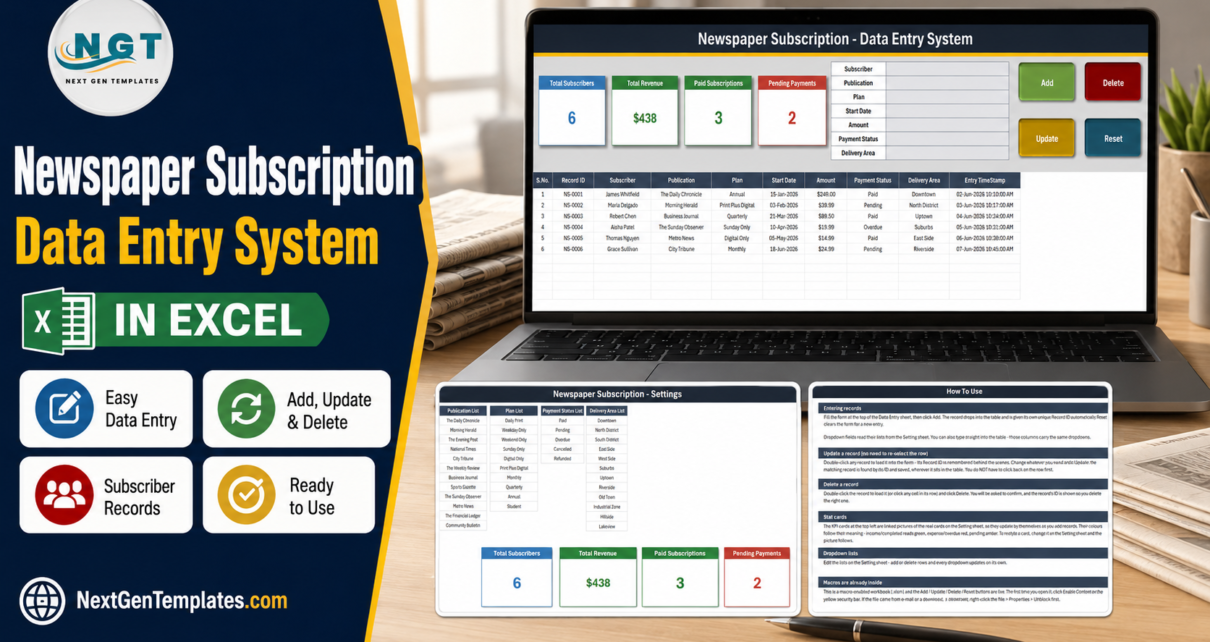
It is a macro-enabled workbook with exactly four sheets. One entry form of seven fields feeds a records table of ten columns. Every record gets its own ID in the NS-0001 series and an entry timestamp written to the minute. Four stat cards sit above the form and recalculate from the table itself – Total Subscribers, Total Revenue, Paid Subscriptions and Pending Payments. Four dropdown lists ship pre-filled with 12 publications, 10 plans, 5 payment statuses and 12 delivery areas, and 200 record rows are already formatted and validated before you type anything. Four VBA macros – Add_Record, Update_Record, Delete_Record and Reset_Form – sit behind the four buttons.
This article walks through what is actually in the file, sheet by sheet, and is equally clear about what is not.
Key Features of the Newspaper Subscription Data Entry System in Excel
- A seven-field form. Subscriber, Publication, Plan, Start Date, Amount, Payment Status, Delivery Area. That is the whole form – there is no hidden second page.
- Four working buttons. Add (green), Update (amber), Delete (red) and Reset (teal), each bound to a VBA routine.
- Record IDs generated for you. NS-0001, NS-0002, and onward. Two subscribers with the same name never merge.
- An Entry TimeStamp column. Written automatically when the record is added.
- Update finds the record by ID. Double-click any row to load it back into the form; the macro then locates it by its Record ID wherever it has been sorted to. You never have to click back onto the row first.
- Delete confirms with the ID. The prompt names the record it is about to remove.
- Four live stat cards. Total Subscribers is a COUNTA of the Subscriber column, Total Revenue a SUM of Amount, Paid Subscriptions and Pending Payments are COUNTIFs on Payment Status.
- Dropdowns on both the form and the table. Publication, Plan, Payment Status and Delivery Area are validated in the form cells and again down rows 15 to 214 of the table, so typing straight into the grid is just as safe.
- A How To Use sheet inside the file. Six sections, written in plain language.
Sheet-by-Sheet Walkthrough
1. Data Entry
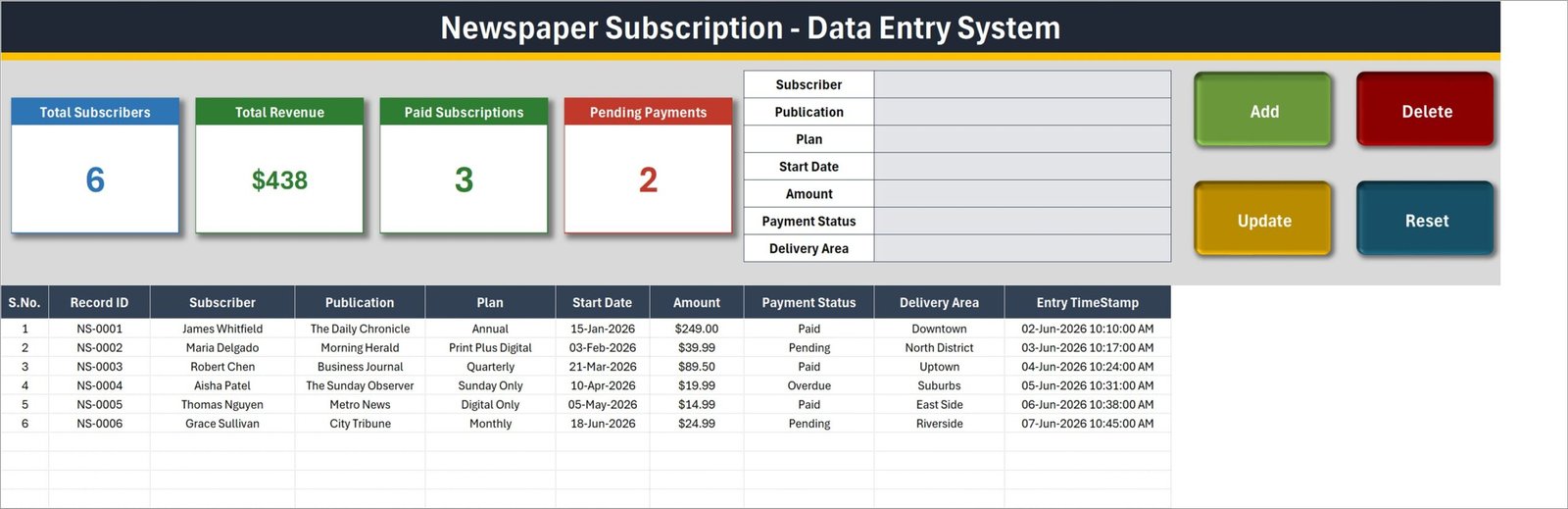
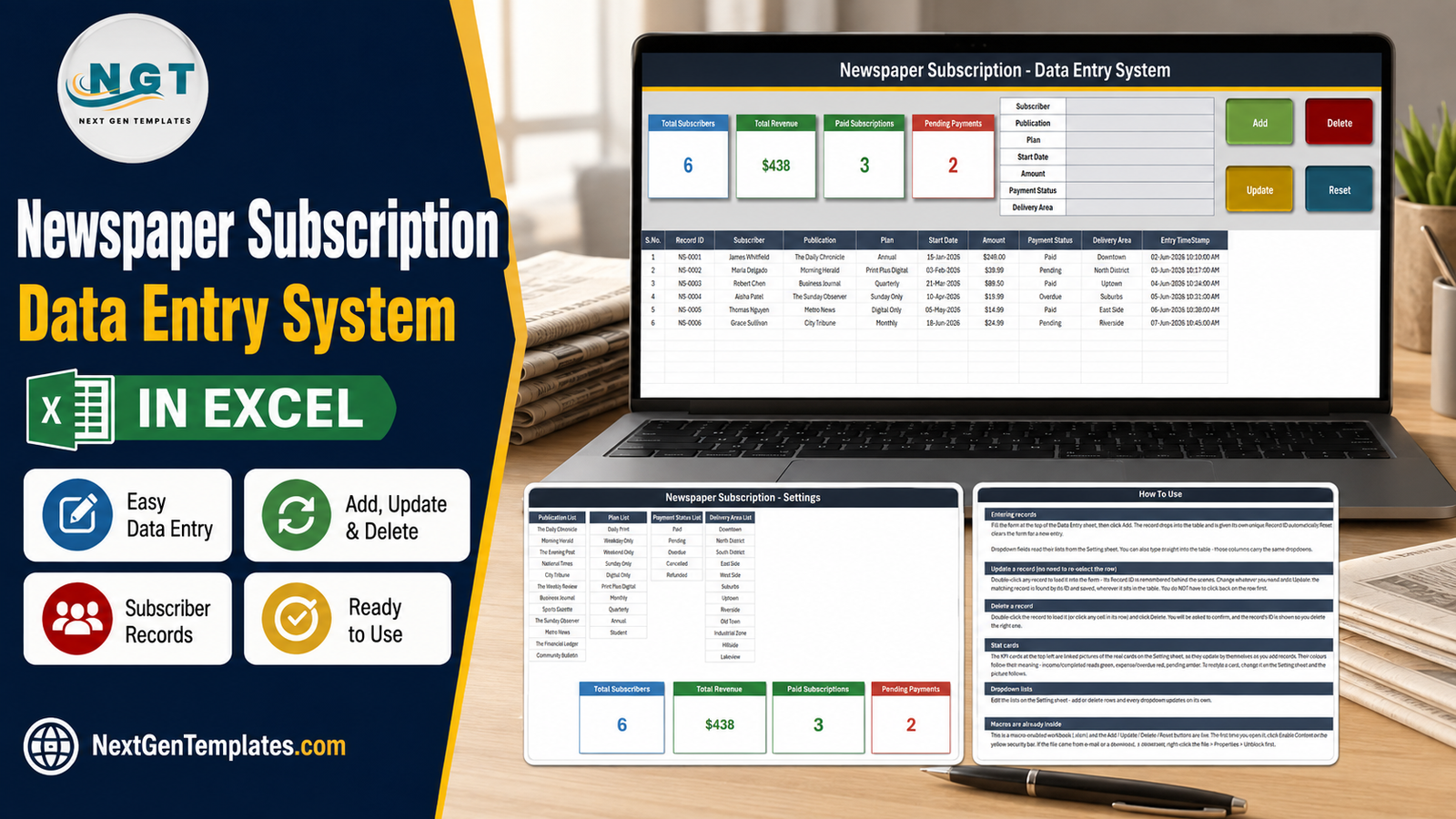
The only sheet most users will ever open. A navy title banner runs across the top with a gold rule under it. Beneath that, from left to right: the four stat cards, the seven-field form, and the four buttons in a two-by-two block.
The records table starts at row 14 with its headers: S.No., Record ID, Subscriber, Publication, Plan, Start Date, Amount, Payment Status, Delivery Area, Entry TimeStamp. S.No. is a formula, not typed – it reads =IF($B15="","",ROW()-14), so it renumbers itself as rows fill and stays blank on empty rows.
Six sample subscribers ship in the file so you can see the buttons work before clearing them: James Whitfield on an Annual Daily Chronicle plan at $249.00 marked Paid, Maria Delgado on Print Plus Digital at $39.99 Pending, Robert Chen Quarterly on the Business Journal at $89.50 Paid, Aisha Patel Sunday Only at $19.99 Overdue, Thomas Nguyen Digital Only at $14.99 Paid, and Grace Sullivan Monthly at $24.99 Pending. Those six drive the cards you see: 6 subscribers, $438 of revenue, 3 paid, 2 pending.
2. Setting
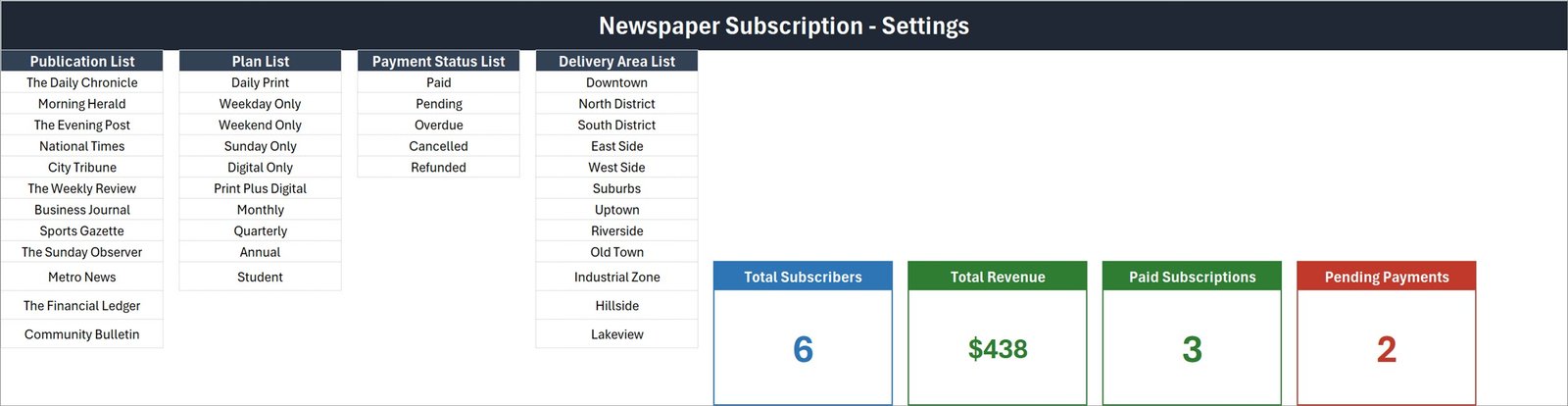
Four list columns and the four real stat cards. The Publication List holds The Daily Chronicle, Morning Herald, The Evening Post, National Times, City Tribune, The Weekly Review, Business Journal, Sports Gazette, The Sunday Observer, Metro News, The Financial Ledger and Community Bulletin. The Plan List runs Daily Print, Weekday Only, Weekend Only, Sunday Only, Digital Only, Print Plus Digital, Monthly, Quarterly, Annual and Student. Payment Status is Paid, Pending, Overdue, Cancelled, Refunded. Delivery Area covers Downtown, North District, South District, East Side, West Side, Suburbs, Uptown, Riverside, Old Town, Industrial Zone, Hillside and Lakeview.
Each list is a named range, so adding or deleting a row updates every dropdown that uses it without touching the validation rules. The cards on the Data Entry sheet are linked pictures of the cards on this sheet – restyle one here and the picture follows.
3. How To Use
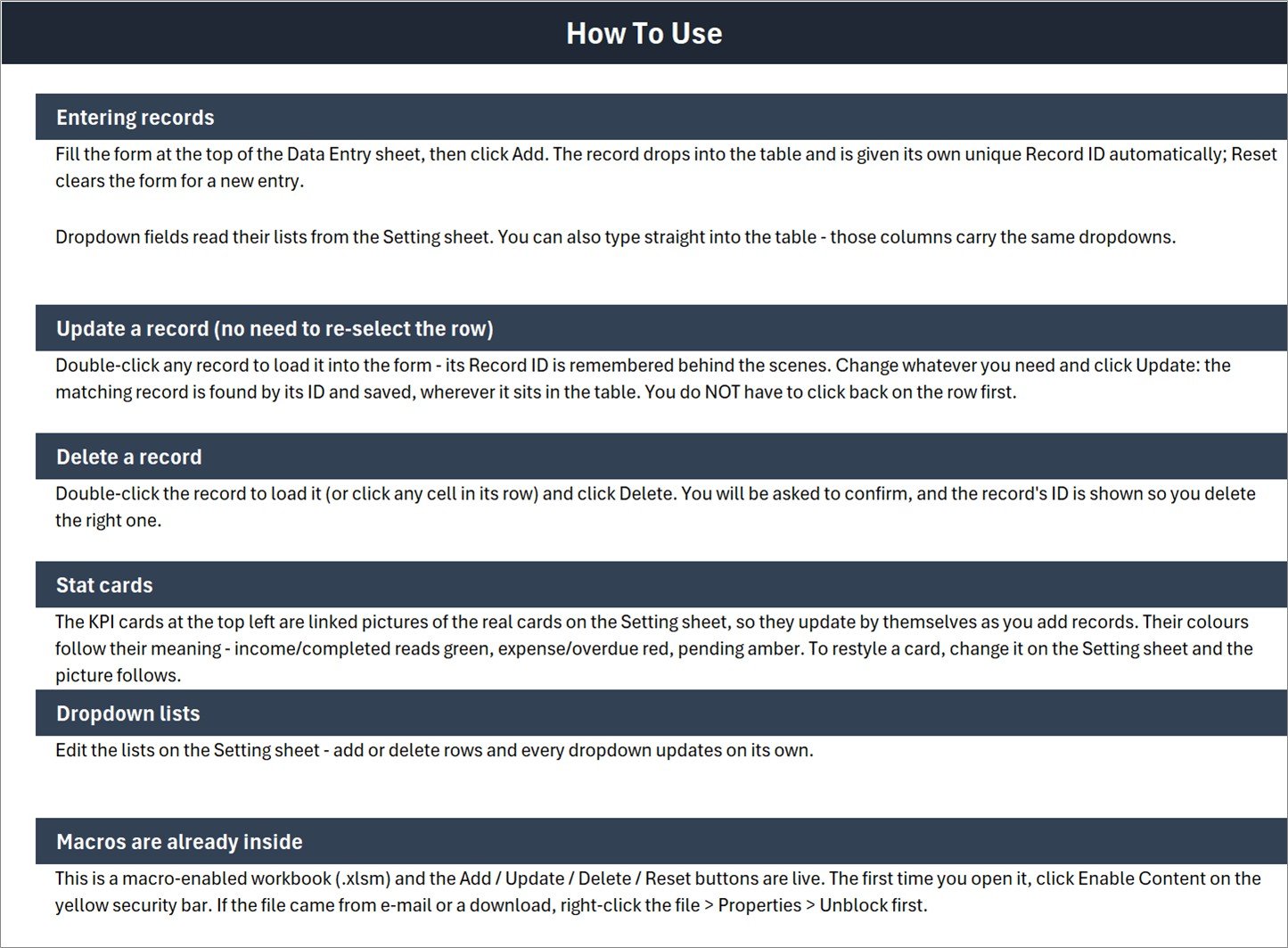
Six sections: entering records, updating a record without re-selecting the row, deleting a record, how the stat cards work, editing the dropdown lists, and a note that the workbook is macro-enabled and needs Enable Content on first open.
4. Get More Templates
A short links sheet pointing back to the store’s data entry systems, Excel dashboards, Google Sheets templates, Power BI dashboards and web apps.
Newspaper Subscription Data Entry System in Excel vs. Google Sheets vs. Paid Subscription SaaS – Feature Comparison
| This Excel system | A Google Sheets build | Zoho Subscriptions / Chargebee | |
|---|---|---|---|
| Cost | One-off, under $10 | Free, plus your build time | $49-$599 per month |
| Platform | Excel for Windows, desktop only | Browser, any device | Browser plus mobile app |
| Setup time | About 10 minutes to swap the four lists | Several hours | Days, plus vendor onboarding |
| Real-time team collaboration | No – one file, one editor | Yes | Yes |
| Mobile access | No – the VBA buttons need the desktop app | Yes | Yes |
| Customizable fields | Lists yes; the seven form fields need VBA edits | Yes | Within the vendor’s data model |
| Share with link | No – the file is sent, not linked | Yes | Yes |
| Year-1 cost at 5 users | Under $10 | $0 | $588-$7,188 |
| Automatic renewals, invoices and dunning | No | No | Yes |
| Delivery round or carrier planning | No – Delivery Area is a label, not a route | Build it yourself | Usually not included |
Who Should Use This Template
It suits a one-person circulation desk: a local daily, a community bulletin, a school or society newsletter, a magazine stand, or an agent who signs up subscribers at a counter and needs the register to be tidy rather than clever. If you are currently keeping subscribers in an unstructured sheet or a paper book, this is a straight upgrade – a form, a unique ID, validated lists and four counts you did not have to add up.
It does not suit anyone who needs billing. There is no invoice, no card charging, no dunning and no renewal alert, and the form records a Start Date but no end or renewal date, so the workbook cannot tell you who lapses next month. It does not suit teams who all need to type at the same time, and it will not run on a phone or in Excel for the web because the buttons are VBA.
Real-World Use Cases
A district daily’s counter clerk. Eight or nine walk-ins a day. Name, masthead, plan, amount, Pending, district, Add. At close, the Pending Payments card is the number handed to the cashier – no filtering, no formula.
A parish bulletin. Ninety households, mostly Annual with a handful of Student rates. One file for the year, statuses flipped to Paid as cheques arrive, and Total Revenue read straight off the card for the accounts.
A two-person magazine stand. The Publication List is replaced with the twelve titles actually carried, and Delivery Area is repurposed as the morning round. Sorting the table by that column each day gives the delivery order.
Advantages of the Newspaper Subscription Data Entry System in Excel
- Nothing to learn. Four buttons, seven fields, one table.
- Update by ID is genuinely useful. Most home-built entry forms write back to whichever row happens to be selected, which is how records get overwritten. This one matches on the Record ID.
- The lists belong to you. Named ranges on the Setting sheet, no validation editing.
- The cards cannot drift. They are formulas over the table, not typed numbers.
- The VBA is readable and unlocked, so a competent Excel user can extend it.
- No account, no subscription, no cloud dependency. It is one file on one machine.
Opportunities for Improvement
Being straight about the gaps is more useful than a feature list. As shipped, the workbook has no end date or renewal date, so it cannot flag expiries. There is no search or filter sheet – you use Excel’s own filters. There are no charts and no pivot tables; the four cards are the whole of the reporting. Total Revenue is a plain SUM of the Amount column across every record ever entered, including Cancelled and Refunded ones, so it is a lifetime total rather than a monthly recurring figure – if you want MRR you will need to add your own column. There is no card for Overdue even though Overdue is one of the five statuses. The dropdowns are pre-formatted only to row 214, which is 200 records; going further means extending the validation yourself. And there is no delivery-round or carrier field beyond the area label.
None of these are difficult to add – they are simply not in the file, and you should know that before you buy.
Best Practices
- Set up the Setting sheet first. Replace all four lists before you enter a single subscriber, so you are never re-typing statuses later.
- Delete the six sample rows once you have watched Add, Update and Delete work.
- Always Reset between entries. It clears the remembered Record ID as well as the visible fields, which stops an accidental Update onto the previous subscriber.
- Keep one file, on one machine. Two copies of a VBA workbook edited in parallel cannot be merged.
- Back it up on a schedule. There is no version history in a local .xlsm.
- Think before you add contact columns. As shipped the file holds a name, a plan, a date, an amount, a status and a district – no address, phone, e-mail or card details. The moment you add a phone number or a street address you are holding personal data in an unencrypted file, so keep it on a controlled machine, consider Excel’s own file password, and check your own obligations. This template makes no compliance claim under GDPR or any other regime.
- If macros are blocked by policy, read Microsoft’s own guidance on macros from the internet being blocked in Office before asking IT to change anything.
Explore Relevant Templates
- Tiffin Subscription Data Entry System in Excel – the same pattern for meal subscriptions.
- Membership Card Data Entry System in Excel – for clubs and societies.
- Hotel Booking Agent Data Entry System in Excel – bookings rather than subscriptions.
- Meeting Minutes Data Entry System in Excel – the same four buttons applied to meetings.
Frequently Asked Questions
Do I have to enable macros?
Yes. Add, Update, Delete and Reset are VBA routines. Without macros the buttons do nothing, although you can still type directly into the table because those columns carry the same dropdown lists.
Will it run on a Mac, in Excel for the web, or in Google Sheets?
It is built and tested for Microsoft Excel on Windows desktop. Excel for the web cannot run these macro buttons, and Google Sheets cannot run VBA at all.
Does it send renewal reminders or produce invoices?
No. There is no e-mail, no invoice and no renewal alert, and no end-date field to drive one. Payment Status is set by hand.
How many subscribers will it hold?
Rows 15 to 214 are pre-formatted and validated, which is 200 records. You can continue past row 214 but would need to extend the data validation yourself.
Can I add fields such as phone number or address?
You can add columns to the table directly. The form and its buttons stay at the seven fields shown unless you edit the VBA, which is unlocked.
What happens if I sort the table after adding records?
Nothing breaks. S.No. is a formula that renumbers, and Update and Delete match on Record ID rather than row position, which is exactly why the ID exists.
About the Author
Built by PK – Microsoft Certified Professional with 15+ years of Excel, Google Sheets, and Power BI experience. Founder of NextGenTemplates, reaching 300K+ subscribers across YouTube channels. Every template is hand-built and tested before release.
Conclusion
The Newspaper Subscription Data Entry System in Excel is a register, done properly: a seven-field form, four working VBA buttons, IDs and timestamps you do not have to type, four dropdown lists you control, and four counts that cannot go stale. It is not a billing platform and does not pretend to be one – no renewals, no invoices, no charts, no collaboration. If that is the trade you want, it is about ten minutes from download to your first filed subscriber.
Get the Newspaper Subscription Data Entry System in Excel on NextGenTemplates
For step-by-step Excel and VBA walkthroughs, subscribe to youtube.com/@PKAnExcelExpert.