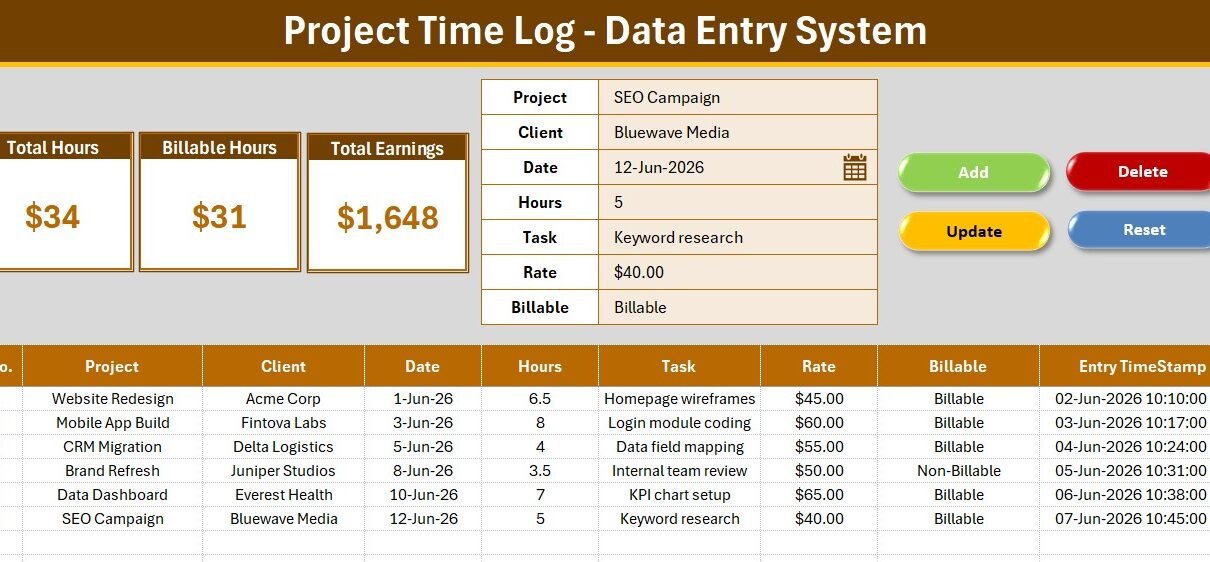
The Project Time Log Data Entry System in Excel captures 7 fields per time entry — Project, Client, Date, Hours, Task, Rate, and Billable status — through a VBA-powered form with 4 one-click action buttons: Add, Update, Delete, and Reset. Three live KPI cards report Total Hours, Billable Hours, and Total Earnings (Hours × Rate for billable rows), and every saved record receives an automatic serial number and Entry TimeStamp. Setup takes under 10 minutes from download to first entry.
Freelancers and small agencies lose billable revenue to two problems: hours that never get logged, and logs so messy they can’t be invoiced. A Project Time Log Data Entry System in Excel solves both — the form forces consistent, dropdown-controlled entries, and the KPI cards turn the raw log into invoice-ready numbers without a single manual formula.
Key Features of the Project Time Log Data Entry System in Excel
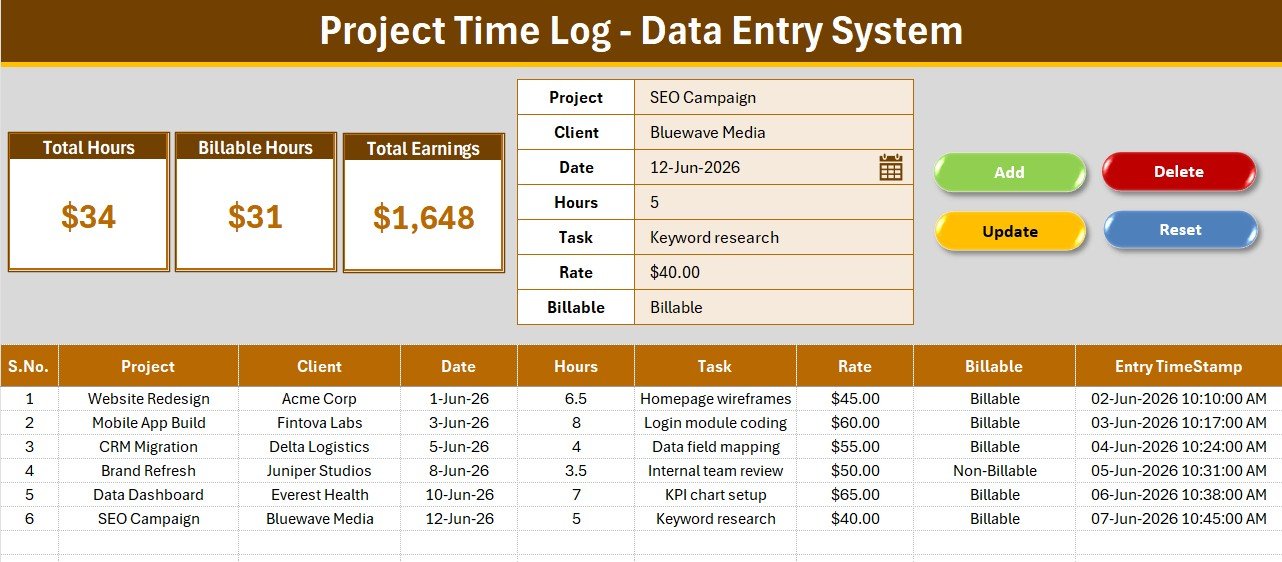
- 7-field structured entry form — the form captures Project, Client, Date, Hours, Task, Rate, and a Billable/Non-Billable flag, so every record lands in the log with identical structure. No typing directly into table cells, no inconsistent client names.
- 3 live KPI cards — Total Hours sums every logged hour, Billable Hours totals only entries flagged Billable, and Total Earnings multiplies Hours × Rate for billable rows automatically. All three recalculate the instant a record is saved.
- 4 VBA action buttons — Add saves a new entry with an automatic timestamp, Update rewrites an existing row, Delete removes it, and Reset clears the form for the next entry.
- Double-click record editing — double-click any row in the time log table and its values load back into the form, ready to correct and update.
- Dropdown-controlled lists — Project, Client, and Billable fields pull from named ranges on the Setting sheet, which ships with 10 sample projects and 10 sample clients.
- Automatic audit trail — auto serial numbers and Entry TimeStamps on every row give you defensible records when a client questions an invoice.
This system is one of the data entry system series built on the same VBA form pattern used across our Client Invoice Tracker and Employee Attendance tools.
Template Structure — Sheets Explanation
Data Entry Sheet — Form, KPIs, and Time Log Table
The main sheet combines the gray dashboard panel with 3 KPI cards (Total Hours, Billable Hours, Total Earnings), the 7-field entry form with its Add / Update / Delete / Reset buttons, and the records table with auto serial numbers, currency-formatted rates, and the Entry TimeStamp column.
Setting Sheet — Dropdown Lists and Linked Stat Cards
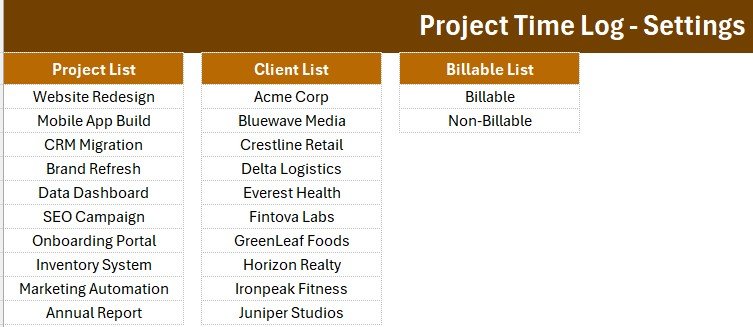
The Setting sheet holds the three dropdown source lists — Projects, Clients, and Billable status — plus duplicated KPI stat cards you can copy anywhere as linked pictures. Add a new project or client name here and it appears in the form dropdowns immediately.
Instructions Sheet — One-Time Setup Guide
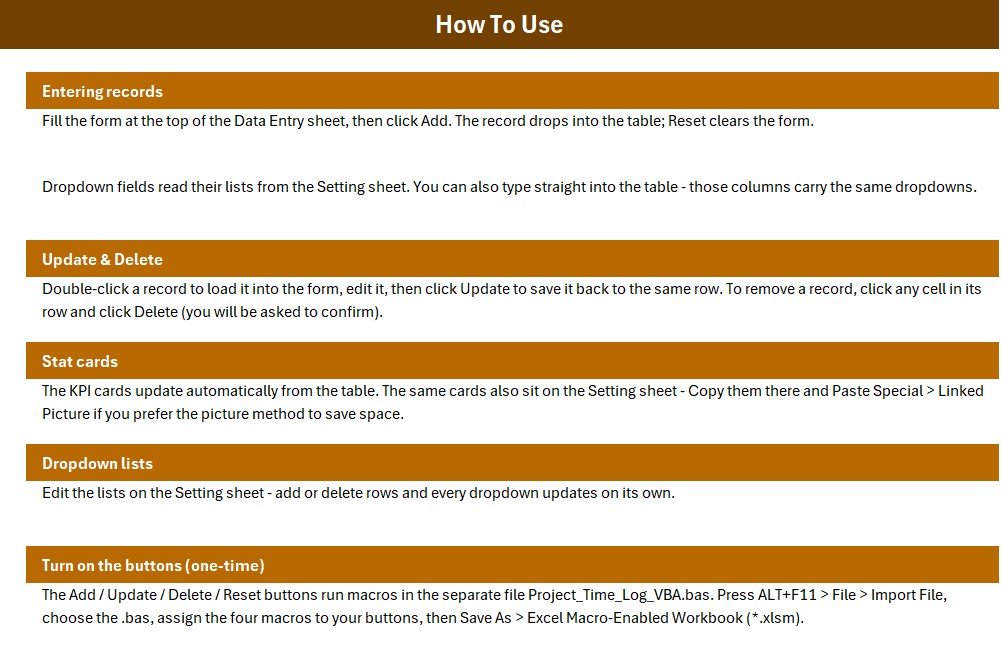
A step-by-step guide covering the one-time activation: importing the VBA module, assigning the four macros to the buttons, enabling the double-click editor, and saving the workbook as macro-enabled (.xlsm).
Project Time Log Data Entry System vs. Google Sheets Timesheet vs. Toggl Track / Harvest — Feature Comparison
| Feature | Project Time Log Data Entry System in Excel | Google Sheets Timesheet | Toggl Track / Harvest |
|---|---|---|---|
| Cost | $5.99 one-time | Free but manual build | $9–12 / user / month |
| Platform | Microsoft Excel (offline, your file) | Browser, Google account required | Cloud SaaS |
| Setup time | Under 10 minutes ✅ | Hours to build from scratch | 30–60 min + team onboarding |
| Billable vs non-billable tracking | Built-in flag + auto earnings ✅ | Manual formulas needed | ✅ Included |
| Earnings calculation (Hours × Rate) | Automatic per entry ✅ | Manual formulas needed | Paid plans only |
| Works offline | ✅ Fully offline | Limited | ❌ Internet required |
| Data ownership | ✅ Your local file forever | Google’s cloud | Vendor’s servers |
| Year-1 cost at 5 users | $5.99 total ✅ | $0 + build time | $540–720 |
For freelancers and small teams that want billable-hours tracking with automatic earnings math without a monthly per-user fee, the Project Time Log Data Entry System in Excel sits in the sweet spot.
Who Should Use This Template
Perfect for:
- Freelancers and consultants who bill by the hour and need invoice-ready Total Hours, Billable Hours, and Earnings figures
- Small agencies (2–15 people) logging time across multiple client projects without paying for a SaaS seat per person
- Project managers who want a lightweight, offline time log they own outright and can email as one file
- Bookkeepers who receive weekly hour reports and need a fast, dropdown-driven way to log them
Not a fit if:
- Your team needs simultaneous multi-user entry in real time — a cloud tool or a Google Sheets web app fits better
- You need automatic timer-based tracking, SSO, or direct payroll integration
Real-World Use Cases
Ravi is a freelance web developer juggling 6 client projects. He logs each work session with the project, hours, rate, and billable flag. At month-end his Total Earnings card already shows what to invoice each client — replacing a $10/month Harvest seat with a $5.99 one-time file that lives on his laptop.
Meera runs an 8-person design studio. Her designers email weekly hour summaries; she logs them in under five minutes using the dropdown-driven form. The Billable Hours card against Total Hours tells her exactly what percentage of studio time generates revenue — a number she reviews every Friday.
Daniel manages internal IT projects at a mid-size firm. He records non-billable internal work alongside billable consulting hours, using the Billable flag to separate cost-center time from client-chargeable time in a single, timestamped log his finance team trusts.
Advantages of the Project Time Log Data Entry System in Excel
- Zero subscription cost — a single $5.99 purchase versus $540–720 per year for a 5-user Toggl Track or Harvest plan.
- Invoice-ready numbers — Total Earnings is computed as Hours × Rate on billable entries only, so the card value can go straight onto an invoice.
- Data quality by design — dropdowns eliminate misspelled project and client names that break pivot tables and filters later.
- Full data ownership — the log is a local Excel file; no vendor lock-in, no export limits, no account required.
- Audit-friendly — automatic timestamps and serial numbers create a defensible record for billing disputes.
Opportunities for Improvement
Honesty matters: this is a single-user, form-based log — it does not run a stopwatch timer, so you enter hours after the work rather than tracking them live. Multi-user simultaneous editing is not supported in a local Excel file; teams needing that should consider a shared cloud tool. And because the buttons run VBA macros, the workbook must be saved as .xlsm and macros must be enabled — a one-time step, but one that corporate IT policies occasionally restrict. If you extend the template with weekly or monthly summary reports, a pivot table on the log columns is the natural next step (Microsoft’s official PivotTable guide covers this well).
Best Practices
- Log time daily, not weekly — memory-based backfilling is where billable hours leak.
- Standardize project names on the Setting sheet before the team starts logging; never free-type them.
- Set the Rate per entry, not per client, so mid-project rate changes stay accurate historically.
- Use the Non-Billable flag generously — knowing your unbillable time is how you fix utilization.
- Keep a monthly backup copy of the .xlsm before archiving old entries.
Explore Relevant Templates
- Task Assignment Data Entry System in Excel — assign and track project tasks with the same one-click VBA workflow.
- Client Invoice Tracker Data Entry System in Excel — turn logged billable hours into tracked invoices and payments.
- Monthly Timesheet Calendar in Excel — a calendar-style view of monthly working hours.
- Employee Attendance Data Entry System in Excel — daily attendance logging with the same form-and-KPI layout.
- Browse the full range of Excel VBA Tools and Project Management Templates.
Frequently Asked Questions
What does the Project Time Log Data Entry System in Excel track?
The Project Time Log Data Entry System in Excel tracks 7 fields per entry — Project, Client, Date, Hours, Task, Rate, and Billable status — and reports 3 live KPIs: Total Hours, Billable Hours, and Total Earnings calculated as Hours × Rate on billable rows.
How is Total Earnings calculated?
The Project Time Log Data Entry System multiplies Hours × Rate for every entry flagged Billable and sums the result automatically. Non-billable entries count toward Total Hours but are excluded from Billable Hours and Total Earnings, keeping invoicing numbers clean.
How long does setup take?
Under 10 minutes. Open the workbook, press ALT+F11 to import the included VBA module, assign the four macros to the Add, Update, Delete, and Reset buttons, save as .xlsm, and replace the sample projects and clients on the Setting sheet.
How does this compare to Toggl Track or Harvest?
Toggl Track and Harvest cost $9–12 per user per month with data stored on vendor servers. The Project Time Log Data Entry System in Excel is a $5.99 one-time purchase that works fully offline and keeps every entry in a file you own forever.
Do I need VBA knowledge to use it?
No. The VBA module ships ready-made — you import it once following the Instructions sheet and use buttons from then on. No coding is needed to add, update, or delete time entries in the Project Time Log.
Can I edit or delete a saved entry?
Yes. Double-click any row in the time log table and its values load back into the form. Click Update to rewrite the row with corrected values, or Delete to remove the record entirely.
Can I add my own projects, clients, and rates?
Yes. Type new project and client names into the lists on the Setting sheet and they appear in the form dropdowns immediately. Rates are entered per time entry, so different clients and even mid-project rate changes are handled naturally.
About the Author
Built by PK — Microsoft Certified Professional with 15+ years of Excel, Google Sheets, and Power BI experience. Founder of NextGenTemplates, reaching 300K+ subscribers across YouTube channels. Every template is hand-built and tested before release.
Conclusion
If unlogged hours and messy timesheets are costing you billable revenue, the Project Time Log Data Entry System in Excel fixes the workflow at the point of entry: a structured form in, invoice-ready KPIs out. It is a $5.99 one-time purchase that replaces a recurring SaaS seat for solo professionals and small teams.
👉 Click here to Purchase the Project Time Log Data Entry System in Excel
Instant download · One-time payment · No subscription
🎥 For step-by-step video tutorials, visit Youtube.com/@PK-AnExcelExpert
Last updated: July 2026