Managing regulatory reporting is one of the most critical responsibilities for any organization. Every industry—from finance and healthcare to manufacturing and education—must comply with government regulations, industry standards, and internal policies. However, deadlines, submissions, and compliance tasks can quickly become overwhelming without a structured system in place.
This is where a Regulatory Reporting Schedule Checklist in Excel becomes a powerful solution. It not only organizes tasks but also ensures that every reporting activity is completed on time with clear accountability.
In this article, we will explore everything you need to know about this ready-to-use Excel template: its structure, features, benefits, and best practices. We will also discuss opportunities for improvement and provide answers to common questions.
What Is a Regulatory Reporting Schedule Checklist in Excel?
A Regulatory Reporting Schedule Checklist in Excel is a pre-built template designed to help organizations manage all reporting activities in one place. Instead of juggling multiple spreadsheets, emails, and paper reminders, this tool centralizes every requirement with a clear structure.
Click to Purchases Regulatory Reporting Schedule Checklist in Excel
The template tracks important details such as:
-
Serial number of each task
-
Checklist item that describes the reporting activity
-
Short description of the requirement
-
Responsible person assigned to the task
-
Deadline for completion
-
Remarks for additional notes
-
Status column to mark each item as ✔ (completed) or ✘ (pending)
By organizing data in this way, businesses can meet regulatory deadlines without stress and reduce the risk of penalties.
Structure of the Template
The template is designed with two main worksheets, making it simple and effective.
1. Regulatory Reporting Schedule Checklist Sheet
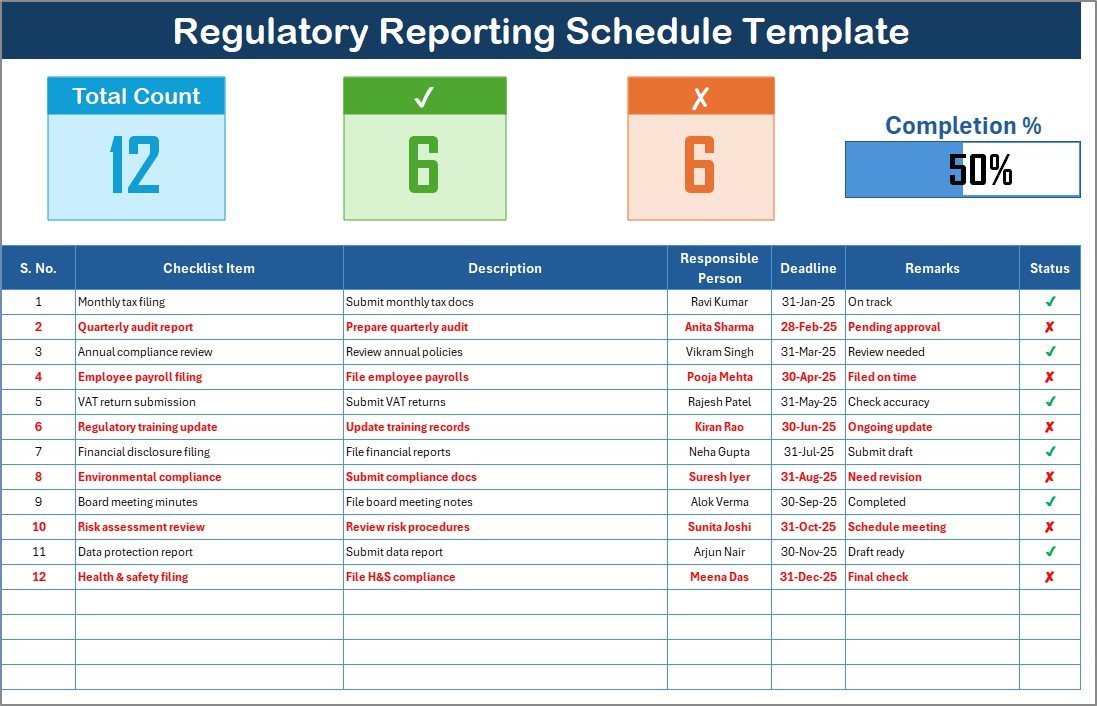
This is the primary sheet where you capture all checklist information. It is divided into two sections:
-
Top Section
-
Shows the total number of tasks
-
Displays completed tasks count
-
Displays pending tasks count
-
Includes a progress bar that visualizes completion percentage
-
-
Checklist Table
-
A structured table where you enter and manage all reporting tasks
-
Columns include Serial No., Checklist Item, Description, Responsible Person, Deadline, Remarks, and Status
-
Status can be easily updated with a simple ✔ or ✘
-
2. List Sheet Tab
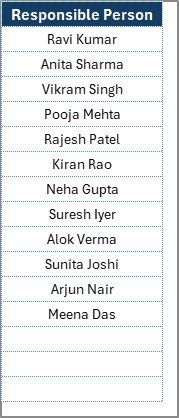
The list sheet captures a unique list of responsible persons. This list is linked to the main checklist sheet to create a dropdown. As a result, you can easily assign tasks without manually typing names each time.
Why Do Organizations Need a Regulatory Reporting Schedule Checklist?
Click to Purchases Regulatory Reporting Schedule Checklist in Excel
Many organizations struggle with compliance because reporting requirements are:
-
Repetitive and frequent
-
Spread across different departments
-
Governed by multiple regulators
-
Associated with strict deadlines
Without a structured system, important submissions may be delayed, missed, or poorly documented.
Using a checklist in Excel ensures:
-
Accountability – Every task has a responsible person
-
Clarity – Deadlines and requirements are transparent
-
Control – Managers can monitor progress with the progress bar
-
Efficiency – Reduces duplication of work and avoids missed deadlines
Key Features of the Regulatory Reporting Schedule Checklist
This ready-to-use Excel template comes with powerful yet simple features:
✅ Pre-built structure with checklist and list sheet
✅ Dropdowns for assigning tasks easily
✅ Progress tracking bar to visualize completion
✅ ✔ or ✘ status updates for simplicity
✅ Deadline column with date formatting for clear timelines
✅ Remarks section for additional notes
✅ Automatic summary section to calculate totals and percentages
Advantages of Regulatory Reporting Schedule Checklist in Excel
Using this template offers several benefits:
1. Saves Time
Manual tracking of reporting deadlines consumes hours of valuable work. With a checklist in Excel, you have everything in one place.
2. Improves Accuracy
Deadlines and responsibilities are clearly listed, reducing the chance of missing a requirement.
3. Increases Transparency
Managers can see the progress at a glance using the progress bar and status column.
4. Strengthens Accountability
Every task has a responsible person, ensuring accountability across departments.
5. Customizable
Since it is built in Excel, the checklist can be customized to fit the unique needs of your organization.
6. Cost-Effective
Unlike expensive compliance management systems, this template works with the Excel software you already use.
Opportunities for Improvement
While this template is highly effective, organizations can enhance it further:
🔹 Automation with VBA – Add automatic alerts for upcoming deadlines.
🔹 Conditional formatting – Highlight overdue tasks in red for instant visibility.
🔹 Integration with Outlook – Sync deadlines with email reminders.
🔹 Expansion for multiple regions – Create separate sheets for different countries or regulators.
🔹 Dashboard view – Add pivot charts to show compliance trends over time.
Best Practices for the Regulatory Reporting Schedule Checklist
To maximize the value of this checklist, follow these best practices:
✔ Keep it updated daily – Outdated data reduces reliability.
✔ Use dropdowns – Avoid typing errors by assigning responsible persons from the list.
✔ Set realistic deadlines – Always check regulatory requirements before setting dates.
✔ Review progress weekly – Monitor the progress bar and address delays immediately.
✔ Train team members – Ensure everyone understands how to use the checklist.
✔ Back up data – Save versions to avoid accidental data loss.
✔ Use filters – Filter by department or responsible person for quick analysis.
How to Use the Regulatory Reporting Schedule Checklist in Excel
Using the template is simple:
-
Download the template and open it in Microsoft Excel.
-
Go to the list sheet and enter the names of responsible persons.
-
Switch to the checklist sheet and begin entering reporting tasks.
-
Assign responsible persons using the dropdown list.
-
Set deadlines for each task.
-
Update status with ✔ when completed or ✘ if pending.
-
Track progress through the summary section and progress bar.
-
Review weekly to ensure all tasks are on track.
Use Cases Across Industries
This template is flexible and can be used in many industries:
-
Finance – Regulatory filings, audit submissions, tax returns.
-
Healthcare – Compliance reports, safety checks, waste management submissions.
-
Education – Accreditation reports, staff training compliance, grant reporting.
-
Manufacturing – Safety inspections, environmental compliance, quality reports.
-
IT & Telecom – Data privacy reports, cybersecurity compliance, system audits.
Common Mistakes to Avoid
While using the checklist, avoid these pitfalls:
❌ Forgetting to update the status column
❌ Assigning multiple people to one task (leads to confusion)
❌ Ignoring overdue tasks
❌ Deleting old records without backup
❌ Using inconsistent date formats
Conclusion
A Regulatory Reporting Schedule Checklist in Excel is a simple yet powerful tool that ensures compliance, saves time, and improves accountability. With its pre-built structure, dropdowns, and progress tracking, it provides clarity and efficiency for organizations of all sizes.
By following best practices and avoiding common mistakes, you can transform compliance management from a stressful task into a smooth process.
Click to Purchases Regulatory Reporting Schedule Checklist in Excel
Frequently Asked Questions (FAQs)
1. What is a Regulatory Reporting Schedule Checklist?
It is an Excel-based template used to manage and track compliance reporting tasks, deadlines, and responsibilities.
2. Can this checklist be customized?
Yes. You can add columns, apply conditional formatting, or automate tasks using VBA.
3. How often should I update the checklist?
You should update it daily or immediately after completing a reporting task.
4. Can I use this template for multiple departments?
Yes. You can filter tasks by responsible person or create separate sheets for each department.
5. What happens if a deadline is missed?
You can highlight missed deadlines with conditional formatting and address them in weekly reviews.
6. Is this better than compliance management software?
For small to medium businesses, this Excel template is cost-effective and easy to use. Larger organizations may integrate it with advanced systems.
7. Can I add reminders to this checklist?
Yes. With Excel VBA or integration with Outlook, you can set up deadline reminders.
8. Who should use this template?
Compliance officers, auditors, managers, and team leaders across industries can use it.
Visit our YouTube channel to learn step-by-step video tutorials