The Training Material Request Tracker in Excel is a VBA-powered workbook that lets HR, L&D, and training teams log, approve, and report on every request for manuals, e-learning licences, printed guides, and course materials inside a single secured Excel file. It packs 8 linked worksheets, a login form with role-based User Management, an interactive Dashboard with 4 slicers and 6 charts, and a pre-wired UserForm for Add / Update / Delete operations — so your request workflow becomes fully auditable without a monthly LMS subscription.
Every new record flows through a VBA data entry form that writes to the Data Sheet and refreshes the dashboard automatically. Setup takes under 10 minutes: add users on the User Management sheet, tune your dropdown values on the List sheet, sign in, and start capturing requests. Microsoft’s official VBA in Office guide documents the underlying automation model the forms use.
Key Features of Training Material Request Tracker in Excel
📌 Secure VBA login form — the workbook opens on a login screen that authenticates against the User Management sheet, so confidential request data stays protected from casual viewers.
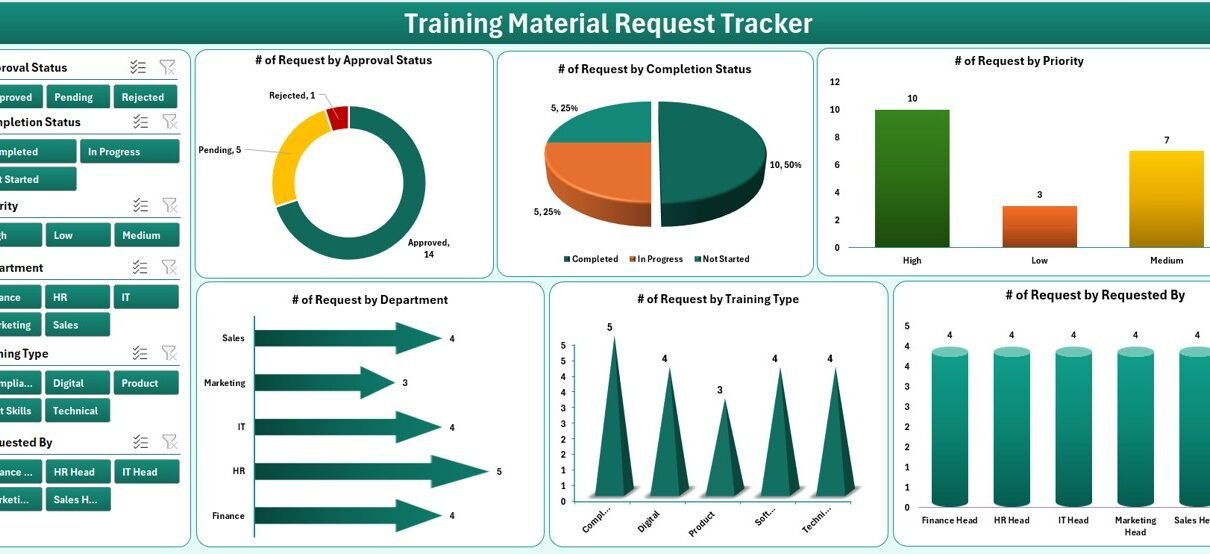
📌 Interactive dashboard with 4 slicers and 6 charts — filter by department, priority, material type, and status, and watch every chart update together for instant visibility into L&D demand and spend.
📌 Add / Update / Delete UserForm — three clearly labelled buttons at the top of the Data Sheet give you full CRUD control without editing cells directly, preventing accidental formula breakage.
📌 Centralised dropdowns via the List sheet — manage all departments, material categories, priorities, and statuses from one place. The combo boxes on the form populate automatically.
📌 Pivot-powered support sheet — the Dashboard charts read from pivot tables on the hidden Support Sheet, so a single refresh keeps everything in sync after a new entry.
📌 Role-based User Management sheet — add or remove users, set passwords, and decide who can add records versus who can only view the dashboard.
📌 Settings sheet for organisation context — set your company name, L&D admin contact, and other workbook-level values in one spot.
Sheets Explanation
1. Login Form
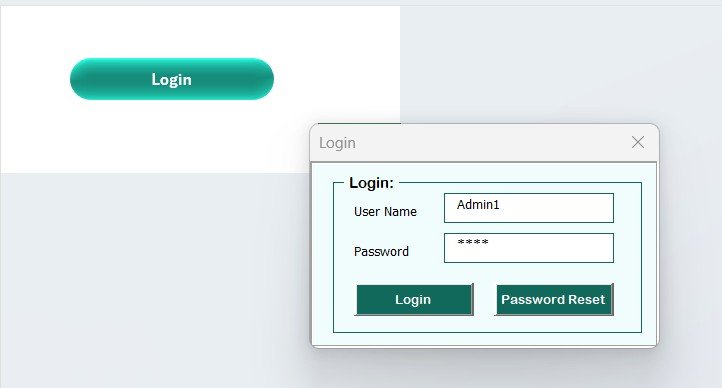
The workbook opens on the Login Form. Users enter their credentials and the VBA code validates them against the User Management sheet. Only after a successful login does the tracker reveal the Home Page. Failed logins are rejected with a message box.
2. Home Page
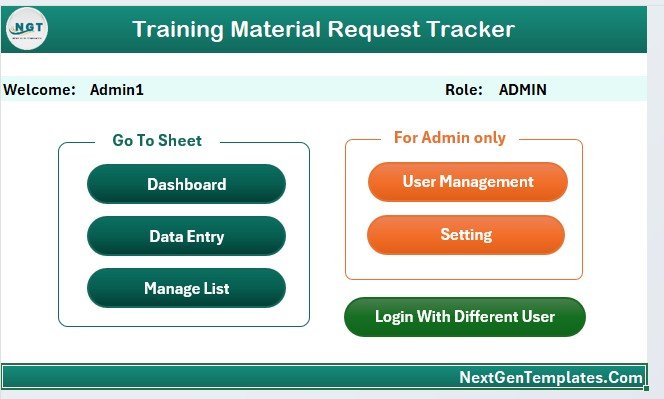
A clean navigation hub with buttons that jump to the Dashboard, Data Sheet, Settings, and User Management. Think of it as your tracker’s menu — it keeps users away from the support and list sheets by default.
3. Dashboard
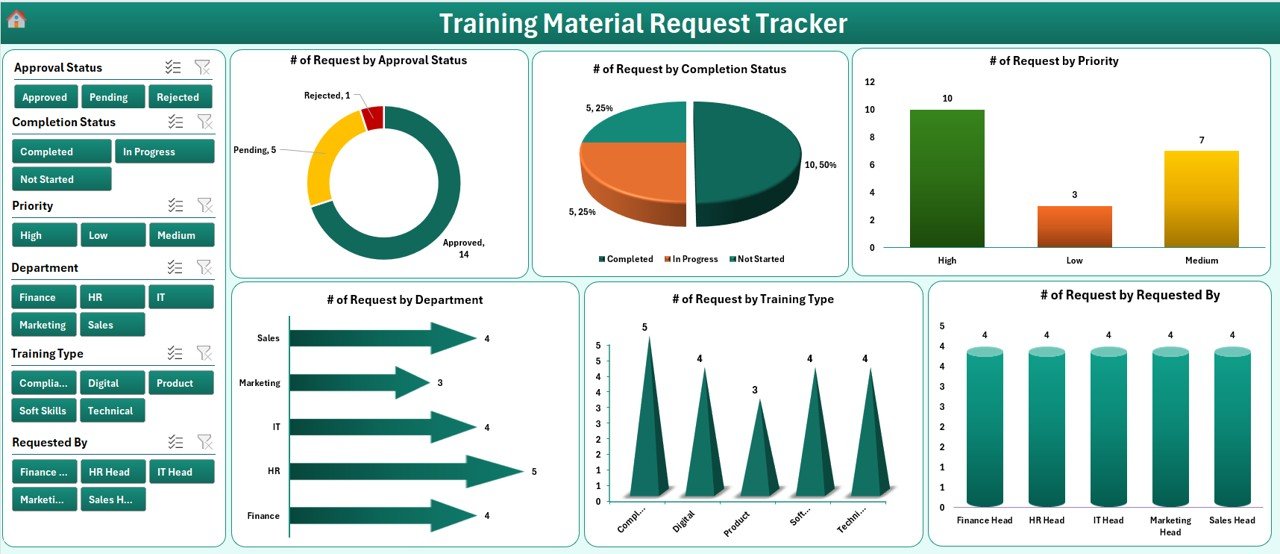
The Dashboard presents 4 slicers and 6 charts. You can slice by department, priority, material type, and status, and view breakdowns of total requests, cost by delivery method, quantity by material type, and other L&D analytics. Every chart ties back to the pivot tables on the Support Sheet, so adding a new record through the UserForm updates the entire dashboard after a quick refresh.
4. Data Sheet
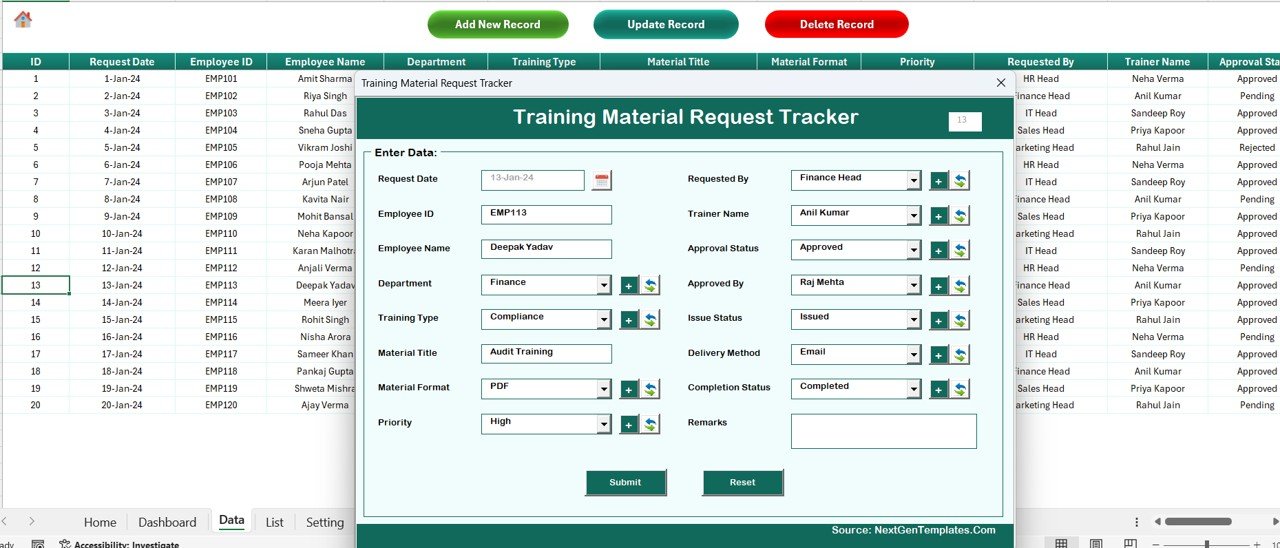
This is the master log. At the top you’ll find three buttons:
✅ Add New Record — opens the VBA UserForm. Fill in the fields and click Submit; the record is written to the sheet and the Dashboard refresh is triggered.
✅ Update Record — select the ID of an existing record, click Update, and the form opens pre-filled. Edit any field and submit to save changes.
✅ Delete Record — select the ID and click Delete. A confirmation message box appears before the row is removed, so no accidental deletions.
5. List Sheet
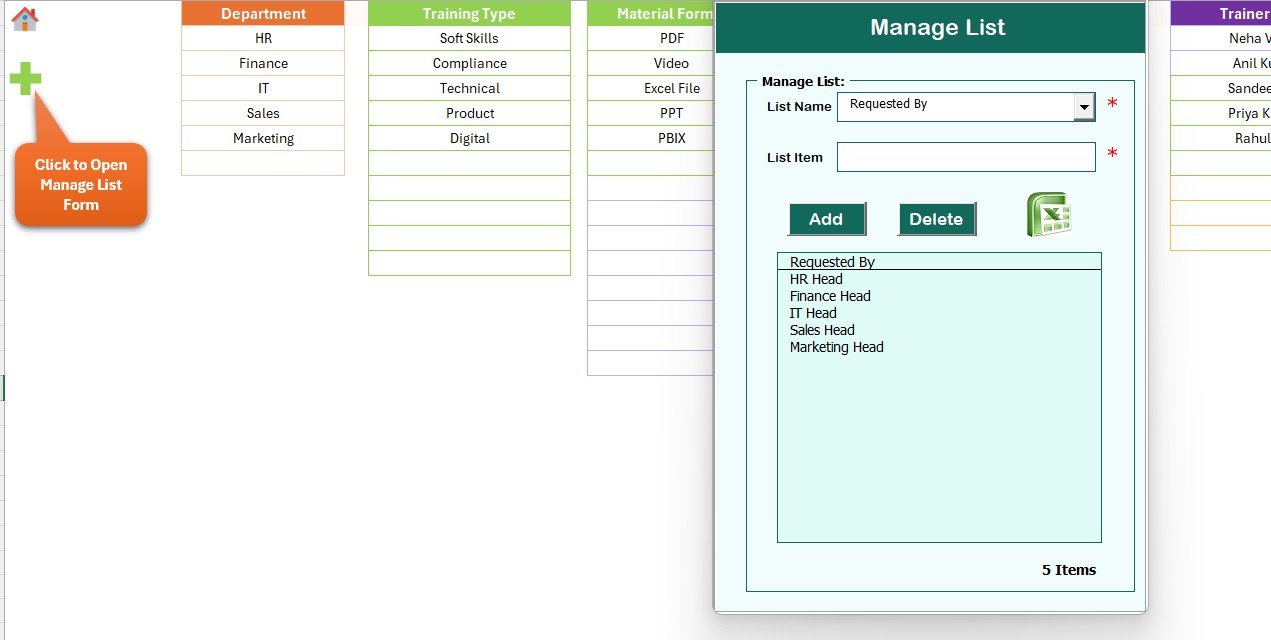
This is where you maintain the values that populate the combo boxes on the data entry form: departments, training material categories (manuals, e-learning, printed guides, videos), priority levels, delivery methods, and approval statuses. Edit the lists here and the UserForm picks up the changes immediately.
6. Support Sheet
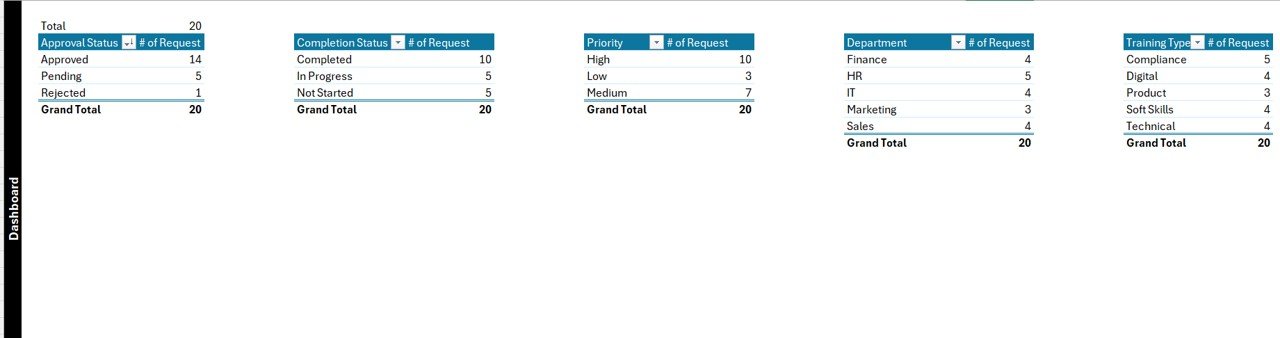
A behind-the-scenes sheet that hosts the pivot tables feeding the Dashboard. You don’t normally need to touch it — it’s safe to hide after initial setup. When pivot data changes, a right-click > Refresh All propagates updates to every chart.
7. Settings Sheet
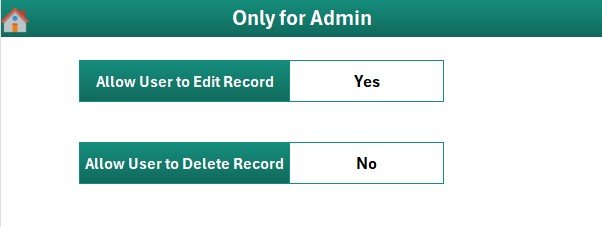
Configure workbook-level values — organisation name, L&D admin contact, default currency, and any branding elements. These feed into the Home Page and can be referenced by the dashboard labels.
8. User Management Sheet
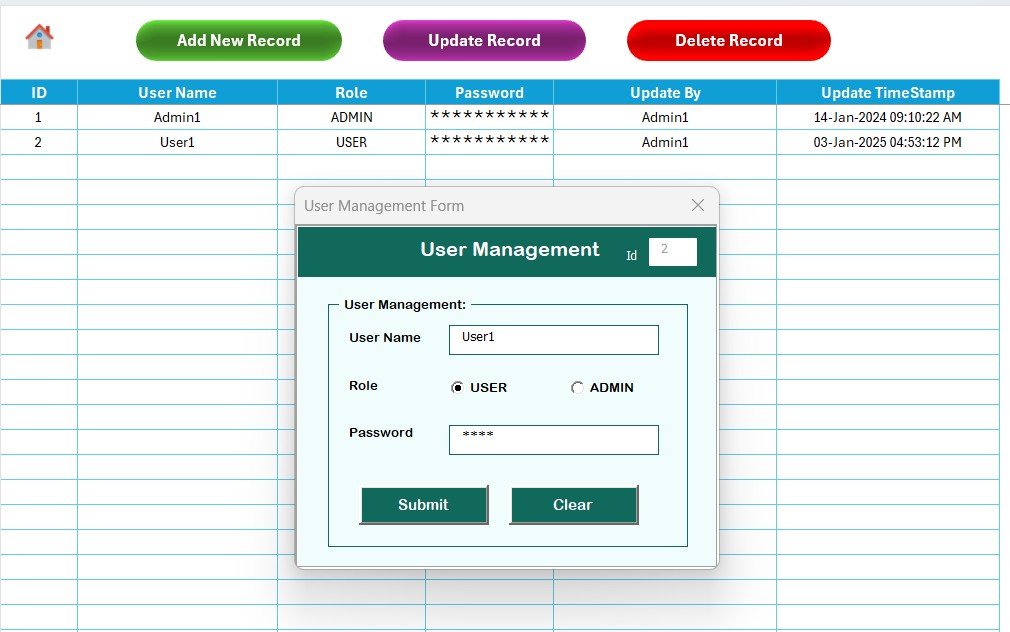
Lists every authorised user, their password, and their role. The Login Form authenticates against this sheet, so whoever administers the tracker controls access from here. Roles can be used in your own VBA extensions to restrict specific actions.
Training Material Request Tracker in Excel vs. Google Sheets Equivalent vs. Paid L&D SaaS — Feature Comparison
| Feature | Training Material Request Tracker (Excel) | Google Sheets Equivalent | Paid L&D SaaS (Docebo / TalentLMS) |
|---|---|---|---|
| Cost | $6.99 one-time ✅ | $6.99 one-time | $3–10 / user / month |
| Platform | Microsoft Excel (offline) | Google Sheets (browser) | Cloud SaaS only |
| Setup time | Under 10 minutes ✅ | Under 10 minutes | 2–6 weeks onboarding |
| Login & user roles | VBA login + User Mgmt sheet ✅ | ❌ Google Drive share only | ✅ Full SSO, heavy |
| Add / Update / Delete form | VBA UserForm ✅ | ❌ Edit cells directly | ✅ Proprietary UI |
| Slicers & filters | 4 slicers + 6 charts ✅ | Filter views + charts | Pre-built reports |
| Year-1 cost for 5 users | $6.99 total ✅ | $6.99 total | $180–600 |
| Works offline | Yes ✅ | ❌ Needs internet | ❌ Needs internet |
For L&D teams that need a controlled, auditable request workflow without paying per-user LMS fees, the Training Material Request Tracker in Excel sits in the sweet spot.
Who Should Use This Template
✅ Perfect for:
- L&D specialists at 20–500 person companies fielding requests from multiple departments
- HR managers who want a single audited record of training materials issued
- Training coordinators who need offline, controllable tooling with user accountability
- Finance partners tracking training material spend by delivery method
- Small business owners who prefer Excel over a monthly LMS subscription
❌ Not a fit if:
- You need SOC 2, SSO, and Active Directory integration at enterprise scale
- You want employees to self-submit requests through a web portal (this is an internal workbook)
- Your team runs only Excel for the web or macOS Excel without VBA support
Real-World Use Cases
Priya runs L&D at a 120-person fintech firm in Bengaluru. She replaces a scattered email and shared-folder workflow with the Training Material Request Tracker in Excel. Managers now raise requests through her, she logs them via the UserForm, and each month she exports the dashboard for the CHRO — cutting reporting prep from half a day to 20 minutes.
Rahul is the training coordinator at a regional manufacturing company with six plant locations. He captures every printed workbook and safety video request, uses the slicers to spot which plant drives the highest quarterly spend, and lets his two assistants use the VBA form to add records without breaking formulas. His finance partner gets a clean delivery-method cost view every Friday.
Anita manages a 40-person customer support team. She tracks requests for product knowledge decks, role-play scripts, and certification course licences, sets priority through the List-driven dropdown, and uses the User Management sheet to keep non-managers out of salary-sensitive tabs.
Advantages of Training Material Request Tracker in Excel
✅ One-time cost — $6.99 replaces a $3–10 per user per month LMS, saving a 5-user L&D team $180–600 in year one alone.
✅ Full offline control — your training request data never leaves your laptop or file share, which simplifies privacy and compliance conversations.
✅ Zero coding required — the VBA is pre-written and wired to every button. Users only interact with the sheets and forms.
✅ Auditable workflow — every request carries a unique auto-generated ID, and the Update/Delete path gives HR a clear record of changes.
✅ Cost visibility — cost-by-delivery-method charts make it easy to justify (or challenge) the training budget in leadership reviews.
Opportunities for Improvement
Every template has an honest frontier. Here’s where you can extend this one:
- 📤 Add an email-notification step to the Add New Record VBA to alert approvers automatically. The Outlook MailItem documentation has ready examples.
- ⏳ Include a Request Aging metric on the Dashboard to surface stale pending requests.
- 📆 Add a Monthly Summary Report sheet that auto-populates from the pivot data.
- 🔐 Replace the plaintext password column with a hashed value for tighter security. A simple SHA256 helper in VBA is a reasonable first step.
- 🔗 Link request rows to a SharePoint or OneDrive folder of the actual material — one click opens the deliverable.
Best Practices
✅ Back up the workbook weekly, especially before any mass edits, because VBA operations are not easily undoable.
✅ Use the List sheet as the single source of truth for dropdown values; don’t hard-code values in the UserForm.
✅ Review dashboard insights monthly and share the key chart screenshots with finance.
✅ Keep the Support sheet hidden in production to avoid accidental pivot edits by users.
✅ Rotate user passwords quarterly using the User Management sheet.
Explore Relevant Templates
🔹 Training Schedule Request Tracker in Excel — the booking-side companion to this material tracker.
🔹 Training and Onboarding Calendar in Excel — visualise training sessions across daily, monthly, and annual views.
🔹 Equipment Borrowing Request Tracker in Excel — a sister VBA tracker with the same login + CRUD pattern for asset requests.
🔹 Teacher Training Institutes KPI Dashboard in Excel — KPI analytics view for L&D leaders.
🔹 Resource Booking Tracker in Excel — book meeting rooms and shared resources with the same VBA form pattern.
🔹 Equipment Borrowing Request Tracker — detailed guide for the same VBA form + dashboard architecture applied to asset checkouts.
Also available as: Training Material Request Tracker in Google Sheets — cloud version of the same workflow.
💎 Bundle & save: get this tracker plus nine other HR analytics templates in the HR & Workforce Analytics Bundle — 10 Premium Templates.
Frequently Asked Questions
What is the Training Material Request Tracker in Excel?
The Training Material Request Tracker in Excel is a VBA-powered workbook with 8 worksheets that lets HR, L&D, and training teams log, approve, and report on every training material request — manuals, e-learning licences, printed guides, videos — inside one secured Excel file with login and role-based access.
What versions of Excel does this tracker require?
The Training Material Request Tracker in Excel is built for Microsoft Excel 2016 or later on Windows, because it uses VBA macros and ActiveX controls for the login form, data entry form, and CRUD buttons. It does not run on Excel for the web.
How does this compare to a paid L&D SaaS like Docebo or TalentLMS?
Paid L&D SaaS typically costs $3–10 per user per month and requires 2–6 weeks of implementation. The Training Material Request Tracker in Excel is a one-time $6.99 purchase that covers the full request workflow — capture, approval, reporting — without per-user fees or cloud dependencies.
How long does setup take?
Setup for the Training Material Request Tracker in Excel takes under 10 minutes. Add your users on the User Management sheet, update the List sheet dropdowns, save, reopen, log in, and capture your first request through the Add New Record VBA form.
Can I add more fields to the data entry form?
Yes. The Training Material Request Tracker in Excel is an unlocked workbook. Add new columns on the Data Sheet and extend the VBA UserForm code to bind the new fields. The Support Sheet pivots and Dashboard charts only need a Refresh All to pick up the new data.
Is there a Google Sheets version of the tracker?
Yes. The Training Material Request Tracker in Google Sheets is the cloud-based equivalent of this workbook and is a better fit for teams that prefer real-time collaboration.
Do I need any VBA programming knowledge to use it?
No programming is required to use the Training Material Request Tracker in Excel. The VBA is already written and wired to the Add, Update, Delete buttons and the Login Form. You only interact with the worksheets, forms, slicers, and charts.
About the Author
Built by PK — Microsoft Certified Professional with 15+ years of Excel, Google Sheets, and Power BI experience. Founder of NextGenTemplates, reaching 300K+ subscribers across YouTube channels (@PK-AnExcelExpert, @NextGenTemplates, @NeoTechNavigators). Every template is hand-built and tested before release.
Conclusion
Managing training material requests through email and spreadsheets that nobody owns quickly turns into a reporting nightmare. The Training Material Request Tracker in Excel gives HR and L&D teams a single, auditable, offline workbook with a login gate, role-based user management, a UserForm-driven Data Sheet, and a slicer-powered Dashboard — all for a one-time $6.99 instead of a per-user monthly LMS fee.
👉 Click here to Purchase the Training Material Request Tracker in Excel
✅ Instant download · One-time payment · No subscription
🔗 Visit our YouTube channel for step-by-step video tutorials on Excel VBA, dashboards, and L&D templates.
📅 Last updated: April 2026