Managing vendor payments is one of the most critical responsibilities in every organization. Companies deal with hundreds of invoices, multiple payment methods, varying due dates, and different vendor categories. Without a proper system, finance teams often face delays, confusion, outstanding amounts, unresolved disputes, and missed payment deadlines.
A Vendor Payment Dashboard in Excel solves these challenges. It offers a ready-to-use, highly visual, and smart way to track vendor invoices, payment status, outstanding balances, overdue payments, and monthly trends—all inside a simple Excel file. Because it is an Excel-based dashboard, teams can use it without any coding, technical setup, or specialized software.
In this complete guide, I will explain everything you need to know about the Vendor Payment Dashboard in Excel, including its structure, key insights, benefits, best practices, and FAQs. The goal is to help you use this dashboard to improve payment efficiency, reduce overdue invoices, and build stronger vendor relationships.
Click to buy Vendor Payment Dashboard in Excel
What Is a Vendor Payment Dashboard in Excel?
A Vendor Payment Dashboard in Excel is an easy-to-use reporting tool that helps companies monitor all vendor-related financial activities in one place. It pulls data from your invoice sheet and displays it in a clean, visual, and interactive format.
You can track:
- Invoice amount
- Paid amount
- Outstanding amount
- Overdue invoices
- Category-wise payments
- Month-wise trends
- Payment status
- Payment method performance
Because the dashboard runs in Excel, you can update it by simply adding new records to the input sheet. It helps finance leaders, accounts payable teams, procurement departments, and business managers understand how payments are progressing in real time.
Why Do Businesses Need a Vendor Payment Dashboard?
Vendor management becomes complex as companies grow. You deal with more vendors, larger transactions, and more payment modes. Without a clear and organized view of vendor payments, teams often:
- Miss payment deadlines
- Lose track of outstanding invoices
- Pay duplicate invoices
- Face vendor disagreements
- Lack visibility into payment performance
A Vendor Payment Dashboard in Excel gives you a single truth source. It keeps your entire payment cycle clean, structured, and trackable.
Structure of the Vendor Payment Dashboard in Excel
This dashboard includes multiple sheet tabs that show detailed insights from different angles. Each sheet focuses on a specific type of analysis so you can understand performance at a deeper level.
Below is a detailed explanation of all major sheets included in the dashboard.
Overview Sheet: Complete Summary of Vendor Payments
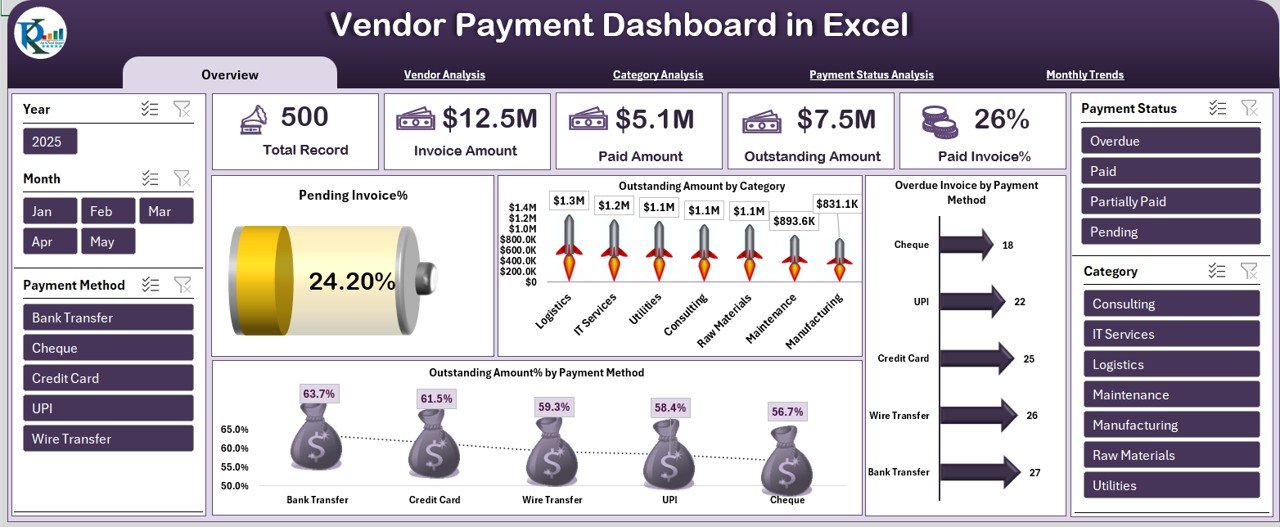
The Overview Sheet acts as the main page of the dashboard. It offers a high-level summary of all vendor payments, helping decision-makers understand the financial situation at a glance.
Key Metrics Available:
Total Records
Shows the total number of invoices entered. This helps you understand the volume of vendor transactions.
Invoice Amount
Displays the total invoice amount received from vendors.
Paid Amount
Shows the sum of all completed payments made to vendors.
Outstanding Amount
Highlights how much you still owe to vendors. This metric helps you plan cash flow better.
Paid Invoice %
Shows the percentage of invoices that are fully paid.
Pending Invoice %
Shows the percentage of invoices that are still pending.
These quick KPIs help you understand the financial health of your vendor payment process.
Click to buy Vendor Payment Dashboard in Excel
Visual Charts on the Overview Page
The Overview sheet also displays multiple charts for a deeper breakdown.
Outstanding Amount by Category
This chart helps you find which vendor category carries the highest overdue or outstanding amount.
Outstanding Amount % by Payment Method
This shows the outstanding percentage for each payment method (Bank Transfer, Cheque, Cash, Online, etc.).
Overdue Invoice by Payment Method
This chart helps you understand which payment method causes the most delays.
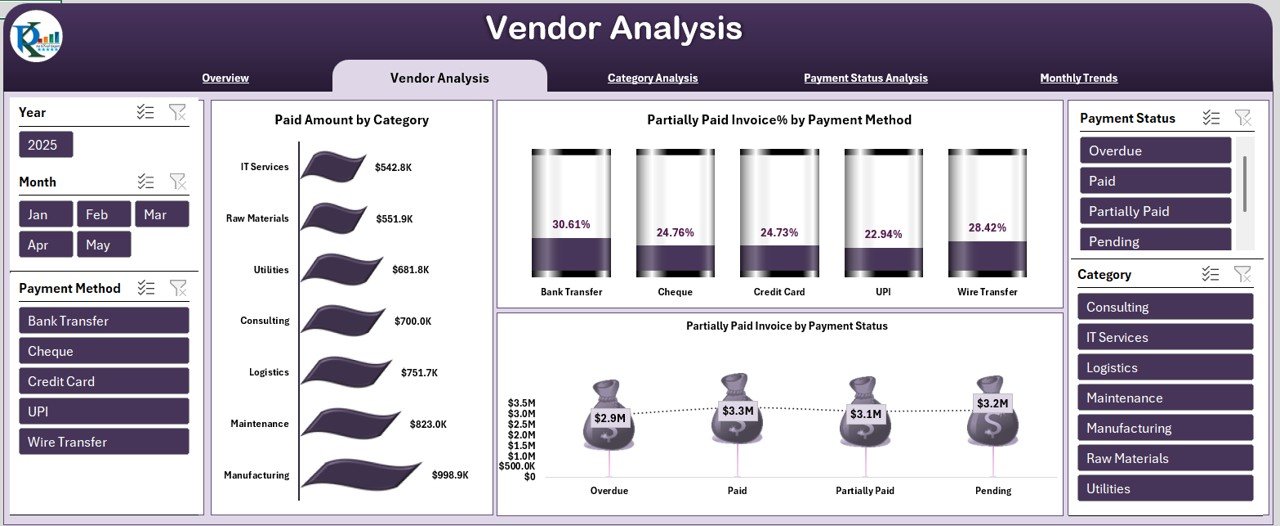
Vendor Analysis Page
The Vendor Analysis page focuses on invoice behavior and payment performance based on different vendors and categories.
Charts and Metrics Included:
Paid Amount by Category
Shows which vendor category receives the most payments. This helps you identify spending concentration and major cost centers.
Partially Paid Invoice % by Payment Method
Shows how many invoices remain partially paid through different payment methods. It helps you detect issues in your payment workflow.
Partially Paid Invoice by Payment Status
This chart gives you clarity about which invoices remain partially paid and why. It helps finance teams prioritize payments and reduce pending balances.
The Vendor Analysis page ensures full clarity across vendor categories and payment patterns.
Click to buy Vendor Payment Dashboard in Excel
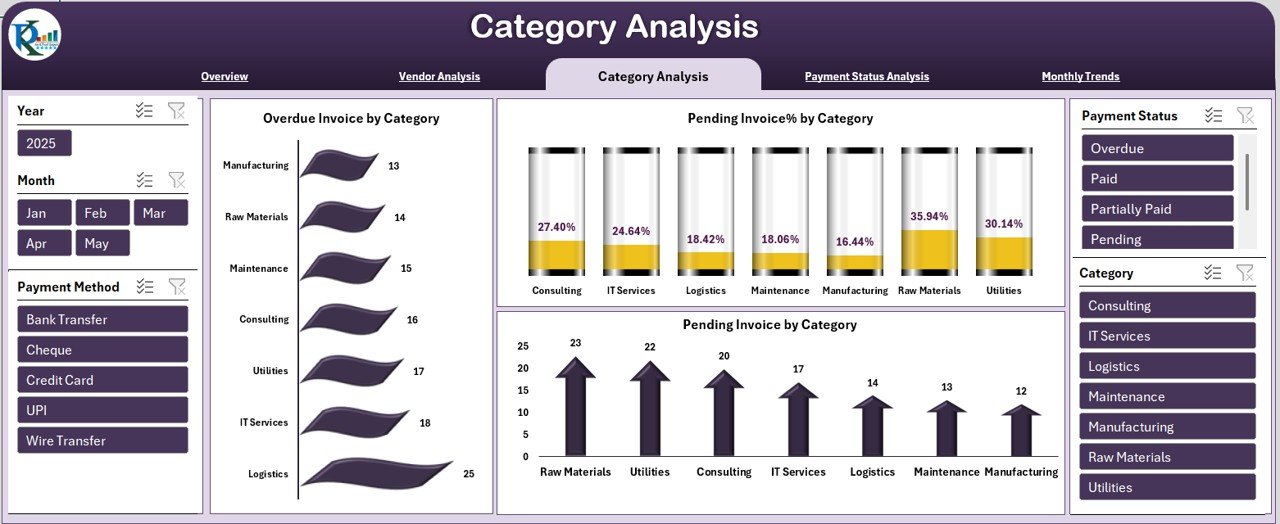
Category Analysis Page
The Category Analysis sheet displays detailed insights based on vendor categories such as Raw Materials, Services, Equipment, Maintenance, Contractors, etc.
Charts and Insights Available:
Overdue Invoice by Category
Shows which vendor categories consistently receive delayed payments. This helps you manage vendor relations more effectively.
Pending Invoice by Category
Displays the count of pending invoices for each category.
Pending Invoice % by Category
Shows the actual percentage of pending invoices in each category. This helps you focus on the categories where payment delays occur most often.
This sheet is especially useful for procurement teams and vendor managers.
Click to buy Vendor Payment Dashboard in Excel
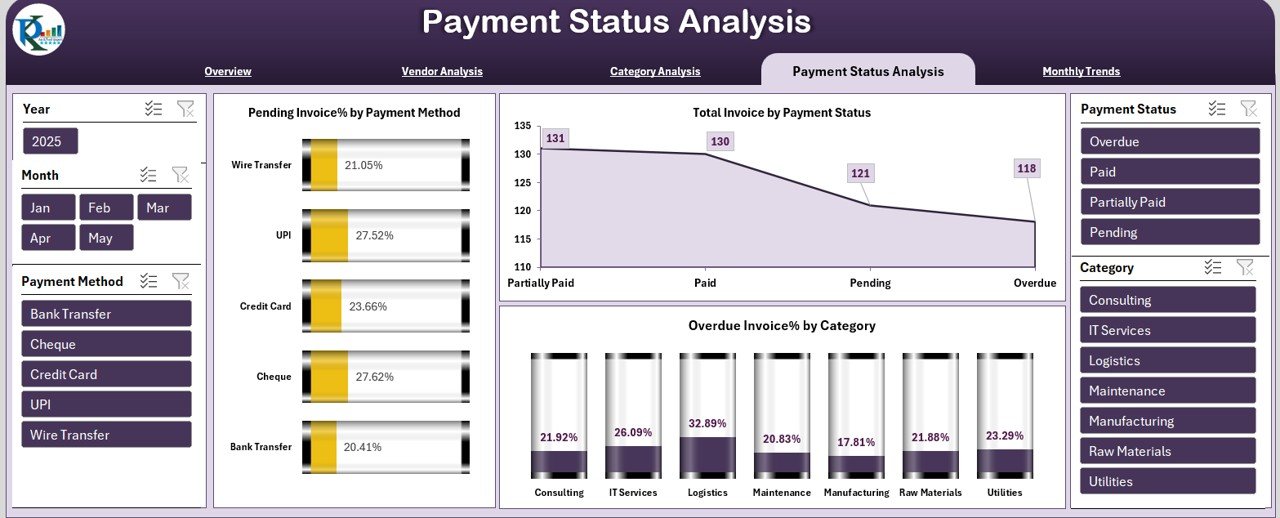
Payment Status Analysis Page
The Payment Status Analysis sheet provides detailed visibility into payment method performance and overdue trends.
Key Charts:
Pending Invoice % by Payment Method
Shows which payment method has the highest pending invoice rate.
Overdue Invoice % by Category
Displays the percentage of overdue invoices within each category. This helps teams identify risk areas and plan corrective actions.
This page helps companies solve payment bottlenecks and improve invoice processing speed.
Click to buy Vendor Payment Dashboard in Excel
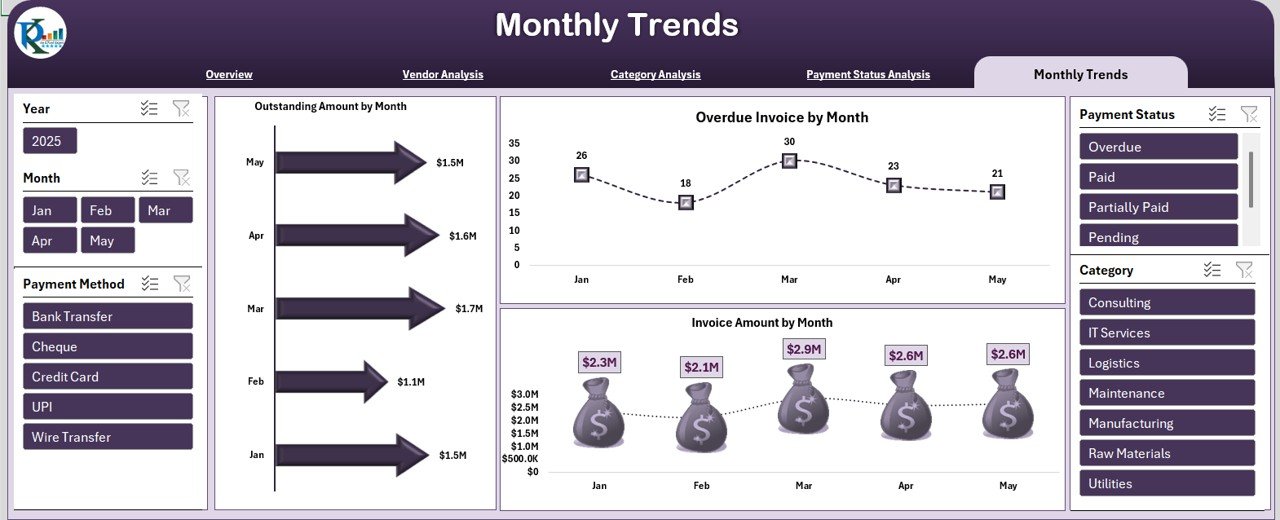
Monthly Trends Page
Monthly trends help companies understand payment performance over time. This page shows how values shift month by month.
Charts Included:
Outstanding Amount by Month
Shows how much amount remains outstanding each month. It keeps you aware of growing payment risks.
Overdue Invoice by Month
Displays the number or amount of overdue invoices month-wise. This helps you detect seasonal delays or workload spikes.
Invoice Amount by Month
Shows the total invoice amount raised each month. It helps you understand spending patterns and vendor activity levels.
This trend analysis helps companies plan budgets, manage cash flow, and forecast upcoming expenses.
Click to buy Vendor Payment Dashboard in Excel
Advantages of a Vendor Payment Dashboard in Excel
Using a Vendor Payment Dashboard in Excel offers several benefits. Below are the major advantages explained in simple words:
Complete Visibility of Vendor Payments
You see all vendor activities in one place, which improves clarity and decision-making.
Reduced Delays and Overdue Payments
The dashboard highlights overdue and pending invoices so you can act immediately.
Better Vendor Relationships
Timely payments improve trust and strengthen vendor partnerships.
Faster Decision-Making
The dashboard helps leaders take quick decisions based on real-time payment insights.
Easy to Use and Maintain
It runs in Excel, so no technical skills, coding, or complex setup is needed.
Improved Cash Flow Planning
By tracking outstanding amounts and monthly trends, companies can plan payments better.
Zero Data Loss
Everything stays inside a single Excel file that you can back up easily.
Suitable for Any Industry
Any business that deals with vendors can use this dashboard smoothly.
Best Practices for the Vendor Payment Dashboard in Excel
To get the best results from your dashboard, follow these best practices:
Keep the Data Clean
Enter vendor names, dates, and categories consistently so charts stay accurate.
Update the Input Sheet Regularly
Add invoice and payment records every week or month to maintain fresh insights.
Use Standard Payment Terms
Keep a clear structure for due dates, payment modes, and invoice types.
Review Trends Every Month
Monthly analysis helps you detect unusual patterns early.
Resolve Partially Paid Invoices Quickly
Follow up on partially paid invoices before they become overdue.
Monitor High-Risk Categories
Categories with high overdue percentages need more attention.
Share the Dashboard With Stakeholders
Let finance teams, managers, and procurement staff view insights for better collaboration.
Use Filters and Slicers
Slicers help you analyze data faster by category, vendor, month, or payment method.
Conclusion
A Vendor Payment Dashboard in Excel is one of the most powerful tools for finance and accounts payable teams. It brings clarity, transparency, and real-time insights into your entire vendor payment cycle. Because the dashboard uses Excel, anyone can use it, update it, and customize it without additional software.
With this dashboard, you can track pending invoices, paid amounts, outstanding balances, category-wise performance, payment methods, and month-wise trends—all in one place. It improves financial discipline, reduces overdue payments, builds better vendor relationships, and supports faster decision-making.
When you use the dashboard along with best practices, you create a strong payment management system that supports growth and stability.
Frequently Asked Questions (FAQs)
- What is a Vendor Payment Dashboard in Excel?
It is an Excel-based reporting tool that helps you track invoices, payments, pending amounts, overdue trends, and vendor-wise insights with the help of charts and KPIs.
- Who can use this dashboard?
Finance teams, accounts payable departments, procurement managers, business owners, and anyone who deals with vendor payments.
- Do I need advanced Excel skills to use this dashboard?
No. You only need basic Excel knowledge. The dashboard works with simple formulas, slicers, and pivot charts.
- How often should I update the dashboard?
You should update it weekly or monthly depending on your invoice volume.
- Can I customize the dashboard?
Yes. You can modify category names, payment methods, vendor types, and visual themes as per your business needs.
- Does the dashboard support multiple payment methods?
Yes. You can track Bank Transfer, Cheque, UPI, Cash, and other payment methods.
- Can I use this dashboard for multiple vendors?
Yes. You can manage unlimited vendors by adding all records into the input sheet.
- Can this dashboard help with cash flow planning?
Yes. Outstanding and overdue analysis helps you forecast cash requirements and plan payments effectively.
Visit our YouTube channel to learn step-by-step video tutorials
Watch the step-by-step video tutorial:
Click to buy Vendor Payment Dashboard in Excel