Manufacturing operations run on deadlines, dependencies, and precise timing. Therefore, when production teams miss a schedule, costs rise, delays increase, and customer trust drops. Because of this, manufacturers need a simple yet powerful scheduling system that keeps everything under control.
That is exactly where a Manufacturing Scheduling Calendar in Excel becomes a game-changer.
In this detailed guide, you will learn what a Manufacturing Scheduling Calendar in Excel is, how it works, why manufacturers rely on it, and how you can use it effectively for production planning. Moreover, you will explore its features, advantages, best practices, and real-life use cases. Finally, you will find fully answered frequently asked questions to clear every doubt.
Click to buy Manufacturing Scheduling Calendar in Excel
What Is a Manufacturing Scheduling Calendar in Excel?
A Manufacturing Scheduling Calendar in Excel is a ready-to-use planning and scheduling tool designed to manage production events, shifts, tasks, maintenance, and deadlines inside Microsoft Excel.
Instead of relying on manual planners, whiteboards, or costly software, manufacturers use this Excel-based calendar to:
- Plan production schedules
- Track manufacturing events
- Manage daily, monthly, and yearly operations
- Maintain a centralized event database
Because Excel is widely available and easy to customize, this calendar becomes an ideal solution for small, medium, and even large manufacturing units.
Why Do Manufacturing Teams Need a Scheduling Calendar?
Manufacturing environments involve multiple moving parts. Therefore, minor scheduling errors can lead to major losses. That is why organized calendar-based scheduling becomes essential.
Here is why manufacturing teams depend on a scheduling calendar:
- Production runs follow strict timelines
- Equipment maintenance needs advance planning
- Shift scheduling requires visibility
- Events and tasks must stay documented
- Managers need instant updates
As a result, a Manufacturing Scheduling Calendar in Excel brings structure, clarity, and control to daily operations.
How Does a Manufacturing Scheduling Calendar in Excel Work?
The Manufacturing Scheduling Calendar in Excel works as a centralized planning system. It connects production events, timelines, and team activities inside one workbook.
This template uses:
- Dynamic date controls
- Automated formatting
- Event forms for easy data entry
- Multiple calendar views
Because of this structure, you can manage schedules without writing complex formulas or code.
What Are the Core Worksheets in a Manufacturing Scheduling Calendar?
This Manufacturing Scheduling Calendar in Excel includes five powerful worksheets, each designed for a specific scheduling purpose.
Let us explore each worksheet in detail.
How Does the Home Sheet Help in Navigation?
Home Sheet Tab (Index Page)
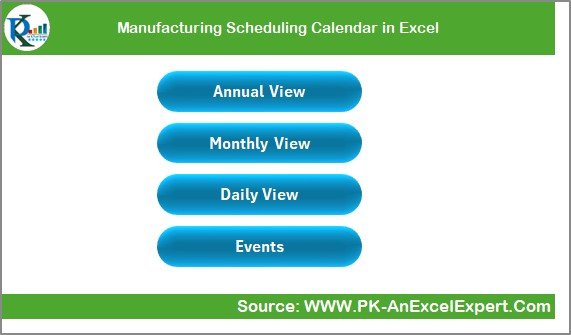
The Home Sheet works as the control center of the entire calendar. It allows users to navigate quickly across different views.
Key Features of the Home Sheet
- Clean dashboard-style layout
- One-click navigation buttons
- Easy access to all calendar views
Navigation Buttons Available
- Annual View
- Monthly View
- Daily View
- Events
This design saves time and ensures users never search manually across sheets.
Click to buy Manufacturing Scheduling Calendar in Excel
the Annual View Sheet
Annual View Sheet Tab
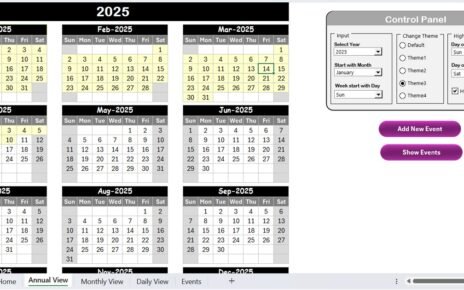
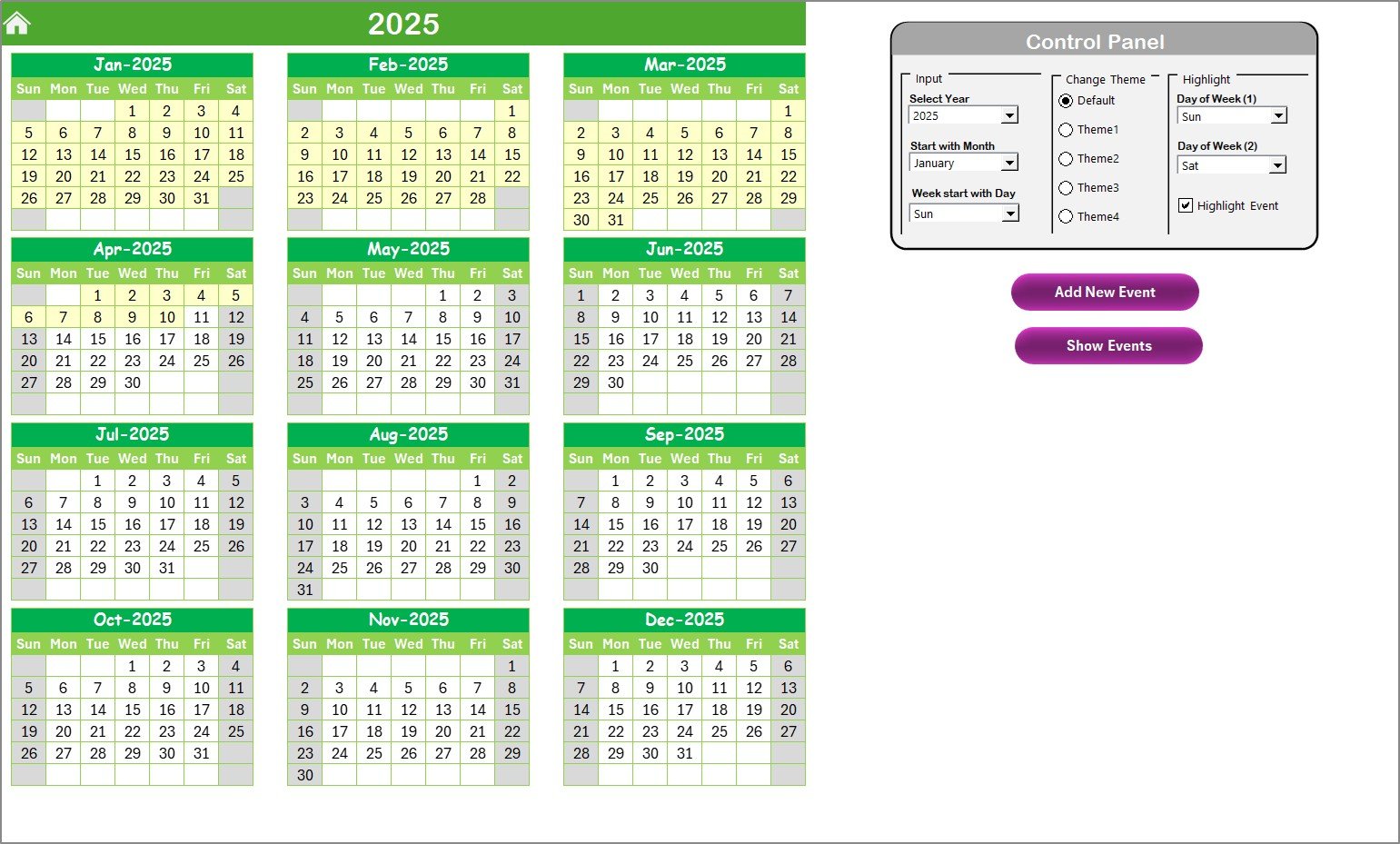
The Annual View Sheet displays all 12 months of the year on one screen. As a result, managers gain a complete yearly overview without switching sheets.
What Does the Annual View Show?
- Full-year manufacturing calendar
- Monthly blocks organized clearly
- Highlighted events and weekends
This view becomes extremely useful for long-term planning, capacity forecasting, and annual scheduling.
Click to buy Manufacturing Scheduling Calendar in Excel
the Annual View
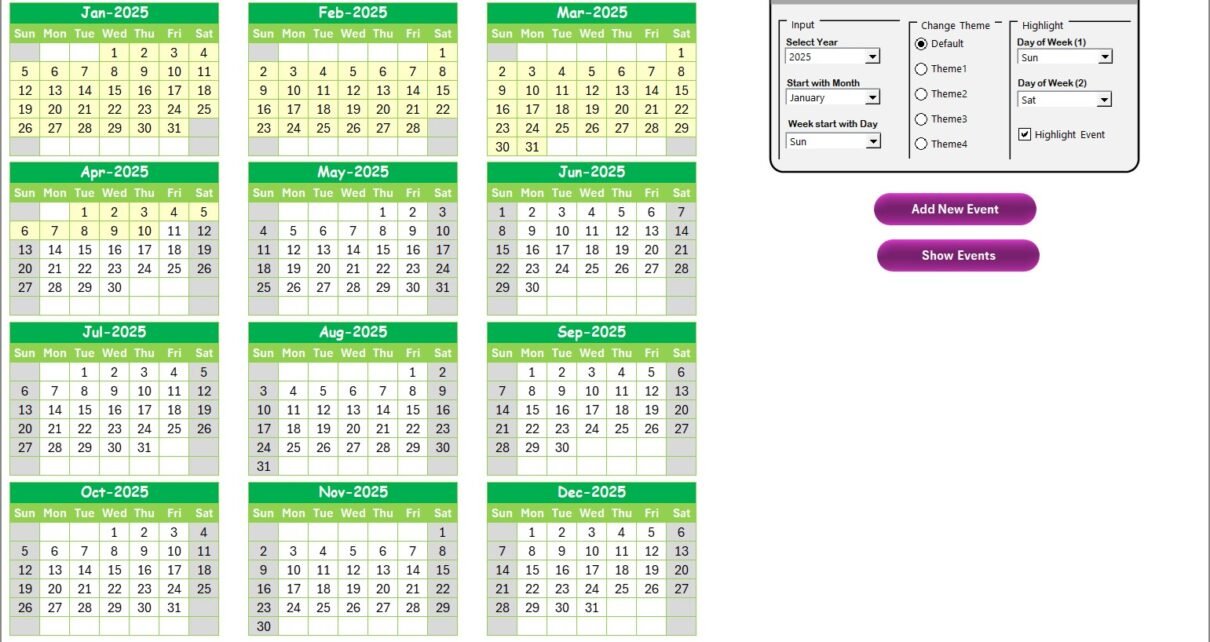
The Annual View includes a powerful Control Panel divided into three groups.
Input Group
This group allows dynamic calendar customization.
You can:
- Select the Year
- Change the starting month
- Change the starting day of the week
Because of this flexibility, the calendar adapts to regional and company-specific standards.
Change Theme Group
Visual clarity boosts planning. Therefore, the calendar includes five color themes.
You can:
- Switch themes instantly
- Apply the selected theme to the entire workbook
As a result, different teams can use different visual styles without redesigning the file.
Highlight Group
This group helps visually separate important days.
You can:
- Highlight two specific weekdays
- Mark weekends easily
- Highlight days with events
For example, you can highlight Saturdays and Sundays in grey and events in yellow. Consequently, planners identify working and non-working days instantly.
View Events in Annual View
Add New Event Button
You can add a new event directly from the Annual View.
Steps:
Select the required date
Click Add New Event
Fill the event form
Click Submit
The event instantly appears on the selected date.
Show Event Button
When you need details:
- Select a date
- Click Show Event
- View all events scheduled for that date
Therefore, you never miss production activities or deadlines.
Monthly View Sheet
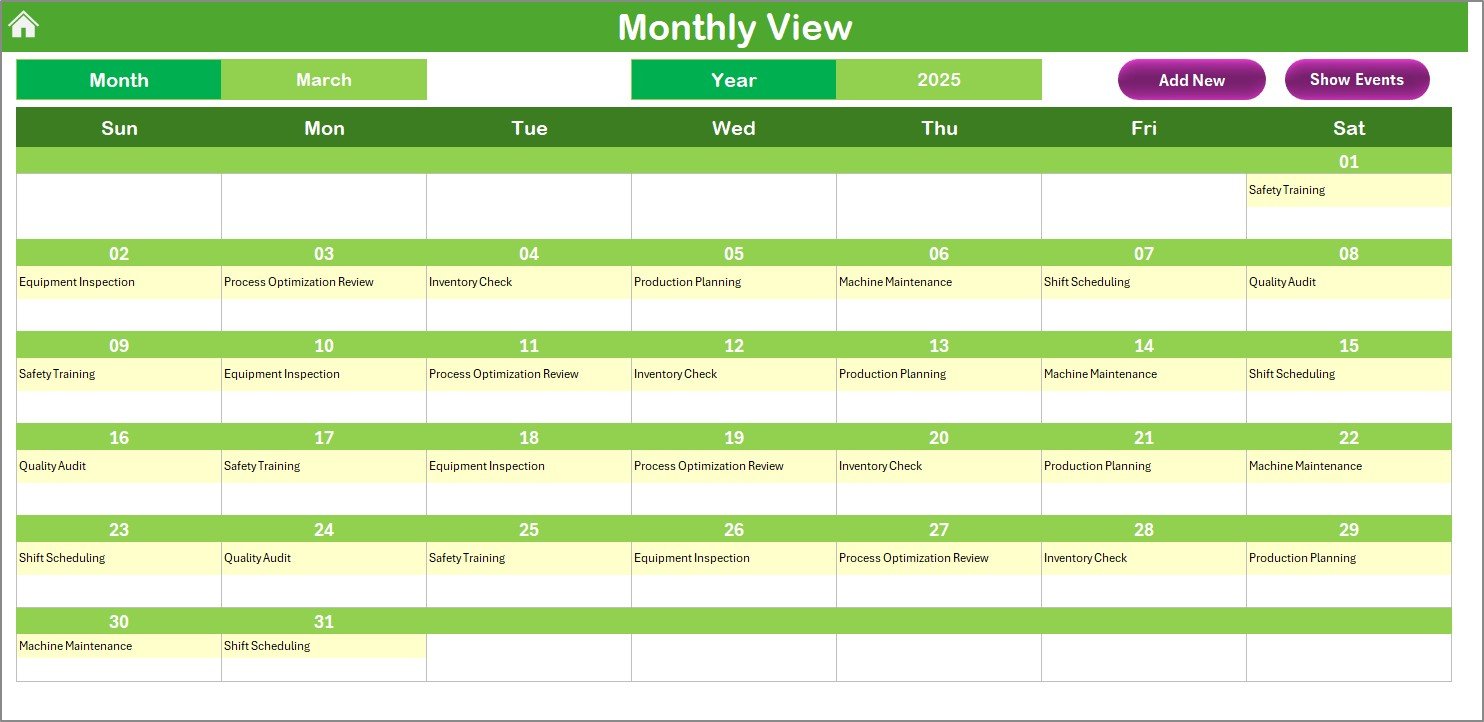
The Monthly View focuses on a single selected month. Hence, it delivers more detail than the annual layout.
Features of Monthly View
- Month and Year selector
- One event visible per date
- “More than 1…” indicator for multiple events
This format keeps the calendar clean while still showing activity density.
Click to buy Manufacturing Scheduling Calendar in Excel
What Buttons Are Available in Monthly View?
Add New Event Button
You can add events for a specific date directly from this view using the same simple form system.
Show Event Button
This button displays all events scheduled on the selected date, along with complete details.
As a result, supervisors manage monthly production with precision.
the Daily View Support
Daily View Sheet Tab
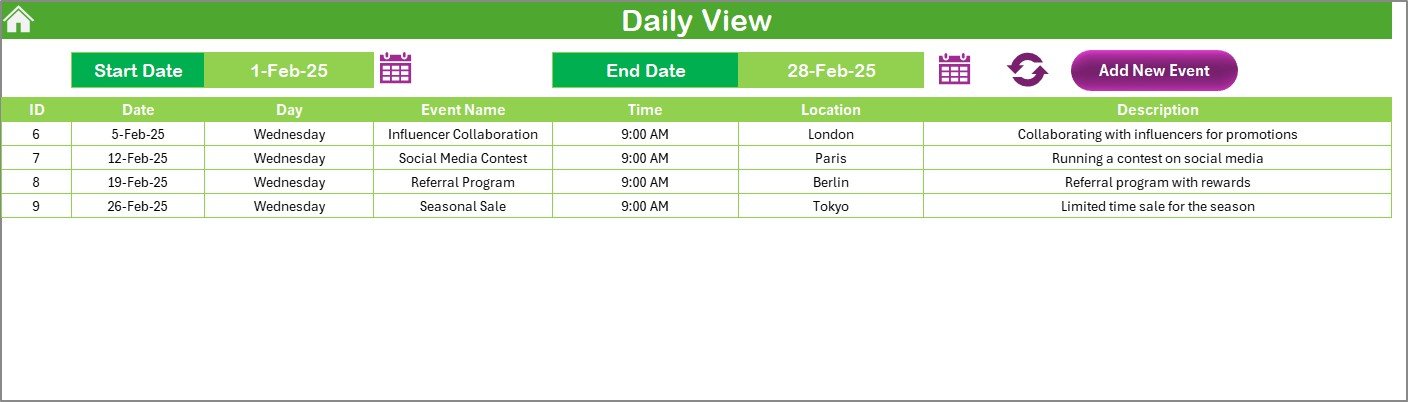
The Daily View provides a detailed list of events for a selected date range.
What Can You Do in Daily View?
- Select Start Date and End Date
- View all events within the range
- Refresh results instantly
Because of this structure, daily planners can track shifts, machine schedules, and task assignments easily.
Daily View Allow
Yes. The Daily View includes an Add New Event button at the top.
This ensures:
- Quick event entry
- No navigation delays
- Accurate and timely updates
Click to buy Manufacturing Scheduling Calendar in Excel
Events Sheet
Events Sheet Tab (Database)
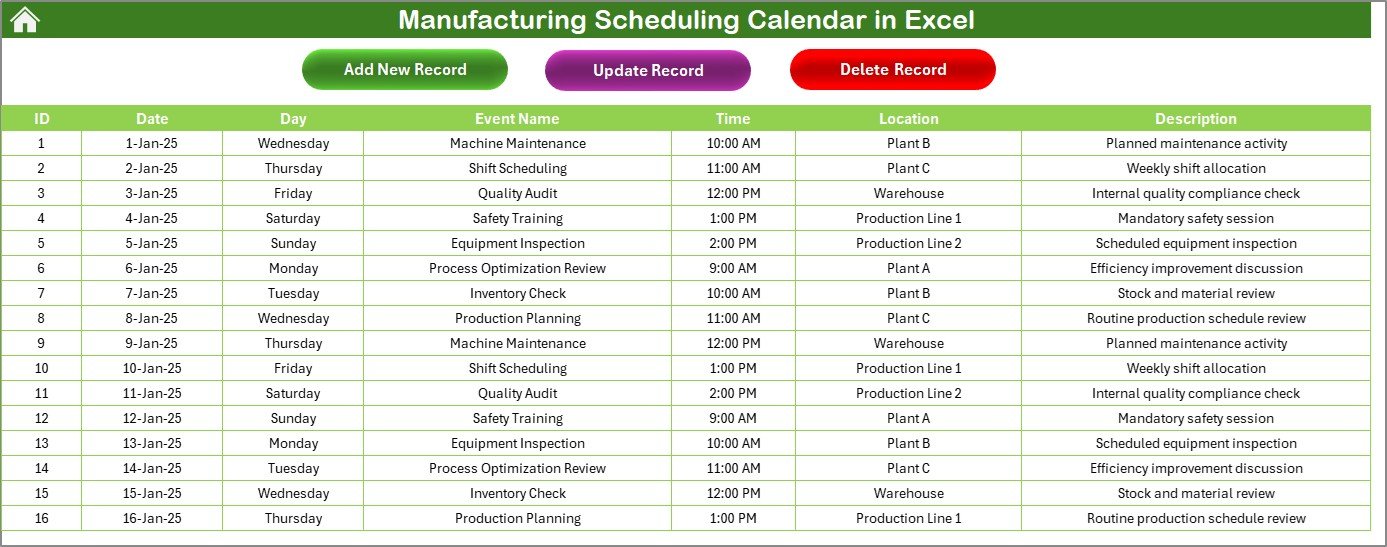
The Events Sheet acts as the central database for the entire scheduling system.
What Information Does the Events Sheet Store?
Each event includes:
- ID (auto-generated)
- Date
- Day (Sunday, Monday, etc.)
- Event Name
- Time
- Location
- Description
Because all views pull data from this sheet, accuracy remains consistent across the workbook.
Click to buy Manufacturing Scheduling Calendar in Excel
How Can You Manage Records in the Events Sheet?
The Events Sheet includes three action buttons at the top.
Add New Record Button
Use this to add new events directly into the database via a user-friendly form.
Update Existing Record Button
If plans change:
- Select the Event ID
- Click Update Existing Record
- Modify the pre-filled form
- Submit changes
The calendar updates automatically.
Delete Record Button
Select an Event ID and click Delete Record to remove obsolete or canceled events safely.
Advantages of Manufacturing Scheduling Calendar in Excel
A Manufacturing Scheduling Calendar in Excel delivers multiple operational benefits.
Key Advantages
- Improves production planning accuracy
- Reduces scheduling conflicts
- Centralizes all manufacturing events
- Saves cost compared to software tools
- Requires no advanced technical skills
- Uses familiar Excel environment
- Customizable views and themes
As a result, teams adopt it quickly and effectively.
How Does This Calendar Improve Manufacturing Efficiency?
This calendar improves efficiency by:
- Eliminating manual planning errors
- Reducing dependency on emails and calls
- Offering instant visibility
- Supporting proactive decision-making
Therefore, production managers gain better control over operations.
Best Practices for Manufacturing Scheduling Calendar in Excel
To get maximum value, follow these best practices.
Maintain Consistent Event Naming
Use standard naming conventions for easy tracking.
Update the Calendar Daily
Regular updates keep information accurate and reliable.
Use Highlighting Wisely
Highlight weekends, shutdown days, and critical events clearly.
Train Team Members
Ensure planners know how to add, update, and view events.
Protect the Events Sheet
Restrict accidental edits by applying sheet protection.
Common Use Cases of Manufacturing Scheduling Calendar in Excel
Manufacturers use this calendar across various scenarios.
Production Scheduling
Maintenance Planning
Shift Management
Quality Audits
Inspection Planning
Training Events
Plant Shutdown Scheduling
Because of its flexibility, one template supports multiple purposes.
How Is This Better Than Manual Scheduling?
Manual scheduling often causes:
- Data duplication
- Missed deadlines
- Poor visibility
- Human errors
In contrast, the Manufacturing Scheduling Calendar in Excel ensures:
- Automation
- Consistency
- Accuracy
- Accountability
Thus, it saves time and money.
Conclusion: Why You Should Use a Manufacturing Scheduling Calendar in Excel
A Manufacturing Scheduling Calendar in Excel offers the perfect balance of simplicity and functionality. It helps production teams plan better, track events accurately, and make informed decisions without investing in complex software.
Because it includes annual, monthly, daily, and database views, it supports every level of manufacturing planning. Moreover, its user-friendly design and customization options make it suitable for organizations of all sizes.
If you want clarity, control, and efficiency in production scheduling, this Excel-based solution delivers exactly that.
Frequently Asked Questions (FAQs)
- What is the purpose of a Manufacturing Scheduling Calendar in Excel?
It helps plan, track, and manage manufacturing events across daily, monthly, and yearly timelines in one Excel file.
- Can I customize the calendar year and start day?
Yes. You can change the year, starting month, and starting weekday from the control panel.
- Does the calendar support multiple events on one date?
Yes. It supports multiple events and clearly indicates when more than one event exists.
- Is programming knowledge required to use this calendar?
No. The calendar works without coding and uses simple forms and buttons.
- Can I update or delete events later?
Yes. You can update or delete events easily using the built-in action buttons.
- Is this calendar suitable for small manufacturers?
Absolutely. It works perfectly for small, medium, and large manufacturing units.
- Can this calendar replace paid scheduling software?
For many manufacturers, yes. It provides strong scheduling features without additional software costs.
Visit our YouTube channel to learn step-by-step video tutorials
Watch the step-by-step video tutorial:
Click to buy Manufacturing Scheduling Calendar in Excel