Customer service never sleeps—but your teams do. Therefore, managing holidays, events, and schedules becomes critical for any customer service organization. That is exactly where a Customer Service Holiday Calendar in Excel makes a powerful difference.
This detailed guide explains what a Customer Service Holiday Calendar in Excel is, why it matters, how it works, and how you can use it to improve service planning, reduce disruptions, and maintain high customer satisfaction. Moreover, this article walks you through the complete structure of a ready-to-use Excel-based calendar template designed specifically for customer service operations.
Whether you manage a call center, helpdesk, support team, or service desk, this guide will help you gain clarity, control, and confidence using Excel.
Click to buy Customer Service Holiday Calendar in Excel
What Is a Customer Service Holiday Calendar in Excel?
A Customer Service Holiday Calendar in Excel is a centralized scheduling and event-tracking tool that helps customer service teams manage holidays, internal events, shifts, and special days in one organized workbook.
Instead of relying on emails, paper calendars, or disconnected files, this Excel calendar gives you a single source of truth. As a result, teams plan resources better, avoid scheduling conflicts, and maintain service continuity.
Because Excel offers flexibility, customization, and familiarity, this calendar works perfectly for small teams, growing businesses, and enterprise service operations alike.
Why Do Customer Service Teams Need a Holiday Calendar?
Customer service operations depend heavily on availability and planning. However, without a structured calendar, teams face repeated challenges.
Common Problems Without a Holiday Calendar
- Missed public or regional holidays
- Understaffed support days
- Conflicting events and schedules
- Poor visibility of upcoming service disruptions
- Manual follow-ups and confusion
Fortunately, a Customer Service Holiday Calendar in Excel solves all these problems efficiently.
How Does a Customer Service Holiday Calendar in Excel Work?
This ready-to-use Excel template uses structured worksheets, control panels, buttons, and event forms. Together, they create a powerful yet easy-to-use calendar system.
The calendar dynamically updates views based on selected year, month, date range, and theme. Moreover, it stores all events in a central database sheet, which ensures accuracy and consistency.
What Worksheets Are Included in the Customer Service Holiday Calendar?
This template contains 5 well-structured worksheets, each serving a specific purpose. Let us explore each one in detail.
Home Sheet
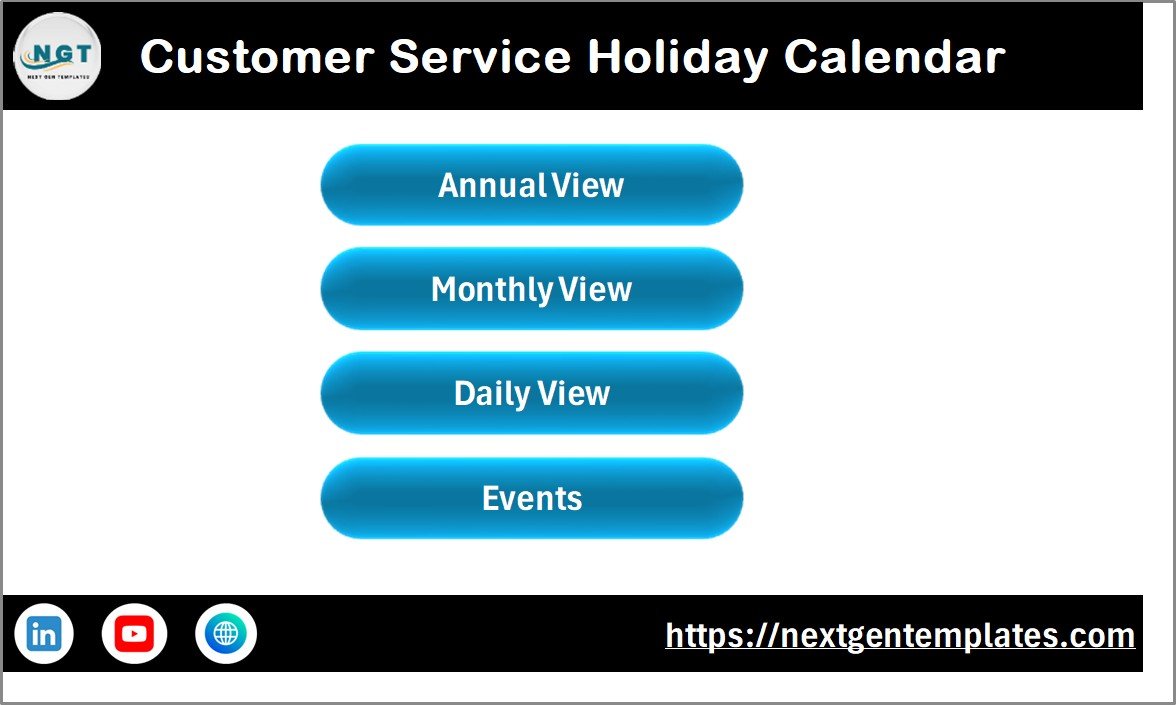
The Home Sheet works as the navigation hub of the calendar. From here, users can jump to any major section instantly.
Key Features of the Home Sheet
- Clean index-style layout
- Four navigation buttons:
Annual View
Monthly View
Daily View
Events
- User-friendly design for quick access
Because of this structure, even first-time users can navigate the workbook easily.
Click to buy Customer Service Holiday Calendar in Excel
Annual View Sheet
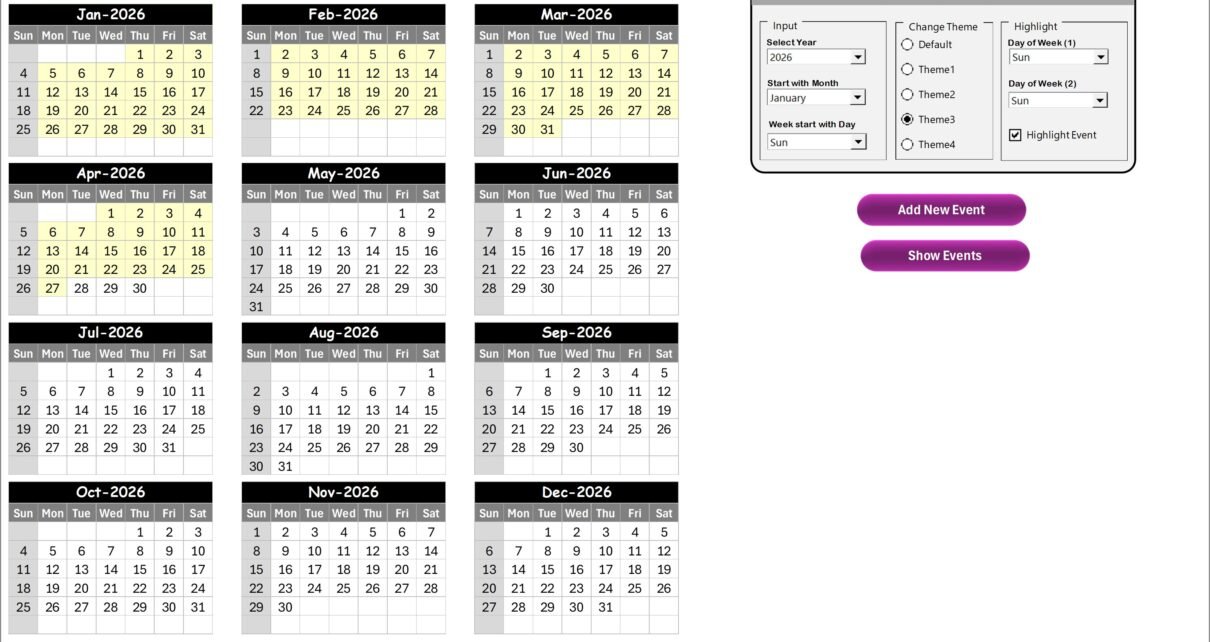
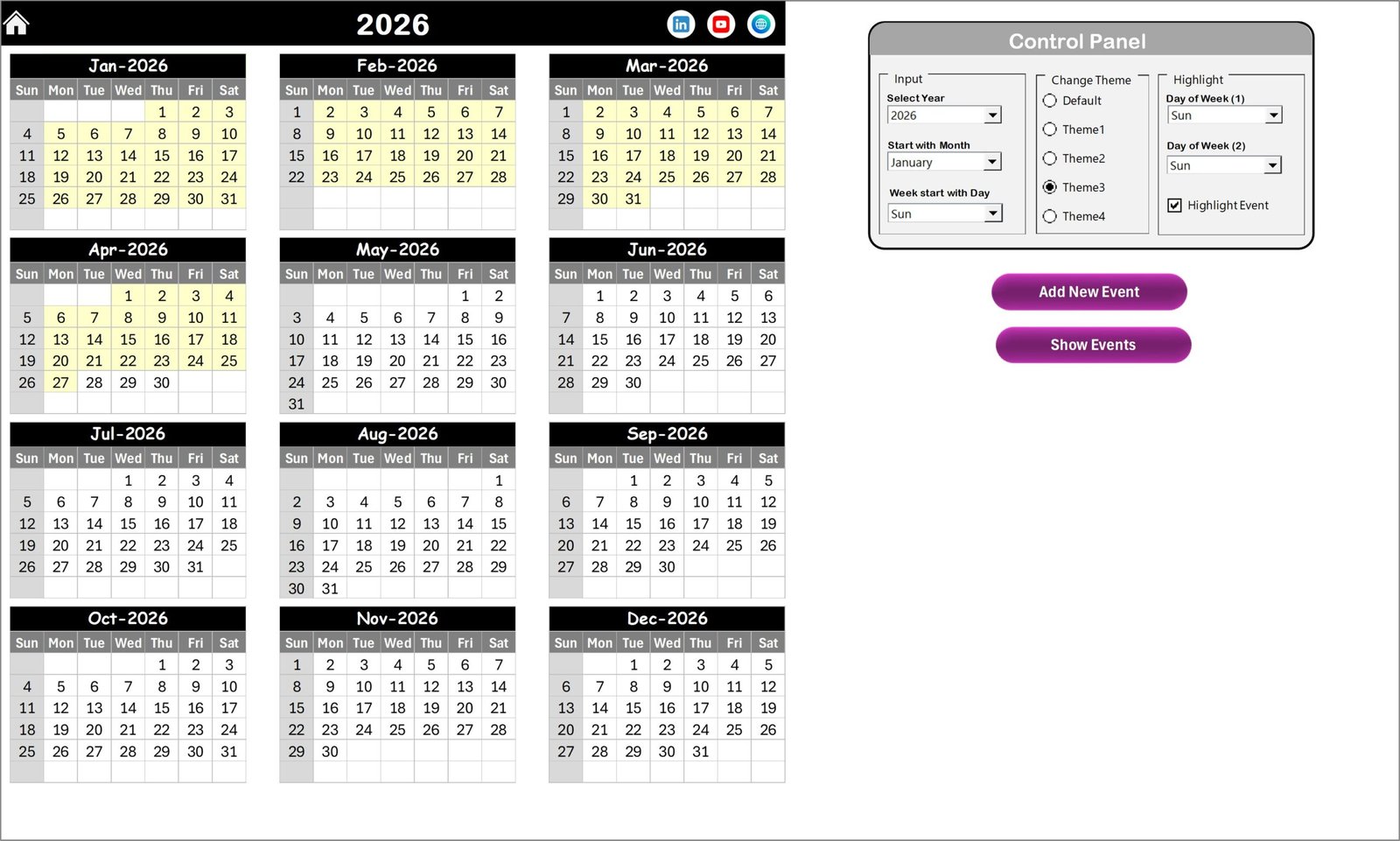
The Annual View Sheet displays all 12 months in one single view. As a result, managers can quickly see the full year at a glance.
What Does the Annual View Show?
- Twelve monthly calendars on one screen
- Highlighted holidays and events
- Visual clarity for long-term planning
What Is the Control Panel in the Annual View Sheet?
The Annual View includes a powerful Control Panel divided into three groups.
Input Group
- Select the Year
- Change the Starting Month
- Choose the Starting Day of the Week
These controls automatically update the entire calendar.
Change Theme Group
- Five built-in color themes
- One-click theme change for the whole workbook
This feature improves readability and visual appeal.
Highlight Group
- Highlight Day of Week (1) and Day of Week (2)
- Example: Highlight Saturday and Sunday in gray
- Enable Highlight Event checkbox to mark events in yellow
How Do the Add New Event and Show Event Buttons Work?
Add New Event Button
- Select any date on the calendar
- Click Add New Event
- Fill the event form
- Submit to save the event
Show Event Button
- Select a date
- Click Show Event
- View all events scheduled for that date
This interaction keeps event management fast and intuitive.
Click to buy Customer Service Holiday Calendar in Excel
Monthly View Sheet
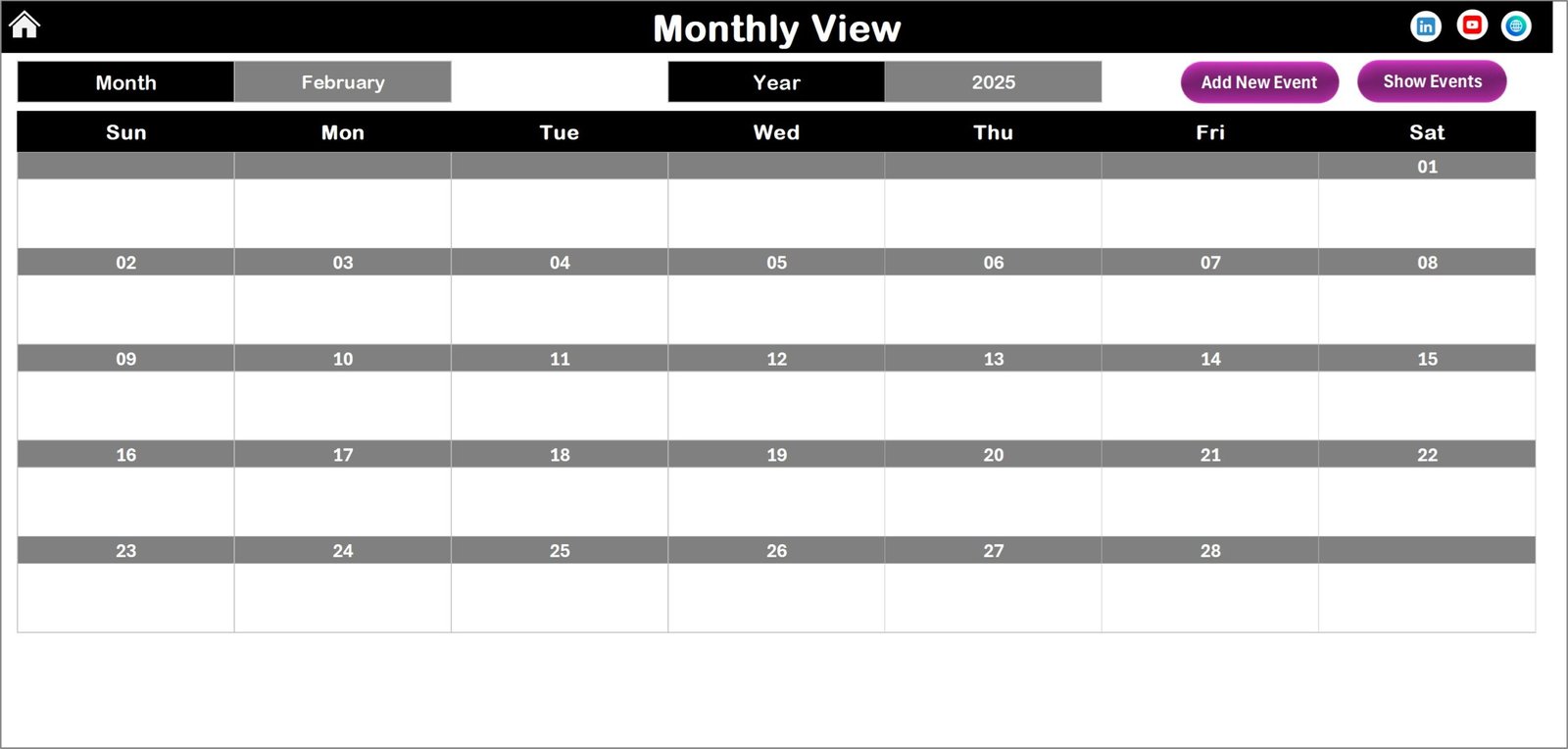
The Monthly View Sheet focuses on one selected month.
Key Features of Monthly View
- Month and Year selection at the top
- Single-month calendar layout
- Displays one event per date
- Shows “more than 1…” when multiple events exist
Because of this view, supervisors can plan staffing and coverage month by month.
What Buttons Are Available in the Monthly View?
Add New Event Button
- Select a date
- Click the button
- Fill and submit the event form
Show Event Button
- Select a date
- View all events for that day
These buttons ensure consistency across views.
Click to buy Customer Service Holiday Calendar in Excel
Daily View Sheet
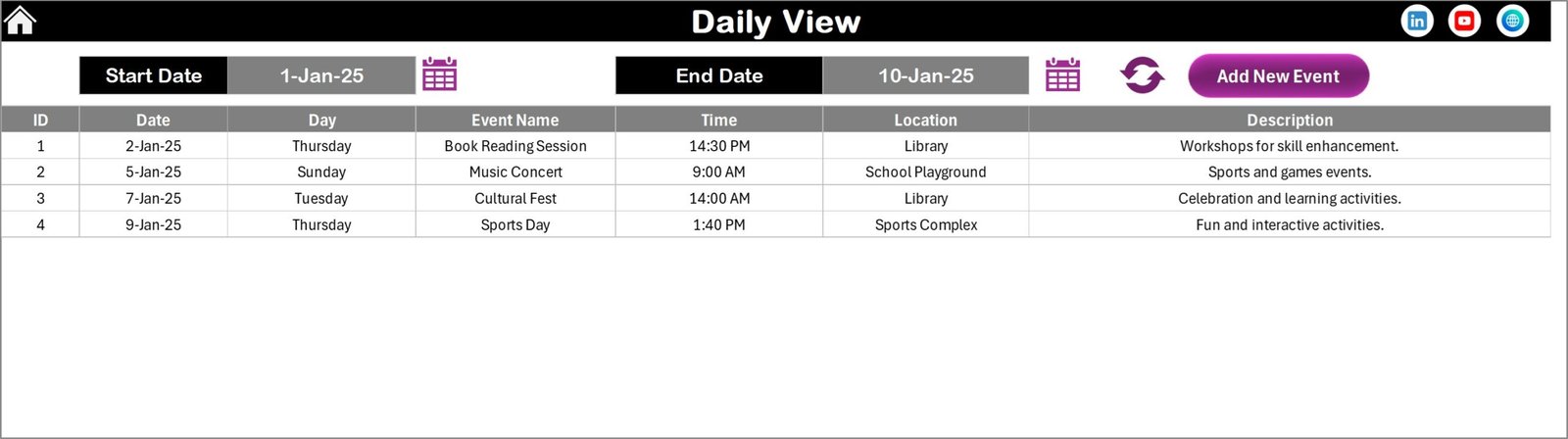
The Daily View Sheet displays a detailed list of events within a selected date range.
How Does the Daily View Work?
- Select Start Date and End Date
- Use calendar icons to choose dates
- Click Refresh to load events
This view works perfectly for:
- Shift planning
- Leave tracking
- Holiday impact analysis
- Event coordination
How Can You Add Events from the Daily View?
The Daily View includes an Add New Event button at the top. Therefore, users can quickly add events without switching sheets.
Click to buy Customer Service Holiday Calendar in Excel
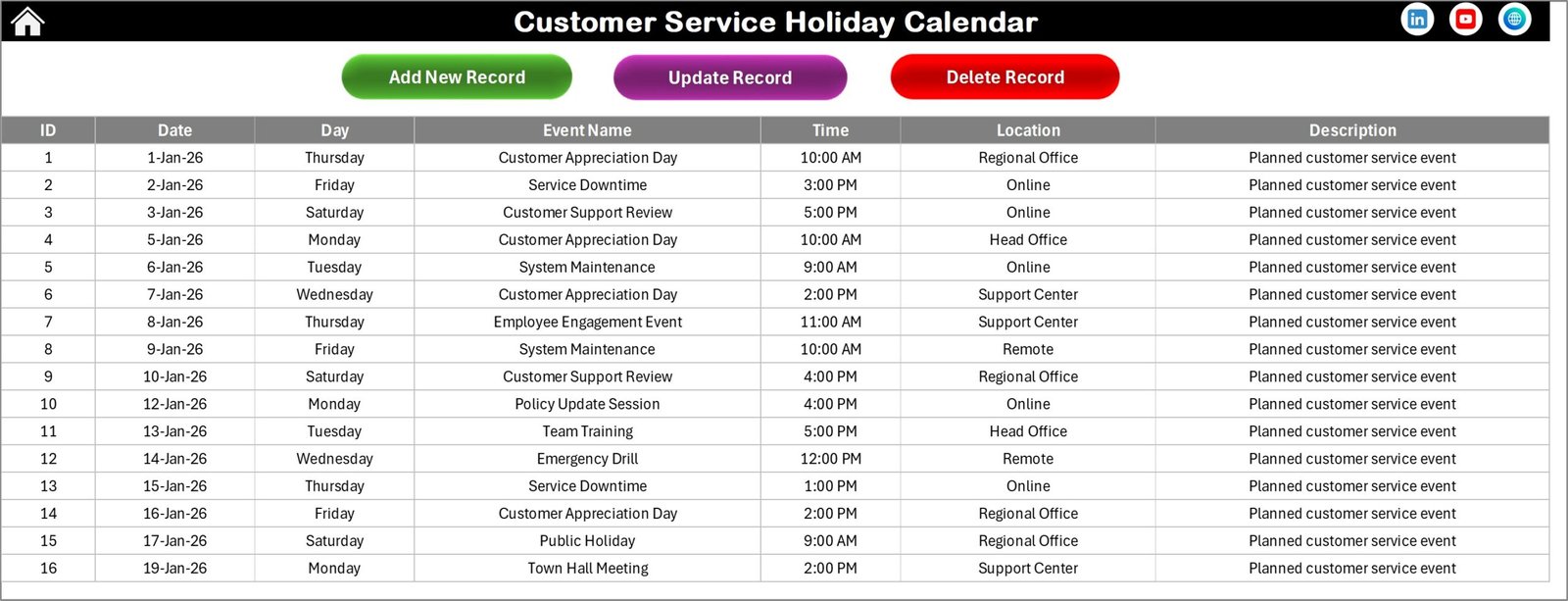
Events Sheet
The Events Sheet acts as the database for the entire calendar.
What Information Does the Events Sheet Store?
- ID – Auto-generated unique number
- Date – Event date
- Day – Sunday, Monday, etc.
- Event Name
- Time
- Location
- Description
Because all views pull data from this sheet, it ensures accuracy and consistency.
Click to buy Customer Service Holiday Calendar in Excel
What Management Buttons Are Available in the Events Sheet?
Add New Record
- Opens the Add Event form
- Saves new events
Update Existing Record
- Select Event ID
- Edit prefilled form
- Submit updates
Delete Record
- Select Event ID
- Remove the event permanently
These features give complete control over event data.
Advantages of Customer Service Holiday Calendar in Excel
Using this calendar brings several operational and strategic benefits.
Centralized Holiday Management
- One file for all holidays and events
- No scattered schedules
Better Resource Planning
- Plan staffing around holidays
- Avoid service gaps
Improved Team Communication
- Everyone sees the same calendar
- Fewer misunderstandings
Time Savings
- No manual tracking
- Automated updates
Fully Customizable
- Change themes, formats, and rules
- Adapt for any region or team
How Does This Calendar Improve Customer Service Performance?
Customer service success depends on preparedness. Therefore, this calendar improves performance by:
- Reducing unplanned downtime
- Preventing understaffed shifts
- Aligning teams with business calendars
- Supporting proactive decision-making
As a result, customers receive consistent and reliable support.
Who Can Use a Customer Service Holiday Calendar in Excel?
This calendar suits many roles and industries:
- Call centers
- Helpdesk teams
- IT support teams
- HR and workforce planners
- Operations managers
- Customer experience leaders
Because Excel is widely used, adoption becomes easy.
Best Practices for the Customer Service Holiday Calendar in Excel
To get maximum value, follow these proven best practices.
Keep the Events Sheet Updated
Always update events immediately. This habit prevents errors across all views.
Use Consistent Event Naming
Clear event names improve visibility and understanding.
Highlight Critical Days
Use highlight options for weekends, peak days, and blackout periods.
Review the Calendar Monthly
Regular reviews help teams adjust staffing and priorities.
Train Key Users
Train supervisors and planners so they use all features correctly.
How Is This Calendar Better Than Manual Scheduling?
Manual scheduling creates errors, delays, and confusion. In contrast, this Excel calendar:
- Automates updates
- Centralizes information
- Reduces dependency on emails
- Improves planning accuracy
Therefore, it delivers both efficiency and reliability.
Can You Customize the Customer Service Holiday Calendar?
Yes, absolutely. You can:
- Add new fields in Events Sheet
- Adjust color themes
- Change start of week
- Add regional holidays
- Extend for shift scheduling
Because Excel is flexible, customization stays simple.
Conclusion: Why You Should Use a Customer Service Holiday Calendar in Excel
A Customer Service Holiday Calendar in Excel transforms how service teams plan, communicate, and operate. Instead of reacting to issues, teams plan proactively. Moreover, managers gain visibility, while teams stay aligned.
This ready-to-use calendar combines simplicity, power, and flexibility in one Excel workbook. As a result, it becomes an essential tool for any customer service organization that values consistency, clarity, and efficiency.
Frequently Asked Questions (FAQs)
What is a Customer Service Holiday Calendar in Excel?
It is an Excel-based tool that tracks holidays, events, and schedules for customer service teams in one centralized file.
Can I use this calendar for multiple years?
Yes. You can change the year using the control panel, and the calendar updates automatically.
Does this calendar support multiple events on one day?
Yes. It supports multiple events and displays them clearly across views.
Is this calendar suitable for small teams?
Yes. It works equally well for small teams and large service operations.
Can I customize the calendar for my region?
Yes. You can adjust holidays, start days, themes, and event types easily.
Visit our YouTube channel to learn step-by-step video tutorials
Watch the step-by-step video tutorial:
Click to buy Customer Service Holiday Calendar in Excel