Managing insurance projects involves multiple activities, strict timelines, compliance requirements, meetings, policy renewals, audits, and customer interactions. However, many insurance teams still rely on scattered spreadsheets, emails, or manual planners. As a result, deadlines get missed, coordination becomes difficult, and productivity decreases.
Therefore, organizations now prefer structured digital tools that simplify planning and tracking. One such practical and powerful solution is an Insurance Project Calendar in Excel.
In this comprehensive guide, you will learn everything about the Insurance Project Calendar in Excel, including its features, structure, benefits, usage, best practices, and real-world applications. Moreover, this article explains how insurance professionals can manage projects efficiently using a ready-to-use Excel calendar system.
Click to Purchases Insurance Project Calendar in Excel
What Is an Insurance Project Calendar in Excel?
An Insurance Project Calendar in Excel is a structured planning tool designed to organize insurance-related activities, events, and project timelines within a single Excel workbook.
Instead of managing multiple files, users can track all project schedules in one centralized system. Additionally, the calendar automatically updates views such as annual, monthly, and daily schedules.
Insurance companies use this calendar to manage:
-
Policy renewal schedules
-
Client meetings
-
Claims processing timelines
-
Compliance audits
-
Training sessions
-
Marketing campaigns
-
Internal project milestones
Because Excel remains familiar to most professionals, teams can adopt this system quickly without additional software training.
Click to Purchases Insurance Project Calendar in Excel
Why Do Insurance Teams Need a Project Calendar?
Insurance operations involve strict deadlines and regulatory responsibilities. Therefore, proper scheduling becomes essential.
Common Challenges Without a Structured Calendar
-
Teams forget important deadlines
-
Project tracking becomes manual and slow
-
Communication gaps increase
-
Event information stays scattered
-
Managers lack visibility into schedules
However, when organizations implement an Insurance Project Calendar, they gain clarity and control over operations.
Key Features of the Insurance Project Calendar in Excel
This ready-to-use calendar includes five interactive worksheets, each designed for a specific purpose. Together, they create a complete project management environment.
Click to Purchases Insurance Project Calendar in Excel
1. Home Sheet – The Navigation Control Center
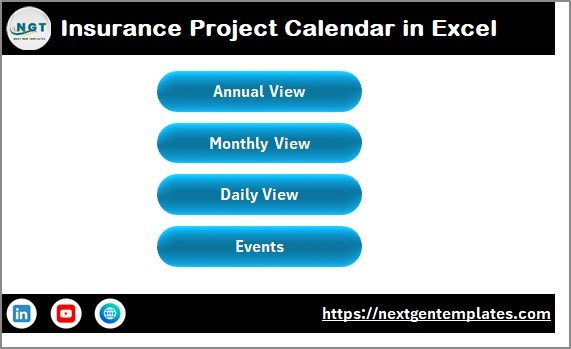
The Home Sheet works as the index page of the workbook. It allows users to move across different calendar views instantly.
Navigation Buttons Available
-
Annual View
-
Monthly View
-
Daily View
-
Events Database
Because of these buttons, users do not need to search through sheets manually. Instead, they can jump directly to the required section.
Why Is the Home Sheet Important?
-
Improves user experience
-
Saves navigation time
-
Makes the calendar beginner-friendly
-
Creates a professional dashboard feel
As a result, even non-technical users can operate the system easily.
Click to Purchases Insurance Project Calendar in Excel
2. Annual View Sheet – Complete Year Planning in One Screen
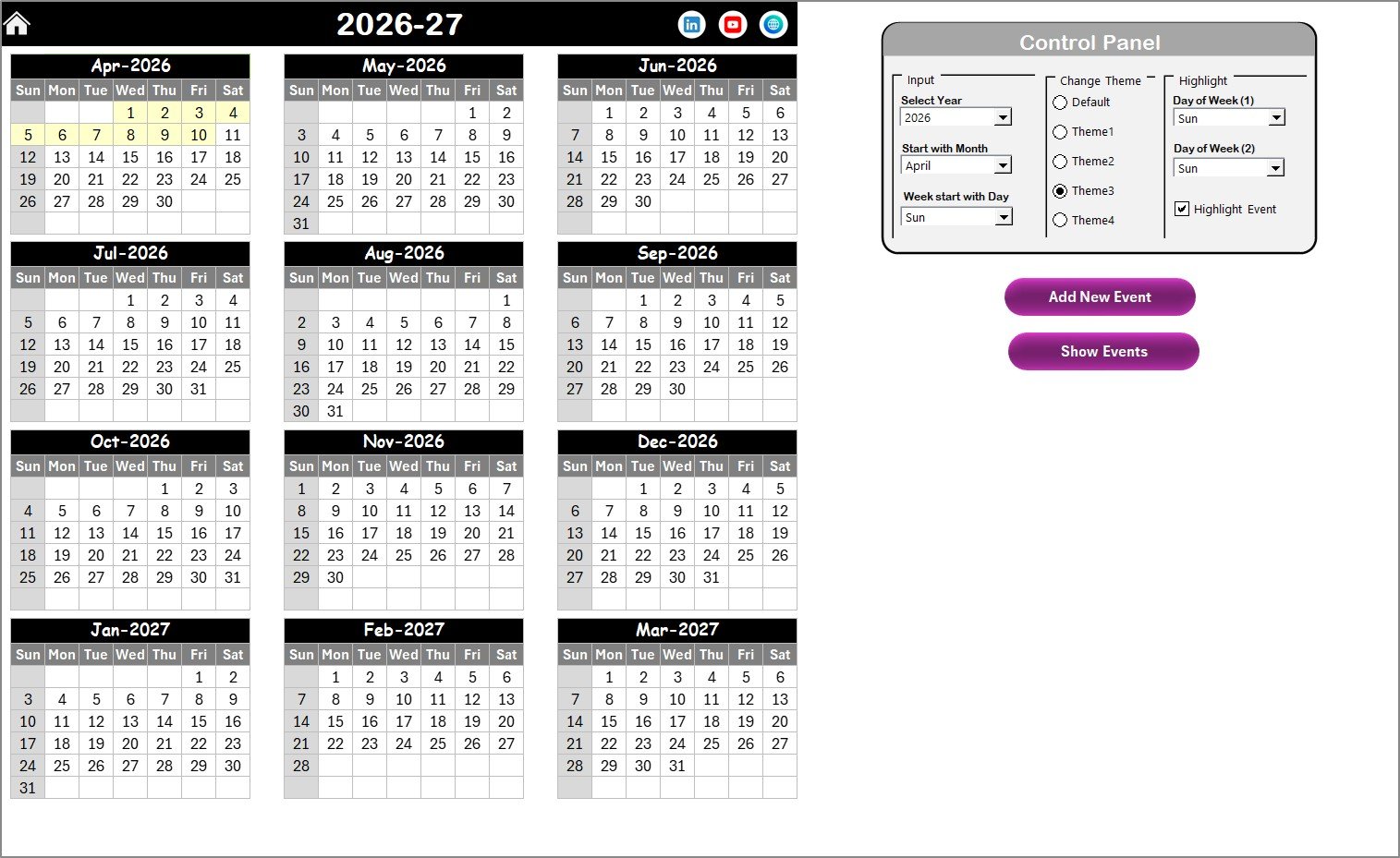
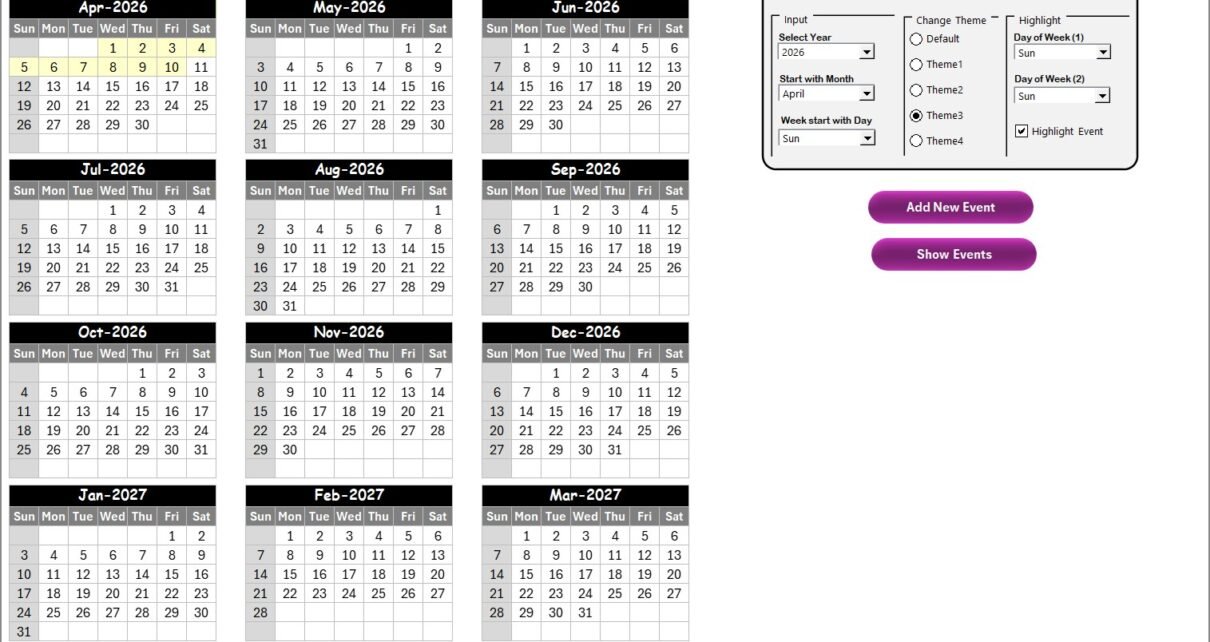
The Annual View Sheet displays all 12 months of the year in a single view. Therefore, managers can quickly understand yearly project distribution.
Control Panel Features
The annual calendar includes a powerful control panel divided into three groups.
Input Group
Users can customize the calendar dynamically:
-
Select Year automatically updates the calendar
-
Change Starting Month
-
Adjust Starting Day of Week
Consequently, the template works for any year without redesign.
Change Theme Group
The calendar provides five color themes.
Users can:
-
Apply themes instantly
-
Maintain visual consistency
-
Customize appearance according to branding
Thus, organizations can personalize the calendar easily.
Highlight Group
Highlighting helps users focus on important days.
Options include:
-
Highlight specific weekdays (e.g., Saturday & Sunday)
-
Highlight events automatically
-
Visual color indicators for quick identification
Therefore, users can identify busy days instantly.
Action Buttons in Annual View
Add New Event Button
Users simply select a date and click the button. Then an event form opens where details can be entered.
Show Event Button
This button displays all events scheduled for the selected date.
Because of these automation features, event management becomes fast and accurate.
3. Monthly View Sheet – Detailed Month-Level Planning
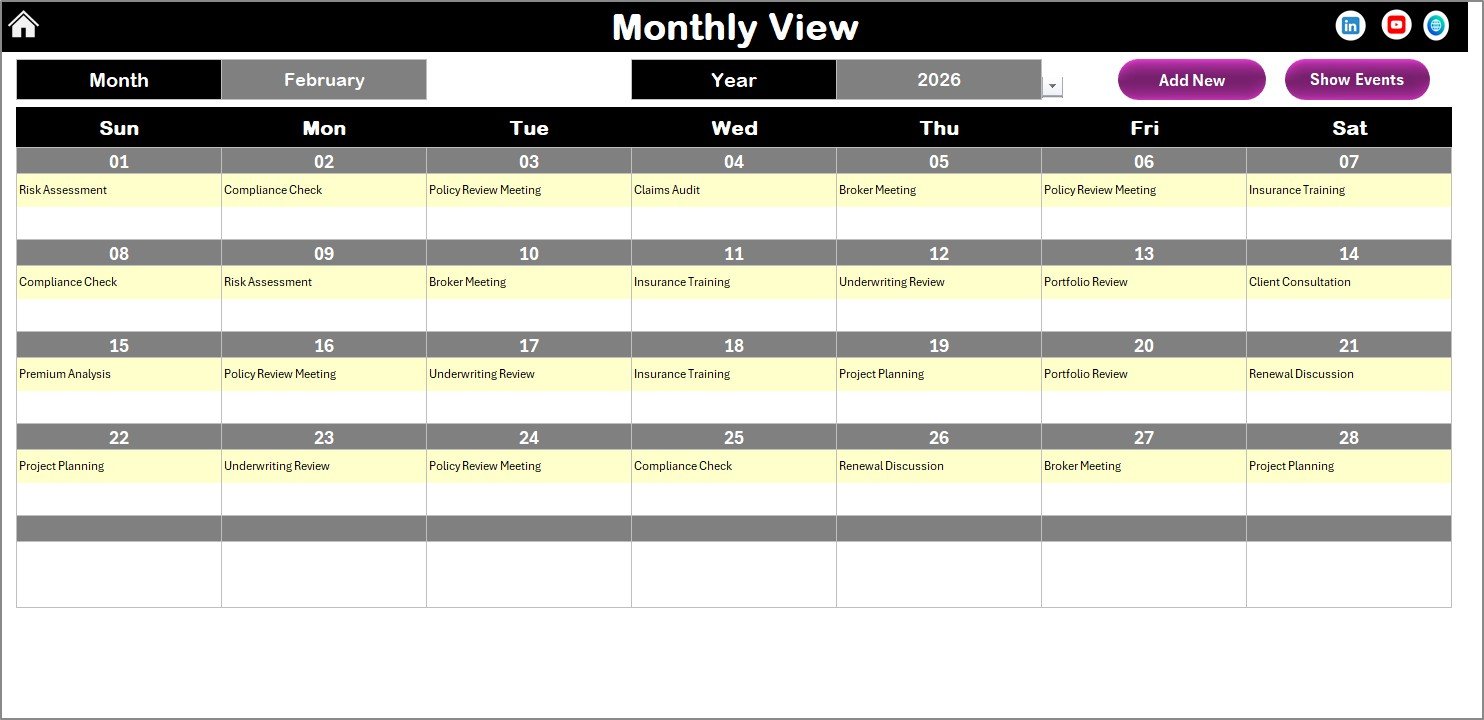
While annual planning gives overview visibility, monthly planning provides operational control.
The Monthly View Sheet shows a single month calendar where users can select:
-
Month
-
Year
Accordingly, the calendar updates automatically.
Event Display Logic
-
Shows one event directly on the date
-
Displays “more than 1…” when multiple events exist
This approach keeps the calendar clean while still informing users about additional activities.Monthly View Buttons
Add New Event
Adds events quickly for the selected date.
Show Event
Displays detailed event lists instantly.
Therefore, monthly scheduling becomes highly efficient.
Click to Purchases Insurance Project Calendar in Excel
4. Daily View Sheet – Detailed Event Monitoring
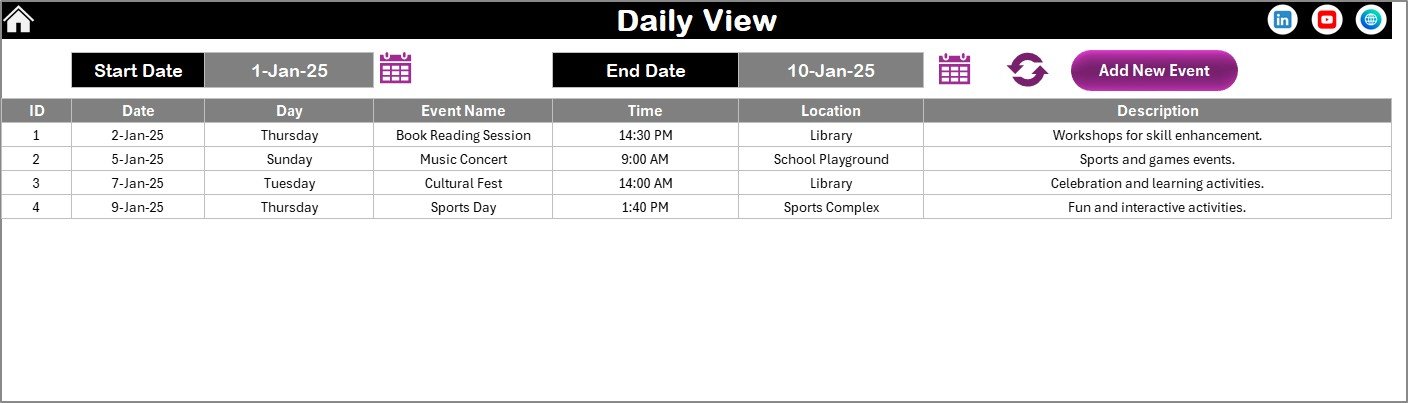
Sometimes teams need deeper visibility into scheduled activities. That is where the Daily View Sheet becomes useful.
Key Capabilities
-
Select Start Date and End Date
-
View event list within selected range
-
Refresh button updates data instantly
Additionally, users can add events directly from this view.
Why Daily View Matters
-
Helps managers review workloads
-
Improves task monitoring
-
Supports operational planning
-
Enables quick reporting
Hence, teams gain detailed control over daily operations.
5. Events Sheet – Central Database of All Activities
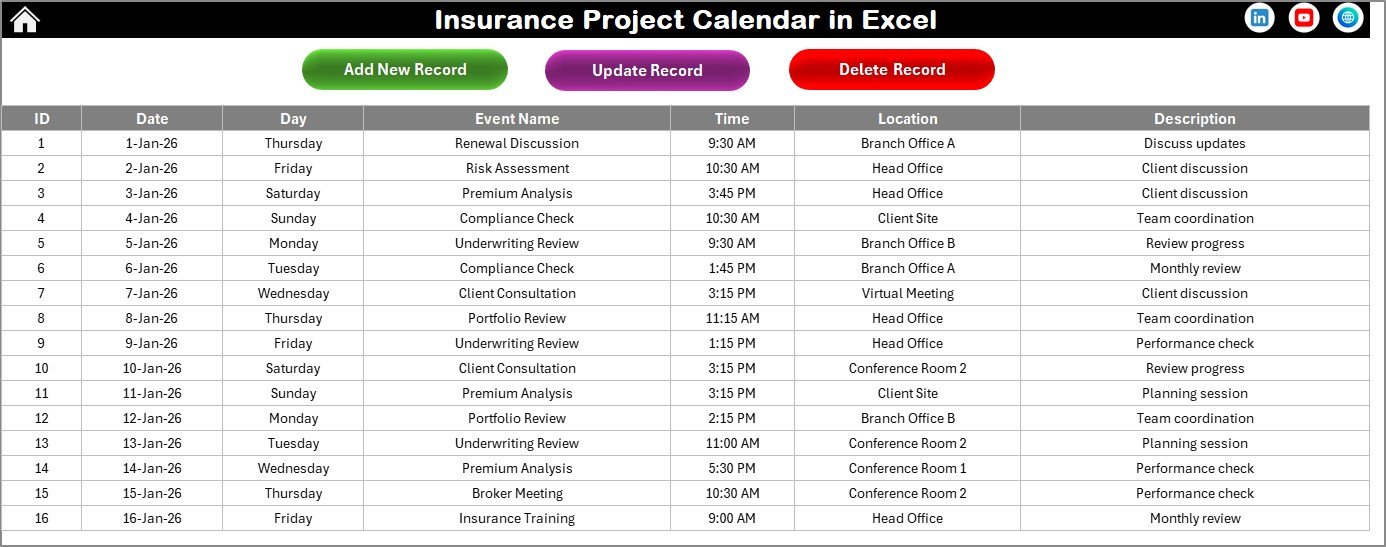
The Events Sheet acts as the data backbone of the calendar.
Every event gets stored here automatically.
Information Captured
-
ID (Auto-generated)
-
Date
-
Day
-
Event Name
-
Time
-
Location
-
Description
Because data stays centralized, reporting and tracking become simple.
Database Management Buttons
Add New Record
Opens event entry form.
Update Existing Record
Loads selected event with prefilled details for editing.
Delete Record
Removes unwanted entries instantly.
Thus, users maintain accurate and updated schedules.
Click to Purchases Insurance Project Calendar in Excel
How Does the Insurance Project Calendar Improve Productivity?
A structured calendar transforms project management significantly.
Key Improvements
-
Better deadline tracking
-
Faster event planning
-
Centralized information
-
Reduced manual work
-
Improved collaboration
Consequently, teams spend less time managing schedules and more time completing projects.
Advantages of Insurance Project Calendar in Excel
✅ Centralized Project Management
All insurance activities remain in one place.
✅ Easy to Use
Excel familiarity eliminates learning curves.
✅ Automated Scheduling
Calendar updates automatically based on inputs.
✅ Better Visibility
Annual, monthly, and daily views improve planning.
✅ Error Reduction
Forms prevent incorrect data entry.
✅ Customizable Themes
Organizations align visuals with branding.
✅ Scalable Solution
Works for individuals, teams, and large departments.
Click to Purchases Insurance Project Calendar in Excel
Who Can Use an Insurance Project Calendar?
Many professionals benefit from this solution.
Ideal Users Include:
-
Insurance companies
-
Policy administrators
-
Claims managers
-
Risk assessment teams
-
Compliance officers
-
Insurance consultants
-
Marketing teams in insurance firms
Therefore, the calendar supports multiple departments simultaneously.
Real-World Use Cases of Insurance Project Calendar
Policy Renewal Tracking
Monitor renewal dates to avoid revenue loss.
Claims Management Planning
Schedule investigation timelines and follow-ups.
Compliance Monitoring
Track audit deadlines and documentation reviews.
Training & Certification Scheduling
Plan employee training sessions.
Marketing Campaign Planning
Manage insurance promotional activities.
How to Use the Insurance Project Calendar Step-by-Step?
Step 1: Open Home Sheet
Start navigation from the dashboard.
Step 2: Configure Annual Settings
Choose year, starting month, and week settings.
Step 3: Add Events
Select date → Click Add New Event → Submit details.
Step 4: Monitor Monthly Activities
Switch to Monthly View for detailed planning.
Step 5: Analyze Daily Tasks
Use Daily View to track workload.
Step 6: Maintain Database
Update or delete records in Events Sheet.
Following these steps ensures smooth calendar usage.
Click to Purchases Insurance Project Calendar in Excel
Best Practices for the Insurance Project Calendar
Maintain Consistent Data Entry
Always enter events using forms instead of manual edits.
Update Events Regularly
Keep schedules accurate to avoid confusion.
Use Highlight Features
Mark weekends or critical days clearly.
Standardize Event Naming
Use consistent naming formats for easy searching.
Review Daily View Frequently
Managers should monitor weekly schedules.
Backup the Workbook
Store copies to prevent data loss.
Assign Responsibility
Allow one person or team to maintain the calendar.
By following these practices, organizations maximize efficiency.
Why Choose Excel for Insurance Project Management?
Excel remains one of the most trusted business tools worldwide.
Key Reasons
-
Available in most organizations
-
Highly customizable
-
Supports automation
-
Easy sharing capability
-
No subscription complexity
As a result, companies implement solutions faster using Excel.
Click to Purchases Insurance Project Calendar in Excel
Common Mistakes to Avoid While Using Project Calendars
-
Entering duplicate events
-
Ignoring updates
-
Not using filtering views
-
Overloading calendar with unnecessary details
-
Skipping periodic reviews
Avoiding these mistakes ensures long-term success.
Future Scope of Insurance Calendar Management
Insurance operations continue to evolve. Therefore, structured scheduling tools will become even more important.
Future enhancements may include:
-
Power BI integration
-
Automated reminders
-
Email notifications
-
Cloud collaboration
-
Data analytics dashboards
Thus, Excel calendars can evolve into full project management systems.
Conclusion
The Insurance Project Calendar in Excel provides a smart, structured, and practical way to manage insurance activities efficiently. Instead of relying on manual tracking, organizations gain automation, visibility, and control over project timelines.
Moreover, the combination of annual, monthly, and daily views ensures complete planning coverage. Because the system centralizes event data, teams collaborate better and avoid missed deadlines.
Ultimately, this ready-to-use Excel calendar helps insurance professionals stay organized, improve productivity, and deliver projects successfully.
Click to Purchases Insurance Project Calendar in Excel
Frequently Asked Questions (FAQs)
What is an Insurance Project Calendar in Excel used for?
It helps insurance teams schedule events, manage deadlines, and track projects in one centralized system.
Can beginners use this calendar easily?
Yes. Since the system uses Excel, most users can operate it without technical knowledge.
Can I change the calendar year automatically?
Yes. The control panel allows you to select any year and update the calendar instantly.
How are events added to the calendar?
Users select a date and click the Add New Event button to enter details through a form.
Can multiple events be tracked on one date?
Yes. The monthly calendar shows “more than 1…” when multiple events exist.
Is the calendar customizable?
Yes. Users can change themes, highlight days, and modify scheduling preferences.
Does the calendar store historical data?
Yes. All events remain stored in the Events database sheet.
Who benefits most from this template?
Insurance managers, administrators, compliance teams, and project coordinators benefit the most.
Click to Purchases Insurance Project Calendar in Excel
Visit our YouTube channel to learn step-by-step video tutorials