In today’s performance-driven business environment, organizations must track goals consistently to achieve success. Companies define Key Performance Indicators (KPIs) to measure progress, improve productivity, and align teams with strategic objectives. However, many businesses struggle to monitor KPIs systematically because they rely on scattered notes, emails, or unstructured spreadsheets.
As a result, teams often miss deadlines, overlook responsibilities, and lose visibility into progress. Therefore, organizations increasingly adopt structured tracking tools that simplify KPI monitoring.
One practical and efficient solution is the KPI Tracking Planner Checklist in Excel — a ready-to-use template designed to organize KPI activities, assign responsibilities, and track completion status in a clear and visual format.
In this detailed guide, you will learn everything about the KPI Tracking Planner Checklist in Excel, including its structure, features, benefits, implementation steps, best practices, and frequently asked questions.
Click to Purchases KPI Tracking Planner Checklist in Excel
What Is a KPI Tracking Planner Checklist in Excel?
A KPI Tracking Planner Checklist in Excel is a structured planning and monitoring tool that helps organizations manage KPI-related tasks using a checklist-based approach.
Instead of managing KPIs through complex systems, teams can track activities using a simple yet powerful checklist interface. Consequently, managers gain clarity on task completion and overall KPI progress.
Moreover, automated counts and progress indicators provide instant performance visibility. Because Excel updates calculations automatically, users always see the latest status.
Why Do Organizations Need a KPI Tracking Planner?
Businesses define KPIs to measure success, but without proper tracking, KPIs lose effectiveness.
Common Challenges Without KPI Tracking
-
Missed KPI review deadlines
-
Lack of accountability
-
Poor communication between teams
-
Inconsistent monitoring
-
Manual follow-ups
Therefore, a structured planner checklist ensures that every KPI activity receives attention and completion tracking.
Click to Purchases KPI Tracking Planner Checklist in Excel
Key Features of KPI Tracking Planner Checklist in Excel
This template includes two well-structured worksheets that together create a complete KPI planning and monitoring system.
1. KPI Tracking Planner Checklist Sheet – Main Working Area
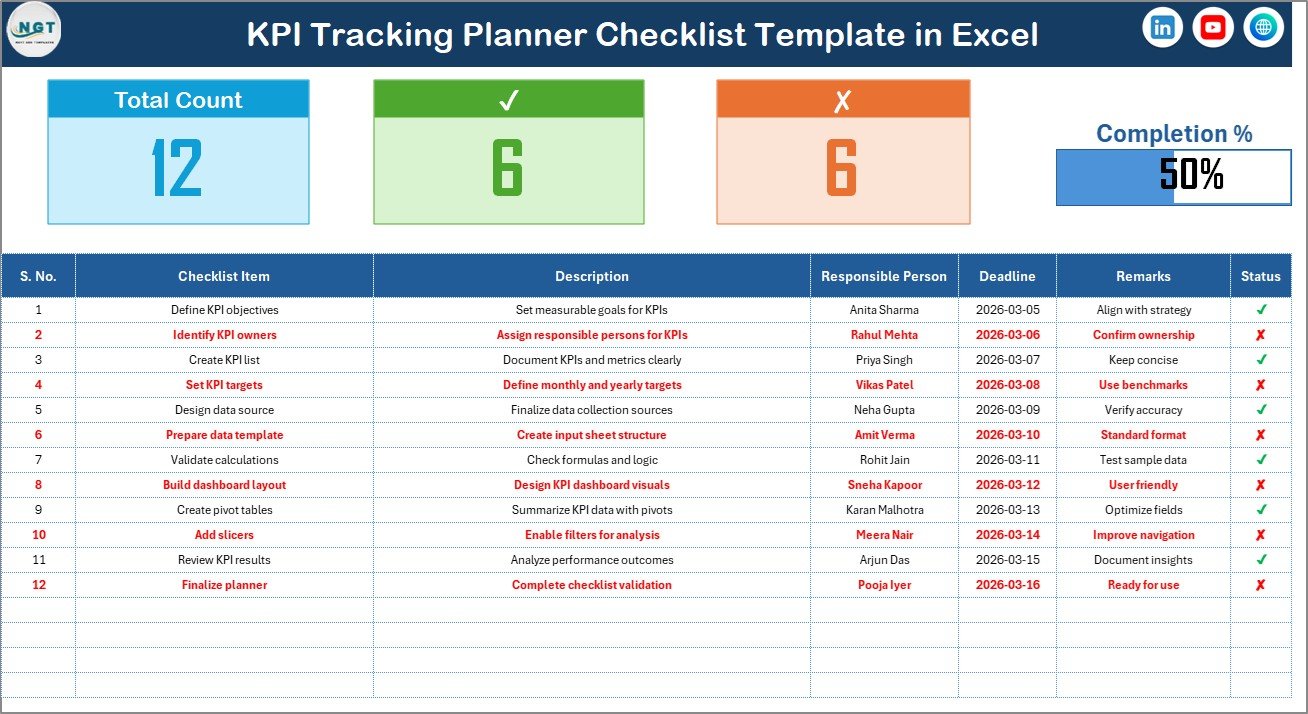
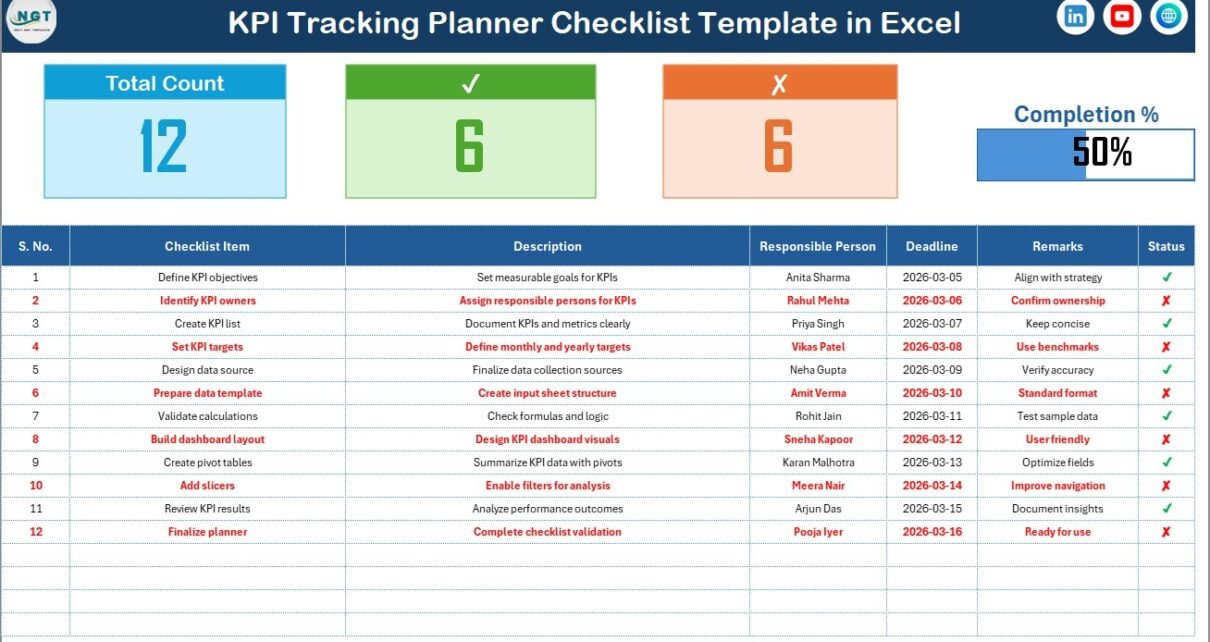
The KPI Tracking Planner Checklist sheet serves as the primary workspace where users manage all checklist activities.
Top Section – KPI Summary Overview
At the top of the sheet, users can view performance indicators that summarize checklist progress.
Metrics Displayed
-
Total Count – Total checklist items
-
Checked Count – Completed activities
-
Crossed Count – Pending or incomplete items
-
Progress Bar – Visual representation of completion percentage
Because progress appears visually, users quickly understand overall performance.
Checklist Table – Core Tracking Section
The checklist table captures all planning information.
Users simply change the Status column using ✔ or ✘ symbols to update progress automatically.
Columns Included
-
Serial No. – Sequence number of tasks
-
Checklist Item – KPI-related activity name
-
Description – Short explanation of the task
-
Responsible Person – Assigned owner
-
Deadline – Task completion date
-
Remarks – Additional notes
-
Status – ✔ Completed / ✘ Pending
Because the structure remains simple, users can update tasks quickly without technical knowledge.
Click to Purchases KPI Tracking Planner Checklist in Excel
2. List Sheet Tab – Drop-Down Management
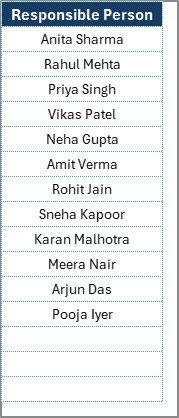
The List Sheet supports automation by maintaining a unique list of responsible persons.
Purpose of This Sheet
-
Stores names of responsible individuals
-
Creates dropdown lists in the main checklist table
-
Ensures standardized data entry
As a result, users avoid spelling errors and maintain consistent reporting.
How Does the KPI Tracking Planner Checklist Work?
The template follows a straightforward workflow.
Step 1: Add Checklist Items
Enter KPI tasks such as reviews, audits, reporting, or performance checks.
Step 2: Assign Responsibility
Select the responsible person from the dropdown list.
Step 3: Set Deadlines
Define completion dates to ensure accountability.
Step 4: Update Status
Mark ✔ when completed or ✘ when pending.
Step 5: Monitor Progress
Watch the progress bar update automatically.
Therefore, managers track performance without manual calculations.
Which Activities Can Be Managed Using This Checklist?
Organizations can track various KPI-related activities.
KPI Planning Tasks
-
KPI definition reviews
-
Target setting meetings
-
Performance planning sessions
Monitoring Activities
-
Monthly KPI reviews
-
Data validation checks
-
Performance analysis
Reporting Tasks
-
Dashboard updates
-
Management reporting
-
Compliance submissions
Improvement Actions
-
Process optimization tasks
-
Corrective action tracking
-
Training follow-ups
Advantages of KPI Tracking Planner Checklist in Excel
Using this template provides several operational benefits.
✅ Improved Accountability
Each task has a clearly assigned owner.
✅ Better Time Management
Deadlines ensure timely completion.
✅ Visual Progress Monitoring
Progress bars simplify performance tracking.
✅ Easy to Use
No advanced Excel knowledge required.
✅ Standardized Tracking Process
Structured format reduces confusion.
✅ Faster KPI Execution
Teams focus on actions instead of tracking methods.
✅ Cost-Effective Solution
Excel eliminates expensive software investments.
Click to Purchases KPI Tracking Planner Checklist in Excel
How to Implement the KPI Tracking Planner Checklist Successfully?
A structured implementation ensures maximum effectiveness.
Step 1: Identify KPI Activities
List all recurring KPI tasks.
Step 2: Define Responsibilities
Assign ownership clearly.
Step 3: Customize Checklist Items
Adjust template fields according to organizational needs.
Step 4: Train Team Members
Explain status updates and deadlines.
Step 5: Review Progress Weekly
Regular monitoring improves completion rates.
Click to Purchases KPI Tracking Planner Checklist in Excel
Best Practices for the KPI Tracking Planner Checklist in Excel
Following best practices enhances results.
✔ Keep Checklist Items Clear
Use short and precise descriptions.
✔ Update Status Regularly
Frequent updates maintain accuracy.
✔ Set Realistic Deadlines
Avoid unrealistic timelines.
✔ Review Progress Frequently
Weekly reviews improve accountability.
✔ Maintain Responsible Person List
Update dropdown names when teams change.
✔ Avoid Overloading the Checklist
Focus on high-impact activities.
✔ Use Remarks for Context
Add notes for clarity when required.
Click to Purchases KPI Tracking Planner Checklist in Excel
Common Challenges and How to Solve Them
Challenge: Users Forget Updates
Solution: Schedule weekly reminders.
Challenge: Too Many Tasks
Solution: Prioritize critical KPI actions.
Challenge: Inconsistent Ownership
Solution: Assign one owner per task.
Challenge: Lack of Visibility
Solution: Share the checklist with stakeholders.
Why Excel Is Ideal for KPI Planning Checklists?
Excel remains one of the most practical tools for operational tracking.
Key Advantages
-
Familiar interface
-
Easy customization
-
Automated calculations
-
Dropdown validation
-
Visual progress tracking
-
Easy sharing
Therefore, organizations of all sizes can adopt KPI tracking without technical barriers.
Click to Purchases KPI Tracking Planner Checklist in Excel
How KPI Checklists Improve Organizational Performance
A KPI checklist does more than track tasks.
First, It Builds Discipline
Teams follow structured monitoring routines.
Next, It Improves Transparency
Everyone understands responsibilities.
Then, It Encourages Collaboration
Departments work toward shared goals.
Finally, It Drives Continuous Improvement
Regular tracking identifies gaps quickly.
Future of KPI Planning and Tracking
Organizations increasingly combine checklists with:
-
KPI dashboards
-
Business intelligence tools
-
Automated reporting systems
-
Performance analytics platforms
However, structured checklists remain essential because they ensure execution at the operational level.
Conclusion
The KPI Tracking Planner Checklist in Excel provides a simple yet powerful solution for organizing and monitoring KPI activities. Instead of relying on manual follow-ups or scattered tracking methods, organizations gain structured visibility into task completion and performance progress.
Because the template includes automated counts, progress visualization, dropdown management, and easy status updates, teams manage KPI execution efficiently. Furthermore, its user-friendly design allows both small businesses and large organizations to implement it quickly.
Ultimately, companies that use KPI tracking checklists improve accountability, enhance productivity, and achieve better performance outcomes. Therefore, adopting this Excel template represents a smart step toward disciplined KPI management.
Click to Purchases KPI Tracking Planner Checklist in Excel
Frequently Asked Questions (FAQs)
1. What is a KPI tracking checklist?
A KPI tracking checklist is a structured list of tasks used to monitor KPI activities, responsibilities, and completion status.
2. Who should use this template?
Managers, team leaders, HR departments, operations teams, and project coordinators can use it.
3. Do I need advanced Excel skills?
No. The template works with simple data entry and dropdown selections.
4. How does the progress bar work?
The progress bar updates automatically based on completed checklist items marked with ✔.
5. Can I customize checklist columns?
Yes. Users can modify columns according to organizational requirements.
6. How often should the checklist be reviewed?
Weekly or monthly reviews work best for maintaining KPI discipline.
7. Is this template suitable for small businesses?
Yes. The template works perfectly for organizations of any size.
Click to Purchases KPI Tracking Planner Checklist in Excel
Visit our YouTube channel to learn step-by-step video tutorials