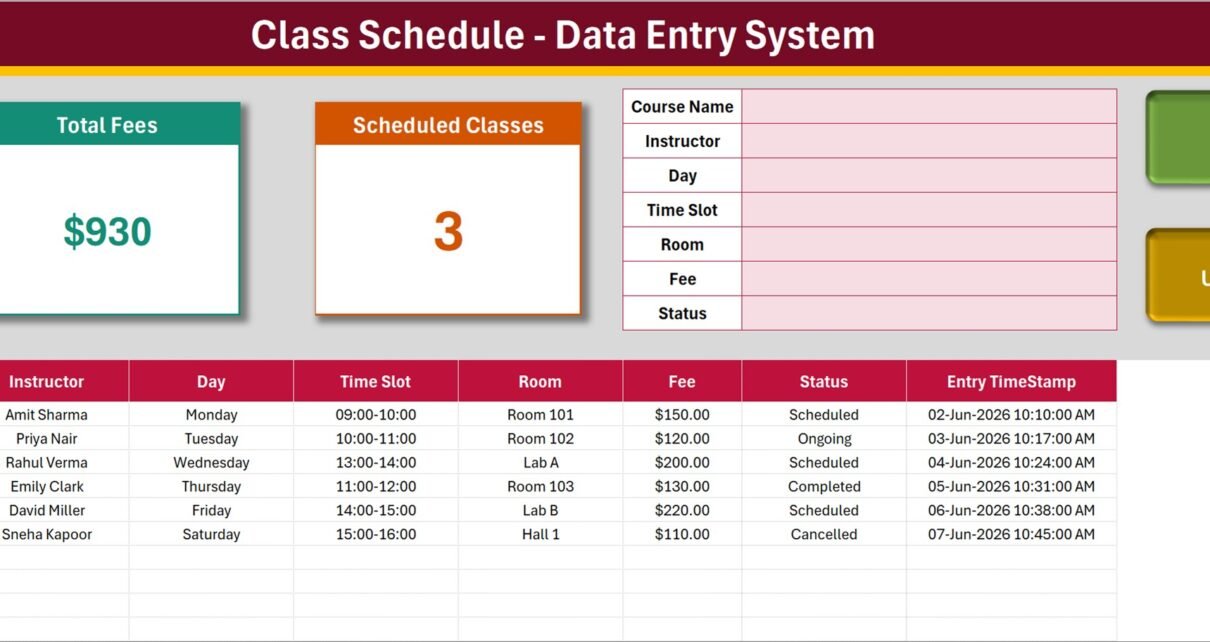
The Class Schedule Data Entry System in Excel runs an entire timetable from a 7-field VBA form with 4 action buttons, feeding a 10-column register and 3 live KPI cards. Every class gets an automatic Record ID in the CS-0001 format and an Entry TimeStamp, and all five dropdown lists are editable from a single Setting sheet. The sample workbook ships with six classes, eight instructors, eight rooms and eight hourly time slots.
Most class timetables live in a grid that somebody hand-formats every term. That works right up until a session moves, an instructor changes, or somebody needs the total fee figure — at which point the grid becomes a puzzle. This system flips the model: classes are records, not cells. You enter them through a form, edit them by double-clicking, and the numbers on top recalculate themselves.

Key Features of the Class Schedule Data Entry System in Excel
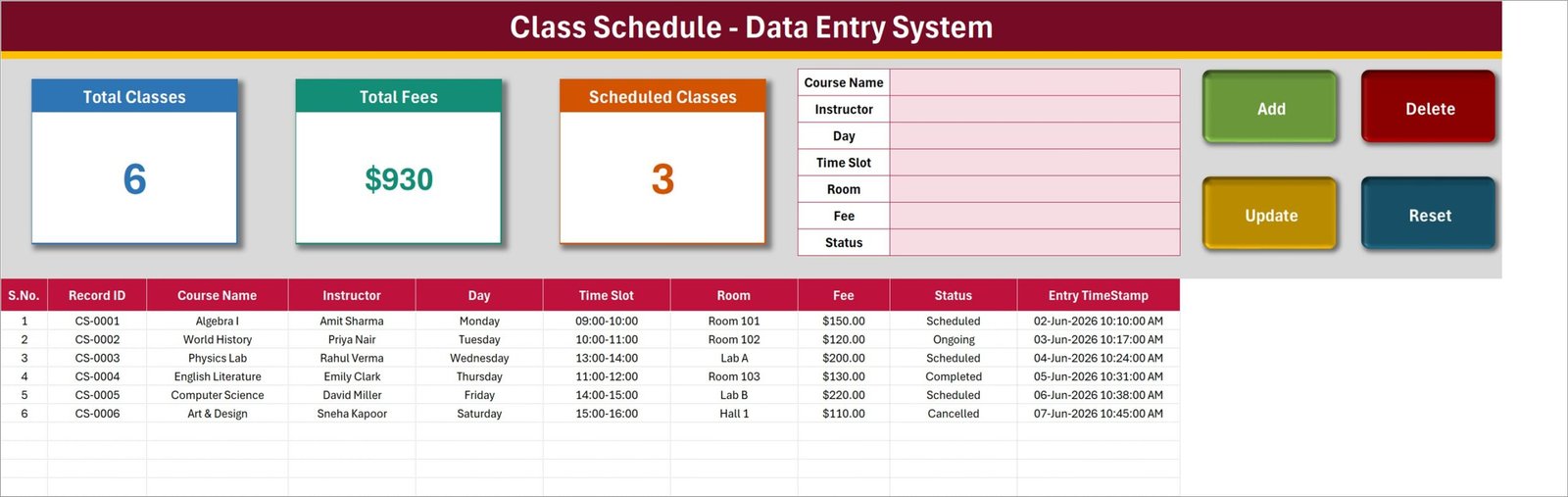
- A seven-field entry form — Course Name, Instructor, Day, Time Slot, Room, Fee and Status — sitting at the top of the Data Entry sheet with Add, Delete, Update and Reset buttons beside it.
- Automatic Record IDs. Each class is stamped CS-0001, CS-0002 and so on at the moment of creation, alongside an Entry TimeStamp showing exactly when it was logged.
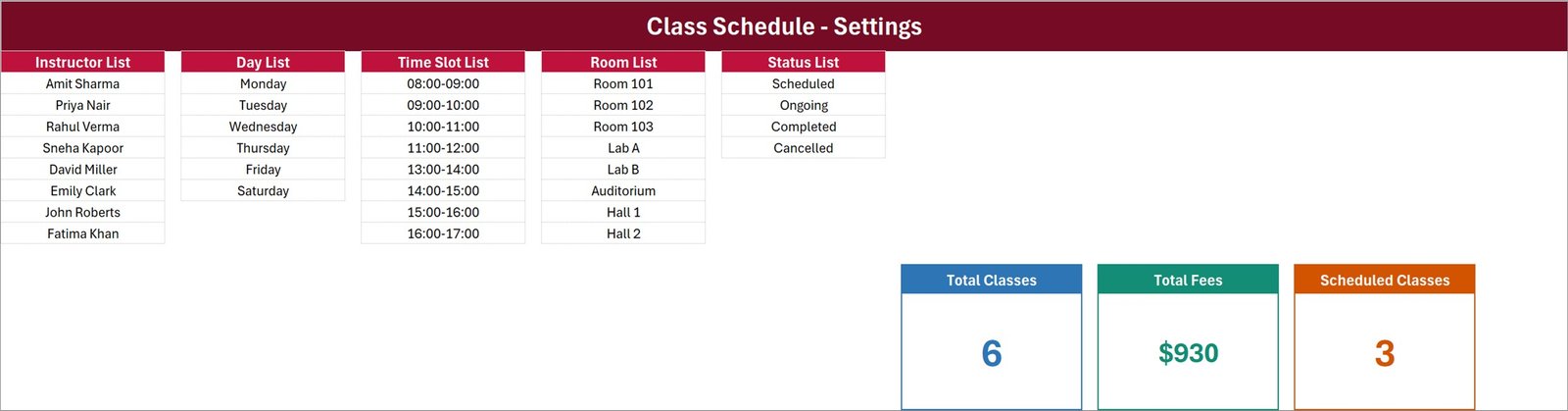
- Three live KPI cards — Total Classes, Total Fees and Scheduled Classes — rendered as linked pictures of real cards on the Setting sheet, so they refresh on their own and can be restyled in one place.
- Five master dropdown lists on the Setting sheet: Instructor List, Day List, Time Slot List, Room List and Status List. Every dropdown in the workbook reads from them.
- Update by ID, not by row. Double-click a record to load it into the form; the system remembers its ID, so clicking Update finds and saves the right record wherever it now sits in the table.
- Confirmed deletes. Delete shows you the Record ID and asks before removing anything.
- A 10-column register — S.No., Record ID, Course Name, Instructor, Day, Time Slot, Room, Fee, Status and Entry TimeStamp — that you can sort and filter like any Excel table.
- Everything offline. One macro-enabled .xlsm file, no account, no internet, no vendor holding your data.
Template Structure
Sheet 1: Data Entry
The sheet you actually work in. Total Classes, Total Fees and Scheduled Classes cards run along the top left, the seven-field form sits to their right, and the four VBA buttons — Add, Delete, Update, Reset — are stacked at the far right. Below the header band, the register lists every class: the sample data runs from Algebra I on Monday morning through to Art & Design on Saturday afternoon, across Rooms 101-103, Lab A, Lab B and Hall 1.
Sheet 2: Setting
The configuration sheet. Five vertical lists define everything the dropdowns offer: Instructor List (8 names), Day List (Monday to Saturday), Time Slot List (08:00-09:00 through 16:00-17:00), Room List (Room 101, Room 102, Room 103, Lab A, Lab B, Auditorium, Hall 1, Hall 2) and Status List (Scheduled, Ongoing, Completed, Cancelled). The three live KPI cards that the Data Entry sheet mirrors are also built here.
Sheet 3: How To Use
An in-workbook guide covering six topics: entering records, updating a record without re-selecting the row, deleting safely, how the stat cards are wired to the Setting sheet, editing the dropdown lists, and enabling macros the first time you open the file (including the right-click → Properties → Unblock step for files that arrived by email or download).

Class Schedule Data Entry System vs. Google Sheets Timetable vs. Classter / Teachworks — Feature Comparison
| Feature | Class Schedule Data Entry System | Google Sheets Timetable | Classter / Teachworks |
|---|---|---|---|
| Cost | $6.99 one-time ✅ | Free | $2-8 per student per month |
| Platform | Microsoft Excel, offline ✅ | Browser only, needs internet | Cloud SaaS |
| Setup time | Under 10 minutes ✅ | 1-2 hours to build from scratch | Days, plus onboarding |
| Guided entry form | 7-field VBA form with 4 buttons ✅ | Type directly into cells | Yes ✅ |
| Automatic record IDs | Yes — CS-0001 format ✅ | Manual or formula | Yes ✅ |
| Works with no internet | Yes ✅ | No | No |
| Data stays on your machine | Yes — one .xlsm file ✅ | Stored in Google Drive | Vendor’s servers |
| Parent / student portal | No | No | Yes ✅ |
| Year-1 cost for 100 students | $6.99 total ✅ | $0 | $2,400-9,600 |
For a coaching centre, department or training provider that needs a proper entry form and a clean register without paying per student, the Class Schedule Data Entry System sits in the sweet spot.
Who Should Use This Template
Perfect for:
- Coaching centres and tuition institutes scheduling 10-500 classes a term
- Timetable coordinators and department heads at schools and colleges
- Independent tutors and trainers who bill per class and need the Fee column
- Training providers working across a fixed set of rooms, labs and halls
- Anyone who wants Add / Update / Delete behaviour without building a database
Not a fit if:
- You need a student or parent login portal
- You are on Mac Excel or Google Sheets — the buttons depend on Windows VBA
- You expect automatic clash detection across instructors and rooms
- Several people need to edit the same file at the same time
Real-World Use Cases
Ravi runs a coaching centre with four rooms and nine tutors. At the start of each term he replaces the instructor and room lists on the Setting sheet, then enters the timetable through the form. The Total Fees card gives him the term’s billing figure without writing a formula, and the Scheduled Classes count shows how much of the timetable is still ahead of him.
Anita coordinates lab slots for a science department. Lab A and Lab B are the bottleneck, so before confirming anything new she sorts the register by Room and Time Slot. When a session has to move she double-clicks the row, changes the slot, and clicks Update — the Record ID is unchanged, so the printed paperwork still matches.
Marcus teaches music privately six days a week. Each lesson is entered with a fee and a status. Cancelled lessons stay in the register instead of being deleted, so at month end he can separate what was actually taught from what was booked and dropped.
Advantages of the Class Schedule Data Entry System
A form beats a grid. Typing into a hand-formatted timetable grid invites blank fields, inconsistent instructor spellings and slots that do not exist. A seven-field form with five dropdowns makes bad data much harder to enter in the first place.
Editing does not break the file. Because Update and Delete resolve records by ID rather than by row number, you can sort the register, insert rows or filter it without any risk that the next edit hits the wrong class.
The numbers are free. Total Classes, Total Fees and Scheduled Classes are always current without anybody refreshing a pivot or dragging a formula down.
It costs $6.99 once. A cloud scheduling platform at $2-8 per student per month reaches $2,400-9,600 in year one for 100 students. This is a single file you buy once and keep.
Opportunities for Improvement
Honest limitations. The system does not detect timetable clashes: if you book Lab A for two classes at 10:00 on Wednesday, nothing stops you. Sorting by Room and Time Slot makes conflicts visible, but the check is yours to make.
It is also Windows-Excel-bound. The VBA behind the Add, Update, Delete and Reset buttons will not run in Google Sheets, and Mac Excel support for this style of workbook is unreliable. The register itself opens anywhere; the buttons do not.
Finally, it is a single-file workbook, so two people cannot enter classes simultaneously, and there is no attendance, invoicing or parent-communication layer. It is a scheduling register, and it is deliberately only that.
Best Practices
- Configure the Setting sheet before you enter anything. Getting instructors, rooms and time slots right first means every subsequent entry is consistent.
- Never delete cancelled classes. Set Status to Cancelled instead — the record is worth more than the tidiness, especially at billing time.
- Sort by Room then Time Slot before adding a session to a busy room. It is the fastest manual clash check available.
- Keep the file unblocked and macros enabled so the buttons work every time. See Microsoft’s guidance on enabling macros in Microsoft 365 files if your organisation locks this down.
- Save a fresh copy each term. One workbook per term keeps the register short and the Total Fees card meaningful.
- Back the file up. It is one .xlsm holding your whole timetable — treat it like the database it is.
Explore Relevant Templates
- Course Enrollment Data Entry System in Excel — the front half of the same workflow: who signed up for what.
- Online Class Tracker Data Entry System in Excel — the remote-teaching equivalent, built the same way.
- Homework Submission Data Entry System in Excel — track what was set and what came back.
- Exam Marks Entry Data Entry System in Excel — close the loop at the end of term.
- School Transportation Services Dashboard in Excel — the same education data presented as a full dashboard.
Related reading on this blog: Pocket Money Log Data Entry System in Excel and Doctor Duty Roster Data Entry System in Excel, which uses the same roster-style structure for shifts instead of classes.
Frequently Asked Questions
What does the Class Schedule Data Entry System record?
The Class Schedule Data Entry System stores 10 fields per class — S.No., Record ID, Course Name, Instructor, Day, Time Slot, Room, Fee, Status and Entry TimeStamp — entered through a seven-field form and written to a running register.
Do I need to enable macros?
Yes. The Class Schedule Data Entry System is a macro-enabled .xlsm workbook, and Add, Update, Delete and Reset are VBA procedures. Click Enable Content the first time you open it, and unblock the file via right-click → Properties if it came from email or a download.
How long does setup take?
Under 10 minutes. Unzip, enable macros, replace the five dropdown lists on the Setting sheet with your own instructors, rooms and slots, then delete the six sample classes. The Class Schedule Data Entry System is ready at that point.
How does this compare to Classter or Teachworks?
Those platforms charge roughly $2-8 per student per month and bundle portals, billing and communications. The Class Schedule Data Entry System is a $6.99 one-time purchase covering the scheduling register alone, working offline with every record in a file you own.
Can I add my own instructors, rooms and time slots?
Yes. Every dropdown reads the Setting sheet. Add or remove rows in the Instructor List, Day List, Time Slot List, Room List or Status List and the Class Schedule Data Entry System updates all of its dropdowns automatically.
Will it warn me about timetable clashes?
No. The Class Schedule Data Entry System records the timetable rather than solving it, so double-booked rooms are not flagged. Sorting the register by Room and Time Slot makes conflicts easy to spot manually.
Does it work on Mac or in Google Sheets?
The Class Schedule Data Entry System is built for Microsoft Excel on Windows. The register and dropdowns will open elsewhere, but the Add, Update, Delete and Reset buttons rely on Windows VBA and will not run in Google Sheets.
About the Author
Built by PK — Microsoft Certified Professional with 15+ years of Excel, Google Sheets, and Power BI experience. Founder of NextGenTemplates, reaching 300K+ subscribers across YouTube channels. Every template is hand-built and tested before release.
Conclusion
The Class Schedule Data Entry System in Excel treats a timetable the way it should be treated — as records with IDs, not cells in a grid. A seven-field form, four working buttons, three self-updating cards and five lists you control cover the whole job of keeping a term’s classes straight, offline, in one file.
🛒 Click here to Purchase the Class Schedule Data Entry System in Excel
Instant download · One-time payment · No subscription · Lifetime access
For step-by-step walkthroughs of this and other Excel VBA tools, visit Youtube.com/@PK-AnExcelExpert.
Last updated: August 2026