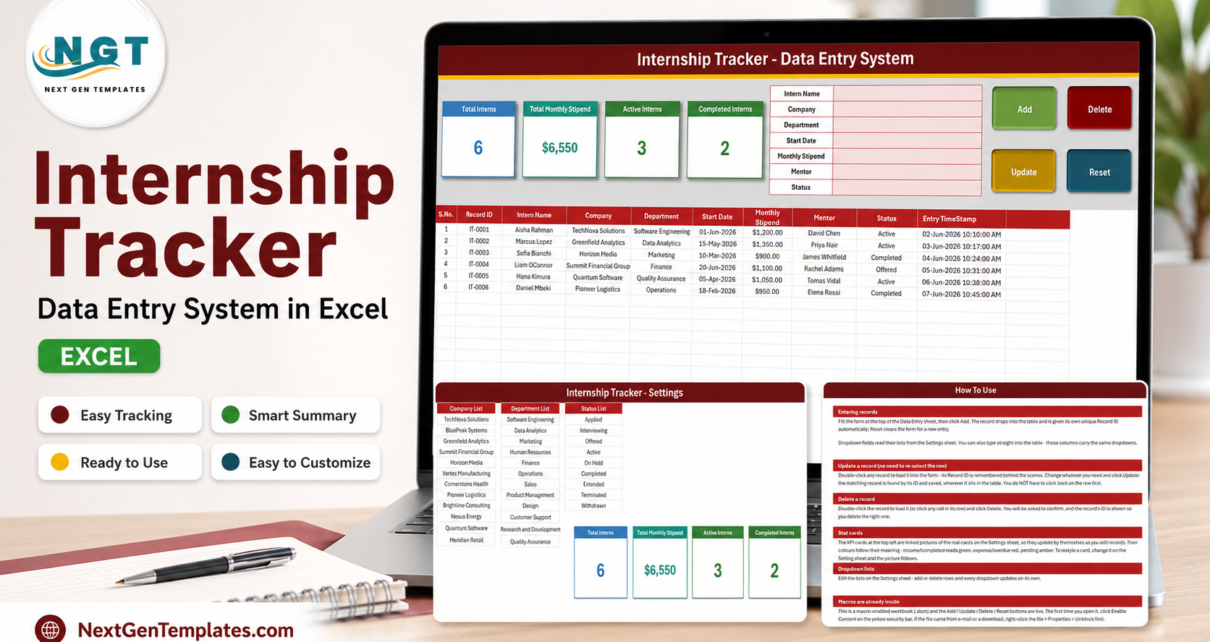
Most internship programmes are run out of a spreadsheet that started as a list of names and grew columns until nobody could type into it safely. The Internship Tracker Data Entry System in Excel is the other approach: a small macro-enabled workbook where every intern is filed through a seven-field form, given a unique Record ID and a timestamp, and dropped into one clean table that four live stat cards read from.
This post is a sheet-by-sheet walkthrough of the file – what each of the four sheets does, what the four cards actually count, and, just as usefully, the things the workbook does not do so you can decide before you buy.
What the Internship Tracker Data Entry System is
It is a single .xlsm file of about 70 KB with exactly four sheets – Data Entry, Setting, Instructions and Get More Templates – and no other moving parts. There is no add-in to install, no database behind it and no account to create. You open it in Excel on Windows, enable content once, and the Add, Update, Delete and Reset buttons are live.
What makes it a system rather than a list is the Record ID. Every intern you add is filed as IT-0001, IT-0002 and onward. Update and Delete match on that ID rather than on the row you happen to be sitting on, so the table can be sorted and filtered as much as you like without the buttons losing track of anything.
Sheet 1: Data Entry
This is the sheet you live on. It has three bands.
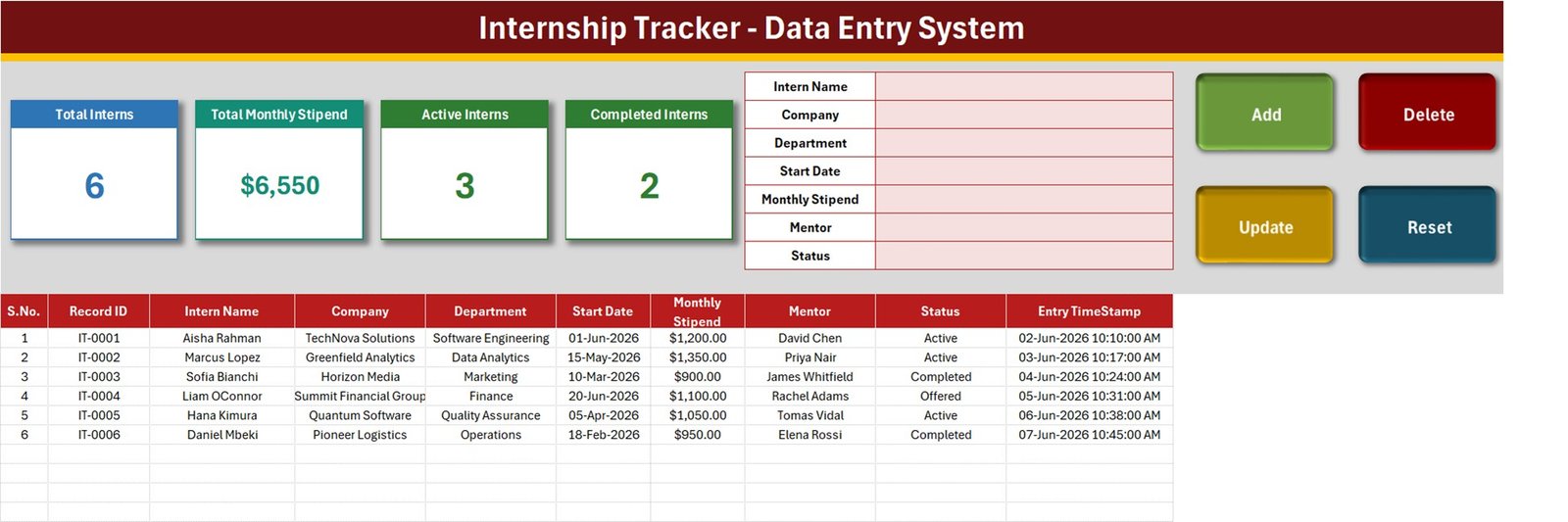
The stat cards. Four cards run across the top left – Total Interns, Total Monthly Stipend, Active Interns and Completed Interns. They are linked pictures of real cells on the Setting sheet, which is why they restyle and recalculate on their own.
The form. Seven fields down the middle: Intern Name, Company, Department, Start Date, Monthly Stipend, Mentor and Status. Company, Department and Status are dropdowns fed from the Setting sheet; the rest you type. Beside the form sit the four buttons – Add in green, Delete in red, Update in gold and Reset in teal – wired to VBA macros named Add_Record, Update_Record, Delete_Record and Reset_Form.
The table. Ten columns: S.No., Record ID, Intern Name, Company, Department, Start Date, Monthly Stipend, Mentor, Status and Entry TimeStamp. Rows 15 to 213 are pre-formatted and validated, which is 199 records ready to receive data – the dd-mmm-yyyy date format, the currency format on the stipend, the timestamp format and the three dropdowns are already applied down the whole range.
Six sample interns ship in the file so you can see the buttons work before you clear them: Aisha Rahman and Marcus Lopez are Active in Software Engineering and Data Analytics, Sofia Bianchi and Daniel Mbeki are Completed in Marketing and Operations, Hana Kimura is Active in Quality Assurance, and Liam OConnor is still at Offered in Finance.
Sheet 2: Setting
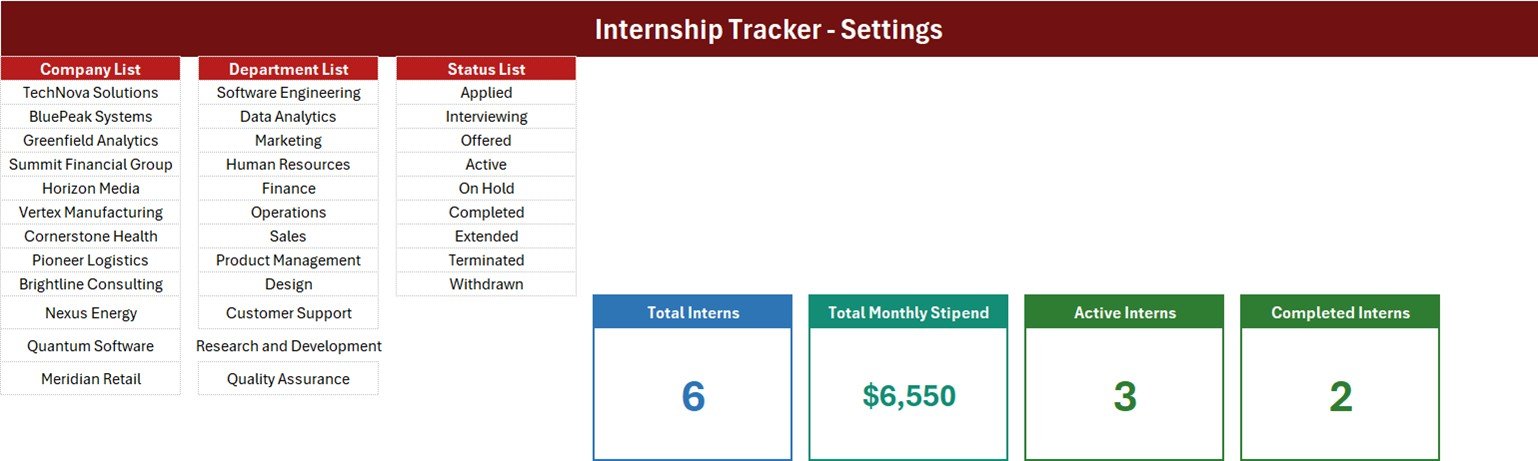
Three lists and the four real cards live here.
- Company List – twelve host companies: TechNova Solutions, BluePeak Systems, Greenfield Analytics, Summit Financial Group, Horizon Media, Vertex Manufacturing, Cornerstone Health, Pioneer Logistics, Brightline Consulting, Nexus Energy, Quantum Software and Meridian Retail.
- Department List – twelve teams: Software Engineering, Data Analytics, Marketing, Human Resources, Finance, Operations, Sales, Product Management, Design, Customer Support, Research and Development and Quality Assurance.
- Status List – nine internship stages: Applied, Interviewing, Offered, Active, On Hold, Completed, Extended, Terminated and Withdrawn.
Replace any entry with your own and the dropdowns on both the form and the table follow immediately. One caveat that the in-file help does not spell out: the three named ranges are fixed at CompanyList = Setting!$A$3:$A$14, DepartmentList = Setting!$C$3:$C$14 and StatusList = Setting!$E$3:$E$11, and all three are exactly full. Swapping a name in works at once; adding a thirteenth company or a tenth status means widening the range first in Formulas > Name Manager, or the new entry simply will not appear in the list.
What the four cards really count
This is the part worth reading twice, because the card labels are shorter than the formulas behind them.
| Card | Formula on the Setting sheet | What that means |
|---|---|---|
| Total Interns | COUNTA('Data Entry'!$C$15:$C$1048576) |
Counts the Intern Name column, not the Record ID. A row saved without a name is stored but never counted. |
| Total Monthly Stipend | SUM('Data Entry'!$G$15:$G$1048576) |
Adds every stipend regardless of Status – Completed, Withdrawn and Offered interns included. |
| Active Interns | COUNTIF('Data Entry'!$I$15:$I$1048576,"Active") |
One of only two statuses that has a card. |
| Completed Interns | COUNTIF('Data Entry'!$I$15:$I$1048576,"Completed") |
The other one. |
Two consequences follow from that table. First, Total Monthly Stipend is not this month’s payroll. On the six sample interns the card reads $6,550, but the three Active interns account for only $3,600 of it – the balance belongs to two Completed interns and one who is still at Offered. If you want the live cost, filter or subtotal the Monthly Stipend column by Status, or replace the SUM with a SUMIF on “Active” in Setting row 13.
Second, the cards will not reconcile. Applied, Interviewing, Offered, On Hold, Extended, Terminated and Withdrawn have no card at all, so 3 Active plus 2 Completed does not add up to Total Interns 6. That is by design in a small workbook, not a bug, but it surprises people the first time. The card cell is also formatted "$"#,##0 while the table column is "$"#,##0.00, so cents disappear on the card.
All four cards are ordinary formulas in row 13 of the Setting sheet. Changing what they count is a one-cell edit and the linked picture on the Data Entry sheet follows.
Sheet 3: Instructions (the How To Use sheet)
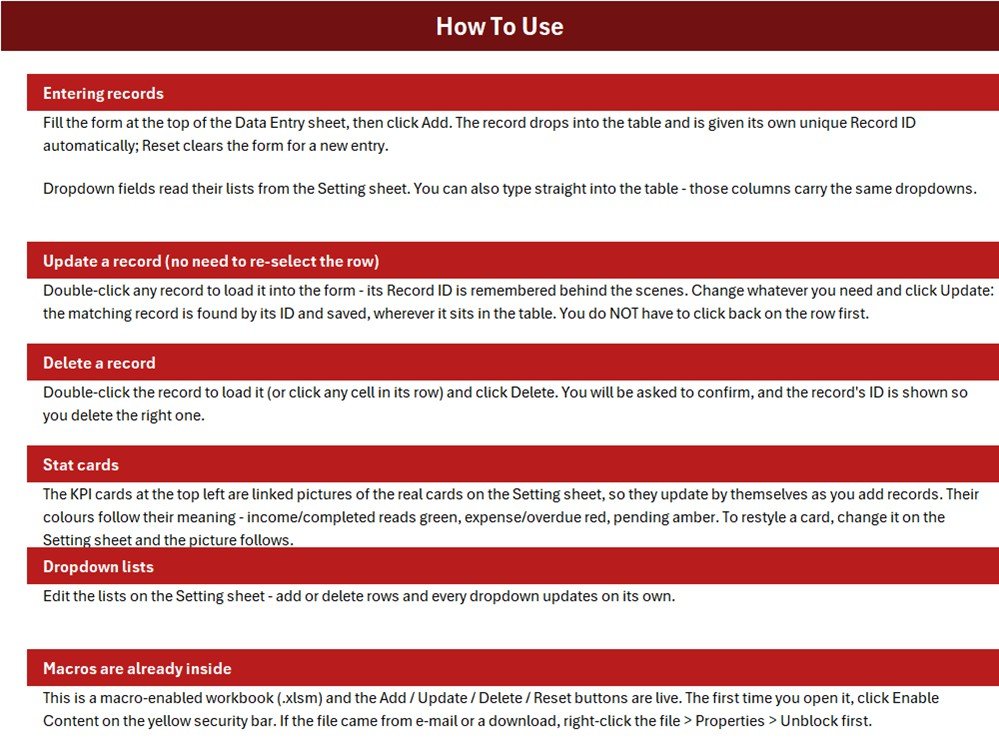
Six short sections, printed inside the file so nobody has to come back to a web page: entering records, updating without re-selecting the row, deleting, how the stat cards work, editing the dropdown lists, and enabling macros. The update section is the one people miss – you double-click a record to load it into the form, and the macro remembers its Record ID in a hidden cell, so you can edit and press Update without clicking back on the row.
Sheet 4: Get More Templates
A short links page back to the NextGenTemplates store – data entry systems, Excel dashboards, Google Sheets templates, Power BI dashboards and the Apps Script web apps.
Getting started in ten minutes
- Unzip the download and open the
.xlsmin Excel on Windows. Click Enable Content on the yellow bar. If the file arrived by e-mail, right-click it, choose Properties and tick Unblock first. - Open Setting and replace the three lists with your own host companies, departments and internship stages. Keep to 12, 12 and 9 entries where you can, or widen the named range in Name Manager.
- Back on Data Entry, delete the six sample rows once you have watched Add, Update and Delete work.
- Fill the form, click Add, and the intern is filed with an IT-style Record ID and a timestamp. Reset clears the form for the next one.
- Move people through the Status column as the programme runs – Applied, Interviewing, Offered, Active, then Completed, Extended, Terminated or Withdrawn.
What it does not do
Being straight about this saves everyone a refund.
- No end date and no duration. Start Date is the only date on the record. There is no expected end date, no weeks-remaining column and no alert when an internship is about to finish.
- No stipend paid to date. Monthly Stipend is one figure per intern; nothing multiplies it by months served or accumulates what has actually been paid.
- No evaluations, attendance, documents or conversion-to-hire. No feedback scores, no timesheets, no resume or offer-letter attachments, no email and no reminders.
- No breakdowns or charts. There is no per-mentor, per-department or per-company summary anywhere in the file – one table and four counts.
- Windows desktop Excel only. The VBA buttons do not run in Excel for the web, on a phone, or in Google Sheets, and it is one file with one editor at a time.
- 199 pre-formatted rows. You can type past row 213, but you would need to extend the data validation yourself.
If you need charts, trends and KPI reporting across a whole programme rather than a register of interns, the Internship Application Tracker in Excel and the Internship Program KPI Dashboard family are the better starting points. If you like this form-and-register pattern and want it for another record, the Newspaper Subscription Data Entry System in Excel and the Water Can Delivery Data Entry System in Excel are built the same way.
Who it suits
An HR generalist at a 20 to 200 person company running a handful of interns at a time. A college training-and-placement officer recording which student went to which employer, under which mentor. An agency co-ordinator placing students with client firms. Anyone, in short, who wants one honest table with a form in front of it rather than a shared sheet that three people are editing at once.
Frequently asked questions
Do I have to enable macros?
Yes. Add, Update, Delete and Reset are VBA. You can still type straight into the table without them, because those columns carry the same dropdowns, but the buttons will do nothing.
Will it run on a Mac or in Google Sheets?
It is built and tested for Microsoft Excel on Windows desktop. Excel for the web does not run these macro buttons and Google Sheets cannot run VBA at all.
What happens if I sort or filter the table?
Nothing breaks. Update and Delete find the record by its Record ID, not by row position – which is the whole reason the ID exists.
Can I add my own fields?
You can add columns beside the table and type into them. The form and its four buttons stay at the seven fields shown unless the VBA behind them is edited.
How do I make Total Monthly Stipend show only Active interns?
Change Setting!I13 from SUM('Data Entry'!$G$15:$G$1048576) to a SUMIF over the Status column. The card on the Data Entry sheet is a linked picture of that cell, so it updates by itself.
Get the template
The Internship Tracker Data Entry System in Excel is $11.99, currently $6.99 – one instant download, lifetime access, no subscription, and free updates to the file.
Download the Internship Tracker Data Entry System in Excel
Built by PK – Microsoft Certified Professional, 15+ years of Excel, Google Sheets and Power BI, and 300K+ subscribers across the NextGenTemplates YouTube channels. For video walkthroughs of templates like this one, visit youtube.com/@PKAnExcelExpert.