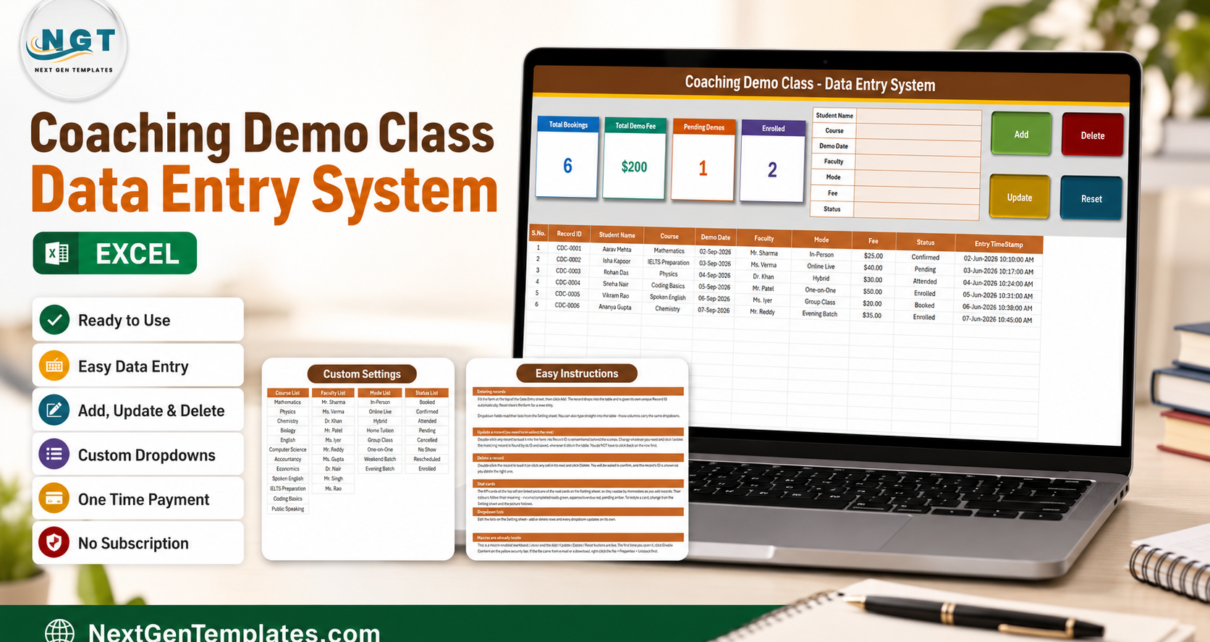
The Coaching Demo Class Data Entry System in Excel turns the free trial lesson — the single most important step in a coaching centre’s sales funnel — into a proper record. A 7-field VBA form with 4 action buttons feeds a 10-column register, and 4 live KPI cards keep Total Bookings, Total Demo Fee, Pending Demos and Enrolled current as you type. Every demo gets an automatic Record ID in the CDC-0001 format and an Entry TimeStamp, and all four dropdown lists are editable from a single Setting sheet.
Most centres track demo classes in a diary at the front desk, or in a spreadsheet that somebody reformats every term. That works until the obvious question comes up: of the demos we gave last month, how many actually enrolled? At that point the diary is useless and the spreadsheet needs an afternoon of counting. This system fixes the problem at the point of entry — demos are records, not scribbles. You add them through a form, edit them by double-clicking, and the four numbers on top recalculate themselves.

Key Features of the Coaching Demo Class Data Entry System in Excel
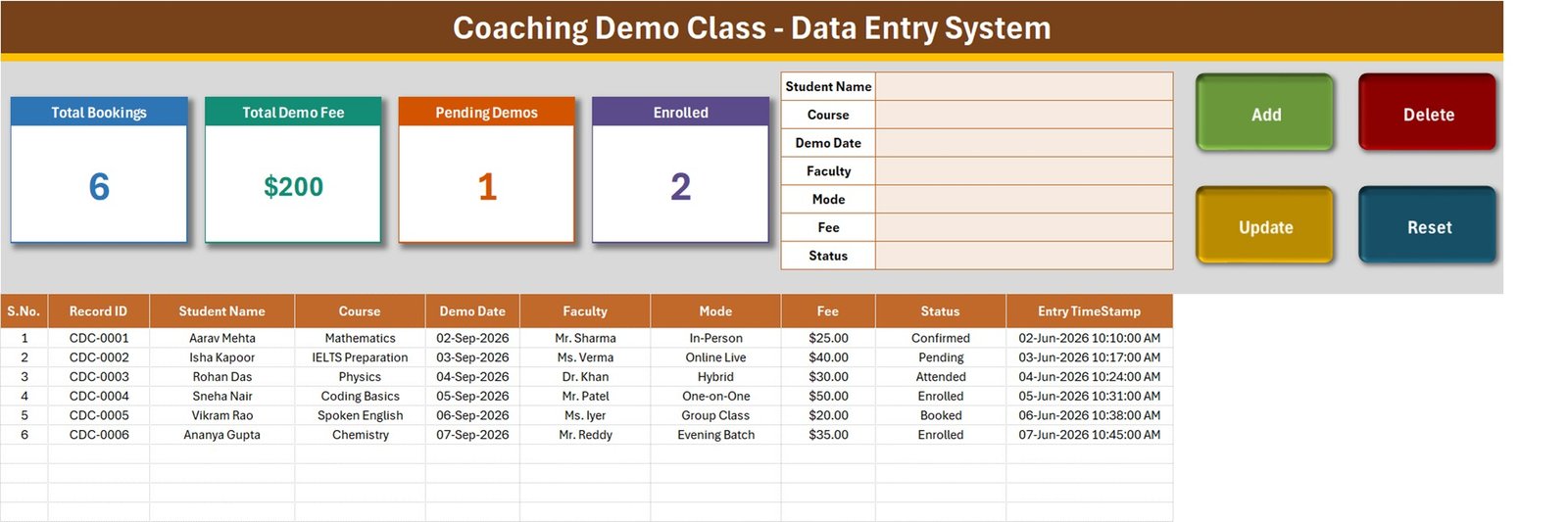
A real entry form, not a sheet you type into. The form at the top of the Data Entry sheet carries seven fields — Student Name, Course, Demo Date, Faculty, Mode, Fee and Status — with four live VBA buttons beside it: Add, Delete, Update and Reset. Click Add and the demo drops into the register below with its Record ID and Entry TimeStamp already filled in.
Record IDs that never collide. Every demo is assigned a sequential reference in the CDC-0001 format the moment it is created, and the workbook remembers the highest ID it has issued, so numbers stay unique even after rows are deleted. Update and Delete both resolve the record by that ID rather than by row position, which means sorting or filtering the register breaks nothing.
Four KPI cards that keep themselves current. Total Bookings, Total Demo Fee, Pending Demos and Enrolled sit across the top of the Data Entry sheet. They are linked pictures of live cards built on the Setting sheet, so they recalculate as you work — the sample workbook shows 6 bookings, $200 in demo fees, 1 pending demo and 2 students enrolled. Restyle a card on the Setting sheet and the picture on the Data Entry sheet follows it.
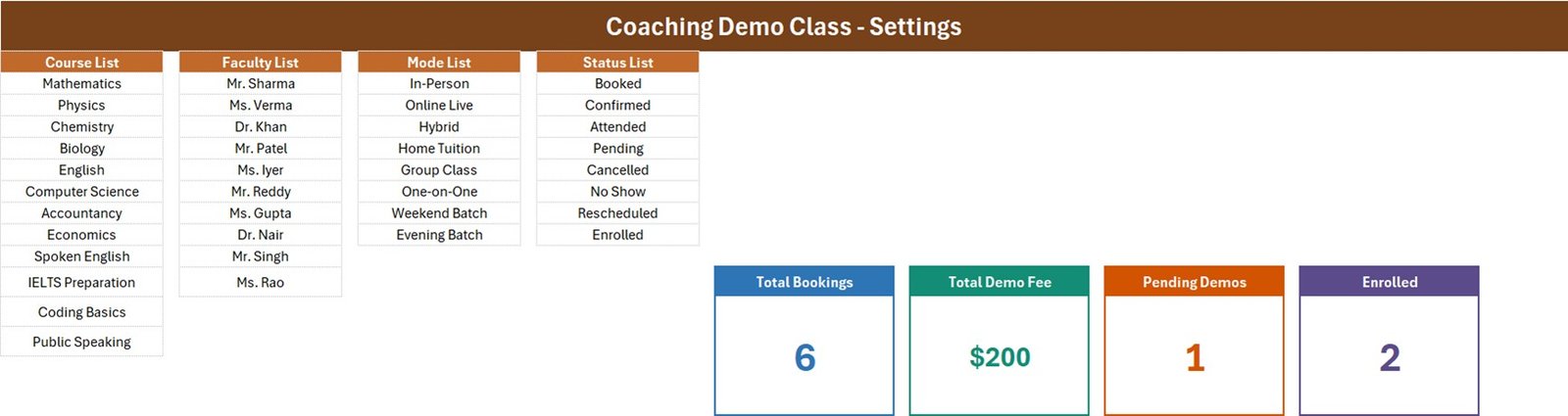
Four dropdown lists you control. The Setting sheet holds the Course List, Faculty List, Mode List and Status List. Add or remove a row there and every dropdown — in the form and in the table columns — updates on its own. The sample file ships with 12 courses (Mathematics, Physics, Chemistry, Biology, English, Computer Science, Accountancy, Economics, Spoken English, IELTS Preparation, Coding Basics and Public Speaking), 10 faculty members, 8 delivery modes and 8 status values.
Delivery modes that match how coaching actually runs. In-Person, Online Live, Hybrid, Home Tuition, Group Class, One-on-One, Weekend Batch and Evening Batch are all in the Mode List out of the box, so a centre running classroom and online trials side by side does not have to invent its own vocabulary.
The whole trial journey in one Status list. Booked, Confirmed, Attended, Pending, Cancelled, No Show, Rescheduled and Enrolled cover the real lifecycle of a demo class — from the phone call that books it to the enrolment that justifies it.
Editing without hunting for the row. Double-click any record to load it into the form. Its Record ID is remembered behind the scenes, so you change what you need, click Update, and the right record is saved wherever it sits in the table. You never have to click back on the row first.
Deletes that ask first. Delete loads the record, shows you its Record ID, and waits for confirmation before removing it — so a busy front desk cannot wipe the wrong booking in a hurry.
Template Structure
Sheet 1: Data Entry
The working sheet. Four KPI cards sit beside the seven-field entry form and the Add / Delete / Update / Reset buttons, with the 10-column register underneath — S.No., Record ID, Student Name, Course, Demo Date, Faculty, Mode, Fee, Status and Entry TimeStamp. It arrives pre-filled with six sample demo bookings so you can see exactly how a completed record looks before you clear them.
Sheet 2: Setting
Where the system is configured. Four master lists — Course List, Faculty List, Mode List and Status List — feed every dropdown in the workbook, and the four live KPI cards that the Data Entry sheet mirrors are built here. This is the only sheet you need to touch when you set the template up for your own centre.
Sheet 3: How To Use
A written guide inside the workbook covering entering records, updating without re-selecting the row, deleting safely, how the stat cards are wired to the Setting sheet, editing the dropdown lists, and the one-time step of enabling macros — including unblocking the file if it arrived by email or download. A fourth sheet, Get More Templates, links back to the rest of the NextGenTemplates library.

Coaching Demo Class Data Entry System vs. a Notebook or Spreadsheet vs. Coaching CRM Software — Feature Comparison
| Feature | Coaching Demo Class Data Entry System | Notebook or plain spreadsheet | Coaching / tuition CRM software |
|---|---|---|---|
| Cost | $6.99 one-time | Free | Roughly $20-100 per month, per branch or per user |
| Platform | Microsoft Excel, works offline | Paper or a blank sheet | Cloud SaaS, needs internet |
| Setup time | Under 10 minutes | Instant, but rebuilt every term | Days, plus onboarding and data import |
| Guided entry form | 7-field VBA form with 4 buttons | No — free typing, inconsistent spellings | Yes |
| Automatic record IDs | Yes — CDC-0001 format | Manual numbering | Yes |
| Live demo-to-enrolment counts | 4 KPI cards, always current | Counted by hand | Yes |
| Demo fee total | Yes — Total Demo Fee card | Added up at month end | Yes, inside a billing module |
| Data stays on your machine | Yes — one .xlsm file | Yes | Vendor’s servers |
| Student / parent portal, SMS, payments | No | No | Yes |
| Year-1 cost for one coaching centre | $6.99 total | $0 | $240-1,200+ |
For a coaching centre, tuition institute or independent tutor that runs demo classes every week and wants a proper record of them — without paying a monthly fee for a full CRM — this template sits in the sweet spot.
Who Should Use This Template
Perfect for:
- Coaching centres and tuition institutes that offer free or paid trial classes
- Front-desk and admissions staff logging enquiries that turn into demo bookings
- Independent tutors and IELTS or spoken-English trainers running one-on-one trials
- Online coaching businesses tracking Online Live, Hybrid and evening-batch demo sessions
- Centre owners who want to see how many demos actually convert into enrolments
- Anyone who wants Add / Update / Delete behaviour without building a database
Not a fit if:
- You need a student or parent login portal, SMS reminders or online payments
- You are on Mac Excel or Google Sheets — the buttons depend on Windows VBA
- You expect automatic scheduling or faculty clash detection
- Several people need to edit the same file at the same time
Real-World Use Cases
Priya runs a competitive-exam coaching centre with ten faculty members. Every enquiry that agrees to a trial goes in through the form with a Demo Date, a faculty member and a mode. At the end of the week she reads Total Bookings against the Enrolled card and knows exactly how the trial pitch is landing — no formula, no counting by hand.
Sameer teaches IELTS and spoken English online. He charges a small fee for the first session, so every demo is entered with its fee and Online Live as the mode. The Total Demo Fee card is his weekly trial income, and the Pending Demos card reminds him which sessions are still unconfirmed.
Meera manages the front desk at a tuition institute. Bookings arrive by phone all day. She types the student’s name, picks the course and faculty from the dropdowns, and clicks Add — the Record ID and timestamp mean two staff members can never argue about who booked what, or when. Cancelled and No Show demos stay in the register rather than being deleted, so the month-end picture stays honest.
Advantages of the Coaching Demo Class Data Entry System
A form beats a diary. Typing into a notebook or a blank sheet invites blank fields, three spellings of the same faculty name, and courses that do not exist on your price list. A seven-field form with four dropdowns makes bad data much harder to enter in the first place.
Editing does not break the file. Because Update and Delete resolve records by ID rather than by row number, you can sort the register by Demo Date, filter it by Faculty or insert rows without any risk that the next edit lands on the wrong booking.
The conversion number is free. Total Bookings and Enrolled are always current, so the one figure that tells you whether demo classes are worth running is on screen without anybody refreshing a pivot table.
Paid trials stop leaking. If you charge for the first session, the Fee column and the Total Demo Fee card put that money in the same record as the student, instead of on a receipt book nobody reconciles.
It costs $6.99 once. A coaching CRM at $20-100 a month reaches $240-1,200 or more in the first year. This is a single file you buy once and keep, with no per-user fee and nothing to renew.
Opportunities for Improvement
Honest limitations, so you know what you are buying. The system records demo classes; it does not schedule them. If you book the same faculty member for two demos at 6 pm on Friday, nothing stops you — sorting by Faculty and Demo Date makes the clash visible, but the check is yours to make.
There are no charts. The four KPI cards are the whole analytical layer, which is deliberate for a data entry tool, but a centre that wants trend lines and slicers will want a dashboard on top of the register.
It is a single-user Windows Excel workbook. The Add, Update, Delete and Reset buttons are VBA, so Google Sheets and Mac Excel are out, and two people cannot safely edit the same copy at the same time.
Finally, there is no reminder engine. The Pending Demos card tells you how many bookings are unconfirmed, but nobody gets an automatic SMS or email — that follow-up call is still a human job.
How to Use the Coaching Demo Class Data Entry System
- Unzip the download and open Coaching_Demo_Class_System.xlsm in Microsoft Excel.
- Click Enable Content on the yellow security bar. If the file came by email, right-click it first, choose Properties, and tick Unblock.
- Open the Setting sheet and replace the sample Course, Faculty, Mode and Status lists with your own.
- Go back to the Data Entry sheet and delete the six sample demo rows.
- Fill the form — Student Name, Course, Demo Date, Faculty, Mode, Fee, Status — and click Add. The Record ID and Entry TimeStamp fill themselves.
- When a demo is attended, double-click its row, change Status to Attended or Enrolled, and click Update. The Enrolled card moves on its own.
- To remove a booking, load it and click Delete, then confirm the Record ID shown. Click Reset any time to clear the form for a fresh entry.
More on this blog: Coaching Networks Dashboard in Excel, Coaching Business Dashboard in Excel and Executive Coaching Dashboard in Excel.
Frequently Asked Questions
What does the Coaching Demo Class Data Entry System record?
It stores 10 fields per demo class — S.No., Record ID, Student Name, Course, Demo Date, Faculty, Mode, Fee, Status and Entry TimeStamp — entered through a seven-field form and saved to a running register on the Data Entry sheet.
Do I need to enable macros?
Yes. It is a macro-enabled .xlsm workbook and the Add, Update, Delete and Reset buttons are VBA. Click Enable Content on the yellow bar the first time you open it, and unblock the file in Properties if it arrived by email or download.
How long does setup take?
Under 10 minutes. Unzip, enable macros, swap the four dropdown lists on the Setting sheet for your own courses, faculty, modes and statuses, delete the six sample demos, and the system is ready.
Can I add my own courses, faculty and delivery modes?
Yes. Every dropdown reads from the Setting sheet. Add or delete rows in the Course List, Faculty List, Mode List or Status List and the workbook updates all its dropdowns automatically, in the form and in the table columns alike.
Does it show how many demo classes converted into enrolments?
Yes, as a live count. The Enrolled KPI card counts records whose Status is Enrolled, and Total Bookings counts every demo logged, so the two together give you the conversion picture at a glance. It does not draw a conversion chart — for that, pair it with an Excel dashboard.
Will it schedule the demo classes or warn me about faculty clashes?
No. It records demo bookings rather than planning them, so two demos with the same faculty at the same time are not flagged. Sorting the register by Faculty and Demo Date makes clashes easy to spot by eye.
Does it work on Mac or in Google Sheets?
It is built for Microsoft Excel on Windows. The register and dropdowns will open elsewhere, but the Add, Update, Delete and Reset buttons depend on Windows VBA and will not run in Google Sheets or reliably on Mac Excel.
Is student data stored anywhere online?
No. Everything lives in the single .xlsm file on your own machine or network drive. Nothing is uploaded, and there is no account, login or cloud sync of any kind.
Download the Coaching Demo Class Data Entry System in Excel
The template is a one-time purchase — a macro-enabled .xlsm workbook, delivered as an instant download, with no subscription and no per-user fee.
👉 Get the Coaching Demo Class Data Entry System in Excel on NextGenTemplates.com — $11.99 $6.99, instant download, lifetime access.
Related Templates
- Admission Enquiry Data Entry System in Excel — the step before this one: log the enquiry, then book the demo.
- Course Enrollment Data Entry System in Excel — the step after: turn an enrolled demo into a paid seat.
- Class Schedule Data Entry System in Excel — build the timetable those students then join.
- Student Attendance Data Entry System in Excel — daily attendance once the term is running.
- Tuition Payment Log Data Entry System in Excel — the fee side of the same student record.
- Coaching Networks Dashboard in Excel — the analytical view, with charts and slicers, when the register alone is not enough.
Conclusion
Demo classes are where coaching businesses win or lose students, and they are almost always the least-documented part of the operation. The Coaching Demo Class Data Entry System in Excel fixes that with the smallest possible tool: one workbook, one form, one register and four numbers that never go stale. Enter the booking, mark what happened, and the conversion story writes itself.
For more Excel and VBA walkthroughs, visit our YouTube channel at @PKAnExcelExpert.