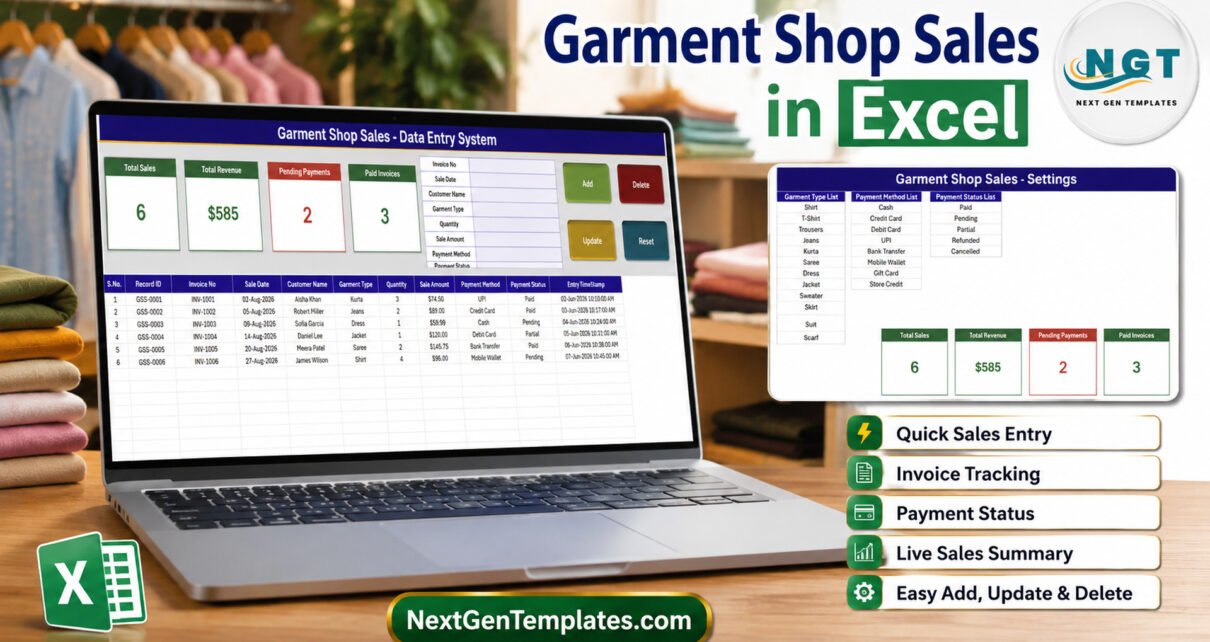
Most clothing shops start with a notebook. It works right up until the day somebody asks how much the shop actually took last week, or which customer still has a saree on Pending, and the answer means flicking back through fourteen pages of handwriting. The Garment Shop Sales Data Entry System in Excel is the smallest thing that fixes that: one form, four buttons, four stat cards, and a table you can sort and filter.
This walkthrough goes through the whole workbook – what each sheet does, exactly what the four stat cards count, and the two limits worth knowing before you set it up for your own counter.
What the Garment Shop Sales Data Entry System in Excel Actually Is
It is a macro-enabled Excel workbook (.xlsm) with four sheets and four VBA macros. You type a sale into a form, press Add, and the sale lands in a records table with an automatic Record ID and a timestamp. Nothing to install, nothing to sign into, no subscription.
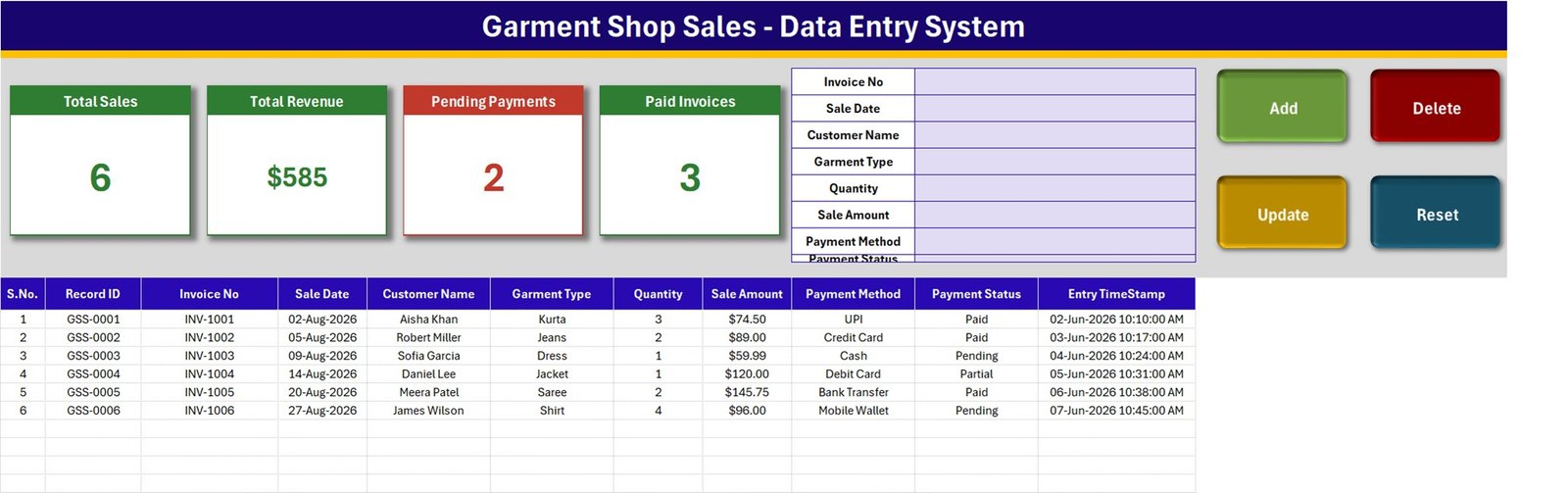
The screen above is the whole product in one picture. Four stat cards on the left, the eight-field entry form in the middle, the Add / Delete / Update / Reset buttons on the right, and the records table underneath with six sample sales already in it.
The eight fields you fill in
The form asks for Invoice No, Sale Date, Customer Name, Garment Type, Quantity, Sale Amount, Payment Method and Payment Status. Three of those – Garment Type, Payment Method and Payment Status – are dropdowns, so the same sale never gets recorded as “Credit Card” one day and “CC” the next.
Two more columns fill themselves. Record ID runs in the GSS-0001 series and is assigned by the Add macro, and Entry TimeStamp records when the row was saved – useful later when two people are entering sales and you want to know who typed what, and when.
The records table
Eleven columns: S.No., Record ID, Invoice No, Sale Date, Customer Name, Garment Type, Quantity, Sale Amount, Payment Method, Payment Status and Entry TimeStamp. The S.No. column is a formula – =IF($B15="","",ROW()-14) – so it numbers itself as rows appear and stays blank where the table is empty.
The three dropdown columns carry the same validation inside the table as the form does, so if you are catching up on two days of sales at once you can type straight down the grid instead of using the form each time.
The Setting Sheet Is Where You Make It Yours
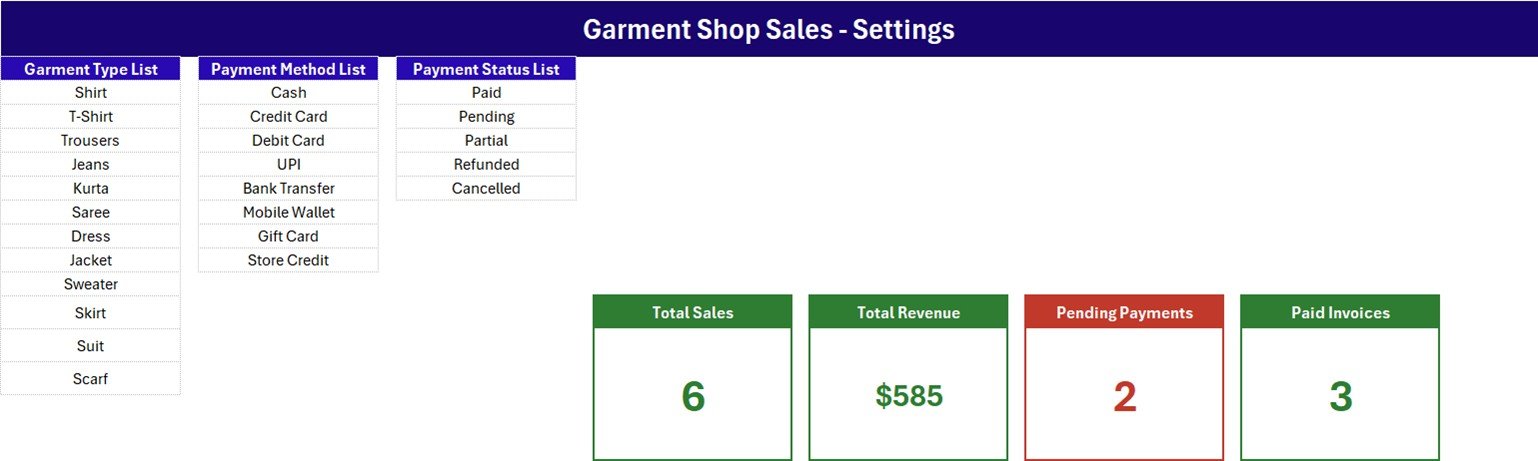
Three plain lists, all editable:
- Garment Type – Shirt, T-Shirt, Trousers, Jeans, Kurta, Saree, Dress, Jacket, Sweater, Skirt, Suit, Scarf.
- Payment Method – Cash, Credit Card, Debit Card, UPI, Bank Transfer, Mobile Wallet, Gift Card, Store Credit.
- Payment Status – Paid, Pending, Partial, Refunded, Cancelled.
Rewrite them before your first real sale. If you only sell menswear, strip the list down to what you actually stock; if you take cash and UPI and nothing else, delete the other six payment methods. A short dropdown is a faster dropdown.
The four stat cards live on this sheet as well. The ones you see on the Data Entry screen are linked pictures of these – which is why restyling a card here restyles it there too, with no macro involved.
What the Four Stat Cards Count – the Real Formulas
This is the part worth reading twice, because a stat card that means something slightly different from what you assumed is worse than no stat card at all. Straight out of the Setting sheet:
| Card | Formula | What that means |
|---|---|---|
| Total Sales | COUNTA('Data Entry'!$C$15:$C$1048576) | A count of the Invoice No column, not Record ID. A sale saved with no invoice number is not counted. |
| Total Revenue | SUM('Data Entry'!$H$15:$H$1048576) | Every Sale Amount, whatever the status – Refunded and Cancelled included. Invoiced value, not cash collected. |
| Pending Payments | COUNTIF('Data Entry'!$J$15:$J$1048576,"Pending") | Rows whose Payment Status is exactly Pending. |
| Paid Invoices | COUNTIF('Data Entry'!$J$15:$J$1048576,"Paid") | Rows whose Payment Status is exactly Paid. |
Two consequences fall straight out of that table.
Pending plus Paid will not equal Total Sales. Only two of the five statuses have a card. On the six sample rows the cards read 6, $585, 2 and 3 – and 2 + 3 is 5, because the sixth sale is Partial. Nothing is broken; Partial, Refunded and Cancelled simply have no card of their own.
Total Revenue is money invoiced, not money in the drawer. The six sample rows total 585.24 and the card shows a rounded $585. If you want collected-only revenue, add one cell on the Setting sheet:
=SUMIF('Data Entry'!$J$15:$J$1048576,"Paid",'Data Entry'!$H$15:$H$1048576)Copy the card’s formatting onto it and you have a fifth card that answers the question shop owners actually ask.
Adding, Updating and Deleting a Sale
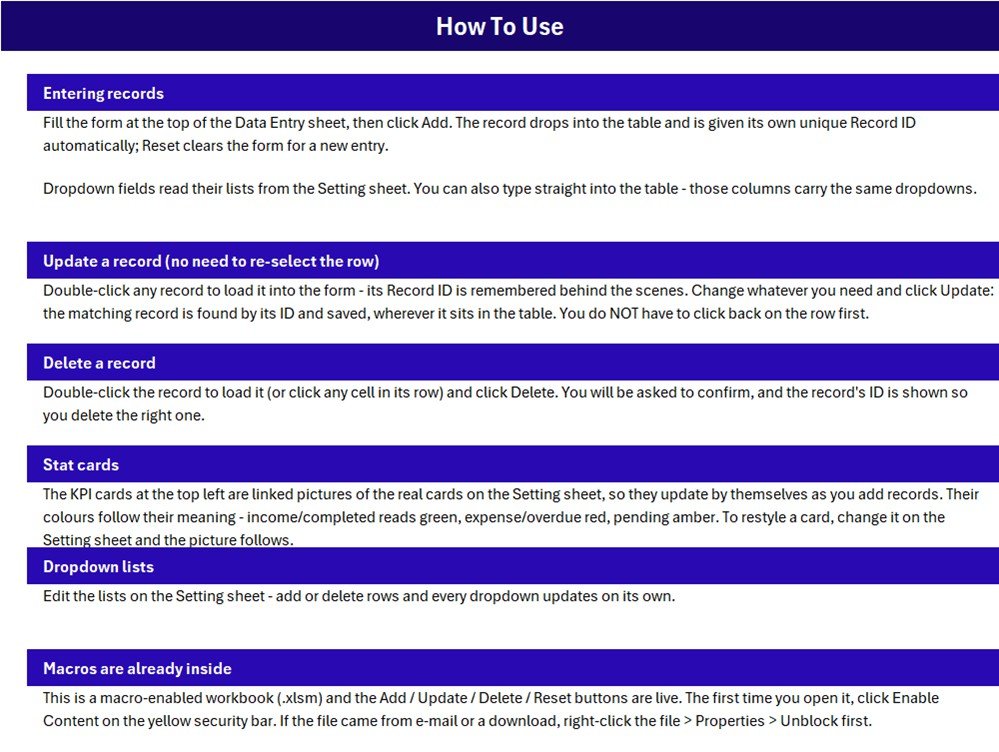
The workbook ships its own How To Use page, and the behaviour is genuinely simple:
- Add – fill the form, press Add. The row appears at the bottom of the table with its Record ID and timestamp.
- Update – double-click any row. It loads back into the form and the workbook quietly remembers its Record ID, so you can change anything you like and press Update; the record is found by ID and rewritten wherever it now sits. You do not have to click back onto the row first, which is the small detail that makes editing painless when the table is sorted.
- Delete – double-click the record (or click any cell in its row) and press Delete. You are asked to confirm, and the Record ID is shown in the prompt so you can see what is about to go.
- Reset – clears the form only. The table is untouched.
All four buttons run VBA: Add_Record, Update_Record, Delete_Record and Reset_Form, in a single module.
Macros: What You Have to Do on First Open
This is a macro-enabled workbook, so the first open needs two clicks of housekeeping:
- Click Enable Content on the yellow security bar across the top of Excel.
- If Excel refuses anyway – which it does when the file arrived by e-mail or download – close it, right-click the
.xlsmin File Explorer, choose Properties, tick Unblock at the bottom, and open it again.
And the platform limits, said plainly: this is Excel for Windows, on the desktop. Excel for the web cannot run VBA at all, so the four buttons will simply do nothing there. Excel for Mac has a different VBA host with different security prompts and different file-unblocking behaviour, so the workbook is not supported on it. Google Sheets cannot open an .xlsm with its macros intact either.
Two Limits to Set Up Around
The in-table dropdowns cover 200 rows
Validation is applied to rows 15 to 214 in the Garment Type, Payment Method and Payment Status columns. The stat cards do not stop there – their formulas run the whole column – but past row 214 the dropdowns are gone. If you plan to keep more than 200 sales in one file, select the last validated cell in each of the three columns and drag it down as far as you want. Plenty of shops instead start a fresh copy each season, which keeps files small and makes year-on-year comparison easy.
The three lists are fixed ranges
Behind the dropdowns are three named ranges: Setting!$A$3:$A$14 for Garment Type, $C$3:$C$10 for Payment Method, $E$3:$E$7 for Payment Status. Editing a value in place is free. But to make a list longer, right-click a row in the middle of the existing block and choose Insert – Excel grows the named range with it. Typing a new garment type in the first blank cell below the list will not put it in the dropdown; you would have to widen the range yourself in Formulas > Name Manager.
What This Workbook Is Not
Worth being blunt, because it saves disappointment. There is no stock or inventory tracking – recording a sale does not reduce a garment count anywhere. No barcode scanning, no cash drawer, no POS hardware. No printed receipt or tax invoice, and no GST, VAT or sales-tax calculation of any kind; the Invoice No column records the number your existing billing already produces. It is not accounting software: no ledger, no profit-and-loss, no statutory report. No customer database beyond the name on each sale, no supplier or purchase side, no size or colour variants, no returns workflow past the Refunded status, no charts or pivot tables, and no multi-user or cloud sync – it is one file on one machine.
If you need any of those, you have outgrown a workbook and want a proper system. What you get here instead is something a shop assistant can be shown in two minutes.
Who Gets the Most Out of It
Boutiques and small clothing shops. Tailoring and stitching outlets keeping a sales register alongside the order book. School and corporate uniform counters. Saree and ethnic-wear stores. Weekend market and pop-up stalls. Anyone running a garment side-business who wants their sales searchable and sortable rather than handwritten.
Get the Template
The Garment Shop Sales Data Entry System in Excel is available on NextGenTemplates for $11.99, currently $6.99. The download is a ZIP containing the macro-enabled workbook, fully unlocked – every sheet, formula, list and macro is open for you to change.
Related walkthroughs on this site
- Photocopy Shop Sales Data Entry System in Excel – the closest counter-sales sibling, same four-button VBA pattern outside apparel.
- Uniform Sales Data Entry System in Excel – the same build aimed at a school or corporate uniform counter, with size on every line.
- Gate Pass Register Data Entry System in Excel – the same form-and-cards pattern applied to gate movements.
- Meeting Minutes Data Entry System in Excel – another look at how the Add / Update / Delete engine is put together.
A Footwear Shop Stock Data Entry System in Excel is on its way too, as the retail-stock neighbour to this sales register.
Frequently Asked Questions
Do I need to know VBA to use it?
No. The macros are already written and wired to the four buttons. You only need to enable macros once when you first open the file.
Can I use it on a Mac or in Excel for the web?
No. Excel for the web cannot run VBA, and Excel for Mac has a different VBA host with different security behaviour. Use Excel for Windows on the desktop.
How many sales will it hold?
The stat cards cover the whole column, so the arithmetic never runs out. The built-in dropdowns in the table cover rows 15 to 214 – 200 records – and can be dragged further down in a few seconds.
Why does Total Revenue look higher than what I banked?
Because it sums every Sale Amount regardless of Payment Status, including Pending, Partial, Refunded and Cancelled rows. Add the SUMIF shown earlier if you want a collected-only figure.
Can I add my own garment types?
Yes. Edit the list on the Setting sheet. To lengthen it, insert a row inside the existing block rather than typing below it, so the named range grows with the list.
Is anything locked or password protected?
No. Every sheet, formula, list and macro is open and editable.
In Short
The Garment Shop Sales Data Entry System in Excel does one job and does it without ceremony: it turns a counter notebook into a table you can filter, with four numbers on top that keep themselves current. Know what those four numbers count – the Invoice No column, invoiced value rather than cash collected, and two statuses out of five – and it will not surprise you once.