Most small jewellery shops still run on a stock book. A ruled register, a pen on a string, and one person who knows what the shorthand means. It works until the day a piece cannot be found, or two staff members log the same tray, or the insurance renewal asks for a schedule and nobody can produce one without spending an evening copying pages.Jewellery Stock Register Data Entry System in Excel
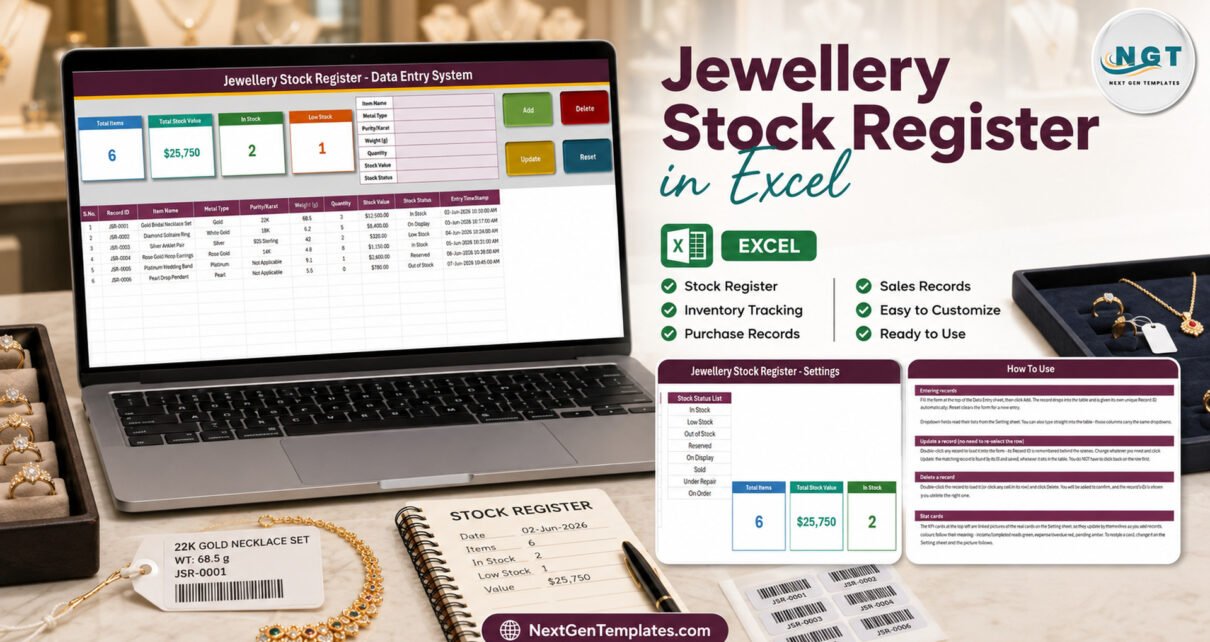
The Jewellery Stock Register Data Entry System in Excel is the smallest thing that replaces that book. One macro-enabled workbook, one seven-field form, a permanent Record ID and a timestamp on every piece, and four stat cards that recount themselves the moment you press Add. It is not retail software and it does not pretend to be – but a jewellery stock register that lives in a single file you own is a real step up from a notebook. Jewellery Stock Register Data Entry System in Excel
What the Jewellery Stock Register Actually Does
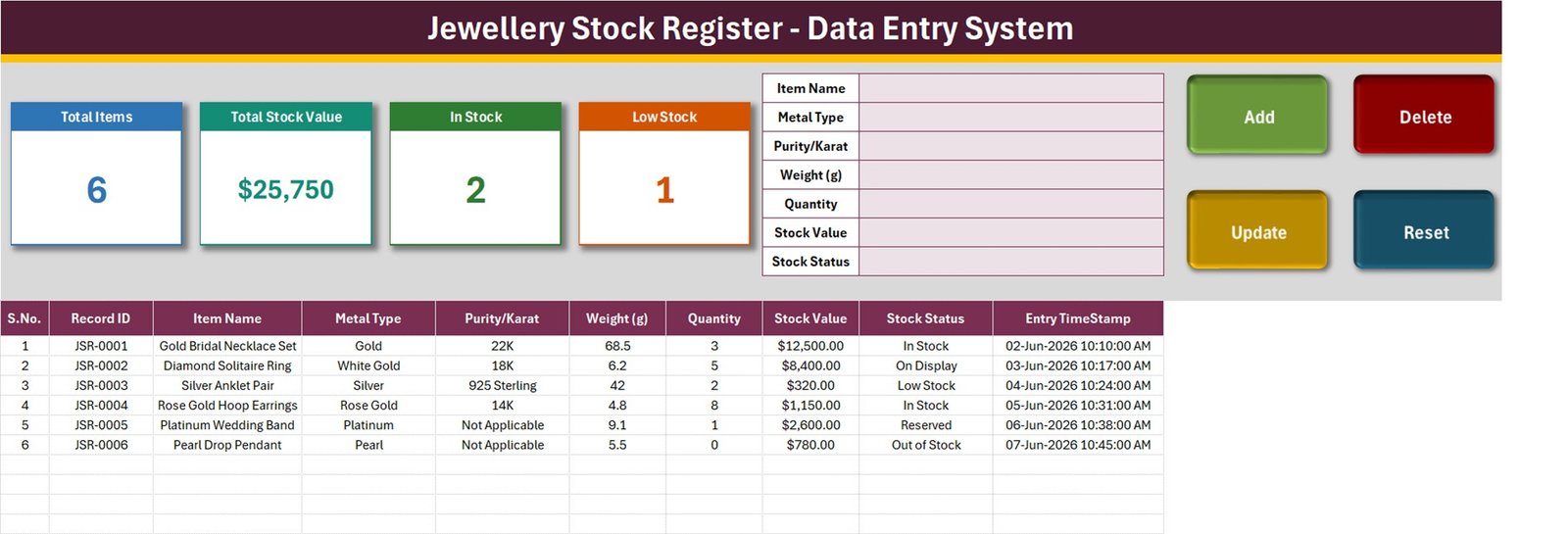
Open the workbook on the Data Entry sheet and everything is on one screen. The form sits top-centre with seven fields: Item Name, Metal Type, Purity/Karat, Weight (g), Quantity, Stock Value and Stock Status. Four buttons sit beside it – Add, Update, Delete and Reset – and they are real VBA macros, not formulas dressed up as buttons.
Fill the form, click Add, and the record drops into the table below with its own identifier in the JSR-0001 series plus an Entry TimeStamp. That pairing is the whole point of a register: you can always say which piece a row refers to, and when it was written.
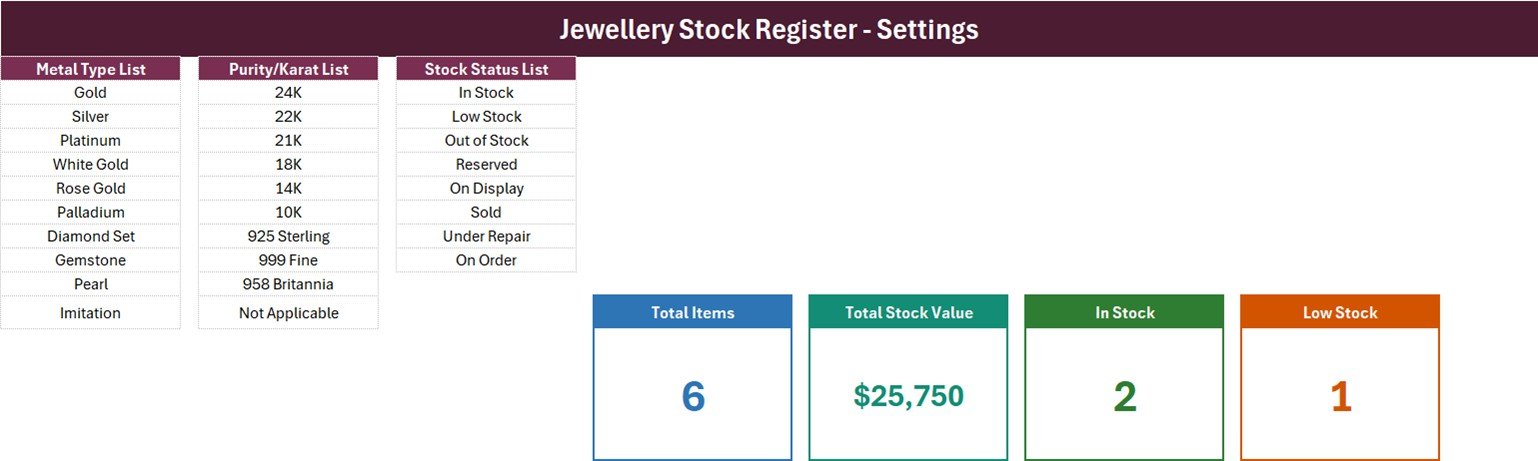
Four stat cards run along the top left:Jewellery Stock Register Data Entry System in Excel
- Total Items – a COUNTA over the Item Name column
- Total Stock Value – a SUM of the Stock Value column
- In Stock – a COUNTIF for the exact status “In Stock”
- Low Stock – a COUNTIF for the exact status “Low Stock”
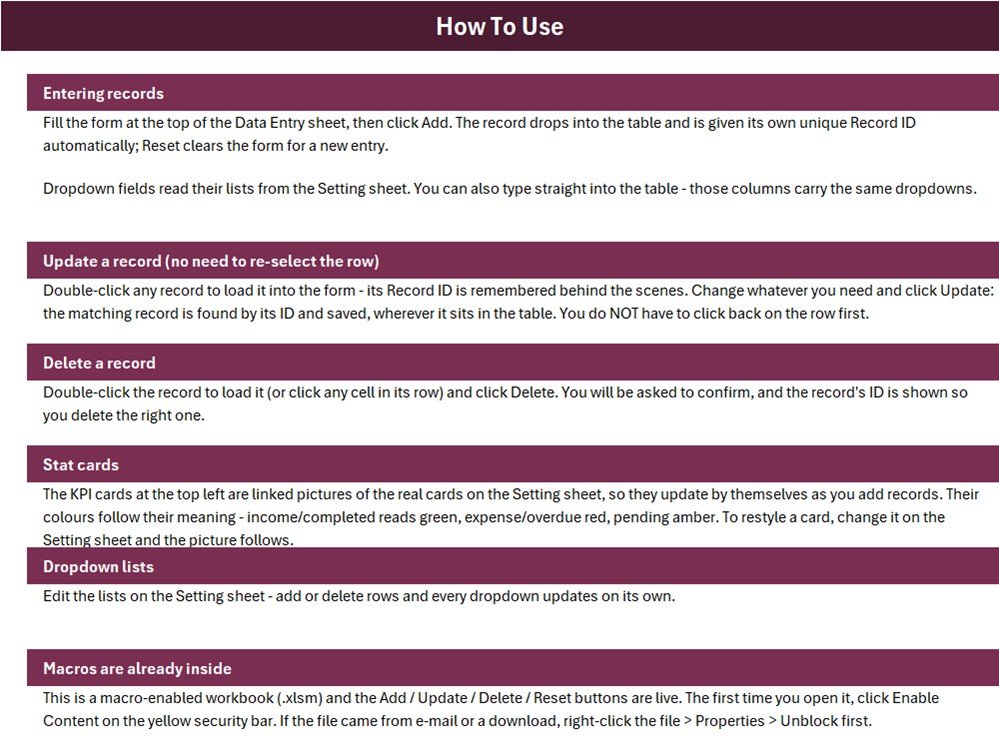
The cards on the entry page are linked pictures of master cards that live on the Setting sheet, which is why they restyle themselves when you restyle the originals.
The Three Lists You Own
Everything the dropdowns offer comes from the Setting sheet, and all of it is yours to change:
- Metal Type (10) – Gold, Silver, Platinum, White Gold, Rose Gold, Palladium, Diamond Set, Gemstone, Pearl, Imitation
- Purity/Karat (10) – 24K, 22K, 21K, 18K, 14K, 10K, 925 Sterling, 999 Fine, 958 Britannia, Not Applicable
- Stock Status (8) – In Stock, Low Stock, Out of Stock, Reserved, On Display, Sold, Under Repair, On Order
Those eight statuses are more useful than they look. Under Repair keeps a piece on the register while it is at the bench instead of tempting you to delete it. Reserved and On Display separate what a customer has put money on from what is simply in the window. Sold leaves a trail rather than a gap.
The same validation is applied to rows 15 to 214 in the table itself, so when you are entering a whole tray you can type straight into the grid and still get the dropdowns.
Updating Without Losing the Row
The part that usually goes wrong in a home-made entry sheet is editing. Sort the table by weight, and a macro that saves “to the selected row” saves to the wrong piece.
This one does not work that way. Double-click a record and it loads back into the form with its Record ID held behind the scenes. Change what you need, click Update, and the macro finds the record by its ID wherever it has been sorted to. Delete works the same way and shows you the ID in the confirmation, so you can see which piece is about to go.
Where It Sits Against the Alternatives
| This workbook | Paper stock book | Jewellery retail software | |
|---|---|---|---|
| Cost | One-off, under $12 | Nearly nothing | $40-$150 a month |
| Setup | Minutes | None | Days, plus migration |
| Find a piece | Filter or Ctrl+F | Turn pages | Instant search |
| Timestamped records | Yes | Handwritten | Yes |
| Barcodes and billing | No | No | Yes |
| Live metal rates | No | No | Usually |
| Offline | Yes | Yes | Rarely |
| You own the file | Yes | Yes | Vendor-hosted |
If you are hallmarking, billing and valuing karat-wise across two branches, buy the software. If you have a few hundred pieces and a book you keep rewriting, this is the cheaper honest answer.
Six Ways Shops Use It
- Monthly tray audit. Filter Stock Status to In Stock, print, walk the trays, tick. Anything missing has an ID to chase.
- Repairs. Move a piece to Under Repair instead of deleting it, so it stays on the register and out of the In Stock count.
- Exhibition stock. Copy the file, keep only the pieces going to the show, reconcile on the way back.
- Insurance schedule. Weight, purity and value per piece, straight out of the table.
- Pawn and held items. Reserved plus a timestamp is enough to settle most disputes.
- Staff handover. The Instructions sheet is the training, and it is inside the file.
What It Does Not Do
Worth saying plainly before you download anything:
- Stock Value is typed, not calculated. There is no weight-times-rate formula and no quantity multiplier, so Total Stock Value is only as current as your last edit.
- Only two statuses are counted. The cards count “In Stock” and “Low Stock” exactly. Reserved, On Display, Sold, Under Repair and On Order appear nowhere in the totals.
- Dropdown ranges are fixed length. Ten rows for metals and purities, eight for statuses. Add an eleventh and you widen the named range in Formulas > Name Manager.
- 200 rows come formatted. Rows 15 to 214. Beyond that you extend the formatting yourself.
- Windows desktop Excel only. Macros rule out Excel for the web and the iPad, and Mac VBA is not supported.
- One file, one user. No co-authoring, no barcode scanner, no invoicing, and nothing decrements a quantity when you sell.
Getting Started in Five Minutes
- Right-click the downloaded file, choose Properties, tick Unblock.
- Open it and click Enable Content on the yellow security bar.
- On the Setting sheet, edit the three lists to match your counter.
- Back on Data Entry, fill the form and click Add. Repeat for a tray.
- Double-click any row to edit it, and watch the four cards move on their own.
Frequently Asked Questions
Does it price pieces from the live gold rate?
No. You type the Stock Value. There is no rate feed and no karat-wise valuation.
Can I add metals or purities of my own?
Yes, on the Setting sheet. Past ten rows, widen the named range so the dropdown sees them.
Is it safe to sort the table?
Yes. Update and Delete match on Record ID, not row position.
Does it work on a Mac?
No. The macros need Windows desktop Excel.
How many pieces will it hold?
200 rows are pre-formatted, and the card formulas already read the whole column, so extending is a formatting job.
Is the VBA locked?
No. Sheets, lists and code are all open, so you can rename fields or restyle cards freely.
Download the Template
The workbook is a single .xlsm file, downloadable immediately after purchase.
Get the Jewellery Stock Register Data Entry System in Excel on NextGenTemplates – regular $11.99, currently $6.99.
Related Reading
- Watch Repair Data Entry System in Excel – the repair-bench companion, same engine
- Footwear Shop Stock Data Entry System in Excel – the same stock-register pattern for a shoe shop
- Mobile Accessory Sales Data Entry System in Excel – sales-side rather than stock-side
- Jewellery and Watches Dashboard in Power BI – when you want analysis on top of the data
- Internship Tracker Data Entry System in Excel – the same VBA form applied to people rather than stock
More Excel and VBA walkthroughs are on the PK: An Excel Expert YouTube channel.