Part of the free Module 6: Data Validation · Lesson 4 of 14 · Full Excel course
Updated on 5 September 2026 · Works in Excel 365, 2021, 2019 and 2016 unless noted.
Date validation in Excel restricts a cell so it accepts only real dates that meet a condition: between two dates, after today, within the current month, or before a deadline. Text such as “TBD” and impossible dates such as 31/02/2024 are rejected. You set it from Data > Data Validation with Allow set to Date, using fixed dates, cell references or formulas like =TODAY().
What date validation does and when to use it
Excel stores every date as a serial number (1 January 1900 is 1, 5 September 2026 is 46270). A Date rule is therefore a numeric test with a calendar interface: Excel first checks that the entry is a genuine date, then checks that its serial number satisfies the comparison you chose. Anything that is not a date, including dates typed as text, fails the first check.
Use date validation on any timeline field where a bad entry breaks downstream work: invoice dates, joining dates, leave requests, delivery dates, project milestones and data-entry forms. Clean dates mean DATEDIF, NETWORKDAYS, EOMONTH, PivotTable date grouping and timeline slicers all work without cleaning. The rule behaves the same from Excel 2016 through Microsoft 365; Excel 365 only adds a slightly refreshed dialog.
Step by step: allow dates within a year
- Select the range to validate, for example B2:B100.
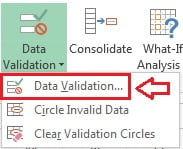
- On the ribbon go to Data > Data Tools > Data Validation and click Data Validation (shortcut Alt, A, V, V).
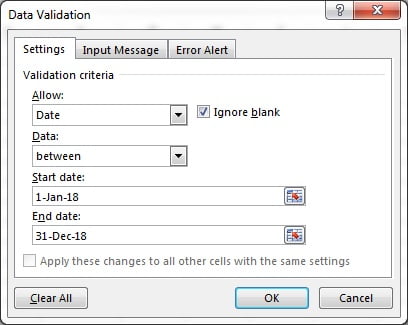
- On the Settings tab set Allow to Date.
- Set Data to between. Type 1-Jan-2018 in Start date and 31-Dec-2018 in End date (use your own year, in the date format your Windows region recognises).
- Leave Ignore blank ticked if empty cells are allowed, then click OK.
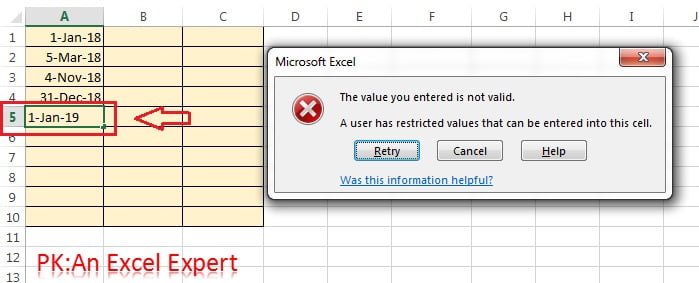
- Test the rule. Dates inside the window are accepted; any other date, a time-only value or text triggers the error alert.
The eight comparison options in the Data drop-down
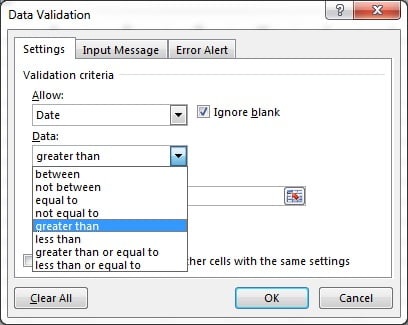
- between: from Start date to End date, both inclusive.
- not between: any date outside that window.
- equal to: one specific date only.
- not equal to: any date except the one given.
- greater than: strictly after the given date.
- less than: strictly before the given date.
- greater than or equal to: the given date and later.
- less than or equal to: the given date and earlier.
Every box that takes a date also takes a cell reference (=$F$1) or a formula, which is how you build rules that update themselves.
Common date rules and the setting for each
The table below covers the rules people ask for most. The first five use Allow: Date; the weekday rule needs Allow: Custom because the Date setting cannot test the day of the week. The custom formula assumes the active cell is A2; adjust the reference to the top-left cell of your selection.
| Rule you want | Allow | Data | Start date / Formula | End date |
|---|---|---|---|---|
| Between two fixed dates | Date | between | 1-Jan-2026 | 31-Dec-2026 |
| Today or any future date | Date | greater than or equal to | =TODAY() |
|
| No future dates (today or earlier) | Date | less than or equal to | =TODAY() |
|
| Within the current month | Date | between | =EOMONTH(TODAY(),-1)+1 |
=EOMONTH(TODAY(),0) |
| Last 30 days only | Date | between | =TODAY()-30 |
=TODAY() |
| After a date in cell F1 | Date | greater than | =$F$1 |
|
| Weekdays only (Mon to Fri) | Custom | =AND(ISNUMBER(A2),WEEKDAY(A2,2)<=5) |
||
| Weekday and not in the past | Custom | =AND(ISNUMBER(A2),A2>=TODAY(),WEEKDAY(A2,2)<6) |
WEEKDAY(date,2) returns 1 for Monday through 7 for Sunday, so <=5 means Monday to Friday. The ISNUMBER test stops text from slipping through a custom rule, because a text value compared with a number can evaluate to TRUE in some comparisons.
Worked example: a leave request form
An HR sheet records leave requests. Column B holds the start date and column C the end date. The rules: the start date must be today or later, and the end date must be on or after the start date but no more than 30 days after it.
| Row | A: Employee | B: Start date | C: End date | Result |
|---|---|---|---|---|
| 2 | Anita | 10-Sep-2026 | 12-Sep-2026 | Accepted |
| 3 | Rahul | 01-Sep-2026 | 03-Sep-2026 | Start rejected (before today) |
| 4 | Meena | 15-Sep-2026 | 30-Oct-2026 | End rejected (more than 30 days) |
- Select B2:B100. Open Data Validation, set Allow to Date, Data to greater than or equal to, and type
=TODAY()in Start date. Click OK. - Select C2:C100. Set Allow to Date, Data to between, Start date
=B2and End date=B2+30. The relative reference adjusts row by row. Click OK. - On the Error Alert tab give each rule a clear message, for example “End date must be within 30 days of the start date.”
Row 2 passes both tests. Row 3 fails in B because 1 September is before today (5 September 2026). Row 4 fails in C because 30 October is 45 days after the start date.
Tips and common mistakes
- Dates stored as text fail. A date typed with a leading apostrophe, pasted from a web page or written in an unrecognised order (for example 2026.09.05) is text, and Excel rejects it even though it looks right. Check a suspect cell with
=ISNUMBER(A2). - Regional formats matter. Excel reads typed dates using the Windows short date setting. 03/04/2026 is 3 April in the UK and 4 March in the US. Type dates as 5-Sep-2026 or use
=DATE(2026,9,5)in the limit boxes to avoid ambiguity. - Ignore blank is ticked by default. Untick it only if you want an empty cell to be treated as invalid when a user deletes a date. Note that a limit cell that is itself blank makes every entry valid while Ignore blank is on.
- TODAY() re-evaluates. A rule based on
=TODAY()is checked at the moment of entry. A date that was valid last week is not re-tested tomorrow; use Circle Invalid Data to find entries that have since drifted out of range. - Date-times count as dates. 31-Dec-2026 14:00 is 46,387.58, which is greater than 31-Dec-2026, so it fails a rule ending on that day. Use
=B1+0.99999as the end limit, or validate the date and time in separate columns. - Dates before 1900 are not dates. Excel for Windows starts its calendar on 1 January 1900; earlier entries are text and cannot pass a Date rule.
- Apply a number format. Validation checks the value, not the display. Format the column as a date so entries look consistent, and widen the column if you see ######.
Errors and how to fix them
| Symptom | Cause | Fix |
|---|---|---|
| A correct-looking date is rejected | The entry is text, or the day and month are in the wrong order for your region | Retype as 5-Sep-2026, or set the Windows short date format to match your users |
| “The Start date must be less than or equal to the End date” | Limits entered the wrong way round in the between rule | Swap the two values |
| Every date is accepted | The limit cell is empty and Ignore blank is ticked, or the rule was applied to the wrong range | Fill the limit cell; untick Ignore blank; check the Apply to range |
| Formula limit shows a “must be a number” message | You typed a formula without the leading equals sign, or it returns text | Start with = and make sure the formula returns a date serial |
| Rule accepts 2026-09-05 in one PC and rejects it on another | Different regional settings on the two machines | Standardise the format, or use a custom rule with DATE() limits |
| Pasted values bypass the rule | Paste replaces validation along with the value | Paste with Paste Special > Values, or protect the sheet and allow only typing |
Practice exercise
- In a blank column, add a Date rule that allows only dates in the current year using
=DATE(YEAR(TODAY()),1,1)and=DATE(YEAR(TODAY()),12,31)as the limits. Test 31-Dec of last year and 1-Jan of next year. - Create an order-date column that accepts today or earlier, and a delivery-date column that must be between 2 and 14 days after the order date.
- Build a custom rule that allows only weekdays within the next 60 days, then type a Saturday to confirm it is rejected.
- Type a date with an apostrophe in front of it, use
=ISNUMBER()to prove it is text, then fix it with Data > Text to Columns > Finish.
Key takeaways
- Date validation checks two things: the entry is a real date, and its serial number satisfies the comparison.
- Use the eight Data options for fixed windows; use formulas such as
=TODAY()and=EOMONTH()for windows that move. - Weekday-only or multi-condition rules need Allow: Custom with
AND,WEEKDAYandISNUMBER. - Most rejected “valid” dates are text or a regional day-month mix-up.
- Rules are tested at entry time only; re-check old data with Circle Invalid Data.
Related lessons
- Data Validation course hub
- Time validation
- Custom formula validation basics
- Prevent duplicates and enforce formats with custom formulas
- TODAY function
- Conditional Formatting course to highlight overdue dates
- Microsoft Support: Apply data validation to cells
Frequently asked questions
How do I restrict a cell to only accept dates in Excel?
Select the cells, go to Data > Data Validation, set Allow to Date and choose a comparison such as between or greater than. Enter the limits as dates, cell references or formulas and click OK. Any text or date outside the limits is rejected with an error alert.
How do I allow only future dates or no past dates?
Set Allow to Date, Data to greater than or equal to, and type =TODAY() in the Start date box. Use plain greater than if today itself should be rejected. For the opposite rule, no future dates, use less than or equal to with the same formula.
Why does Excel reject a date that looks correct?
Almost always the entry is text rather than a date serial number. This happens with a leading apostrophe, dates pasted from web pages, or a day-month order that does not match your Windows region. Test the cell with =ISNUMBER(A2); if it returns FALSE, retype the date or convert it with Text to Columns or DATEVALUE.
Can I restrict a cell to weekdays only?
Not with the Date setting, which only compares against dates. Set Allow to Custom and use =AND(ISNUMBER(A2),WEEKDAY(A2,2)<=5), where A2 is the first selected cell. WEEKDAY(date,2) numbers Monday as 1 and Sunday as 7, so the test passes for Monday to Friday only.
Does Excel have a date picker for validated cells?
Excel for Windows has no built-in calendar picker for worksheet cells. Excel for the web shows a date picker on cells that have a Date validation rule. On the desktop you can use a VBA calendar form or Power Apps, or simply rely on validation plus an input message that shows the expected format.
Video lessons: watch the free Excel tutorials on PK: An Excel Expert on YouTube.
Want the finished version? Ready-made Excel dashboards, trackers and VBA systems are available at NextGenTemplates.com.