To rearrange columns in Excel without endless cut and paste, let the Sort command do the work. Most people only ever sort rows from top to bottom, but Excel can also sort left to right, which moves whole columns. In this tutorial you will use that hidden option three ways: with a helper row of numbers, by the colour of the header cells, and with the built-in January to December custom list. Each method takes less than a minute, even when your sheet has dozens of columns.
⬇️ Download the Practice File
Three practice sheets (Sort Column, Sort by Color, Custom List Sort) · .xlsx (no macros) · Excel 2010 and later
Watch the Video Tutorial
PK switches the Sort dialog to Sort left to right and reorders columns by a number row, by header cell colour and by the month custom list.
What You Will Learn
- Where the left-to-right option lives: the Options button inside the Sort dialog.
- Method 1: put any column order you like into a helper row and sort by it.
- Method 2: group columns by the fill colour of their headers, in the colour order you choose.
- Method 3: put month columns back in calendar order with a custom list, without a helper row.
- A formula alternative for Microsoft 365 that leaves the source data untouched.
Why Not Just Cut and Paste?
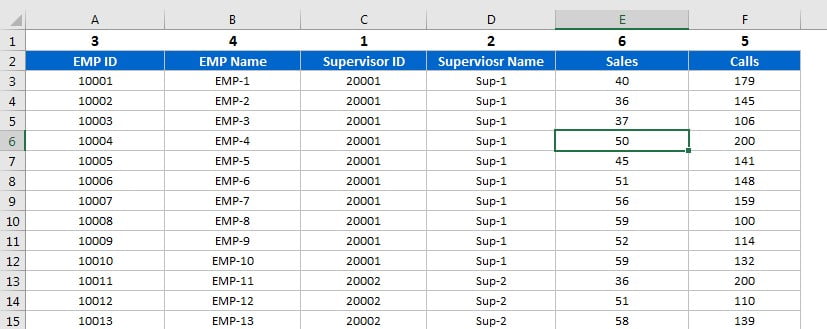
Say your sheet has EMP ID, EMP Name, Supervisor ID, Supervisor Name, Sales and Calls, and your manager wants Supervisor ID first, then Supervisor Name, EMP ID, EMP Name, Calls and Sales. You could cut each column and insert it in the right place. With six columns that is annoying; with forty it is a real waste of time and an easy way to drop a column in the wrong spot.
Sorting by columns fixes it in one go. You tell Excel the position each column should take, and it moves all of them at once, data included.
Method 1: Rearrange Columns in Excel with a Helper Row
Open the Sort Column sheet of the practice file. The data sits in A1:F20 with 19 employees.
Step 1: Insert a row above the headers
Right-click row 1 and choose Insert. In the new empty row, type the position you want each column to end up in:
- EMP ID →
3 - EMP Name →
4 - Supervisor ID →
1 - Supervisor Name →
2 - Sales →
6 - Calls →
5
Step 2: Open the Sort dialog
Select the whole data range including the new number row (A1:F21 now). Go to Data → Sort.
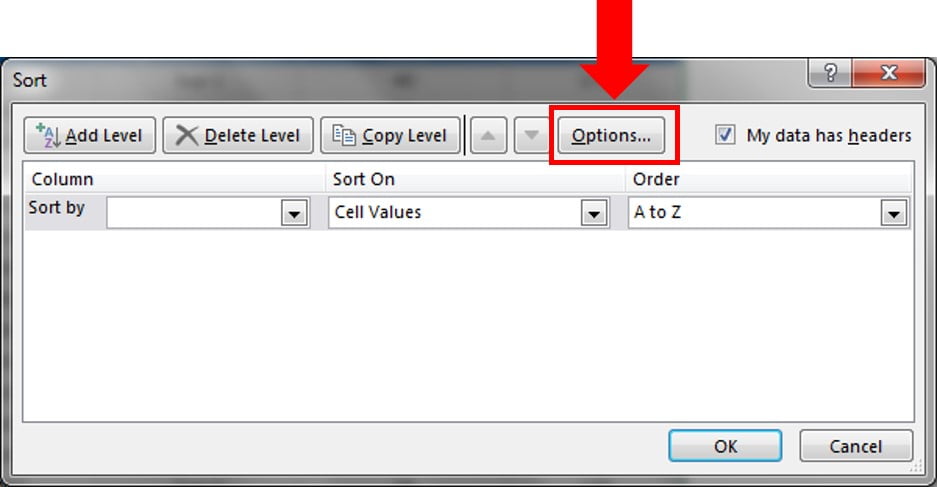
Step 3: Switch to Sort left to right
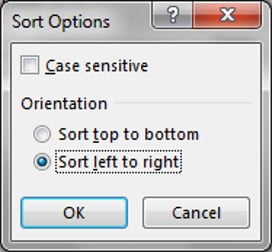
Click Options…. The small Sort Options window shows the Orientation setting. Sort top to bottom is selected by default, which sorts rows. Choose Sort left to right and click OK.
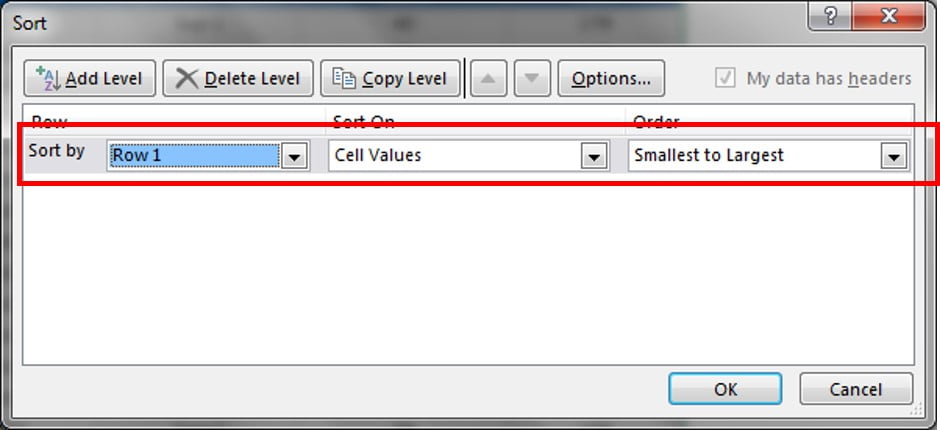
Step 4: Sort by Row 1
The first box now says Row instead of Column. Set Sort by to Row 1, Sort On to Cell Values and Order to Smallest to Largest. Click OK.
Step 5: Check the result and delete the helper row
The columns now read Supervisor ID, Supervisor Name, EMP ID, EMP Name, Calls, Sales, and every value has moved with its header. Select row 1 and delete it.
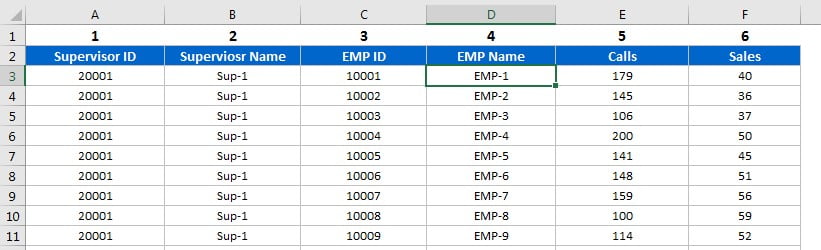
Why this works
A normal sort compares values down one column and moves whole rows. Left to right flips the direction: Excel compares the values across one row (Row 1 here) and moves whole columns. Because the numbers 1 to 6 sort in ascending order, each column lands in the position you typed above it.
Method 2: Arrange Columns by Header Cell Colour
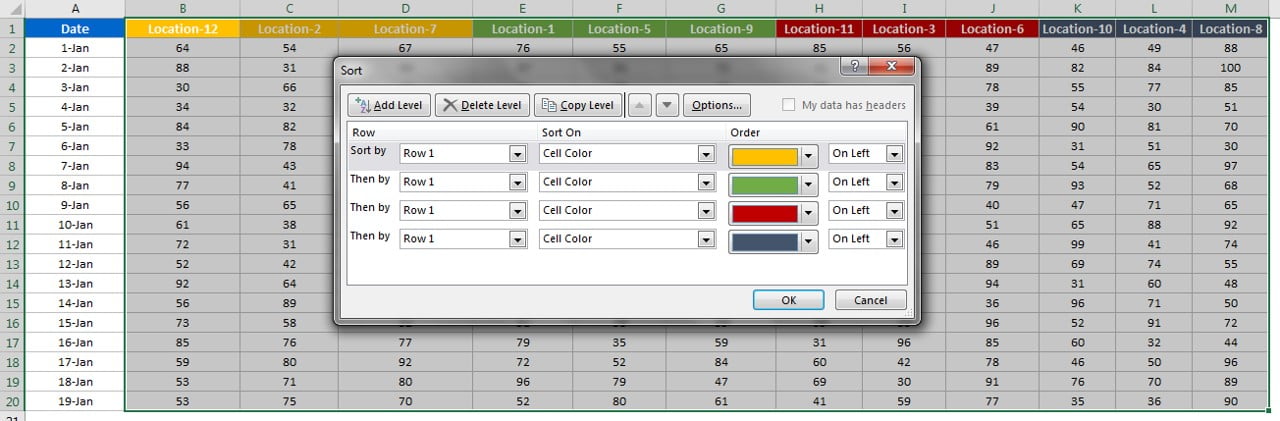
Open the Sort by Color sheet. Column A holds dates (1-Jan to 19-Jan) and B to M hold twelve locations. The location headers are colour-coded: three yellow, three green, three red and three blue-grey, all mixed up. The goal is to group them by colour.
Step 1: Select only the columns that should move
Select B1:M20. Leave column A out, because the Date column must stay where it is.
Step 2: Sort left to right
Go to Data → Sort → Options, choose Sort left to right and click OK.
Step 3: Add one level per colour
- Sort by
Row 1, Sort On Cell Color, Order: pick the first colour, then On Left. - Click Add Level. Then by
Row 1, Cell Color, the second colour, On Left. - Add a third and a fourth level the same way for the remaining colours.
Click OK and the locations are grouped by colour, in the order of your levels. In the video PK starts with green, then red, then yellow, then the blue-grey group.
Step 4: Change the colour order
Want yellow first? Select the range again and open Data → Sort. The levels you created are still there. Click the yellow level and press the Move Up arrow until it is at the top. The final order in the practice file is yellow, green, red, blue-grey. Click OK.
The same Sort On list also offers Font Color and Conditional Formatting Icon, so you can group columns by the colour of the header text or by an icon set in the same way.
Method 3: Put Month Columns in Order with a Custom List
Open the Custom List Sort sheet. Columns A and B hold EMP ID and EMP Name, and C to N hold monthly sales. In the video the months start out jumbled: September, October, November, May, March, June, July, January, February, December, August, April.
Why A to Z does not work
The month headers are plain text. If you sort Row 1 left to right with A to Z, Excel puts them in alphabetical order: April, August, December, February and so on. That is not what you want.
Option A: a helper row of month numbers
Insert a row above the headers and type 1 above January, 2 above February and so on up to 12 above December. Select the month columns, sort left to right by Row 1, Smallest to Largest, and delete the helper row. This is Method 1 again.
Option B: the built-in custom list (no helper row)
Excel already knows the order of the months. It is the same list that appears when you type January in a cell and drag the fill handle. You can sort with it directly:
- Select C1:N20, the month columns only.
- Go to Data → Sort → Options, make sure Sort left to right is selected, and click OK.
- Set Sort by to
Row 1and Sort On to Cell Values. - Open the Order drop-down and choose Custom List….
- In the Custom Lists window, pick January, February, March, … and click OK, then OK again.
The columns now run January to December. To use your own order (regions, product lines, team names), choose NEW LIST in the Custom Lists window, type the entries one per line and click Add, then sort with that list.
Modern Excel Alternative
This section is an addition and is not shown in the video. In Microsoft 365 and Excel 2021 or later you can produce a rearranged copy with a formula instead of changing the source. On a new sheet enter:
=CHOOSECOLS('Sort Column'!A1:F20,3,4,1,2,6,5)CHOOSECOLS returns the listed column numbers in the order you give them: column 3 (Supervisor ID), 4 (Supervisor Name), 1 (EMP ID), 2 (EMP Name), 6 (Calls) and 5 (Sales). CHOOSECOLS needs Microsoft 365 or Excel 2024. In Excel 2021 you can get the same result with SORTBY and a horizontal array of target positions:
=SORTBY('Sort Column'!A1:F20,{3,4,1,2,6,5})The array holds the target position of each source column, exactly like the helper row in Method 1. Both formulas spill and update when the source data changes, but the result is a copy: use the Sort dialog when you want to reorder the original data itself.
Common Errors and Fixes
The Row option is missing in the Sort dialog
You are still sorting top to bottom. Click Options and choose Sort left to right; the first column of the dialog then switches from Column to Row.
A column that should stay put has moved
Left to right sorting moves every column inside the selection. Select only the columns that should change places, like B1:M20 in the colour example, and keep label columns such as Date or EMP ID outside the range.
Excel says the cells need to be the same size
Merged cells block sorting. Unmerge headers that span several columns before you sort, or use Center Across Selection for the same look.
Tips
- Use gaps in the helper row such as 10, 20, 30. Later you can slot a new column in at 15 without renumbering.
- Excel remembers the last sort levels for a range, which makes repeat sorts with Move Up and Move Down very quick.
- Left to right sorting does not work inside an Excel Table. Convert the table to a range first (Table Design → Convert to Range) if you need it.
- Microsoft’s guide to sorting data in a range or table covers every sort option in detail.
Want It Ready-Made?
If you prefer to start from finished, well-structured workbooks, browse the Excel templates on NextGenTemplates.com. To get faster at everyday data cleaning and modern functions such as SORTBY and CHOOSECOLS, see the course Excel AI Mastery: 100 Formulas.
Related Tutorials
- Sort Data by a Custom List in Excel
- VBA Sort and AutoFilter: Sort and Filter Data in Code
- Fill the Blank Cells in Your Data
- 10 Super Tips in Microsoft Excel
- 10 Super Useful Productivity Tips in Excel
Frequently Asked Questions
How do I rearrange columns in Excel without cutting and pasting?
Type the new position of each column in a helper row above the headers, then use Data, Sort, Options, Sort left to right, and sort by that row from smallest to largest. All columns move in one step.
Where is the sort left to right option in Excel?
Open Data, Sort and click the Options button in the Sort dialog. The Sort Options window has an Orientation setting with Sort top to bottom and Sort left to right.
Can I sort columns by the colour of the header cells?
Yes. Sort left to right, sort by the header row, set Sort On to Cell Color, and add one level per colour. The order of the levels is the order of the colour groups.
Why are my month columns sorted alphabetically?
Month names typed as text sort A to Z, so April comes first. Choose Custom List in the Order box and pick the January to December list, or sort by a helper row of month numbers.
Will sorting columns mix up my data?
No. Each column moves as a whole, so every value stays with its header. Just make sure your selection includes all the rows and excludes any columns that must not move.
About the Author
PK is a Microsoft Excel expert and trainer and the founder of PK: An Excel Expert and NextGenTemplates.com. He has been teaching Excel, Power Query and Power BI since 2016 on his YouTube channel.
Conclusion
Once you know that the Sort dialog can work left to right, you can rearrange columns in Excel in seconds instead of minutes. Use a helper row for any custom sequence, cell colour to group related columns, and a custom list to put months or other fixed sequences in order. Download the practice file, try all three on their own sheets, and keep this trick ready for the next time a report needs a new column layout.