Part of the free Module 12: Excel VBA Course · Lesson 3 of 18 · Full Excel course
Updated on 5 September 2026 · Works in Excel 365, 2021, 2019 and 2016 unless noted.
VBA variables are named containers that hold a value while a macro runs, and VBA data types tell Excel how much memory to reserve and what kind of value the variable may hold. You declare a variable with Dim name As Type, force declarations with Option Explicit, assign objects with Set, and control where a variable is visible through its scope.
What a VBA variable is and why you declare it
Instead of typing a value or a long object reference over and over, you store it once under a name and reuse the name: lastRow, customerName, sh. A variable can be given a new value at any point in the procedure. VBA will happily create a variable the first time you use it, but every undeclared variable is a Variant, which is slower, and a single typo silently creates a second variable and a bug that is very hard to find. Declaring every variable with Dim and a data type is the first habit of reliable VBA.
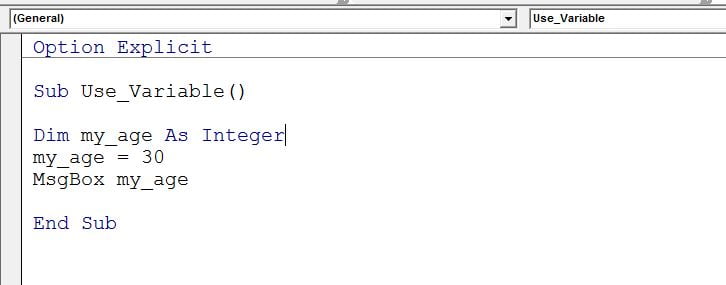
Option Explicit   ' first line of the module, above every procedure

Sub Use_Variable()
    Dim myAge As Integer
    myAge = 30
    MsgBox "Age: " & myAge
End Sub
Dim declares the variable, As Integer fixes its type, the assignment stores 30, and MsgBox displays it. The Option Explicit line belongs once at the top of each module; the rest of the code blocks on this page assume it is there.
Option Explicit: make declaration mandatory
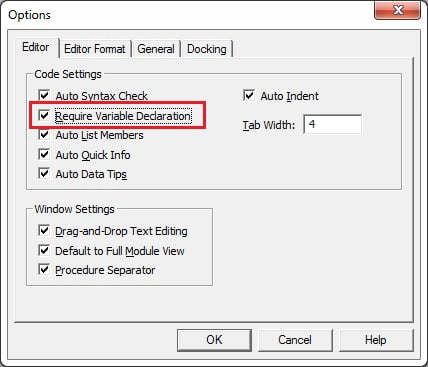
Placing Option Explicit at the top of a module forces every variable to be declared before use. A misspelt name then becomes a compile error, highlighted before the macro runs, instead of a silent Variant. Make the editor add the line to every new module automatically:
- Press Alt+F11 to open the Visual Basic Editor and choose Tools > Options.
- On the Editor tab tick Require Variable Declaration and click OK.
- Insert a new module with Insert > Module. It now starts with
Option Explicit. Type the line manually at the top of any module created before you changed the setting.
VBA data types with ranges and memory use
Choose the smallest type that safely holds every value the variable will ever receive. For whole numbers that means Long, not Integer: row numbers pass 32,767 on any real data sheet, and modern Excel converts Integer to Long internally anyway, so Integer saves nothing.
| Data type | Memory | Range | Typical use |
|---|---|---|---|
| Byte | 1 byte | 0 to 255 | Small positive counters, binary data |
| Boolean | 2 bytes | True or False | Flags such as isPaid, found |
| Integer | 2 bytes | -32,768 to 32,767 | Legacy code; prefer Long |
| Long | 4 bytes | -2,147,483,648 to 2,147,483,647 | Row and column numbers, loop counters, IDs |
| Single | 4 bytes | About -3.4E38 to 3.4E38, 7 significant digits | Rarely; Double is safer |
| Double | 8 bytes | About -1.8E308 to 1.8E308, 15 significant digits | Prices, percentages, any decimal |
| Currency | 8 bytes | -922,337,203,685,477.5808 to 922,337,203,685,477.5807 | Money with exact 4-decimal precision |
| Date | 8 bytes | 1 January 100 to 31 December 9999, plus time | Due dates, timestamps |
| String (variable length) | 10 bytes + length | 0 to about 2 billion characters | Names, file paths, messages |
| String (fixed length) | Length of string | 1 to about 65,400 characters | Dim code As String * 5 |
| Object | 4 bytes | Any object reference | Workbook, Worksheet, Range (assign with Set) |
| Variant | 16 bytes (numbers), 22 bytes + length (text) | Any value, including Empty, Null and Error | Cells that may hold text or numbers; default when no type is given |
Excel 365 and 2021 on 64-bit Windows also offer LongLong (8 bytes) and LongPtr, which are only needed for Windows API calls. A Decimal subtype exists inside Variant, created with CDec, for 28-digit precision.
Declaring variables the right way
One Dim can declare several variables, but every name needs its own As clause. The most common beginner mistake in VBA is Dim a, b, c As Long, which makes only c a Long; a and b become Variants.
Sub Declare_Types()
    Dim lastRow As Long, i As Long          ' both Long
    Dim price As Double
    Dim customer As String
    Dim isPaid As Boolean
    Dim dueDate As Date
    Dim anyValue As Variant                  ' same as Dim anyValue

    lastRow = 250
    price = 1250.75
    customer = "ABC Traders"
    isPaid = False
    dueDate = DateSerial(2026, 12, 31)
    anyValue = Range("A1").Value
    MsgBox customer & " owes " & Format(price, "#,##0.00") & " by " & Format(dueDate, "dd-mmm-yyyy")
End Sub
Numbers, text, dates and Booleans are assigned with a plain equals sign. Uninitialised variables are not empty: a Long starts at 0, a String at “”, a Boolean at False and a Date at 30 December 1899, which is why an unassigned date prints as a strange value.
Constants: values that never change
A constant is a named value fixed at design time, declared with Const. Use constants for sheet names, tax rates, file paths and column numbers so a change is made in one place and the compiler rejects any attempt to overwrite the value.
Const TAX_RATE As Double = 0.18
Const SHEET_NAME As String = "Data"
Const COL_AMOUNT As Long = 4
Constants follow the same scope rules as variables: inside a procedure, or at the top of a module with Private Const or Public Const. VBA also ships built-in constants such as vbYes, vbCrLf and xlUp.
Object variables and Set
A variable typed as Workbook, Worksheet, Range, Chart or any other object holds a reference, not a copy, and must be assigned with Set. Forgetting Set on an object raises run-time error 91. Declaring the specific type (As Worksheet) instead of the generic As Object gives you IntelliSense and catches mistakes at compile time.
Sub Object_Variables()
    Dim wb As Workbook
    Dim sh As Worksheet
    Dim rng As Range

    Set wb = ThisWorkbook
    Set sh = wb.Worksheets("Data")
    Set rng = sh.Range("A1").CurrentRegion
    MsgBox rng.Address & " has " & rng.Rows.Count & " rows"
    Set rng = Nothing                        ' release when finished (optional)
End Sub
Scope: procedure, module and project level
Scope decides where a variable is visible and how long its value survives. Keep scope as narrow as the job allows; wide scope makes code harder to test and easier to break.
| Declared with | Where | Visible to | Lifetime |
|---|---|---|---|
Dim |
Inside a procedure | That procedure only | Until the procedure ends |
Static |
Inside a procedure | That procedure only | Keeps its value between calls while the workbook is open |
Private or Dim |
Top of a module | Every procedure in that module | While the workbook is open |
Public |
Top of a standard module | Every module in the project | While the workbook is open, or until an End statement or unhandled error resets it |
Public ReportYear As Long                ' project-wide
Private Const SHEET_NAME As String = "Data"   ' this module only

Sub Count_Calls()
    Static runs As Long                  ' survives between calls
    runs = runs + 1
    MsgBox "This macro has run " & runs & " times"
End Sub
Run Count_Calls three times and the message counts 1, 2, 3 because Static preserves the value. Replace Static with Dim and it reports 1 every time.
Naming rules and conventions
- Names must start with a letter, may contain letters, digits and underscores, and can be up to 255 characters long.
- No spaces, full stops or type characters (
! @ # $ % &), and no reserved words such asNext,Sub,EndorDate. - Names are not case sensitive:
LastRowandlastroware the same variable, and the editor recases them to match the declaration. - Prefer descriptive camelCase names (
lastRow,customerName) and UPPER_CASE for constants. Short names such asiandjare fine for loop counters.
Type conversion and overflow
Cells return Variants, so convert deliberately before doing arithmetic. The conversion functions raise error 13 (Type mismatch) on bad input, so guard them with IsNumeric or IsDate.
| Function | Returns | Example | Result |
|---|---|---|---|
CLng |
Long (rounds to whole number) | CLng("125.6") |
126 |
CInt |
Integer (banker’s rounding on .5) | CInt(2.5) |
2 |
CDbl |
Double | CDbl("12.75") |
12.75 |
CCur |
Currency | CCur(19.999) |
19.999 |
CStr |
String | CStr(125) |
“125” |
CDate |
Date | CDate("5 Sep 2026") |
05/09/2026 |
CBool |
Boolean | CBool(1) |
True |
Val |
Double, stops at first non-numeric character | Val("12abc") |
12 |
Overflow (run-time error 6) happens when a result is larger than its type allows. Two cases catch almost everyone:
Sub Overflow_Demo()
    Dim small As Integer
    Dim big As Long
    small = 32767
    ' small = small + 1        ' error 6: Integer cannot hold 32768
    ' big = 30000 * 2          ' error 6: both literals are Integer, so VBA multiplies as Integer
    big = 30000& * 2           ' & makes the literal Long; or use CLng(30000) * 2
    MsgBox big
End Sub
The second case is the surprising one: even though big is a Long, VBA evaluates 30000 * 2 in Integer arithmetic first. Force at least one operand to Long with the & suffix or CLng.
Worked example: read a sales row into typed variables
Suppose a sheet named Sales holds this data, with headers in row 1:
| A: Invoice | B: Customer | C: Amount | D: Due date | E: Paid |
|---|---|---|---|---|
| 1001 | ABC Traders | 1250.75 | 15-Aug-2026 | FALSE |
| 1002 | Delta Foods | 980.00 | 10-Sep-2026 | TRUE |
| 1003 | Nova Retail | 2100.50 | 28-Aug-2026 | FALSE |
The macro below declares one variable per column with the correct type, converts the cell values, and reports how many days each unpaid invoice is overdue on 5 September 2026.
Sub Overdue_Report()
    Dim sh As Worksheet
    Dim lastRow As Long, r As Long
    Dim invoiceNo As Long
    Dim customer As String
    Dim amount As Currency
    Dim dueDate As Date
    Dim isPaid As Boolean
    Dim daysLate As Long
    Dim msg As String

    Set sh = ThisWorkbook.Worksheets("Sales")
    lastRow = sh.Cells(sh.Rows.Count, "A").End(xlUp).Row

    For r = 2 To lastRow
        invoiceNo = CLng(sh.Cells(r, 1).Value)
        customer = CStr(sh.Cells(r, 2).Value)
        amount = CCur(sh.Cells(r, 3).Value)
        dueDate = CDate(sh.Cells(r, 4).Value)
        isPaid = CBool(sh.Cells(r, 5).Value)

        If Not isPaid Then
            daysLate = DateDiff("d", dueDate, Date)
            If daysLate > 0 Then
                msg = msg & invoiceNo & " " & customer & ": " & _
                      Format(amount, "#,##0.00") & ", " & daysLate & " days late" & vbCrLf
            End If
        End If
    Next r

    If Len(msg) = 0 Then msg = "No overdue invoices."
    MsgBox msg, vbInformation, "Overdue on " & Format(Date, "dd-mmm-yyyy")
End Sub
Result on 5 September 2026: the message lists invoice 1001 ABC Traders, 1,250.75, 21 days late, and 1003 Nova Retail, 2,100.50, 8 days late. Invoice 1002 is paid, so it is skipped. Because amount is Currency and dueDate is Date, a text value in either column stops the macro at the conversion line with a clear error instead of producing a wrong total.
Tips and common mistakes
- Declare each variable with its own type.
Dim a, b As Longleavesaas a Variant. - Use Long for every whole number. Integer gains nothing and overflows at 32,767.
- Use Double or Currency for decimals. Storing 12.75 in a Long silently rounds it to 13.
- Always Set object variables.
sh = Worksheets("Data")without Set fails with error 91. - Declare variables close to where they are used, and avoid Public variables unless two procedures genuinely share state.
- Test cell contents before converting.
If IsNumeric(cell.Value) Thenprevents type mismatch on blanks and text. - Do not shadow built-in names. A variable called
Date,NameorRowcompiles but causes confusing bugs.
Errors and how to fix them
| Error | Cause | Fix |
|---|---|---|
| Compile error: Variable not defined | Option Explicit is on and a name is misspelt or undeclared | Add the Dim line or correct the spelling |
| Run-time error 6: Overflow | Value exceeds the type, or Integer arithmetic on literals | Change Integer to Long; use 30000& or CLng on literals |
| Run-time error 13: Type mismatch | Text assigned to a numeric or date variable | Check with IsNumeric or IsDate, then convert with CLng, CDbl or CDate |
| Run-time error 91: Object variable not set | Object assigned without Set, or Set to Nothing | Use Set sh = ...; confirm the sheet or range exists |
| Compile error: Duplicate declaration | Same name declared twice in one scope | Remove the second Dim or rename the variable |
| Compile error: Assignment to constant not permitted | Code tries to change a Const | Declare it as a variable if it must change |
Practice exercise
- Turn on Require Variable Declaration, insert a new module and confirm Option Explicit appears.
- Rewrite the Hello macro from the Introduction lesson so the message is held in a String variable and the title in a constant.
- Declare a Long called
lastRow, find the last used row in column A of any sheet, and show it in a MsgBox. - Write a Sub with a
Staticcounter; run it four times and check that it reports 4. - Declare an Integer, assign 40000 to it and note the error, then change the type to Long and run again.
Key takeaways
- Declare every VBA variable with
Dim name As Type, and keepOption Explicitat the top of every module. - Long for whole numbers, Double or Currency for decimals, String for text, Date for dates, Boolean for flags; Variant only when the value type is unknown.
- Objects (Workbook, Worksheet, Range) are assigned with
Set; everything else with=. - Scope runs from procedure (Dim, Static) to module (Private) to project (Public); keep it as narrow as possible.
- Convert cell values with CLng, CDbl, CStr and CDate, guard with IsNumeric and IsDate, and watch for Integer overflow.
Related lessons
- Excel VBA course hub
- Introduction to VBA and the Visual Basic Editor
- Procedures and arguments: Sub, Function, ByVal and ByRef
- Arrays in VBA
- String and date functions in VBA
- Error handling in VBA
- Excel DATE function
- Microsoft Learn: VBA data type summary
Frequently asked questions
Should I use Integer or Long in VBA?
Use Long. On 32-bit and 64-bit Office, VBA converts Integer to Long internally, so Integer saves no memory or time. Long also avoids run-time error 6 (Overflow) when a value passes 32,767, which happens with row numbers on any real data sheet. Reserve Integer for old code you cannot change.
What is the difference between Dim and Set in VBA?
Dim declares a variable and its data type. Set assigns an object reference (Workbook, Worksheet, Range, Chart) to an object variable. Plain values such as numbers, text, dates and Booleans are assigned with the equals sign alone. Using Set on a number, or omitting it on an object, produces an error.
What does Option Explicit do in VBA?
It forces every variable to be declared before use. A misspelt or undeclared name then stops the code with “Variable not defined” at compile time instead of creating a silent Variant with an empty value. Tick Require Variable Declaration under Tools > Options so the editor adds the line to every new module.
When should I use Variant in VBA?
Use Variant when the type is genuinely unknown, for example a cell that may hold text, a number, a date or an error, or when you read a whole range into an array. Variants use more memory and skip compile-time checks, so convert to a specific type as soon as you know what the value is.
What is the difference between Public and Private variables in VBA?
A Private (or module-level Dim) variable at the top of a module is visible to every procedure in that module only. A Public variable in a standard module is visible to every module in the project and keeps its value while the workbook is open, unless an End statement or unhandled error resets it.
Want the finished version? Ready-made Excel dashboards, trackers and VBA systems are available at NextGenTemplates.com.