Part of the free Module 12: Excel VBA Course · Lesson 4 of 18 · Full Excel course
Updated on 5 September 2026 · Works in Excel 365, 2021, 2019 and 2016 unless noted.
Comments in VBA are notes inside a module that Excel ignores when the macro runs. You create one with an apostrophe (') or the Rem keyword, and the Visual Basic Editor shows it in green. Comments explain what a procedure does, record who changed it and when, and let you switch lines off while testing without deleting them.
What comments are and why they matter
A macro that made perfect sense when you wrote it becomes a puzzle six months later, and a mystery to a colleague on day one. Comments describe the purpose of a procedure, the meaning of an unusual constant or the reason a workaround exists. They also double as a testing tool: commenting out a suspect line lets you run the rest of the code without losing anything.
The compiler removes comments completely, so they have no effect on speed or file size. There is no reason to be stingy with them, provided each one earns its place. A comment that repeats the code is noise; a comment that explains a decision is documentation.
How to write a comment with the apostrophe and Rem
Start the line with an apostrophe or with Rem. Everything from that point to the end of the line is ignored. An apostrophe can also follow a statement on the same line, which is how most inline notes are written. The first code block on this page starts with Option Explicit; that line belongs once at the very top of the module, above every procedure, and forces you to declare each variable.
Option Explicit

Sub Comment_Examples()
    ' This is a full-line comment
    Rem This is also a comment, using the old Rem keyword
    Dim t As Long
    t = 40000            ' inline comment after a statement
    ' MsgBox t           ' this line is switched off
    MsgBox "t = " & t
End Sub
The first two lines inside the procedure are pure comments, the line that assigns t mixes code and a comment, and the first MsgBox line has been disabled by commenting it out. Only the last MsgBox runs.
Two limits are worth knowing. A comment cannot follow a line-continuation underscore, so put it on its own line above the split statement. And Rem on the same line as code needs a colon before it (t = 5: Rem note), which is why the apostrophe is used almost universally.
Apostrophe versus Rem
| Feature | Apostrophe (‘) | Rem keyword |
|---|---|---|
| Starts a full-line comment | Yes | Yes |
| Can follow a statement on the same line | Yes, directly | Only after a colon |
| Added by Comment Block button | Yes | No |
| Shown in green by the editor | Yes | Yes |
| Recommended use | All new code | Reading old BASIC code only |
How to comment or uncomment many lines at once
Typing an apostrophe on twenty lines is tedious, and removing them again is worse. The Edit toolbar in the Visual Basic Editor has Comment Block and Uncomment Block buttons that do it in one click.
- Press Alt+F11 to open the Visual Basic Editor, then choose View > Toolbars > Edit.
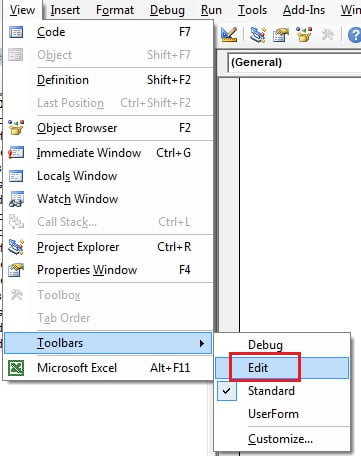
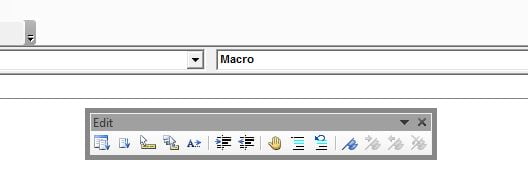
- The Edit toolbar appears as a floating bar. Drag it next to the Standard toolbar so it docks and stays visible.
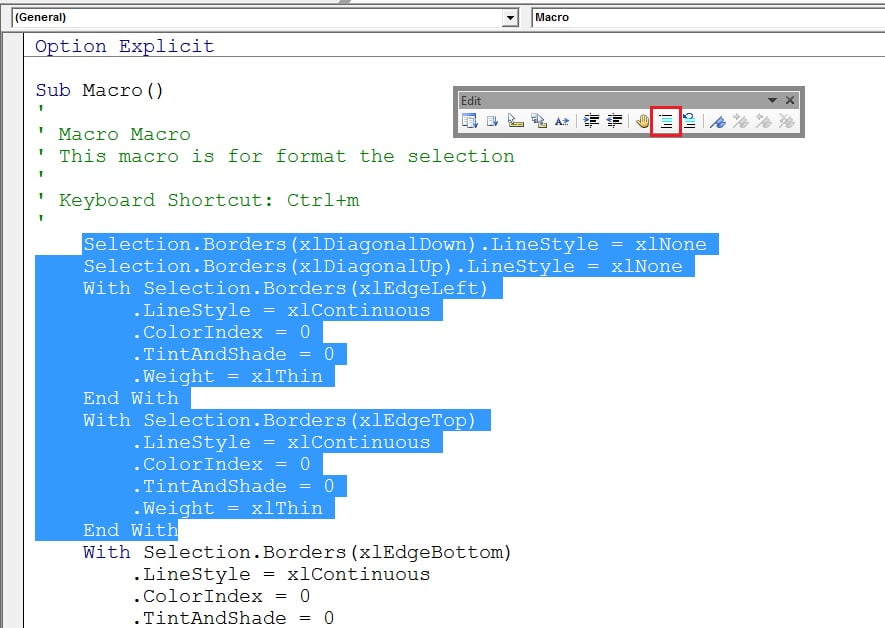
- Select the lines you want to disable (drag in the margin or click the first line and Shift+click the last) and click Comment Block. An apostrophe is added to the start of every selected line.
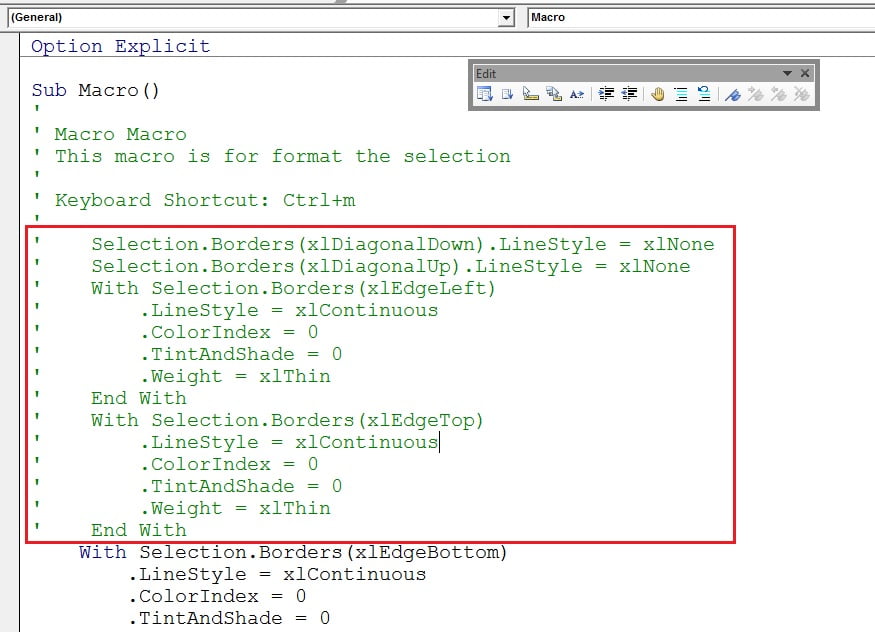
- To re-enable them, select the lines again and click Uncomment Block. The apostrophes are removed and the code runs again.
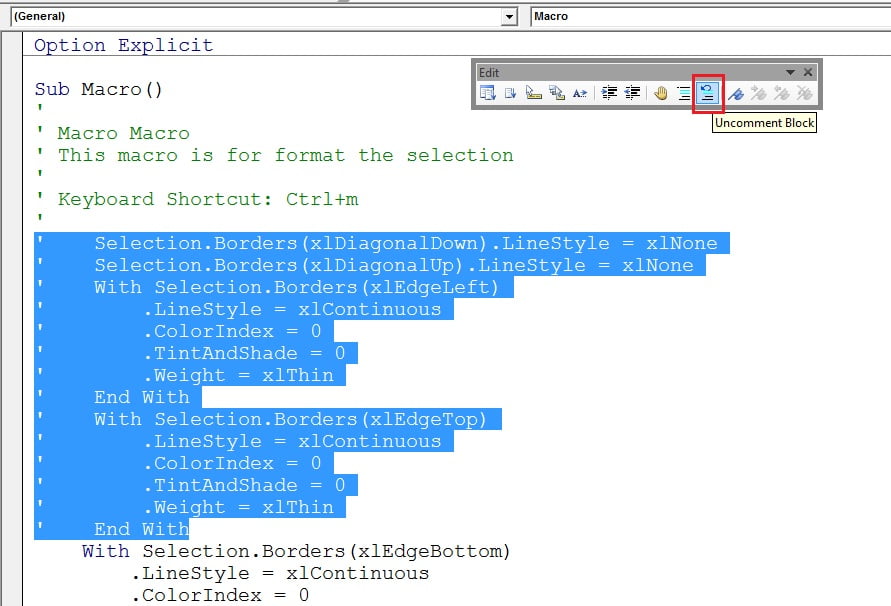
Comment Block only adds apostrophes; a line that already had one gets a second, and Uncomment Block removes just one per click. If you prefer not to keep the Edit toolbar open, right-click any toolbar, choose Customize and drag the two buttons onto the Standard toolbar. The editor has no built-in keyboard shortcut for these commands.
Using comments to disable code while testing
Commenting out is the safest way to test a change. Instead of deleting a line you are not sure about, comment it, run the macro, and uncomment it if the result was better before. The same trick isolates a fault: comment out half the procedure, run it, and keep narrowing until the failing line is found.
Sub Test_Report()
    Dim sh As Worksheet
    Set sh = ThisWorkbook.Worksheets("Data")

    sh.Range("A1:D1").Font.Bold = True
    ' sh.Range("A1:D1").Interior.Color = RGB(0, 112, 192)   ' off while testing
    ' sh.Range("A1:D1").Font.Color = vbWhite               ' off while testing
    sh.Columns("A:D").AutoFit

    Debug.Print "Test_Report finished at "; Now   ' shows in the Immediate window
End Sub
Two lines are switched off, so the header is bold and the columns fit, but the fill is not applied. The Debug.Print line writes to the Immediate window (Ctrl+G) instead of interrupting the run with a message box, which is a better habit than sprinkling temporary MsgBox lines through the code.
Header comments and commenting conventions
Professional modules follow a small set of conventions so that any reader knows where to look.
- Module header: the first lines of every module state what the module contains and who owns it.
- Procedure header: purpose, inputs, what it changes, author and date. Keep it to five or six lines.
- Section comments: a one-line comment above each logical block, such as
' 1. Read settings. - Inline comments: only where the code is not self-explanatory, aligned in a column to the right.
- Change log: one dated line per change at the end of the header when several people share the workbook.
Commenting should explain why, not what. i = i + 1 ' add 1 to i tells the reader nothing, while ' skip the total row explains a decision. If you find yourself writing a long comment to explain a confusing block, the better fix is usually to rewrite the block or move it into its own procedure, a topic covered in procedures and arguments.
Worked example
Suppose the Data sheet holds an invoice list and you need every overdue row highlighted. The sample data looks like this.
| A: Invoice | B: Customer | C: Amount | D: Due Date |
|---|---|---|---|
| INV-101 | Acme Ltd | 1,250 | 12-Aug-2026 |
| INV-102 | Bright Co | 860 | 30-Sep-2026 |
| INV-103 | Crest plc | 2,400 | 01-Sep-2026 |
The complete macro below shows the commenting style used throughout this course: a header describing the purpose, section comments, inline notes only where needed, and a disabled debugging line left in place for the next test.
'------------------------------------------------------------
' Procedure : Highlight_Overdue
' Purpose   : Colour every row in the Data sheet whose Due Date
'             (column D) is earlier than today.
' Changes   : Data sheet row fill only; no values are altered.
' Author    : PK  |  Updated: 2026-09-05
'------------------------------------------------------------
Sub Highlight_Overdue()
    Dim sh As Worksheet
    Dim lastRow As Long, i As Long

    ' 1. Find the last used row in column D
    Set sh = ThisWorkbook.Worksheets("Data")
    lastRow = sh.Cells(sh.Rows.Count, "D").End(xlUp).Row

    ' 2. Test each due date against today
    For i = 2 To lastRow                      ' row 1 holds headers
        If IsDate(sh.Cells(i, "D").Value) Then
            If sh.Cells(i, "D").Value < Date Then
                sh.Rows(i).Interior.Color = RGB(255, 199, 206)   ' light red
            End If
        End If
        ' Debug.Print i, sh.Cells(i, "D").Value
    Next i

    MsgBox "Overdue check complete.", vbInformation
End Sub
Run on 5 September 2026, rows 2 and 4 (INV-101 and INV-103) turn light red and INV-102 stays white. The header tells a reader what the macro does before they read a single statement, and the two numbered section comments make the structure obvious in the editor.
Tips and common mistakes
- Explain why, not what. Describe the decision or the business rule, never the syntax.
- Update comments when code changes. An outdated comment is worse than none because readers trust it.
- Apostrophes inside strings are not comments.
MsgBox "It's done"works normally; the editor only treats an apostrophe as a comment outside quotation marks. - Use Debug.Print instead of commenting MsgBox lines while testing; output goes to the Immediate window without stopping the macro.
- Do not comment out huge blocks permanently. Delete dead code once the new version works; keep old versions in a backup copy, not in comments.
- Keep the comment on the right line. A comment placed after a line-continuation underscore raises a compile error.
- Name the procedure well first.
Copy_Invoices_To_Archiveneeds less commentary thanMacro7.
Errors and how to fix them
| Symptom | Cause | Fix |
|---|---|---|
| Compile error: Expected: end of statement | A comment was placed after a line-continuation underscore | Move the comment to its own line above the split statement |
| Comment Block does nothing | No lines are selected, or the cursor is in the Immediate window | Click in the code pane, select at least one line, then click the button |
| Uncomment Block leaves an apostrophe behind | The line was commented twice | Click Uncomment Block once more, or delete the extra apostrophe by hand |
| Rem highlighted as an error | Rem was typed after a statement without a colon | Insert a colon before Rem, or use an apostrophe instead |
| Text after an apostrophe turned red | The apostrophe is inside an unclosed string literal | Close the string with a quotation mark before the comment |
Practice exercise
- Open a macro you recorded in the macro recording lesson and add a six-line header comment stating its purpose, what it changes and today’s date.
- Display the Edit toolbar, select every
.Selectand.Activateline the recorder produced, and use Comment Block to disable them. Run the macro and check that it still works. - Add one section comment above each logical block of the macro, then add an inline comment explaining a value that is not obvious.
- Replace a MsgBox you used for testing with a
Debug.Printline and read the result in the Immediate window. - Once the macro runs correctly, delete the commented-out lines so the module contains only live code and useful notes.
Key takeaways
- An apostrophe starts a comment anywhere on a line;
Remonly at the start or after a colon. - Comments are stripped by the compiler, so they never slow a macro down.
- Comment Block and Uncomment Block on the Edit toolbar (View > Toolbars > Edit) handle many lines at once.
- Commenting out is the safe way to test a change or isolate a fault.
- Write a header for every procedure and explain why, not what, in inline comments.
- Delete disabled code once the replacement is proven.
Related lessons
- Excel VBA course hub
- Record a macro in Excel
- VBA variables and data types
- Debugging VBA code: breakpoints, F8 and the Immediate window
- Error handling in VBA
- Excel dashboard course
- Microsoft Learn: Rem statement (VBA)
Frequently asked questions
How do I comment multiple lines in VBA?
Select the lines, then click Comment Block on the Edit toolbar. If the toolbar is hidden, turn it on with View > Toolbars > Edit in the Visual Basic Editor. Uncomment Block reverses the change. VBA has no multi-line comment syntax like the /* */ used in other languages, so every line gets its own apostrophe.
Is there a keyboard shortcut for Comment Block in VBA?
Not by default. You can create one by right-clicking a toolbar, choosing Customize, right-clicking the Comment Block button and giving it a name with an ampersand, such as &Comment. While the toolbar is visible, Alt plus that letter triggers the button. Many developers instead install a free add-in that adds proper shortcuts.
What is the difference between an apostrophe and Rem?
Both create a comment that the compiler ignores. Rem is the original BASIC keyword and must start a line or follow a colon. The apostrophe can go anywhere, including after a statement on the same line, so it is the standard choice in modern VBA. Comment Block always inserts apostrophes.
Do comments make a VBA macro slower?
No. Comments are removed when the module is compiled, so they have no effect on execution speed. The only cost is a slightly larger module text, which is negligible. Thorough comments make code faster to maintain, which matters far more than a few extra bytes in the workbook.
How do I temporarily disable code in VBA without deleting it?
Comment it out. Select the lines and click Comment Block, or type an apostrophe at the start of each line. The macro runs as if the lines were not there. When you want them back, use Uncomment Block. Delete the commented lines once you are sure the new version works so the module stays clean.
Want the finished version? Ready-made Excel dashboards, trackers and VBA systems are available at NextGenTemplates.com.