Part of the free Module 12: Excel VBA Course · Lesson 17 of 18 · Full Excel course
VBA error handling is the code that decides what happens when a macro hits a problem: stop with a message, skip the line, or jump to a recovery routine. In this lesson you will learn the three kinds of VBA errors, how to prevent expected ones, how the four forms of the On Error statement work, how to read Err.Number and Err.Description, and the standard error-handler template used in professional macros.
Three types of error in VBA
Syntax (compile) errors
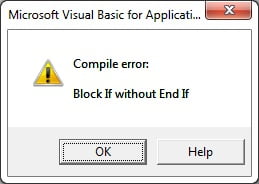
Caused by code that breaks the language rules, such as an If without End If. The editor highlights the line and the macro will not run.
Sub Syntax_Error()
    Dim x As Integer
    x = 10
    If x > 5 Then
        MsgBox "x is greater than 5"
End Sub          'missing End If
Compile the project before running with Debug > Compile VBAProject (Alt+D+L) to catch every syntax error at once.
Run-time errors
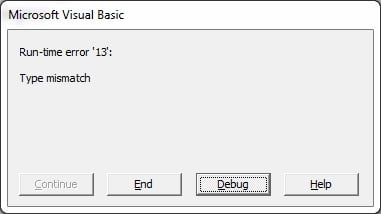
Raised while the code executes: a sheet that does not exist, a file that is missing, division by zero, or a type mismatch.
Sub Runtime_Error()
    Dim x As Integer
    x = "ABC"        'Run-time error 13: Type mismatch
End Sub
Assigning text to an Integer stops the macro with error 13 and offers End or Debug.
Logical errors
The code runs without complaint but produces the wrong answer: a loop that starts at row 1 and includes the header, a total that double-counts, a condition written with Or instead of And. No error handler can catch these; step through with F8, use Debug.Print and check results against a manual calculation.
Prevent expected errors first
The best handler is the one that is never needed. Test for conditions you can predict before the risky statement.
Sub Open_File_Safely()
    Dim myfile As String
    myfile = "C:\Users\UserName\Desktop\Projects\MyProject.xlsx"

    If Dir(myfile) = "" Then
        MsgBox myfile & " is not available", vbExclamation
        Exit Sub
    End If

    Workbooks.Open myfile
End Sub
Dir returns an empty string when the file is missing, so the user gets a clear message instead of error 1004.
The On Error statement
- On Error GoTo 0: default behaviour; the macro stops on the error line and shows Excel’s dialog. Also switches an earlier handler off.
- On Error Resume Next: ignores the error and continues with the next line. Use only around a single statement you expect to fail, and switch it off immediately afterwards.
- On Error GoTo Label: jumps to a labelled section at the end of the procedure. This is the standard form for real error handling.
- On Error GoTo -1: clears the current error state so a new handler can be armed inside the handler itself; rarely needed.
Sub Error_Handling()
    On Error GoTo err_msg
    Dim x As Integer, y As Integer, z As Integer
    x = 10
    y = 0
    z = x / y                      'error 11: division by zero
    Exit Sub

err_msg:
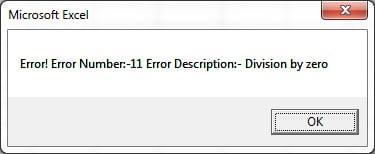
    MsgBox "Error! Error Number: " & Err.Number & vbNewLine & _
           "Error Description: " & Err.Description, vbCritical
End Sub
The division raises error 11, execution jumps to err_msg and the Err object supplies the number and text; Exit Sub before the label stops the handler running on a successful pass.
Complete example: the professional handler template
Sub Import_Report()
    Dim wb As Workbook
    Dim sh As Worksheet
    Dim filePath As String

    On Error GoTo ErrHandler
    Application.ScreenUpdating = False
    Application.DisplayAlerts = False

    filePath = ThisWorkbook.Path & "\Import\Sales.xlsx"
    Set sh = ThisWorkbook.Sheets("Data")
    Set wb = Workbooks.Open(filePath, ReadOnly:=True)

    sh.Cells.Clear
    wb.Sheets(1).UsedRange.Copy Destination:=sh.Range("A1")

CleanUp:
    On Error Resume Next               'never fail while cleaning up
    If Not wb Is Nothing Then wb.Close SaveChanges:=False
    Application.DisplayAlerts = True
    Application.ScreenUpdating = True
    Exit Sub

ErrHandler:
    Select Case Err.Number
        Case 1004
            MsgBox "File not found or cannot be opened:" & vbNewLine & filePath, vbExclamation, "Import"
        Case 9
            MsgBox "The Data sheet is missing from this workbook.", vbExclamation, "Import"
        Case Else
            MsgBox "Unexpected error " & Err.Number & ": " & Err.Description, vbCritical, "Import"
    End Select
    Resume CleanUp
End Sub
This runnable macro arms one handler, does its work, and always passes through CleanUp so application settings are restored and the source file is closed; the handler gives specific messages for the errors it expects and a generic one for the rest.
Tips and common mistakes
- Always restore settings. ScreenUpdating, DisplayAlerts, EnableEvents and Calculation must be reset in the clean-up section, or Excel stays in a broken state.
- Never leave On Error Resume Next running. It hides every later error. Follow it with the risky line and then
On Error GoTo 0. - Use Resume, Resume Next or Resume Label to leave the handler; falling off the end works but leaves the error state set.
- Err.Clear resets Err.Number after you have inspected it inside Resume Next code.
- Raise your own errors with
Err.Raise vbObjectError + 1, , "Custom message"when validation fails deep inside a routine. - Log errors to a hidden sheet or text file in the handler so you can diagnose problems users do not report.
Practice and real-world use
Take any macro from earlier chapters and add the handler template above, then deliberately rename the target sheet and confirm you get a friendly message rather than a Debug button. Every distributed VBA tool needs this structure so end users never see raw run-time errors.
Related lessons
Frequently asked questions
What is the difference between On Error Resume Next and On Error GoTo?
Resume Next ignores the error and continues on the following line, which is safe only for one expected statement. On Error GoTo Label transfers control to a handler where you can report, log and clean up before exiting.
How do I get the error number and description in VBA?
Read Err.Number and Err.Description inside the handler. Err.Source names the project or object, and Err.Clear resets the object once you have dealt with the error.
Why does my error handler run even when there is no error?
The procedure fell through into the handler label. Put Exit Sub (or Exit Function) immediately before the label so the handler code runs only after a jump caused by an error.
Want the finished version? Ready-made Excel dashboards, trackers and VBA systems are available at NextGenTemplates.com.