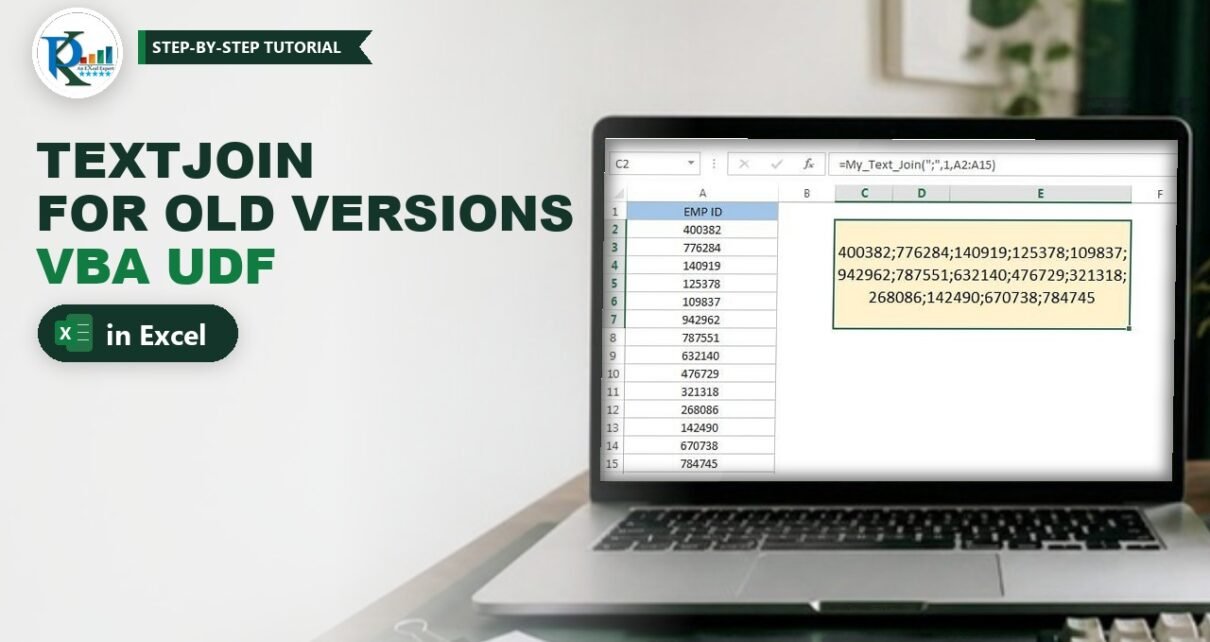
This text join formula for all Excel versions gives you TEXTJOIN-style results even if your Excel does not have the TEXTJOIN function. TEXTJOIN joins a whole range of cells into one text with a delimiter between them, but it is missing in Excel 2016 (non-subscription), 2013, 2010 and 2007. Here you create a small VBA user defined function, My_Text_Join, that works like TEXTJOIN in any version: pick a delimiter, choose whether to skip blank cells and select the range. You get the full code, the syntax, real examples and the free workbook.
⬇️ Download the Text Join Workbook
Single-sheet workbook · .xlsb with VBA (enable macros) · Excel 2007 and later
Watch the Video Tutorial
In the video PK works in Excel 2013, which has no TEXTJOIN, and writes the same function line by line in the VBA editor (he names it PK_Text_Join there), then tests it with employee IDs and month names.
What You Will Build
- A custom worksheet function called
My_Text_Jointhat you type like any normal formula. - Any delimiter you like – comma, semicolon, space, a dash or a longer text.
- An ignore-blanks switch so empty cells do not create double delimiters.
- Whole-range input – select A2:A15 instead of clicking every cell as CONCATENATE needs.
- Automatic recalculation when the source cells change.
Why You Need a Text Join Formula in Older Excel
Before TEXTJOIN, joining a list meant long formulas like =A2&";"&A3&";"&A4... or CONCATENATE with one argument per cell. That is slow to write and breaks when the list grows. If you type =TEXT in Excel 2013 you will see TEXT but no TEXTJOIN in the list. A user defined function (UDF) fills the gap: you write the logic once in VBA and then use it on the sheet like a built-in function.
PK mentions two everyday uses in the video: turning a long column of employee IDs into one semicolon-separated string you can paste into another system, and building a comma-separated list for a data validation drop-down.
Part 1 – Create the My_Text_Join Function
Step 1: Open the Visual Basic Editor
Open a new workbook or the workbook where you want the function. Go to Developer › Visual Basic or simply press Alt+F11. If you do not see the Developer tab, turn it on in File › Options › Customize Ribbon.
Step 2: Insert a new module
In the editor choose Insert › Module (keyboard: Alt+I+M). A blank code window opens. A worksheet function must live in a normal module, not in a sheet or ThisWorkbook module.
Step 3: Paste the code
Copy this code into the module. It is the exact code from the download file:
Option Explicit

Function My_Text_Join(delimiter As String, ignore_empty As Boolean, text_range As Range) As String

Application.Volatile
Dim c As Range
Dim n As Long
n = 0
For Each c In text_range
    If ignore_empty = True Then
        If VBA.IsEmpty(c.Value) = False Then
            If n = 0 Then
                My_Text_Join = c.Value
            Else
                My_Text_Join = My_Text_Join & delimiter & c.Value
            End If
            n = n + 1
        End If

        Else

            If n = 0 Then
                My_Text_Join = c.Value
            Else
                My_Text_Join = My_Text_Join & delimiter & c.Value
            End If
            n = n + 1

    End If
Next

End Function
Step 4: Save as a macro-enabled workbook
A normal .xlsx file cannot keep VBA. Use File › Save As and choose Excel Macro-Enabled Workbook (*.xlsm) or Excel Binary Workbook (*.xlsb) – the download file is an .xlsb. When you open it later, click Enable Content so the function can run.
Step 5: Use it on the sheet
Go back to the worksheet, type =My_Text_Join( and fill in the three arguments, just like any Excel function. If you prefer a dialog, go to Formulas › Insert Function, choose the category User Defined and pick My_Text_Join. The Function Arguments box shows Delimiter, Ignore_empty and Text_range.
How the Code Works
Function My_Text_Join(delimiter As String, ignore_empty As Boolean, text_range As Range) As Stringdeclares the three inputs and says the result is text.Application.Volatilemakes Excel recalculate the function whenever the sheet recalculates, so the result updates when you change the list.For Each c In text_rangeloops through every cell of the range, top to bottom, left to right.ncounts how many values have been added. Whenn = 0the first value is written on its own; from then on each value is added with& delimiter & c.Value. That is how the result never starts with a stray delimiter.- When
ignore_emptyis True,VBA.IsEmpty(c.Value) = Falselets only cells that contain something into the result. When it is False theElsebranch adds every cell, empty or not.
Syntax of My_Text_Join
=My_Text_Join(delimiter, ignore_empty, text_range)- delimiter – the text placed between each value, for example
",",";"or" ". - ignore_empty – TRUE (or 1) skips empty cells; FALSE (or 0) includes them, which produces repeated delimiters.
- text_range – the range of cells you want to join.
Returns: one text value.
Part 2 – Examples
Example 1: Join employee IDs with a semicolon
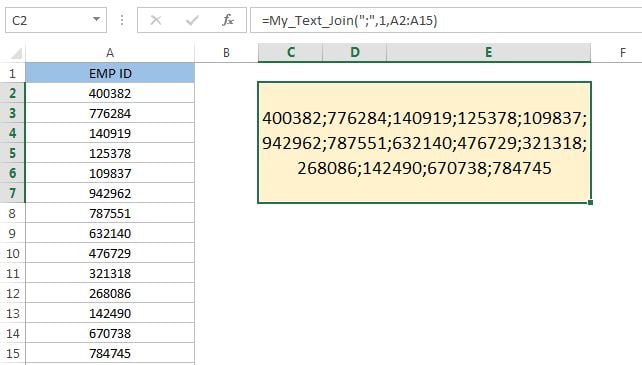
The employee IDs are in A2:A15. In C2 enter:
=My_Text_Join(";",1,A2:A15)C2 returns all 14 IDs in one cell: 400382;776284;140919 and so on (see the image at the top).
Example 2: Make a comma-separated month list
The month names Jan to Dec are in A1:A12. In any cell enter:
=My_Text_Join(",",1,A1:A12)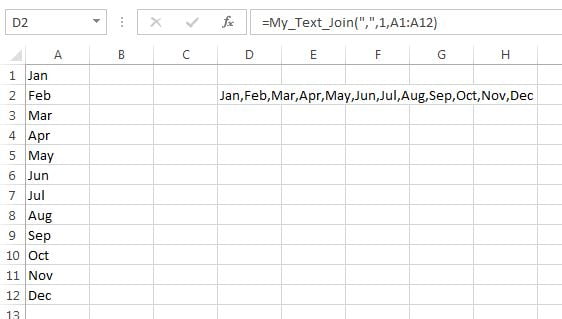
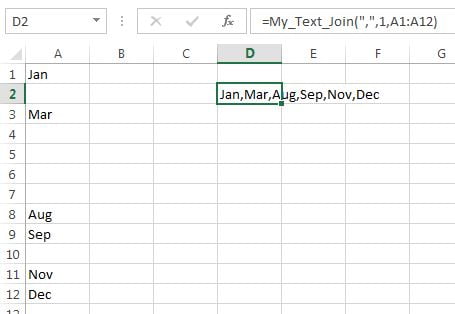
Example 3: Ignore the blank cells (ignore_empty = 1)
Now delete some months from the list. Because the second argument is 1 (TRUE), the empty cells are skipped and you get no extra commas:
Example 4: Keep the blank cells (ignore_empty = 0)
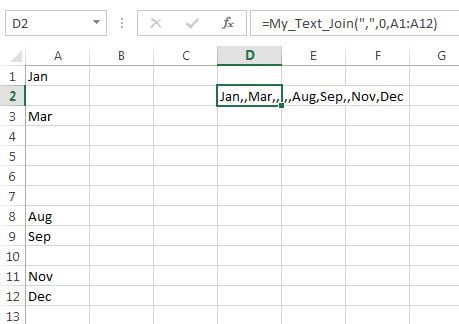
Change the 1 to 0:
=My_Text_Join(",",0,A1:A12)Every empty cell now adds its own comma, so you see Jan,,Mar,,,,,Aug,Sep,,Nov,Dec. This is useful when the position of each value matters, for example when another system expects exactly 12 fields.
Modern Excel Alternative: TEXTJOIN (Addition)
This section is general guidance, not part of the original file. If you have Excel 2019, Excel 2021 or Microsoft 365, the built-in function does the same job without macros, and the arguments are in the same order:
=TEXTJOIN(";",TRUE,A2:A15)
=TEXTJOIN(",",FALSE,A1:A12)
Because My_Text_Join uses the same argument order as TEXTJOIN, you can later swap the function name and keep the rest of the formula. Read the full guide to the Excel TEXTJOIN function for more examples.
Common Errors and Fixes
#NAME? instead of the result
Excel cannot find the function. Check that the code sits in a standard module of the same workbook, that the workbook is saved as .xlsm or .xlsb, and that macros are enabled. If you open the file with macros disabled, every My_Text_Join cell shows #NAME?.
#VALUE! when the range contains an error
If one of the cells holds an error such as #N/A, VBA cannot add it to the text and the function fails. Fix or wrap the source formulas with IFERROR first.
Extra delimiters even with ignore_empty = 1
VBA.IsEmpty is True only for truly empty cells. A cell with a formula that returns an empty string, such as =IF(B2="","",B2), is not empty, so it is still joined. Clear those cells or point the function at a range without formula blanks.
The workbook becomes slow
As PK warns in the video, do not pass a whole column like A:A. The loop visits every cell, about a million in a modern sheet, and Application.Volatile repeats that on every recalculation. Select only the rows you need.
Tips
- Use
", "(comma and space) as the delimiter for a list that reads naturally in a report. - Use
CHAR(10)as the delimiter and turn on Wrap Text to put each value on its own line. - Store the code in your Personal Macro Workbook if you want it in every file; then call it as
=PERSONAL.XLSB!My_Text_Join(...). - Microsoft’s page on the TEXTJOIN function lists which Excel versions include it.
Want It Ready-Made?
If you like small VBA helpers like this one, the Excel VBA Tools & Utilities Pack on NextGenTemplates.com bundles eight ready-to-use Excel VBA templates, and you can browse all Excel templates. To master TEXTJOIN, CONCAT, LET and the other text and lookup formulas step by step, join the video course Excel + AI Mastery: 100 Essential Formulas and Real-World Projects.
Related Tutorials
- Excel TEXTJOIN Function: Syntax, Examples and Tips
- Excel CONCATENATE Function: Syntax, Examples and Tips
- VBA User Defined Functions: Create Custom Excel Functions (UDF)
- Excel VBA Introduction: Developer Tab, Editor and First Macro
- VBA Workbooks: Open, Save, Close and Protect Excel Files
Frequently Asked Questions
Which Excel versions have TEXTJOIN?
TEXTJOIN is available in Excel 2019, Excel 2021, Excel 2024 and Microsoft 365. Older versions such as Excel 2013, 2010 and 2007 do not have it, and that is where My_Text_Join helps.
Does My_Text_Join work on a Mac?
Yes. Excel for Mac supports VBA user defined functions, so the same code works after you paste it into a module and save a macro-enabled file.
Can I use 1 and 0 instead of TRUE and FALSE?
Yes. The ignore_empty argument is a Boolean, and Excel converts 1 to TRUE and 0 to FALSE, exactly as in the examples above.
Why does the result show #NAME?
Macros are disabled or the code is not in a standard module of this workbook. Enable content and check that the file is saved as .xlsm or .xlsb.
Can I join cells from more than one column?
Yes. Pass a block such as A2:C10. The loop reads the cells row by row, from left to right, then moves to the next row.
Why is Application.Volatile in the code?
It tells Excel to recalculate the function whenever the sheet recalculates, so the joined text always reflects the current list.
About the Author
PK is a Microsoft Excel expert and trainer and the founder of PK: An Excel Expert and NextGenTemplates.com. He has been teaching Excel, VBA, Power Query and Power BI since 2016 on his YouTube channel.
Conclusion
With a short VBA function you get a text join formula for all Excel versions: one delimiter, one ignore-blanks switch and one range, just like TEXTJOIN. Paste the code into a module, save the file as macro-enabled and use My_Text_Join on any list of IDs, names or months. Download the workbook to see it in action, and switch to TEXTJOIN when you move to a newer Excel.