In any project-driven organization, managing budgets is not just a formality—it’s a critical step toward success. Without a proper mechanism to track, approve, and monitor budget requests, even the most well-planned projects can spiral out of control. That’s where the Project Budget Request Tracker in Excel comes in—a powerful, VBA-enabled template built to streamline project financial planning and execution.
In this article, we’ll walk you through everything you need to know about this ready-to-use tool: its features, benefits, how to use it, best practices, and more. Whether you manage multiple projects or need transparency in financial planning, this tool is designed to make your life easier.
Click to Purchases Project Budget Request Tracker in Excel
What Is the Project Budget Request Tracker in Excel?
The Project Budget Request Tracker is an Excel-based tool integrated with VBA (Visual Basic for Applications) that helps you manage all aspects of project budget tracking—from data entry and updates to approvals and dashboard reporting.
It’s not just a spreadsheet. It’s a fully functional application within Excel with:
-
Secure login access
-
Intuitive forms for data entry
-
Interactive dashboard
-
Real-time slicers and charts
-
User and settings management
You don’t need advanced Excel skills or third-party software to use this—just open the file, log in, and you’re ready to go!
Key Features of the Project Budget Request Tracker
Let’s explore the standout features that make this tool a must-have for any project-based team or organization:
Login Form (User Authentication)

The first layer of functionality is security. The tool starts with a login form where you must enter:
-
User ID: e.g.,
Admin1 -
Password: e.g.,
abcd
Press Enter or click the Login button to access the main interface. This ensures that only authorized users can view or edit project budget information.
Main Form (Central Control Panel)

After logging in, the Main Form appears. From here, you can:
-
Navigate to data entry
-
View and manage records
-
Access dashboards
-
Open user management or settings
This is your operational hub for all tracker-related activities.
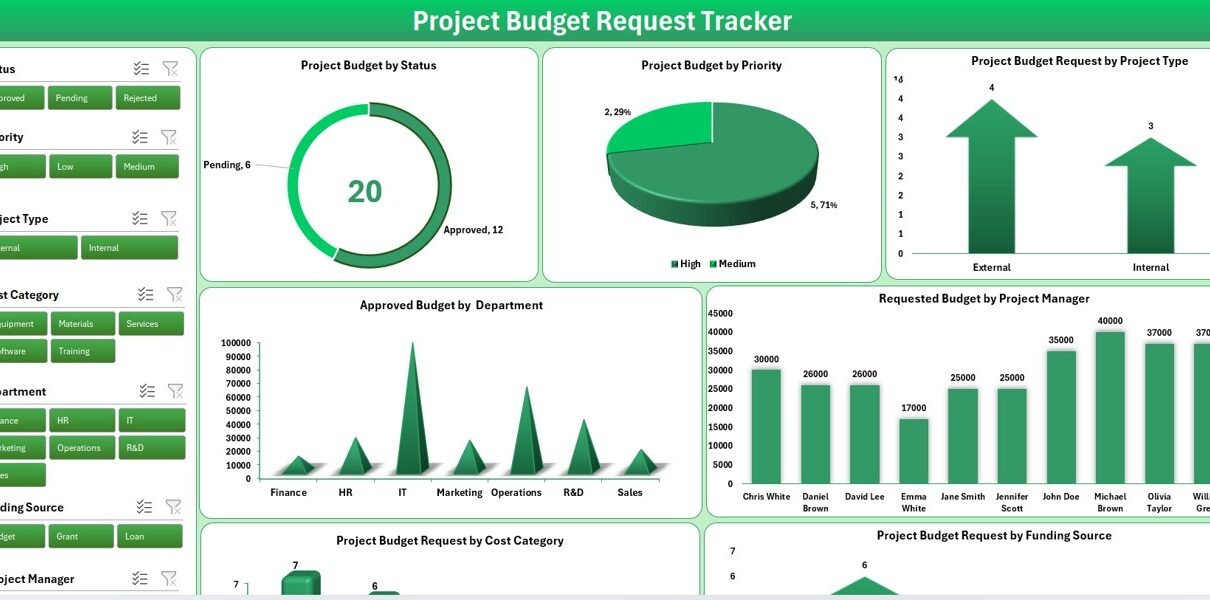
Dashboard Sheet Tab (Powerful Visual Analytics)

This interactive dashboard is where the magic happens. It includes:
-
7 slicers for dynamic filtering (e.g., department, status, project type)
Click to Purchases Project Budget Request Tracker in Excel
Charts included:
- Doughnut Chart: Priority Budget by Status
- Pie Chart: Priority Budget by Priority
- Arrow Chart: Budget Requests by Project Type
- Column Charts: Approved Budget by Department, Budget by Project Manager
- Cost Category and Funding Source Breakdowns
All visuals update instantly based on slicer selections, giving you real-time insights.
Data Entry Sheet Tab (Structured Project Records)

This sheet is the foundation of the tracker. It includes:
-
Columns like: ID, Project Name, Manager, Department, Budget Requested/Approved, Status, Start/End Date, Description, Priority, Type, Cost Category, Funding Source, Approval Date, Owner, Comments, Expense Forecast, Actual Expenses, Remaining Budget, and Remarks.
3 Main Buttons on Top:
- Add New Record: Opens a clean form for inputting project budget details. Submitting the form logs the record and refreshes the dashboard.
Update Record:

- Click on a specific ID, hit update, and edit the form’s prefilled data.
-
Delete Record: Select the ID and remove the record with a confirmation prompt.
Manage List Sheet Tab

This is your list management zone where dropdown values are defined. You can:
-
Add new dropdown options for categories like Project Type, Status, Departments, etc.
-
Remove unnecessary items
These lists are used across the tool to maintain consistency.
Support Sheet Tab

Behind the scenes, the Support Sheet powers the pivot tables for charts. Although not meant for direct user interaction, it is essential for keeping your dashboard running smoothly.
User Management and Settings
The tool comes with built-in user access control, allowing for multiple team members to use the tool securely.
User Management

Click the User Management button on the main form to:
-
Add new users
-
Update existing users
-
Change passwords
-
Delete accounts
This is vital for organizations with multiple project managers or departments using the tool.
Settings Sheet

Although this tab isn’t meant for day-to-day use, advanced users can modify system configurations here—making the tool flexible for custom implementation.
Advantages of the Project Budget Request Tracker in Excel
Why choose this template over other tools? Here are the key advantages:
📌 Simple Interface, Powerful Capabilities
✅ No learning curve—built entirely in Excel
✅ Smooth navigation with buttons and forms
✅ All actions take place from the main control panel
📌 Real-Time Dashboard Analytics
✅ Filter by department, status, or funding source
✅ Instantly view charts and pivot summaries
✅ Drill down into project-specific insights
📌 Secure and User-Based Access
✅ Protect sensitive financial data
✅ Enable multi-user environments
✅ Control who can add or update data
📌 Full Record Management
✅ Add, update, or delete entries in seconds
✅ Prefilled forms save time and reduce errors
✅ Remarks and comments fields help with traceability
📌 Customizable and Scalable
✅ Add your own departments, cost categories, or project types
✅ Modify chart styles and pivot tables as needed
✅ Scales well with growing project data
Who Can Use This Tool?
This Excel-based budget tracker is useful for:
-
Project Managers: Monitor funding and approvals
-
Finance Teams: Track expenses vs forecasts
-
Department Heads: Review budget allocations
-
Small Businesses: Control project finances
-
Nonprofits: Track funding from donors and grants
-
Government Projects: Ensure transparency in allocation
Anyone who handles multiple project budgets will benefit from this!
How to Use the Project Budget Request Tracker
Here’s a quick walkthrough of how to get started:
-
Download & Open the File
-
Ensure you’ve enabled macros.
-
-
Login Using the Form
-
Use the default credentials or set up new users.
-
-
Navigate Using the Main Form
-
Go to data entry, dashboard, or user management.
-
-
Add or Edit Budget Records
-
Use the buttons to manage your records effectively.
-
-
Use Slicers to Analyze Data
-
Select values like “Approved,” “High Priority,” or “Marketing” to filter views.
-
-
Export or Share
-
Save the dashboard sheet as PDF or share the Excel file within your team.
-
Click to Purchases Project Budget Request Tracker in Excel
Visit our YouTube channel to learn step-by-step video tutorials