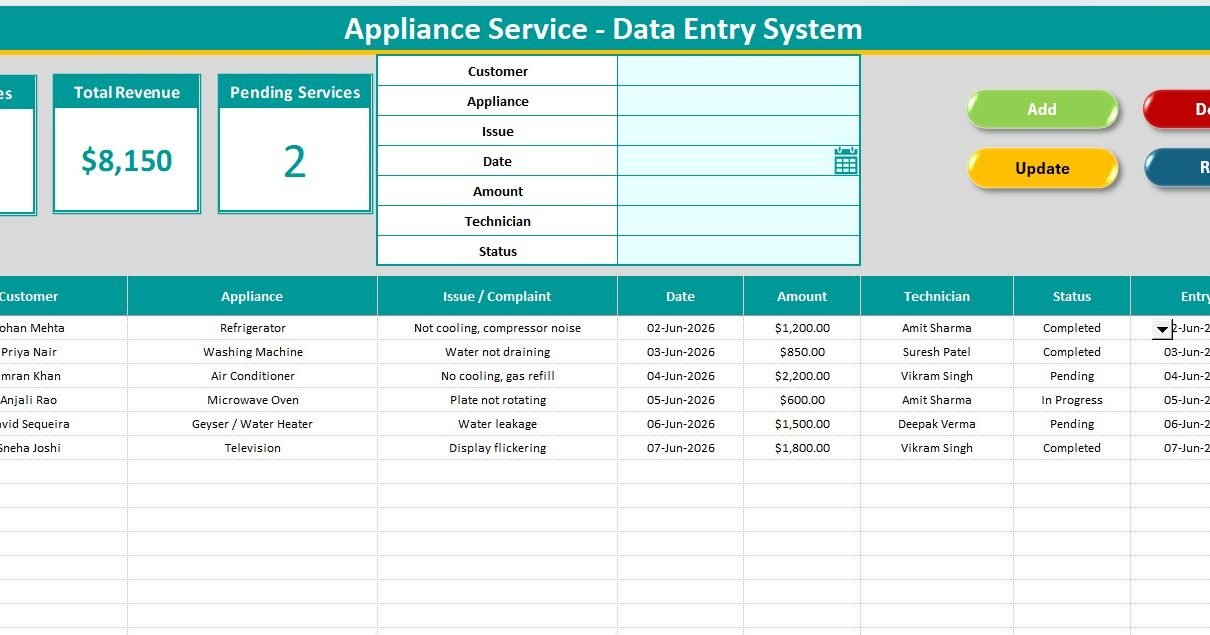
The Appliance Service Data Entry System in Excel is a lightweight tool that lets an appliance repair shop log every job – customer, appliance, issue, amount, technician, and status – through one simple form, and instantly see Total Services, Total Revenue, and Pending Services on three live KPI cards. If you have been tracking repairs on paper or a messy spreadsheet, this template turns the whole process into a 5-minute habit.
In this guide we will walk through what the Appliance Service Data Entry System in Excel does, how it is built, how to set it up, and who gets the most value from it.
What Is the Appliance Service Data Entry System in Excel?
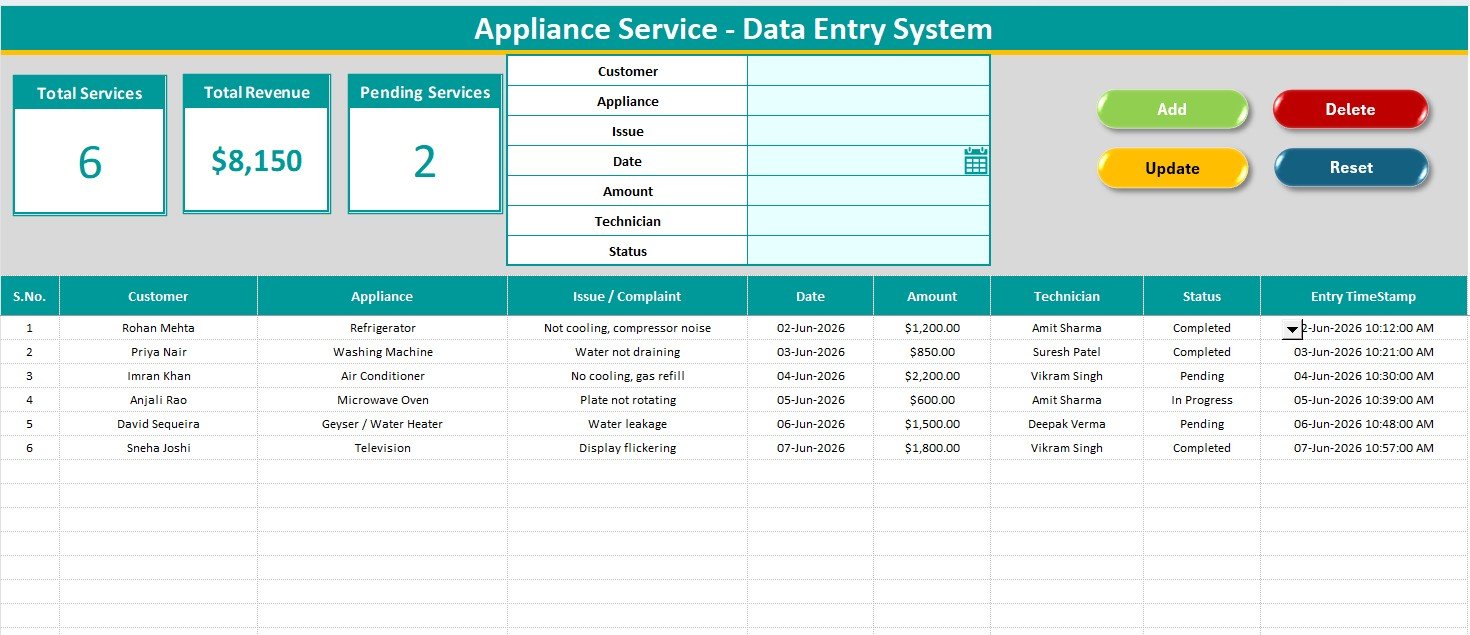
It is a single macro-enabled Excel workbook (.xlsm) built around a top-of-screen entry form and a clean records table. Instead of scrolling to the bottom of a sheet to add a row, you fill seven fields and click Add. The record drops into the table with an automatic serial number and a timestamp, and the KPI cards recalculate on the spot.
The seven fields are Customer, Appliance, Issue, Date, Amount, Technician, and Status. Three of them – Appliance, Technician, and Status – are dropdowns, so your data stays consistent no matter who is entering it.
Why a Simple Data Entry System Beats a Plain Spreadsheet
A blank spreadsheet is easy to start but hard to keep clean. Names get misspelled, statuses get typed five different ways, and totals fall out of date. A structured data entry form fixes this in three ways:
- Consistency – dropdowns stop typos like ‘Frige’ vs ‘Refrigerator’ or ‘Done’ vs ‘Completed’.
- Speed – the form sits on top, so logging a job takes seconds even during a busy counter shift.
- Visibility – the Total Services, Total Revenue, and Pending Services cards tell you how the day is going without building a single formula.
Microsoft has supported form-based entry in Excel for years; you can read more about the built-in data form on Microsoft Office support. This template takes that idea further with one-click VBA buttons and live KPIs.
Key Features
One-Screen Entry Form
The form at the top of the Data Entry sheet captures all seven fields in one place. A front-desk operator can log a washing machine repair without scrolling or hunting for the next empty row.
Three Live KPI Cards
Total Services counts every job, Total Revenue sums the Amount column, and Pending Services counts rows still marked Pending. The same cards also live on the Setting sheet, so you can copy them and paste a linked picture anywhere you like.
Four One-Click Buttons
Add, Update, Delete, and Reset each run a short VBA macro. Add appends a timestamped record, Update overwrites the row you select, Delete removes a job after a confirmation prompt, and Reset clears the form for the next entry.
Editable Dropdown Lists
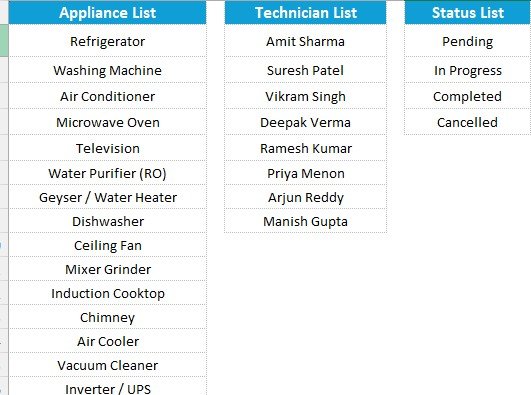
The Appliance, Technician, and Status lists are stored on the Setting sheet as named ranges. Add or remove a row and every dropdown – in both the form and the table – updates automatically.
What’s Inside the Workbook
- Data Entry – the dashboard with the dark heading bar, KPI cards, form, buttons, and records table.
- Setting – the dropdown lists plus a copy of the KPI cards.
- Instructions – a short setup guide.
- Get More Templates – links to related tools on NextGenTemplates.
How to Set Up the Appliance Service Data Entry System in Excel
- Open the .xlsm file in Microsoft Excel and enable macros when prompted.
- Go to the Setting sheet and edit the Appliance, Technician, and Status lists to match your shop.
- Return to the Data Entry sheet, fill the form, and click Add to save your first record.
- Double-click any record to pull it into the form, edit it, and click Update; click Delete to remove a job.
- Watch the Total Services, Total Revenue, and Pending Services cards update as you work.
If you want a heavier, multi-module tool later, the VBA Management Systems Mega Pack covers full login-based systems, and the IT Hardware Upgrade Request Tracker in Excel shows the same request-logging pattern in another niche.
Excel vs Google Sheets vs Paid Field-Service Software
Cloud field-service platforms like Jobber or Housecall Pro are powerful, but they charge $49-300 per technician every month and need real onboarding. For a single shop that mainly needs to log jobs and watch revenue, that is overkill. A one-time Excel file you own outright is often the smarter starting point. A Google Sheets version is a good fit if you want online access, while this Excel build wins on speed and offline use. For comparison, see how a service business uses a richer report in the Catering Services Dashboard in Excel.
Who Should Use It
This template is a strong fit for appliance repair shops, independent technicians, and small AC, electronics, or white-goods businesses. It is not built for large field teams that need GPS dispatch, scheduling, and mobile apps. If your needs are closer to reporting than to data entry, a scorecard like the Student Enrollment KPI Scorecard in Excel shows the dashboard-first approach instead.
Frequently Asked Questions
What fields does it capture?
Seven per job: Customer, Appliance, Issue, Date, Amount, Technician, and Status. Appliance, Technician, and Status are dropdowns managed on the Setting sheet.
Which KPIs does it show?
Total Services, Total Revenue, and Pending Services. All three update instantly when you add, update, or delete a record.
Do I need to enable macros?
Yes. The Add, Update, Delete, and Reset buttons run on a small VBA module, so enable macros when Excel prompts you.
How long does setup take?
Under five minutes – enable macros, edit the dropdown lists, and start logging jobs from the form.
Can I rename the dropdown values?
Yes. Edit the lists on the Setting sheet; because they are named ranges, every dropdown updates automatically.
Get the Template
Ready to clean up your job log? Download the Appliance Service Data Entry System in Excel on NextGenTemplates for a one-time price – no subscription and no per-technician fees. Browse more tools in our Excel Dashboard Templates collection.
For step-by-step video tutorials, visit YouTube.com/@PK-AnExcelExpert.