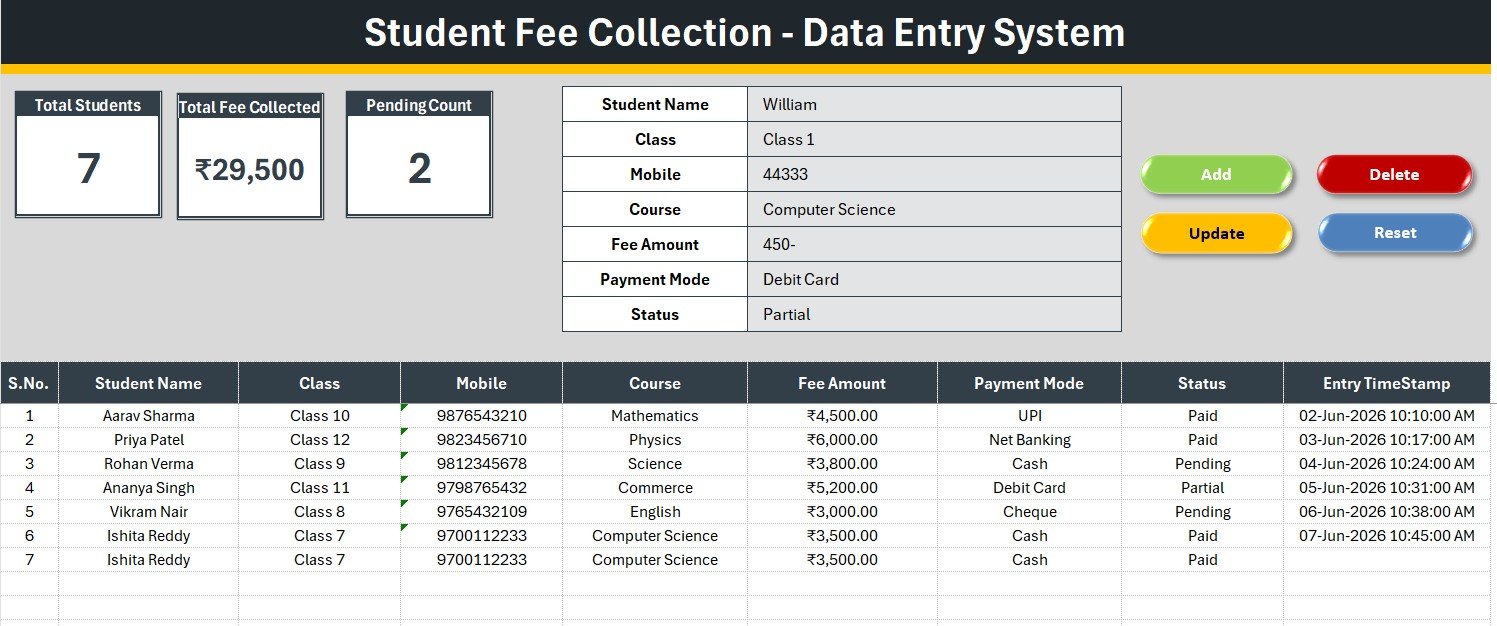
The Student Fee Collection System in Excel records 7 fields per student through a single VBA form and updates 3 live KPI cards — Total Students, Total Fee Collected, and Pending Count — on every entry. Setup takes under 5 minutes, and the whole tool runs offline with no subscription and no per-student fees.
Most tutors and small schools still track fees in a messy spreadsheet where every column is typed by hand, totals are stale, and nobody knows how many students still owe money. This guide walks through how the Student Fee Collection System in Excel fixes that with a clean form, dropdown-driven fields, and automatic pending-fee tracking.
Key Features of the Student Fee Collection System in Excel
The Student Fee Collection System in Excel is built around speed and accuracy at the fee desk. Here is what you get:
- One-screen entry form capturing Student Name, Class, Mobile, Course, Fee Amount, Payment Mode, and Status.
- Three live KPI cards. Total Students counts records, Total Fee Collected sums the Fee Amount column, and Pending Count uses COUNTIF on the Status field.
- VBA-powered buttons for Add, Update, Delete, and Reset, plus double-click-to-edit on any row.
- Editable dropdowns for Class, Course, and Payment Mode stored on a dedicated Setting sheet.
- Automatic S.No and Entry TimeStamp on every saved record for a clean audit trail.
Because the three KPI cards recalculate the instant you add or delete a student, the Student Fee Collection System in Excel always shows a current month-to-date collection figure and an accurate count of pending students.
Sheets Explanation
The workbook ships with four sheets. Each one has a single, clear job.
Data Entry Sheet
The main working screen holds the heading bar, the three KPI cards, the 7-field form, the four coloured action buttons, and the live records table with auto S.No and timestamp. This is where day-to-day fee recording happens.

Setting Sheet
This sheet stores the source lists for Class, Course, and Payment Mode, wired to the form via named ranges. It also carries a linked copy of the KPI cards. Edit a list here once and every future entry follows it — no more inconsistent spellings breaking your filters.
Instructions and Get More Templates Sheets
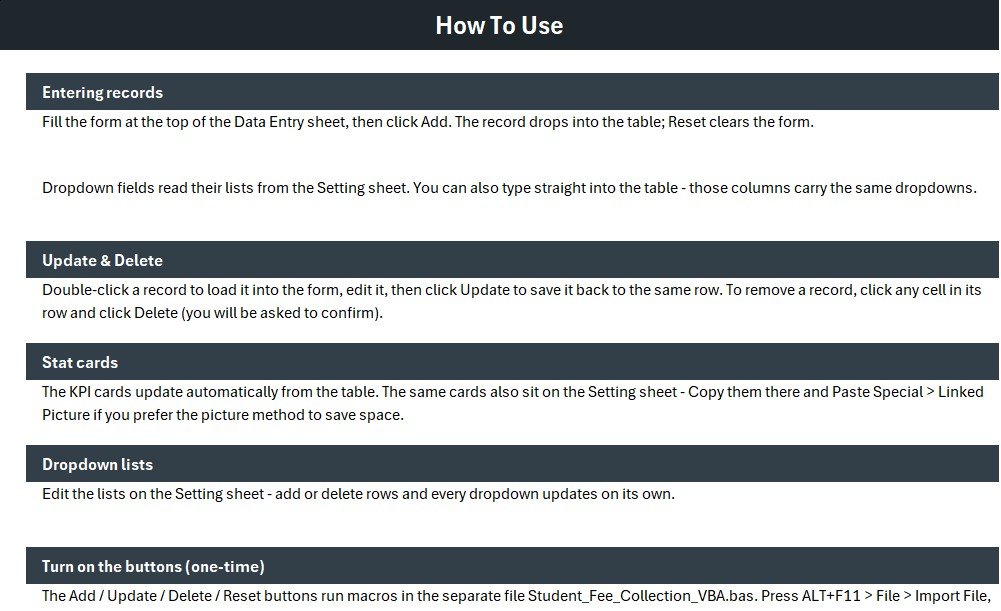
The Instructions sheet explains the one-time activation: import the VBA module, attach the four buttons, and save as a macro-enabled workbook. The Get More Templates sheet links back to related tools so your team can find companions easily.
Student Fee Collection System vs. Google Sheets vs. Paid School Fee SaaS — Feature Comparison
| Feature | Student Fee Collection System (Excel) | Google Sheets Equivalent | School Fee SaaS (Fedena / MyClassCampus) |
|---|---|---|---|
| Cost | $5.99 one-time | Free – $12/mo add-ons | $1–$3 / student / year |
| Platform | Microsoft Excel (offline) | Browser + Google account | Cloud only |
| Setup time | Under 5 minutes | 10–15 minutes | Days (onboarding) |
| Works fully offline | Yes | No | No |
| One-click Add / Update / Delete | Yes (VBA) | Needs Apps Script | Yes |
| Customizable fields & dropdowns | Fully editable | Editable | Limited to vendor schema |
| You own the data file | Yes | On Google servers | On vendor servers |
| Year-1 cost at 300 students | $5.99 | ~$144 | $300–$900 |
For tutors, coaching centres, and small schools that want fast fee recording and pending-fee visibility without paying per-student SaaS fees, the Student Fee Collection System in Excel sits in the sweet spot.
Who Should Use This Template
Perfect for:
- Private tutors, coaching classes, and music or skill academies collecting monthly or course fees.
- Small and mid-size schools that want a reliable offline fee record.
- Front-desk staff who prefer a simple Excel form over a heavy school ERP.
Not a fit if:
- You need online parent logins, automated SMS receipts, or a payment gateway.
- You run multiple branches needing real-time cloud sync.
- Your IT policy blocks Excel macros entirely.
Real-World Use Cases
Anil runs a coaching centre with 220 students. He logs every monthly payment by Class and Course in the Student Fee Collection System in Excel, then checks the Pending Count card each Friday to call the families who still owe — a task that used to take him an hour of manual filtering.
Meera manages the front desk of a music academy. She records cash, UPI, and card payments through the dropdown form. The Total Fee Collected card gives her an instant month-to-date figure she can read out to the owner without building a single formula.
A small CBSE school clerk keeps an offline backup of fee records in the workbook and exports the records table at month-end to hand the accountant a clean, time-stamped list.
Advantages of the Student Fee Collection System in Excel
The biggest advantage is cost predictability. Paid school fee software bills $1–$3 per student every year, so a 300-student centre can pay $300–$900 annually. The Student Fee Collection System in Excel is a one-time $5.99 purchase with lifetime access. You also keep full ownership of the data file — nothing sits on a vendor’s server.
The second advantage is speed. The single-screen form and one-click VBA buttons mean a new fee record takes a few seconds, and the KPI cards remove every manual total. For a busy fee desk, that is the difference between a 30-second task and a 10-minute one.
Opportunities for Improvement
To be balanced, the Student Fee Collection System in Excel is a single-user, offline tool. It does not send automated receipts, it has no parent-facing portal, and it will not sync across branches in real time. Teams that need those features should look at a cloud system or the School Management System Web App, which adds logins, dashboards, and reports. For pure fee recording at one location, though, the simplicity is the point.
Best Practices
- Edit the Setting sheet first so your Class, Course, and Payment Mode lists match your institution before you add real data.
- Always enable macros and save as a macro-enabled (.xlsm) workbook so the buttons keep working. See Microsoft’s guide to enabling or disabling macros.
- Use the Status field consistently (Paid / Pending / Partial) so the Pending Count card stays accurate.
- Keep a dated backup copy of the file each month for your records.
Explore Relevant Templates
If you manage education data, these companions pair well with the Student Fee Collection System in Excel. The Appliance Service Data Entry System in Excel uses the same fast form-and-KPI layout for a different domain. For analytics, see the Student Enrollment KPI Scorecard in Excel, the Scholarship Program KPI Scorecard in Excel, the School Admin Dashboard in Excel, and the Coding Bootcamps Dashboard in Excel.
Frequently Asked Questions
What does the Student Fee Collection System in Excel track?
The Student Fee Collection System in Excel tracks 7 fields per student — Student Name, Class, Mobile, Course, Fee Amount, Payment Mode, and Status — and rolls them up into Total Students, Total Fee Collected, and Pending Count KPI cards that update automatically.
How does it track pending fees?
Each record carries a Status field set to Paid, Pending, or Partial. The Pending Count card uses COUNTIF on that field, so the number of students who still owe is always visible at the top of the Data Entry sheet.
Do I need to enable macros?
Yes. The Add, Update, Delete, and Reset buttons in the Student Fee Collection System in Excel are powered by VBA, so you must enable macros and save the file as a macro-enabled (.xlsm) workbook for full functionality.
Can I change the Class, Course, or Payment Mode options?
Absolutely. All dropdown values live on the Setting sheet. Edit them once and every future entry uses your updated lists, keeping your data clean and filter-ready.
How does this compare to paid school fee software?
Paid school ERP and fee SaaS typically charge $1–$3 per student per year. The Student Fee Collection System in Excel is a one-time $5.99 purchase, works offline, and lets you keep full ownership of your data file.
How long does setup take?
Under 5 minutes. Enable macros, edit the dropdown lists on the Setting sheet, clear the sample rows, and start adding students.
About the Author
Built by PK — Microsoft Certified Professional with 15+ years of Excel, Google Sheets, and Power BI experience. Founder of NextGenTemplates, reaching 300K+ subscribers across YouTube channels. Every template is hand-built and tested before release.
Conclusion
The Student Fee Collection System in Excel turns a messy fee spreadsheet into a fast, reliable record with live totals and instant pending-fee visibility — for a one-time $5.99 instead of a yearly per-student bill. Click here to purchase the Student Fee Collection System in Excel.
Instant download · One-time payment · No subscription. For step-by-step video tutorials, visit YouTube.com/@PK-AnExcelExpert.
Last updated: June 2026