The Audit Preparation Calendar in Excel organizes audit events across 5 interactive worksheets with 3 calendar views, VBA-powered event forms, and 5 color themes. It tracks 7 data fields per event — ID, Date, Day, Event Name, Time, Location, and Description — and updates all three views (annual, monthly, daily) from a single Events database. Setup takes under 10 minutes.
Managing audit schedules in scattered spreadsheets or email threads leads to missed deadlines and duplicated effort. The Audit Preparation Calendar in Excel centralizes every audit event into one workbook with built-in navigation, date filtering, and VBA forms for adding records without touching the raw data.
Key Features of Audit Preparation Calendar in Excel
👉 Click here to Purchase the Audit Preparation Calendar in Excel
The Audit Preparation Calendar in Excel delivers 6 core features that separate it from manually built spreadsheets:
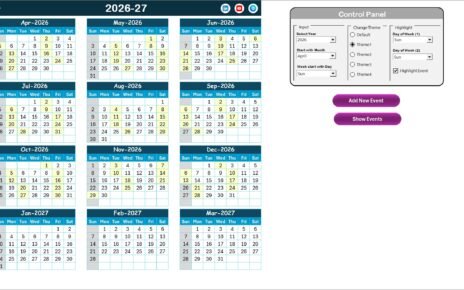
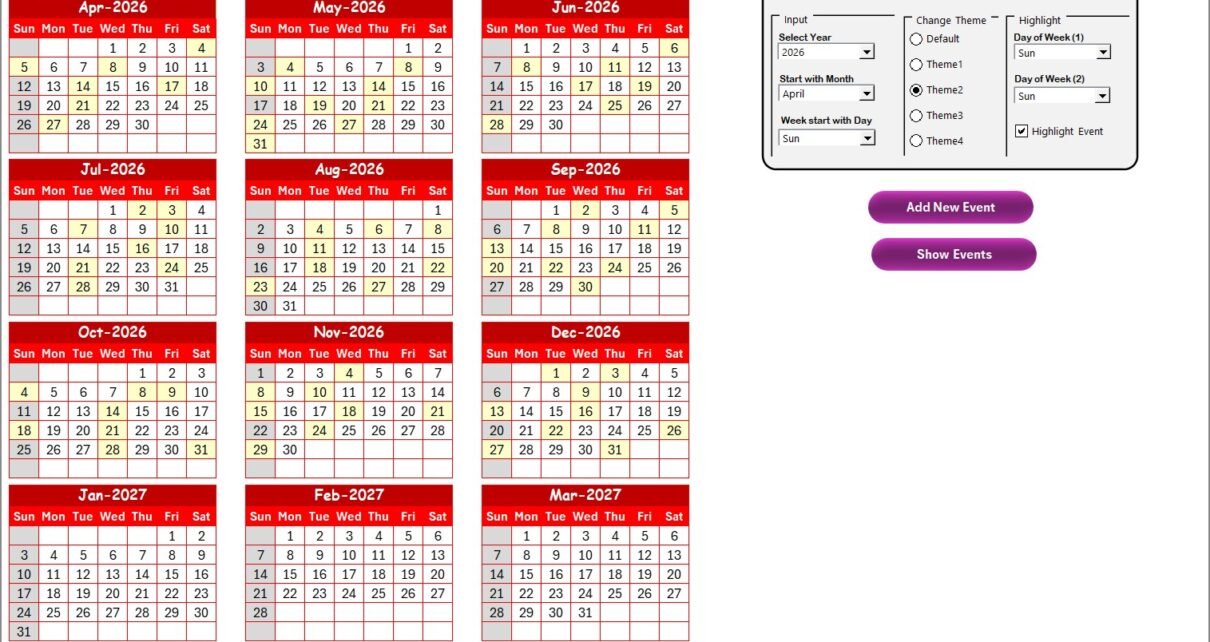
- 3 Calendar Views – Annual View shows all 12 months on one screen. Monthly View displays a single month with event names on each date. Daily View filters events by a custom date range. All views read from one Events database, so data stays consistent.
- VBA-Powered Event Forms – Add New Event, Update Existing Record, and Delete Record buttons open pop-up forms. No manual data entry in the table — the forms handle auto-generated IDs, pre-filled updates, and single-click deletions.
- 5 Switchable Color Themes – Change the look of the entire workbook from the control panel. Headers, highlights, and navigation bars update across all 5 worksheets simultaneously.
- Customizable Fiscal Year Start – Select any starting month and starting weekday. The annual calendar recalculates its 12-month grid automatically — useful for organizations with April, July, or October fiscal years.
- Weekend and Event Highlighting – Pick two weekdays to grey out (e.g., Saturday and Sunday). Toggle the Highlight Event checkbox to mark audit dates in yellow on the Annual View.
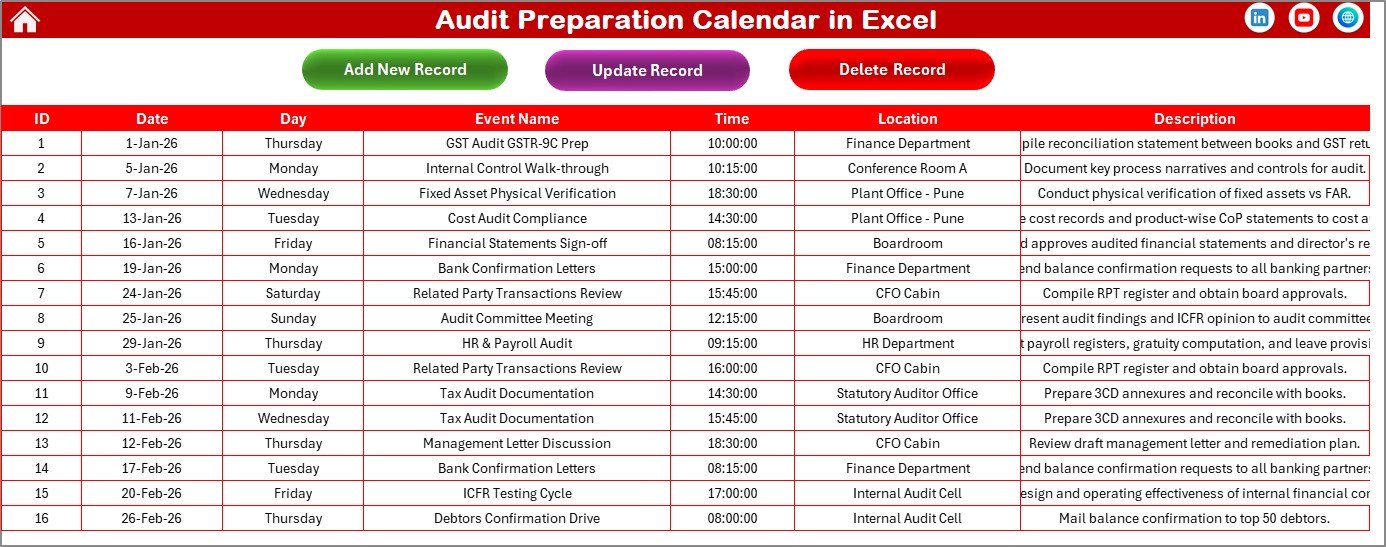
- 7-Field Events Database – Each record captures ID, Date, Day, Event Name, Time, Location, and Description. The database supports unlimited entries with Add, Update, and Delete controls built into the sheet header.
Template Structure – 5 Worksheets Explained
👉 Click here to Purchase the Audit Preparation Calendar in Excel
The Audit Preparation Calendar in Excel contains 5 worksheets, each serving a specific function in the audit scheduling workflow:
1. Home Sheet
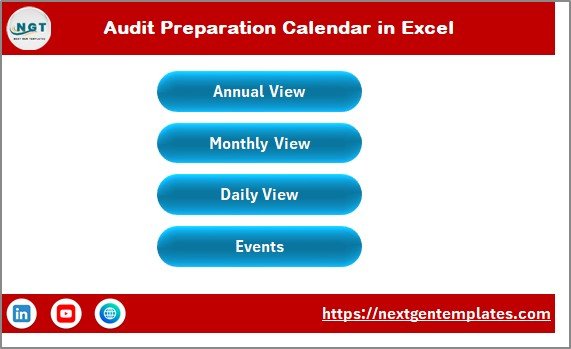
This is the index page with 4 navigation buttons: Annual View, Monthly View, Daily View, and Events. Each button jumps directly to the corresponding worksheet.
2. Annual View Sheet
👉 Click here to Purchase the Audit Preparation Calendar in Excel
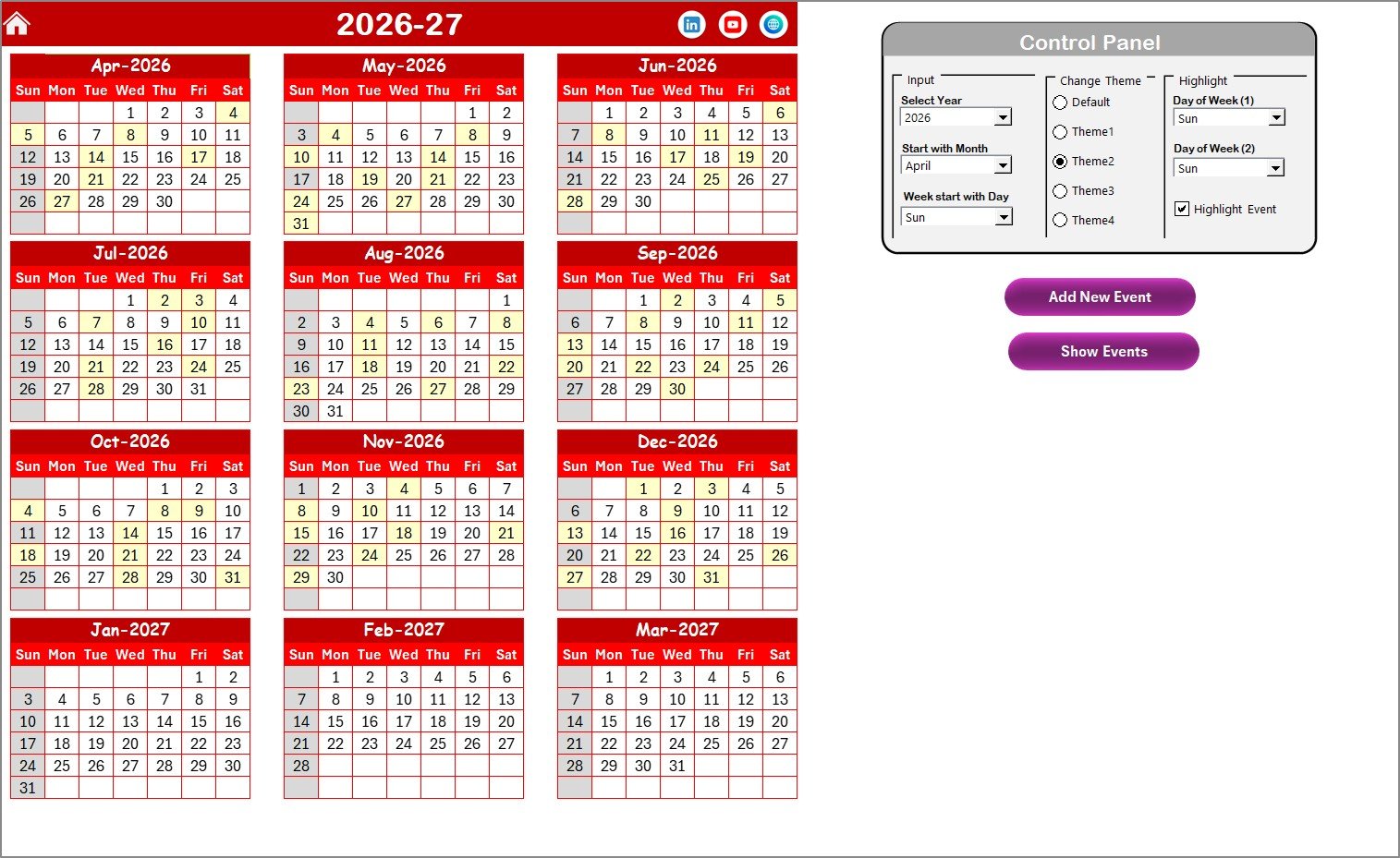
Displays all 12 months in a compact grid. The control panel at the top contains 3 groups:
- Input Group – Select the Year, Starting Month, and Starting Weekday
- Change Theme Group – Choose from 5 color themes applied across the entire workbook
- Highlight Group – Select Day of Week (1) and Day of Week (2) to highlight in grey; toggle the Highlight Event checkbox to mark audit dates in yellow
Two buttons — Add New Event and Show Event — allow quick event management from the annual view.
3. Monthly View Sheet
👉 Click here to Purchase the Audit Preparation Calendar in Excel
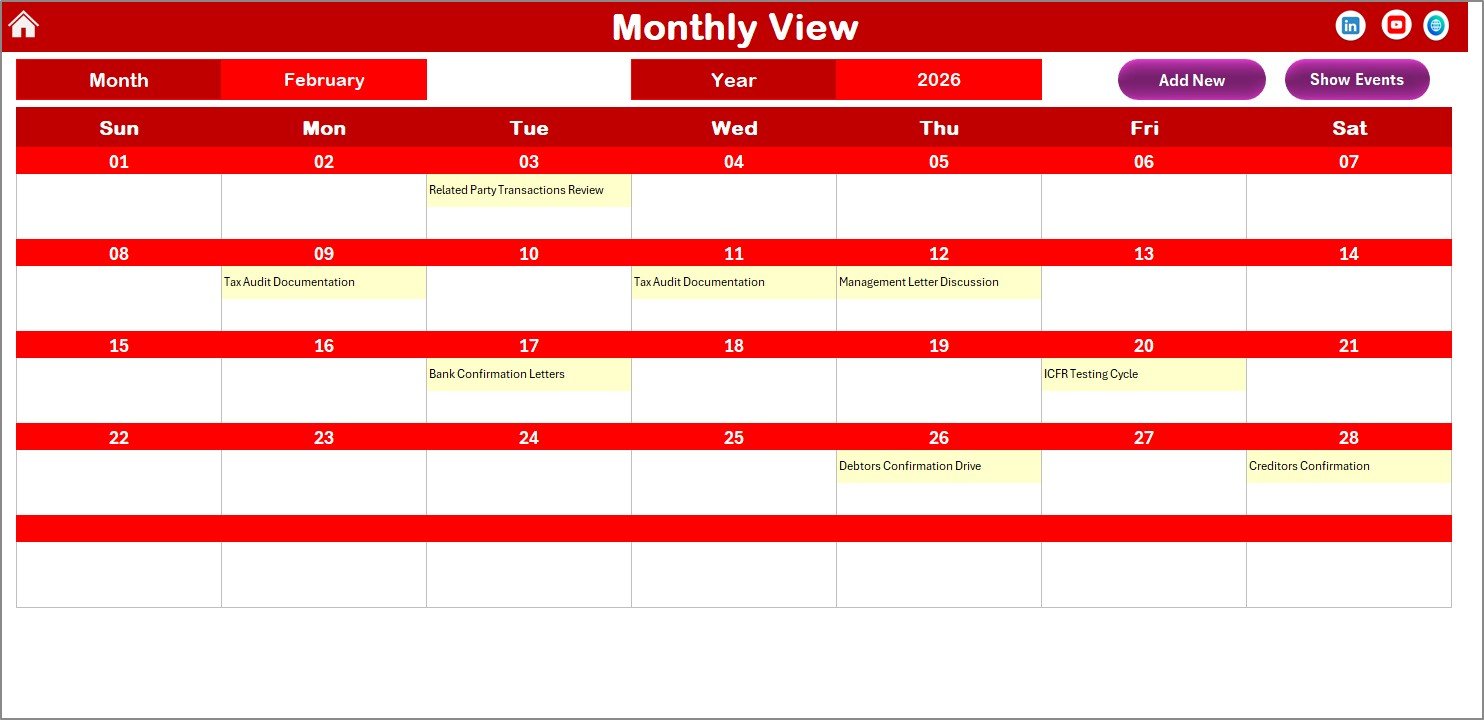
Shows a single-month calendar with event names displayed on each date cell. When more than one event falls on a date, a “more than 1…” indicator appears. Select month and year from dropdowns. Add New Event and Show Event buttons are available at the top.
4. Daily View Sheet
👉 Click here to Purchase the Audit Preparation Calendar in Excel
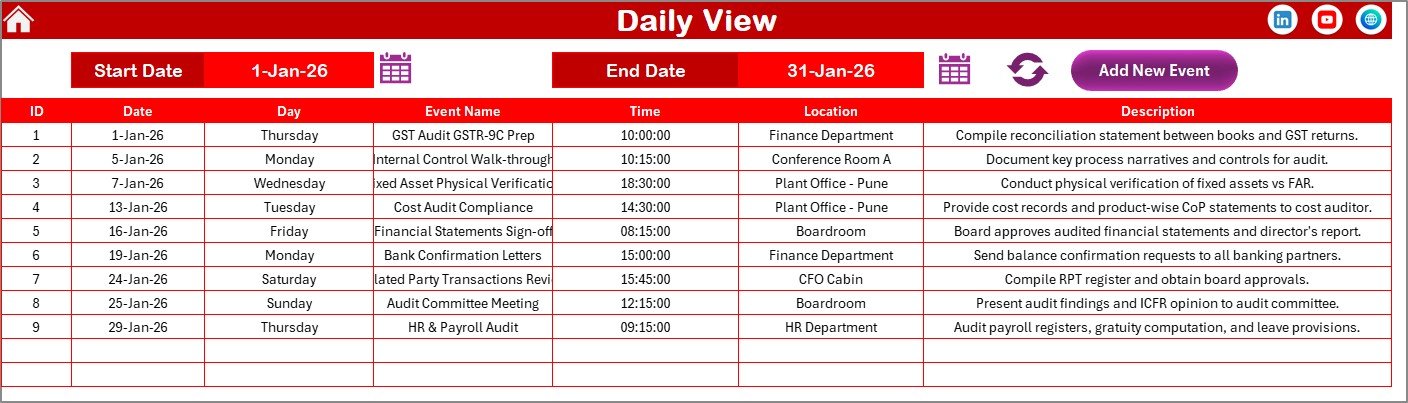
Displays a filtered list of events within a selected date range. Enter Start Date and End Date at the top, then click Refresh to see matching records. The Add New Event button opens the event creation form.
5. Events Sheet
The central database storing all audit event records. Each row contains 7 columns: ID (auto-generated), Date, Day, Event Name, Time, Location, and Description. Three action buttons sit at the top: Add New Record, Update Existing Record (select the ID first), and Delete Record.
Audit Preparation Calendar in Excel vs. Google Sheets Calendar vs. AuditBoard — Feature Comparison
| Feature | Audit Preparation Calendar in Excel | Google Sheets Calendar | AuditBoard / TeamMate+ |
|---|---|---|---|
| Cost | $4.99 one-time | Free (manual build) | $2,000–$10,000+ / year |
| Platform | Microsoft Excel (desktop) | Google Sheets (browser) | Cloud SaaS |
| Setup Time | Under 10 minutes | 2–4 hours (from scratch) | 2–6 weeks onboarding |
| VBA Event Forms | ✅ Built-in add/update/delete | ❌ Manual data entry | ✅ Full workflow engine |
| Color Themes | ✅ 5 switchable themes | ❌ Manual formatting | ✅ Brand theming |
| Offline Access | ✅ Full offline | ❌ Requires internet | ❌ Requires internet |
| Multi-User Collaboration | ❌ Single user per file | ✅ Real-time collaboration | ✅ Team collaboration |
| Year-1 Cost (5 users) | $4.99 total | $0 | $5,000–$25,000+ |
| Customizable Start Month | ✅ Any month + weekday | ❌ Fixed January start | ✅ Configurable |
For finance teams that need structured audit scheduling without enterprise pricing, the Audit Preparation Calendar in Excel sits in the sweet spot.
Who Should Use This Template
👉 Click here to Purchase the Audit Preparation Calendar in Excel
Perfect for:
- Internal audit managers at companies with 50–500 employees scheduling 10–50 audits per year
- Finance controllers preparing for annual, semi-annual, or quarterly external audits
- Compliance officers tracking regulatory review deadlines across multiple departments
- Small and mid-size accounting firms managing audit calendars for multiple clients
Not a fit if:
- You need enterprise-grade audit workflow automation with SOC 2 compliance, risk scoring, and API integrations — platforms like AuditBoard or Galvanize TeamMate+ are designed for that scale
- Your team requires real-time multi-user collaboration in a browser — check our Google Sheets Calendar templates instead
Real-World Use Cases
👉 Click here to Purchase the Audit Preparation Calendar in Excel
David manages internal audit at a 200-person manufacturing firm. He enters 24 departmental audits into the Audit Preparation Calendar in Excel at the start of each fiscal year. The Annual View with event highlighting gives him a bird’s-eye view of the full schedule, and the Daily View lets him pull a filtered list before every audit committee meeting — replacing a $5,000/year AuditBoard subscription.
Maria runs a 5-person accounting practice. She tracks document submission deadlines, fieldwork windows, and report due dates for 12 clients in the Events database. The Monthly View gives her a quick visual scan for overlapping engagements, and VBA forms let her update records without risk of accidentally overwriting formulas.
Raj is a compliance officer at a healthcare organization. He logs HIPAA audit milestones, accreditation review dates, and regulatory filing deadlines into the calendar. The customizable fiscal year start (set to October for his organization) aligns the 12-month Annual View with his actual compliance cycle.
Advantages of Audit Preparation Calendar in Excel
- Zero recurring cost – A $4.99 one-time purchase replaces subscription-based scheduling tools costing hundreds or thousands per year
- VBA automation without complexity – Pop-up forms handle data entry, updates, and deletions without exposing users to raw spreadsheet formulas
- Full offline access – Works entirely in desktop Excel with no internet dependency, ideal for secure audit environments
- Fiscal year flexibility – Start the calendar from any month and any weekday, matching your organization’s reporting cycle
- Consistent multi-view data – All 3 calendar views pull from one Events table, eliminating data duplication and sync errors
Opportunities for Improvement
👉 Click here to Purchase the Audit Preparation Calendar in Excel
- Single-user limitation – The Excel file does not support real-time multi-user editing. Teams of 5+ auditors sharing a single calendar would benefit from a cloud-based alternative
- VBA Mac incompatibility – VBA forms (Add, Update, Delete buttons) only work on Windows Excel. Mac users can still view the calendar and enter data manually, but lose the form-based convenience
- No automated reminders – The calendar displays events visually but does not send email or desktop notifications for upcoming deadlines. Users should supplement with Outlook calendar alerts
- No recurring event logic – Events must be entered individually. If you run the same audit quarterly, you’ll create 4 separate records rather than setting a recurrence pattern
Best Practices
- Set your fiscal year first – Before adding any events, configure the Starting Month and Starting Weekday on the Annual View sheet. This ensures the 12-month grid matches your organization’s reporting cycle
- Use the VBA forms consistently – Always use the Add New Event button rather than typing directly into the Events sheet. The form generates sequential IDs and validates entries
- Review events weekly – Use the Daily View with a 7-day date range to see upcoming audit tasks. This catches scheduling conflicts before they become problems
- Back up monthly – Save a dated copy of the workbook at the end of each month. This preserves your audit trail and protects against accidental data loss
- Color-code by audit type – Use the Description field to tag events (e.g., “Internal – Finance”, “External – SOX”) so the Events sheet can be filtered by type
Explore Relevant Templates
If you work with audit scheduling, these templates may also fit your workflow:
- Financial Tech Startups KPI Dashboard in Excel – Track financial performance KPIs with interactive charts and dynamic filters
- Staff Training Completion Calendar in Google Sheets – Schedule and monitor team training milestones in a browser-based calendar
- Browse all Calendar Templates for event scheduling, project planning, and deadline tracking
- Browse all Excel Dashboard Templates for finance, operations, and compliance reporting
Frequently Asked Questions
👉 Click here to Purchase the Audit Preparation Calendar in Excel
How many audit events can the Audit Preparation Calendar in Excel track?
The Audit Preparation Calendar in Excel stores unlimited events in the Events database sheet. Each record captures 7 fields: ID, Date, Day, Event Name, Time, Location, and Description. All three calendar views pull from this single data source automatically.
Does the Audit Preparation Calendar in Excel work on Mac?
The calendar layout, data entry, and all three views work on Mac Excel. However, VBA-based forms (Add Event, Update, Delete buttons) require Windows Excel. Mac users can add events directly into the Events sheet rows instead of using the pop-up forms.
Can I change the fiscal year starting month?
Yes. The control panel on the Annual View sheet includes a Starting Month dropdown. Select April, July, October, or any other month and the 12-month calendar grid recalculates automatically to match your fiscal year.
How does this compare to AuditBoard or TeamMate+?
AuditBoard and TeamMate+ are enterprise audit management platforms priced at $2,000–$10,000+ per year. The Audit Preparation Calendar in Excel is a $4.99 one-time purchase designed for teams that need structured audit scheduling without multi-user cloud collaboration or risk-scoring automation.
Can I use this calendar for non-audit events?
Yes. The event fields — Name, Time, Location, Description — are generic. Finance teams use this template for tax filing deadlines, compliance reviews, board meeting prep, and quarterly close schedules. It works for any date-based event tracking in Excel.
What Excel version is required?
The Audit Preparation Calendar in Excel works with Excel 2016, 2019, 2021, and Microsoft 365 on Windows. VBA features require desktop Excel — the template is not compatible with Excel Online or Excel for the web.
How long does setup take?
Under 10 minutes. Open the file, enable macros, set your year and starting month, choose a color theme, and start adding events. Clear the sample data from the Events sheet using the Delete button or by manually removing rows.
About the Author
Built by PK — Microsoft Certified Professional with 15+ years of Excel, Google Sheets, and Power BI experience. Founder of NextGenTemplates, reaching 300K+ subscribers across YouTube channels. Every template is hand-built and tested before release.
Conclusion
The Audit Preparation Calendar in Excel gives finance, compliance, and internal audit teams a structured way to schedule and track audit events across annual, monthly, and daily views — without paying for enterprise software. With VBA-powered forms, 5 color themes, and a customizable fiscal year start, it’s ready to use in under 10 minutes.
👉 Click here to Purchase the Audit Preparation Calendar in Excel
✅ Instant download · One-time payment · No subscription
🎥 Visit our YouTube channel for step-by-step tutorials: Youtube.com/@PK-AnExcelExpert