Managing corporate travel insurance requests across a busy team often turns into a tangle of email threads, shared spreadsheets, and missed renewals. The Travel Insurance Request Tracker in Excel replaces that mess with a single VBA-powered workbook that handles login security, data entry, a slicer-driven dashboard, and full user management — all for a $6.99 one-time payment, no subscription, no per-user fees.
This walkthrough covers every sheet in the workbook, how the VBA forms work, who the template fits best, and how it compares to cloud HR systems like BambooHR and Zoho People. The Travel Insurance Request Tracker in Excel ships with 8 worksheets, 4 dashboard slicers, 5 auto-refreshing charts, and a complete Add / Update / Delete workflow driven by a single UserForm.
Key Features of the Travel Insurance Request Tracker in Excel
The Travel Insurance Request Tracker in Excel was built for HR, admin, and travel-desk teams that need to log every business-trip insurance request, track its status, and report on it without paying $6–$12 per user per month for cloud SaaS. Everything runs offline inside Microsoft Excel.
- 🛡️ Secure Login System with role-based Admin and User access. Admins can manage users; standard Users can only enter and view records.
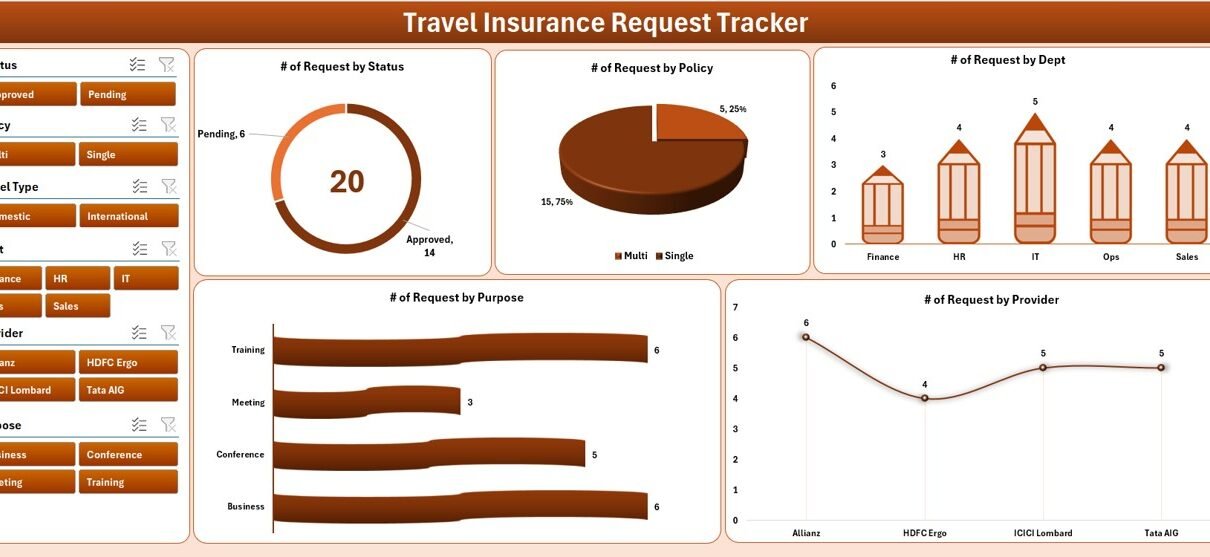
- 📊 Interactive Dashboard with 4 slicers (date, department, status, policy type) and 5 charts that auto-refresh from pivot tables.
- 📝 VBA Data Entry Form with three buttons — Add New Record, Update Record, Delete Record — sharing a single UserForm.
- 👥 User Management Sheet for adding users, setting roles, and resetting passwords without IT involvement.
- 🔧 Settings Sheet for company name, currency, fiscal year, and other preferences — no VBA editing required.
- 🧾 Pivot-driven Support Sheet that powers the dashboard, hidden by default so end users don’t accidentally edit it.
- 📋 Combo-box driven List Sheet so departments, statuses, policy types, and destinations can be edited without touching code.
Sheet-by-Sheet Walkthrough of the Tracker
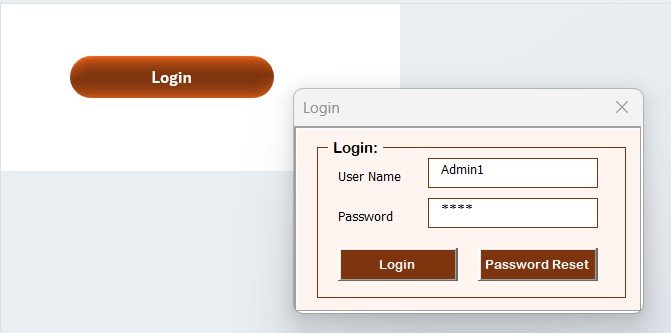
1. Login Form
The workbook opens directly to a login screen. Admin credentials unlock everything — the User Management sheet, settings, and full edit rights. User credentials grant data entry access only. The login routine is part of the VBA project; admins can create new accounts from the User Management sheet, no code changes needed.
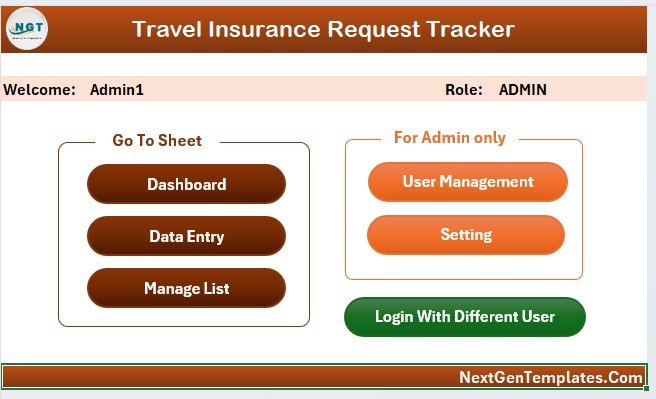
2. Home Page
After login, the Home Page acts as a navigation hub. Single-click buttons take the user to the Dashboard, Data Sheet, List, Settings, or User Management sheet. This keeps the file approachable for non-technical staff who just need to log a travel insurance request and move on.
3. Dashboard
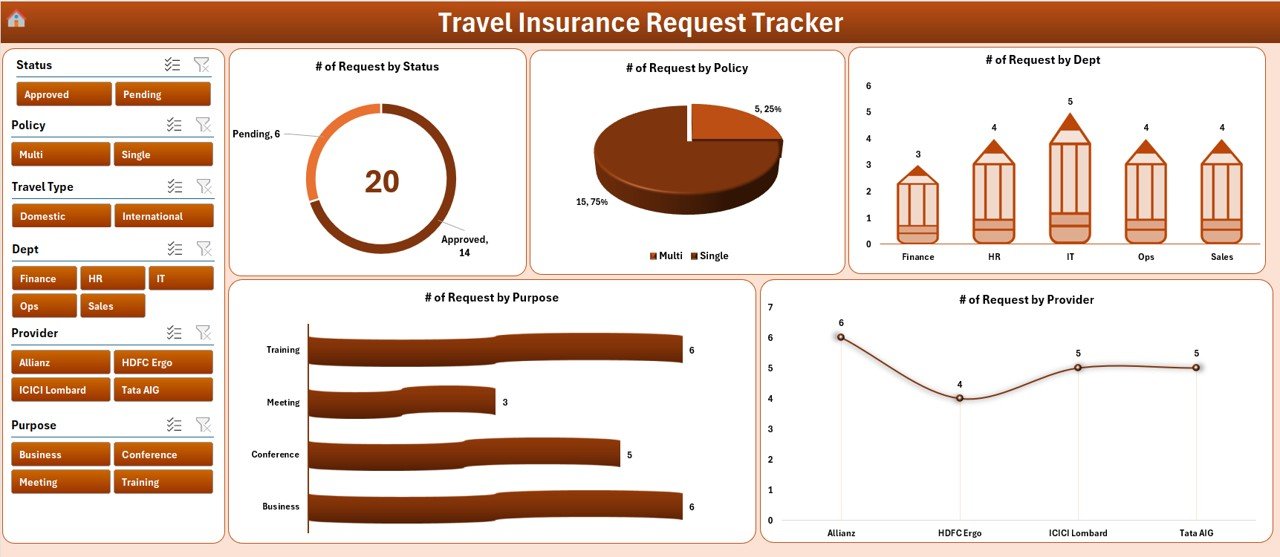
The Dashboard is the analytical heart of the Travel Insurance Request Tracker in Excel. 4 slicers sit at the top of the page (typically by date/month, department, request status, and policy type) and filter 5 charts showing request volume trends, status breakdowns, department-wise distribution, and policy type mix. Every chart is connected to a pivot table on the Support sheet, so adding or editing a record automatically refreshes the visuals.
4. Data Sheet
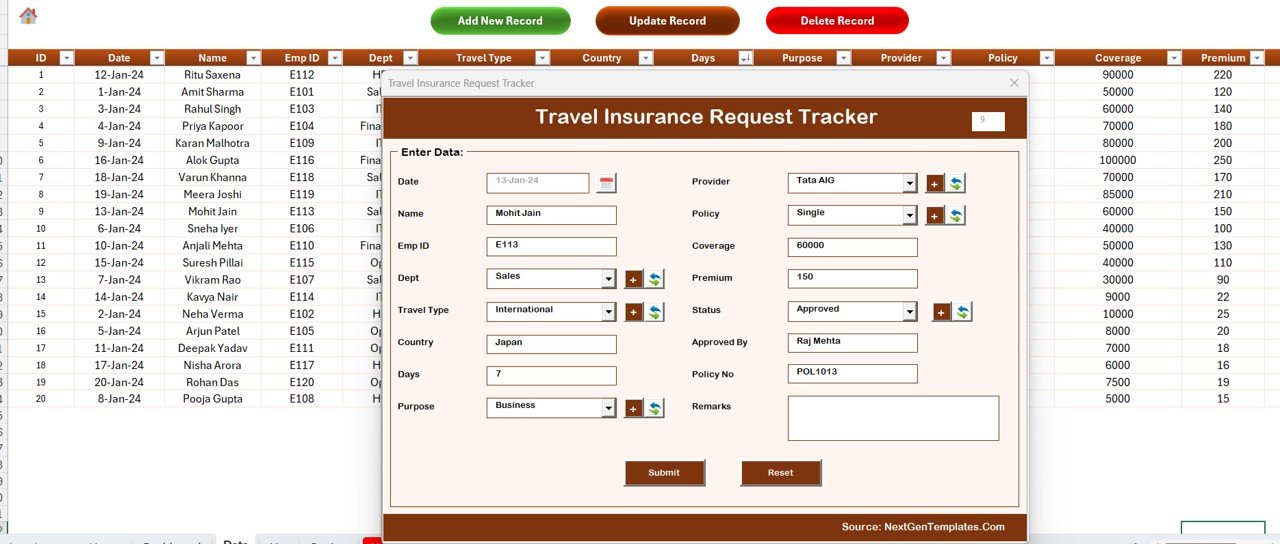
The Data Sheet is the master record table. Three buttons sit at the top:
- Add New Record — opens a blank UserForm with combo boxes pre-populated from the List Sheet. On submit, the new row is appended and the dashboard refreshes.
- Update Record — select an ID first, then click. The same form opens, pre-filled with the selected record’s data, ready to edit.
- Delete Record — select an ID, click the button, confirm the prompt. The record is removed safely.
Every request gets a unique auto-generated ID. The combo-box approach keeps the data clean — no rogue spellings of department names, statuses, or destinations.
5. List Sheet
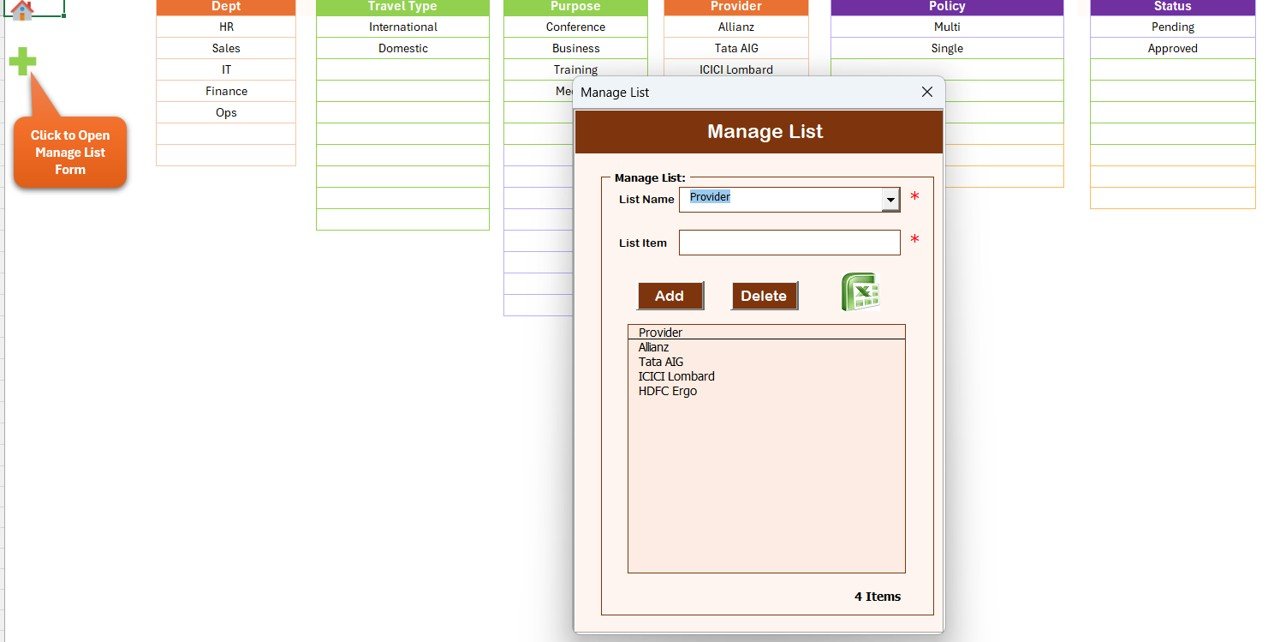
The List Sheet stores the values that appear in the form’s combo boxes — departments, request statuses, policy types, destinations, and any other dropdown the form uses. Edit a list, save the file, and the change appears in the form on next open. No VBA edits required.
6. Support Sheet
The Support Sheet holds the pivot tables that drive the dashboard charts. It’s hidden by default. End users don’t need to interact with it — pivot caches refresh automatically when the underlying data changes. If you need to add a new chart to the dashboard, this is where you add the supporting pivot.
7. Settings Sheet
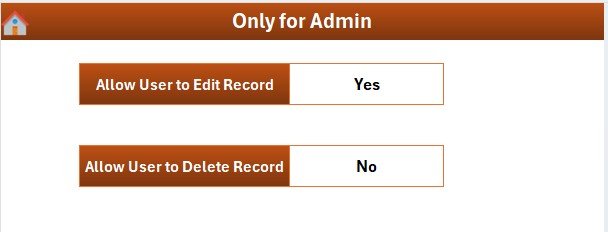
The Settings Sheet holds workbook-level preferences: company name (used in titles), default currency, fiscal year start, and other parameters. Changing these here means you don’t need to edit the VBA project to rebrand the tool for your organization.
8. User Management Sheet
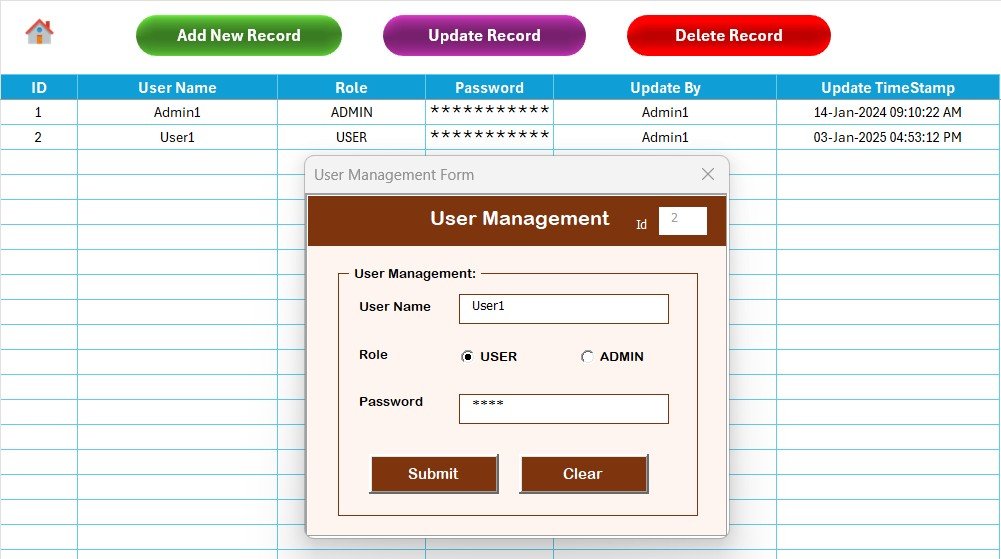
Admin-only. The User Management sheet lets admins add new users, change roles between Admin and User, and reset passwords. This is what makes the tool truly multi-user — junior staff can be given data-entry access without exposing the full settings or user list.
Travel Insurance Request Tracker in Excel vs. Google Sheets vs. Paid HR/Insurance SaaS — Feature Comparison
| Feature | Travel Insurance Request Tracker (Excel) | Google Sheets equivalent | BambooHR / Workday / Zoho People |
|---|---|---|---|
| Cost | $6.99 one-time ✅ | $0 build-it-yourself (40+ hours) | $6–$12 / user / month |
| Platform | Microsoft Excel (offline) ✅ | Google Sheets (cloud) | Web SaaS |
| Setup time | Under 10 minutes ✅ | Days of formula building | 2–6 weeks of vendor onboarding |
| Login + role-based access | ✅ Built-in (Admin / User) | ❌ Not native | ✅ |
| Data entry form | ✅ VBA UserForm | ❌ Google Forms (separate) | ✅ |
| Slicer-driven dashboard | ✅ 4 slicers, 5 charts | Manual filter views | ✅ |
| Works offline | ✅ | ❌ Requires internet | ❌ |
| Year-1 cost (5 users) | $6.99 total ✅ | ~$0 + 40 hours of work | $360–$720 |
| Customizable fields | ✅ Edit lists & VBA | ✅ | Limited — vendor controlled |
For HR teams that want a private, offline travel insurance request system without paying $360+ per year for cloud SaaS, the Travel Insurance Request Tracker in Excel sits in the sweet spot.
Who Should Use This Template
Perfect for:
- HR and admin teams at 10–500 person companies that handle frequent business travel
- Travel desks and corporate travel coordinators tracking per-trip insurance
- Finance teams reconciling travel insurance premiums against requests
- Small businesses replacing monthly SaaS fees with one-time-purchase tools
- Insurance brokers and TPAs handling employer-sponsored travel cover
Not a fit if:
- You’re an enterprise needing SOC 2, SSO, or audit-grade access logs
- You only use Excel for Mac — VBA UserForms have limited macOS support
- You need real-time multi-user editing across the cloud
- You need direct API integration with claim-processing systems
Real-World Use Cases
Priya runs HR at a 60-person consulting firm in Bengaluru where 30+ consultants travel internationally each quarter. She uses the Travel Insurance Request Tracker in Excel to log every request, the policy chosen, and the premium paid. By filtering the dashboard by destination and month, she can show her broker concrete data when negotiating better rates. Total tool cost for the year: $6.99 — versus the $480 her previous SaaS subscription cost for 5 seats.
Marco manages corporate travel at a 200-person manufacturing company in Milan. He logs each employee’s travel insurance request through the data entry form, tracks status from “requested” to “policy issued,” and exports filtered reports for the finance team every month. Setup took him 12 minutes — replacing a shared Google Sheet that nobody could agree on the structure of.
Aisha is the operations lead at a small insurance brokerage. She uses the tracker to manage employer-sponsored travel cover requests across her client portfolio. The role-based login keeps each client’s data separated from junior staff who only need read-and-enter access, and the User Management sheet lets her onboard new analysts in under a minute.
Advantages of the Travel Insurance Request Tracker in Excel
- Zero recurring cost. One-time $6.99. No surprise renewals.
- Private by default. The file lives on your machine — no cloud upload of employee passport, destination, or premium data unless you choose to share.
- Replaces multiple tools. Replaces a Google Form + Sheet + manual chart workflow with one workbook.
- Lifetime access. Works without an internet connection and without an active license check.
- Customizable. Add new departments, policy types, and destinations from the List sheet. Extend VBA fields if your team has technical capacity.
- Audit-friendly within scope. Each record has a unique ID and timestamp; filtered exports work for finance and compliance reviews.
Opportunities for Improvement
An honest look at where the tool has limits is more useful than a hard sell:
- Single-user file lock. Excel workbooks are inherently single-user-at-a-time. For 3+ concurrent editors, you’ll need a shared drive workflow with check-in/check-out discipline, or a SaaS upgrade path.
- Mac compatibility. VBA UserForms have known gaps on Excel for Mac. Windows desktop is the recommended runtime.
- No external API integrations. The tool doesn’t sync to insurance-broker portals or claims systems out of the box. Power users can extend with VBA + Power Query.
- Audit logs are basic. The User Management sheet logs accounts, not full edit history. For SOX/HIPAA-grade audit trails, layer this with Excel’s built-in change tracking or move to enterprise software.
Best Practices
- Save a backup copy of the .xlsm file weekly to a secure shared drive.
- Change the default Admin password the moment you open the file.
- Edit the List sheet first — destinations, departments, and policy types — before logging your first record. Clean lists yield clean dashboards.
- Use the Status field consistently (Requested → Approved → Policy Issued → Trip Complete) so the dashboard’s status chart tells a clear story.
- Train data-entry users on the form workflow first; they should never edit the Data sheet directly. The form is the only safe entry point.
- If you customize the dashboard, refresh pivot tables on the Support sheet (Data → Refresh All) so chart ranges stay accurate.
Explore Relevant Templates
- 🛡️ Insurance Enrollment Management System V1.0 in Excel VBA — Full enrollment, plans, providers, and dependents management.
- 🔑 Office Key Access Request Tracker in Excel — Same form-driven UI, different workflow.
- 🚗 Vehicle Reservation Tracker in Excel — Pair with travel insurance for full corporate travel coverage.
- 📅 Leave Application Management System V1.0 — Same VBA architecture for leave workflows.
- 💸 Expense Reimbursement Management System V1.0 — Pair with travel insurance for end-to-end travel + expense automation.
Browse more Excel VBA Tools and HR & Payroll Templates on NextGenTemplates.
Frequently Asked Questions
What does the Travel Insurance Request Tracker in Excel do?
The Travel Insurance Request Tracker in Excel logs every employee travel insurance request across 8 integrated worksheets. Admins enter requests via a VBA data entry form, and the dashboard’s 4 slicers and 5 charts refresh automatically to show status, department, and policy breakdowns. It replaces email threads and shared spreadsheets with a single secure workbook.
Do I need VBA or programming experience to use it?
No. The Travel Insurance Request Tracker in Excel is fully pre-built. You only need to enable macros, log in, and use the Add / Update / Delete buttons. All VBA code is included and documented for technical users who want to extend it, but most teams never need to open the VBA editor.
How does this compare to BambooHR or Zoho People for tracking travel insurance?
BambooHR and Zoho People charge $6–$12 per user per month — about $360–$720 a year for a 5-person team. The Travel Insurance Request Tracker in Excel is $6.99 one-time with no per-user fees, runs offline, and gives you full control over the data file without vendor lock-in.
Will it work on Excel for Mac?
The Travel Insurance Request Tracker in Excel is built for Microsoft Excel for Windows. UserForm-based VBA tools have limited support on Excel for Mac, so a Windows desktop is recommended. Microsoft’s documentation lists the specific VBA components that have macOS gaps.
How long does setup take?
Under 10 minutes. Open the file, log in with the default Admin credentials, edit the List sheet dropdowns to match your organization, configure the Settings sheet, and start adding records. The dashboard begins working as soon as the first record is submitted.
Can I add my own custom fields to the request form?
Yes. The List sheet drives all combo boxes, and the VBA form is documented so technical users can extend fields. Most teams customize departments, destinations, and policy types directly on the List sheet without ever touching VBA code.
Is the data secure?
The Travel Insurance Request Tracker in Excel uses a built-in login system with role-based Admin/User access. The file lives locally on your computer, so there’s no cloud upload of sensitive employee data unless you choose to share the file. For high-compliance use cases, store the file on an encrypted drive and back it up weekly.
About the Author
Built by PK — Microsoft Certified Professional with 15+ years of Excel, Google Sheets, and Power BI experience. Founder of NextGenTemplates, reaching 300K+ subscribers across YouTube channels (@PK-AnExcelExpert, @NextGenTemplates, @NeoTechNavigators). Every template is hand-built and tested before release.
Conclusion
The Travel Insurance Request Tracker in Excel gives HR, admin, and travel-desk teams a complete VBA-powered workflow — login, data entry, dashboard, user management — for the price of a coffee. It replaces email-thread chaos and SaaS subscriptions with one Excel workbook your team can use offline, customize freely, and own forever.
👉 Click here to Purchase the Travel Insurance Request Tracker in Excel
✅ Instant download · One-time payment · No subscription · Lifetime access
🎥 Visit our YouTube channel for more Excel + VBA tutorials: YouTube.com/@PK-AnExcelExpert
📅 Last updated: May 2026