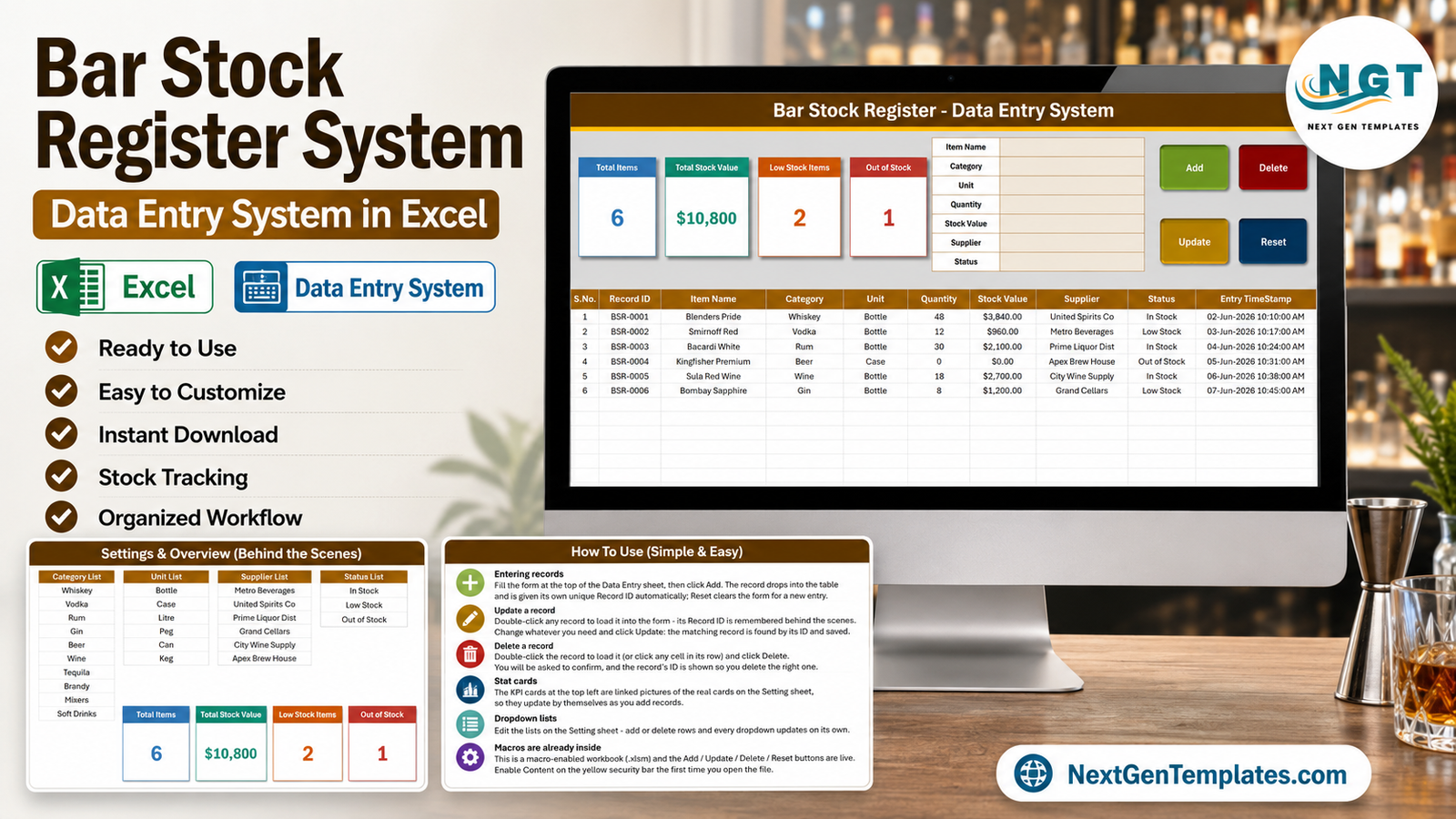
The Bar Stock Register Data Entry System in Excel records every bottle, case and keg through a seven-field entry form, shows four live KPI cards — Total Items, Total Stock Value, Low Stock Items and Out of Stock — and stores ten columns per record, including an auto-generated Record ID and an entry timestamp. The sample workbook opens with six stock lines worth $10,800, so you can see how it behaves before clearing it. Setup takes under five minutes.
Most bars still count stock the same way they did twenty years ago: a clipboard on Monday morning, a calculator, and a spreadsheet that grows a new column every time somebody has an idea. It works until the day you need to answer a simple question — what is actually low, and who do I order it from? This post walks through how the Bar Stock Register Data Entry System in Excel answers that in one screen, what each sheet does, where it fits against a Google Sheets register and paid bar-inventory software, and where it honestly falls short.
Key Features of the Bar Stock Register Data Entry System in Excel
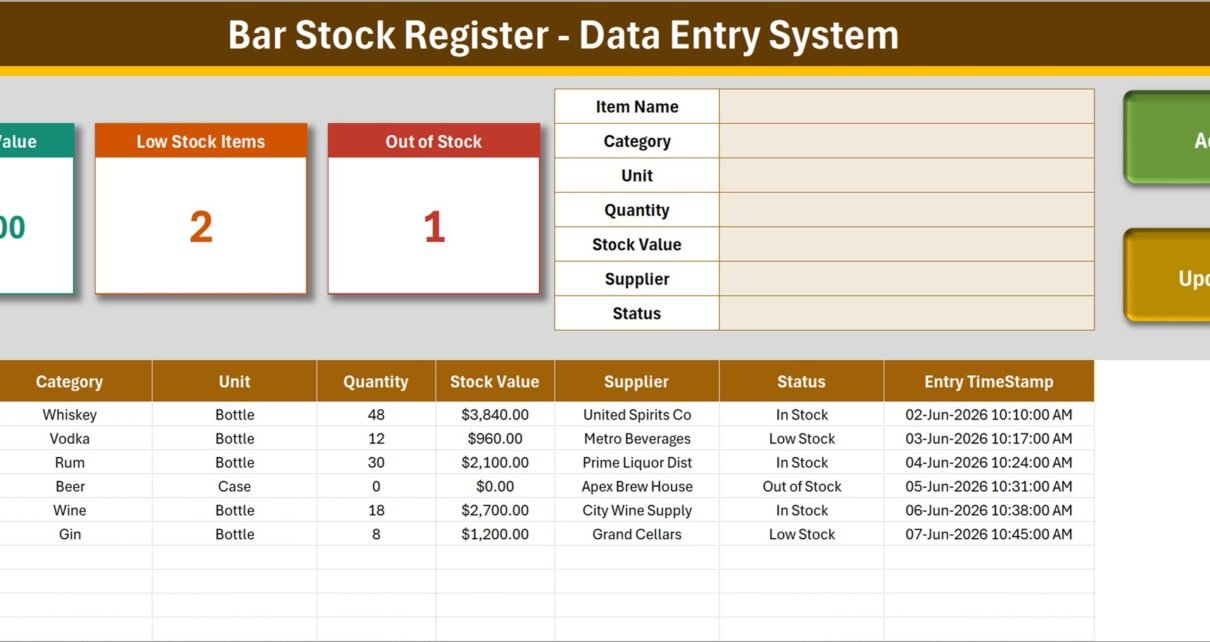
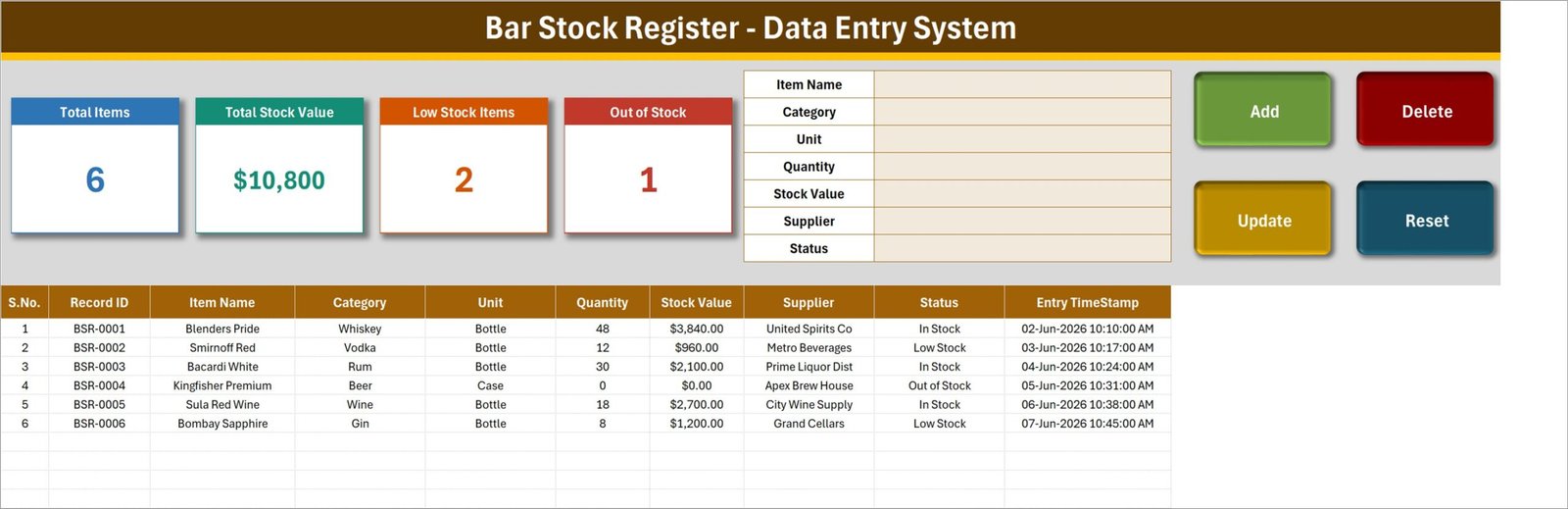
- A seven-field entry form. Item Name, Category, Unit, Quantity, Stock Value, Supplier and Status sit in one block at the top of the Data Entry sheet. Nothing is buried in a second window.
- Four KPI cards that update themselves. Total Items, Total Stock Value, Low Stock Items and Out of Stock are linked pictures of the real cards on the Setting sheet, so they recalculate the instant a record changes.
- Real VBA buttons. Add, Update, Delete and Reset are macros, not formula tricks or hyperlinks. They do what their labels say.
- Automatic Record IDs. Every entry is stamped with an ID in the BSR-0001 format plus an Entry TimeStamp down to the minute, so two identical item names never get confused.
- Double-click to edit. Double-click any row to load it into the form. The workbook remembers its Record ID behind the scenes, so Update finds and saves the right record wherever it has moved to in the table.
- Twenty-five dropdown values you own. Ten categories, six units, six suppliers and three statuses, all editable on one sheet, all feeding both the form and the table columns.
- Ten columns per record. S.No., Record ID, Item Name, Category, Unit, Quantity, Stock Value, Supplier, Status and Entry TimeStamp.
Template Structure — Every Sheet Explained
Sheet 1: Data Entry
This is the screen you live on. Four KPI cards run across the top left, the entry form sits to their right, and the four macro buttons — Add, Delete, Update, Reset — stack on the far right in green, red, amber and teal. Below all of that, the register lists every record across ten columns. In the sample data, six lines are logged: two flagged Low Stock and one Out of Stock, with a total stock value of $10,800. Every figure in the screenshots is sample data, there purely to show the layout.
Sheet 2: Setting
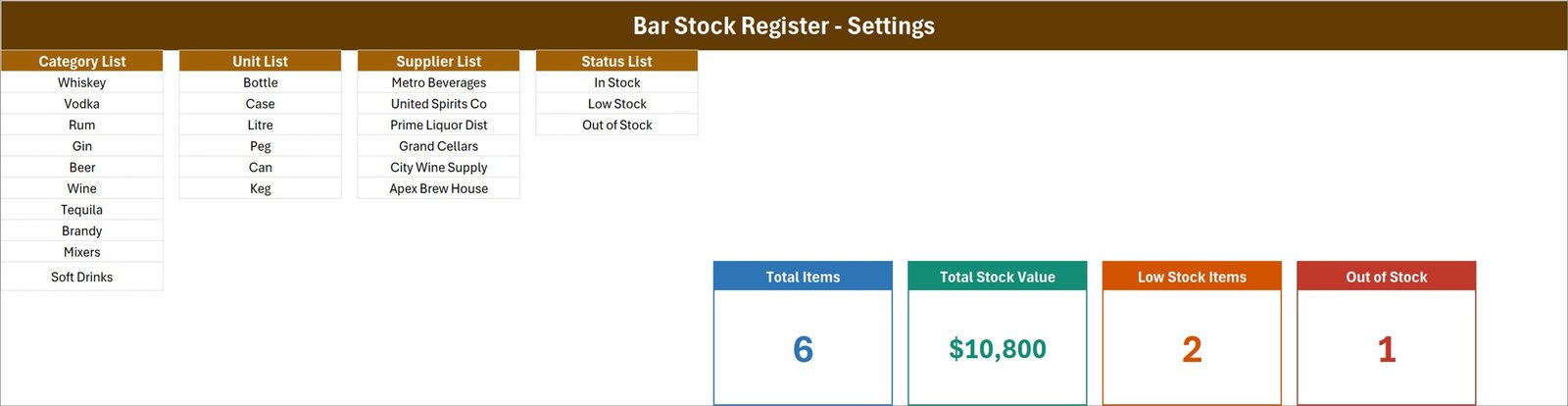
The control room. Four dropdown lists sit side by side: Category List (Whiskey, Vodka, Rum, Gin, Beer, Wine, Tequila, Brandy, Mixers, Soft Drinks), Unit List (Bottle, Case, Litre, Peg, Can, Keg), Supplier List (Metro Beverages, United Spirits Co, Prime Liquor Dist, Grand Cellars, City Wine Supply, Apex Brew House) and Status List (In Stock, Low Stock, Out of Stock). Add or delete rows and every dropdown updates on its own — no named ranges to repair.
The four real KPI cards also live on this sheet, to the right of the lists. The cards on the Data Entry sheet are linked pictures of these, which is why restyling one here changes the other automatically.
Sheet 3: How To Use
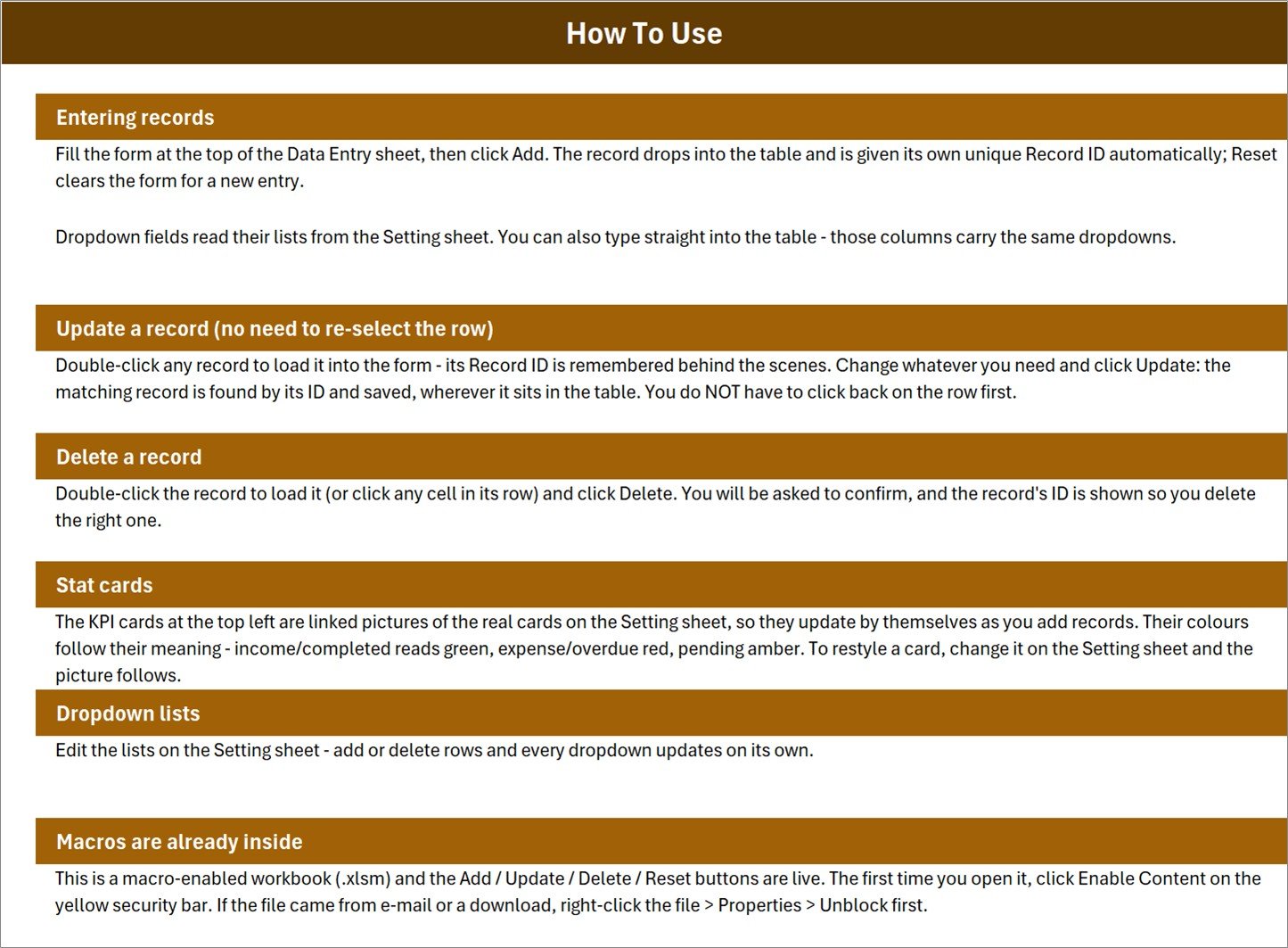
Six short sections shipped inside the workbook: Entering records, Update a record, Delete a record, Stat cards, Dropdown lists, and Macros are already inside. It spells out the double-click-to-edit behaviour and the Enable Content step, which is exactly where most first-time users get stuck.
Bar Stock Register in Excel vs. a Google Sheets Register vs. Paid Bar-Inventory SaaS — Feature Comparison
| Feature | Bar Stock Register Data Entry System in Excel | Google Sheets stock register | BevSpot / Partender / Zoho Inventory |
|---|---|---|---|
| Cost | $6.99 one-time ✅ | Free to build, hours to make | $25-$180 per venue / month |
| Platform | Desktop Excel (.xlsm) | Browser, any device | Web + mobile app |
| Setup time | Under 5 minutes ✅ | 2-4 hours to build from scratch | 1-2 days onboarding |
| One-click Add / Update / Delete | Yes, VBA buttons ✅ | Apps Script required | Yes |
| Works fully offline | Yes ✅ | No | No |
| Real-time team collaboration | No — single-file | Yes ✅ | Yes ✅ |
| Mobile access | View only | Yes ✅ | Yes ✅ |
| Editable categories, units, suppliers | Yes, 25 values on one sheet ✅ | Manual named ranges | Yes, in settings |
| Your data stays on your machine | Yes ✅ | In Google’s cloud | In the vendor’s cloud |
| Year-1 cost, one venue | $6.99 ✅ | $0 + your time | $300-$2,160 |
For bar owners who want a fast, private stock register without paying a monthly per-venue fee, the Bar Stock Register Data Entry System in Excel sits in the sweet spot.
Who Should Use This Template
Perfect for:
- Single-venue bar, pub and lounge owners who count stock on a laptop
- Bar managers and head bartenders running a weekly count with supplier names attached
- Restaurant and banquet-hall managers keeping beverages separate from the kitchen store
- Cafe and club operators who want Low Stock and Out of Stock visible before they place an order
- Anyone moving off a paper register or a spreadsheet that has grown out of control
Not a fit if:
- Several people need to edit the same register simultaneously — a Google Sheets tracker suits that better
- You work only in Excel for the web, Excel on iPad, or Google Sheets, where VBA does not run
- You manage several venues and need consolidated group reporting
- You need POS integration, pour-level measurement, or automatic purchase orders
- You are looking for licensing, excise or regulatory paperwork — this is a stock register and nothing more
Real-World Use Cases
Ravi runs a 40-seat gastropub. Every Monday he counts the back bar, types each line into the form and clicks Add. The Total Stock Value card tells him what is tied up in inventory before he calls his supplier, and the Low Stock count tells him what to order. The job that used to take a notebook, a calculator and most of a morning now takes twenty minutes.
Meera manages beverages for a banquet hall. She keeps the bar register separate from the kitchen store so the two never contaminate each other. Because Supplier is a dropdown fed from the Setting sheet, she sorts the table by supplier and builds one order per vendor in a couple of minutes — no filtering gymnastics, no copy-paste.
Dan is head bartender at a hotel lounge. After each delivery he double-clicks the affected line, updates Quantity and Stock Value, and clicks Update. The Out of Stock card drops back to zero on its own, and his general manager can open the file and see the position without asking him to write a report.
Advantages of the Bar Stock Register Data Entry System in Excel
It costs once. At $6.99 the template is roughly what one month of the cheapest bar-inventory subscription costs, and there is no renewal, no per-user fee and no seat count to manage. Over a year the gap against paid software is $300 to $2,160 for a single venue.
It is fast to learn. There are three sheets and four buttons. A new bar manager can be entering records within ten minutes of opening the file, helped by the How To Use sheet that ships inside the workbook rather than as a separate PDF nobody reads.
It works with no connection. Stock rooms and cellars are famously bad places for wi-fi. The workbook is a local file, so a count in the basement behaves exactly like a count at the desk.
Your data stays yours. Nothing is uploaded, nothing syncs, and there is no account to close if you stop using it. The register is a file on your machine that you can copy, archive or hand over.
Opportunities for Improvement
Being straight about the limits: this is a single-file, single-user tool. Two people cannot type into the same register at the same time, and there is no audit trail of who changed what — only the entry timestamp on each record.
It also does not measure pours or connect to a POS, so variance between what was sold and what left the shelf is not something the workbook can calculate for you. And because everything depends on VBA, it will not run in Excel for the web, Excel for iPad, or Google Sheets. If any of those matter more than offline speed and price, a browser-based tracker or a paid platform is the better call.
Finally, the four KPI cards summarise the current register only. There is no month-over-month trend, no chart and no historical snapshot — for that layer, pair it with a dashboard.
Best Practices
- Set up the Setting sheet first. Replace the sample categories, units and suppliers before you enter a single record, so your dropdowns are right from day one.
- Keep one row per item, not per delivery. Update the existing record rather than adding a duplicate, and the Total Items card stays meaningful.
- Use Status deliberately. In Stock, Low Stock and Out of Stock drive two of the four KPI cards. If you set them casually, the cards stop being useful.
- Save a dated copy after each count. The workbook holds the current position, not history — an archived copy per week gives you the trend for free.
- Unblock the file once. If Excel refuses to enable macros, right-click the file, open Properties and tick Unblock. See Microsoft’s guidance on enabling or disabling macros in Microsoft 365 files.
Explore Relevant Templates
The same form-and-KPI layout runs across a whole line of systems. The Medicine Stock Data Entry System in Excel applies it to pharmacy shelves, and the Restaurant Order Data Entry System in Excel covers the kitchen side of the same venue. For staff paperwork there is the Employee Document Data Entry System in Excel, and for teaching timetables the Class Schedule Data Entry System in Excel.
We have written up several of these in detail before — see our posts on the Blood Donor Register Data Entry System, the Purchase Entry Data Entry System and the Class Schedule Data Entry System, all built on the same VBA engine.
Joining the line shortly: the Livestock Register, Supplement Sales, Gift Register and Petty Reimbursement Data Entry Systems.
If you want the reporting layer on top, the Micro Breweries & Pubs Dashboard in Power BI and the Hotel Revenue RevPAR Dashboard in Power BI turn beverage data into management reporting. For the whole supplier and stock function, the Procurement Manager Toolkit and the Logistics Manager Toolkit bundle eight templates each at a large saving.
Frequently Asked Questions
Do I need to enable macros for the Bar Stock Register Data Entry System in Excel?
Yes. The Bar Stock Register Data Entry System in Excel is a macro-enabled .xlsm workbook, and Add, Update, Delete and Reset are VBA macros. Click Enable Content on the yellow security bar the first time you open it. If Excel still blocks the file, right-click it, choose Properties and tick Unblock.
Will this work in Google Sheets or Excel for the web?
No. The Bar Stock Register Data Entry System in Excel requires desktop Microsoft Excel on Windows or Mac. Excel for the web, Excel on iPad and Google Sheets cannot run VBA, so the four buttons will not respond there. Use a Google Sheets tracker if you need a browser-based option.
What does each record store?
Ten fields per record: S.No., Record ID, Item Name, Category, Unit, Quantity, Stock Value, Supplier, Status and Entry TimeStamp. Four KPI cards summarise the register as Total Items, Total Stock Value, Low Stock Items and Out of Stock. All figures in the screenshots are sample data.
Can I change the categories, units and suppliers?
Yes. All 25 dropdown values sit in four lists on the Setting sheet of the Bar Stock Register Data Entry System in Excel. Add or delete rows there and every dropdown, in the form and in the table columns, updates automatically. No named ranges or formulas to edit by hand.
How long does setup take?
Under five minutes. Unzip the download, enable macros, replace the sample categories, units and suppliers with your own, then clear the six demo rows. The Bar Stock Register Data Entry System in Excel is ready to use immediately after that.
How does this compare to BevSpot or Zoho Inventory?
Paid bar-inventory platforms run roughly $25 to $180 per venue per month and add POS integration and mobile counting. The Bar Stock Register Data Entry System in Excel is a one-time $6.99 purchase that works offline and keeps data on your machine. It covers the register and the stock summary, not the integrations.
Is there a limit on the number of records?
No practical limit. The table expands each time you click Add, and Excel handles tens of thousands of rows comfortably. The four KPI cards keep recalculating as the register grows, so the summary stays accurate however long the list becomes.
About the Author
Built by PK — Microsoft Certified Professional with 15+ years of Excel, Google Sheets and Power BI experience. Founder of NextGenTemplates, reaching 300K+ subscribers across YouTube channels. Every template is hand-built and tested before release.
Conclusion
A bar stock register does not need to be complicated. It needs a form that is quick to fill, a summary you can read at a glance, and lists you can edit without breaking anything. The Bar Stock Register Data Entry System in Excel does those three things in three sheets and four buttons — and then gets out of the way.
👉 Click here to Purchase the Bar Stock Register Data Entry System in Excel
Instant download · One-time payment · No subscription
For step-by-step video walkthroughs of our Excel and VBA templates, visit Youtube.com/@PK-AnExcelExpert.
Last updated: August 2026