Managing customer service staff schedules is never easy. Teams work in shifts, service hours change, events come up suddenly, and management must ensure coverage without confusion. However, when organizations rely on manual registers, emails, or scattered spreadsheets, mistakes happen quickly. As a result, teams miss shifts, managers lose visibility, and customer experience suffers.
That is exactly where a Customer Service Staff Duty Calendar in Excel becomes a powerful and practical solution.
In this detailed and SEO-friendly guide, you will learn what a Customer Service Staff Duty Calendar in Excel is, why it is essential, how it works, and how each worksheet supports daily operations. Moreover, you will explore its advantages, best practices, and frequently asked questions. By the end of this article, you will clearly understand how this ready-to-use Excel calendar helps customer service teams stay organized, efficient, and fully prepared.
Click to Purchases Customer Service Staff Duty Calendar in Excel
What Is a Customer Service Staff Duty Calendar in Excel?
A Customer Service Staff Duty Calendar in Excel is a structured, interactive, and ready-to-use scheduling tool designed to plan, track, and manage customer service staff duties, shifts, and events.
Instead of juggling multiple files or relying on manual updates, this Excel calendar centralizes all staff-related events and duty schedules into one well-organized workbook. As a result, supervisors, team leads, and operations managers gain instant clarity over who is working, when they are working, and what events or duties are planned.
Because this calendar uses Excel, it remains easy to maintain, flexible to customize, and accessible to most organizations without additional software costs.
Why Do Customer Service Teams Need a Duty Calendar?
Customer service teams operate in fast-paced environments. Even small scheduling errors can disrupt service quality and customer satisfaction. Therefore, structured scheduling becomes critical.
Here are the main reasons why customer service teams need a dedicated duty calendar:
-
Multiple shifts and rotating schedules
-
High dependency on staff availability
-
Frequent events, training sessions, or special duties
-
Need for quick visibility across days, months, and years
-
Manual scheduling leads to errors and miscommunication
Because of these challenges, a Customer Service Staff Duty Calendar in Excel becomes an essential operational tool rather than just a convenience.
Click to Purchases Customer Service Staff Duty Calendar in Excel
How Does the Customer Service Staff Duty Calendar in Excel Work?
This calendar works entirely within Excel and uses a structured worksheet design combined with buttons, forms, and control panels.
You do not need advanced Excel knowledge to use it. Instead, you interact with calendars, select dates, and add events using simple forms. Once you add an event, the calendar updates automatically across different views.
The template includes five well-designed worksheets, each serving a specific purpose. Together, they provide a complete scheduling and event management system for customer service teams.
What Are the Key Features of the Customer Service Staff Duty Calendar in Excel?
This ready-to-use calendar comes with practical features designed specifically for operational teams.
🔹 Centralized Scheduling
Manage all staff duty events from a single Excel file.
🔹 Multiple Calendar Views
Switch between annual, monthly, and daily views instantly.
🔹 Event Management Forms
Add, update, or delete events using user-friendly forms.
🔹 Theme Customization
Apply color themes across the entire workbook with one click.
🔹 Day and Event Highlighting
Highlight weekends, specific weekdays, and events visually.
🔹 Navigation Buttons
Move between sheets quickly using buttons on the Home page.
What Worksheets Are Included in the Customer Service Staff Duty Calendar in Excel?
This Excel template includes five structured worksheets, each designed to solve a specific scheduling problem.
Click to Purchases Customer Service Staff Duty Calendar in Excel
1) What Is the Home Sheet Used For?
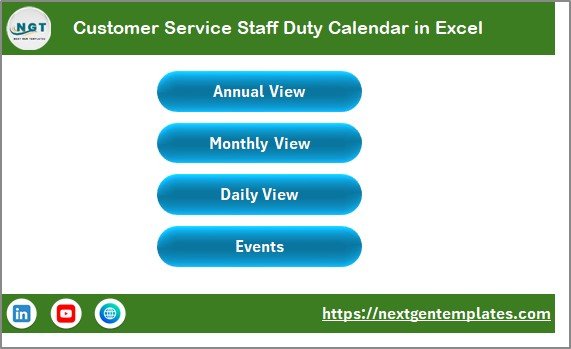
The Home Sheet acts as the index or navigation page of the calendar.
Key Purpose of the Home Sheet
This sheet helps users navigate the entire workbook without searching for tabs manually. As a result, even non-technical users can move between views easily.
Buttons Available on the Home Sheet
-
Annual View Button – Opens the annual calendar
-
Monthly View Button – Opens the monthly calendar
-
Daily View Button – Opens the daily event list
-
Events Button – Opens the event database
Because of this clear navigation, users save time and avoid confusion.
2) How Does the Annual View Sheet Help in Long-Term Planning?

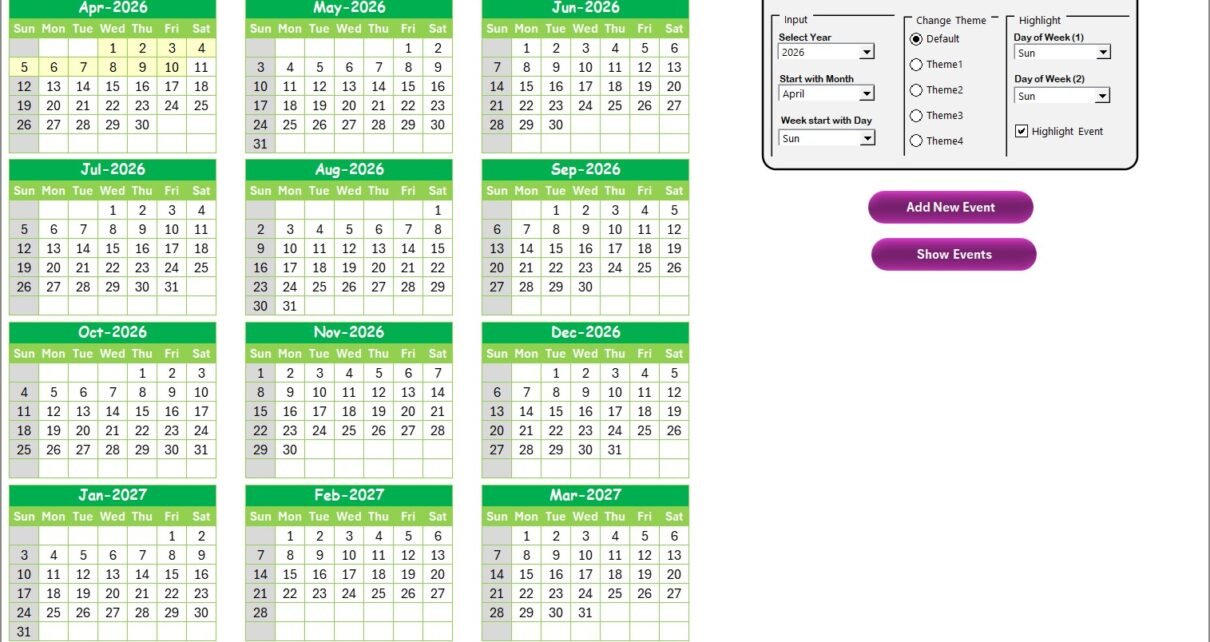
The Annual View Sheet displays all 12 months of the year on a single screen. This view supports long-term planning and workload balancing.
What Does the Annual View Show?
-
Full 12-month calendar layout
-
Staff duty events highlighted on dates
-
Visual identification of busy and free periods
Control Panel on the Annual View Sheet
The annual view includes a powerful control panel with three groups.
Input Group
-
Select the Year to update the calendar automatically
-
Change the starting month of the calendar
-
Set the starting day of the week
This flexibility allows organizations to align the calendar with operational or regional preferences.
Change Theme Group
-
Choose from 5 predefined color themes
-
Apply the selected theme across the entire workbook instantly
This feature improves visual clarity and branding consistency.
Highlight Group
-
Select Day of Week (1) and Day of Week (2) to highlight
-
For example, highlight Saturday and Sunday in grey color
-
Enable Highlight Event checkbox to mark events in yellow
Because of this, weekends and important dates stand out clearly.
Action Buttons on Annual View
-
Add New Event Button
Select a date and click this button to open the event form. Fill the details and submit to add the event. -
Show Event Button
Select a date and click this button to view all events scheduled on that day.
3) What Is the Monthly View Sheet Used For?
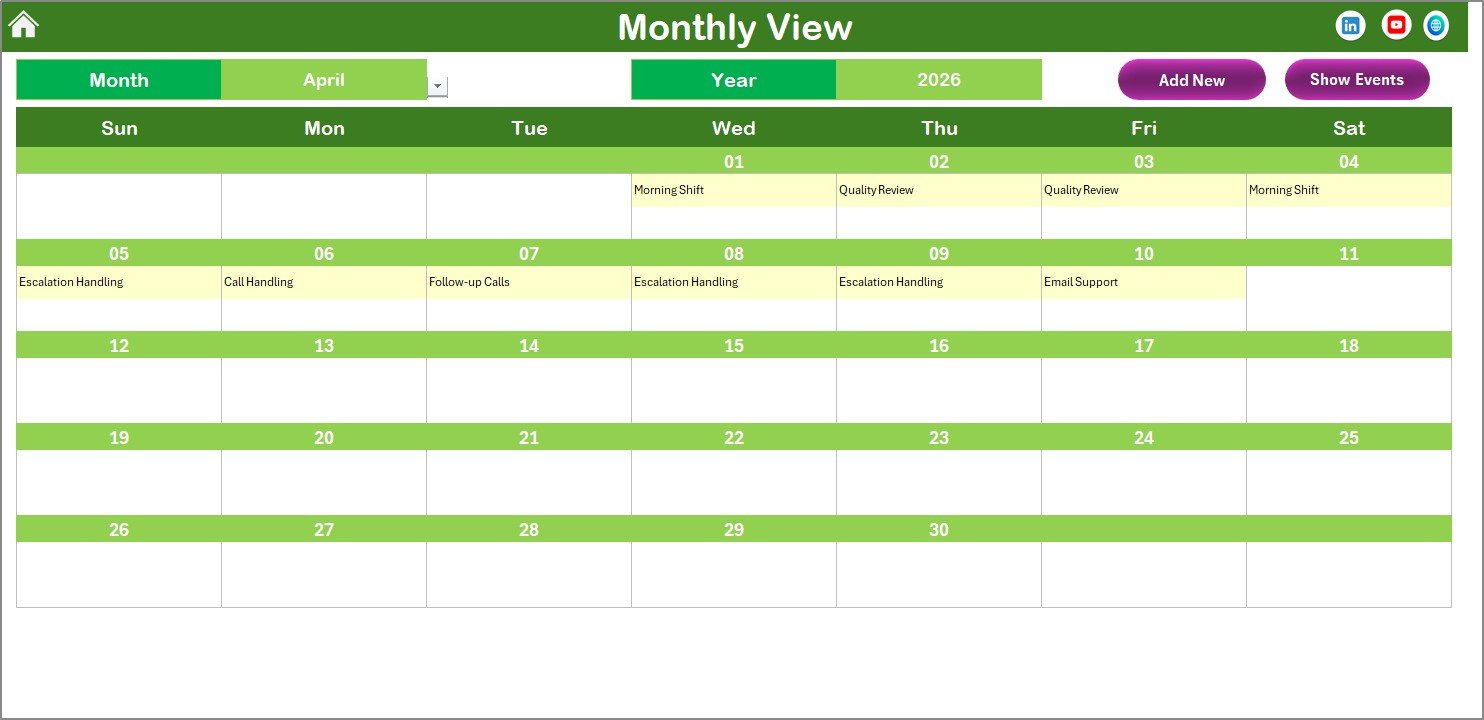
The Monthly View Sheet focuses on one selected month at a time. This view helps supervisors manage short-term schedules more effectively.
Key Features of the Monthly View
-
Select Month and Year from the top
-
Display a single, clean monthly calendar
-
Show one event directly on the date
-
Display “more than 1…” if multiple events exist
This approach keeps the calendar clean while still indicating workload intensity.
Buttons Available on Monthly View
-
Add New Event Button
Add an event to the selected date using the event form. -
Show Event Button
View all events scheduled on the selected date.
Because of this design, managers can plan monthly rosters and activities quickly.
Click to Purchases Customer Service Staff Duty Calendar in Excel
4) How Does the Daily View Sheet Improve Operational Visibility?
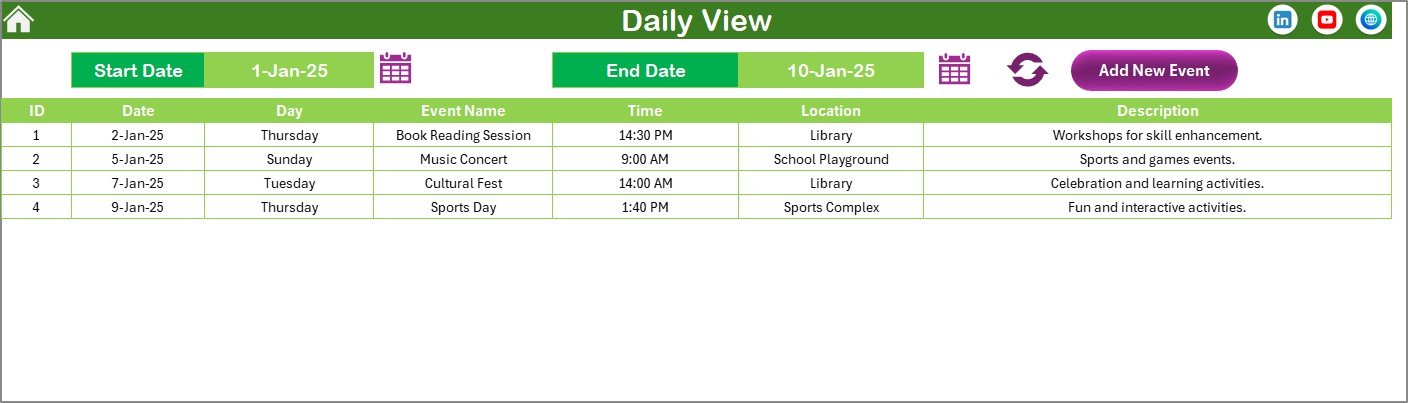
The Daily View Sheet provides a detailed list of events within a selected date range.
What Can You Do on the Daily View Sheet?
-
Select Start Date and End Date
-
Use calendar icons to choose dates easily
-
Click Refresh to load the latest data
This sheet shows all events with complete details for the selected range. Therefore, supervisors can track daily activities, meetings, and staff duties without missing information.
Add New Event from Daily View
The sheet also includes an Add New Event Button. You can add new events directly without switching sheets, which improves efficiency during daily operations.
5) What Is the Events Sheet and Why Is It Important?
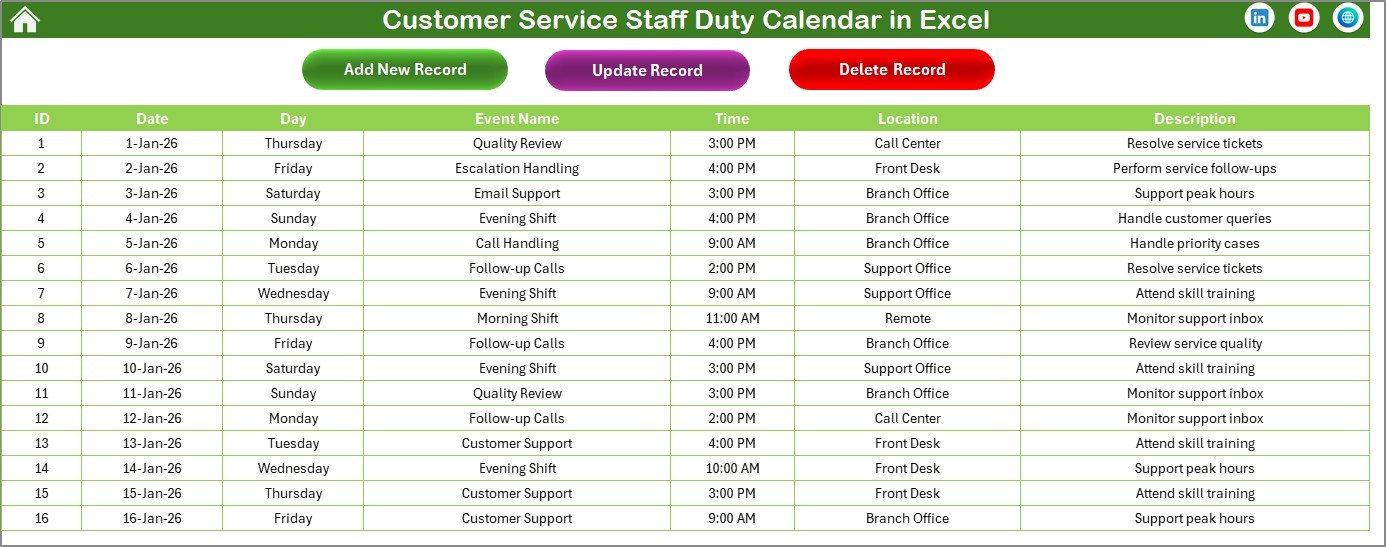
The Events Sheet works as the database of the entire calendar.
What Information Does the Events Sheet Store?
Each event record includes:
-
ID – Auto-generated unique number
-
Date – Date of the event
-
Day – Day name (Sunday, Monday, etc.)
-
Event Name – Name of the duty or event
-
Time – Event time
-
Location – Event location
-
Description – Short description
Because all views pull data from this sheet, accuracy here ensures reliability everywhere.
Buttons Available on the Events Sheet
-
Add New Record
Opens the event form to add a new event. -
Update Existing Record
Select an ID, open the form with prefilled data, update details, and submit. -
Delete Record
Select an ID and delete the event record instantly.
This structure ensures full control over event data.
Click to Purchases Customer Service Staff Duty Calendar in Excel
Advantages of Customer Service Staff Duty Calendar in Excel
A Customer Service Staff Duty Calendar in Excel delivers practical benefits across operations.
✅ Better Staff Coordination
Teams know their duties clearly and avoid scheduling conflicts.
✅ Improved Planning Accuracy
Managers plan shifts, events, and coverage confidently.
✅ Reduced Manual Errors
Forms and structured data reduce mistakes significantly.
✅ Time Savings
Automation eliminates repetitive manual scheduling work.
✅ Easy Customization
Excel-based design allows quick adjustments.
✅ Single Source of Truth
All staff duty information stays in one centralized file.
Who Should Use a Customer Service Staff Duty Calendar in Excel?
This calendar suits a wide range of teams and organizations.
-
Customer Service Managers
-
Call Center Supervisors
-
Helpdesk Team Leads
-
Operations Managers
-
HR and Workforce Planning Teams
-
Small and Medium Businesses
Because of its simplicity, even teams without advanced tools can use it effectively.
Click to Purchases Customer Service Staff Duty Calendar in Excel
Best Practices for the Customer Service Staff Duty Calendar in Excel
To get maximum value, organizations should follow proven best practices.
✔️ Update Events Regularly
Always add or update events as soon as schedules change.
✔️ Use Clear Event Names
Write clear and descriptive event names for easy understanding.
✔️ Standardize Locations and Time Formats
Maintain consistency across records to avoid confusion.
✔️ Review Weekly and Monthly Views
Use monthly and daily views to catch overlaps early.
✔️ Limit Editing Access
Allow only authorized users to update or delete records.
✔️ Backup the File Periodically
Protect data by keeping regular backups.
Conclusion: Why You Should Use a Customer Service Staff Duty Calendar in Excel
Customer service operations demand precision, coordination, and clarity. Without structured scheduling, teams struggle to deliver consistent service.
A Customer Service Staff Duty Calendar in Excel provides a reliable, flexible, and easy-to-use solution for managing staff duties and events. With annual, monthly, and daily views, interactive controls, and a centralized event database, this calendar simplifies scheduling while reducing errors.
Because it runs entirely in Excel, it remains accessible, cost-effective, and customizable. Ultimately, this ready-to-use calendar helps customer service teams stay organized, responsive, and fully prepared.
Click to Purchases Customer Service Staff Duty Calendar in Excel
Frequently Asked Questions (FAQs)
❓ What is a Customer Service Staff Duty Calendar in Excel?
It is an Excel-based scheduling tool used to manage staff duties, events, and shifts across multiple calendar views.
❓ Do I need advanced Excel skills to use this calendar?
No. The calendar uses buttons, forms, and simple controls that anyone can use.
❓ Can I customize the calendar themes?
Yes. You can choose from multiple color themes using the control panel.
❓ Can I add multiple events on the same day?
Yes. The system supports multiple events per date.
❓ Is this calendar suitable for small teams?
Absolutely. Small and large customer service teams can use it effectively.
❓ Can I use this calendar for other departments?
Yes. You can easily adapt it for operations, HR, or admin teams.
Click to Purchases Customer Service Staff Duty Calendar in Excel
Visit our YouTube channel to learn step-by-step video tutorials