Part of the free Module 6: Data Validation · Lesson 8 of 14 · Full Excel course
Updated on 5 September 2026 · Works in Excel 365, 2021, 2019 and 2016 unless noted.
An input message in Excel data validation is a small yellow pop-up that appears the moment a user selects a cell, telling them what to enter before they type. You set it on the Input Message tab of the Data Validation dialog, with a title of up to 32 characters and a message of up to 255 characters. It works with any validation rule, and even with no rule at all.
What an input message does
Data validation has three tabs. Settings decides what is allowed, Error Alert reacts after a wrong entry, and Input Message speaks first. The message is a hint, not a restriction: it appears when the cell is selected with the mouse or the keyboard, follows the selection through the validated range, and disappears as soon as the user moves elsewhere. Because it never prints and never occupies a cell, it is the cleanest way to put instructions on a data-entry form.
The input message does not depend on the Settings tab. If you leave Allow at Any value and fill in only the Input Message tab, Excel shows the hint and restricts nothing. Many form designers use this to explain a column (“Enter the customer code from the CRM, for example CU-1042”) without forcing a rule that might block a legitimate exception.
Input message compared with notes, error alerts and header text
Excel gives you four ways to tell a user what a cell expects. They are not interchangeable, and the best forms combine them.
| Method | When it appears | Blocks bad entries? | Prints? | Best for |
|---|---|---|---|---|
| Input message | When the cell is selected | No | No | Short entry hints on every cell of a column |
| Note (comment) | On hover, or always if shown | No | Optional | Explaining a specific cell or leaving a review remark |
| Error alert | After an invalid entry is confirmed | Stop yes; Warning and Information no | No | Enforcing the Settings rule |
| Header or placeholder text | Always visible in the sheet | No | Yes | Column labels, units and printed forms |
A note is attached to one cell and shows on hover; an input message is attached to a validation rule and shows on selection. If you need the same hint on 500 cells, the input message wins because you set it once for the whole range. If you need a remark on one cell, a note is quicker.
Fields on the Input Message tab
| Field | Limit | Notes |
|---|---|---|
| Show input message when cell is selected | On or off | Ticked by default. Untick to keep the text but hide the pop-up. |
| Title | 32 characters | Shown in bold on the first line. Optional. |
| Input message | 255 characters | Plain text only. Press Enter for a line break in Windows Excel. |
Step by step: add an input message in Excel
- Select the range that should show the message, for example B2:B100.
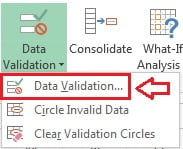
- Go to Data > Data Tools > Data Validation and click Data Validation. The shortcut is Alt, A, V, V.
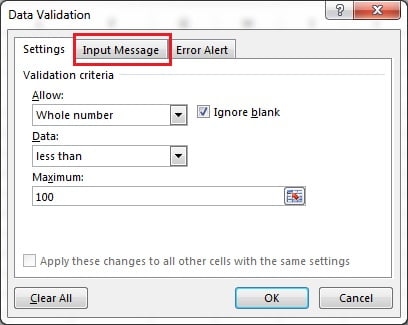
- On the Settings tab, define the rule if you want one. In the example, Allow is Whole number and Data is less than 100. Leave Allow at Any value for a pure hint.
- Click the Input Message tab.
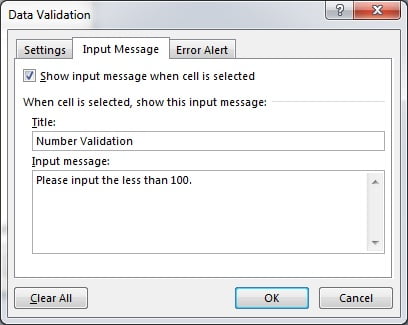
- Make sure Show input message when cell is selected is ticked.
- Type a short Title, for example “Number”. It appears in bold at the top of the pop-up.
- Type the Input message, for example “Enter a whole number less than 100”.
- Click OK.
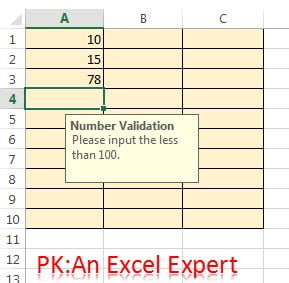
- Select any cell in the range. The input message appears beside it and moves with the selection.
Moving, copying and clearing the message
Move the pop-up. If the message covers the cells beside it, drag it by its edge to a better spot. Excel remembers the new position for that worksheet until you close the workbook. The pop-up always anchors to the active cell, so it will drift back if you scroll a long way.
Apply it to a whole column. Select the column, or the data rows of an Excel Table, before opening the dialog. If the range already has mixed rules, Excel asks whether to apply the change to all cells with the same settings; answer Yes to standardise the column.
Copy it to other cells. Copy a validated cell, select the target range, then use Home > Paste > Paste Special > Validation (or Ctrl+Alt+V, then N). This copies the rule, the input message and the error alert without touching values or formatting.
Clear it. Open Data Validation on the range, delete the Title and Input message text, or untick Show input message when cell is selected to hide the pop-up but keep the text for later. Clear All removes the message together with the rule and the error alert.
Writing a good input message
A hint is only useful if the user reads it in the half-second before typing. Follow four rules.
- Lead with the format. “Date as DD-MM-YYYY” beats “Please enter the date the order was placed”.
- Give one example. “Phone with country code, e.g. +91 98765 43210” removes most guesswork.
- State the rule positively. “Enter 1 to 50” is clearer than “Do not enter text or zero”.
- Say who to contact. For fields the user may not know, end with “Ask Finance for the cost centre”.
Keep the title to one or two words and the message to one or two sentences. The pop-up has a fixed width, so long text wraps into a tall block that hides the cells below it. If a cell has a drop-down, say so; new users often miss the arrow.
Worked example: hints on a customer order form
A small order form collects three fields that are typed wrongly every week: phone numbers without a country code, e-mail addresses with spaces, and order dates typed as text. Add an input message to each column so the hint is visible before anyone types.
| Column | Settings rule | Title | Input message |
|---|---|---|---|
| Phone (B2:B200) | Text length, between 10 and 16 | Phone | Include the country code, e.g. +91 98765 43210. Digits, spaces and + only. |
| Email (C2:C200) | Custom: =AND(ISNUMBER(FIND("@",C2)),ISERROR(FIND(" ",C2))) |
One address, no spaces, e.g. name@company.com. | |
| Order Date (D2:D200) | Date, between 01/01/2026 and =TODAY() |
Order Date | Type as DD-MM-YYYY. Future dates are not accepted. Ask Sales if unsure. |
- Select B2:B200, open Data > Data Validation, set the Settings rule from the table, then fill the Input Message tab with the Phone title and text. Click OK.
- Repeat for C2:C200 and D2:D200 with their own rule, title and message.
- On the Error Alert tab of each range choose Stop, so the hint explains the rule and the alert enforces it.
- Click into B2. The Phone hint appears; press Tab and the Email hint replaces it; press Tab again for the Order Date hint.
Result: users see the expected format before typing, and the number of rejected entries drops without anyone reading a separate instruction sheet.
Limits of the input message
Knowing what the feature cannot do saves time.
| Limitation | What to do instead |
|---|---|
| No bold, colour, font or bullet formatting | Use short sentences; put detailed guidance in a note or an Instructions sheet |
| Cannot reference a cell or formula; the text is fixed | Show dynamic guidance in a neighbouring cell with a formula, or use a VBA Worksheet_SelectionChange event to rewrite the message |
| Appears only on selection, never on hover | Use a note if hover behaviour matters |
| Title 32 characters, message 255 characters | Keep the hint short and link the format to an example |
| Not shown while a cell is in edit mode or when the sheet is protected with selection locked | Allow users to select unlocked cells in the protection settings |
Tips and common mistakes
- Hint plus alert, not one or the other. The input message explains; the error alert enforces. Set both on any field with a rule.
- Do not rely on the hint to validate. With Allow at Any value nothing is checked, so wrong data still gets in.
- Watch the 255-character limit. Excel silently stops accepting text at the limit; if the last words are missing, that is why.
- Pasting values wipes nothing, but pasting cells does. Copying a plain cell over a validated cell replaces the validation and its message. Use Paste Special > Values when you only want the data.
- Convert the range to an Excel Table. Validation and the input message extend to new rows automatically.
- Extending the range later. Cells added outside the original selection do not get the message; copy a validated cell and use Paste Special > Validation.
- Do not write instructions only in the message. Users on Excel for the web and mobile see input messages, but a printed form does not; keep column headers descriptive too.
Practice exercise
- In a blank sheet type the headers Phone, Email and Order Date in B1:D1, then apply the three rules and input messages from the worked example to rows 2 to 50.
- Add a hint-only message on column A (“Customer name as it appears on the invoice”) with Allow left at Any value.
- Copy cell B2 and use Paste Special > Validation to extend the Phone hint to B51:B100. Check that the values in those cells are untouched.
- Drag the pop-up to the right of the column and confirm it stays there as you move down the range.
- Untick Show input message on column D, save, and confirm the rule still rejects a future date.
Key takeaways
- The input message is a selection-triggered hint set on the Input Message tab: 32-character title, 255-character message.
- It works with any Settings rule and with Any value, so it doubles as cell-level help text.
- It prevents mistakes; the error alert catches them. Use both on real forms.
- Apply it to whole columns or Tables, copy it with Paste Special > Validation, and clear it by deleting the text or with Clear All.
- It cannot be formatted, cannot reference a cell, and does not appear on hover.
Related lessons
- Data Validation course hub
- Error alert in Excel data validation: Stop, Warning and Information
- Create a drop-down list with data validation
- Copy, find and remove data validation
- FIND function and TODAY function, used in the worked example
- Microsoft Support: Apply data validation to cells
Visit our YouTube channel for step-by-step video tutorials.
Frequently asked questions
Can I add an input message without a validation rule?
Yes. Open Data Validation, leave the Settings tab at Any value and fill in only the Input Message tab. Excel shows the pop-up when the cell is selected but accepts every entry. This is a quick way to put guidance on a form without blocking unusual but valid values.
How long can an Excel input message be?
The Title accepts 32 characters and the Input message accepts 255 characters. Excel stops accepting keystrokes at the limit rather than warning you. For longer instructions, keep the pop-up to the essentials and put the detail in a note or a separate Instructions sheet.
Why does the input message not appear when I hover over the cell?
Input messages are triggered by selection, not by the mouse pointer. Click the cell or move to it with the arrow keys and the pop-up appears. If you need hover behaviour, insert a note instead, because notes show their text when the pointer rests on the cell.
Can the input message show a value from another cell?
No. The text is fixed when you click OK and cannot contain a formula or a cell reference. To show changing guidance, place a formula in an adjacent cell, or use a VBA Worksheet_SelectionChange event that rewrites the Validation.InputMessage property when the selection moves.
Why does the message show on some cells and not others?
Only cells inside the validated range carry the message. Cells inserted or pasted after the rule was set usually miss it. Copy a cell that has the message, select the missing cells and use Paste Special > Validation, or convert the range to an Excel Table so new rows inherit it.
Want the finished version? Ready-made Excel dashboards, trackers and VBA systems are available at NextGenTemplates.com.