Managing employee skills and competencies plays a critical role in building a strong and productive workforce. Organizations constantly evaluate employee performance, skills, and training needs to ensure continuous improvement. However, many companies still track employee competencies using scattered spreadsheets or manual records. As a result, managers struggle to identify skill gaps, evaluate employee performance, or plan training programs effectively.
Therefore, organizations need a structured system that allows them to monitor employee competencies, assess performance levels, and manage training requirements in one place.
Click to Purchases Employee Competency Assessment Tracker in Excel
This is where the Employee Competency Assessment Tracker in Excel becomes extremely useful.
The Employee Competency Assessment Tracker is an advanced Excel and VBA-based tool that helps organizations track employee competencies, evaluate performance levels, and manage training requirements efficiently. Because this tool integrates Excel dashboards, automated data entry forms, and dynamic reporting features, HR teams can easily manage employee skill assessments and make informed decisions.
In this detailed guide, you will learn:
-
What an Employee Competency Assessment Tracker in Excel is
-
Why organizations need competency tracking tools
-
Key features of the Excel and VBA tracker
-
Advantages of using competency tracking systems
-
Best practices for competency management
-
Frequently asked questions about competency trackers
What Is an Employee Competency Assessment Tracker in Excel?
An Employee Competency Assessment Tracker in Excel is a structured tool that allows organizations to evaluate employee skills, knowledge levels, and competency categories using an automated Excel-based system.
Instead of managing multiple spreadsheets and manual reports, HR managers can store all competency assessment data inside one centralized Excel file. Moreover, the system uses VBA automation, dashboards, and data entry forms to make the tracking process faster and more efficient.
The tracker allows companies to:
-
Record employee competency assessments
-
Monitor departmental skill performance
-
Identify employees who require training
-
Evaluate competency categories
-
Track manager-based assessments
-
Generate visual reports using dashboards
As a result, HR professionals and department managers gain clear visibility into employee performance and training needs.
Why Do Organizations Need an Employee Competency Tracker?
Click to Purchases Employee Competency Assessment Tracker in Excel
Employee performance depends heavily on skills, competencies, and training. However, organizations often face difficulties when they try to evaluate these factors without proper systems.
For example, many companies still rely on manual spreadsheets, paper-based assessments, or disconnected HR systems. Because of this, decision-makers cannot easily analyze employee skill levels or training requirements.
Therefore, organizations need a structured competency tracking system.
An Excel-based competency tracker helps organizations:
-
Identify skill gaps quickly
-
Monitor employee competency levels
-
Improve workforce productivity
-
Plan training programs effectively
-
Evaluate department performance
-
Support HR decision-making
Consequently, companies can build stronger teams and maintain consistent performance standards.
What Are the Key Features of the Employee Competency Assessment Tracker in Excel?
The Employee Competency Assessment Tracker in Excel includes several powerful features designed to simplify competency management. Let us explore these features in detail.
1. Secure Login Form
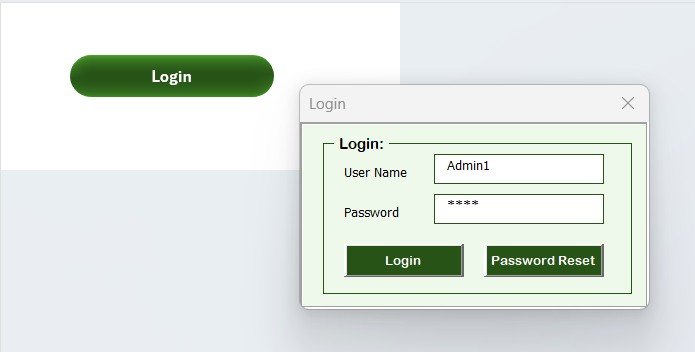
The tool includes a secure login form that protects sensitive employee data.
Users can enter the following login credentials:
-
User ID: Admin1
-
Password: abcd
After entering the login information, users can click the Login button or press Enter to access the system.
Because the login feature restricts unauthorized access, organizations can ensure that only authorized users manage competency records.
2. Main Form (Central Control Panel)
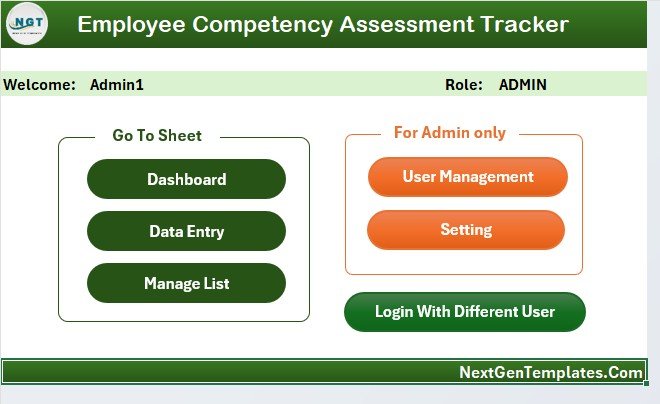
Once users log in, the system opens the Main Form, which acts as the central control panel of the tracker.
From this screen, users can manage all major functionalities, including:
-
Accessing the dashboard
-
Entering competency assessments
-
Managing employee lists
-
Updating existing records
-
Managing user accounts
-
Changing settings
Because all functions appear on one interface, users can navigate the system easily.
3. Interactive Dashboard Sheet
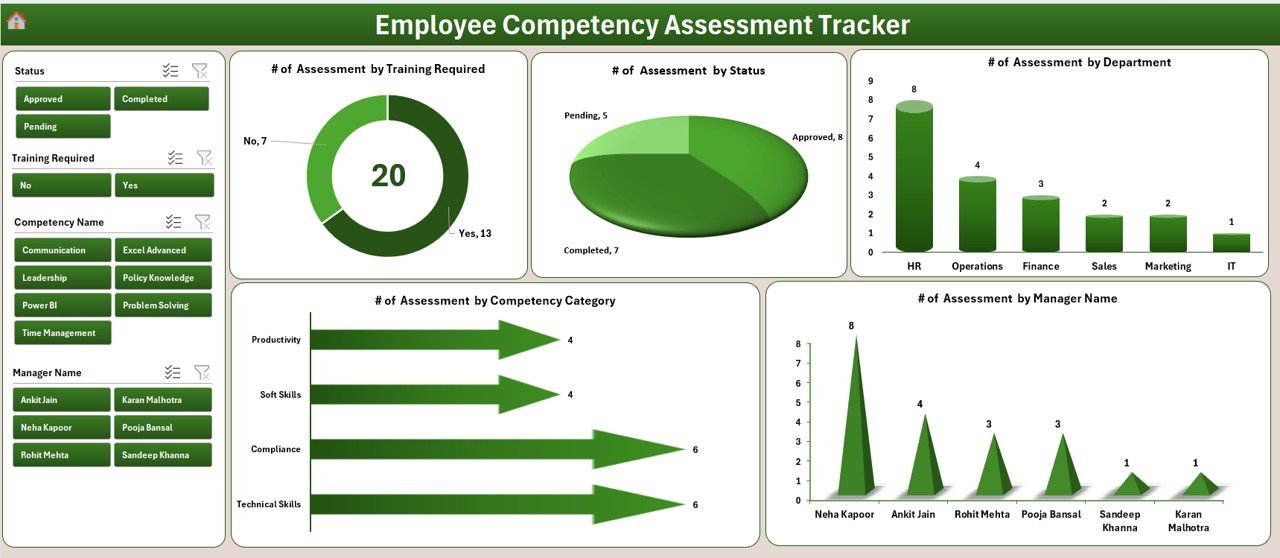
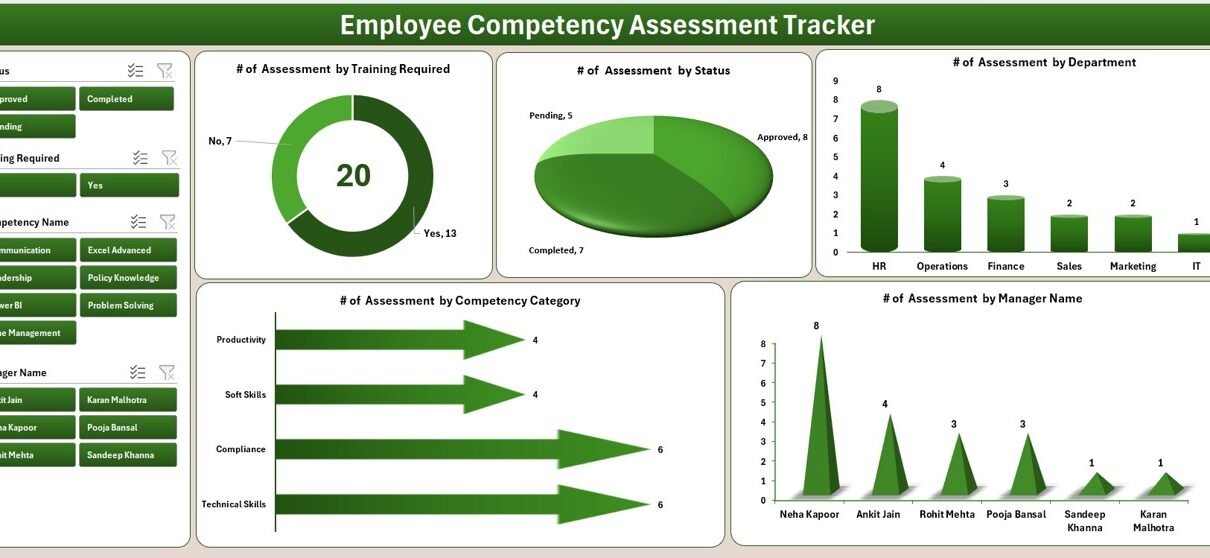
The Dashboard sheet provides a visual overview of competency assessment data. Managers can instantly analyze performance using charts and slicers.
The dashboard contains five interactive slicers, which help filter data quickly.
These slicers allow filtering by:
-
Department
-
Manager Name
-
Competency Category
-
Assessment Status
-
Training Requirement
The dashboard also includes the following visual reports:
-
Number of Assessments by Training Required
-
Number of Assessments by Status
-
Number of Assessments by Department
-
Number of Assessments by Competency Category
-
Number of Assessments by Manager Name
Because of these visual insights, HR teams can quickly identify trends and competency gaps.
4. Data Entry Sheet for Assessment Records
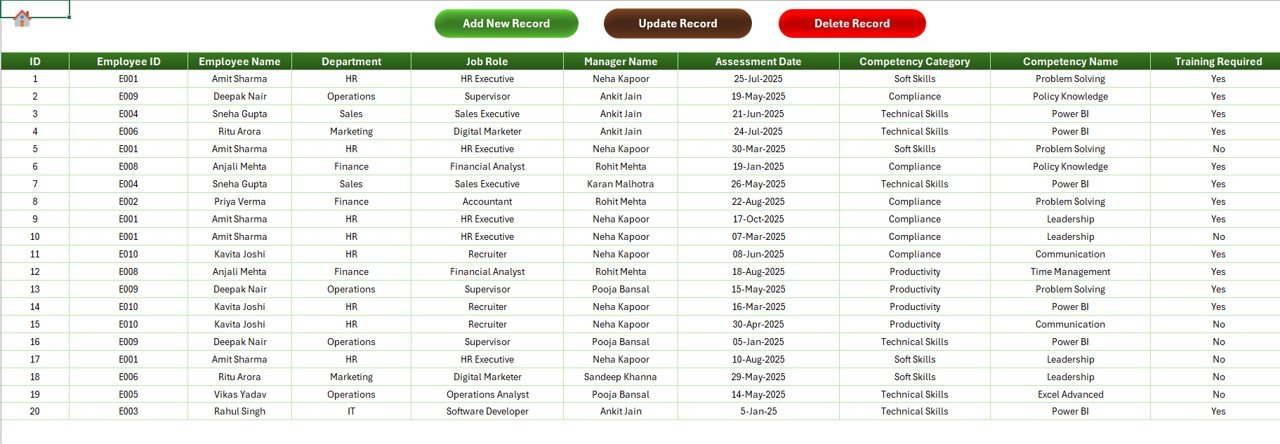
The Data Entry Sheet allows users to manage competency assessment records efficiently.
At the top of the sheet, users can find three important buttons:
Add New Record
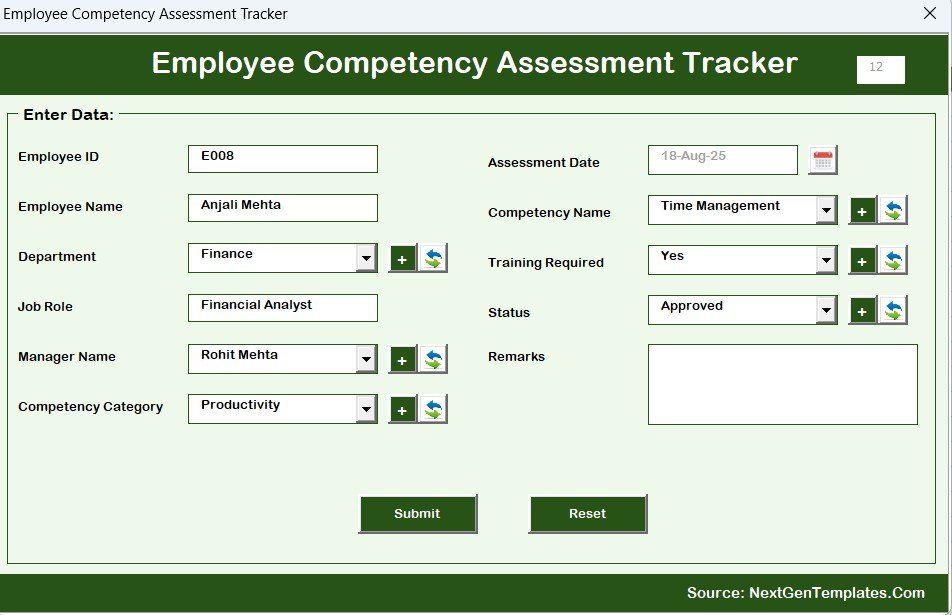
Users can click the Add New Record button to open a data entry form.
Then they can enter details such as:
-
Employee information
-
Competency category
-
Assessment score
-
Manager name
-
Training requirement
After clicking Submit, the system automatically saves the record and refreshes the dashboard.
Update Existing Record
Users can update existing records easily.
The process works as follows:
-
Select the ID of the record.
-
Click the Update Record button.
-
The system opens the data entry form with pre-filled information.
-
Modify the required fields.
-
Click Submit to save the changes.
Because the form loads existing data automatically, users can update records quickly.
Delete Record
Users can remove unwanted records using the Delete Record button.
Steps include:
-
Select the ID of the record.
-
Click Delete Record.
-
Confirm the deletion.
The system asks for confirmation before deleting the record to prevent accidental removal.
5. Manage List Sheet
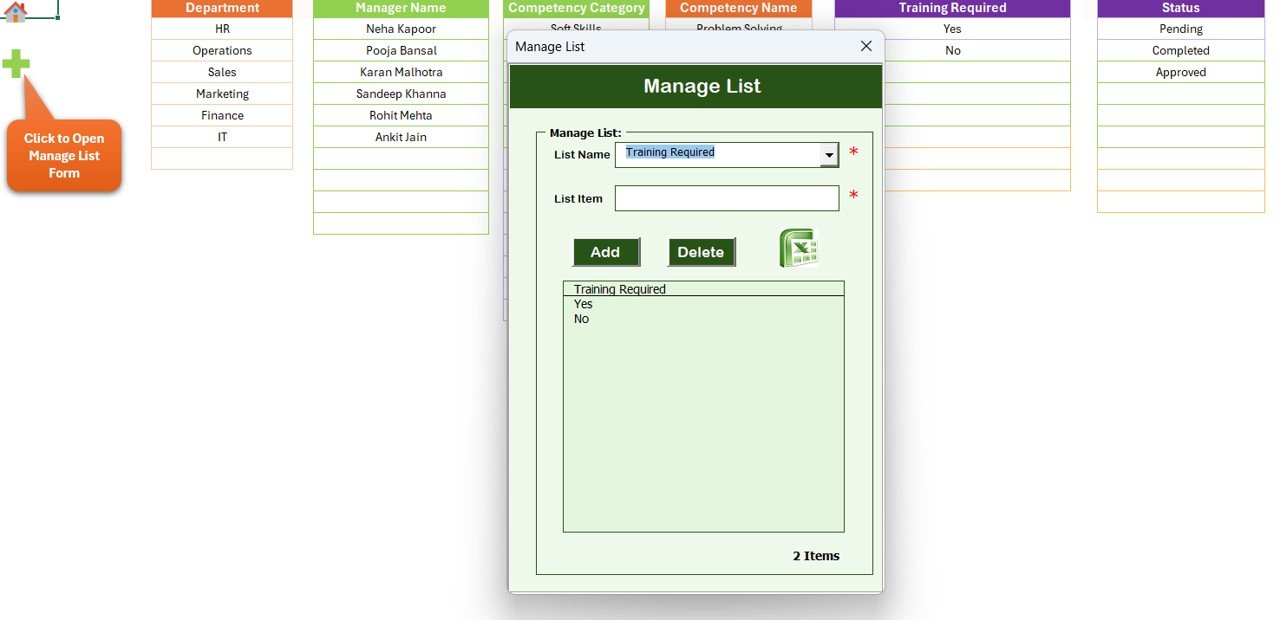
The Manage List Sheet helps users manage dropdown lists used in the data entry form.
For example, organizations can create lists for:
-
Departments
-
Managers
-
Competency categories
-
Assessment statuses
-
Training programs
Users can easily add or delete items from the list using the available buttons.
Because of this feature, the tracker becomes highly customizable.
Click to Purchases Employee Competency Assessment Tracker in Excel
6. Support Sheet for Dashboard Calculations
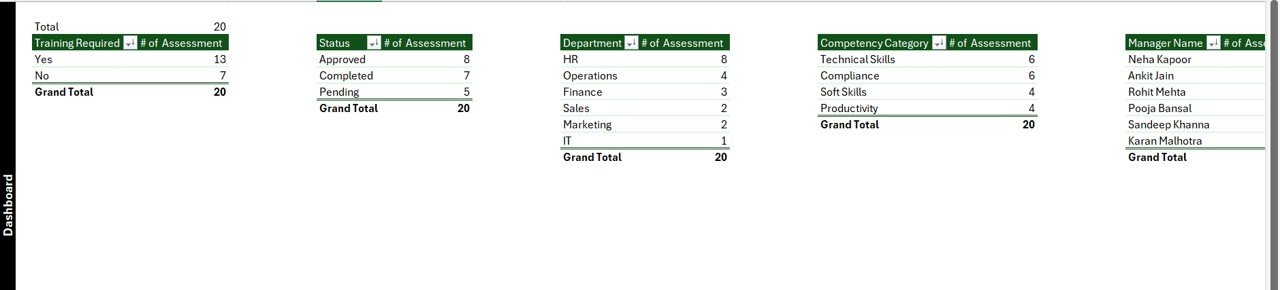
The Support Sheet stores pivot tables used to generate charts on the dashboard.
These pivot tables help calculate:
-
Assessment counts
-
Department analysis
-
Competency category distribution
-
Training requirements
Users do not need to modify this sheet.
In fact, organizations can hide the sheet to keep the interface clean.
7. User Management System
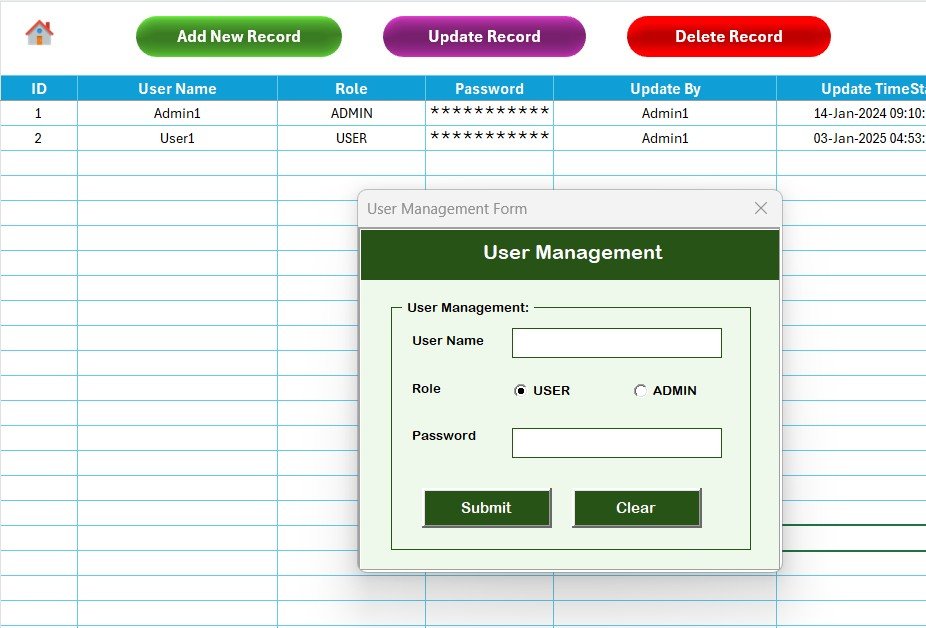
The tool also includes a User Management system.
Users can access this feature through the User Management button available at the top of the system.
With this functionality, administrators can:
-
Add new users
-
Update user details
-
Delete user accounts
-
Change user passwords
Because of this feature, organizations can maintain proper access control.
8. Settings Sheet
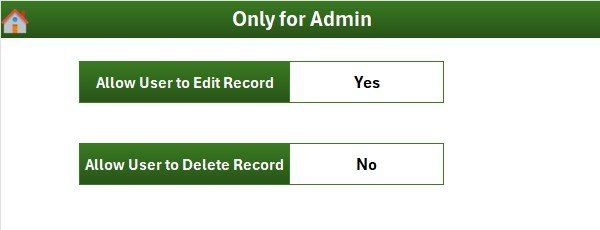
The Settings Sheet allows administrators to configure system parameters.
For example, administrators can manage:
-
System preferences
-
Default values
-
Dashboard settings
Because the settings remain centralized, organizations can easily maintain system consistency.
9. Login with Different Users
The tracker supports multiple user logins.
Different users can log in using their own credentials. As a result, organizations can allow multiple HR professionals or managers to access the system securely.
This feature improves accountability and ensures proper data management.
What Are the Advantages of Employee Competency Assessment Tracker in Excel?
Organizations gain several benefits when they use a competency assessment tracker.
Improved Skill Visibility
Managers can clearly see employee competency levels and performance patterns.
Better Training Planning
The tracker identifies employees who require additional training.
Faster Decision-Making
Interactive dashboards provide quick insights for HR managers.
Centralized Data Management
All competency information remains stored in one system.
Improved Workforce Development
Organizations can focus on employee growth and performance improvement.
Opportunities for Improvement
Click to Purchases Employee Competency Assessment Tracker in Excel
Although the tracker provides powerful functionality, organizations can enhance its effectiveness further.
Some improvement opportunities include:
-
Integrating with HR management systems
-
Automating email notifications for training requirements
-
Adding advanced performance analytics
-
Including employee self-assessment features
-
Connecting the tool with Power BI dashboards
These improvements can help organizations build even stronger competency management systems.
Best Practices for the Employee Competency Assessment Tracker
Organizations should follow best practices to maximize the effectiveness of competency tracking tools.
Standardize Competency Categories
Create clearly defined competency categories for accurate assessments.
Update Data Regularly
HR teams should update competency assessments regularly to maintain accurate reports.
Train Managers on Assessment Methods
Managers should understand how to evaluate employee skills consistently.
Use Dashboards for Performance Reviews
Managers can review competency dashboards during employee evaluations.
Identify Training Needs Early
Organizations should use competency data to plan training programs in advance.
How Does This Tracker Improve HR Decision-Making?
The competency tracker helps HR teams move from manual evaluation methods to data-driven decision-making.
Because the tool centralizes competency information, HR managers can easily:
-
Compare department performance
-
Identify skill shortages
-
Plan recruitment strategies
-
Improve training programs
As a result, organizations can strengthen their workforce development strategies.
Conclusion
Employee competencies play a crucial role in organizational success. Companies must evaluate employee skills, monitor performance levels, and plan training programs continuously.
However, manual competency tracking methods create confusion, inefficiency, and incomplete reporting.
The Employee Competency Assessment Tracker in Excel solves this problem by providing a centralized and automated system for competency management.
Because the tool integrates Excel dashboards, VBA automation, and structured data management, HR professionals can track employee competencies, identify training requirements, and evaluate performance easily.
Therefore, organizations that implement competency tracking systems can build stronger teams, improve workforce productivity, and support long-term business growth.
Frequently Asked Questions (FAQs)
Click to Purchases Employee Competency Assessment Tracker in Excel
What is an Employee Competency Assessment Tracker?
An Employee Competency Assessment Tracker is a tool that helps organizations evaluate employee skills, track competency levels, and identify training requirements.
Why should companies track employee competencies?
Companies track competencies to identify skill gaps, improve employee performance, and plan effective training programs.
Can Excel handle competency tracking effectively?
Yes. Excel can manage competency tracking effectively using dashboards, pivot tables, and VBA automation.
Who should use the competency tracker?
HR professionals, department managers, training coordinators, and organizational leaders can use the tracker.
Can organizations customize the Excel competency tracker?
Yes. Organizations can customize competency categories, department lists, training programs, and reporting dashboards.
Visit our YouTube channel to learn step-by-step video tutorials