Employee Retention Maintenance Calendar In Excel
Employee Retention Maintenance Calendar In Excel is a ready-to-use Excel template designed to help HR and operations teams plan, track, and manage staff-focused events across annual, monthly, and daily views.
Introduction
This template provides an easy, centralized way to record employee retention activities — trainings, reviews, check-ins, team events, and site visits — with a simple database and multiple calendar views. It is ideal for HR managers, team leads, and office administrators.
Click to Purchases Employee Retention Maintenance Calendar In Excel
Key Features of Employee Retention Maintenance Calendar In Excel
- Five worksheets: Home, Annual View, Monthly View, Daily View, and Events (database).
- Control panel for year, starting month, and week-start day customization.
- Five built-in color themes to change workbook appearance with one click.
- Highlighting options for weekdays, weekends, and events.
- Quick buttons to add, view, update, and delete events via simple forms.
- Exportable and printable calendar views for reporting and distribution.
Dashboard Pages Explanation
Home Sheet
The Home sheet serves as the index and navigation hub. From here you can jump to any view using the buttons provided.
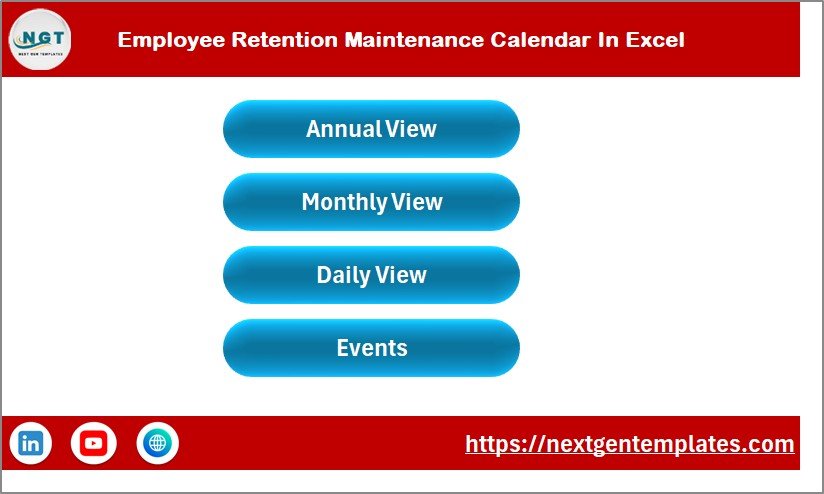
- Annual View button
- Monthly View button
- Daily View button
- Events (database) button
Annual View Sheet
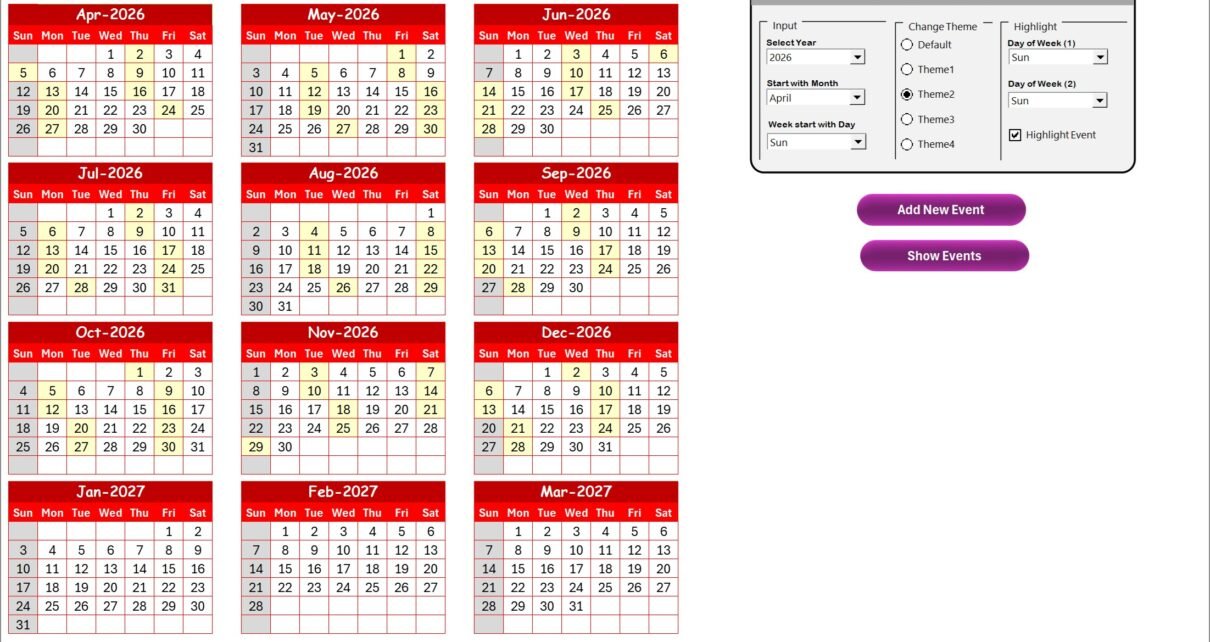
The Annual View shows 12 monthly calendars on one sheet and includes a control panel and quick actions to manage events.
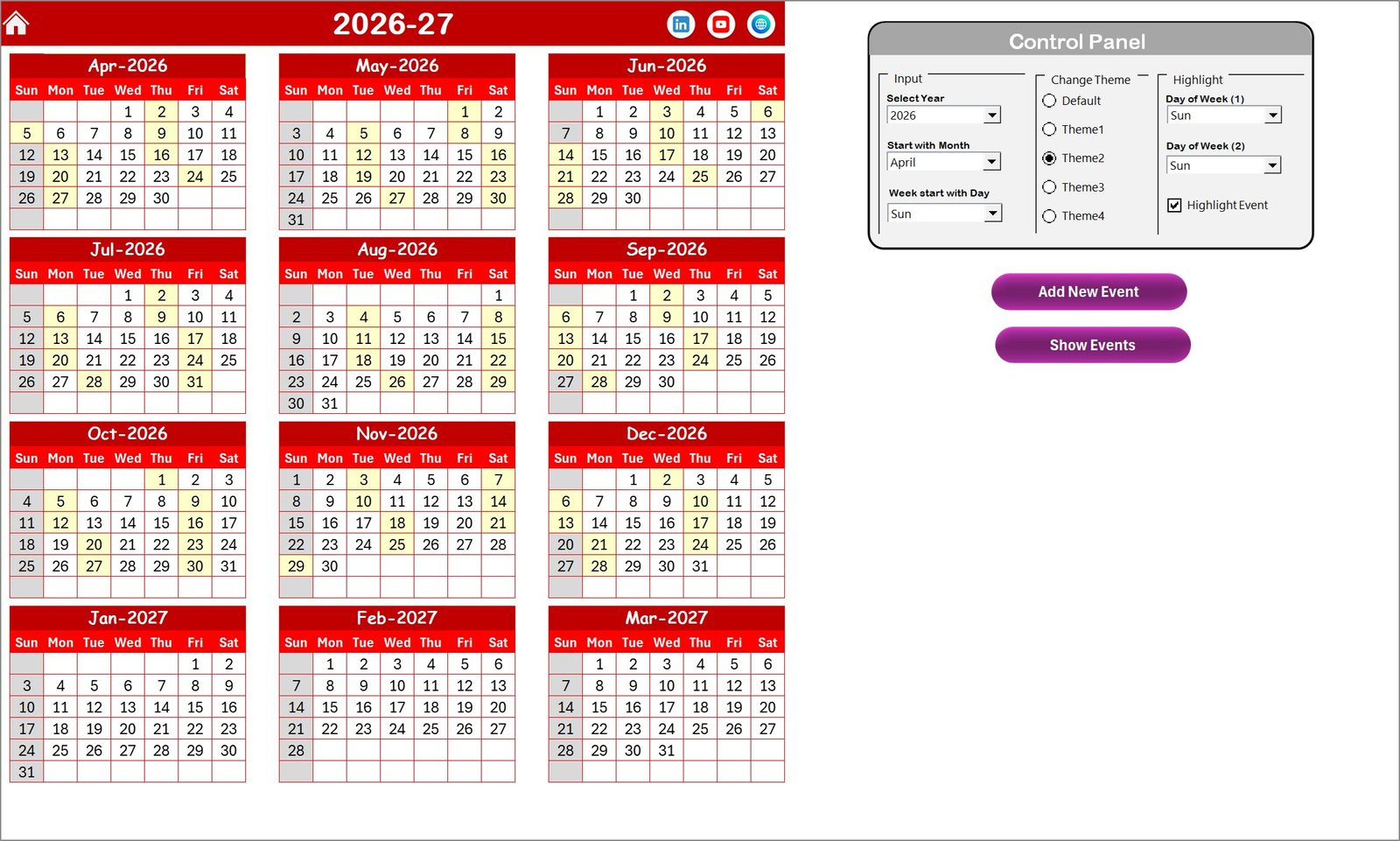
Control panel
- Input group
- Select Year to update the annual calendar automatically.
- Change the starting month to shift the 12-month block.
- Choose the starting day of the week (Sunday or Monday, etc.).
- Change Theme Group
- Pick from five color themes to apply across the workbook.
- Highlight Group
- Choose Day of Week (1) and Day of Week (2) to mark recurring days (e.g., Sat & Sun).
- Enable ‘Highlight event’ to mark all event days in yellow on the annual calendar.
Buttons:
- Add New Event: Select a date on the calendar and open the form to create an event.
- Show Event: View a list of events for the selected date.
Monthly View Sheet
The Monthly View displays a single month in detail and shows events per day. If there are multiple events, the calendar indicates ‘more than 1…’ to signal additional items.
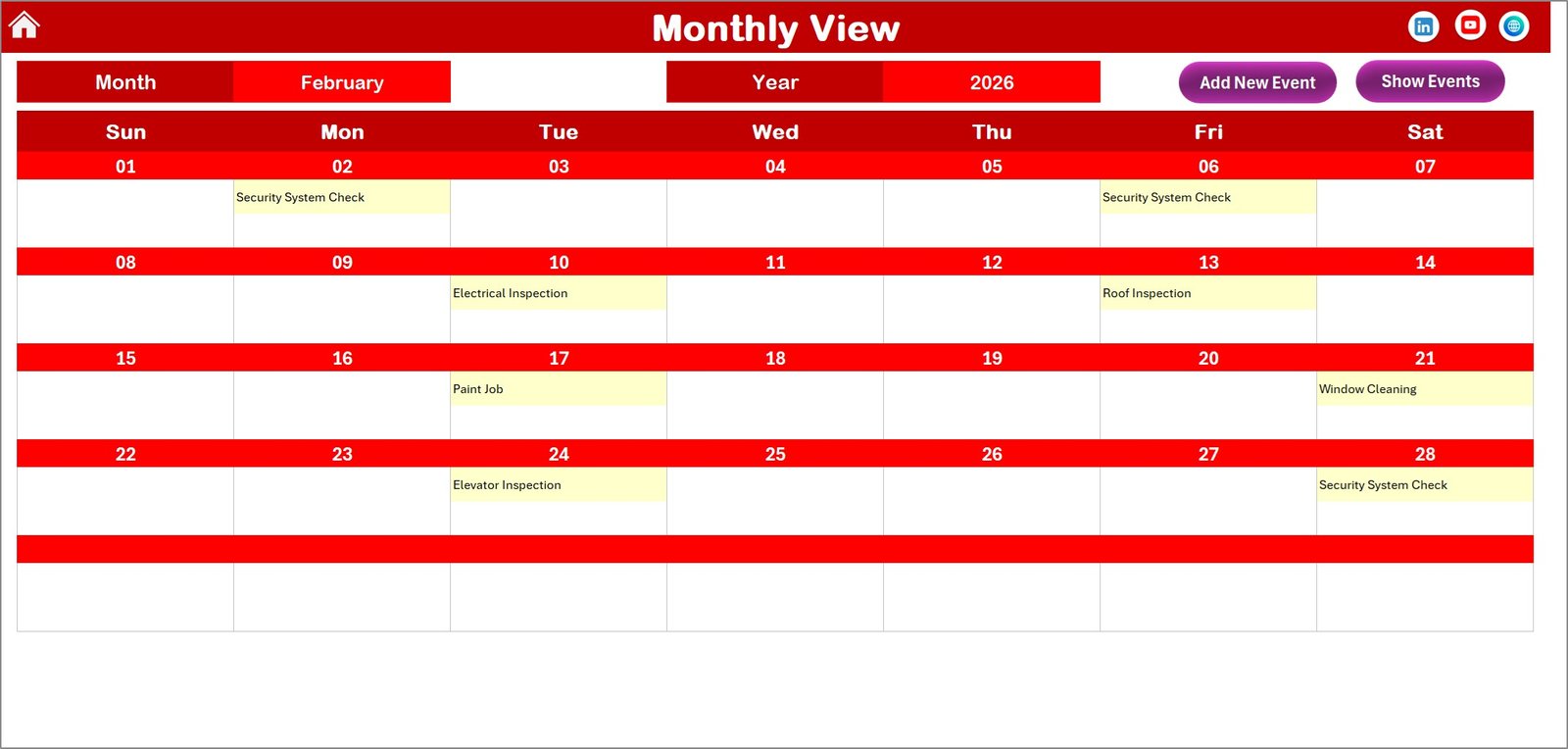
- Select Month and Year from the top controls to refresh the calendar.
- Buttons available:
- Add New Event: Add an event to a selected date via the form.
- Show Event: See the list of events on the selected date.
Daily View Sheet
Daily View lists event details for a selected date range. Use the start and end date pickers to filter results and click Refresh to update the list.
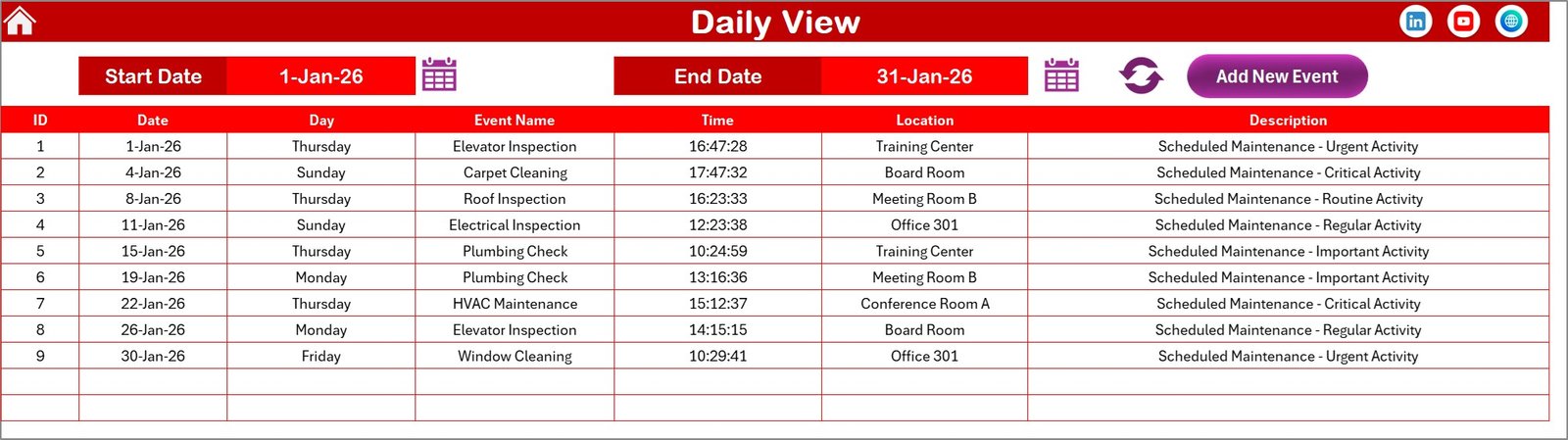
- Start date and End date pickers for range selection.
- Refresh to load events in the chosen range.
- Add New Event opens the event form to create a record for a specific date.
Events Sheet (Database)
The Events sheet stores all event records and fields used by the calendar views.
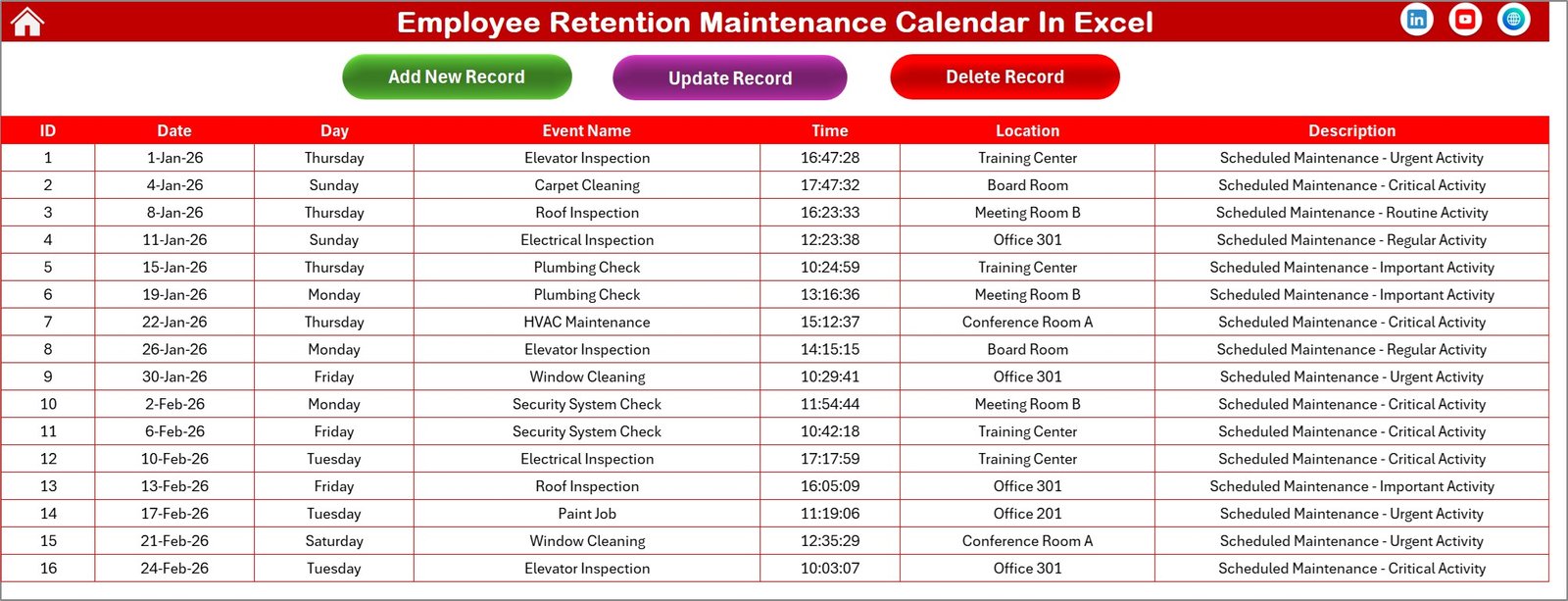
- ID: Auto-generated number
- Date: Date of event
- Day: Weekday (Sunday, Monday, etc.)
- Event Name: Title or name of the event
- Time: Time of the event
- Location: Event location
- Description: Short description of the event
Top buttons on the Events sheet:
- Add New Record: Opens the Add Event form to create a new database row.
- Update Existing Record: Select an ID and open the form prefilled to edit and save changes.
- Delete Record: Select an ID and delete the corresponding event.
Advantages of Employee Retention Maintenance Calendar In Excel
- Centralized event management with multiple calendar perspectives.
- Customizable themes and highlights to match your company style.
- Simple forms for adding, updating, and deleting events without editing the raw sheet.
- Printable monthly and annual views for leadership reporting and team visibility.
Opportunities for Improvement
- Integrate with Outlook or Google Calendar for two-way sync of events.
- Add user permissions to restrict who can edit or delete events.
- Include automated email reminders for upcoming events.
- Build a dashboard with charts showing retention-related metrics over time.
Best Practices
- Keep the Events sheet as the single source of truth — avoid duplicate entries across sheets.
- Use consistent naming for event types to enable filtering and reporting.
- Back up the workbook regularly, especially before bulk updates.
- Train relevant team members on the add/update/delete workflow to prevent data loss.
FAQs
Can I change the starting day of the week?
Yes. Use the Input group on the Annual View control panel to choose the starting weekday; the calendars update automatically.
How do I add multiple events on one day?
Click Add New Event on the relevant view (Annual, Monthly, or Daily), complete the form, and submit. The calendar shows the first event and an indicator when more events exist on the same day.
Is there a way to highlight weekends or custom weekdays?
Yes. Use Day of Week (1) and Day of Week (2) in the Highlight group on the Annual View to mark recurring weekdays (e.g., Sat & Sun).
Can I change the workbook theme globally?
Yes. The Change Theme Group on the Annual View provides five color themes you can apply across all sheets.
Conclusion
The Employee Retention Maintenance Calendar In Excel is a practical, no-code solution for planning and tracking employee retention activities. It combines an easy-to-use events database with multiple calendar views and customization options to fit your HR workflow.
Click to Purchases Employee Retention Maintenance Calendar In Excel
Resources
- Microsoft Excel Support
- Microsoft Office Templates
- Visit our YouTube channel to watch the demo: Youtube.com/@NextGenTemplates