Part of the free Module 2: Fill, Auto Fill and Flash Fill · Lesson 4 of 6 · Full Excel course
Updated on 5 September 2026 · Works in Excel 365, 2021, 2019 and 2016 unless noted.
Fill Series in Excel generates a sequence of numbers or dates from a single starting value. The Series dialog at Home > Editing > Fill > Series controls the type (Linear, Growth, Date or AutoFill), the step between values, the date unit, and an optional stop value that fills to an exact end point without selecting a range. This lesson explains every option with examples.
How to open the Series dialog
- Type the starting value in a cell, for example 1 in A2 or a date in B2.
- Either select the range you want to fill, starting with that cell, or leave just that cell selected if you plan to use a Stop value.
- Choose Home > Editing > Fill > Series. From the keyboard press Alt+H+F+I+S, or the legacy Alt+E+I+S. You can also drag the fill handle with the right mouse button and choose Series from the menu.
- Set the options and click OK.
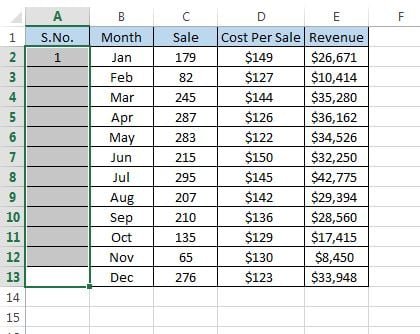
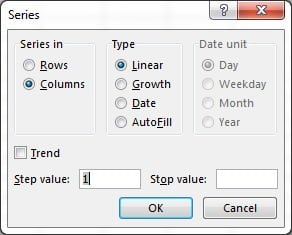
Every option in the Series dialog
| Option | Choices | What it does |
|---|---|---|
| Series in | Rows, Columns | Direction of the fill. Excel pre-selects it from the shape of your selection. |
| Type: Linear | Step value | Adds the step to each value: 1, 2, 3 or 100, 90, 80. |
| Type: Growth | Step value | Multiplies each value by the step: 1, 2, 4, 8 or 1000, 1100, 1210. |
| Type: Date | Day, Weekday, Month, Year | Adds the step in the chosen unit. Weekday skips Saturday and Sunday. |
| Type: AutoFill | none | Same result as dragging the fill handle, including custom lists and Q1, Q2 patterns. |
| Trend | tick box | Fits a linear or growth trend line through the selected values and replaces them with the trend. |
| Step value | any number | The increment (Linear, Date) or multiplier (Growth). Negative and decimal steps are allowed. |
| Stop value | any number or date | Fill ends at this value. Works with a single selected cell, so no range is needed. |
Linear series: counting by any step
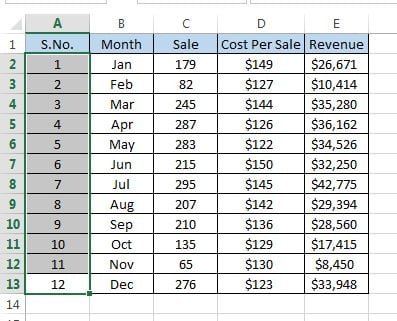
A linear series adds the step value each time. With 1 in A2, a step of 1 and a stop value of 1000, Excel numbers rows 2 to 1001 in one click. A step of 5 gives 1, 6, 11; a step of -10 from 100 counts down to zero; a step of 0.25 from 0 produces 0, 0.25, 0.5 for quarter-hour timesheets. If you select two cells such as 100 and 90 and tick Trend, Excel works out the step itself.
Growth series: doubling and percentage growth
A growth series multiplies by the step. Start with 1, choose Growth and a step of 2 to get 1, 2, 4, 8, 16, which is useful for capacity planning and binary tables. For a 10 percent monthly increase, start with the current figure and use a step of 1.1; a 5 percent decline uses 0.95. Growth series quickly produce long decimals, so apply a number format with two decimals or wrap the result in ROUND if you need clean figures.
Date series: day, weekday, month and year
With a date in the first cell, choose Date and a unit. Day with step 7 gives weekly dates. Weekday skips weekends, so a start on Friday 2 January is followed by Monday 5 January. Month keeps the day number where it can and otherwise uses the last day of the month: 31 January is followed by 28 February, 31 March, 30 April. Year adds a year to the same day and month. A date stop value such as 31/12/2026 fills exactly to the year end. Weekday series know nothing about public holidays; use NETWORKDAYS or WORKDAY when holidays matter.
Series in rows versus columns
Excel reads the direction from your selection: a tall range fills down, a wide range fills across. With a single cell selected and a stop value, the dialog defaults to Columns; switch to Rows to build a horizontal month header. A rectangular selection with Rows chosen creates a separate series on every row, starting from the value in its first column, which is a fast way to build a numbered grid.
Worked example: invoice register, month-end schedule and forecast
A small register needs invoice numbers, month-end dates and a revenue forecast growing 5 percent a month.
| A: Invoice no. | B: Period end | C: Forecast revenue |
|---|---|---|
| 1001 | 31-Jan-2026 | 50,000 |
| 1002 | 28-Feb-2026 | 52,500 |
| 1003 | 31-Mar-2026 | 55,125 |
| 1004 | 30-Apr-2026 | 57,881 |
- Type 1001 in A2. Open Fill > Series, Type Linear, Step 1, Stop 1012, OK. Twelve invoice numbers appear. To show them as INV-1001, apply the custom number format
"INV-"0so the cells stay numeric. - Type 31-Jan-2026 in B2, select B2:B13, open the dialog, Type Date, Date unit Month, Step 1, OK. Every cell is a true month end.
- Type 50000 in C2, select C2:C13, Type Growth, Step 1.05, OK. Format as number with no decimals.
The register is complete with three dialog visits and no formulas. If the forecast must react to a changing growth rate, use a formula such as =C2*$F$1 filled down instead, or the SEQUENCE function.
Tips and common mistakes
- Stop value needs a single cell. If a range is selected, Excel fills the range and ignores anything beyond it.
- The first cell must hold a real number or date. Text such as “Week 1” only works with the AutoFill type.
- Month series respect month ends. Start on the 31st to get true period-end dates; start on the 1st for period starts.
- Trend replaces your data. Copy the seed values elsewhere first if you need to keep them.
- Growth steps are multipliers. Enter 1.1 for 10 percent growth, not 10.
- Dates showing as numbers such as 46023 just need a date format: press Ctrl+Shift+3.
- Excel 365 alternative.
=SEQUENCE(12,1,1001)builds the same invoice numbers as a spill range that never needs refilling.
Errors and how to fix them
| Problem | Cause | Fix |
|---|---|---|
| Series command is greyed out | Cell is in edit mode, or the sheet is protected | Press Esc or unprotect the sheet |
| Dates come out as five-digit numbers | Target cells have General format | Apply a date format to the range |
| Growth series shows long decimals | Repeated multiplication | Apply a number format or round the results |
| Stop value ignored | A range was selected | Select only the start cell, then use Stop value |
| Weekday series includes a Saturday | The start date itself is a weekend day | Start on a weekday; Excel only skips weekends after the first cell |
| Only one column filled in a wide selection | Series in set to Columns | Choose Rows to fill across |
Practice exercise
Use the Fill practice workbook or a blank sheet:
- Number rows from 1 to 500 with a stop value and no range selection.
- Create every Monday of 2026 in one column using Date, Day and step 7.
- Build a month-end column from 31 January to 31 December.
- Start with 10,000 and produce twelve months of 3 percent growth, then format with no decimals.
- Enter 120 and 132 in two cells, select ten cells below and use Trend with Growth to extend the pattern.
Key takeaways
- The Series dialog lives at Home > Fill > Series and also on the right-drag fill handle menu.
- Linear adds the step, Growth multiplies by it, Date uses Day, Weekday, Month or Year units.
- A Stop value fills to an exact end without selecting a range.
- Trend fits a line through your seed values and replaces them.
- In Excel 365 and 2021, SEQUENCE gives the same series as a live formula.
Related lessons
- Fill, AutoFill and Flash Fill course hub
- Fill Down, Up, Right, Left and Justify
- AutoFill with the fill handle and custom lists
- SEQUENCE function: the dynamic alternative to Fill Series
- EOMONTH function and DATE function
- Microsoft Support: Automatically number rows
Frequently asked questions
How do I fill a series of numbers up to a specific value in Excel?
Type the first number, keep only that cell selected, open Home > Fill > Series, choose Linear, enter the Step value and the Stop value, then click OK. Excel fills down (or across, if you pick Rows) until it reaches the stop value, so you never need to select or scroll through the range.
How do I create a date series that skips weekends?
Type the first working day, select the range or set a stop date, open Fill > Series, choose Date and the Weekday unit with a step of 1, and click OK. Saturdays and Sundays are skipped. Public holidays are not, so use the WORKDAY function with a holiday list when those must be excluded too.
What is the difference between a linear and a growth series?
A linear series adds the step value to each cell, giving 2, 4, 6, 8 with a step of 2. A growth series multiplies by the step value, giving 2, 4, 8, 16 with the same step. Use Linear for counts and evenly spaced dates, Growth for compound increases such as interest or percentage forecasts.
Why does my month series jump from 31 January to 28 February?
The Month unit adds one month and keeps the day number where possible. When the next month is shorter, Excel uses its last day, so 31 January becomes 28 February, then 31 March. This is exactly what you want for period-end schedules. Start from the 1st if you need period-start dates instead.
Is there a formula alternative to Fill Series?
Yes. In Excel 365 and 2021, SEQUENCE(rows, columns, start, step) generates a linear series that spills automatically, and start+SEQUENCE(n,1,0)*step handles any spacing. For dates, EDATE and EOMONTH combined with SEQUENCE produce month series. Older versions can use ROW()-1 style formulas filled down.
Want the finished version? Ready-made Excel dashboards, trackers and VBA systems are available at NextGenTemplates.com.