Managing a financial project without structure creates confusion, delays, and costly mistakes. However, when you use a well-designed checklist system, you gain clarity, control, and confidence. That is exactly where the Financial Project Checklist in Excel becomes powerful.
Whether you handle budgeting, audits, tax planning, capital investment, or financial system implementation, you need a structured way to track every task. Therefore, this ready-to-use Excel template helps you organize responsibilities, monitor progress, and meet deadlines without stress.
In this comprehensive guide, you will learn:
- What a Financial Project Checklist in Excel is
- Why financial teams need it
- Detailed explanation of both worksheets
- Advantages of using this template
- Best practices for implementation
- Frequently Asked Questions
Click to buy Financial Project Checklist in Excel
What Is a Financial Project Checklist in Excel?
A Financial Project Checklist in Excel is a structured and interactive task management template built in Microsoft Excel. It helps finance teams track project activities, assign responsibilities, monitor deadlines, and measure progress in real time.
Instead of relying on scattered notes or emails, you centralize all tasks inside one structured sheet. As a result, you eliminate confusion and improve accountability.
This ready-to-use template includes:
- A dynamic checklist tracking sheet
- Automated progress indicators
- Status-based tracking (✔ or ✘)
- Responsible person dropdown list
- Deadline monitoring
- Progress bar visualization
Therefore, you get both simplicity and control in one clean Excel interface.
Why Do Financial Projects Need a Structured Checklist?
Financial projects often involve:
- Budget approvals
- Compliance requirements
- Documentation review
- Multi-department coordination
- Strict deadlines
- Risk monitoring
However, when teams manage these tasks manually, they miss deadlines and overlook responsibilities. Consequently, projects slow down and costs increase.
A structured checklist solves these problems because:
- It defines clear responsibilities
- It tracks progress visually
- It highlights incomplete tasks
- It improves team accountability
- It reduces project risk
Therefore, every finance team benefits from using a structured checklist system.
How Is the Financial Project Checklist in Excel Structured?
This ready-to-use template contains 2 worksheets, each designed with a specific purpose.
Financial Project Checklist Sheet (Main Sheet)
This is the main working sheet where you capture and manage checklist information.
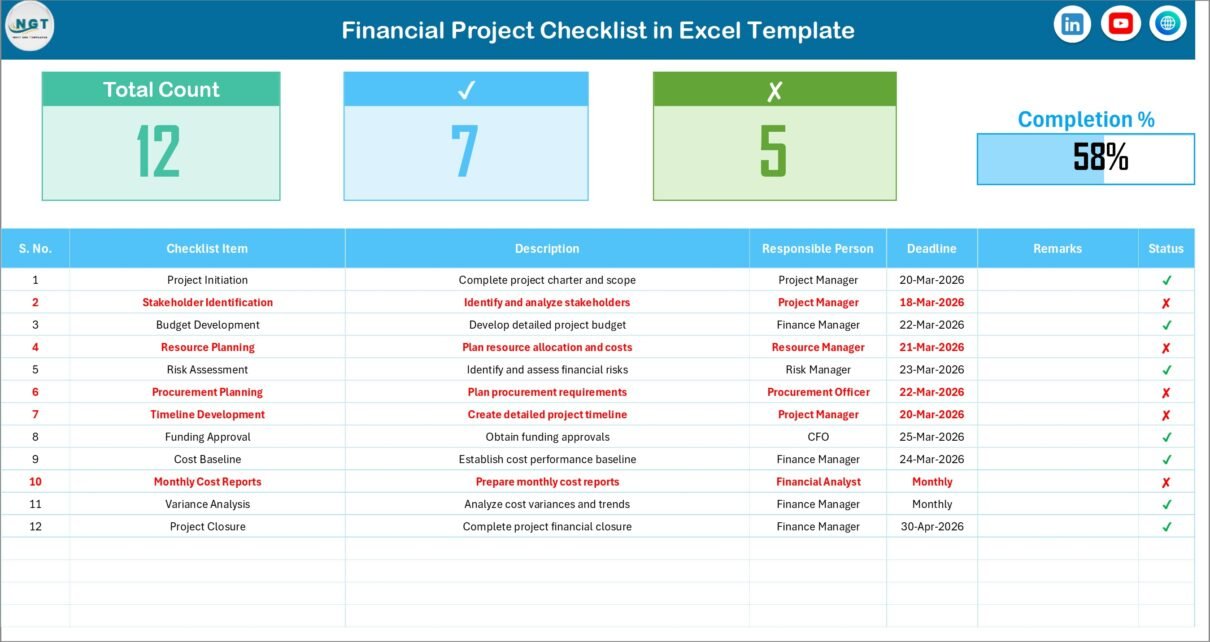
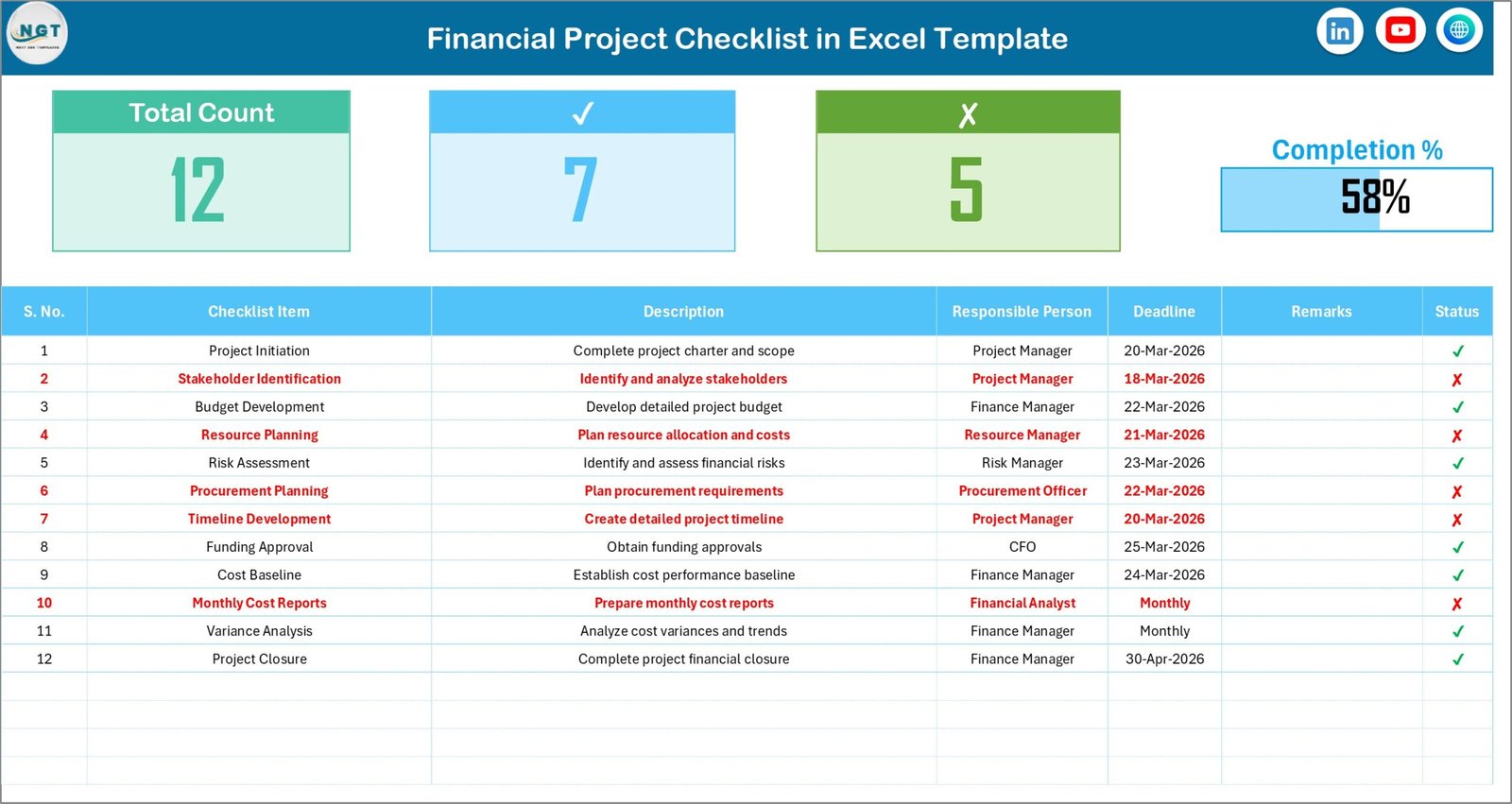
Top Section – Project Summary Dashboard
At the top of the sheet, you get a powerful summary section. This section shows:
- Total Count – Total number of checklist items
- Checked Count – Completed tasks
- Crossed Count – Pending or incomplete tasks
- Progress Bar – Visual progress percentage
Because of this summary area, you instantly understand project status without scrolling.
Moreover, the progress bar automatically updates as you mark tasks ✔ or ✘. Therefore, you always see real-time progress.
Checklist Table – The Core Working Area
Below the summary section, you will find the main checklist table.
This table contains the following columns:
- Serial No. – Unique task number
- Checklist Item – Name of the task
- Description – Detailed explanation of the task
- Responsible Person – Assigned team member
- Deadline – Target completion date
- Remarks – Notes or comments
- Status – ✔ (Completed) or ✘ (Pending)
To update progress, you simply change the Status column to ✔ or ✘. Immediately, the dashboard section updates automatically.
Because of this simple structure, anyone can use the template without advanced Excel skills.
Click to buy Financial Project Checklist in Excel
List Sheet Tab – Responsible Person Database
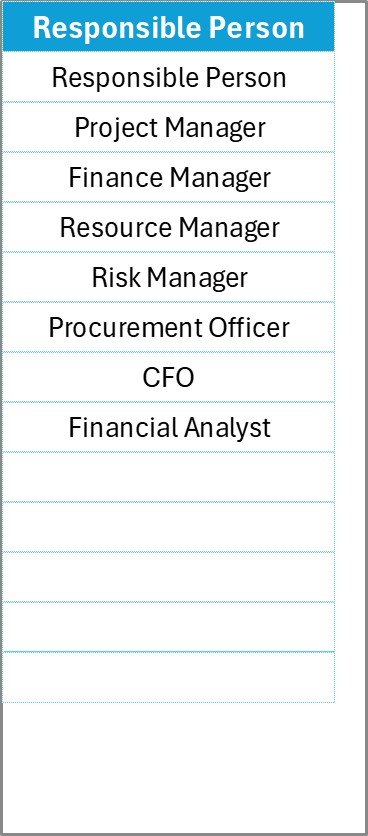
The second worksheet is called the List Sheet Tab.
Here, you store the unique list of responsible persons. This list creates a dropdown menu in the main checklist table.
Why is this important?
- It ensures consistent naming
- It prevents typing errors
- It improves reporting accuracy
- It makes assignment faster
As a result, you maintain clean and structured data across the project.
Click to buy Financial Project Checklist in Excel
What Makes This Template Powerful?
Although the template looks simple, it delivers strong project control. Let’s explore the core strengths.
Real-Time Progress Monitoring
As soon as you update a task status, the summary section changes instantly. Therefore, you always know:
- How many tasks are complete
- How many tasks remain
- Overall completion percentage
Because of this automation, you avoid manual calculations.
Clear Responsibility Assignment
When you assign each task to a responsible person, you remove confusion. Everyone knows:
- What they must complete
- When they must complete it
Therefore, team accountability improves significantly.
Deadline Tracking for Financial Discipline
Financial projects operate under strict deadlines. Since you capture the deadline for each task, you can:
- Review upcoming due dates
- Identify delayed items
- Take corrective action quickly
Consequently, you protect project timelines.
Why Should You Use Excel for Financial Project Checklists?
Many teams ask this question.
Because Excel Offers:
- Easy customization
- No additional software cost
- Wide availability
- Simple formulas
- Conditional formatting
- Progress tracking tools
Moreover, most finance professionals already understand Excel. Therefore, implementation becomes easy and fast.
Advantages of Financial Project Checklist in Excel
Now let’s look at the major benefits in detail.
- Improves Project Visibility
You see the complete project structure in one place. Therefore, you avoid hidden tasks and missed steps.
- Enhances Accountability
Each task clearly shows the responsible person. As a result, ownership increases.
- Reduces Financial Risk
When you track compliance tasks and documentation items, you reduce operational risk.
- Saves Time
Instead of searching emails or notes, you check one centralized sheet.
- Improves Communication
Team members clearly understand their tasks and deadlines. Therefore, communication becomes smoother.
- Increases Completion Rate
Because of the visible progress bar, teams feel motivated to complete tasks.
- Supports Audit and Compliance
Financial projects often require documentation tracking. This checklist ensures that no compliance step gets missed.
How Can You Use This Template for Different Financial Projects?
This checklist works for many types of financial initiatives.
Examples:
- Annual Budget Planning
- Internal Audit Projects
- Tax Filing Preparation
- ERP Financial System Implementation
- Financial Reporting Process Setup
- Investment Evaluation Projects
- Cost Reduction Programs
- Merger and Acquisition Due Diligence
Therefore, this template adapts easily to different finance environments.
Best Practices for the Financial Project Checklist in Excel
Using the template correctly ensures maximum benefit. Therefore, follow these best practices.
- Define Tasks Clearly
Write specific and measurable checklist items. Avoid vague descriptions.
Instead of writing:
- “Review documents”
Write:
- “Review Q4 expense ledger for discrepancies”
Clear tasks improve execution.
- Assign One Responsible Person Per Task
Do not assign multiple owners for a single task. When you assign one clear owner, accountability improves.
- Update Status Regularly
Encourage team members to update the ✔ or ✘ status daily or weekly. Consistent updates maintain accuracy.
- Review Progress Weekly
Schedule weekly review meetings. During the meeting:
- Check incomplete tasks
- Discuss delays
- Update deadlines if required
Therefore, you keep the project aligned.
- Use Conditional Formatting for Deadlines
You can enhance the template by adding:
- Red color for overdue deadlines
- Yellow color for tasks due soon
This visual alert system improves urgency.
- Archive Completed Projects
After project completion, save a copy for documentation. This record helps in audits and future reference.
How Does This Checklist Improve Financial Governance?
Financial governance depends on structure and transparency. This checklist strengthens governance because:
- It documents every step
- It tracks responsibility
- It records remarks
- It shows completion evidence
Therefore, management gains confidence in project execution.
How Does It Support Team Collaboration?
Although Excel works as a simple tool, it supports collaboration when shared through:
- Shared network drives
- Cloud storage
- Microsoft OneDrive
- Google Drive (Excel format)
Because of shared access, teams update progress in real time.
What Happens Without a Financial Checklist?
Without structure:
- Deadlines slip
- Tasks overlap
- Responsibilities remain unclear
- Audit risks increase
- Financial penalties occur
Therefore, a checklist acts as a protective system for financial operations.
Step-by-Step Implementation Guide
If you want to implement this template today, follow these steps:
- Define your financial project scope
- List all required tasks
- Enter tasks in the checklist table
- Add responsible persons in the List sheet
- Assign deadlines
- Begin tracking status
- Review progress weekly
Within minutes, you create a structured project control system.
Conclusion
The Financial Project Checklist in Excel provides clarity, structure, and accountability for financial projects. Instead of managing tasks randomly, you track everything in one organized system.
Because the template includes:
- Progress monitoring
- Responsibility tracking
- Deadline management
- Automated summary dashboard
You gain better control over financial operations.
Therefore, if you want to improve efficiency, reduce risk, and complete financial projects on time, this ready-to-use checklist template becomes an essential tool.
Frequently Asked Questions (FAQs)
- Can beginners use the Financial Project Checklist in Excel?
Yes. The template uses simple Excel features. Anyone with basic Excel knowledge can use it easily.
- Can I customize the checklist columns?
Yes. You can add or remove columns based on your project requirements.
- Does the progress bar update automatically?
Yes. When you change the status to ✔ or ✘, the progress summary updates instantly.
- Can I use this template for non-financial projects?
Yes. Although it focuses on financial projects, you can adapt it for operations, HR, or IT projects.
- How often should I review the checklist?
You should review it weekly or more frequently during critical project phases.
- Can multiple users update the file simultaneously?
Yes. When you store the file in shared cloud storage, multiple users can update it.
- Does this template require advanced Excel formulas?
No. It uses simple formulas and structured formatting.
Watch the step-by-step video tutorial:
Click to buy Financial Project Checklist in Excel
Visit our YouTube channel to learn step-by-step video tutorials