Managing insurance renewals, client meetings, policy reviews, and compliance deadlines can quickly become overwhelming. However, when important dates slip through the cracks, businesses lose revenue and customer trust.
Therefore, insurance professionals need more than a basic calendar.
They need a structured, automated planning system.
That is exactly why the Insurance Planning Calendar in Excel becomes a powerful tool.
This ready-to-use Excel calendar helps insurance agents, brokers, and financial planners manage events, track important dates, and stay fully organized throughout the year.
In this detailed guide, you will learn:
-
What the Insurance Planning Calendar in Excel is
-
Why insurance teams need a structured calendar
-
Detailed explanation of all 5 worksheets
-
Key use cases for insurance professionals
-
Advantages of the Insurance Planning Calendar
-
Best Practices for the Insurance Planning Calendar
-
Frequently Asked Questions with Answers
Let us explore everything step by step.
Click to Purchases Insurance Planning Calendar in Excel
What Is an Insurance Planning Calendar in Excel?
An Insurance Planning Calendar in Excel is a dynamic scheduling and event management template designed specifically for insurance workflows.
Instead of using scattered reminders and manual tracking, you can:
-
Plan policy renewals
-
Track client meetings
-
Monitor compliance deadlines
-
Manage follow-ups
-
Organize daily activities
Because the template includes automation, buttons, and forms, it simplifies calendar management significantly.
As a result, you gain better visibility and control.
Why Do Insurance Professionals Need a Planning Calendar?
Insurance businesses run on timelines. Missing even one renewal or client follow-up can impact revenue.
Without a structured calendar:
-
Renewals may get missed
-
Client meetings may overlap
-
Compliance deadlines may slip
-
Follow-ups may become inconsistent
However, when you use a dedicated planning calendar:
-
You track every event clearly
-
You improve client service
-
You reduce manual effort
-
You stay organized year-round
Therefore, this calendar becomes an operational necessity.
Overview of Worksheets in Insurance Planning Calendar
This ready-to-use template contains 5 powerful worksheets:
1️⃣ Home Sheet
2️⃣ Annual View
3️⃣ Monthly View
4️⃣ Daily View
5️⃣ Events Database
Each sheet plays a specific role in managing your schedule.
Click to Purchases Insurance Planning Calendar in Excel
1️⃣ Home Sheet – Your Navigation Hub
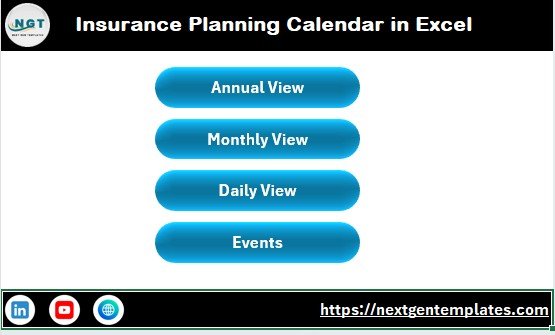
The Home sheet works as the index page of the workbook.
Here, you will find four navigation buttons:
-
Annual View
-
Monthly View
-
Daily View
-
Events
Because of these buttons, you can jump instantly to any section. Therefore, navigation becomes fast and user-friendly.
2️⃣ Annual View Sheet – Yearly Calendar Overview
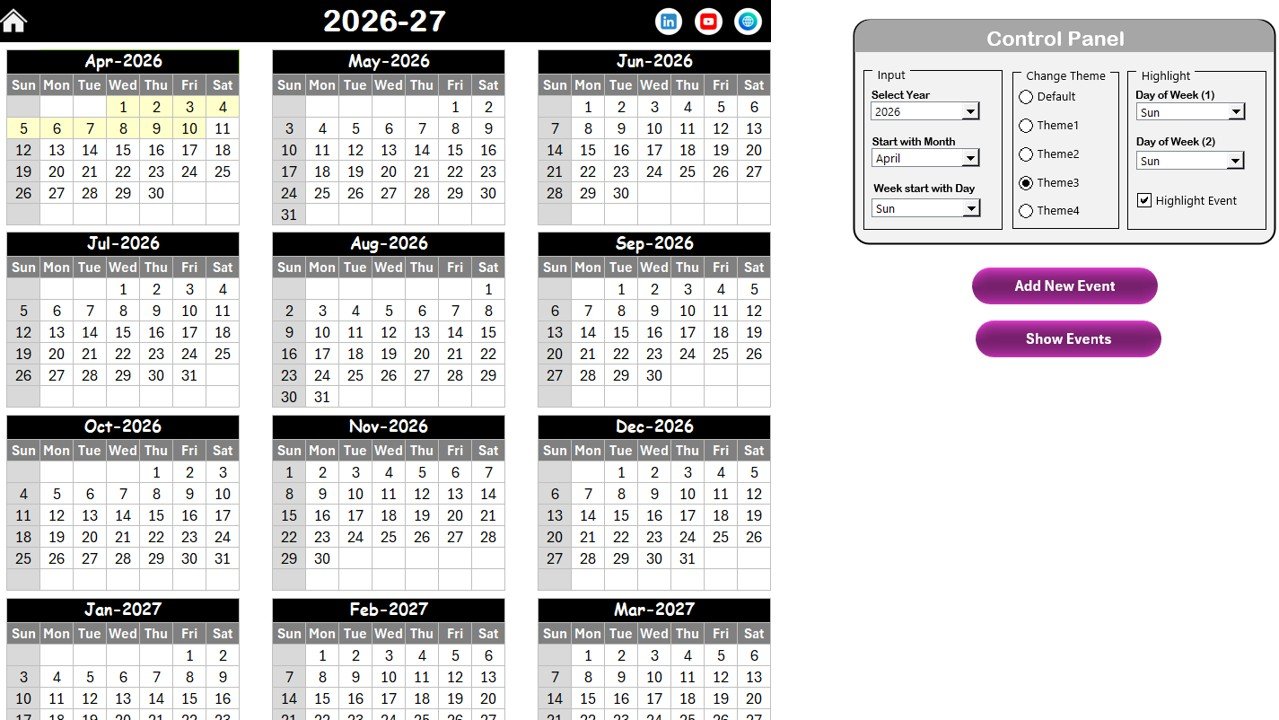
The Annual View sheet displays all 12 months in one screen. This view helps you plan long-term activities efficiently.
🔹 Control Panel Features
The Annual View includes a powerful control panel with three groups.
✅ Input Group
Here you can:
-
Select the Year
-
Change the starting month
-
Change the starting day of the week
Because of this flexibility, the calendar adapts to different business needs.
✅ Change Theme Group
You can choose from 5 color themes.
Once selected, the theme applies to the entire workbook. Therefore, you can match the calendar with your brand style.
✅ Highlight Group
This feature improves visual clarity.
You can:
-
Highlight Day of Week (1)
-
Highlight Day of Week (2)
For example, you can highlight Saturday and Sunday in grey.
Additionally, the Highlight Event checkbox allows you to mark event dates in yellow.
As a result, important dates become highly visible.
🔹 Add New Event Button
To add a new event:
-
Select a date on the calendar
-
Click Add New Event
-
Fill the form
-
Click Submit
The event automatically appears on the selected date.
🔹 Show Event Button
To view events on a selected date:
-
Select the date
-
Click Show Event
This feature provides quick event visibility.
Click to Purchases Insurance Planning Calendar in Excel
3️⃣ Monthly View Sheet – Focused Monthly Planning
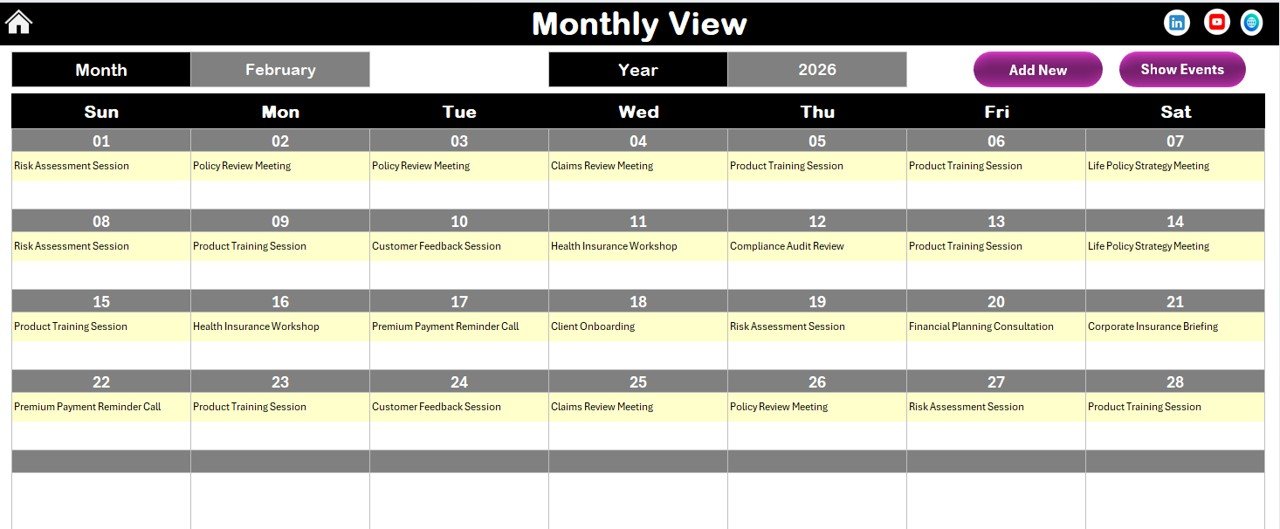
The Monthly View shows a single month calendar for detailed planning.
At the top, you can select:
-
Month
-
Year
The calendar updates automatically.
🔹 Event Display Logic
The calendar shows:
-
One event directly on the date
-
If multiple events exist, it displays “more than 1…”
Therefore, the layout stays clean and readable.
🔹 Monthly View Buttons
Two buttons are available:
✅ Add New Event
Works the same as Annual View.
✅ Show Event
Displays the list of events for the selected date.
Click to Purchases Insurance Planning Calendar in Excel
4️⃣ Daily View Sheet – Detailed Event Tracking

The Daily View provides a detailed list of events within a selected date range.
At the top, you can set:
-
Start Date
-
End Date
Use the calendar icons to select dates easily.
After selecting the range, click Refresh to load the latest data.
🔹 Add New Event Button
You can quickly add new events directly from this sheet using the same event form.
Because of this feature, daily planning becomes extremely efficient.
5️⃣ Events Sheet – The Database Engine
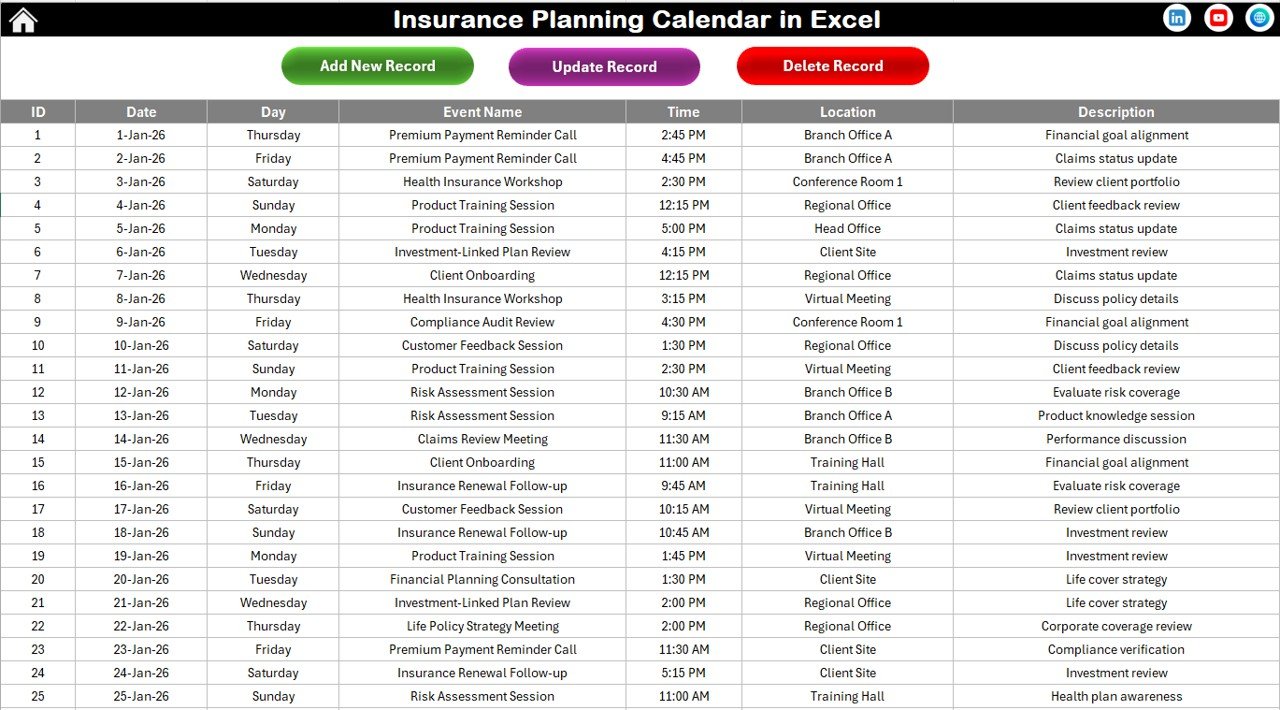
The Events sheet acts as the master database.
All calendar views pull data from this sheet.
🔹 Captured Fields
The sheet stores:
-
ID (Auto generated)
-
Date
-
Day
-
Event Name
-
Time
-
Location
-
Description
Because the ID generates automatically, data remains structured and unique.
🔹 Database Control Buttons
Three powerful buttons are available:
✅ Add New Record
Opens the event form to create a new event.
✅ Update Existing Record
Steps:
-
Select the Event ID
-
Click Update
-
Edit the prefilled form
-
Submit
The record updates instantly.
✅ Delete Record
Steps:
-
Select the Event ID
-
Click Delete
The selected event gets removed.
Click to Purchases Insurance Planning Calendar in Excel
Key Use Cases for Insurance Planning Calendar
This template supports many insurance workflows.
🔹 Client Management
-
Policy renewal reminders
-
Client review meetings
-
Premium due dates
🔹 Compliance Tracking
-
Regulatory filing deadlines
-
Audit schedules
-
Documentation reviews
🔹 Sales Planning
-
Lead follow-ups
-
Sales meetings
-
Campaign schedules
🔹 Operations Management
-
Team meetings
-
Training sessions
-
Internal reviews
Because of this versatility, the template fits multiple roles.
Click to Purchases Insurance Planning Calendar in Excel
Advantages of Insurance Planning Calendar in Excel
Now let us explore the major benefits.
✅ 1. Centralized Event Management
You manage all insurance activities in one place.
✅ 2. Automated Event Forms
Buttons and forms reduce manual entry errors.
✅ 3. Multi-Level Calendar Views
You get:
-
Annual planning
-
Monthly focus
-
Daily detail
Therefore, planning becomes comprehensive.
✅ 4. Visual Highlighting
Weekend and event highlighting improves readability.
✅ 5. Easy Customization
You can modify themes, fields, and layouts easily.
✅ 6. Improved Client Service
Because you never miss renewals, customer satisfaction improves.
✅ 7. Professional Workflow
The structured system gives your business a professional edge.
Click to Purchases Insurance Planning Calendar in Excel
Best Practices for the Insurance Planning Calendar
To maximize effectiveness, follow these best practices.
🔹 1. Enter Events Immediately
Always add events as soon as they are scheduled.
🔹 2. Use Clear Event Names
Write descriptive titles such as:
-
Policy Renewal – Client A
-
Annual Review Meeting
🔹 3. Review Calendar Weekly
Weekly review helps prevent missed deadlines.
🔹 4. Keep Database Clean
Delete outdated or duplicate records regularly.
🔹 5. Use Highlight Features Smartly
Highlight weekends and critical days for better visibility.
🔹 6. Backup the File Regularly
Always keep a backup copy to protect your data.
Who Should Use This Template?
This calendar works perfectly for:
-
Insurance Agents
-
Insurance Brokers
-
Financial Advisors
-
Policy Administrators
-
Sales Teams
-
Compliance Officers
If your business depends on timely follow-ups, this template becomes essential.
Click to Purchases Insurance Planning Calendar in Excel
Conclusion: Stay Organized and Never Miss Important Insurance Dates
In the insurance business, timing is everything. Missing a renewal or meeting can directly affect revenue and customer trust.
The Insurance Planning Calendar in Excel gives you:
-
Structured event management
-
Automated forms
-
Multi-view calendar planning
-
Visual highlights
-
Easy customization
Therefore, you move from reactive scheduling to proactive planning.
When you use this calendar consistently, you stay organized, improve client service, and run your insurance operations with confidence.
Frequently Asked Questions (FAQs)
❓ What is the main purpose of the Insurance Planning Calendar?
It helps insurance professionals manage renewals, meetings, and important events in one structured Excel system.
❓ Can I customize the calendar year?
Yes. You can change the year from the Annual View control panel.
❓ How are event IDs generated?
The template automatically generates unique IDs for each event.
❓ Can I track multiple events on the same date?
Yes. The Monthly View shows “more than 1…” when multiple events exist.
❓ Is this template suitable for small insurance agencies?
Absolutely. It works perfectly for both small teams and large organizations.
Click to Purchases Insurance Planning Calendar in Excel
Visit our YouTube channel to learn step-by-step video tutorials