Businesses continuously track Key Performance Indicators (KPIs) to measure progress toward strategic goals. However, tracking KPIs alone does not guarantee success. Teams must also manage the tasks, follow-ups, and responsibilities connected to each KPI. Many organizations still depend on emails, notebooks, or unstructured spreadsheets to manage KPI-related activities. As a result, deadlines get missed, accountability becomes unclear, and performance monitoring loses effectiveness.
Therefore, companies increasingly adopt structured checklist systems that combine KPI monitoring with task management.
The KPI Tracking Checklist in Excel provides a simple yet powerful solution. It helps organizations organize KPI activities, monitor completion status, and improve accountability using a ready-to-use Excel template.
In this article, we will explain the structure, features, benefits, and best practices of the KPI Tracking Checklist in Excel and how it improves performance management.
Click to Purchases KPI Tracking Checklist in Excel
What Is a KPI Tracking Checklist in Excel?
A KPI Tracking Checklist in Excel is a structured task management tool designed to track KPI-related activities using a checklist format.
Instead of managing tasks across multiple tools, users maintain all KPI action items in one centralized worksheet.
The checklist allows teams to:
-
Track KPI-related tasks
-
Assign responsibilities
-
Monitor deadlines
-
Measure completion progress
-
Maintain accountability
Because the template works inside Excel, organizations can implement it immediately without additional software.
Why Is KPI Task Tracking Important?
KPIs represent goals, but actions drive results. Without structured tracking, teams often lose focus on execution.
Common Problems Without KPI Checklists
-
Tasks remain incomplete
-
Responsibilities remain unclear
-
Follow-ups become inconsistent
-
Progress visibility decreases
-
Reporting becomes difficult
However, a KPI checklist ensures consistent execution.
Benefits of KPI Task Tracking
-
Improved accountability
-
Clear task ownership
-
Better deadline management
-
Transparent progress tracking
-
Enhanced team productivity
Overview of KPI Tracking Checklist Template Structure
This ready-to-use template contains 2 worksheets, each serving a specific purpose.
Click to Purchases KPI Tracking Checklist in Excel
1️⃣ KPI Tracking Checklist Sheet – Main Working Area
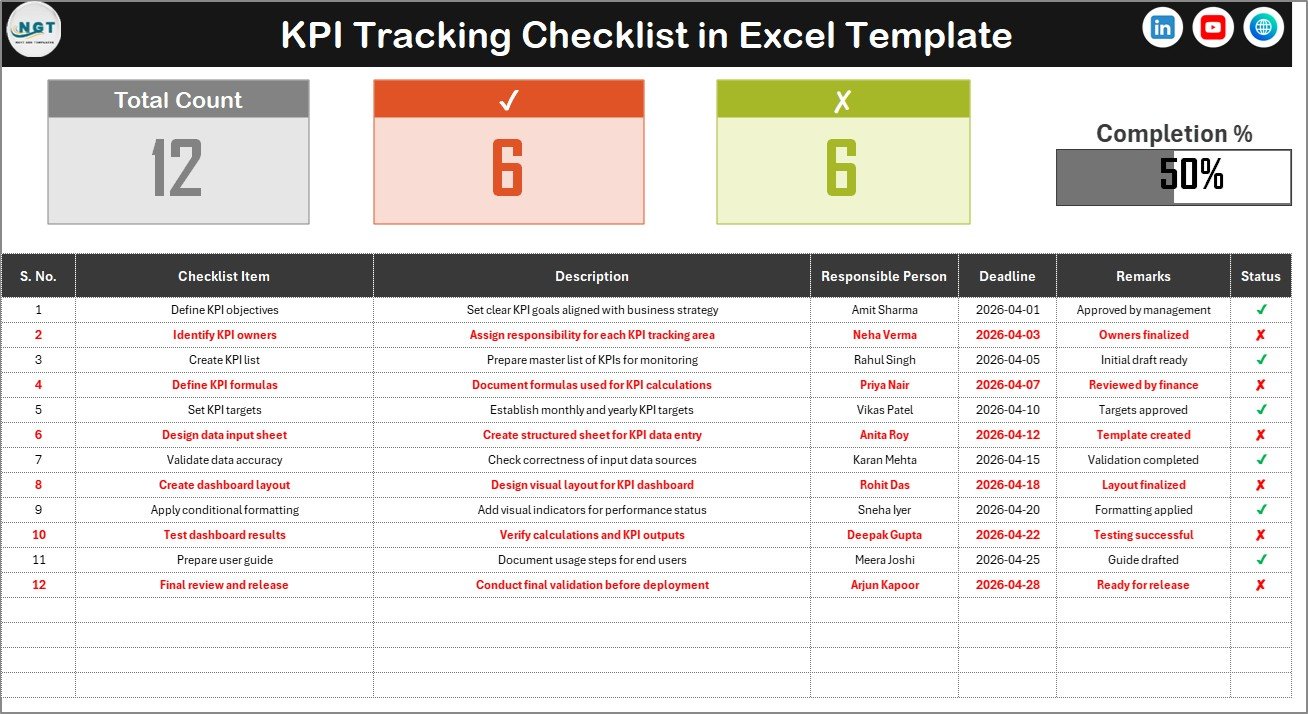
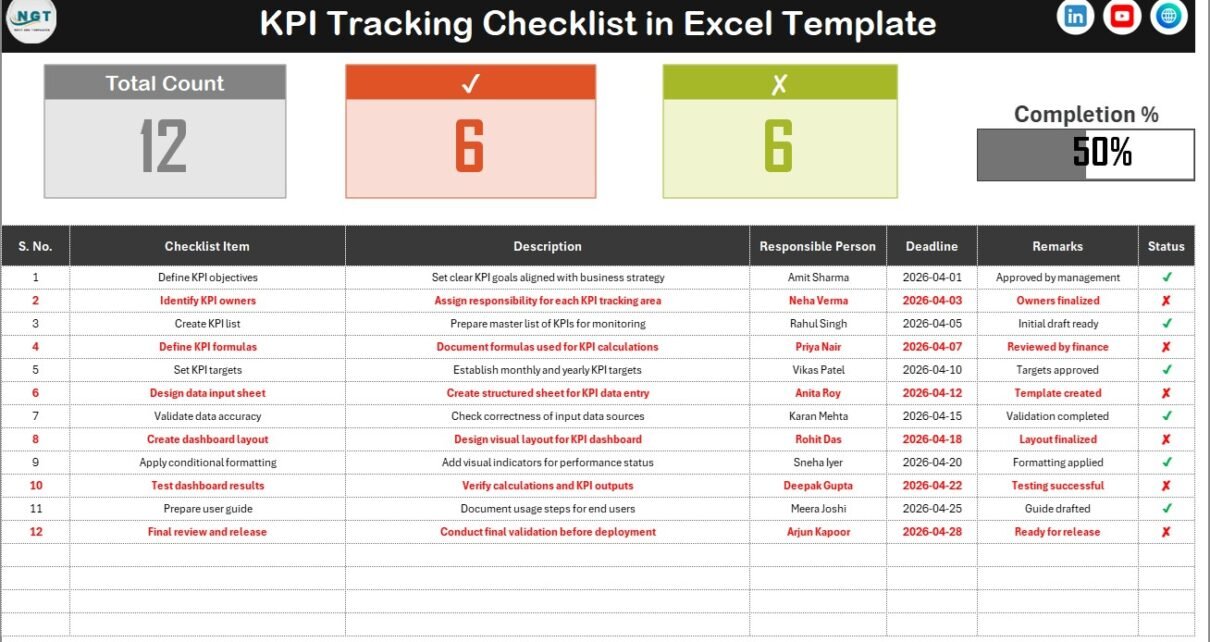
The KPI Tracking Checklist Sheet acts as the primary interface where users manage checklist activities.
Top Section – KPI Tracking Summary
At the top of the sheet, users see an instant performance overview.
Summary Metrics Displayed
-
Total Count – Total number of checklist items
-
Checked Count – Completed tasks
-
Crossed Count – Pending or incomplete tasks
-
Progress Bar – Visual percentage of completed tasks
This section helps managers understand progress immediately.
Checklist Table Structure
The main checklist table captures detailed information for each KPI task.
Columns Included
-
Serial No. – Unique task number
-
Checklist Item – Name of activity
-
Description – Short explanation of task
-
Responsible Person – Assigned team member
-
Deadline – Task due date
-
Remarks – Additional notes
-
Status – ✔ Completed or ✘ Pending
Users simply change the Status column to update progress automatically.
Because calculations update instantly, the progress bar reflects real-time performance.
Click to Purchases KPI Tracking Checklist in Excel
2️⃣ List Sheet – Dropdown Management

The List Sheet stores the unique list of responsible persons.
Purpose of This Sheet
-
Creates dropdown validation in the main checklist
-
Maintains consistent naming
-
Prevents manual entry errors
Whenever users add a new responsible person, the dropdown updates automatically.
This ensures standardized data entry across the checklist.
Key Features of KPI Tracking Checklist in Excel
-
Ready-to-use checklist template
-
Automatic progress calculation
-
Visual progress bar
-
Task assignment tracking
-
Deadline monitoring
-
Status-based completion tracking
-
Dropdown-based responsible person selection
-
Simple and clean interface
Advantages of KPI Tracking Checklist in Excel
✅ Centralized KPI Task Management
All KPI actions remain in one place.
✅ Real-Time Progress Monitoring
Progress updates instantly when status changes.
✅ Improved Accountability
Clear ownership assigned to each task.
✅ Easy to Use
No technical expertise required.
✅ Visual Performance Tracking
Progress bar simplifies monitoring.
✅ Error Reduction
Dropdown lists standardize inputs.
✅ Cost-Effective Solution
Works within existing Excel environment.
Click to Purchases KPI Tracking Checklist in Excel
How to Use the KPI Tracking Checklist Effectively?
Step 1: Define KPI Tasks
List all activities required to achieve KPIs.
Step 2: Assign Responsibility
Select responsible persons from dropdown.
Step 3: Set Deadlines
Enter realistic completion dates.
Step 4: Update Status Regularly
Mark ✔ when tasks complete.
Step 5: Monitor Progress
Use summary section to review performance.
Best Practices for KPI Tracking Checklist in Excel
-
Update checklist daily or weekly
-
Keep descriptions short and clear
-
Assign only one owner per task
-
Review progress during team meetings
-
Avoid duplicate checklist items
-
Use remarks for status updates
-
Validate deadlines regularly
Common Challenges and Solutions
Lack of Updates
Schedule weekly checklist reviews.
Inconsistent Data Entry
Use dropdown validation lists.
Missed Deadlines
Highlight overdue tasks using conditional formatting.
Overloaded Checklists
Focus only on KPI-related activities.
Who Can Use This Template?
The KPI Tracking Checklist works across industries:
-
Business managers
-
Project teams
-
HR departments
-
Operations teams
-
Sales organizations
-
Marketing teams
-
Finance departments
-
Consultants and freelancers
Why Choose Excel for KPI Tracking?
Familiar Tool
Most professionals already use Excel.
Flexible Customization
Users modify fields easily.
Automation Support
Formulas automate progress tracking.
Offline Accessibility
Works without internet access.
Scalable Design
Add unlimited checklist items.
Future of KPI Task Management
KPI tracking continues evolving with:
-
Automated workflow integration
-
AI-based performance recommendations
-
Cloud collaboration dashboards
-
Real-time performance alerts
However, structured Excel checklists remain reliable foundations for performance execution.
Conclusion
Tracking KPIs without managing execution leads to incomplete results. Organizations must monitor tasks, responsibilities, and deadlines alongside performance metrics.
The KPI Tracking Checklist in Excel simplifies KPI execution by combining task tracking, progress monitoring, and accountability into one easy-to-use template.
By using this checklist, organizations can:
-
Improve KPI execution
-
Increase team accountability
-
Monitor progress visually
-
Meet deadlines consistently
-
Achieve strategic goals efficiently
Ultimately, this template transforms KPI planning into measurable action.
Click to Purchases KPI Tracking Checklist in Excel
Frequently Asked Questions (FAQs)
1. What is a KPI Tracking Checklist?
It is a structured Excel checklist used to track tasks related to KPIs.
2. Is the template beginner-friendly?
Yes. Basic Excel knowledge is sufficient.
3. Does progress update automatically?
Yes. The progress bar updates based on status changes.
4. Can I customize columns?
Yes. Users can modify fields easily.
5. Can multiple teams use it?
Yes. It supports team-based task tracking.
6. Does it require macros?
No. The template works using Excel formulas.
7. Who should use this checklist?
Managers, teams, and organizations tracking KPI execution.
Click to Purchases KPI Tracking Checklist in Excel
Visit our YouTube channel to learn step-by-step video tutorials