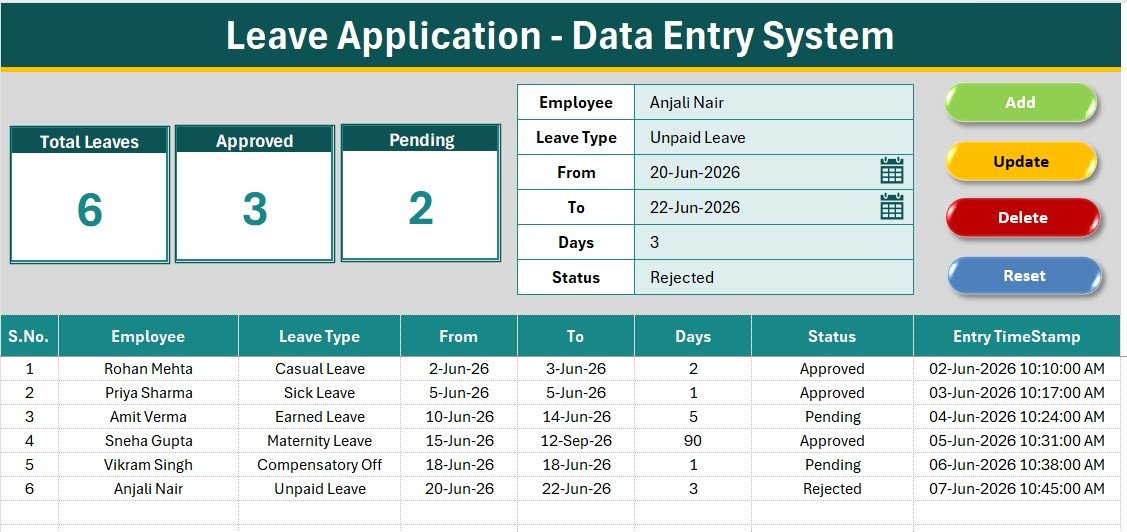
The Leave Application Data Entry System in Excel records 6 fields per leave entry — Employee, Leave Type, From, To, Days, and Status — and summarises them into 3 live KPI cards: Total Leaves, Approved, and Pending. Powered by a VBA Add / Update / Delete / Reset form, it lets an HR coordinator log a leave application in roughly 15 seconds, with no formula editing required. It runs fully offline in Microsoft Excel as a one-time purchase, with no per-employee subscription.
Most small teams track leave in a messy shared sheet where dates get overwritten, the “approved” column drifts out of sync, and nobody can quickly answer “how many requests are still pending?” This Excel leave application form fixes that with a structured single-screen workflow: a clean form, instant KPI counts, dropdown-controlled data, and an auto-timestamped records table that doubles as an audit trail Leave Application Data Entry System in Excel.
Key Features of the Leave Application Data Entry System in Excel
The system is built around one Data Entry sheet that holds the form, KPI cards, action buttons, and records table together, backed by a Setting sheet for all dropdown values.
- 6-field leave form — Employee, Leave Type, From, To, Days, and Status. Leave Type and Status are dropdowns wired to named ranges on the Setting sheet.
- 3 live KPI cards — Total Leaves counts all records, Approved counts Status = “Approved”, and Pending counts Status = “Pending”. Each card recalculates the instant a record changes.
- VBA Add / Update / Delete / Reset — four macro buttons run the complete record lifecycle, and a double-click loader pulls any row back into the form for editing.
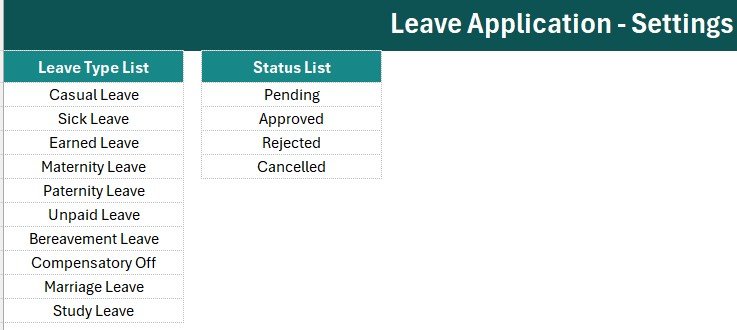
- Editable dropdowns — 10 leave types (Casual, Sick, Earned, Maternity, Paternity, Unpaid, Bereavement, Compensatory Off, Marriage, Study) and 4 statuses (Pending, Approved, Rejected, Cancelled) you can edit on the Setting sheet.
- Audit trail — auto S.No numbering and an Entry TimeStamp column stamp every record so you always know when it was logged Leave Application Data Entry System in Excel.
Sheets Explanation
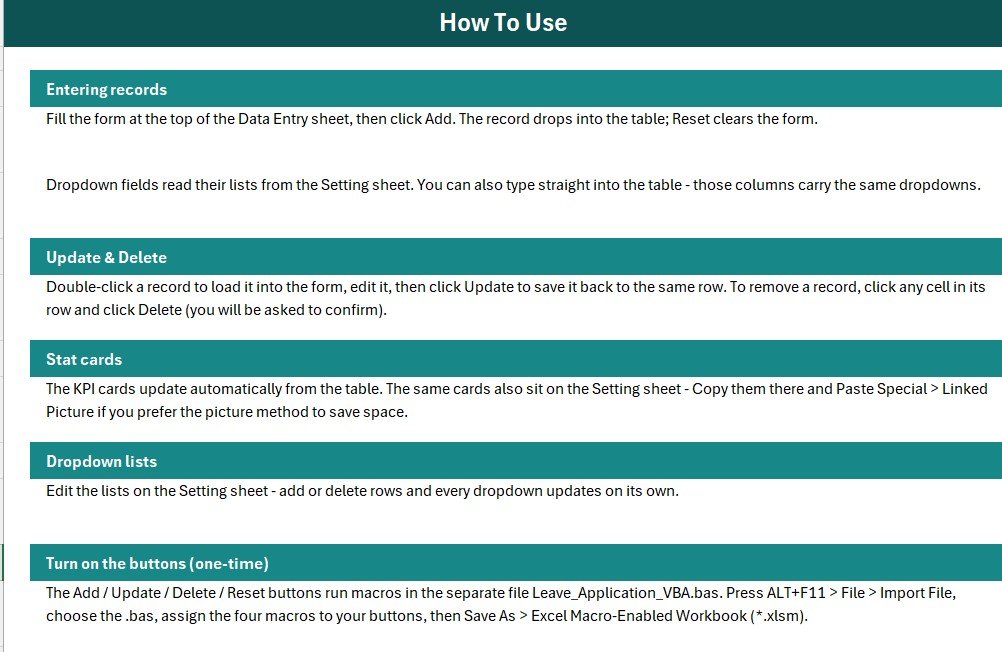
The workbook contains four sheets — Data Entry, Setting, Instructions, and Get More Templates — plus a separate VBA module imported once during setup.
Data Entry Dashboard
The main screen carries the Total Leaves, Approved, and Pending KPI cards, the 6-field input form, the four coloured Add / Delete / Update / Reset buttons in a 2×2 block, and the live records table with auto S.No and Entry TimeStamp.
Setting & Instructions Sheets
The Setting sheet stores the Leave Type and Status source lists, along with duplicated stat cards you can paste as a linked picture elsewhere. The Instructions sheet documents the one-time VBA activation so any new user can set the file up in minutes.
Leave Application Data Entry System vs. Google Sheets vs. Paid HR SaaS — Feature Comparison
| Feature | Leave Application Data Entry System | Google Sheets Equivalent | BambooHR / Workday |
|---|---|---|---|
| Cost | $5.99 one-time | Free (build it yourself) | $6–12 / user / month |
| Platform | Microsoft Excel (offline) | Browser + Google account | Cloud only |
| Setup time | Under 10 minutes | Hours to build form + KPIs | Days (onboarding + import) |
| One-click Add/Update/Delete form | ✅ VBA-powered | Needs Apps Script | ✅ |
| Works offline | ✅ Yes | ❌ Needs internet | ❌ Needs internet |
| Customisable leave types & status | ✅ Editable lists | ✅ | Limited to plan |
| Per-user fees | None | None | Charged per employee |
| Year-1 cost at 5 users | $5.99 total | $0 + your time | $360–720 |
For small teams that want fast, offline leave logging without paying per-employee SaaS fees, the Leave Application Data Entry System sits in the sweet spot.
Who Should Use This Template
Perfect for:
- HR coordinators and office admins at 5–200 person companies logging daily leave applications
- Small business owners who want approved-vs-pending visibility without monthly software
- Team leads tracking leave for a single department or shift
Not a fit if:
- You need SSO, automated multi-level approval workflows, and payroll integration
- Several people must edit the same leave log simultaneously in real time — a Google Sheets or web-app version suits that better
Real-World Use Cases
Meera manages HR at a 40-person manufacturing firm. Each morning she opens the system, reads the Pending KPI card to see how many requests await action, approves them in a batch, and watches the Approved count climb — all without paying $8 per employee per month for cloud HR software.
Rahul runs a 12-person digital agency. Before sprint planning he checks the Approved and Pending cards to confirm coverage, and when an employee questions a past leave, the Entry TimeStamp column gives him a clear, dated record to refer back to.
Advantages of the Leave Application Data Entry System
Because Leave Type and Status are driven by dropdown lists, your data stays consistent — no “Aproved” typos breaking the KPI counts. Excel’s built-in data validation keeps every entry clean, while the VBA form removes manual copy-paste errors. The one-time $5.99 price replaces recurring per-seat SaaS costs, and because everything runs locally in Excel, your leave data never leaves your machine — useful for teams with privacy or offline requirements.
Opportunities for Improvement
This is a single-user desktop tool by design, so it is not built for several people editing the same file at once, and it does not calculate leave balances or accrual automatically — it logs applications and their status. Teams needing real-time collaboration, automated approval routing, or balance tracking should consider a Google Sheets web-app version or a fuller HR system. Used as intended — fast, structured leave logging — it does its job well.
Best Practices
- Edit the Setting sheet first so the Leave Type and Status lists match your company’s leave policy before logging real data.
- Always reopen the file as .xlsm and enable macros, or the Add / Update / Delete buttons won’t run.
- Use the Days field consistently (calendar days or working days) so your reports stay comparable.
- Keep a periodic backup copy of the workbook, since this is a local file with no cloud sync.
Explore Relevant Templates
Pair this with the Employee Attendance Data Entry System in Excel to capture attendance beside leave, and see the Daily Sales Entry Data Entry System and Student Attendance Data Entry System for the same form-plus-KPI pattern applied to other workflows. For a complete HR toolkit, the HR & Workforce Analytics Bundle packs 10 templates together, and you can browse more HR & Payroll Templates on NextGenTemplates.
Frequently Asked Questions
What fields does the Leave Application Data Entry System track?
The Leave Application Data Entry System tracks 6 fields per record — Employee, Leave Type, From date, To date, Days, and Status. Leave Type and Status use editable dropdown lists, and three KPI cards summarise total, approved, and pending leaves.
Do I need to enable macros?
Yes. The Leave Application Data Entry System uses VBA for the Add, Update, Delete, and Reset buttons, so you must enable macros and save the file as a macro-enabled workbook (.xlsm) for the form to work.
Can I change the leave types and status options?
Absolutely. The Leave Application Data Entry System keeps all dropdown values on the Setting sheet, so you can rename, add, or remove leave types and status labels to match your company’s leave policy in seconds.
Does it calculate leave balances automatically?
No. The Leave Application Data Entry System logs leave applications and their approval status with day counts; it does not compute remaining leave balances or accruals. For balance tracking, a dedicated leave management dashboard is a better fit.
How long does setup take?
Setup takes under 10 minutes — import the VBA module, attach four buttons to the macros, and save as .xlsm. After that, logging a single leave application takes about 15 seconds.
About the Author
Built by PK — Microsoft Certified Professional with 15+ years of Excel, Google Sheets, and Power BI experience. Founder of NextGenTemplates, reaching 300K+ subscribers across YouTube channels. Every template is hand-built and tested before release.
Conclusion
If your team needs a fast, reliable way to log leave applications and instantly see what’s approved versus pending — without paying monthly per-employee fees — the Leave Application Data Entry System in Excel is a practical, one-time-purchase answer.
👉 Click here to purchase the Leave Application Data Entry System in Excel
Instant download · One-time payment · No subscription
🎥 For step-by-step video tutorials, visit YouTube.com/@PK-AnExcelExpert.
Last updated: June 2026