Manufacturing organizations operate in a fast-moving, cost-sensitive, and performance-driven environment. Therefore, leaders must track production efficiency, quality, cost control, and delivery performance without delay. However, when data spreads across multiple Excel files, reports, and emails, decision-making becomes slow and risky.
That is exactly why a Manufacturing Operations KPI Dashboard in Power BI plays a critical role in modern manufacturing analytics.
In this detailed and SEO-friendly guide, you will learn what a Manufacturing Operations KPI Dashboard in Power BI is, why it matters, how it works, its page-wise structure, data model, advantages, best practices, and frequently asked questions. Moreover, this article uses clear language, strong transition words, and practical explanations so you can apply everything immediately.
Click to Purchases Manufacturing Operations KPI Dashboard in Power BI
What Is a Manufacturing Operations KPI Dashboard in Power BI?
A Manufacturing Operations KPI Dashboard in Power BI is a ready-to-use, interactive performance tracking system designed to monitor key manufacturing KPIs in one centralized visual platform.
Instead of reviewing raw numbers or static reports, this dashboard transforms Excel-based manufacturing data into dynamic visuals, KPI cards, tables, slicers, and trend charts. As a result, managers, plant heads, and executives gain instant visibility into operational performance.
More importantly, Power BI allows users to compare Actual vs Target, Current Year vs Previous Year, and MTD vs YTD performance without manual calculations.
Why Do Manufacturing Teams Need a KPI Dashboard in Power BI?
Manufacturing teams face daily challenges such as production delays, cost overruns, quality issues, and target deviations. Therefore, they need accurate insights at the right time.
A Manufacturing Operations KPI Dashboard in Power BI helps because:
-
It consolidates operational data into one view
-
It highlights performance gaps instantly
-
It supports faster corrective actions
-
It improves accountability across teams
-
It reduces manual reporting effort
As a result, organizations shift from reactive decisions to proactive management.
How Does a Manufacturing Operations KPI Dashboard in Power BI Work?
This dashboard uses Excel as a data source and Power BI Desktop as the visualization and analytics layer. First, users update KPI data in structured Excel sheets. Then, Power BI automatically refreshes visuals and calculations.
Because of this setup, users do not need advanced technical skills to maintain the dashboard.
Page-Wise Structure of Manufacturing Operations KPI Dashboard in Power BI
This dashboard contains three well-structured pages, each serving a specific analytical purpose. Let us explore each page in detail.
1) Summary Page – How Does the Main KPI Overview Work?
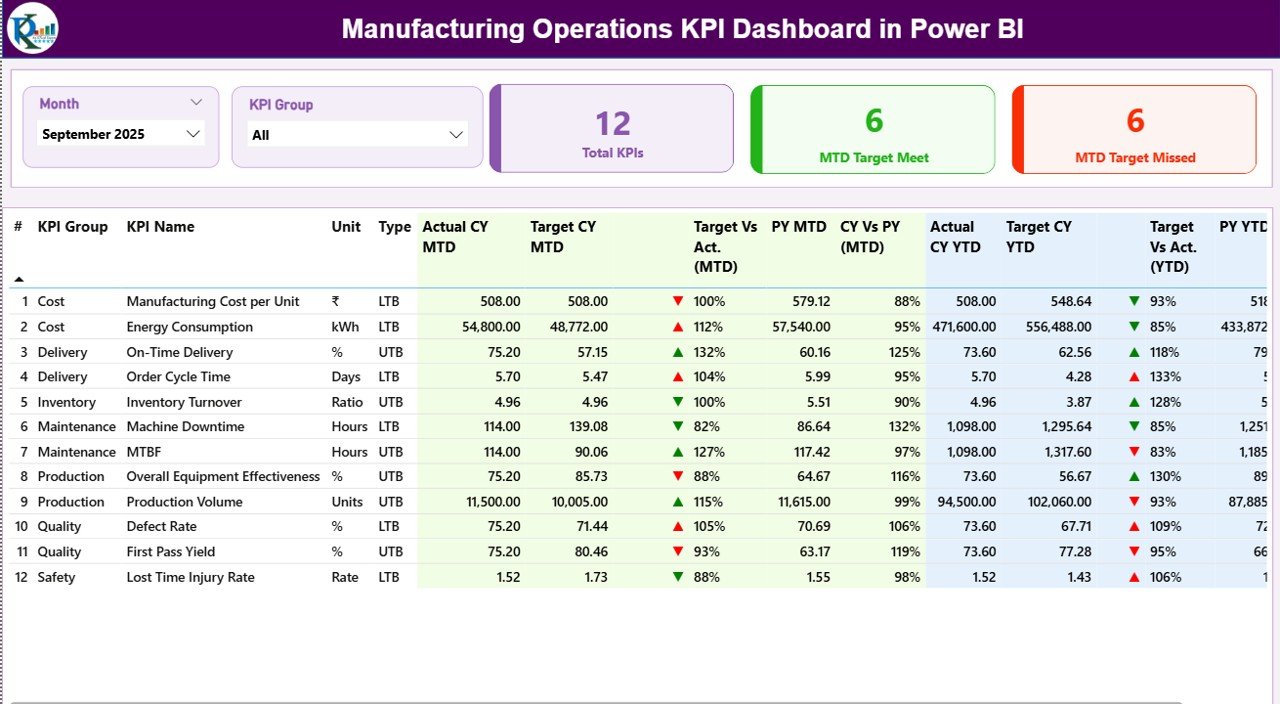
The Summary Page acts as the command center of the dashboard. Here, users can quickly understand overall manufacturing performance.
What Filters Are Available on the Summary Page?
At the top of the page, you will find:
-
Month Slicer – Select a specific month
-
KPI Group Slicer – Filter KPIs by category
These slicers ensure flexible and focused analysis.
What KPI Cards Are Displayed?
This page displays three powerful KPI cards:
-
Total KPIs Count
-
MTD Target Meet Count
-
MTD Target Missed Count
Because these cards update instantly with slicer selection, managers immediately see performance health.
What Information Appears in the Detailed KPI Table?
Below the cards, the dashboard shows a detailed KPI table with rich calculations and indicators.
KPI Table Columns Explained
-
KPI Number – Unique sequence number for each KPI
-
KPI Group – Category or functional area of the KPI
-
KPI Name – Name of the performance indicator
-
Unit – Measurement unit (%, Hours, Units, etc.)
-
Type – KPI nature:
-
LTB (Lower the Better)
-
UTB (Upper the Better)
-
How Are MTD Metrics Displayed?
-
Actual CY MTD – Current Year actual MTD value
-
Target CY MTD – Target MTD value
-
MTD Icon –
-
▲ Green icon for target achieved
-
▼ Red icon for target missed
-
-
Target vs Actual (MTD) – Actual ÷ Target
-
PY MTD – Previous Year MTD value
-
CY vs PY (MTD) – CY MTD ÷ PY MTD
Because of icons and percentages, users understand performance instantly.
Click to Purchases Manufacturing Operations KPI Dashboard in Power BI
How Are YTD Metrics Displayed?
-
Actual CY YTD – Current Year actual YTD value
-
Target CY YTD – Target YTD value
-
YTD Icon – Status indicator using arrows
-
Target vs Actual (YTD) – Actual ÷ Target
-
PY YTD – Previous Year YTD value
-
CY vs PY (YTD) – CY YTD ÷ PY YTD
Thus, the Summary Page delivers a complete performance snapshot in one screen.
2) KPI Trend Page – How Can You Analyze KPI Performance Over Time?
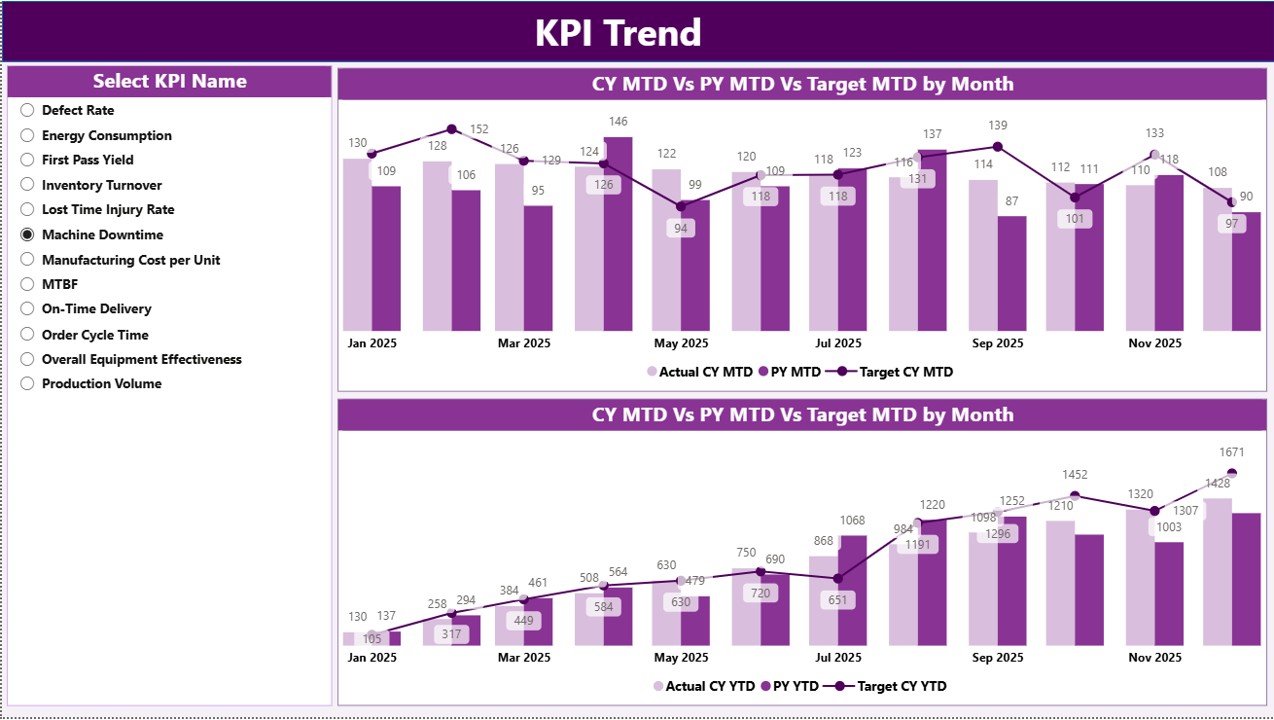
The KPI Trend Page focuses on historical and comparative analysis.
What Visuals Are Used on the KPI Trend Page?
This page displays two combo charts:
-
MTD Trend Chart
-
YTD Trend Chart
Each chart compares:
-
Actual Current Year
-
Target
-
Previous Year
How Does KPI Selection Work?
On the left side, a KPI Name slicer allows users to select a specific KPI. As soon as a KPI is selected, both charts update dynamically.
Because of this design, users can analyze trends KPI by KPI without clutter.
Click to Purchases Manufacturing Operations KPI Dashboard in Power BI
Why Is the Trend Page Important?
-
It identifies improvement or decline patterns
-
It highlights seasonality issues
-
It supports performance forecasting
-
It enables root cause discussions
Therefore, this page plays a key role in strategic planning.
3) KPI Definition Page – How Does Drill-Through Improve Understanding?
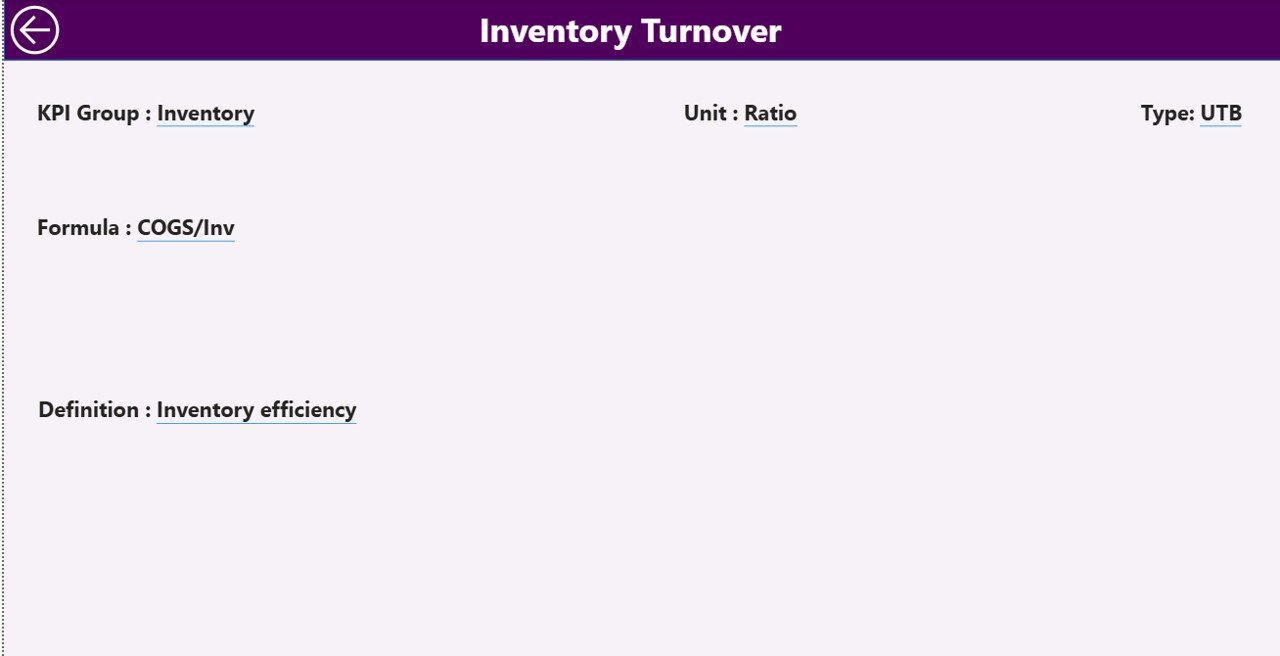
The KPI Definition Page works as a drill-through page. This page remains hidden by default to keep the dashboard clean.
What Information Is Available on This Page?
When users drill through from the Summary Page, they can view:
-
KPI Number
-
KPI Group
-
KPI Name
-
Unit
-
Formula
-
KPI Definition
-
KPI Type (LTB or UTB)
How Can Users Navigate Back?
A Back button appears on the top-left corner. One click returns users to the Summary Page.
Because of this setup, users understand KPI logic without leaving the dashboard.
Excel Data Structure Used in the Dashboard
This dashboard uses a structured Excel file as its data source. Users must update three worksheets only.
1) Input_Actual Sheet – How to Enter Actual Data?
In this sheet, users enter actual KPI values.
Required Columns
-
KPI Name
-
Month (use first date of the month)
-
MTD Value
-
YTD Value
Once updated, Power BI automatically reflects changes.
2) Input_Target Sheet – How to Maintain Target Data?
In this sheet, users enter target KPI values.
Required Columns
-
KPI Name
-
Month (first date of month)
-
MTD Target
-
YTD Target
This separation ensures clean Actual vs Target analysis.
3) KPI Definition Sheet – Why Is This Sheet Important?
This sheet defines KPI metadata.
Required Columns
-
KPI Number
-
KPI Group
-
KPI Name
-
Unit
-
Formula
-
Definition
-
Type (LTB or UTB)
Because of this structure, the dashboard remains scalable and easy to maintain.
Click to Purchases Manufacturing Operations KPI Dashboard in Power BI
Advantages of Manufacturing Operations KPI Dashboard in Power BI
Using a Manufacturing Operations KPI Dashboard in Power BI delivers several business benefits.
Key Advantages
-
✔ Centralized KPI monitoring
-
✔ Real-time performance visibility
-
✔ Automated calculations and indicators
-
✔ Clear MTD and YTD comparison
-
✔ Easy drill-through for KPI clarity
-
✔ Reduced manual reporting work
-
✔ Improved data-driven decisions
As a result, manufacturing teams operate with confidence and control.
Best Practices for Manufacturing Operations KPI Dashboard in Power BI
To get maximum value, follow these proven best practices.
Best Practices You Should Follow
-
Keep KPI definitions short and clear
-
Use consistent units across KPIs
-
Separate Actual and Target data sheets
-
Validate data before refresh
-
Use LTB and UTB logic correctly
-
Limit KPIs per page for clarity
-
Review trends regularly
Because of these practices, dashboards remain reliable and effective.
Who Can Use This Dashboard?
This dashboard fits multiple roles across manufacturing organizations.
Ideal Users
-
Plant Managers
-
Production Heads
-
Operations Managers
-
Quality Teams
-
Supply Chain Leaders
-
Business Analysts
-
Senior Executives
Each user gains insights relevant to their role.
Conclusion
A Manufacturing Operations KPI Dashboard in Power BI transforms complex manufacturing data into clear, actionable insights. Because it combines Excel-based inputs with Power BI analytics, teams gain speed, accuracy, and confidence in decision-making.
Moreover, the structured Summary Page, Trend Page, and KPI Definition Page ensure clarity, flexibility, and transparency. When organizations follow best practices, this dashboard becomes a powerful tool for operational excellence.
In short, this dashboard supports smarter manufacturing operations every single day.
Frequently Asked Questions About Manufacturing Operations KPI Dashboard in Power BI
What is the main purpose of a Manufacturing KPI Dashboard in Power BI?
The main purpose is to monitor manufacturing KPIs, compare actual vs target performance, and support data-driven decisions.
Can beginners use this dashboard?
Yes, beginners can use it easily because data entry happens in Excel and visuals update automatically in Power BI.
How often should data be updated?
You should update data monthly or more frequently based on operational needs.
Does this dashboard support drill-through analysis?
Yes, users can drill through from the Summary Page to view KPI definitions and formulas.
Can new KPIs be added later?
Yes, users can add new KPIs by updating the KPI Definition and input sheets.
Is this dashboard suitable for large manufacturing plants?
Yes, the structure supports scalability and multiple KPIs across departments.
Does the dashboard compare previous year performance?
Yes, it compares Current Year vs Previous Year for both MTD and YTD values.
Visit our YouTube channel to learn step-by-step video tutorials