Discharge planning is mostly coordination. A family conference here, a medication reconciliation there, a walker to be delivered on Thursday, transport to confirm for Friday morning, and a follow-up clinic slot to book before anybody leaves the ward. None of it is complicated on its own. All of it is easy to lose track of.
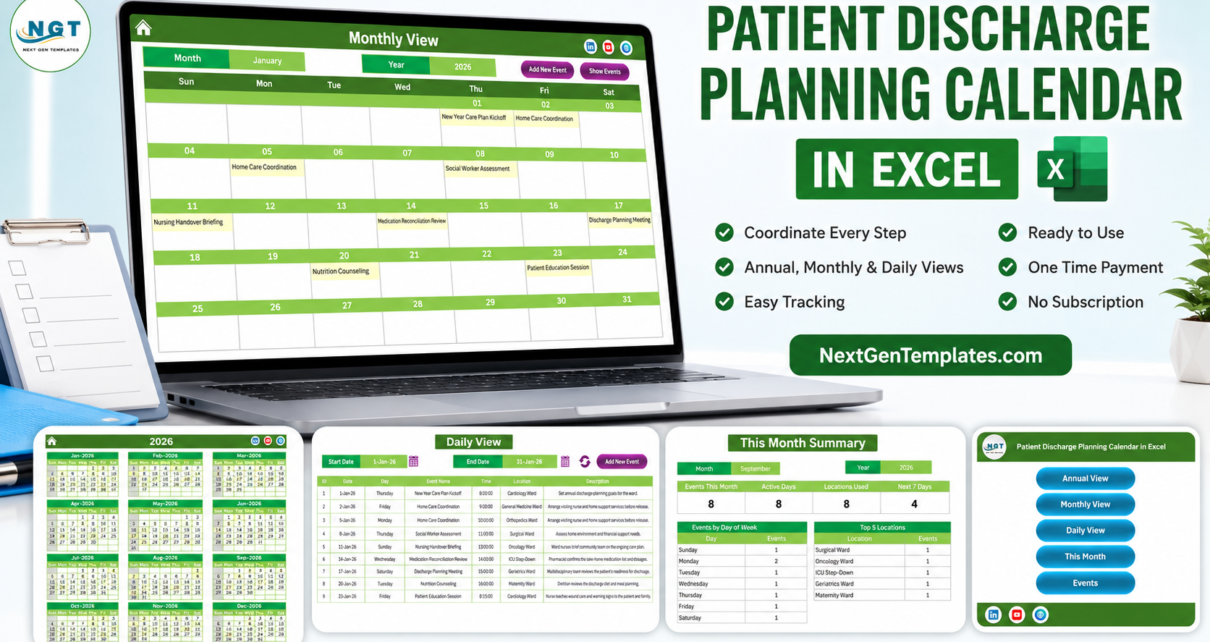
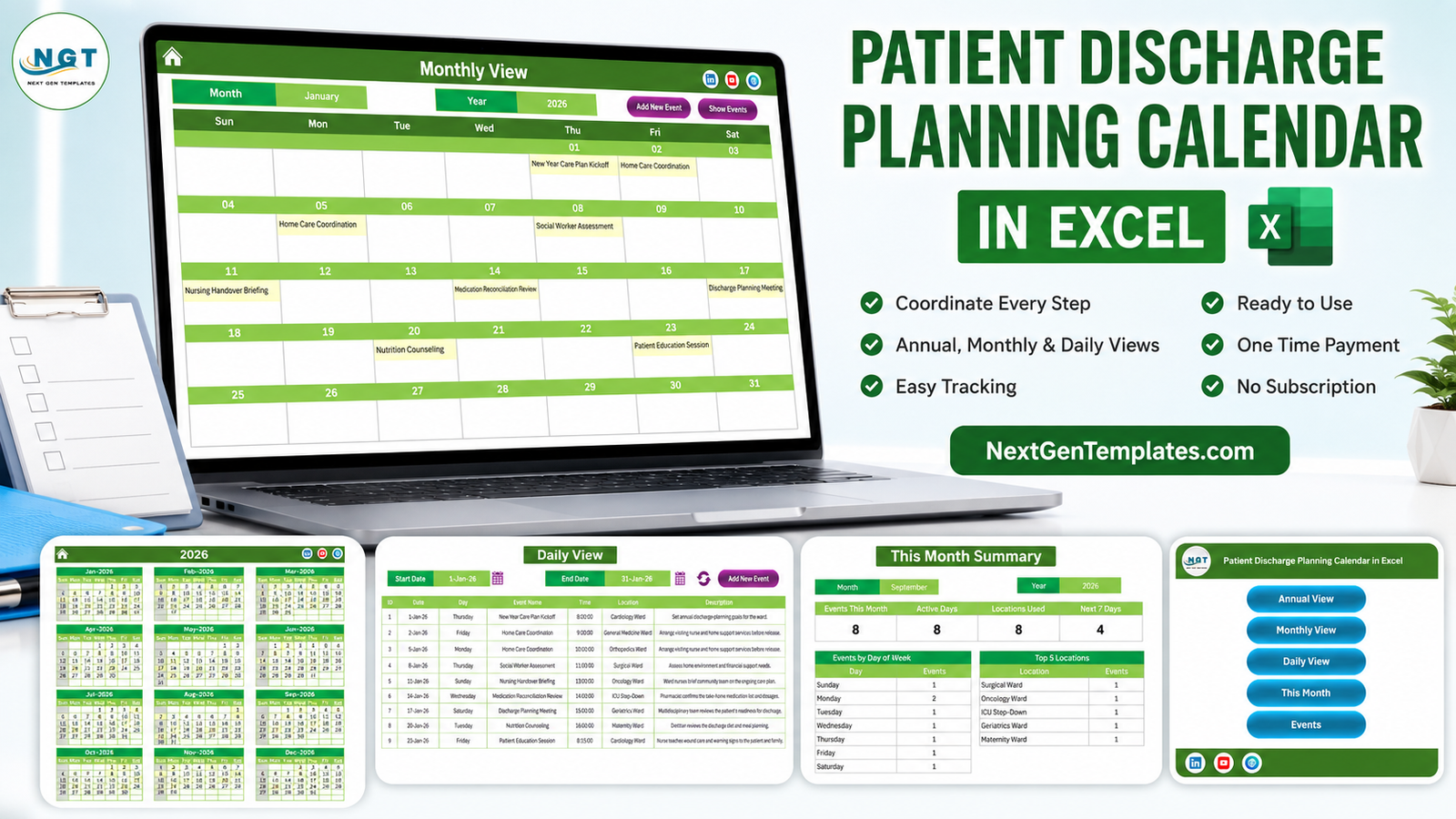
The Patient Discharge Planning Calendar in Excel is a macro-enabled workbook that puts that coordination on a calendar – a whole year on one sheet, one month on another, and any date range you like as a flat list. It ships with 100 sample entries so you can see how it behaves before you type a single row of your own.
Before we go any further, the important part. This is a scheduling spreadsheet. It is not an EHR or EMR, not a care-management or case-management system, and it is not HIPAA, GDPR, Joint Commission, CQC or NABH compliant or certified. It contains no medical advice, makes no clinical judgement, and does not replace clinical assessment or a discharge coordinator’s own process. It schedules activities. That is all it does, and that is all it claims.
What the workbook actually is
Seven sheets, all driven by one table.
- Home – a switchboard with five buttons: Annual View, Monthly View, Daily View, This Month, Events.
- Annual View – twelve months of the chosen year in a 3×4 grid, with dates that carry an entry highlighted. It is the most formula-heavy sheet in the file.
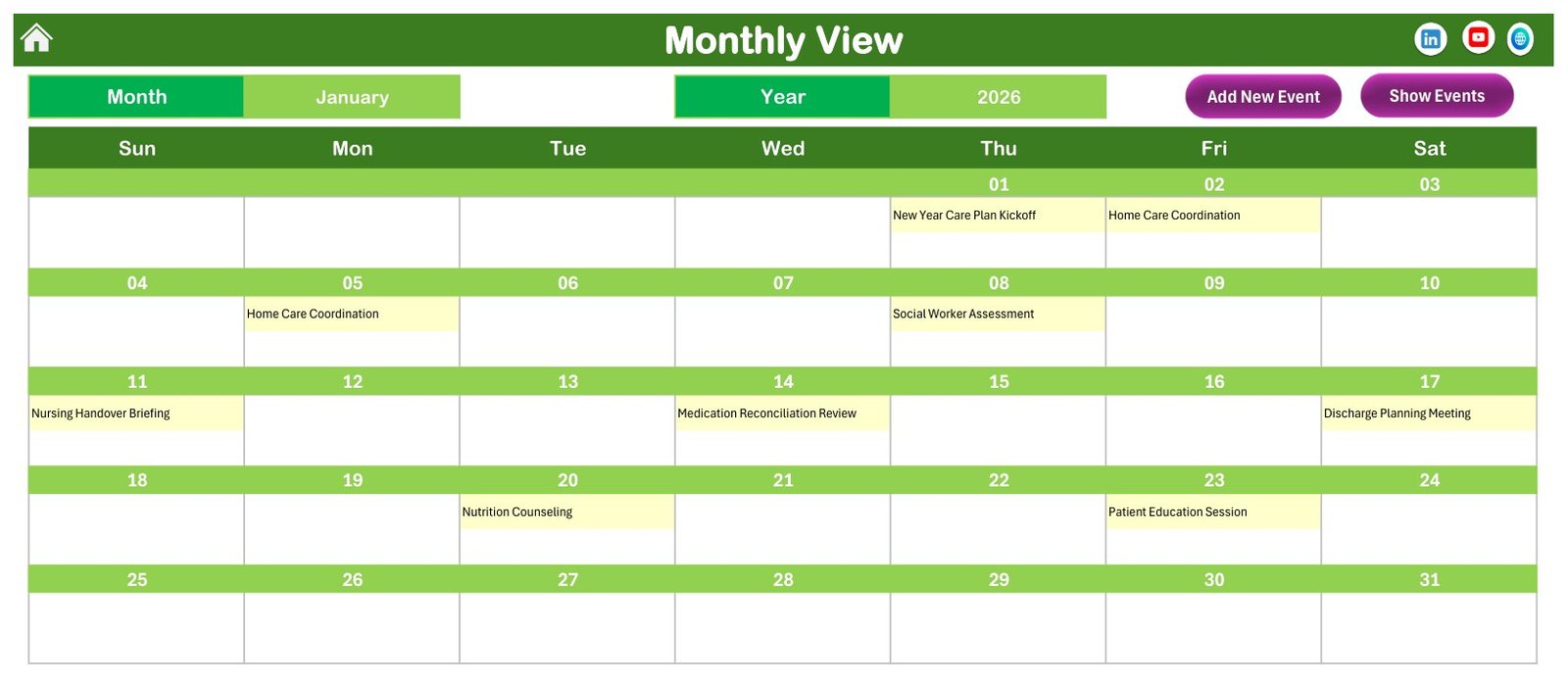
- Monthly View – one month on a Sun-to-Sat grid with the activity name written into each day cell, plus Month and Year pickers.
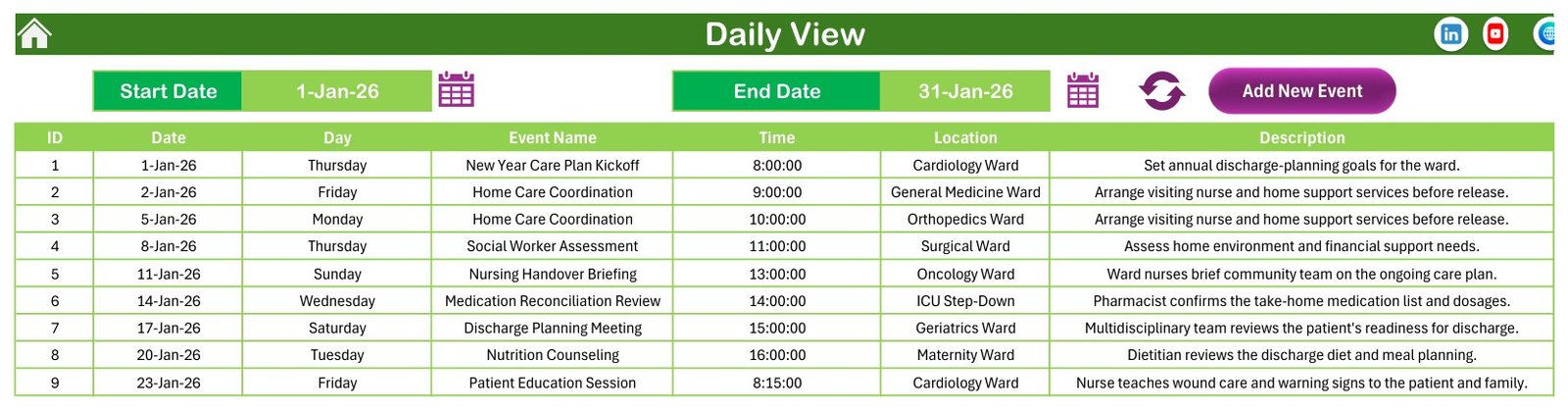
- Daily View – a flat table for a start-date/end-date window you set yourself.
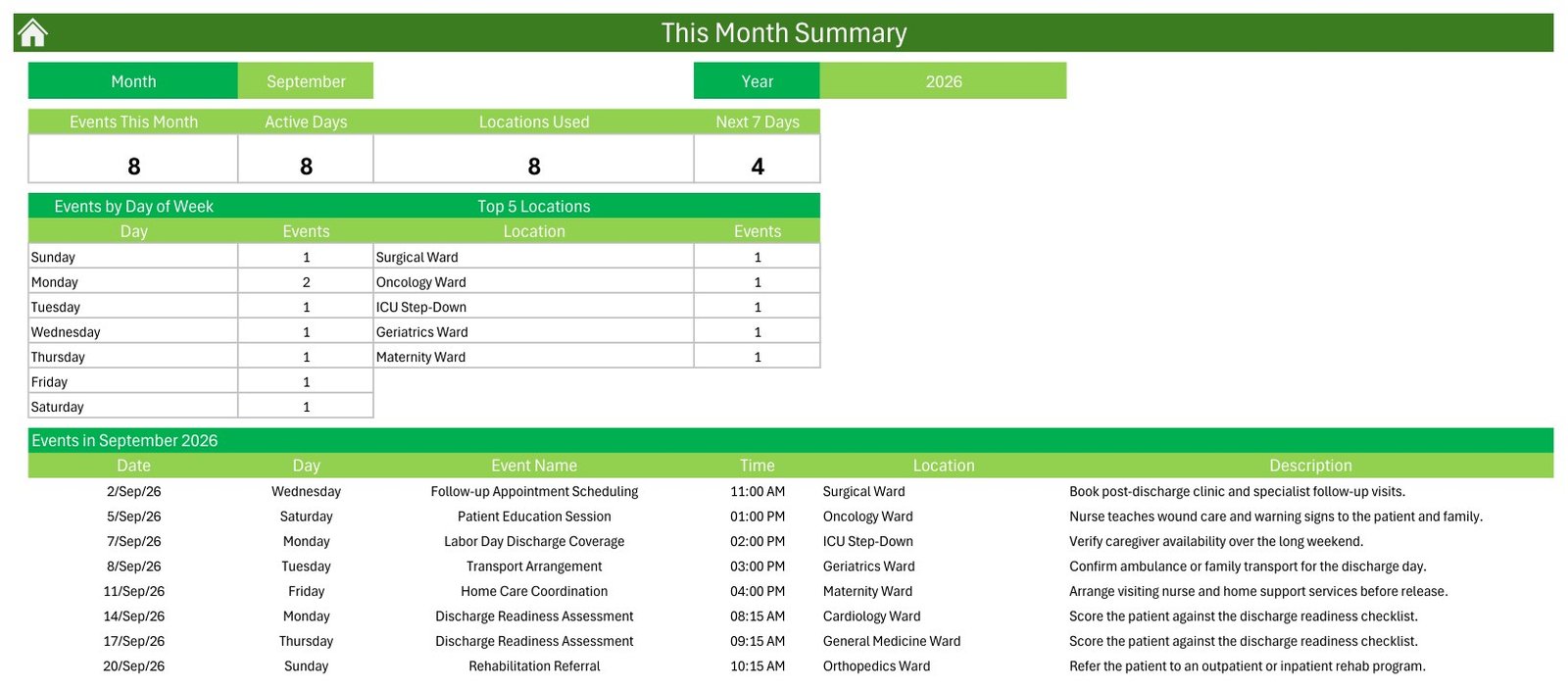
- This Month – a small summary: events this month, active days, locations used, next 7 days, plus an events-by-day-of-week table and a top-locations table.
- Events – the source table, 100 rows, with Add / Update / Delete buttons above it.
- Setting – year, start month, week-start day, two highlight days, event highlighting and the colour theme.
The seven columns, and why they matter
The Events sheet has exactly these columns: ID, Date, Day, Event Name, Time, Location, Description. That is worth spelling out on a product with the word “Patient” in its name, because the schema is the privacy story.
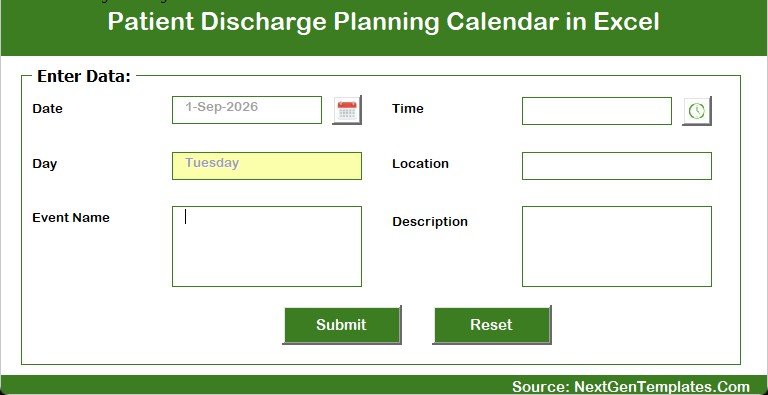
- There is no patient name column, no patient ID, no MRN, and the VBA entry form has no such field to fill in.
- There are no contact details, no address, and no room or bed number. The Location column holds ward names – Cardiology Ward, General Medicine Ward, Orthopedics Ward, Surgical Ward, Oncology Ward, ICU Step-Down, Geriatrics Ward, Maternity Ward. Those are places, not people.
- There is no diagnosis, medication, dose, score or outcome field. The sample descriptions talk about “the patient” in the abstract – and across all 100 rows, not one names a person, real or invented.
So it arrives clean. The question is what happens next.
If you are going to put real information into it, read this bit
The moment you type a patient name, an MRN, a diagnosis or a bed number into the Event Name or Description field, you have created a health record inside an ordinary Excel file – unencrypted, with no access control, no audit trail and no retention policy. The workbook will happily store it and will do nothing to protect it.
If you need entries to point at an individual:
- Use an internal code in the workbook – not a name – and keep the code-to-identity key in a separate, access-controlled system.
- Share the file with named people, never with an “anyone with the link” share.
- Be careful about where the file lives. A shared cloud folder, a team drive or an email attachment moves a spreadsheet around far more easily than a clinical system ever moves a record.
- Check your own information-governance policy first. This template enforces none of it, and buying it does not change your compliance position by one inch.
The safest use of this workbook, and the one it was built for, is scheduling activities rather than tracking people: the Monday planning meeting, the Thursday equipment delivery, the long-weekend coverage briefing.
What is in the sample year
The file ships populated, which is the fastest way to judge whether a template is any good.
- 100 entries, IDs 1 to 100 with no gaps, from 1 January 2026 (a Thursday) to 23 December 2026 (a Wednesday).
- Every month is populated: 9, 8, 9, 8, 8, 8, 9, 8, 8, 9, 8, 8.
- 25 activity types. The busiest are Transport Arrangement (12), Medication Reconciliation Review (9), Follow-up Appointment Scheduling (9), Home Care Coordination (8), Nursing Handover Briefing (7) and Rehabilitation Referral (7). There are seasonal ones too – Memorial Day Coverage Briefing, Labor Day Discharge Coverage, Thanksgiving Home-Support Review.
- 8 wards, near-evenly loaded: Cardiology, General Medicine, Orthopedics and Surgical at 13 entries each, Oncology, ICU Step-Down, Geriatrics and Maternity at 12.
- 32 start times in quarter-hour steps between 08:00 and 16:45.
We recomputed the weekday of all 100 rows against their own dates. All 100 match. That is worth checking in any calendar template you buy, and it is worth saying out loud when it passes.
Macros are load-bearing here – genuinely
This is the single most important practical fact about the workbook, and it is the sort of thing product pages usually leave out.
We opened the file and counted formulas sheet by sheet. Annual View is dense with them. Monthly View has plenty. Setting has a handful. Daily View and This Month contain no formulas at all. Both are written by the workbook’s own VBA when you press refresh or change a month.
Which means: open the file with macros disabled and you do not get a slightly reduced product, you get a broken one. Two of the four views will not rebuild, the Home navigation buttons will not move you anywhere, and Add / Update / Delete will not run. Enable macros, or do not buy it.
That also fixes the platform question. VBA does not run in Excel for the web or in the iPad and Android apps, and the ActiveX form controls behave unreliably on Mac. This is a Windows desktop Excel template.
One quirk worth knowing about the Day column
The Day column is typed text, not a formula. When you add a row through the form, VBA works the weekday out from the date and writes it in – correctly, as our 100-row check confirms.
But if you later edit a date directly in the cell, the Day beside it does not follow. It silently keeps the old weekday, and nothing warns you. Two easy fixes:
- Change dates through the Update Record form rather than by typing into the grid, or
- Put
=TEXT(B5,"dddd")in the Day column and fill it down, so the weekday is always derived from the date.
The other limitations, stated plainly
- No sample date carries two entries, so the Monthly View overflow behaviour never shows out of the box. Add two entries to the same day and the cell prints the first plus an “N more” counter.
- Top 5 Locations is capped at five while the Locations Used tile can read 8. The label says Top 5, so this is by design rather than a bug – but it does surprise people.
- There is no duration or end-time field, so the workbook cannot work out how long anything takes, or flag two things that overlap.
- No reminders, no notifications, no double-booking prevention. It is a passive record of what you typed.
- Single file, single editor. Two people cannot work in it at once.
How to set it up
- Unzip and open the .xlsm in Excel on Windows. If Windows offers an Unblock tick box in the file’s Properties, use it.
- Enable macros when prompted.
- On the Setting sheet, choose your year – anything from 2021 to 2051 – plus the start month and the day your week begins on.
- Click through all four views with the sample data still in place. It takes two minutes and tells you more than any description.
- Delete the 100 sample rows on the Events sheet.
- Agree your naming convention before you enter row one. If entries have to reference an individual, settle on an internal code now.
- Add entries through Add New Record on the Events sheet, or Add New Event on Monthly or Daily View. The form fills in the Day for you.
- Pick a colour theme – Default, Blue, Red, Black or Orange. It ships on Default, which is green.
Who it suits
Discharge coordinators and ward managers who want the month’s meetings, conferences and transport bookings visible in one place. Small clinics, step-down units and rehabilitation facilities with no scheduling-software budget. Community and home-care teams coordinating handovers with a ward. Trainers who need a realistic, fully populated, entirely patient-free calendar to teach from.
It does not suit anyone who needs to store patient-identifiable information, wants automatic reminders, needs several people in the same schedule at once, or has to satisfy an information-governance review. Those are all real requirements – they just are not requirements a spreadsheet can meet.
More on this blog: Patient Follow-Up Visit Calendar in Excel, Patient Care Homes Dashboard in Excel and Hospital Patient Flow Dashboard in Excel.
Frequently asked questions
Is this an EHR, EMR or patient record system?
No. It is an Excel calendar that schedules discharge-planning activities. It stores nothing about any individual and cannot replace, integrate with or feed a clinical record system.
Is it HIPAA or GDPR compliant?
No. There is no encryption, no access control, no audit log and no retention policy in the file. Compliance describes how an organisation handles data, not a template – and putting patient-identifiable information into an unencrypted workbook is very unlikely to satisfy it.
Does it assess whether a patient is ready to go home?
No. It makes no clinical judgement, gives no medical advice and does not replace clinical assessment or your own discharge process. The sample row named “Discharge Readiness Assessment” is a diary entry saying a meeting is booked – nothing more.
Does it store patient names?
Not as shipped. There is no such column and no such field on the form, and none of the 100 sample rows names anyone. What you type into the free-text fields is your own decision – see the storage guidance above.
Do I really have to enable macros?
Yes. Daily View and This Month are macro-written and contain no formulas, and the navigation and Add/Update/Delete buttons are macros too.
Will it work on Mac or in Excel for the web?
No. VBA does not run in Excel for the web or the mobile apps, and the form controls are unreliable on Mac. It is a Windows desktop Excel template.
Can I use a year other than 2026?
Yes – the Setting sheet offers 2021 to 2051, plus a start month if your planning year does not begin in January.
Where to get it
The Patient Discharge Planning Calendar in Excel is available on NextGenTemplates for a one-time payment. The download is a ZIP holding the macro-enabled .xlsm and a PDF user manual – no subscription, no login, no add-ins.
If you want the same engine applied to a different part of the pathway, the family includes the Patient Follow-Up Visit Calendar in Excel (what happens after discharge), the Home Nursing Visit Calendar in Excel, the Nurse Duty Roster Calendar in Excel and the Operation Theatre Booking Calendar in Excel. If you want analysis rather than a diary, the Hospital Patient Flow Dashboard in Excel is a different kind of product entirely – a dashboard, not a calendar.
For walkthroughs and Excel tutorials, subscribe to youtube.com/@PKAnExcelExpert.