Personal Finance Dashboard in Excel is a ready-to-use interactive Excel dashboard template designed to help individuals track income, expenses, savings, budgets, and transaction status from one centralized financial dashboard. This template includes 5 dynamic dashboard pages, a structured data sheet, and a support sheet with pivot tables that auto-refresh when you update your data. If you are looking for the best Excel template for personal finance management, this dashboard provides everything you need to take control of your money.Personal Finance Dashboard in Excel
Whether you are a working professional managing monthly salaries, a freelancer tracking income from multiple sources, or a family organizing household finances, this dashboard provides complete visibility into your financial health. The dashboard is built entirely on Excel pivot tables and formulas — no VBA or macros required. Simply replace the sample data with your own records and click Refresh All to see your personalized financial analytics instantly.
Click here to Purchase Personal Finance Dashboard in Excel
Key Features of Personal Finance Dashboard in Excel
The Personal Finance Dashboard in Excel includes 5 interactive dashboard pages covering Overview, Spending Analysis, Income Tracking, Budget Review, and Transaction Status. The template tracks 5 key metrics including Total Income, Total Expenses, Net Cash Flow, Total Savings, and Total Records.
KPI cards on the Overview page provide an instant executive summary of your financial health. Multiple slicers allow quick filtering across categories, accounts, payment methods, and time periods. The Budget Review page features budget analysis by category, month, recurring status, and priority level. The Spending Analysis page compares expenses against budgets and tracks spending by payment method. Income Tracking monitors earnings against savings and expenses over months, years, and accounts. Transaction Status tracking ensures you stay on top of completed, pending, and cancelled transactions.
All charts are powered by pivot tables, so everything updates automatically when you refresh. No advanced Excel knowledge is needed — the template is designed for immediate use by anyone. Explore more Excel Dashboard Templates on NextGenTemplates for industry-specific solutions.Personal Finance Dashboard in Excel
Dashboard Pages Explanation
1 — Overview Page
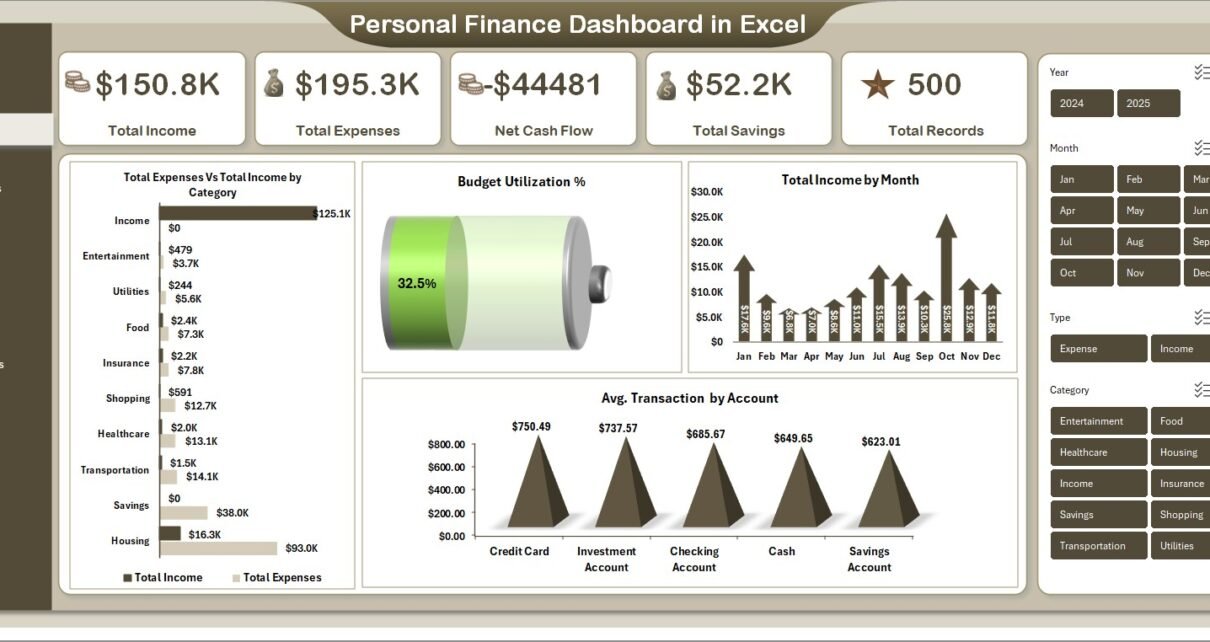
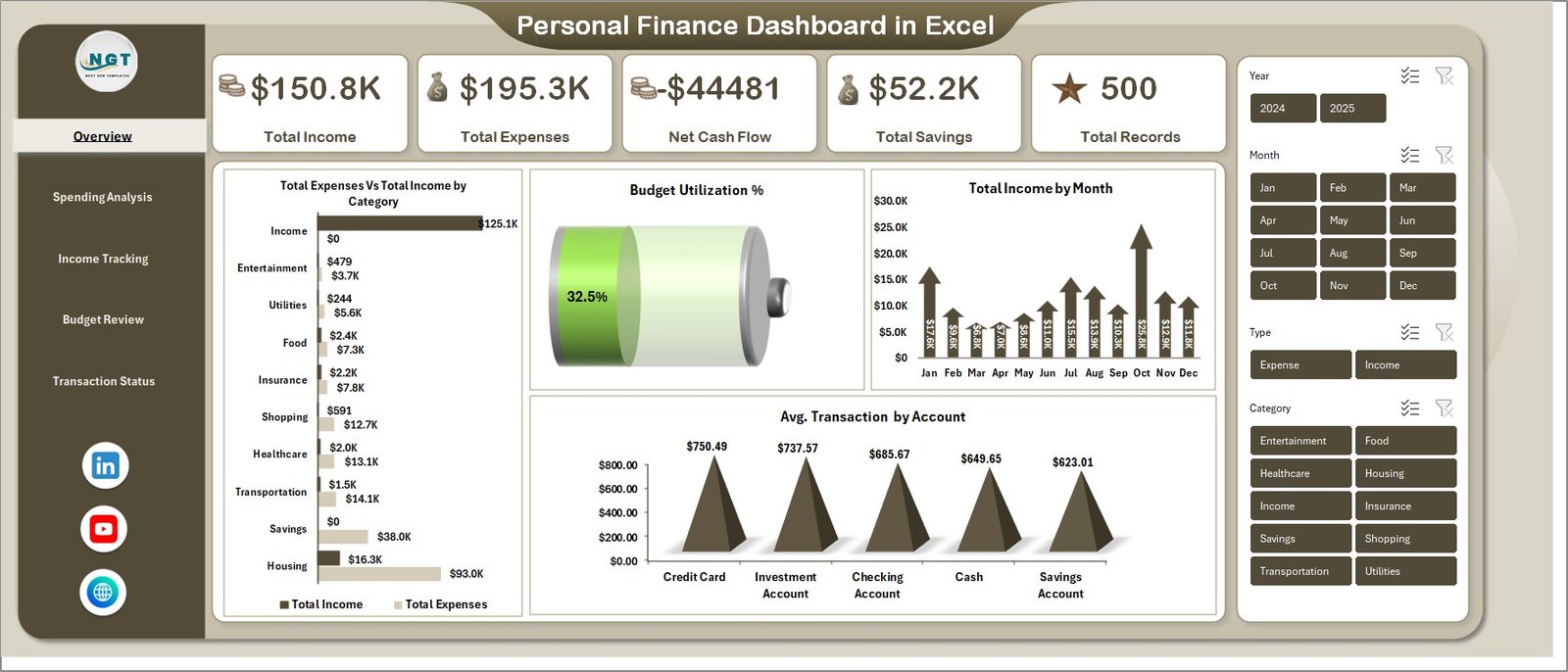
The Overview page serves as the main command center of the Personal Finance Dashboard in Excel. At the top, 5 KPI cards display Total Income, Total Expenses, Net Cash Flow, Total Savings, and Total Records for a quick financial health summary. Below the cards, interactive charts present Total Expenses Vs Total Income by Category comparing your spending patterns against your earnings, Budget Utilization % showing how effectively you use your allocated budgets, Total Income by Month revealing monthly earning trends, and Avg. Transaction by Account displaying average transaction sizes across different financial accounts. Multiple slicers on this page allow instant filtering to focus on specific dimensions.
 Personal Finance Dashboard in Excel
2 — Spending Analysis
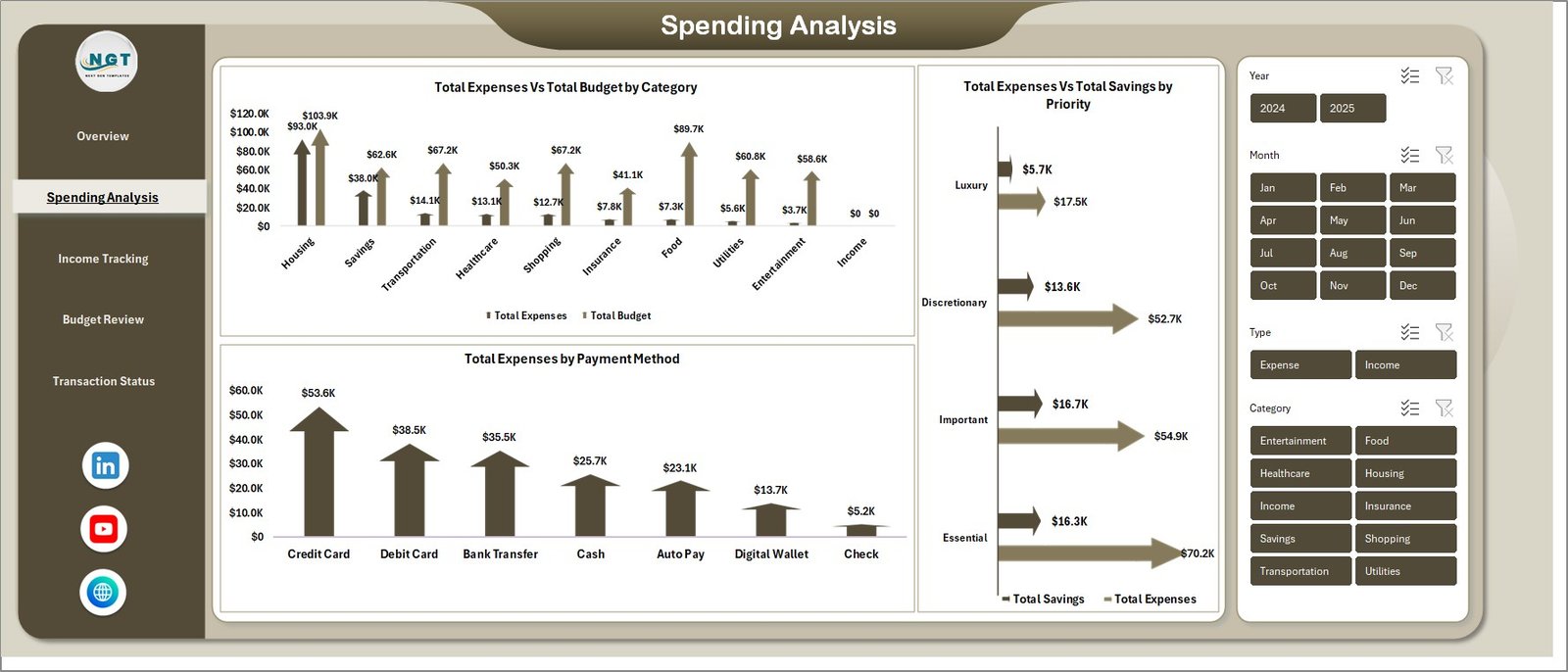
The Spending Analysis page provides a deep dive into where your money goes each month. This page features Total Expenses Vs Total Budget by Category revealing which categories exceed your planned spending, Total Expenses Vs Total Savings by Priority showing how your spending priorities impact your ability to save, and Total Expenses by Payment Method tracking which payment channels like cash, credit card, or bank transfer you rely on most. This analysis helps identify spending leaks and improve budgeting discipline.
 Spending Analysis
3 — Income Tracking
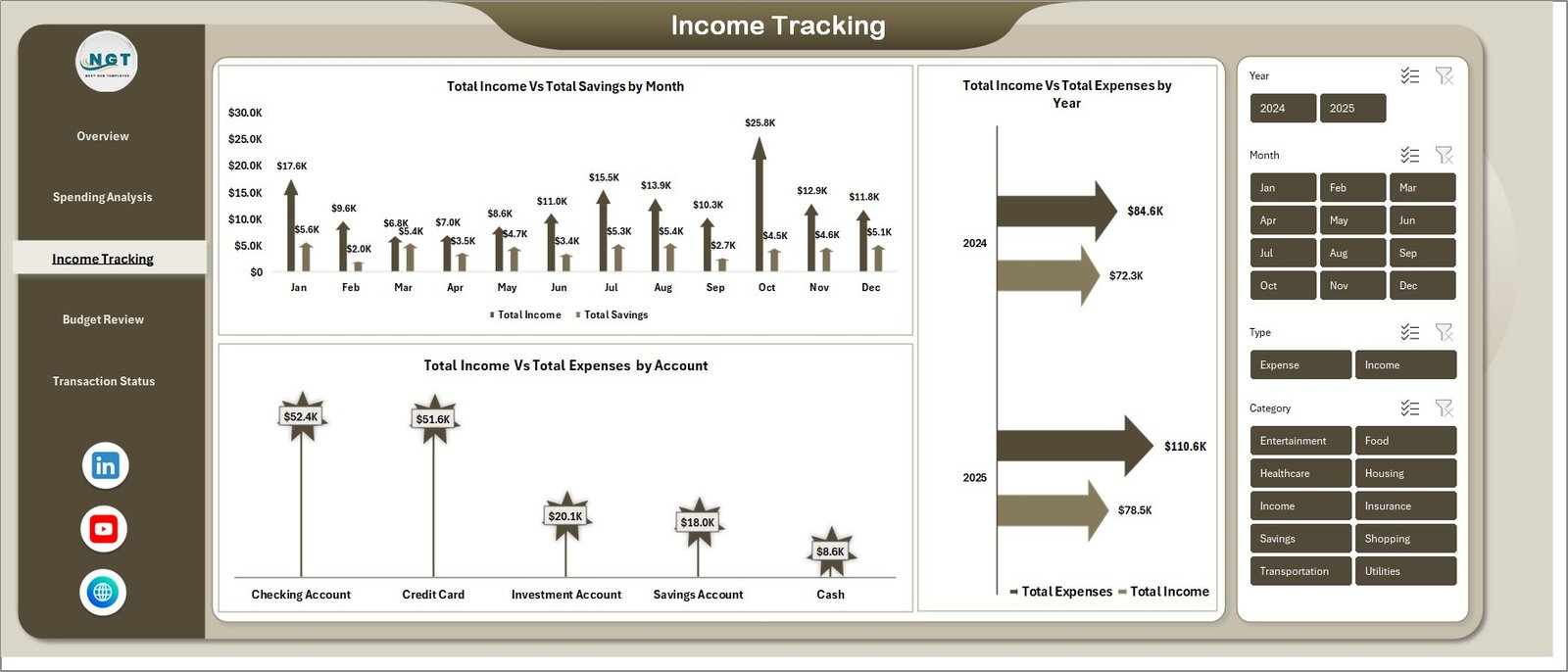
The Income Tracking page monitors your earnings and compares them against savings and expenses over time. Charts on this page include Total Income Vs Total Savings by Month showing how your savings grow alongside income, Total Income Vs Total Expenses by Year providing annual financial comparisons, and Total Income Vs Total Expenses by Account enabling account-level performance analysis. This is particularly valuable for freelancers and professionals with multiple income sources. For a KPI-focused approach to personal finance, also check out the Personal Finance KPI Scorecard in Excel.
 Income Tracking
4 — Budget Review
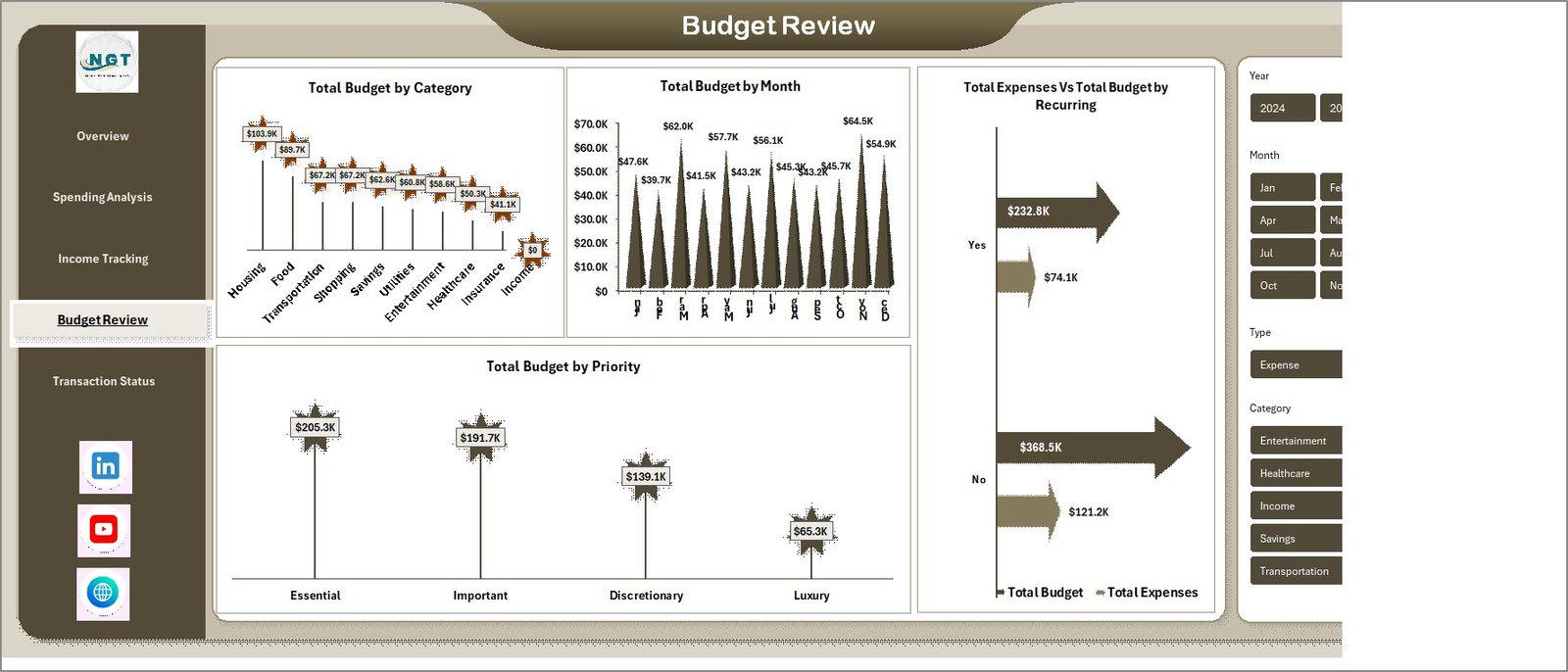
The Budget Review page helps you evaluate how well you allocate and use your financial budgets. It features Total Budget by Category showing how your budget is distributed across different spending areas, Total Budget by Month for monthly budget planning visibility, Total Expenses Vs Total Budget by Recurring separating fixed recurring expenses from variable ones, and Total Budget by Priority ranking budget items by their importance level. This structured approach to budget analysis makes it easy to identify areas where you can cut spending and redirect funds toward savings.
 Budget Review
5 — Transaction Status
The Transaction Status page monitors the health of your financial transactions. It analyzes Total Records by Status tracking how many transactions are completed, pending, or cancelled, Total Records by Category showing transaction volume across different spending categories, and Completed Transactions by Month monitoring transaction completion trends over time. This page ensures nothing falls through the cracks in your financial record-keeping. For tools to help build your emergency savings alongside tracking expenses, explore the Emergency Fund Tracker in Excel.
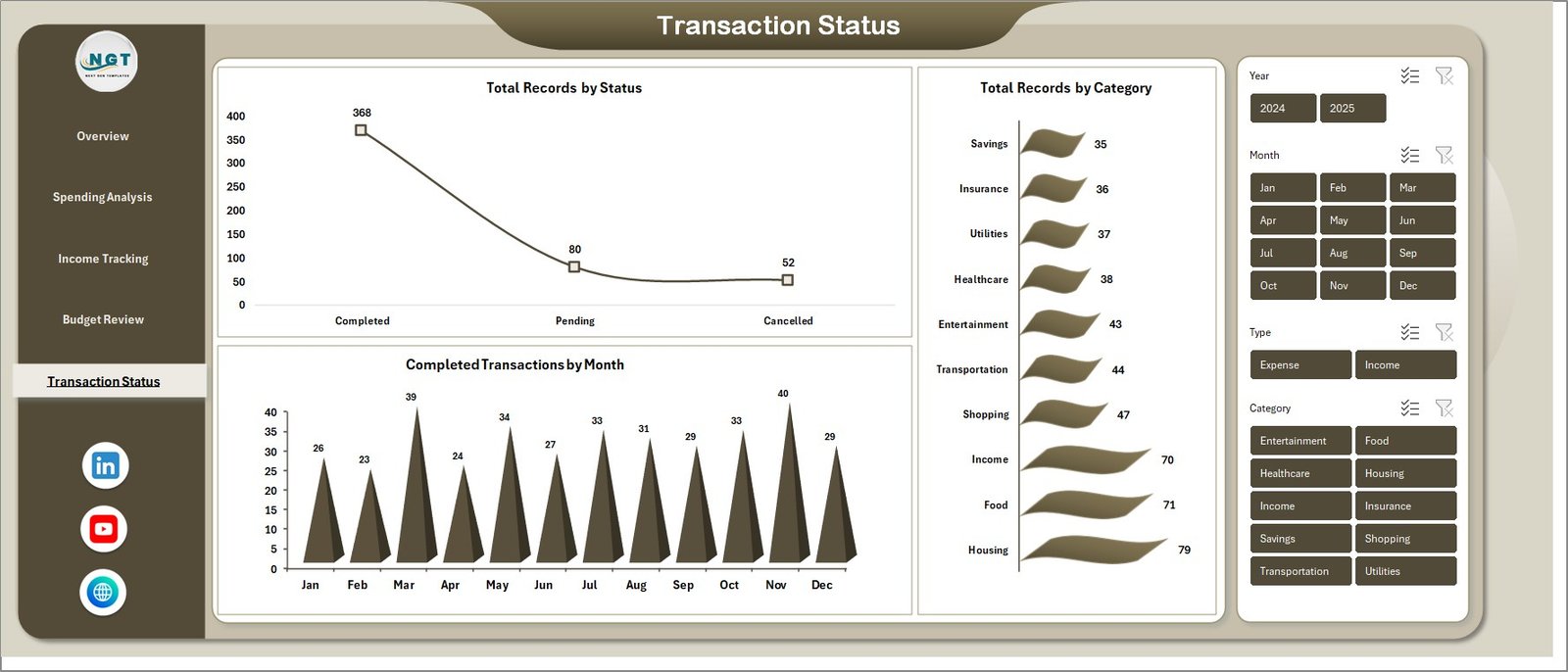 Transaction Status
6 — Data Sheet
The Data Sheet is where you enter your personal finance transaction records. Simply replace the sample data with your own records in the same column format. The data structure supports fields like date, category, account, amount, payment method, status, priority, and more. Once your data is entered, all 5 dashboard pages update automatically when you click Refresh All.
 Data Sheet tab
7 — Support Sheet
The Support Sheet contains all the pivot tables that power the entire dashboard dynamically. After updating your data in the Data Sheet, go to the Data tab in the Excel Ribbon and click Refresh All. All pivots and charts across every page will refresh instantly. You can keep this sheet hidden during regular use since it serves as the backend engine for all visualizations.
 Support sheet tab
Advantages of Personal Finance Dashboard in Excel
The biggest advantage of using this dashboard is the ability to see your complete financial picture in one place. Instead of checking multiple bank statements, spreadsheets, and apps, you get instant insights into income, spending, savings, and budget performance from a single Excel file. The pivot-based architecture ensures zero manual calculation errors, and the slicer filters make it easy to analyze data from any angle you choose.
Additionally, because this is an Excel file, you have complete ownership and control over your financial data. Unlike cloud-based apps that require subscriptions and store your data on external servers, this template runs locally on your computer. You can customize categories, add new metrics, and adjust the layout to fit your specific needs.
Opportunities for Improvement
While the dashboard covers the most essential aspects of personal finance tracking, there are areas where users can extend its functionality. Adding a dedicated investment tracking section would benefit users who want to monitor portfolio performance alongside regular expenses. A debt repayment tracker section could complement the budgeting pages. Users who want debt tracking can explore the Debt Payoff Calculator Template in Excel as a complementary tool.
Best Practices for Using the Personal Finance Dashboard
Update your financial data at least once a week to maintain accurate insights. Use consistent category names to avoid duplicates in pivot tables. Set realistic budget targets based on your past 3 months of actual spending. Review the Overview page at the start of each month to assess your financial progress. Use the Spending Analysis page to identify and reduce unnecessary expenses. Compare your income trends with savings growth on the Income Tracking page to ensure you are meeting your financial goals. If you want to complement this dashboard with savings goal tracking, the Savings Goal Planner in Excel is an excellent addition.
Explore Relevant Templates
If you find this Personal Finance Dashboard in Excel valuable, here are additional templates that complement your financial planning toolkit:
🔹 Personal Finance KPI Scorecard in Excel — Track financial KPIs with Actual vs Target comparisons and MTD/YTD trend analysis for structured performance monitoring.
🔹 Net Worth Tracker in Excel — Monitor assets, liabilities, and net worth growth across 12 months with automated calculations and visual charts.
🔹 Savings Goal Planner in Excel — Plan and track multiple savings goals with visual progress indicators and monthly tracking.
🔹 Emergency Fund Tracker in Excel — Calculate emergency fund targets and track savings progress with milestone tracking.
🔹 Debt Payoff Calculator Template in Excel — Compare Snowball vs Avalanche debt repayment strategies with automated calculations.
Frequently Asked Questions
What is the best Excel template for tracking personal finances?
The Personal Finance Dashboard in Excel is one of the best Excel templates for tracking personal finances because it includes 5 interactive dashboard pages covering income tracking, expense analysis, budget review, savings monitoring, and transaction status — all powered by pivot tables that update automatically when you refresh your data.
How do I track my monthly budget in Excel?
With the Personal Finance Dashboard in Excel, you can track your monthly budget using the Budget Review page which shows Total Budget by Category, Total Budget by Month, Total Expenses Vs Total Budget by Recurring, and Total Budget by Priority. Simply enter your budget targets and actual expenses in the Data Sheet and the dashboard calculates everything automatically.
Can I use this dashboard to track income from multiple sources?
Yes. The Income Tracking page in the Personal Finance Dashboard in Excel supports multiple income sources and accounts. You can analyze Total Income Vs Total Expenses by Account and view Avg. Transaction by Account on the Overview page for complete multi-source income visibility.
Do I need advanced Excel skills to use this personal finance dashboard?
No. The Personal Finance Dashboard in Excel requires no advanced Excel skills. It is built on pivot tables and formulas with no VBA or macros. Simply replace the sample data with your own records, click Refresh All in the Data tab, and all 5 dashboard pages update automatically.
How is this different from the Personal Finance KPI Scorecard in Excel?
The Personal Finance Dashboard focuses on visual chart-based analysis across 5 interactive pages covering spending, income, budgets, and transactions. The Personal Finance KPI Scorecard focuses on KPI-based performance monitoring with Actual vs Target comparisons, MTD/YTD views, and trend charts. Both templates complement each other for comprehensive financial management.
What data fields does this dashboard support?
The Data Sheet supports fields including date, category, sub-category, account name, transaction amount, payment method, transaction status, priority level, budget amount, savings amount, and recurring flag. You can customize these fields based on your personal finance tracking needs.
Conclusion
Managing personal finances does not have to be complicated. The Personal Finance Dashboard in Excel gives you a structured, visual, and automated way to track every aspect of your financial life — from income and expenses to budgets and transaction status. With 5 interactive pages, automatic pivot-based calculations, and slicer filters for instant analysis, this template is the ideal financial planning companion for anyone who wants to take control of their money.
Click here to Purchase Personal Finance Dashboard in Excel
Visit our YouTube channel for step-by-step video tutorials and Excel tips:
👉 Youtube.com/@PK-AnExcelExpert