Procurement plays a critical role in every organization. Whether a company purchases raw materials, software licenses, services, or equipment, procurement decisions directly impact cost, quality, compliance, and operational efficiency. However, without a structured evaluation process, procurement teams often face delays, errors, and inconsistent decisions.
That is exactly where a Procurement Evaluation Checklist in Excel becomes a powerful solution.
A well-designed procurement evaluation checklist helps organizations standardize vendor assessments, ensure accountability, track progress visually, and reduce procurement risks. Moreover, Excel makes this process flexible, cost-effective, and easy to maintain.
In this detailed guide, you will learn what a Procurement Evaluation Checklist in Excel is, why organizations need it, how it works, its advantages, best practices, and how to use it effectively. In addition, you will find answers to frequently asked questions at the end.
Click to Purchases Procurement Evaluation Checklist in Excel
What Is a Procurement Evaluation Checklist in Excel?
A Procurement Evaluation Checklist in Excel is a structured and ready-to-use tool designed to evaluate procurement activities systematically. It allows procurement teams to track checklist items, assign responsibilities, set deadlines, and monitor completion status in one centralized file.
Instead of managing procurement evaluations through emails, Word documents, or unstructured spreadsheets, this checklist provides a clear and visual approach. As a result, teams gain better control, transparency, and consistency.
Excel acts as the foundation because it offers formulas, data validation, drop-down lists, conditional formatting, and progress tracking features. Therefore, organizations can use the checklist without additional software costs.
Why Do Organizations Need a Procurement Evaluation Checklist?
Procurement evaluations involve multiple steps, stakeholders, and compliance requirements. Without a checklist, teams often miss critical steps or rely on memory, which leads to costly mistakes.
Here are some key reasons why organizations need a Procurement Evaluation Checklist in Excel:
-
It standardizes procurement evaluation processes
-
It reduces manual follow-ups and confusion
-
It improves accountability across teams
-
It ensures compliance with internal policies
-
It provides real-time progress visibility
-
It saves time and operational effort
As procurement complexity grows, a structured checklist becomes essential rather than optional.
How Does a Procurement Evaluation Checklist in Excel Work?
The Procurement Evaluation Checklist in Excel works through a simple yet powerful structure. It divides information into logical sections and worksheets, making data entry and tracking easy.
Let us break down how this checklist functions step by step.
What Are the Worksheets Included in the Procurement Evaluation Checklist Template?
This ready-to-use Procurement Evaluation Checklist Template includes two worksheets, each serving a specific purpose.
Click to Purchases Procurement Evaluation Checklist in Excel
1. Procurement Evaluation Checklist Sheet Tab

This is the main working sheet where procurement teams capture and manage checklist information.
Top Section: Procurement Evaluation Overview
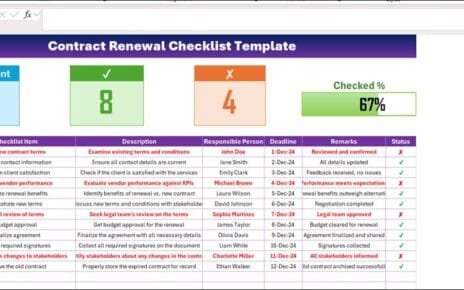
At the top of the sheet, you will find a summary section that provides quick insights into evaluation progress.
This section typically includes:
-
Total Count – Total number of checklist items
-
Checked Count – Number of completed checklist items
-
Crossed Count – Number of pending or failed items
-
Progress Bar for Checked % – Visual indicator showing completion percentage
Because of this overview, decision-makers can instantly understand procurement status without scanning the entire table.
Checklist Table: Core Evaluation Area
Below the summary section, the main checklist table captures all evaluation details. This table forms the heart of the template.
The checklist table includes the following columns:
-
Serial No. – Unique number for each checklist item
-
Checklist Item – Specific procurement evaluation step
-
Description – Short explanation of the checklist item
-
Responsible Person – Person accountable for completion
-
Deadline – Due date for the checklist item
-
Remarks – Additional notes or comments
-
Status – Completion status using ✔ or ✘
Procurement teams simply update the Status column with ✔ for completed items or ✘ for pending items. Excel formulas automatically update counts and progress bars based on this input.
2. List Sheet Tab

The List sheet tab supports data validation and standardization.
In this sheet, you capture a unique list of Responsible Persons. Excel then uses this list to create a drop-down menu in the main checklist table.
As a result:
-
Data entry becomes consistent
-
Typing errors reduce significantly
-
Reporting becomes easier
-
Accountability improves
This separation keeps the main checklist clean and user-friendly.
Click to Purchases Procurement Evaluation Checklist in Excel
How Does the Progress Bar Improve Procurement Visibility?
The progress bar is one of the most valuable features of the Procurement Evaluation Checklist in Excel.
Instead of reading numbers, users see visual progress instantly. As checklist items move from ✘ to ✔, the progress bar updates automatically.
Because of this visual clarity:
-
Managers track evaluation progress faster
-
Teams stay motivated to complete tasks
-
Bottlenecks become visible early
-
Meetings become more data-driven
Visual indicators often communicate better than raw numbers.
Who Can Use a Procurement Evaluation Checklist in Excel?
This checklist suits a wide range of users and industries. It adapts easily to different procurement needs.
Common users include:
-
Procurement managers
-
Supply chain teams
-
Finance departments
-
Audit and compliance teams
-
Project managers
-
Small and medium-sized businesses
-
Large enterprises
Because Excel remains widely used, almost any organization can implement this checklist immediately.
How Does This Checklist Improve Procurement Efficiency?
A Procurement Evaluation Checklist in Excel improves efficiency in several ways.
First, it eliminates guesswork. Each checklist item clearly defines what needs completion. Therefore, teams waste less time clarifying tasks.
Second, it centralizes information. Instead of searching emails or documents, teams find everything in one file.
Third, it improves accountability. Each checklist item has a responsible person and deadline, which drives ownership.
Finally, automation reduces manual work. Excel formulas calculate totals, percentages, and progress automatically.
Together, these factors significantly improve procurement efficiency.
Click to Purchases Procurement Evaluation Checklist in Excel
Advantages of Procurement Evaluation Checklist in Excel
Using a Procurement Evaluation Checklist in Excel offers many advantages. Let us explore them in detail.
1. Standardized Procurement Process
The checklist ensures every procurement evaluation follows the same steps. As a result, decisions remain consistent across projects and departments.
2. Improved Accountability
By assigning a responsible person to each item, teams know exactly who owns which task. This clarity reduces delays and confusion.
3. Real-Time Progress Tracking
The summary section and progress bar provide instant visibility into evaluation status. Managers no longer need manual updates.
4. Easy Customization
Excel allows users to add, remove, or modify checklist items easily. Therefore, the template adapts to different procurement scenarios.
5. Cost-Effective Solution
Unlike specialized procurement software, Excel requires no additional investment. Most organizations already use it.
6. Better Compliance Control
A structured checklist ensures teams follow procurement policies and compliance requirements consistently.
7. Reduced Errors
Drop-down lists, standardized inputs, and predefined columns minimize data entry errors.
Click to Purchases Procurement Evaluation Checklist in Excel
How to Use the Procurement Evaluation Checklist in Excel Step by Step?
Using the checklist is simple. Follow these steps to get started.
Step 1: Open the Excel Template
Download and open the Procurement Evaluation Checklist template in Excel.
Step 2: Update the List Sheet
Go to the List sheet tab and enter unique names of responsible persons. This step ensures accurate drop-down options.
Step 3: Define Checklist Items
On the main checklist sheet, update the Checklist Item and Description columns based on your procurement requirements.
Step 4: Assign Responsibility and Deadlines
Select responsible persons from the drop-down list and assign deadlines for each checklist item.
Step 5: Update Status Regularly
As tasks progress, mark the Status column with ✔ or ✘. Excel automatically updates counts and progress.
Step 6: Monitor Progress
Use the top summary section to monitor overall completion and identify delays early.
What Types of Procurement Can This Checklist Support?
The Procurement Evaluation Checklist in Excel supports various procurement types, such as:
-
Vendor evaluation
-
Supplier onboarding
-
Contract review
-
Service procurement
-
Capital expenditure procurement
-
IT and software procurement
-
Compliance and audit checks
Because of its flexible design, teams can tailor it to almost any procurement workflow.
Click to Purchases Procurement Evaluation Checklist in Excel
Best Practices for the Procurement Evaluation Checklist in Excel
To maximize value, follow these best practices.
1. Keep Checklist Items Clear and Short
Short and specific checklist items reduce confusion and speed up execution.
2. Update Status Frequently
Encourage team members to update status regularly. Real-time updates improve decision-making.
3. Use Consistent Naming
Maintain consistent naming for checklist items and responsible persons to improve reporting accuracy.
4. Set Realistic Deadlines
Always assign achievable deadlines. Unrealistic timelines reduce checklist effectiveness.
5. Protect Key Cells
Protect formula cells and summary sections to avoid accidental changes.
6. Review and Improve Regularly
Review the checklist after each procurement cycle and refine it for future use.
7. Train Team Members
Ensure everyone understands how to use the checklist correctly. Even a simple tool works best when users know it well.
How Does Excel Make Procurement Evaluation Simpler Than Other Tools?
Excel simplifies procurement evaluation because it balances structure and flexibility.
Unlike rigid systems, Excel allows customization without technical complexity. At the same time, built-in features like formulas, data validation, and conditional formatting provide automation.
Moreover, Excel files are easy to share, store, and audit. Therefore, procurement teams can collaborate without barriers.
Click to Purchases Procurement Evaluation Checklist in Excel
Common Mistakes to Avoid When Using a Procurement Evaluation Checklist
While the checklist offers many benefits, teams should avoid common mistakes.
-
Leaving status updates incomplete
-
Using free-text instead of drop-downs
-
Ignoring deadlines
-
Overloading the checklist with unnecessary items
-
Failing to review results after completion
Avoiding these mistakes ensures consistent results.
How Can This Checklist Support Audits and Reviews?
During audits, documentation and traceability matter the most. The Procurement Evaluation Checklist in Excel provides both.
Auditors can see:
-
What evaluation steps were completed
-
Who completed them
-
When they were completed
-
What remarks or issues existed
Therefore, audits become smoother and faster.
Conclusion: Why a Procurement Evaluation Checklist in Excel Is a Must-Have Tool
A Procurement Evaluation Checklist in Excel transforms procurement evaluation from a manual and error-prone process into a structured, transparent, and efficient workflow.
With clear checklist items, responsible ownership, deadlines, and real-time progress tracking, organizations gain better control over procurement decisions. Moreover, Excel’s flexibility makes this solution accessible, cost-effective, and easy to maintain.
If your organization wants to improve procurement consistency, reduce risks, and save time, this checklist becomes an essential tool.
Click to Purchases Procurement Evaluation Checklist in Excel
Frequently Asked Questions (FAQs)
1. What is a Procurement Evaluation Checklist in Excel?
A Procurement Evaluation Checklist in Excel is a structured template used to track procurement evaluation steps, responsibilities, deadlines, and completion status in one file.
2. Can beginners use this checklist easily?
Yes, the checklist is beginner-friendly. Users only need basic Excel knowledge to update status, select names, and track progress.
3. Can I customize the checklist for my organization?
Absolutely. You can add or remove checklist items, change descriptions, and update responsible persons as needed.
4. How does the progress bar work in Excel?
The progress bar uses formulas and conditional formatting. It updates automatically based on the number of ✔ and ✘ entries.
5. Is this checklist suitable for small businesses?
Yes, small businesses benefit greatly because the checklist offers structure without expensive software.
6. Can multiple users work on the checklist?
Yes, teams can share the Excel file through shared drives or collaboration platforms to work together.
7. Does this checklist help with procurement compliance?
Yes, the checklist ensures teams follow predefined evaluation steps, which improves compliance and audit readiness.
Click to Purchases Procurement Evaluation Checklist in Excel
Visit our YouTube channel to learn step-by-step video tutorials
Watch the step-by-step video tutorial: