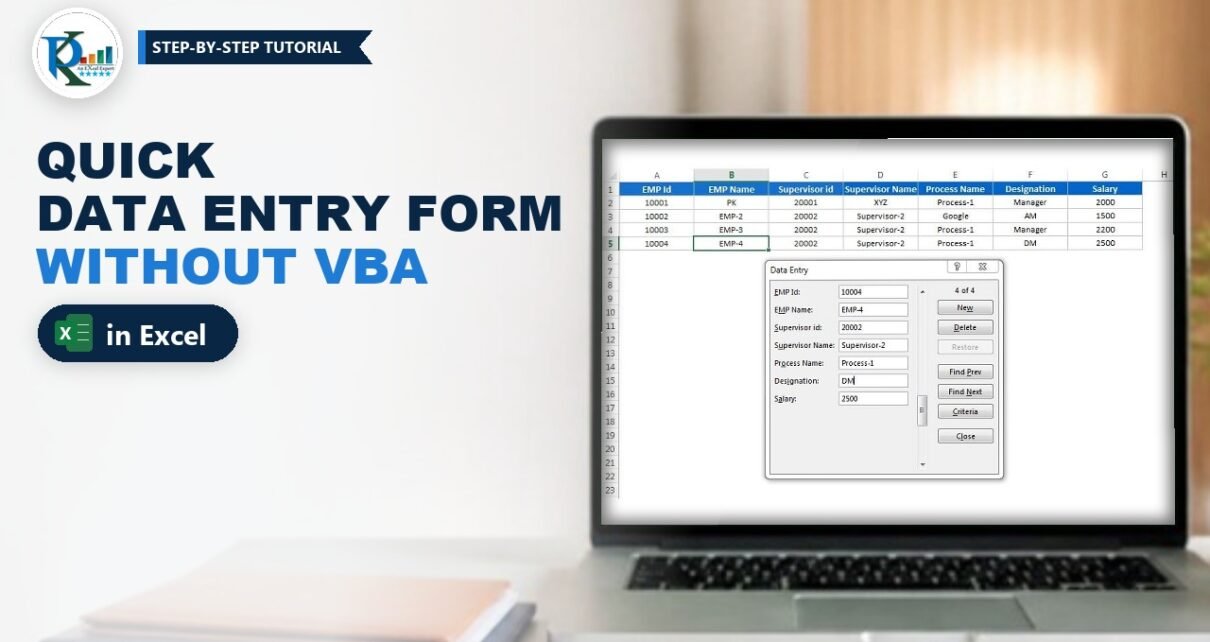
A quick data entry form in Excel without VBA is already built into Excel. It is just hidden. With one button added to the Quick Access Toolbar, Excel turns any list with headers into a clean dialog box where you can add new records, find old ones, update them and delete them, without scrolling through hundreds of rows. No macros, no UserForm and no coding. In this tutorial you will add the Form button, open the form on an employee list and use every button on it.
⬇️ Download the Practice File
Single-sheet workbook · .xlsx (no macros) · 4 sample employee records
Watch the Video Tutorial
In this short video PK adds a new employee, deletes one, searches with one and two criteria, updates a record and then shows how to put the Form button on the Quick Access Toolbar.
What You Will Learn
- Add the hidden Form command to the Quick Access Toolbar in under a minute.
- Open a data entry form on any list that has headers in the first row.
- Add new records that land at the bottom of your list automatically.
- Find records with Find Prev, Find Next and the Criteria button, including two conditions at once.
- Update and delete records safely from the same dialog.
The Practice Data
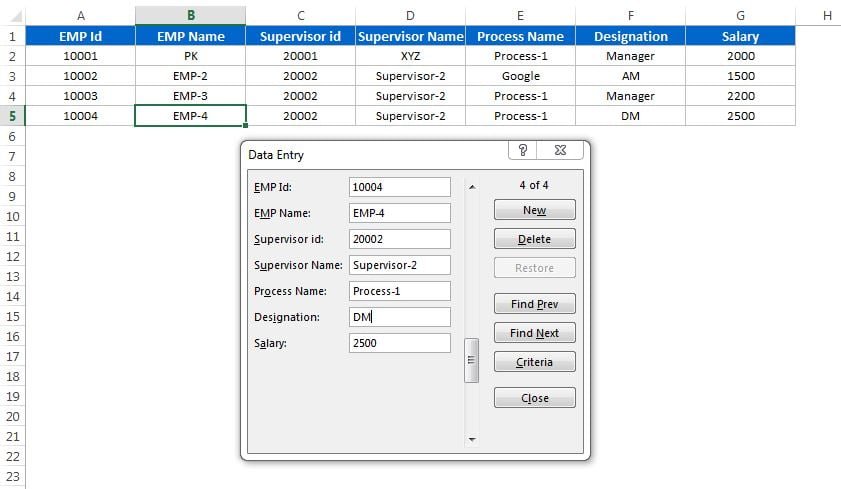
The practice file has one sheet named Data Entry with a small employee list in A1:G5. The headers in row 1 are:
EMP Id | EMP Name | Supervisor id | Supervisor Name | Process Name | Designation | SalaryRows 2 to 5 hold four records, from 10001 (PK, Manager) to 10004 (EMP-4, DM). The data is a normal range with a blue header row. There are no formulas and no macros, so you can use the same steps on your own lists.
The only real requirement is a tidy list: one header row and no completely blank rows inside the data. Excel reads the headers to build the form, and a blank row would make it think the list has ended.
Part 1 – Add the Form Button to the Quick Access Toolbar
The Form command is not on any ribbon tab, which is why most people never find it. You add it once and it stays for every workbook.
Step 1: Open Excel Options
Go to File > Options (or press Alt+T+O). You can also right-click the Quick Access Toolbar and choose Customize Quick Access Toolbar.
Step 2: Show the commands that are not in the ribbon
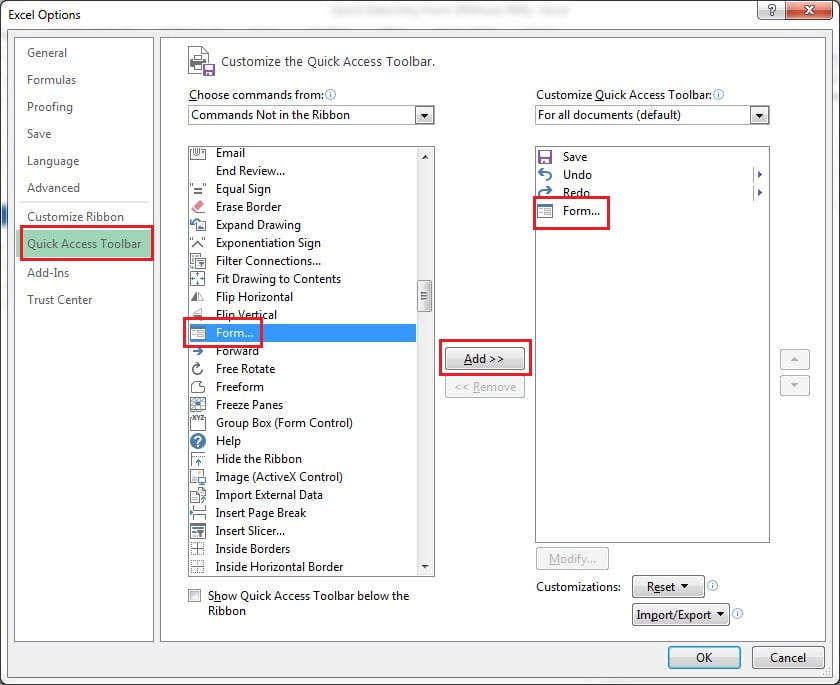
Click Quick Access Toolbar on the left. In the Choose commands from drop-down, select Commands Not in the Ribbon.
Step 3: Add Form
Scroll down the alphabetical list to Form…, select it and click Add >>. Form now appears in the list on the right. Click OK.
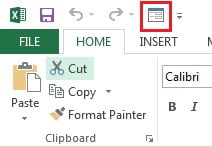
The small form icon now sits in the Quick Access Toolbar at the top of the window, next to Save, Undo and Redo.
Part 2 – Open the Data Entry Form
Step 4: Click inside your list and press Form
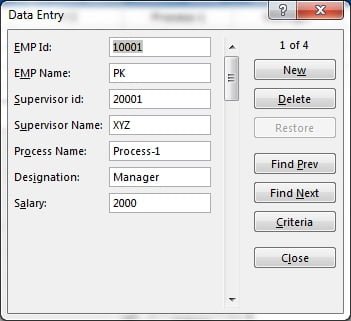
Click any cell in the data, for example A5, then click the Form icon. Excel opens a dialog titled with the sheet name (Data Entry in the practice file). Every column header becomes a label with a text box next to it, and the top right corner shows which record you are on, such as 4 of 4.
On the right you get the buttons you will use all the time: New, Delete, Restore, Find Prev, Find Next, Criteria and Close.
Part 3 – Add, Find, Update and Delete Records
Step 5: Add a new record
Click New. The fields clear and the counter changes to New Record. Fill in the fields; in the video PK types 10005, EMP-5, 20002, Supervisor-2, Process-1, DM and 2500. Press Enter and the record is written to the first empty row under your list. The form stays open with blank fields, so you can type the next record straight away.
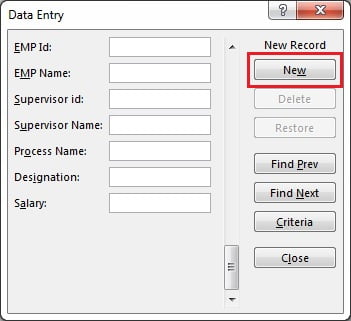
This is why the form is so fast for data entry: you never have to find the last row, and you see the full record in one place instead of scrolling right across many columns.
Step 6: Browse records with Find Prev and Find Next
Click Find Prev or Find Next to step through the records one by one. The counter shows where you are, for example 1 of 4. This is fine for a short list.
Step 7: Search with Criteria
For a long list, click Criteria. The fields clear and the counter shows Criteria. Type the value you are looking for in the matching field, for example 20002 in Supervisor id, then press Enter or use Find Next and Find Prev. Now the form only moves between records where Supervisor id is 20002.
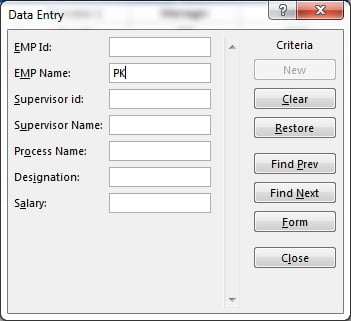
You can fill more than one field. In the video PK enters Supervisor id 20002 and EMP Name EMP-2, and the form shows only the record where both conditions match. Click Form to leave Criteria mode, or Clear to empty the criteria.
Step 8: Update a record
Once the record is on screen, simply type over the value you want to change and press Enter. In the video PK changes the Process Name of employee 10002 to Google, and the cell in the sheet updates immediately.
Step 9: Delete a record
Find the record with the navigation buttons or Criteria and click Delete. Excel asks you to confirm and then removes the row from the list (in the video, employee 10004 is deleted).
Good to Know: Limits of the Data Form
These points come from Microsoft’s documentation rather than the video, but they will save you some surprises:
- Up to 32 columns. The form shows a maximum of 32 fields. For wider data, keep the entry columns together or split the list.
- Formulas are read-only. If a column holds a formula, the form shows its result, but you cannot change it there.
- Restore only works before Enter. Restore throws away what you typed in the current record, as long as you have not pressed Enter yet.
- Deletes are permanent. A record deleted from the form cannot be brought back with Undo, so check before you confirm.
- Criteria match the start of the text. Typing
EMPfinds every name that begins with EMP. You can also use the wildcards?(one character) and*(any characters).
Common Errors and Fixes
The Form button is greyed out or shows an error
The active cell is outside your list. Click any cell inside the data, including the header row, and try again.
Excel asks whether the first row contains headers
Excel cannot recognise your headers, usually because the active cell is in an empty area or the first row holds numbers. Add a clear text header row above the data.
Cannot extend list or database
Something is typed directly below your list, so Excel has no room to add a row. Move that content away so the list can grow downward.
Only part of the list appears in the form
There is a fully blank row in the middle of the data, and Excel treats it as the end of the list. Delete the blank row.
Tips
- Use Tab to move to the next field and Shift+Tab to go back, so you never need the mouse while typing a record.
- Convert the list to an Excel Table (Ctrl+T) so formatting and any formulas extend to the new rows automatically.
- Add data validation to the columns (for example a list of Designations) to keep your data consistent; the form still works on validated columns.
- Read Microsoft’s guide Add, edit, find, and delete rows by using a data form for the full reference.
Want It Ready-Made?
The built-in form is perfect for quick entry. When you need a custom layout with drop-downs, buttons and a saved database, have a look at the Data Entry Form in Excel or the Smart Data Entry Form with Minimum VBA on NextGenTemplates.com, or browse the full range of Excel VBA tools and data entry systems.
Related Tutorials
- Smart Data Entry Form with Minimum VBA
- Data Entry Application in Excel VBA
- Excel Form Controls: Combo Box, Spin Button and Option Buttons
- Personal Tool Bar and Ribbon Display Options in Excel
Frequently Asked Questions
How do I create a data entry form in Excel without VBA?
Add the Form command to the Quick Access Toolbar from File, Options, Quick Access Toolbar, Commands Not in the Ribbon. Then click inside any list with headers and click Form. Excel builds the form from your headers automatically.
Where is the Form button in Excel?
It is not on any ribbon tab. You find it under Commands Not in the Ribbon in the Quick Access Toolbar or Customize Ribbon options, listed as Form.
Can I search for a record in the data form?
Yes. Click Criteria, type a value in one or more fields and use Find Next or Find Prev. When you fill several fields, only records that match all of them are shown.
How many columns can the Excel data form handle?
Up to 32 columns. Each column header becomes one field in the dialog box.
Can I undo a record deleted with the data form?
No. Excel asks you to confirm the delete, and after that the row is removed permanently, so keep a backup of important lists.
About the Author
PK is a Microsoft Excel expert and trainer and the founder of PK: An Excel Expert and NextGenTemplates.com. He has been teaching Excel, Power Query and Power BI since 2016 on his YouTube channel.
Conclusion
A quick data entry form in Excel without VBA takes one minute to set up: add Form to the Quick Access Toolbar, click inside your list and start typing. New adds records at the bottom, Criteria finds them in long lists, Enter saves your updates and Delete removes rows you no longer need. Download the practice file and try every button on the employee list.