Managing team schedules can quickly become complicated when organizations handle multiple tasks, meetings, deadlines, and events simultaneously. Managers often struggle to track employee schedules, performance reviews, project deadlines, and internal meetings using scattered spreadsheets or manual calendars. As a result, teams miss deadlines, coordination becomes difficult, and productivity decreases.
Therefore, organizations need a structured scheduling system that helps them organize events, track team activities, and monitor performance schedules in one place. This is exactly where the Team Performance Scheduling Calendar in Excel becomes extremely valuable.
The Team Performance Scheduling Calendar in Excel is a ready-to-use calendar template designed to manage team events, meetings, deadlines, and performance schedules efficiently. Because Microsoft Excel provides powerful features like automation, forms, control panels, and interactive calendar views, users can easily track schedules across annual, monthly, and daily levels.
Instead of maintaining multiple documents, this template consolidates all scheduling activities into one organized workbook. As a result, managers gain clear visibility into team schedules, upcoming events, and important deadlines.
In this comprehensive guide, we will explore everything about the Team Performance Scheduling Calendar in Excel, including its features, structure, benefits, best practices, and frequently asked questions.
Click to buy Team Performance Scheduling Calendar in Excel
What is a Team Performance Scheduling Calendar in Excel?
A Team Performance Scheduling Calendar in Excel is a structured scheduling tool that helps organizations manage team-related events and activities in a visual calendar format.
It allows managers and team leaders to:
- Track meetings and internal events
- Schedule performance reviews
- Monitor project deadlines
- Manage team training sessions
- Track task-related events
- Organize operational schedules
Because Excel allows automation and dynamic data handling, the calendar automatically updates when users change inputs such as year, month, or events.
Moreover, the template offers multiple views such as annual view, monthly view, and daily event view, allowing organizations to analyze schedules at different levels.
Why Do Teams Need a Performance Scheduling Calendar?
Modern organizations operate in fast-paced environments where teams collaborate across departments and locations. Therefore, managing schedules manually often leads to confusion.
However, a structured scheduling calendar solves this challenge.
Here are several reasons why teams need a performance scheduling calendar:
- Improves Team Coordination
Managers can easily schedule meetings, events, and performance reviews. Consequently, employees remain informed about upcoming activities.
- Prevents Missed Deadlines
Because the calendar highlights important events, teams can track deadlines more effectively.
- Enhances Productivity
When teams clearly understand their schedules, they can plan work efficiently and avoid conflicts.
- Provides Centralized Scheduling
Instead of using multiple files, all scheduling information remains organized in one Excel workbook.
- Simplifies Event Tracking
Users can easily add, update, or delete events with simple buttons.
Key Features of the Team Performance Scheduling Calendar in Excel
The Team Performance Scheduling Calendar template contains five interactive worksheets that help users manage events efficiently.
Each sheet serves a specific purpose and provides different levels of scheduling insights.
Let us explore the structure of the template.
Home Sheet – Easy Navigation Center
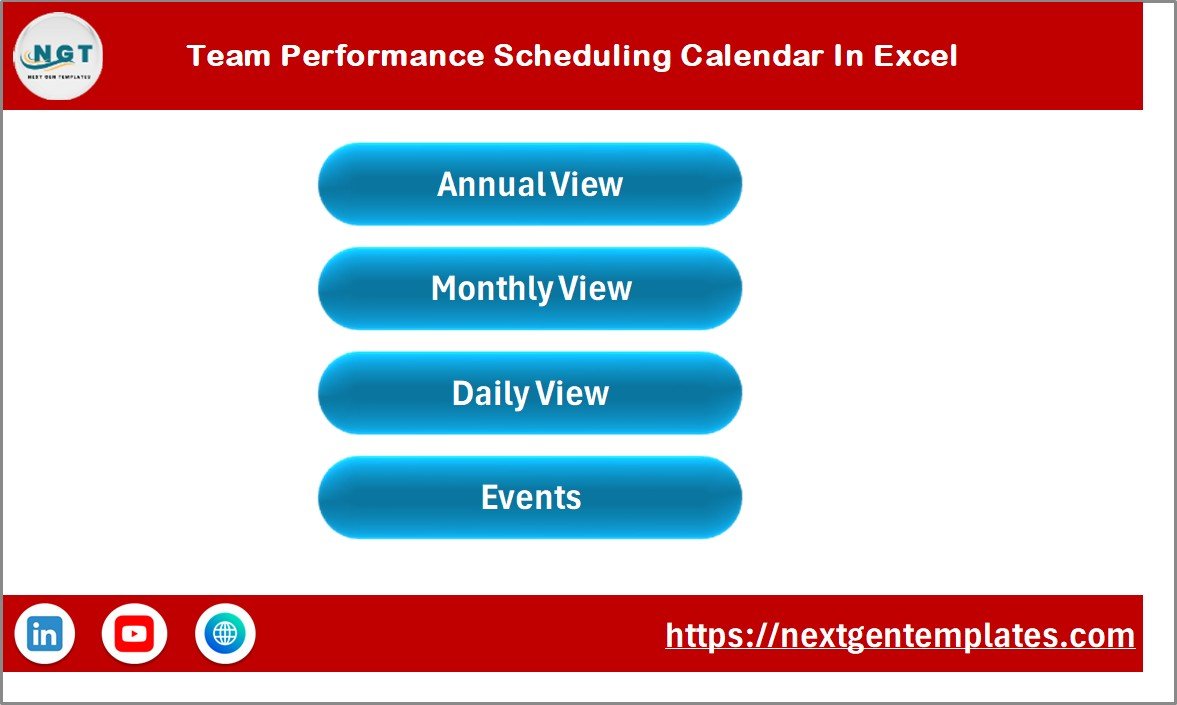
The Home sheet works as the main navigation panel of the calendar.
Instead of searching through multiple worksheets, users can quickly jump to the required sheet using navigation buttons.
Navigation Buttons Available
- Annual View
- Monthly View
- Daily View
- Events Database
Because of this structured layout, users can easily navigate the entire workbook.
As a result, the Home sheet improves usability and makes the calendar easy to operate even for beginners.
Click to buy Team Performance Scheduling Calendar in Excel
Annual View Sheet – Complete Yearly Calendar
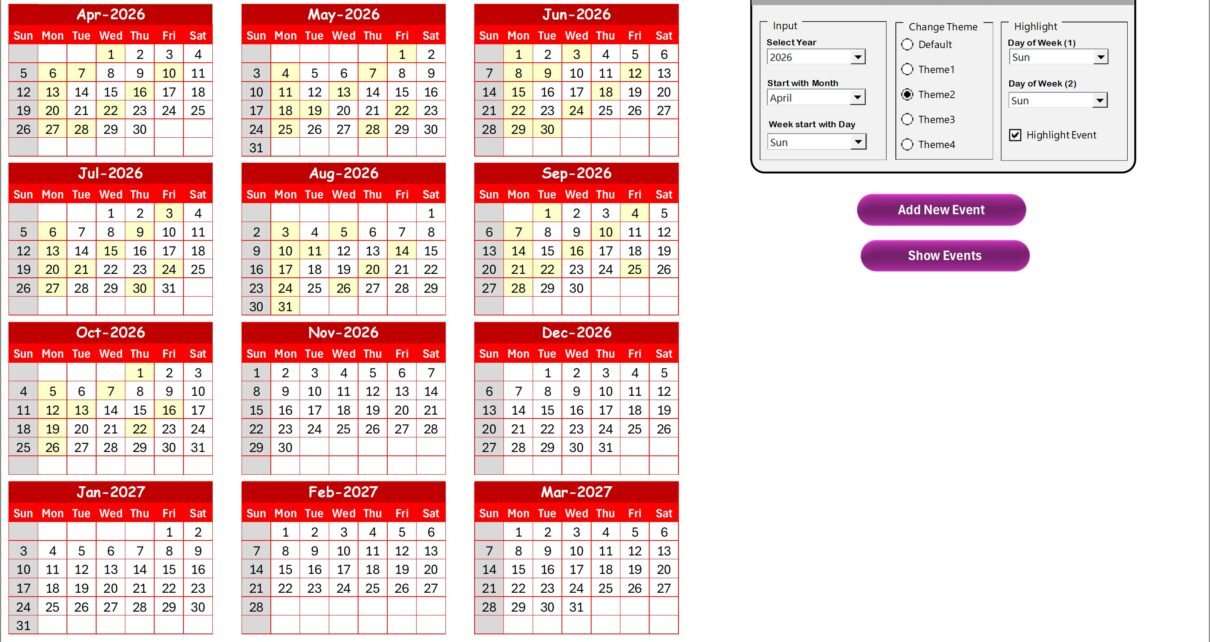
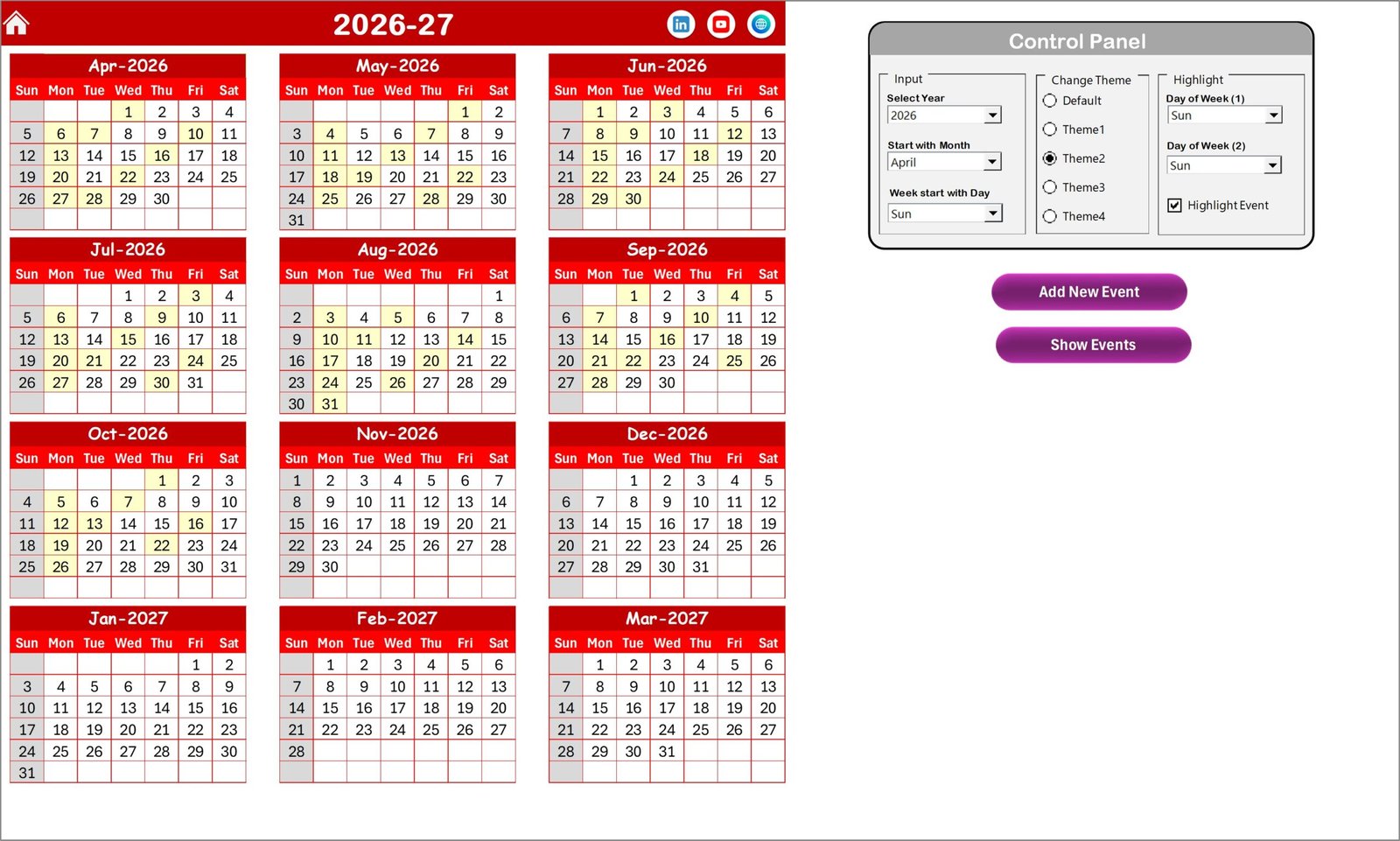
The Annual View sheet displays the full 12-month calendar on a single page. Therefore, managers can easily analyze schedules across the entire year.
This view helps organizations plan long-term activities such as:
- Annual performance reviews
- Training sessions
- Project timelines
- Team meetings
- Company events
Control Panel Features
The annual view sheet includes an advanced Control Panel with three main groups.
- Input Group
This section allows users to customize the calendar.
Users can:
- Select the Year
- Change the Starting Month
- Select the Starting Day of the Week
Once users modify these inputs, the calendar updates automatically.
- Change Theme Group
Users can customize the appearance of the workbook using five different color themes.
This feature improves dashboard visualization and allows organizations to match the calendar with their branding or preferences.
- Highlight Group
This group helps users highlight specific days in the calendar.
For example:
- Highlight Saturday and Sunday
- Highlight specific weekdays
- Highlight events automatically
Users can activate the Highlight Event checkbox to display scheduled events in yellow color on the calendar.
As a result, important activities become easy to identify.
Additional Buttons in Annual View
The sheet also contains two important action buttons.
Add New Event Button
Users can add events quickly by following these steps:
- Select a date on the calendar
- Click Add New Event
- Fill the event form
- Click Submit
The event will appear on the selected date automatically.
Show Event Button
If users want to view all events scheduled for a particular day, they can simply click the Show Event button.
This feature displays the list of events associated with that date.
Click to buy Team Performance Scheduling Calendar in Excel
Monthly View Sheet – Detailed Monthly Calendar
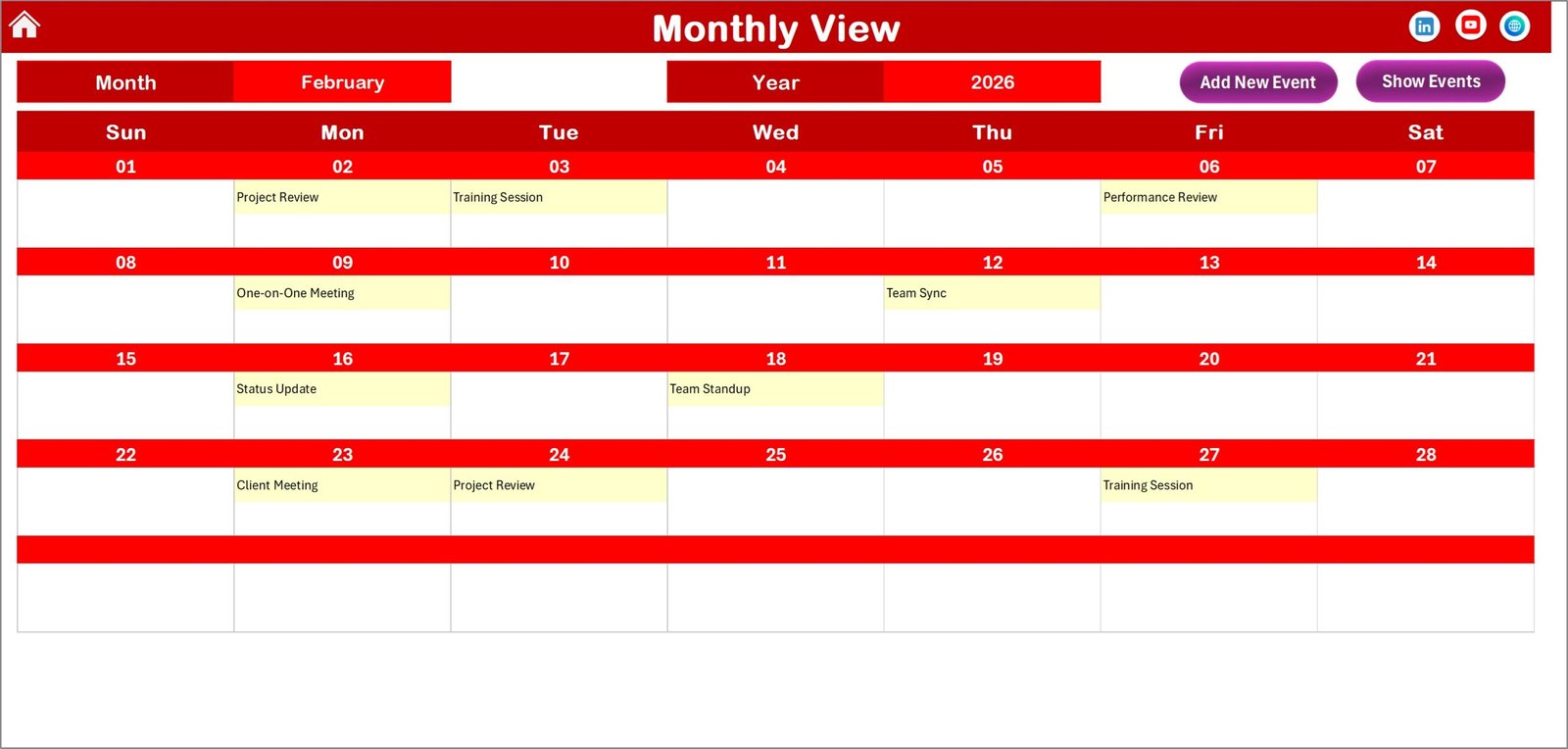
While the annual view focuses on yearly planning, the Monthly View sheet focuses on a specific month.
Users can select:
- Month
- Year
Once they select the inputs, the calendar automatically updates.
Event Display in Monthly Calendar
The monthly calendar shows one event directly on the calendar date.
However, if a particular day contains multiple events, the calendar displays the text:
“More than 1…”
This feature helps users identify busy dates quickly.
Monthly View Buttons
The sheet includes two buttons for event management.
Add New Event
Users can add new events by selecting a date and clicking the button.
Show Event
This button displays all events scheduled for that particular date.
Because of these features, users can manage monthly schedules efficiently.
Click to buy Team Performance Scheduling Calendar in Excel
Daily View Sheet – Detailed Event Analysis
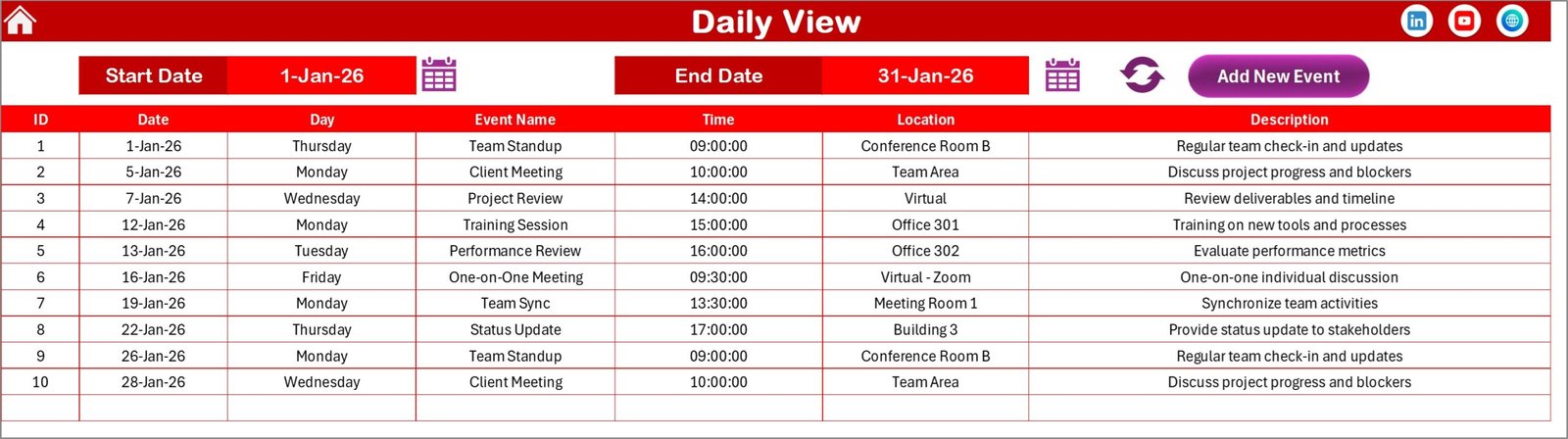
The Daily View sheet provides a detailed list of events within a selected date range.
Users can specify:
- Start Date
- End Date
Once they click the Refresh button, the sheet displays all events within the selected range.
Information Displayed in Daily View
This sheet shows detailed event information such as:
- Event Date
- Event Name
- Time
- Location
- Description
Therefore, managers can easily review schedules and track upcoming activities.
Add Event Button
The daily view also contains an Add New Event button.
When users click it, the event form opens, allowing them to quickly schedule new activities.
Click to buy Team Performance Scheduling Calendar in Excel
Events Sheet – Central Database
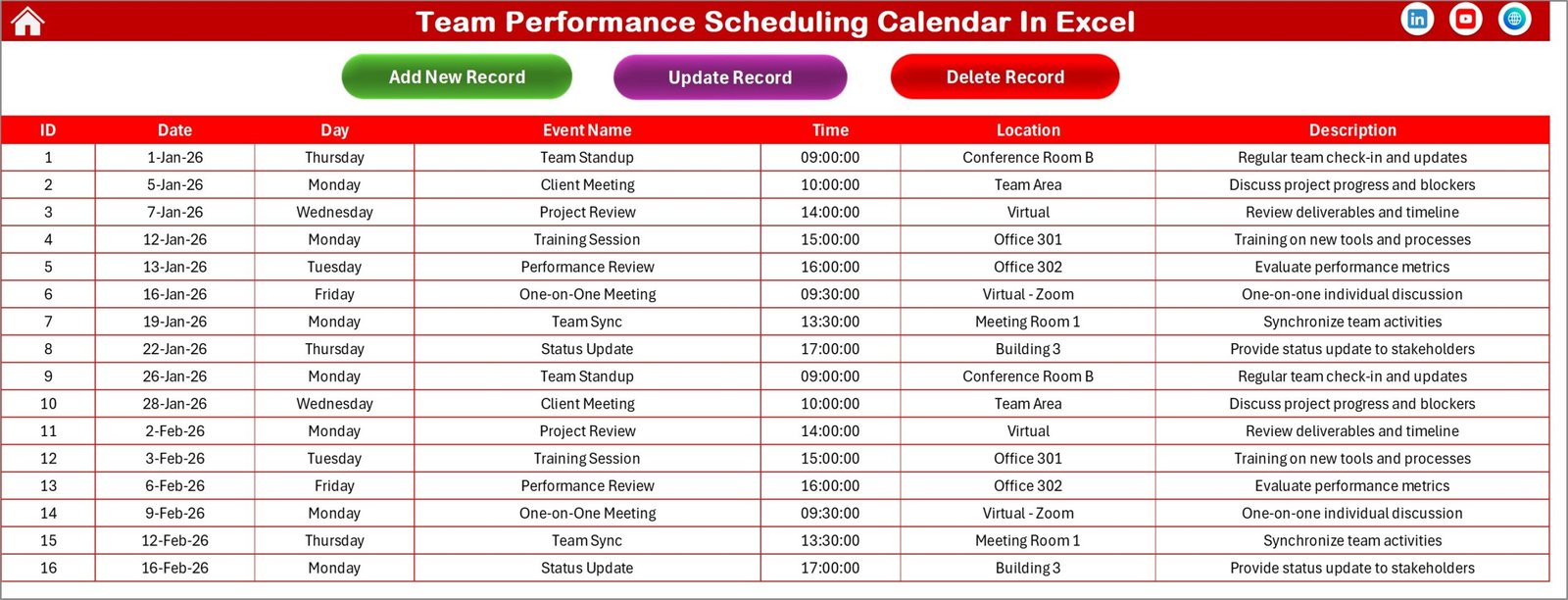
The Events sheet acts as the database table of the entire calendar system.
Every event entered through the forms gets stored in this sheet.
Event Database Fields
The database stores the following information:
- ID – Auto-generated event number
- Date – Event date
- Day – Day of the week
- Event Name – Title of the event
- Time – Time of the event
- Location – Event location
- Description – Short explanation of the event
Because of this structured database, the calendar can retrieve event data automatically.
Event Management Buttons
The events sheet contains three management buttons.
Add New Record
Opens the event entry form to create a new event.
Update Existing Record
Allows users to update event details by selecting the event ID.
Delete Record
Users can remove an event by selecting its ID.
These features ensure that users can maintain an accurate event database.
Click to buy Team Performance Scheduling Calendar in Excel
Advantages of Team Performance Scheduling Calendar in Excel
Organizations gain several benefits when they use a structured scheduling calendar.
- Centralized Event Management
Teams can manage all events from a single Excel workbook.
- Better Team Coordination
Managers can schedule meetings, reviews, and deadlines efficiently.
- Improved Productivity
Employees can easily see upcoming events and plan their tasks accordingly.
- Visual Scheduling System
The calendar provides clear visualization through annual and monthly views.
- Easy Event Updates
Users can quickly add, update, or delete events using simple buttons.
- Customizable Layout
Organizations can modify themes, highlight days, and adjust the calendar structure.
Opportunities for Improvement in Team Scheduling
Although Excel calendars provide excellent functionality, organizations can further improve scheduling systems.
Automation Integration
Teams can integrate automation tools to send reminders for upcoming events.
Cloud Collaboration
Using Excel Online or SharePoint allows multiple team members to access the calendar simultaneously.
Performance Tracking Integration
Organizations can combine the calendar with KPI dashboards to monitor team performance.
Notification System
Adding email alerts or reminders helps employees stay informed about upcoming events.
Best Practices for the Team Performance Scheduling Calendar
Organizations should follow several best practices to maximize the effectiveness of scheduling calendars.
Maintain Accurate Event Records
Always ensure event details remain correct and updated.
Use Standard Event Naming
Consistent naming helps teams quickly identify events.
Schedule Performance Reviews in Advance
Managers should schedule performance evaluations early in the year.
Highlight Important Events
Use the highlight feature to mark deadlines or major meetings.
Regularly Review the Calendar
Teams should review schedules weekly to avoid conflicts.
Keep the Database Organized
Avoid duplicate entries and ensure proper event descriptions.
How Can Organizations Use the Team Scheduling Calendar?
Different departments can use this calendar for various purposes.
HR Departments
- Performance review scheduling
- Employee training programs
- Recruitment interviews
Project Managers
- Project milestone tracking
- Team meetings
- Task deadlines
Operations Teams
- Shift scheduling
- Internal coordination
- Resource planning
Management Teams
- Strategy meetings
- Planning sessions
- Performance monitoring
Therefore, the calendar becomes a versatile scheduling tool for the entire organization.
Conclusion
Managing team schedules effectively plays a crucial role in organizational productivity. Without a structured system, teams often struggle to track meetings, deadlines, and performance-related events.
However, the Team Performance Scheduling Calendar in Excel solves this challenge by providing an organized, interactive scheduling system. Because it offers annual, monthly, and daily views, managers can analyze schedules at different levels and plan activities efficiently.
Moreover, the calendar includes advanced features such as control panels, event forms, automated calendars, and database management, which simplify event tracking and scheduling.
Therefore, organizations that implement this calendar can improve coordination, enhance productivity, and maintain better control over team activities.
Frequently Asked Questions (FAQs)
What is a Team Performance Scheduling Calendar in Excel?
A Team Performance Scheduling Calendar in Excel is a scheduling template that helps organizations manage team events, meetings, deadlines, and performance activities using automated calendar views.
Who can use this calendar template?
Various professionals can use this calendar, including:
- HR managers
- Team leaders
- Project managers
- Operations managers
- Business owners
Can I customize the calendar themes?
Yes. The template includes multiple color themes that allow users to customize the appearance of the workbook.
Can I track multiple events on the same date?
Yes. The calendar allows multiple events per date. When more than one event exists, the monthly view displays a message indicating additional events.
Can I update existing events?
Yes. Users can update event details by selecting the event ID and using the Update Existing Record button.
Is the calendar suitable for project management?
Yes. Teams can use the calendar to track project milestones, meetings, and deadlines.
Visit our YouTube channel to learn step-by-step video tutorials
Watch the step-by-step video tutorial:
Click to buy Team Performance Scheduling Calendar in Excel