Managing vendor invoices can be an overwhelming task for businesses. Keeping track of invoice submission statuses, payment deadlines, and departmental approvals requires a tool that ensures accuracy and efficiency. One such powerful tool is the Vendor Invoice Submission Tracker in Excel, designed using Excel and VBA. This ready-to-use tool helps streamline the process, making it easier for businesses to track and manage their vendor invoices.
In this article, we’ll explore the key features of the Vendor Invoice Submission Tracker in Excel, its benefits, best practices for usage, and answer some frequently asked questions.
Click to Purchases Vendor Invoice Submission Tracker in Excel
What is the Vendor Invoice Submission Tracker in Excel?
The Vendor Invoice Submission Tracker in Excel is a powerful Excel and VBA-based tool that helps businesses manage the lifecycle of vendor invoices. From tracking invoice submissions to monitoring payment statuses, the tool offers a comprehensive solution for managing invoices in a systematic and user-friendly way.
The tracker allows businesses to automate many of the manual processes associated with invoice management, providing a real-time dashboard for easy monitoring and data entry forms for accurate record-keeping.
Key Features of the Vendor Invoice Submission Tracker
The Vendor Invoice Submission Tracker in Excel offers several features that make it a complete tool for managing invoices. Let’s take a closer look at its key functionalities:
Login Form
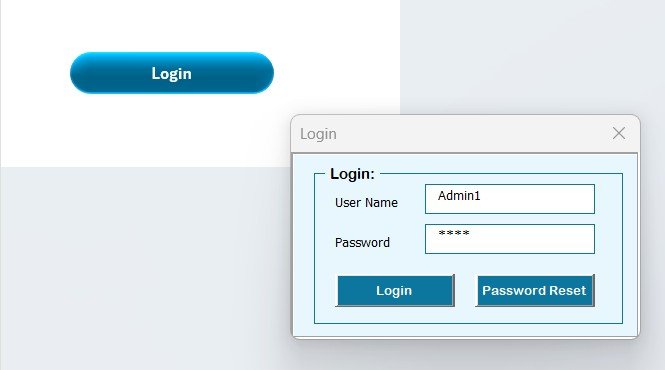
The login form is the entry point for accessing the tool. It requires the user to input their user ID and password. Once logged in, users can access the main interface and begin managing vendor invoices. The default credentials are:
-
User ID: Admin1
-
Password: abcd
Main Form
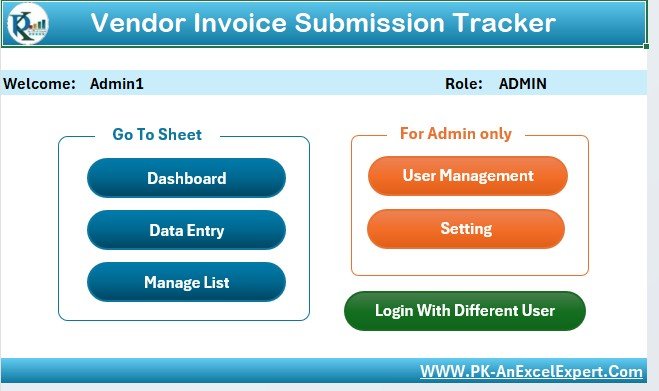
After logging in, users are directed to the main form where all functions are controlled. Here, you can perform various tasks, such as adding, updating, or deleting invoice records. The main form is designed for ease of use, with a simple and intuitive interface.
Dashboard Sheet
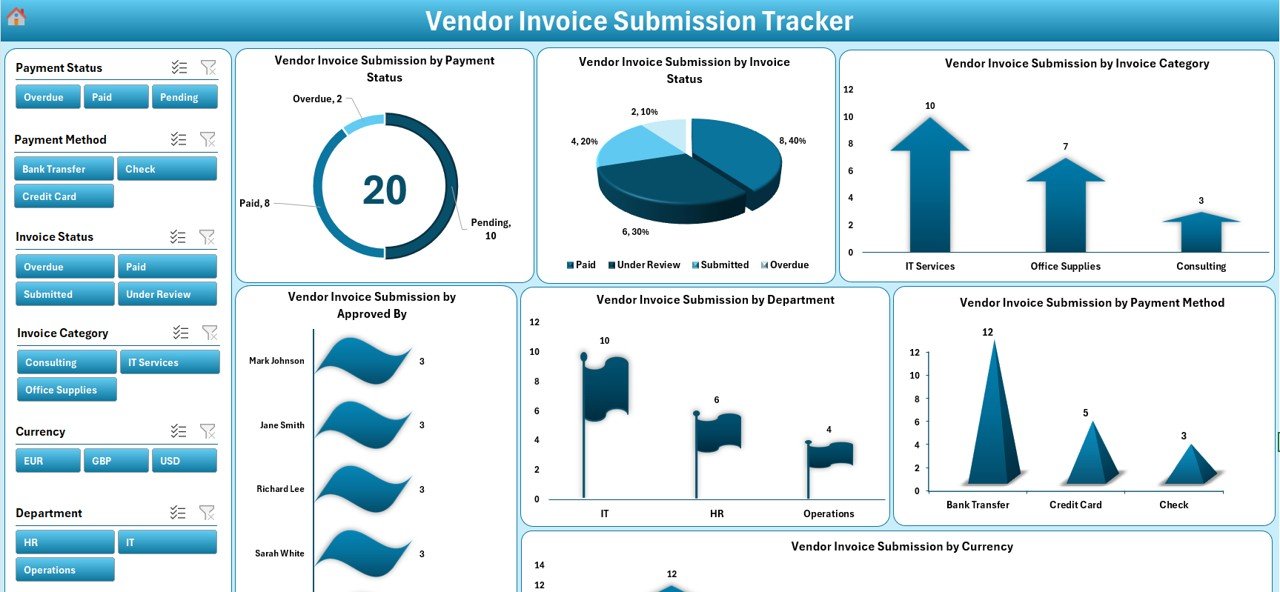
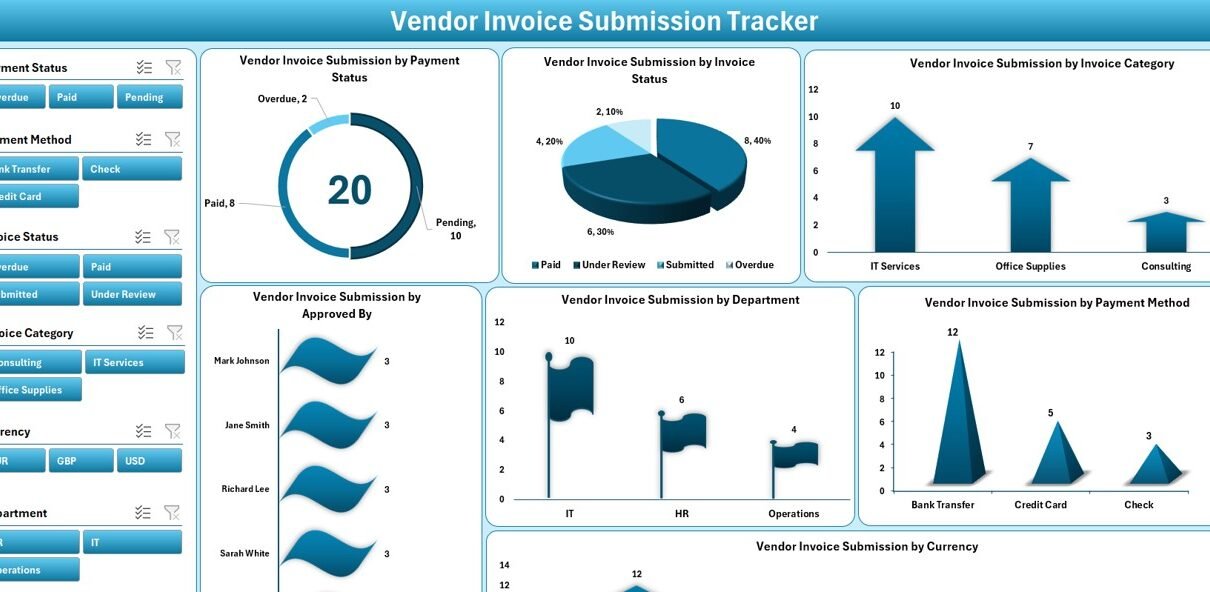
The Dashboard sheet is the heart of the tool, where key insights are visually represented. It includes seven slicers and multiple charts for quick analysis:
-
Vendor Invoice Submission by Payment Status (Doughnut chart)
-
Vendor Invoice Submission by Invoice Status (Pie chart)
-
Vendor Invoice Submission by Invoice Category (Arrow chart)
-
Vendor Invoice Submission by Approved By (Bar chart)
-
Vendor Invoice Submission by Department (Flag chart)
-
Vendor Invoice Submission by Payment Method (Column chart)
-
Vendor Invoice Submission by Currency (Column chart)
These charts provide at-a-glance insights into the invoice submission and approval processes.
Click to Purchases Vendor Invoice Submission Tracker in Excel
Data Entry Sheet Tab
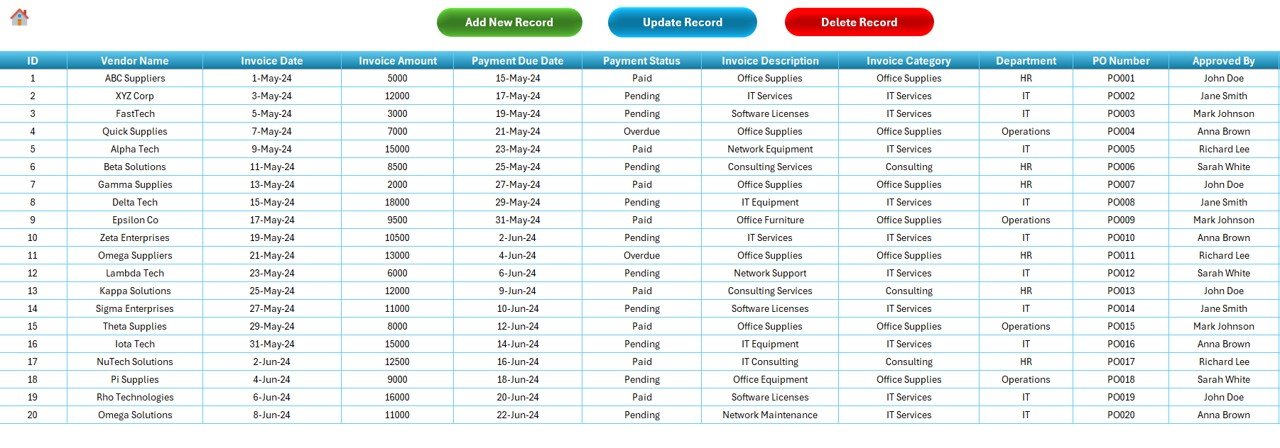
The Data Entry sheet allows users to input and manage invoice records. The sheet includes several columns to capture relevant details:
-
ID: Unique identifier for each invoice record
-
Vendor Name: Name of the vendor
-
Invoice Date: Date when the invoice was issued
-
Invoice Amount: Total amount due
-
Payment Due Date: Payment deadline
-
Payment Status: Status of payment (Pending, Paid, etc.)
-
Invoice Description: Brief description of the invoice
-
Invoice Category: Category to which the invoice belongs
-
Department: Department responsible for the payment
-
PO Number: Purchase order number associated with the invoice
-
Approved By: Name of the approver
-
Approval Date: Date when the invoice was approved
-
Payment Method: Method of payment (e.g., Bank Transfer, Credit)
-
Vendor Contact: Vendor’s contact details
-
Invoice Submission Date: Date the invoice was submitted
-
Late Fee: Any additional late fees
-
Invoice Status: Status of the invoice (Submitted, Pending, etc.)
-
Remarks: Additional notes related to the invoice
The sheet provides users with 3 important buttons at the top:
-
Add New Record: Opens the data entry form to add a new record
Update Record:
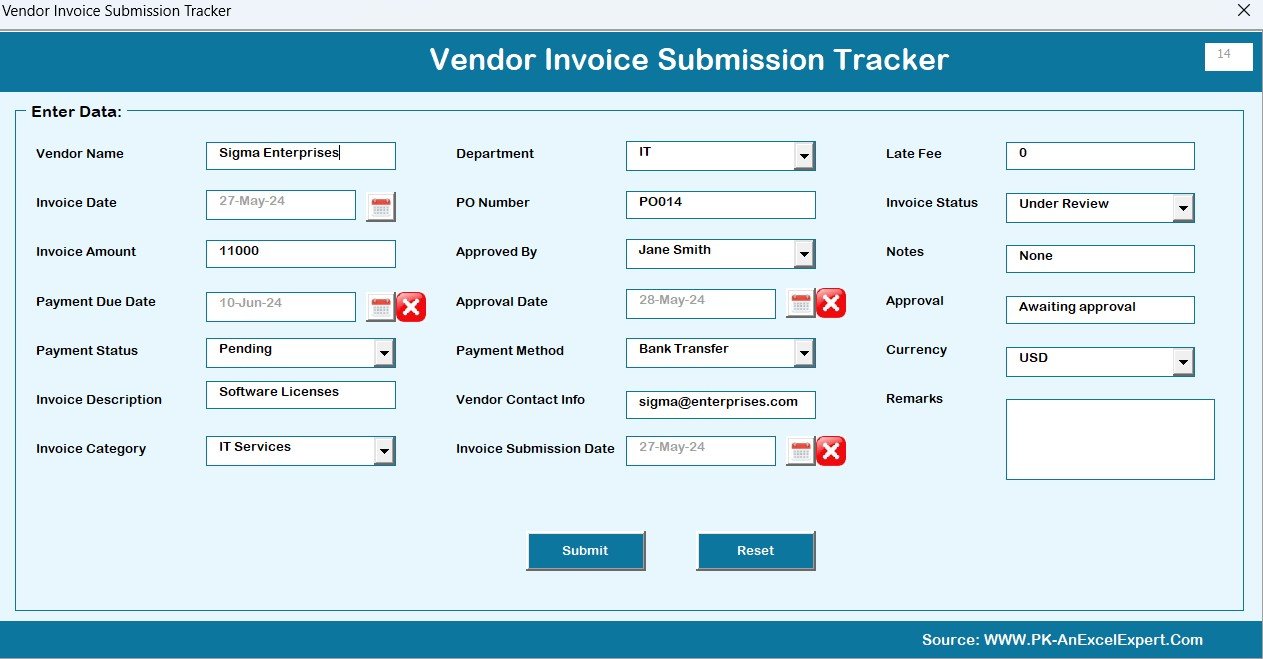
- Allows updating an existing record
-
Delete Record: Deletes a selected record after confirmation
Manage List Sheet Tab
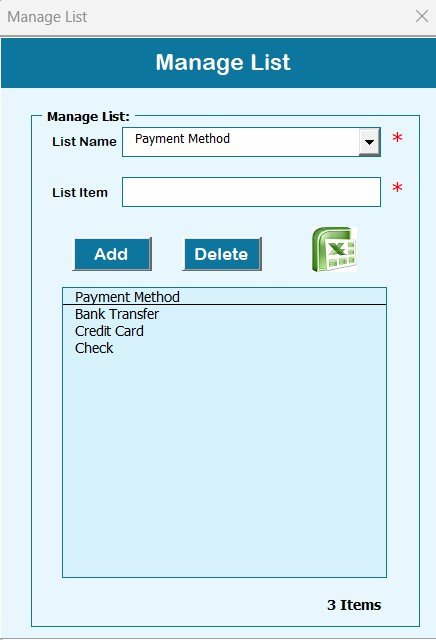
The Manage List sheet allows users to manage the lists that are used in combo boxes within the data entry form. Users can add or delete list items such as department names, invoice categories, or payment methods.
Support Sheet Tab
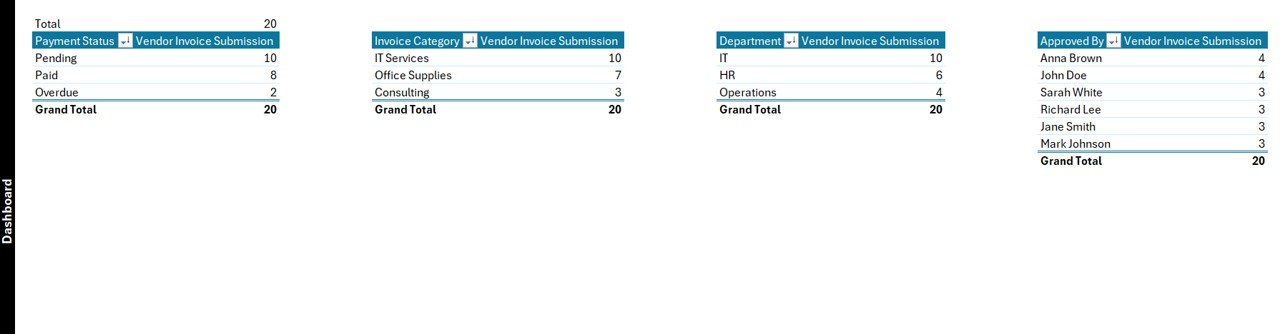
The Support Sheet tab contains pivot tables used to create charts on the Dashboard Sheet. This sheet is primarily for internal use and does not require user interaction, making it easy to hide once the tool is in use.
User Management
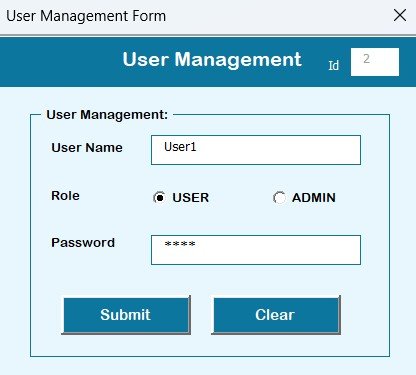
User management is an essential feature for businesses with multiple users. From the user management screen, you can:
-
Add, update, or delete users
-
Change user passwords
This functionality is particularly useful for maintaining data security and ensuring that only authorized personnel can access and update the records.
Setting Sheet
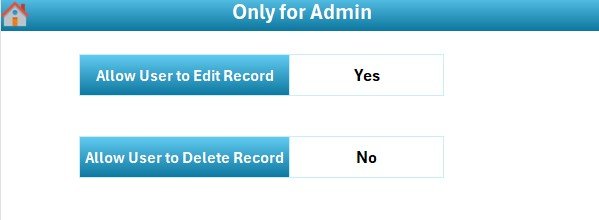
The Setting Sheet allows users to configure various parameters related to the tool, such as date formats, currency types, and other default settings.
Advantages of the Vendor Invoice Submission Tracker in Excel
The Vendor Invoice Submission Tracker in Excel offers several advantages that make it an essential tool for businesses of all sizes.
1. Streamlined Invoice Management
The tool simplifies the process of managing invoices by centralizing all data in one place. Users can easily track invoice statuses, payment deadlines, and approvals.
2. Real-Time Data and Insights
With a dynamic dashboard and charts, the tool provides real-time insights into invoice submissions, payment statuses, and department-wise performance.
3. User-Friendly Interface
The simple and intuitive interface ensures that even non-technical users can manage invoices effortlessly. The data entry form and dashboard are easy to navigate, making the process seamless.
4. Automation of Routine Tasks
The use of VBA automation reduces the need for manual intervention. Tasks such as adding, updating, and deleting records can be done quickly, saving valuable time and effort.
5. Improved Data Accuracy
The tool ensures that invoice records are consistent and accurate. By eliminating manual data entry errors, businesses can maintain reliable records.
Best Practices for Using the Vendor Invoice Submission Tracker
To make the most out of the Vendor Invoice Submission Tracker in Excel, follow these best practices:
1. Ensure Accurate Data Entry
Always double-check the details entered into the data sheet to prevent errors. Accurate data entry ensures that the dashboard reflects correct insights.
2. Regularly Update Records
Regularly update invoice records to ensure the tool reflects the latest status of each invoice. This includes updating payment statuses, approval dates, and other relevant fields.
3. Utilize the Dashboard for Quick Insights
Use the dashboard regularly to monitor invoice submissions, payment statuses, and department performance. The charts provide valuable insights to help make informed decisions.
4. Leverage User Management for Secure Access
If you have multiple users, ensure that user management is set up properly to maintain control over who can access and modify the records.
5. Backup Data Regularly
As with any critical tool, it’s essential to regularly back up your data. This ensures that you don’t lose any important information in case of system issues.
Frequently Asked Questions (FAQs)
1. What is the Vendor Invoice Submission Tracker in Excel?
The Vendor Invoice Submission Tracker is an Excel and VBA-based tool that helps businesses track and manage vendor invoices. It provides a dashboard for real-time insights and a data entry form for adding and updating invoice records.
2. How can I add a new invoice record?
To add a new invoice record, simply click the Add New Record button in the Data Entry sheet. Fill in the necessary information in the form and submit it to add the record.
3. Can I update or delete an existing invoice?
Yes, you can update or delete existing invoices. To update a record, click on the ID of the invoice and then click Update Record. To delete, select the ID and click Delete Record.
4. What should I do if I need to change the user password?
To change a user password, access the User Management screen. From here, you can update or delete users and change their passwords.
5. How does the Dashboard help with invoice tracking?
The Dashboard provides real-time insights into invoice submissions, payments, and approval statuses through various charts, helping you quickly monitor and analyze invoice data.
Conclusion
The Vendor Invoice Submission Tracker in Excel is a versatile and efficient tool for managing vendor invoices. It streamlines the process, offers real-time insights, and provides a user-friendly interface. By following best practices and regularly updating records, businesses can optimize their invoice management and improve financial accuracy.
Visit our YouTube channel to learn step-by-step video tutorials