Part of the free Module 6: Data Validation · Lesson 1 of 14 · Full Excel course
Updated on 5 September 2026 · Works in Excel 365, 2021, 2019 and 2016 unless noted.
Whole number data validation in Excel restricts a cell so that it accepts only integers that meet a condition you set, such as between 10 and 20, greater than 0 or not equal to 100. Decimals like 2.5, text and dates outside the range are rejected with an error alert. It is the simplest and most useful rule for quantities, ages, counts and scores.
What whole number validation does and when to use it
Data validation checks a value at the moment it is typed into a cell and blocks anything that fails the test. The Whole number setting applies two checks at once: the value must be an integer, and it must satisfy the comparison you choose in the Data box. A value such as 15 passes a “between 10 and 20” rule, while 15.5, 25 and “fifteen” all fail.
Use it for quantities ordered, headcount, number of children, exam marks, star ratings, invoice numbers and any field where a fraction makes no sense. Clean integers keep downstream SUM and COUNTIF formulas, PivotTables and dashboards accurate, because the column never contains “12 pcs” or “1.5” where an integer is expected. The setting behaves the same way in Excel 2016, 2019, 2021, Microsoft 365 and Excel for the web.
Step by step: allow whole numbers between 10 and 20
- Select the range that should be validated, for example the quantity column of your entry form. Select the whole column if new rows will be added later.
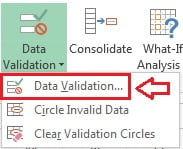
- Go to Data > Data Tools > Data Validation and click Data Validation. The keyboard shortcut is Alt, A, V, V.
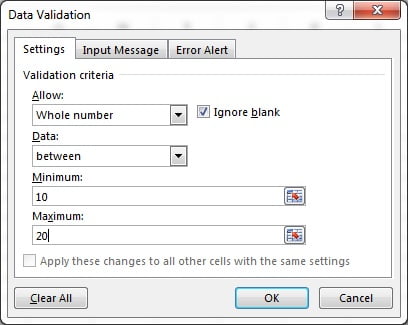
- On the Settings tab, open the Allow drop-down and choose Whole number.
- In the Data drop-down choose between. Enter 10 in Minimum and 20 in Maximum. You can also click a cell reference such as
=$H$1so the limit can be changed later without reopening the dialog. - Leave Ignore blank ticked if an empty cell is acceptable, or untick it to force an entry.
- Click OK.
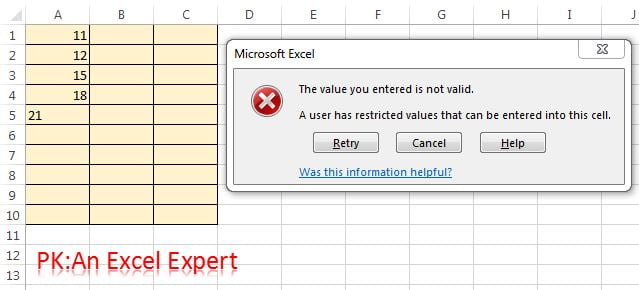
- Test the rule. Whole numbers from 10 to 20 are accepted. Any other whole number, or any text, triggers the default message “This value doesn’t match the data validation restrictions defined for this cell”.
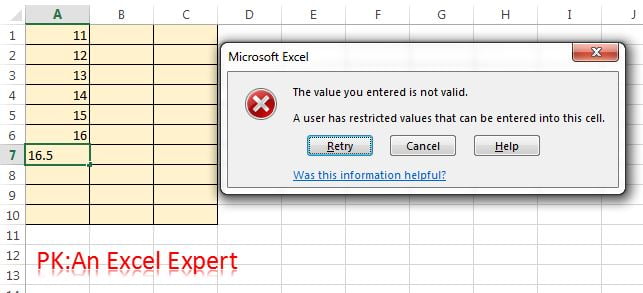
- Decimal values are rejected too, even when they fall inside the range, because the Whole number rule requires an integer. Enter 15.5 and the same error appears.
To replace the generic message with your own wording, open the Error Alert tab of the same dialog. That tab is covered in the error alert lesson linked below.
The eight comparison operators in the Data drop-down
The Data box controls which integers pass. Every operator except the first two shows a single Value box; between and not between show Minimum and Maximum. Both limits are inclusive.
| Operator | Boxes shown | Example setting | Accepted | Rejected |
|---|---|---|---|---|
| between | Minimum, Maximum | 10 and 20 | 10, 15, 20 | 9, 21, 15.5 |
| not between | Minimum, Maximum | 10 and 20 | 5, 25, 100 | 10, 15, 20 |
| equal to | Value | 100 | 100 | 99, 101 |
| not equal to | Value | 0 | 1, -5, 250 | 0 |
| greater than | Minimum | 0 | 1, 2, 999 | 0, -1 |
| less than | Maximum | 1000 | 999, 0, -50 | 1000, 1001 |
| greater than or equal to | Minimum | 18 | 18, 19, 65 | 17, 17.9 |
| less than or equal to | Maximum | 5 | 5, 4, 0 | 6, 5.5 |
The most common real-world choices are greater than or equal to 0 for quantities and between for ages, marks and ratings.
Worked example: order quantity column
A small order form has three columns. Quantity must be a whole number from 1 to 500 because the warehouse ships full cartons only.
| Product | Quantity (B) | Result |
|---|---|---|
| Printer paper | 25 | Accepted |
| Toner | 2.5 | Rejected: not an integer |
| Staplers | 0 | Rejected: below minimum |
| Envelopes | 750 | Rejected: above maximum |
| Pens | ten | Rejected: text |
Set it up like this: select B2:B200, open Data > Data Validation, set Allow to Whole number, Data to between, Minimum 1 and Maximum 500, then click OK. Only the first row in the table passes. If the carton limit changes, store 500 in cell H1 and type =$H$1 in Maximum so the rule updates automatically.
Tips and common mistakes
- Validation checks new entries only. Values that already exist stay in place. Use Data Validation > Circle Invalid Data to highlight them.
- Pasting overwrites the rule. Ctrl+V replaces the validation with whatever the copied cell had. Use Paste Special > Values or protect the sheet.
- Negative integers pass by default. Whole number does not mean positive. Use greater than or equal to 0 when only positives are valid.
- Use cell references for limits. Point Minimum and Maximum at cells such as
=$H$1so a manager can change the limits without opening the dialog. - Untick Ignore blank when the field is mandatory. With it ticked, a user can delete the value and leave the cell empty without any warning.
- Formulas bypass validation. A formula that returns 15.5 into a validated cell is not blocked; the rule only tests typed values.
- Apply to whole columns with care. Validating a million cells works, but it slows file size slightly; a range like B2:B5000 is usually enough.
Errors and how to fix them
| Symptom | Cause | Fix |
|---|---|---|
| A valid-looking number such as 15 is rejected | The cell contains text: a leading apostrophe, a space or a number pasted from the web | Retype the value, or convert with =VALUE(TRIM(A2)) in a helper column |
| Decimal is rejected even though it is inside the range | Whole number requires an integer | Switch Allow to Decimal if fractions are genuinely valid |
| Rule accepts everything | Error alert is set to Warning or Information, or the alert is switched off | On the Error Alert tab tick Show error alert and choose Stop |
| “The Minimum must be less than or equal to the Maximum” when clicking OK | Limits entered the wrong way round | Swap the two values |
| Rule vanished from some cells | Cells were pasted over or filled from an unvalidated cell | Reapply the rule, or protect the sheet to stop pasting |
| Existing bad data is not flagged | Validation only runs on entry | Use Circle Invalid Data to find and correct old values |
Practice exercise
- In a blank sheet, type the headings Name, Age and Rating in A1:C1. Apply whole number validation to B2:B50 that allows ages between 18 and 65 only.
- Apply whole number validation to C2:C50 that allows ratings from 1 to 5. Test 0, 3, 5.5 and 6.
- Put the maximum age in cell F1 and change the rule in column B to use
=$F$1as the Maximum. Change F1 to 70 and confirm 68 is now accepted. - Untick Ignore blank on column C, then delete a rating and note whether Excel warns you.
- Type a few invalid values in column B before applying the rule, then use Circle Invalid Data to find them.
Key takeaways
- Whole number validation rejects anything that is not an integer, plus any integer that fails your comparison.
- Eight operators are available; between and not between take two limits, the rest take one.
- Both limits of between are inclusive, and negative integers pass unless you set a minimum of 0.
- Referencing limit cells such as
=$H$1makes the rule easy to maintain. - Validation runs on typed entries only; formulas, pasting and existing data are not checked.
Related lessons
- Data Validation course hub
- Decimal data validation
- Error alert: Stop, Warning and Information
- Circle invalid data
- COUNTIF function for counting the validated integers
- Conditional Formatting course to highlight values that break a rule
- Microsoft Support: Apply data validation to cells
Frequently asked questions
Can whole number validation accept negative numbers?
Yes. The rule only checks that the value is an integer that satisfies your comparison. A “between -10 and 10” rule accepts -5, and a “greater than -100” rule accepts every integer above -100. To block negatives, choose greater than or equal to and enter 0 as the minimum, or use greater than 0 if zero should also be rejected.
Why does a number that looks valid get rejected?
The cell almost certainly holds text rather than a number. Common causes are a leading apostrophe, a trailing space, a non-breaking space copied from a web page, or a hidden decimal such as 15.0001 displayed as 15. Retype the value, or convert it with VALUE and TRIM in a helper column, then paste as values.
What is the difference between Whole number and Decimal validation?
Whole number accepts integers only, so 15 passes and 15.5 fails. Decimal accepts any numeric value, integer or fraction, inside the same eight comparisons. Both reject text. Choose Whole number for counts and quantities, and Decimal for prices, weights, percentages and measurements where fractions are normal.
How do I remove whole number validation?
Select the cells, open Data > Data Validation, click Clear All and then OK. To find every validated cell on a sheet first, press F5, click Special, choose Data validation and click OK; Excel selects them all so you can clear the rules in one go.
Does whole number validation stop formulas or pasted values?
No. Data validation tests only values typed or edited directly in the cell. A formula that returns 2.5 is not blocked, and pasting a cell with Ctrl+V replaces the rule entirely. To guard against pasting, protect the worksheet or teach users to use Paste Special > Values.
Video lessons: watch the free Excel tutorials on PK: An Excel Expert on YouTube.
Want the finished version? Ready-made Excel dashboards, trackers and VBA systems are available at NextGenTemplates.com.